Employee Clock In and Out

In this guide we will cover how to clock in and out of a shift as an Employee

SINC Support Team
SINC Support Team
May 26th, 2023

This section shows how to clock in and out of a shift as an Employee. However, if an admin adds a time off period for an employee, they will not be allowed to clock in during their time off period.

Tap on Clock In
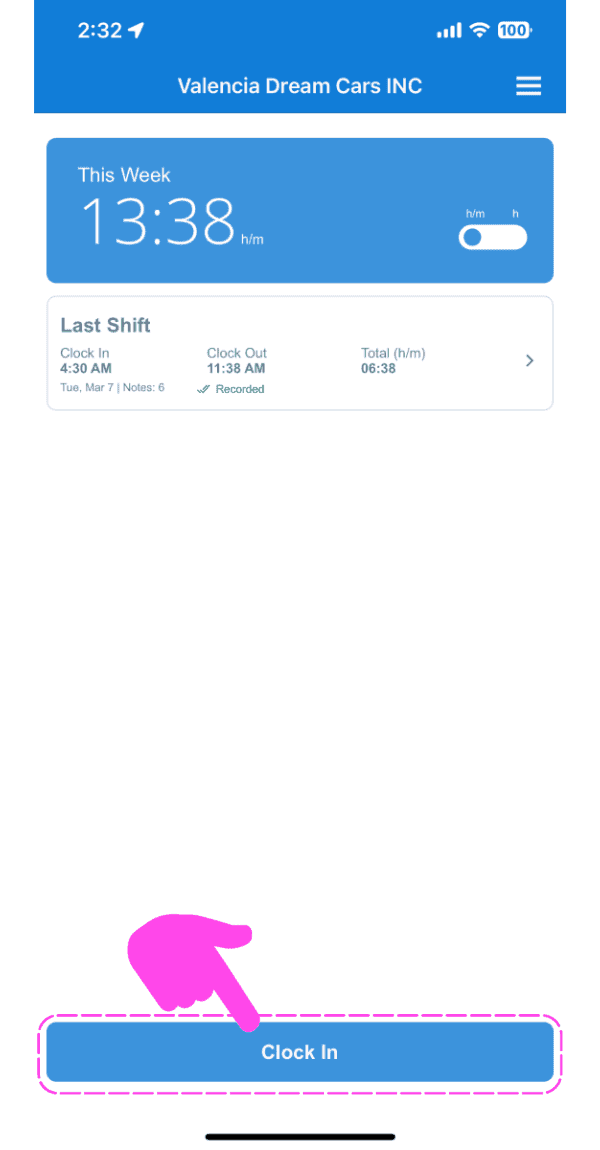
SINC mobile This Week summary screen with a pink arrow pointing to the Clock In button

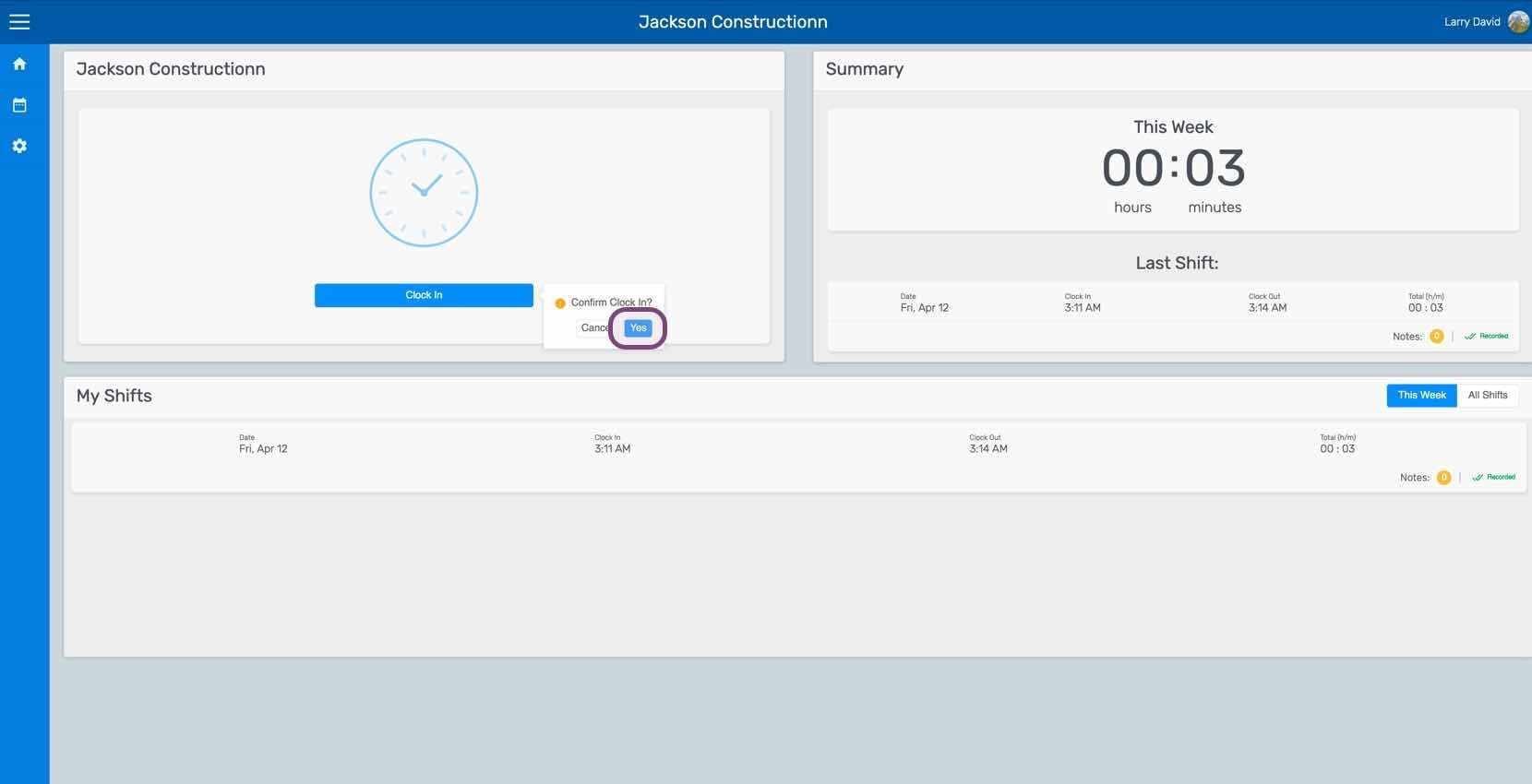
Tap on Swipe Right To Clock In (Web Version: Click On Yes)
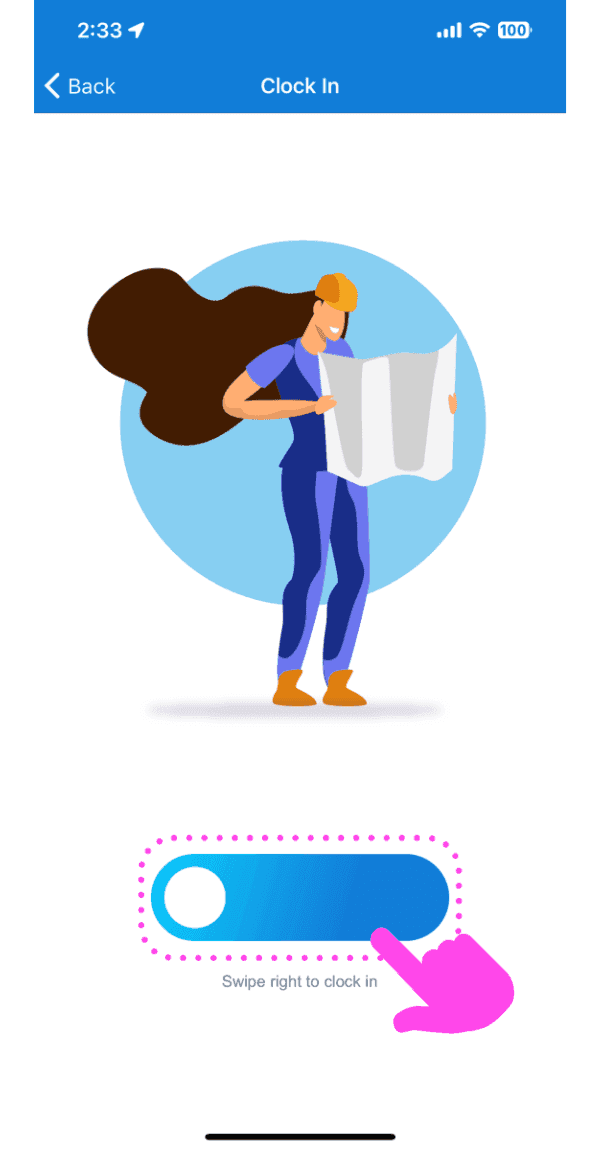
Clock In screen with a worker illustration and a pink arrow pointing to the swipe-right-to-clock-in slider

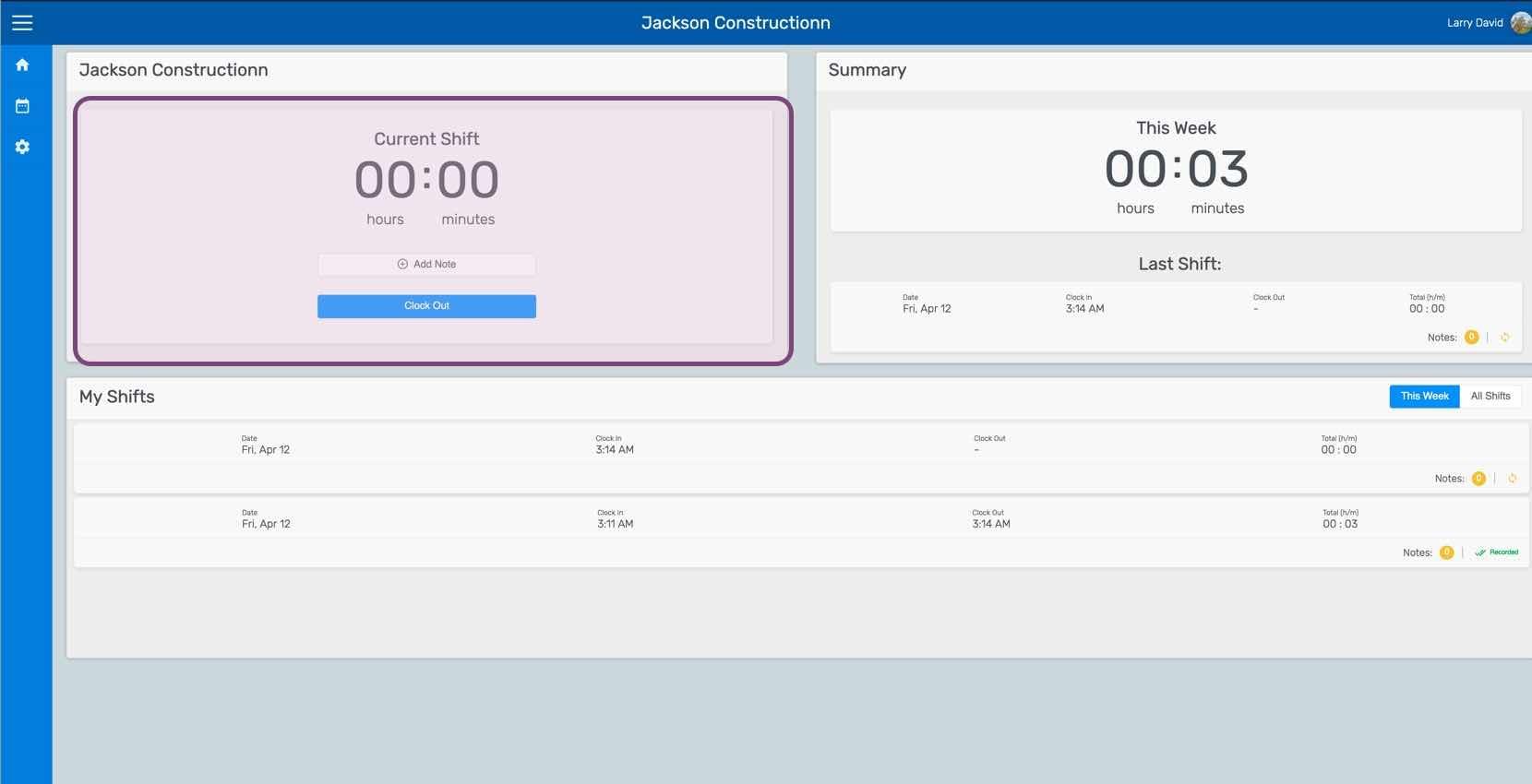
This screen shows that you are now clocked into a shift. You can add shift notes from here.
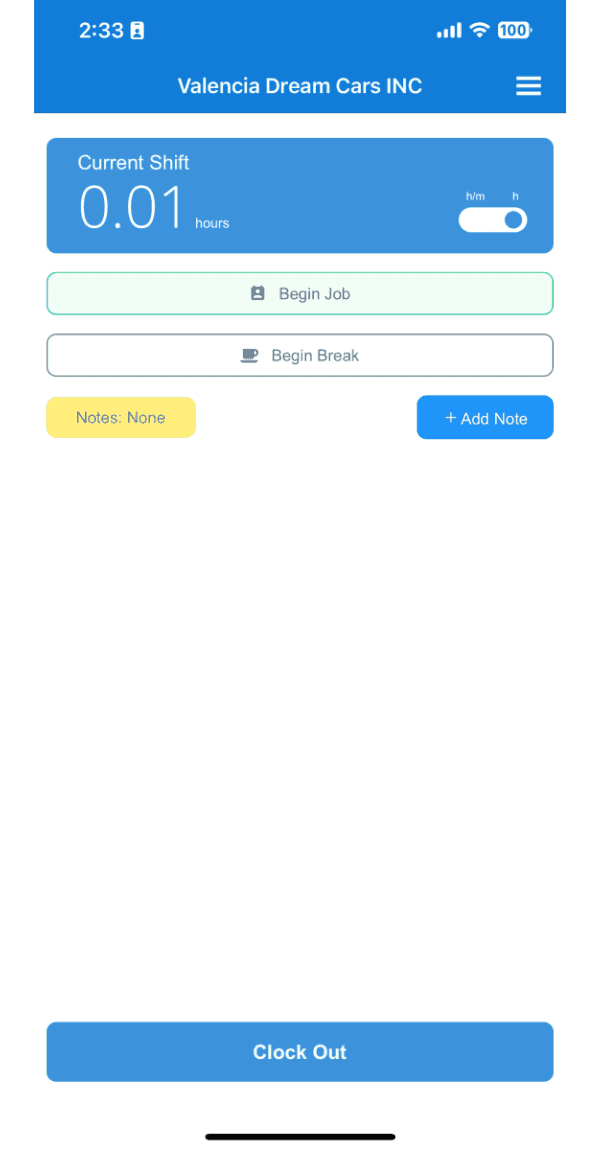
SINC mobile Current Shift screen showing 0.01 hours clocked, with Begin Job, Begin Break, and Clock Out options

If you are using the web version, it will look like this:
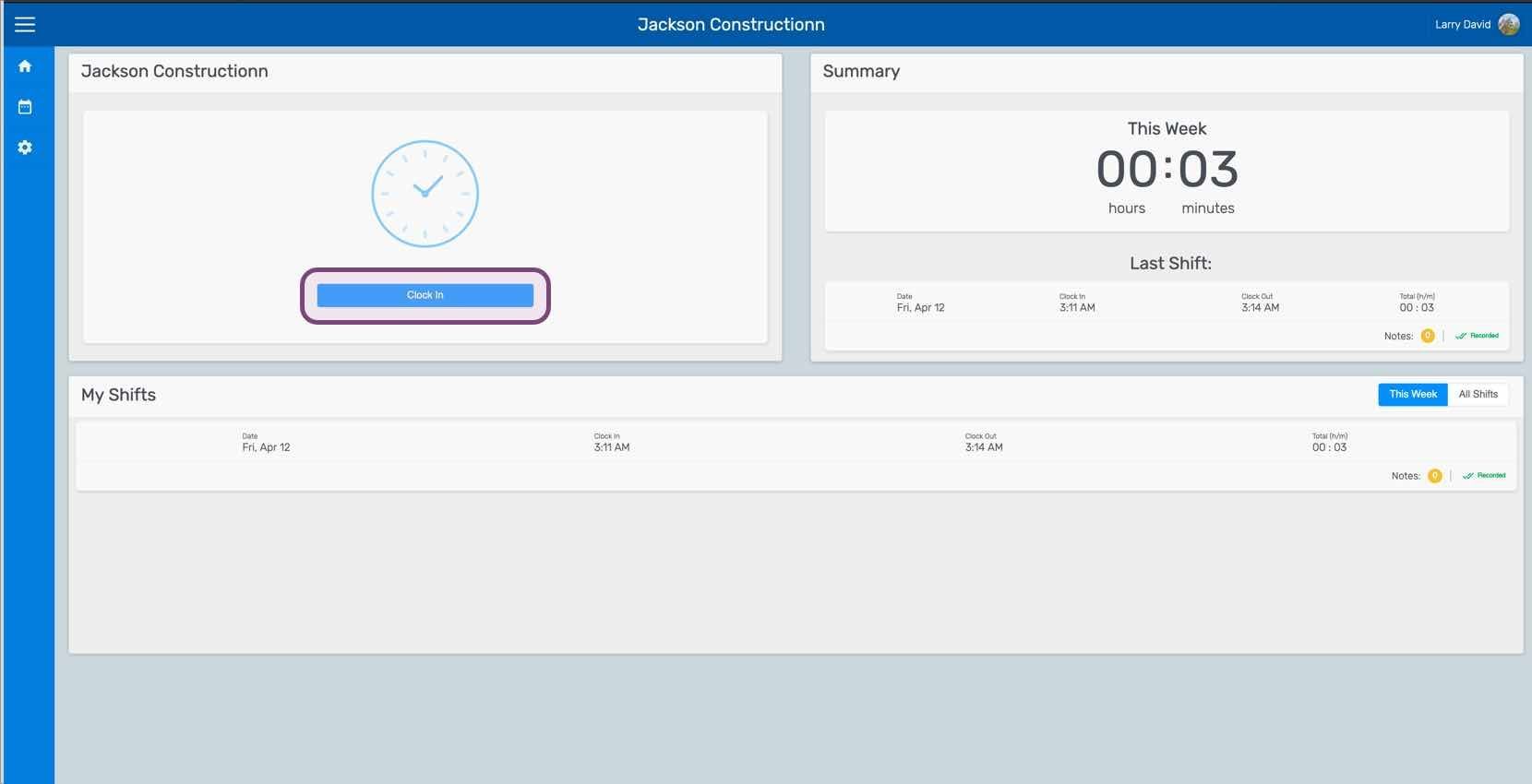
Web employee dashboard showing the Clock In button outlined in pink along with weekly summary and shift list
SINC web employee dashboard with a Confirm Clock In popup and its confirm icon circled next to the Clock In button
Web dashboard showing a clocked-out shift panel with the Clock Out button highlighted

Did this answer your question?