How to Edit My Profile Picture

This guide covers how to edit or upload your profile picture as an Employee

SINC Support Team
SINC Support Team
Mar 14th, 2023

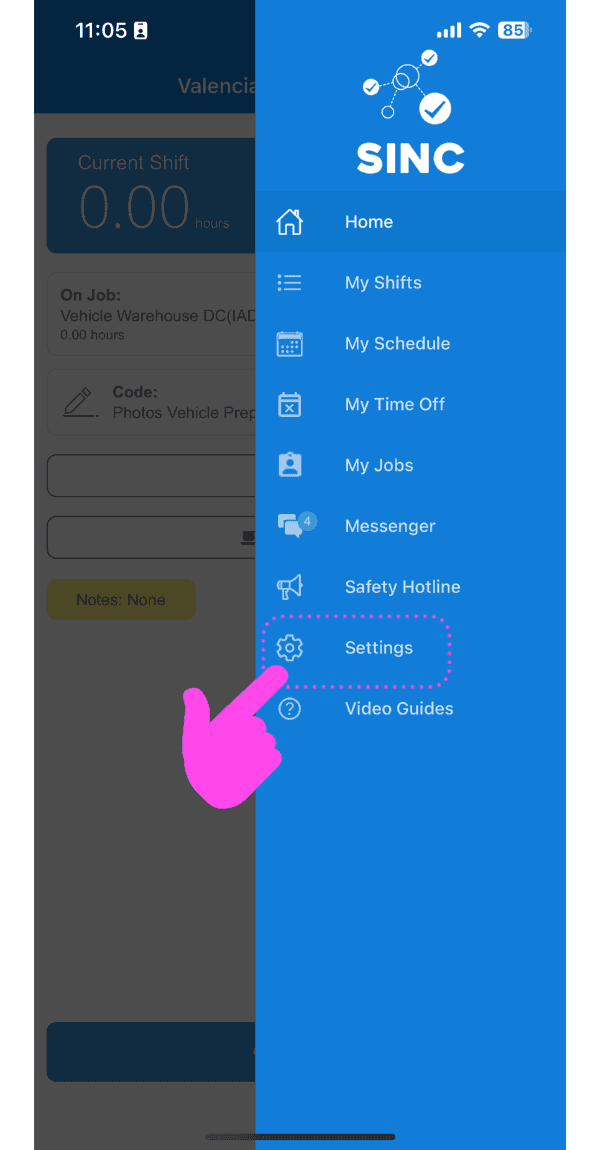
On Mobile: Tap on Menu Settings

SINC mobile app side menu with a pink hand pointing to the Settings menu item

Under the Profile Info tab, tap on the camera icon on the top-right.
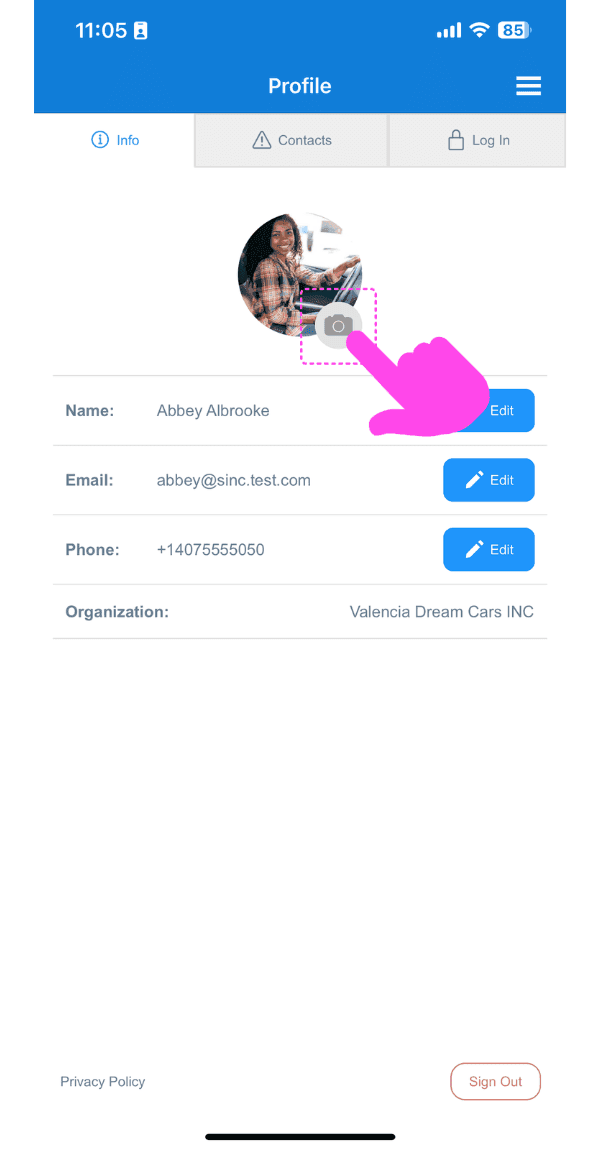
Profile Info screen with the camera icon on the profile photo highlighted by a pink arrow

Tap on Upload Photo

Profile Picture screen showing an uploaded photo with edit and delete icons highlighted by a pink arrow

Tap on Grant permission and allow SINC to access your photos if asked. Then select the image to be uploaded.
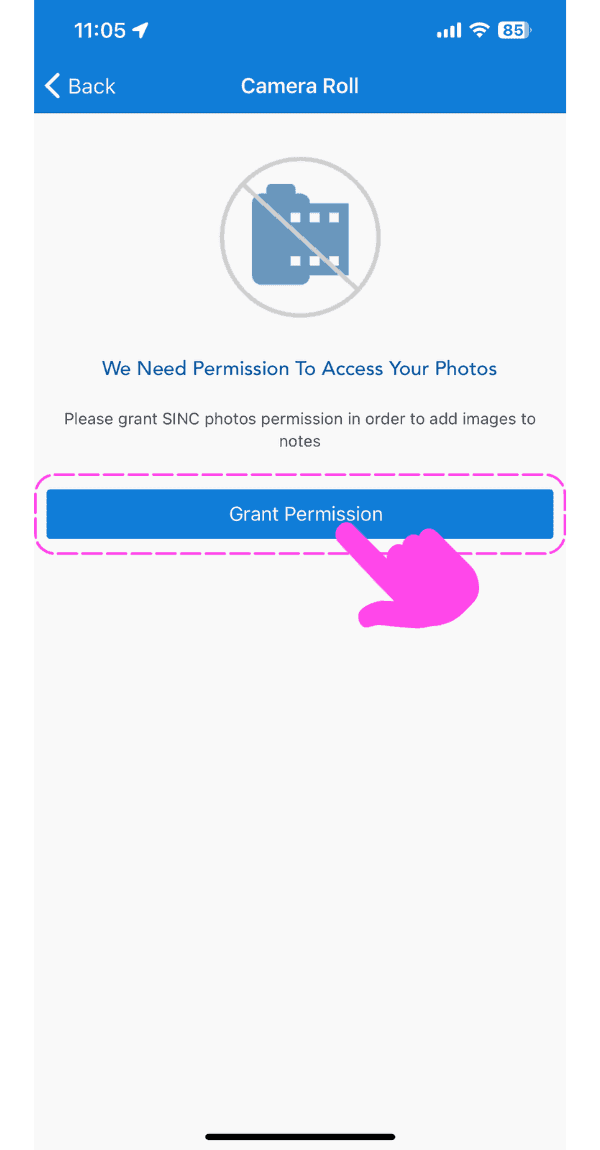
SINC mobile photo access permission screen with a pink hand pointing to the Grant Permission button

To go back to your profiles tab: Tap on left arrow on the top-left.

Profile Picture screen showing an uploaded photo with the Back button highlighted by a pink arrow

To edit the uploaded picture: Click on the camera icon.
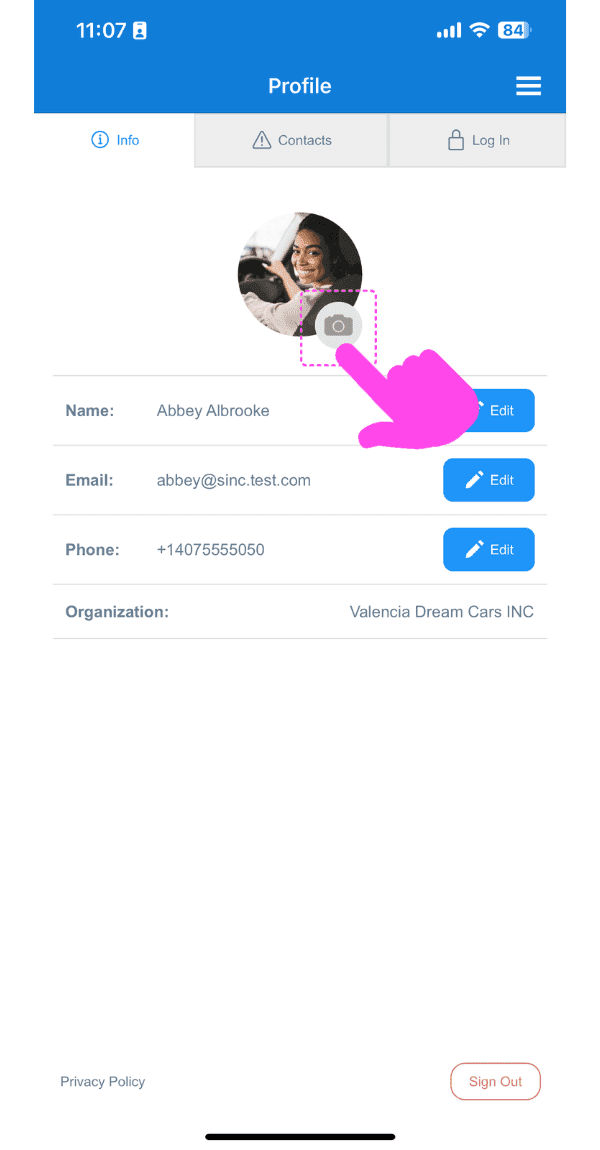
SINC mobile Profile screen with a pink arrow pointing to the camera icon on the profile photo

To change your uploaded photo: Tap on Change Photo

Profile Picture screen with a pink arrow pointing to the edit icon on the profile photo, next to the delete icon

To delete your uploaded photo: Tap on Delete Photo

SINC mobile Profile Picture screen with a pink arrow pointing to the delete photo icon on the avatar

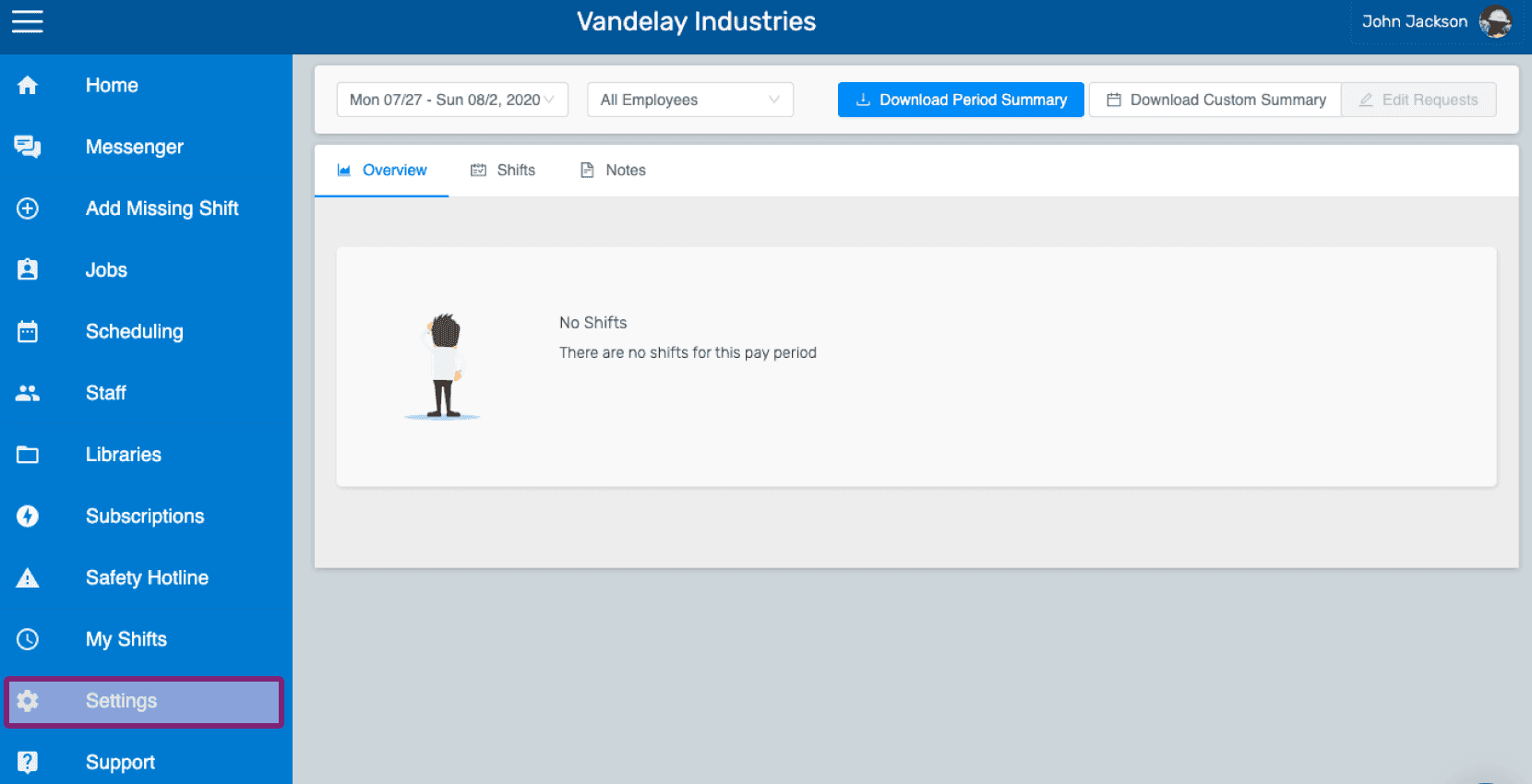
On Web: Navigate to Menu Settings

Web employee dashboard with the Settings icon highlighted in the left side menu

Under profile tab, Click on the camera icon.
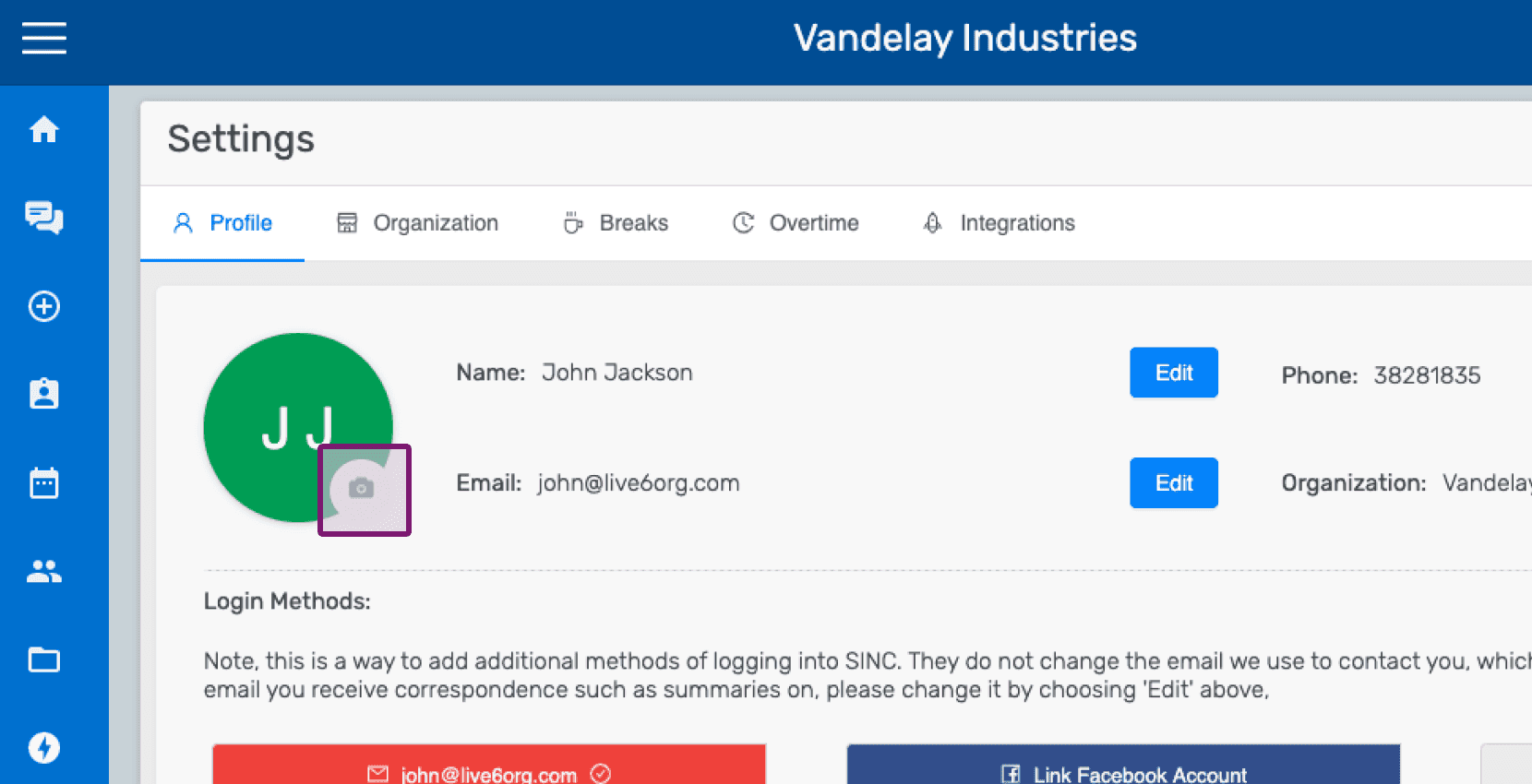
SINC web Settings Profile tab with the camera icon circled on the profile picture

Click on Choose Photo and select the photo to be uploaded.
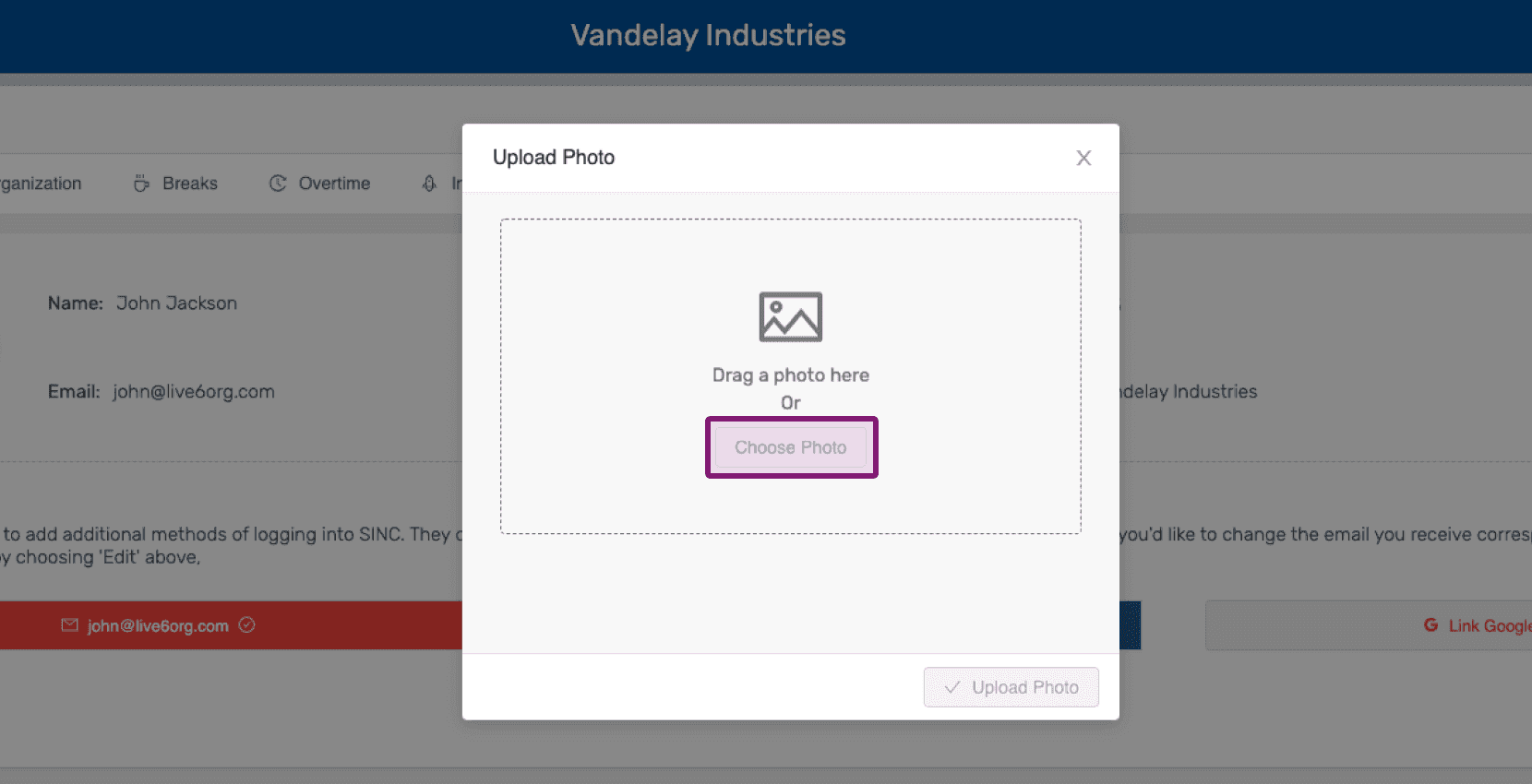
Upload Photo popup with the Choose Photo button highlighted

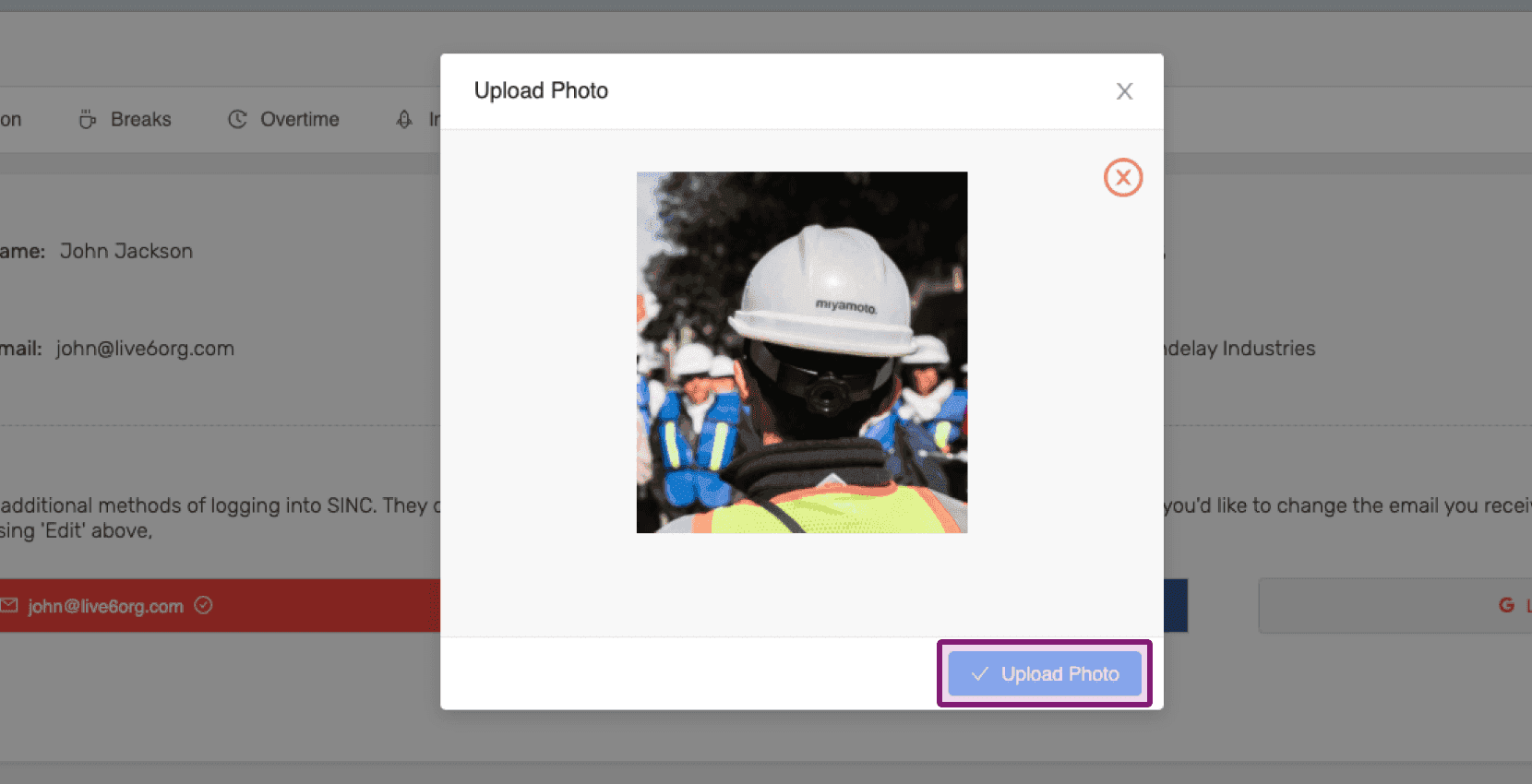
Click on Upload Photo

Web Upload Photo popup showing a preview image with the Upload Photo button outlined in purple

To edit the uploaded picture: Click on the camera icon.
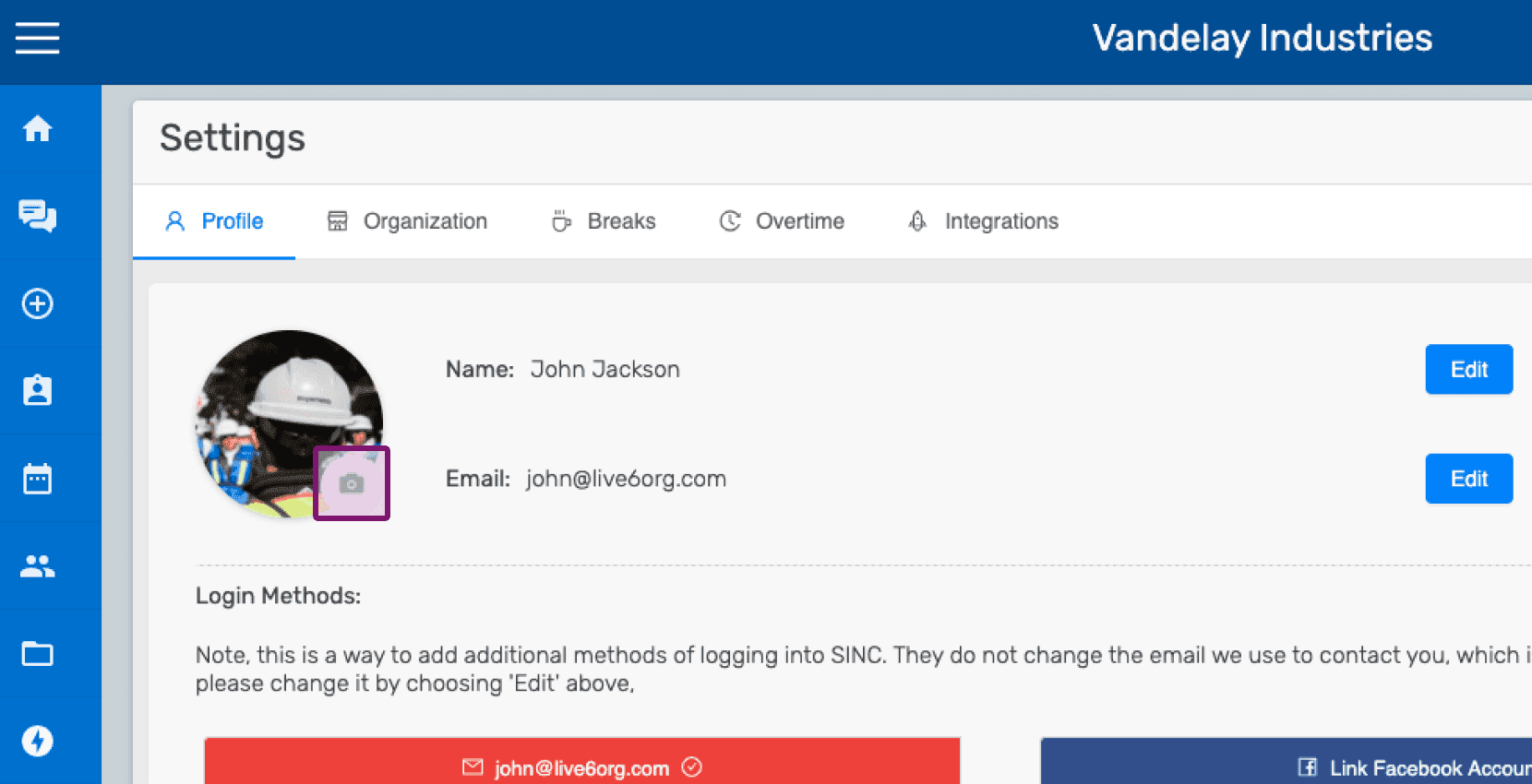
SINC web Settings Profile screen with the camera icon outlined for uploading a profile picture

To change your uploaded picture: Click on the change icon on the bottom right of the profile picture.
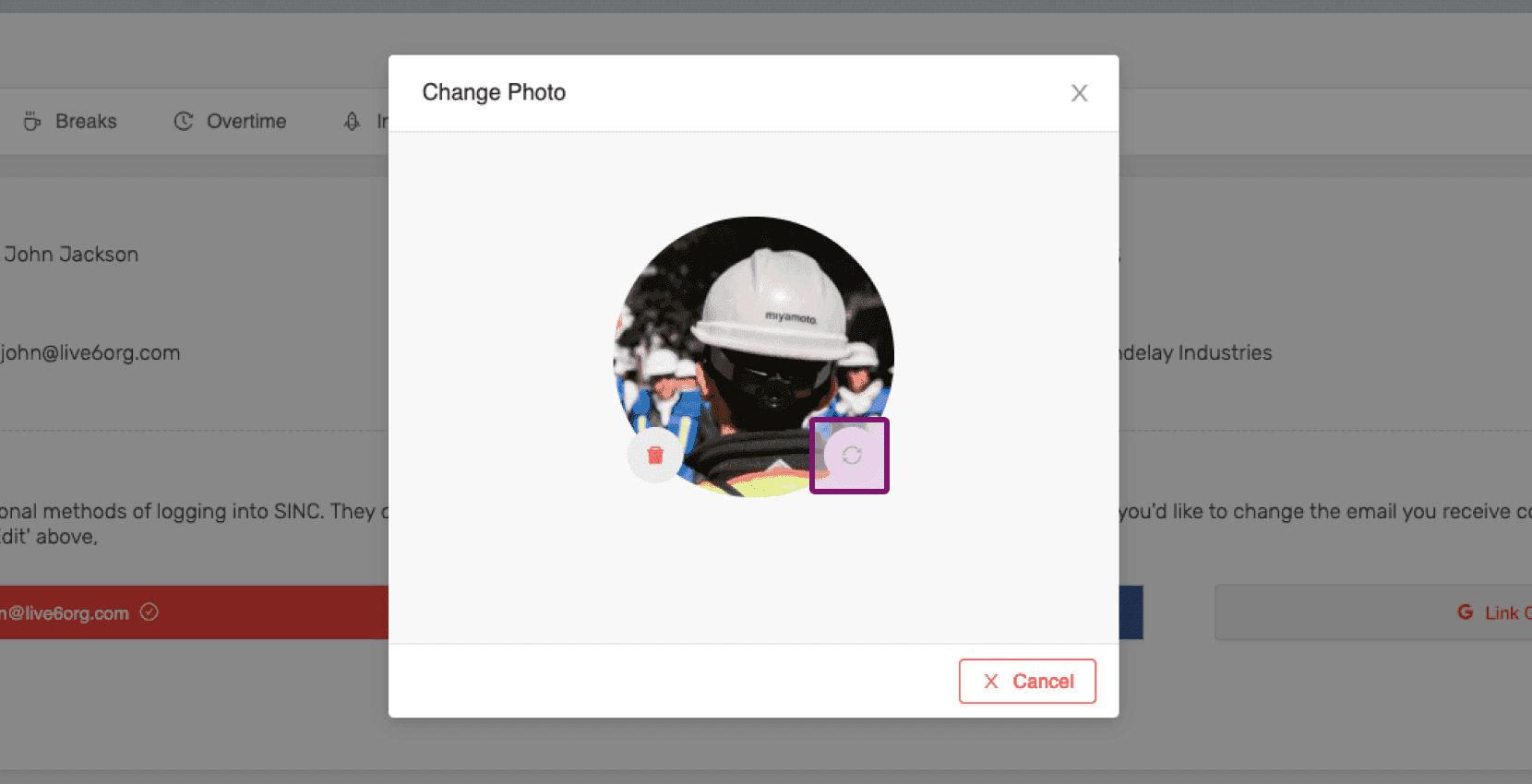
SINC web Change Photo dialog with the picture change icon on the profile photo circled in purple

To delete your uploaded picture: Click on the delete icon on the bottom left of the profile picture.
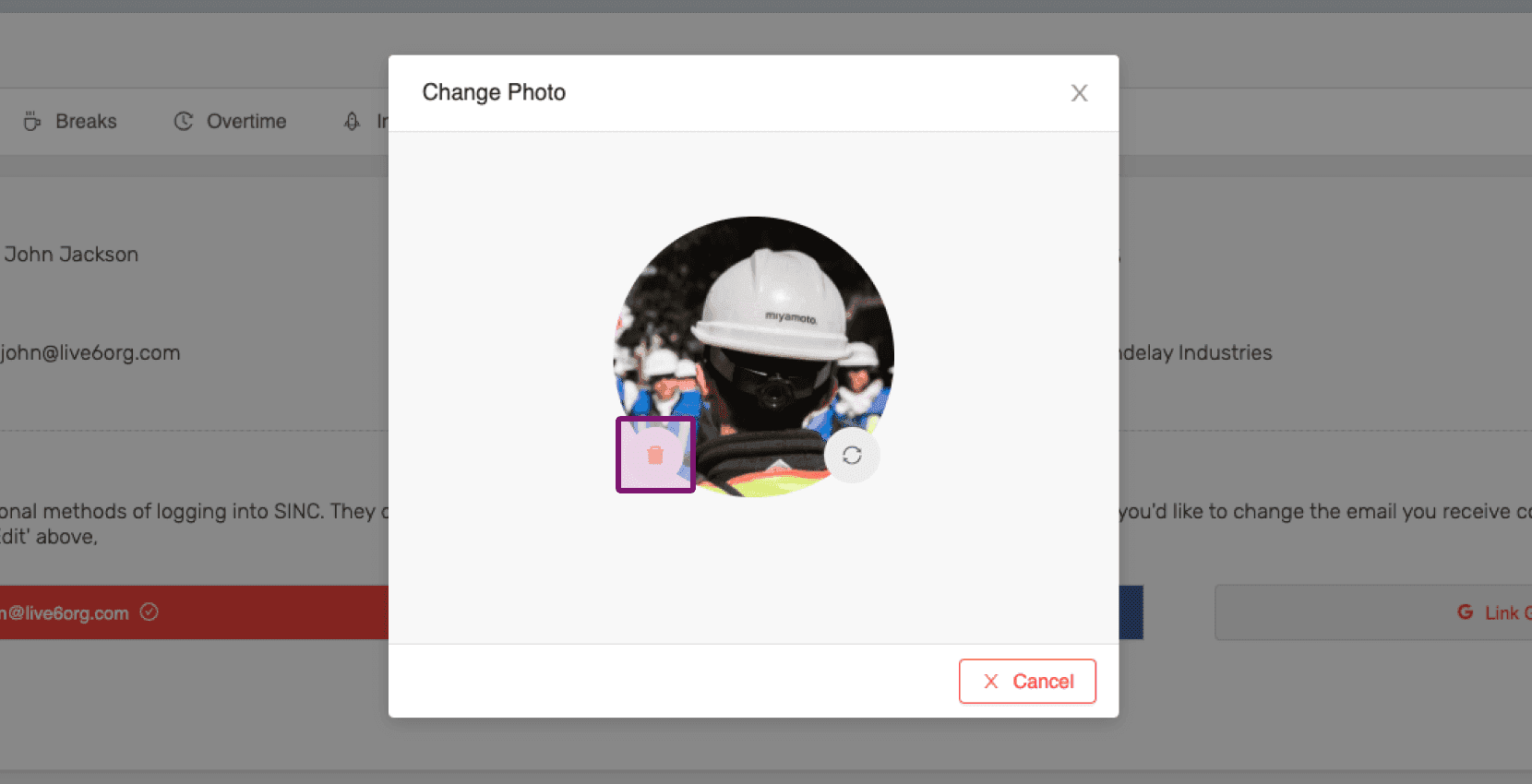
Change Photo dialog with the delete icon on the profile picture outlined in pink

Did this answer your question?