
How To Join An Organization
In this tutorial we show you how to join your organization by either accepting the invite or through QR Code

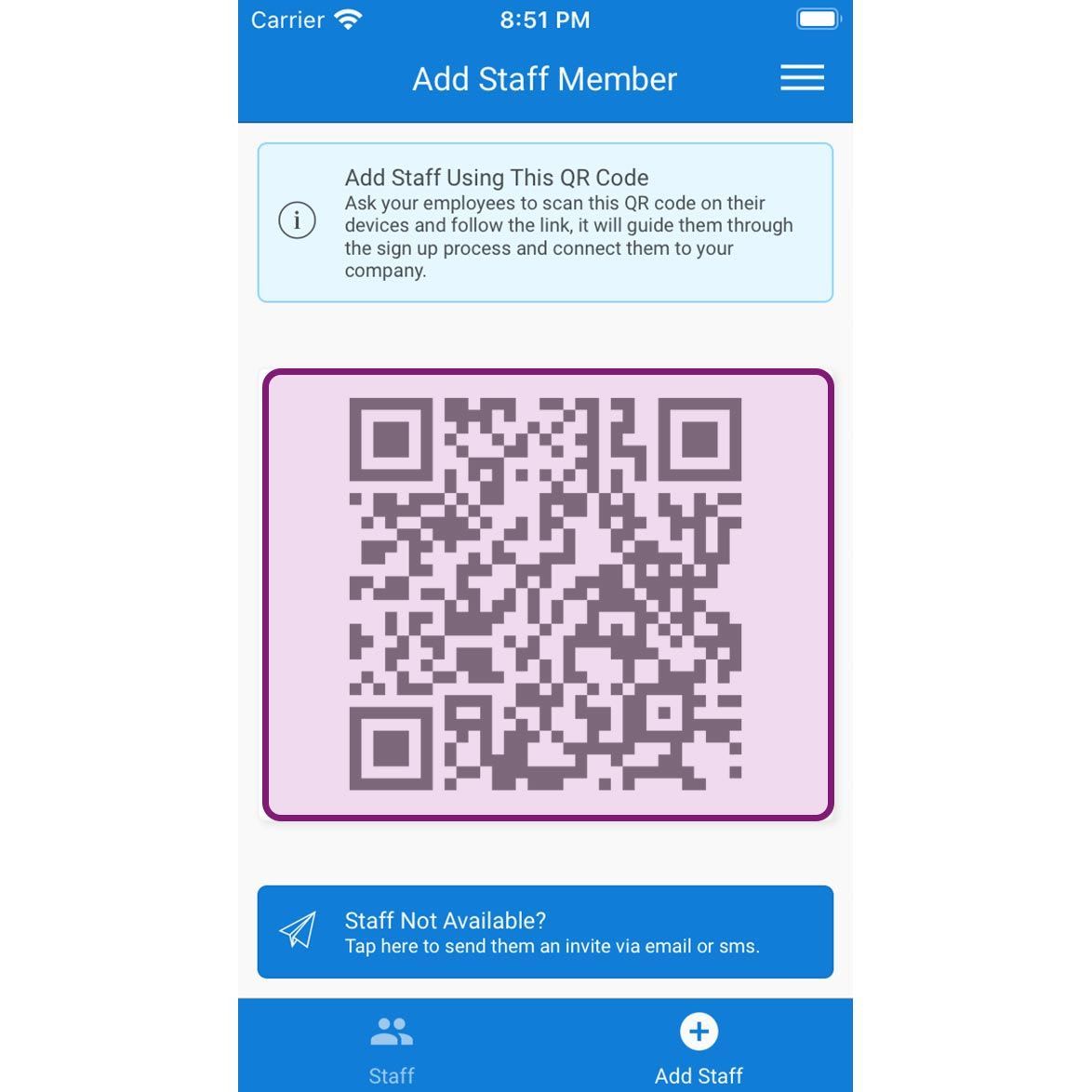
The steps for joining an organization via QR Code, Email and SMS are almost the same. If the admin has asked you to join via QR Code, you must have access to the QR Code either on your admin's device or as a screenshot. In case the admin has sent you an invite, you will receive it via email or SMS. Mobile App, Step 1, Via QR Code Invite: Scan the QR Code and open the link that shows up.
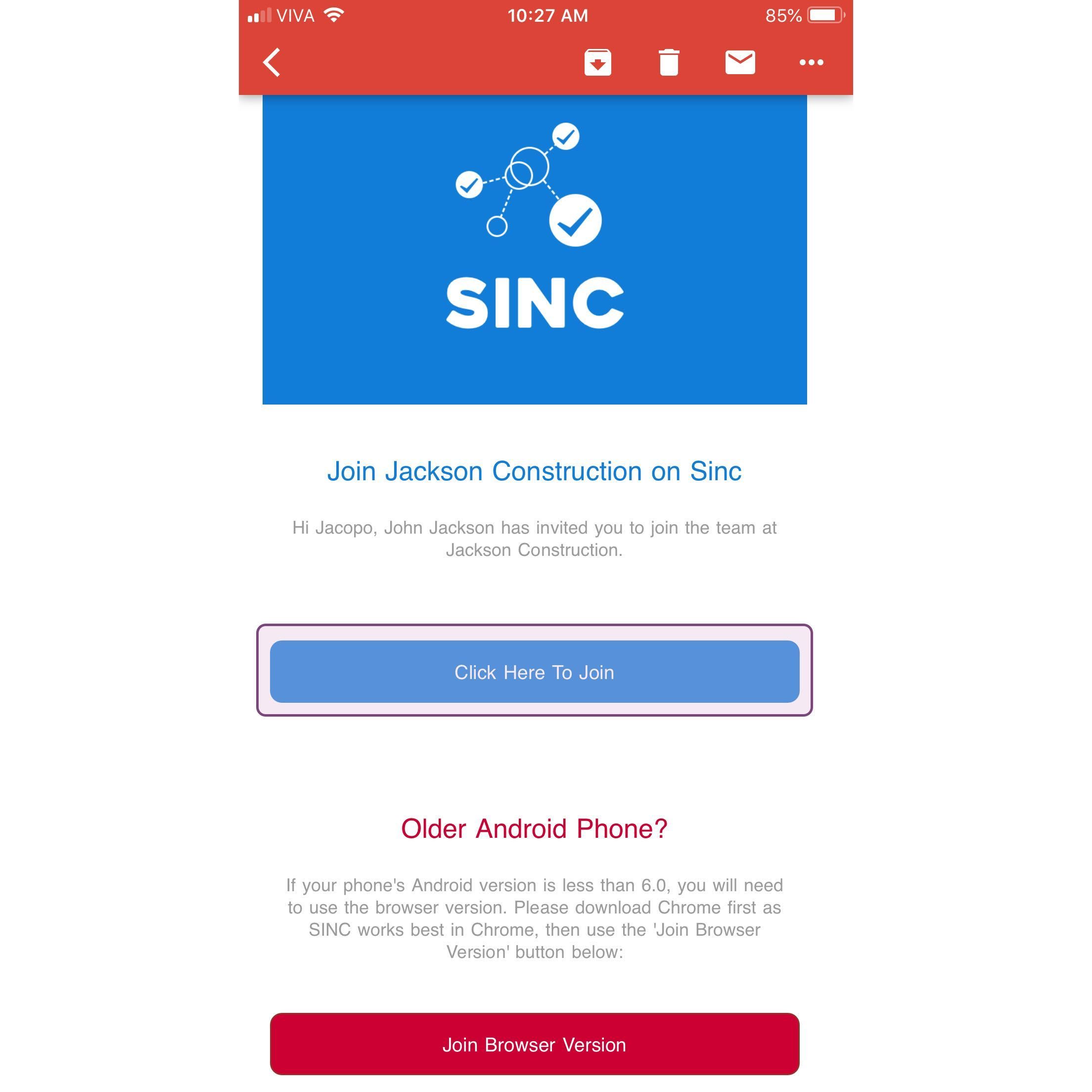
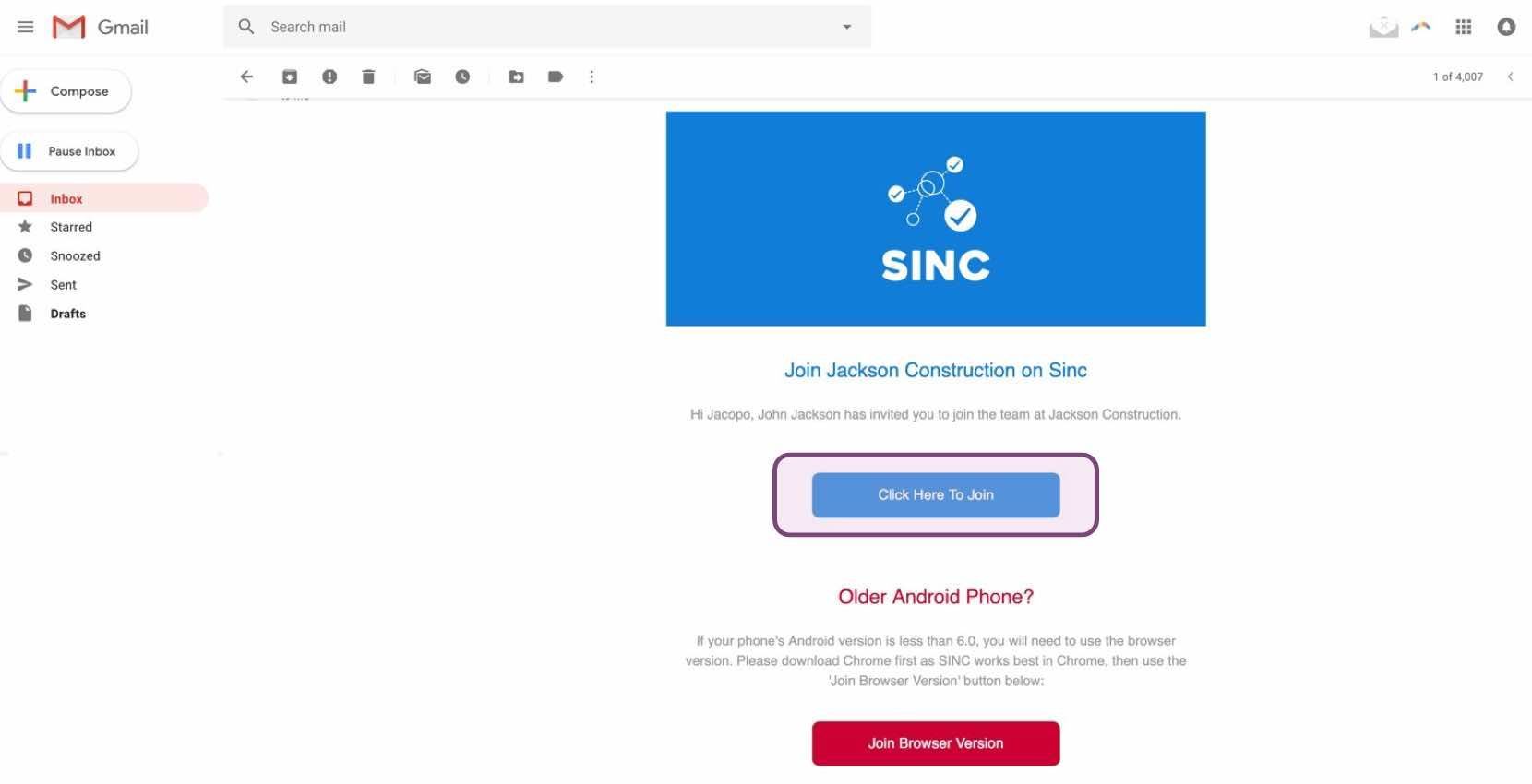
Via Email Invite: Open the invite mail and Tap on Click Here To Join (if you have an older Android device and the Play Store tells you your device is not compatible, follow the incompatible device guide).
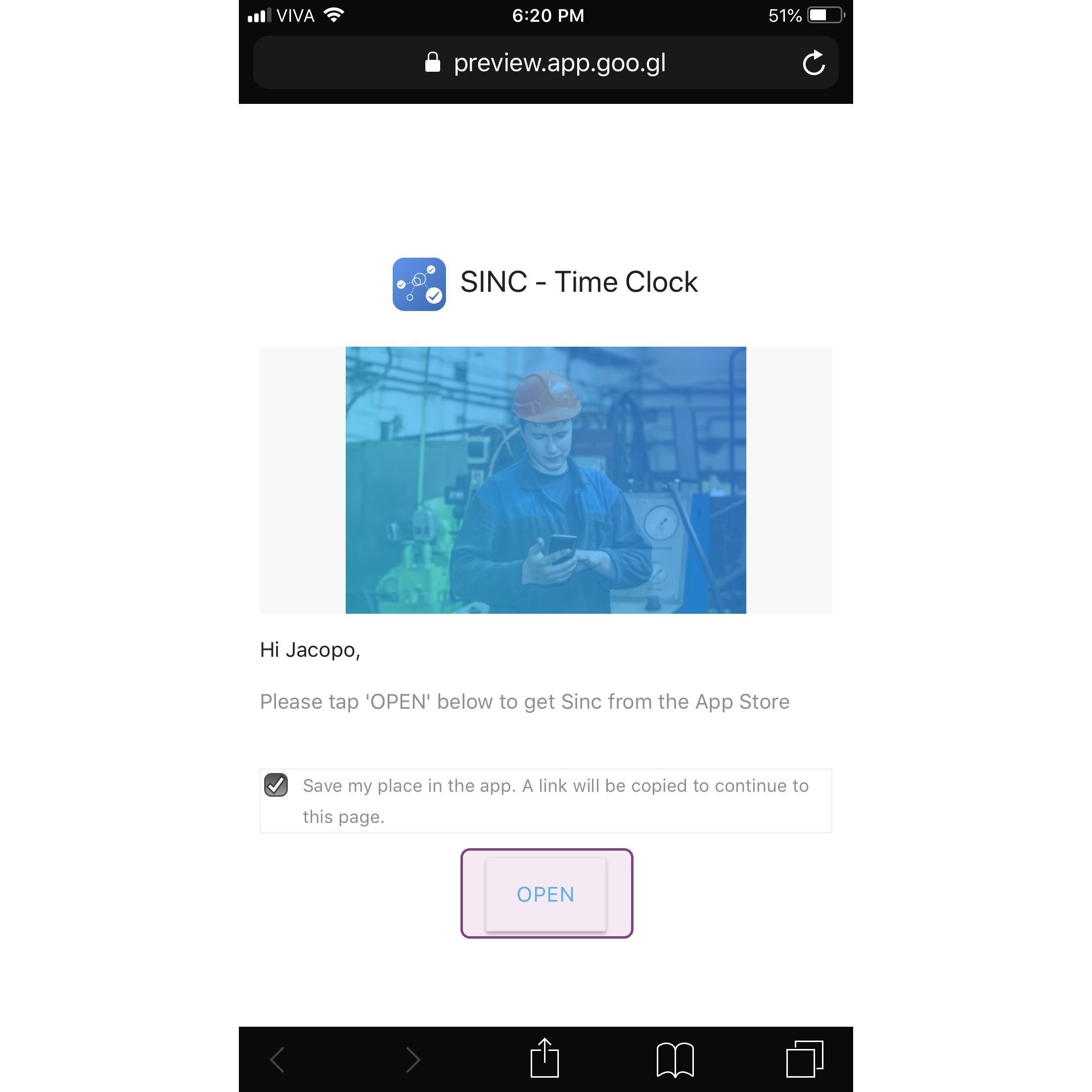
In either case, if you are using an iPhone you will be asked to open the link to get SINC from the App Store. Tap on Open
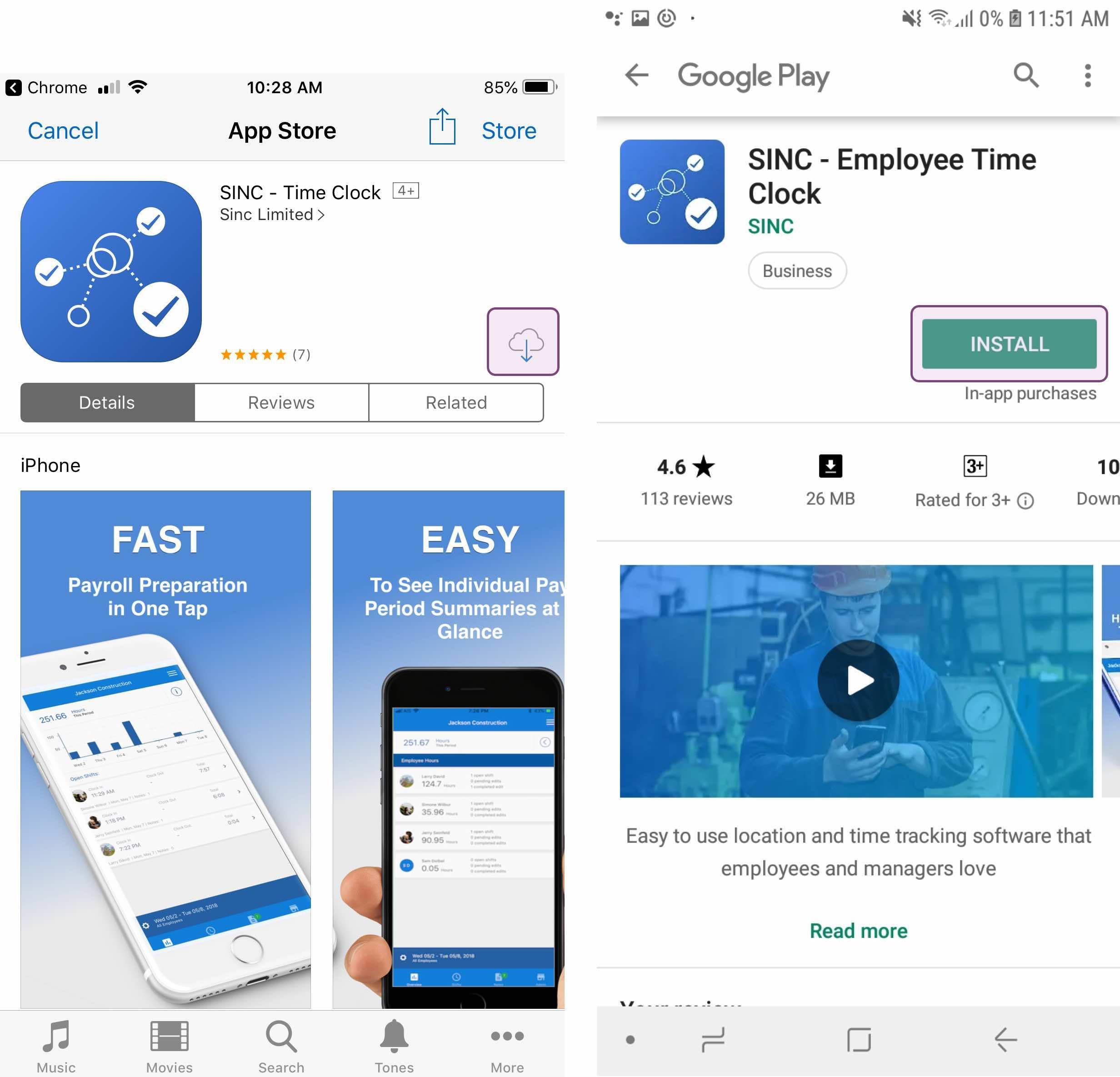
Step 2: The link will take you to either App Store or Play Store. Download SINC and open SINC.
Step 3: Tap on Sign Up
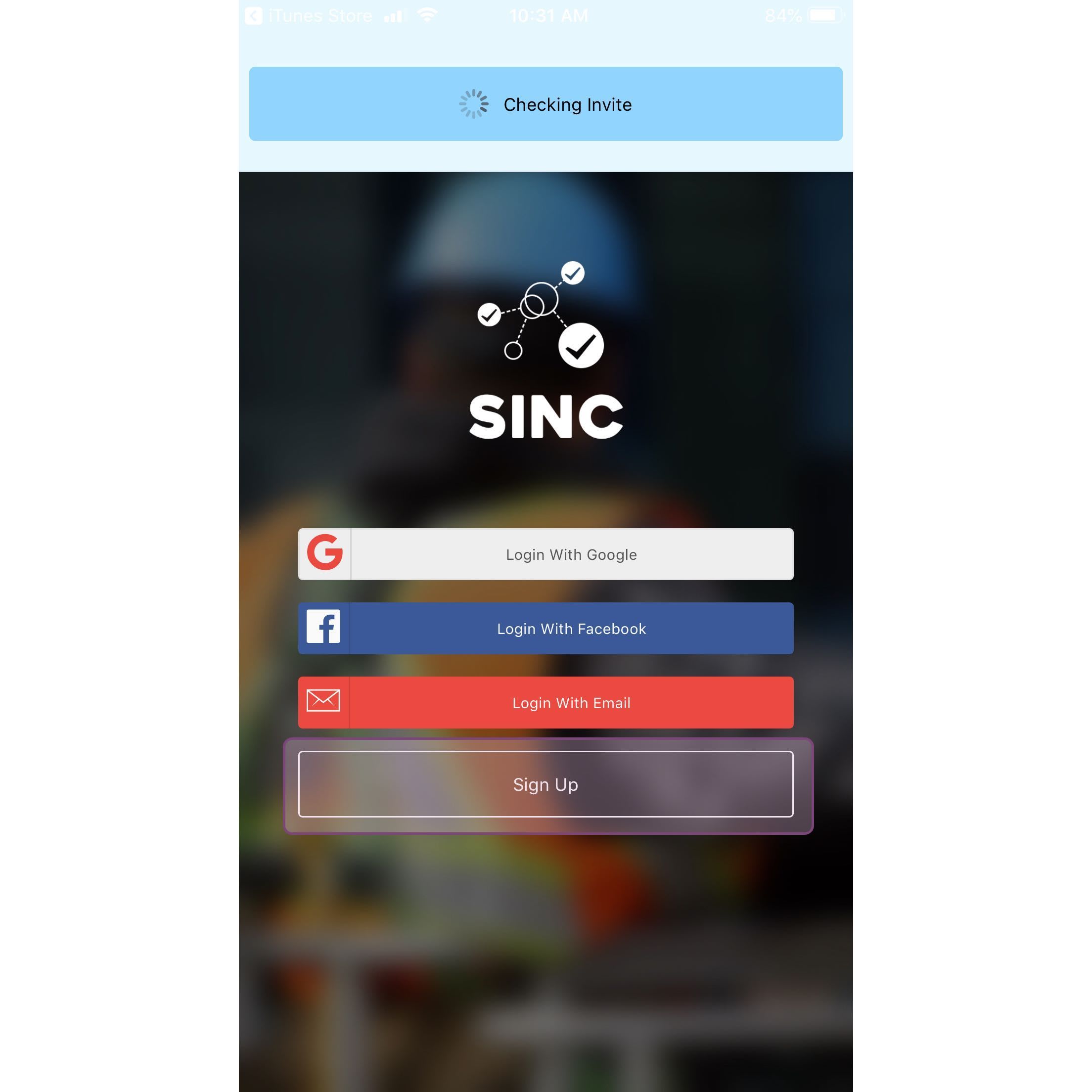
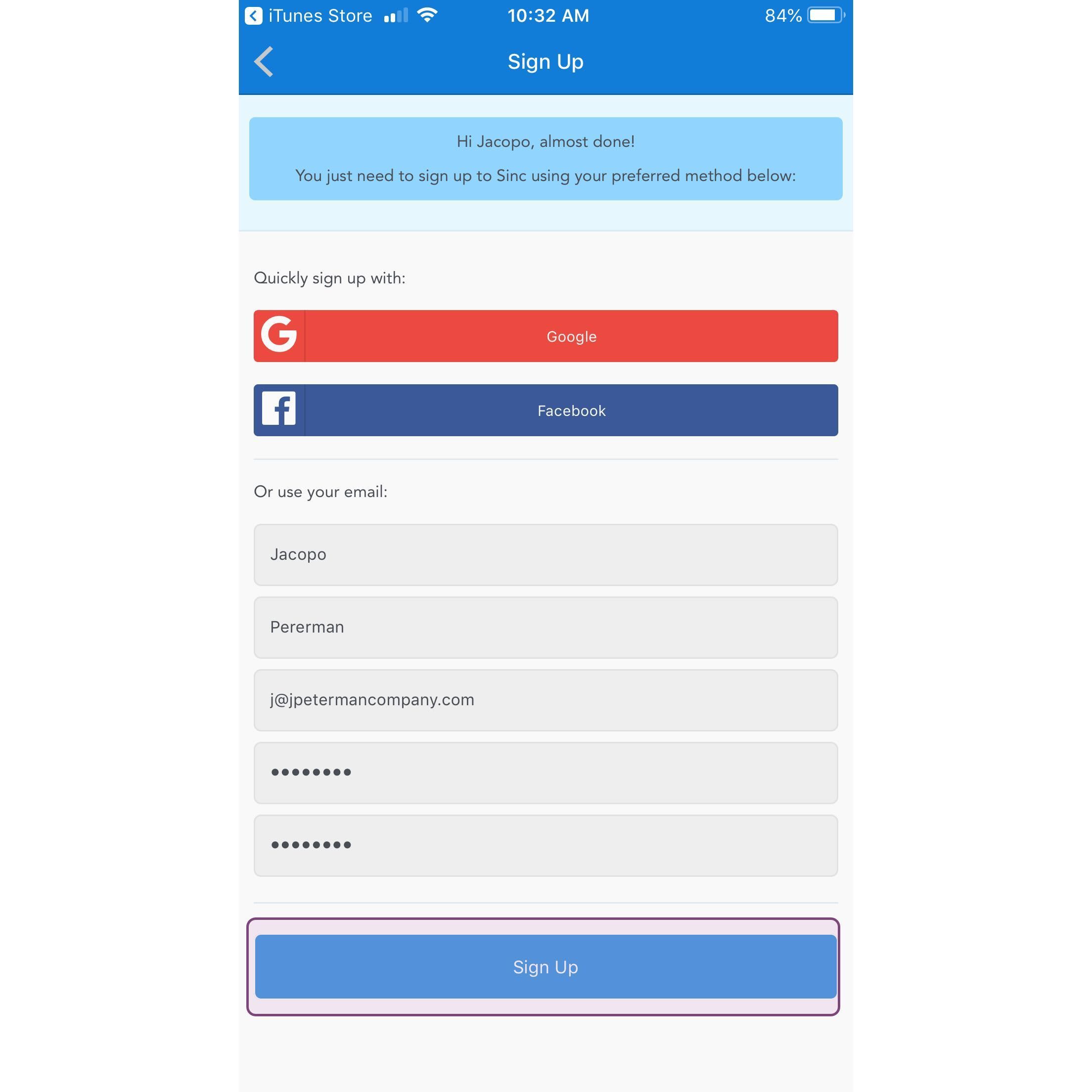
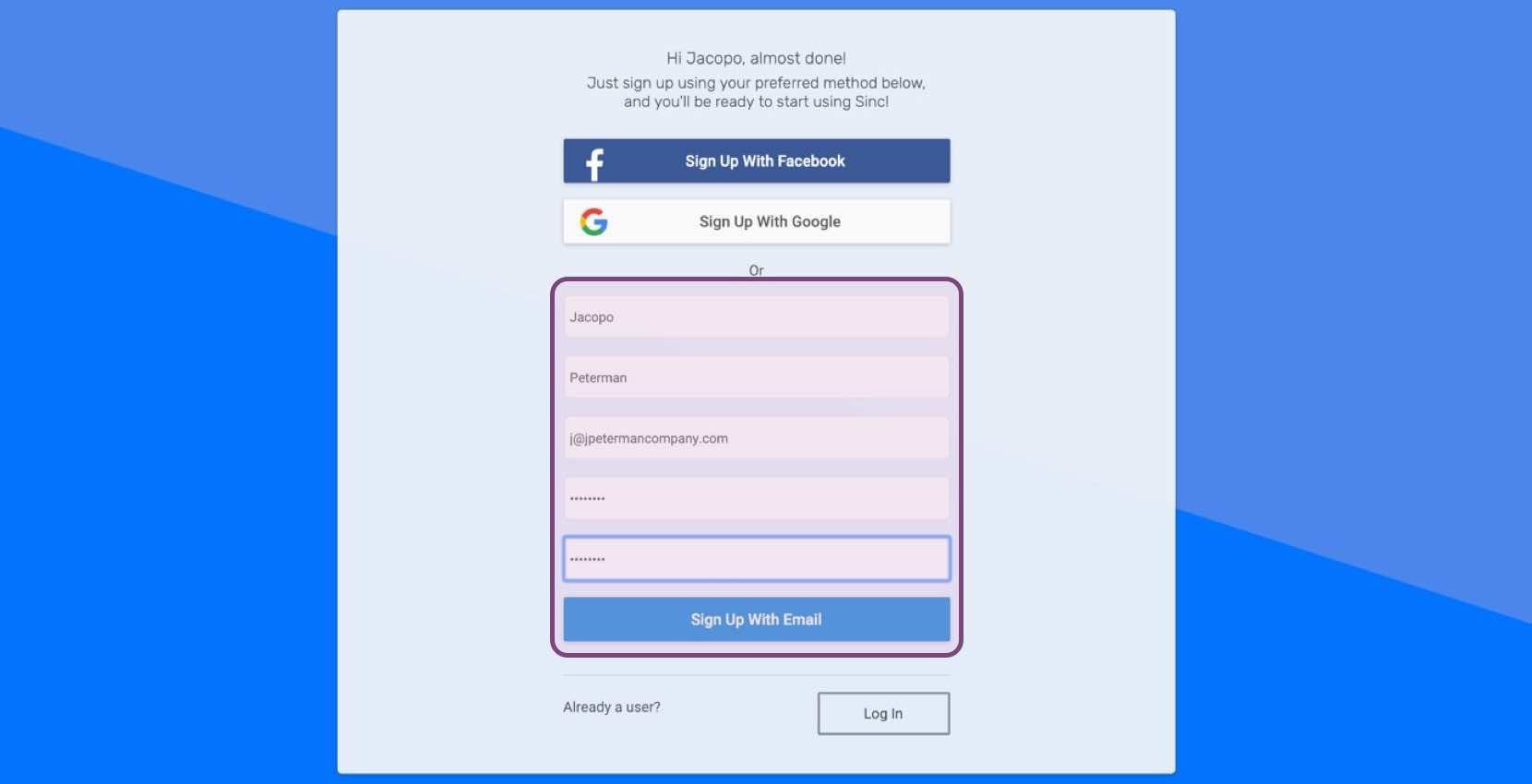
Step 4: Enter your new account details and be sure to remember the password and email you choose, then Tap on Sign Up
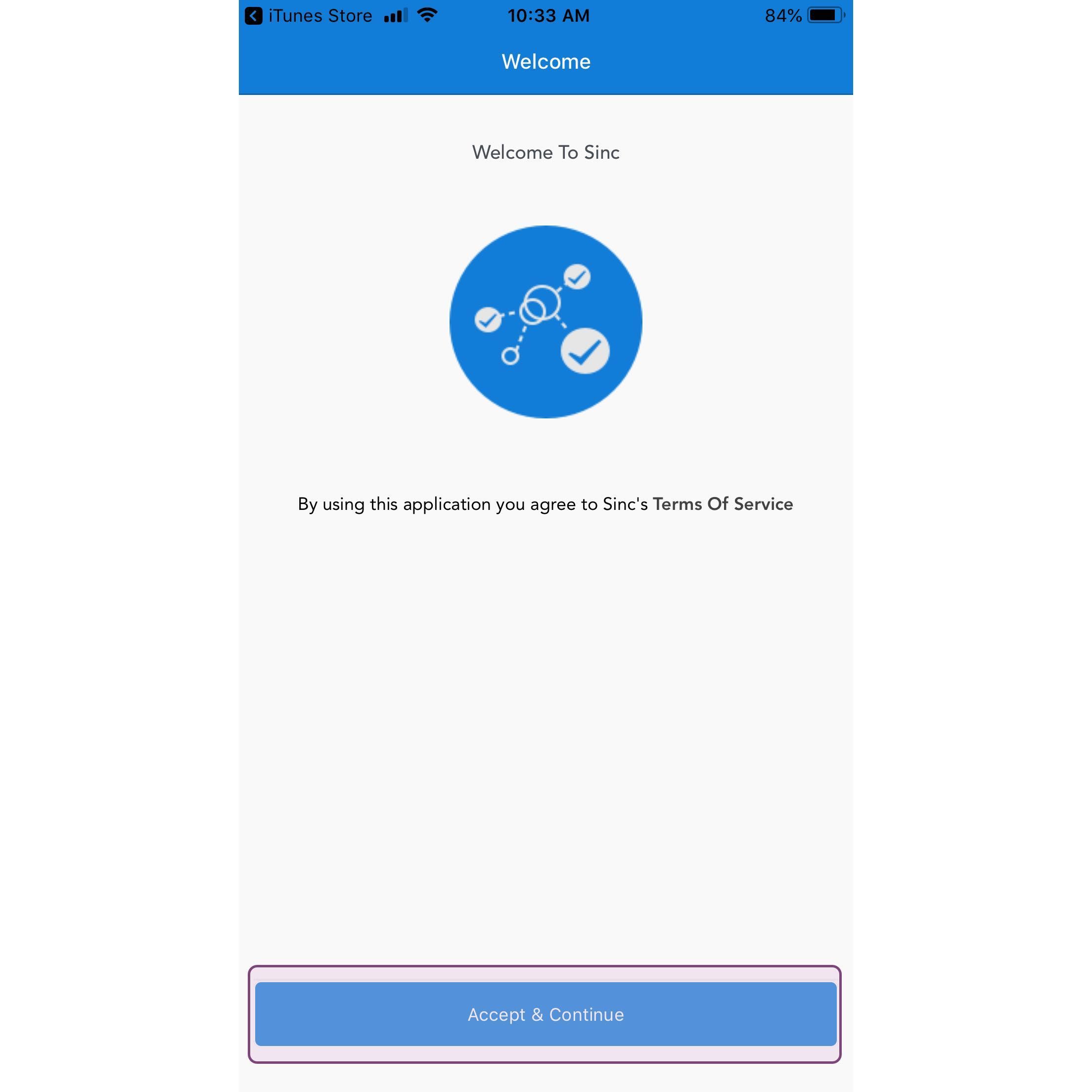
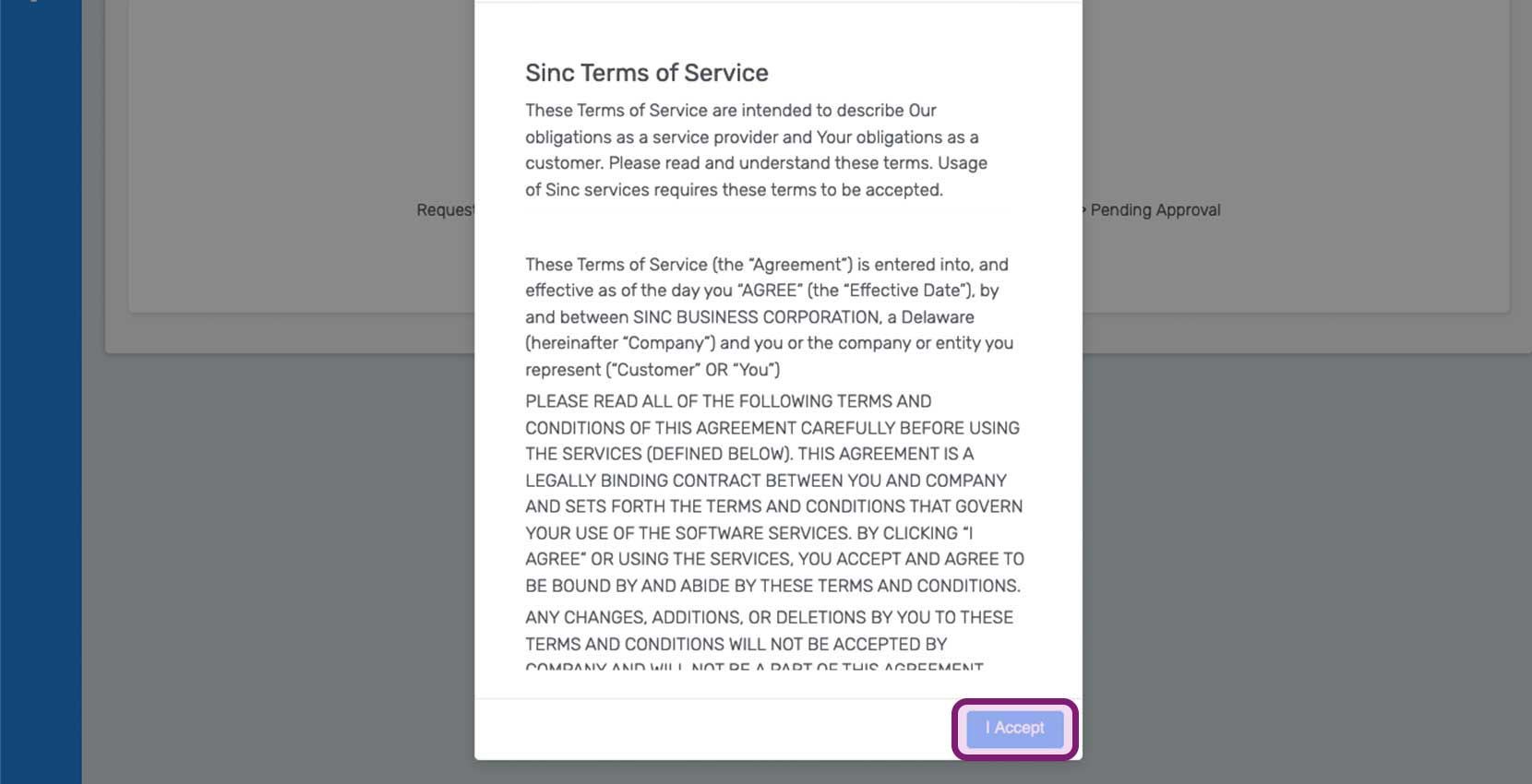
Step 5: You will be asked to review SINC's terms and conditions. Once done and you are happy to continue, Tap on Accept and Continue
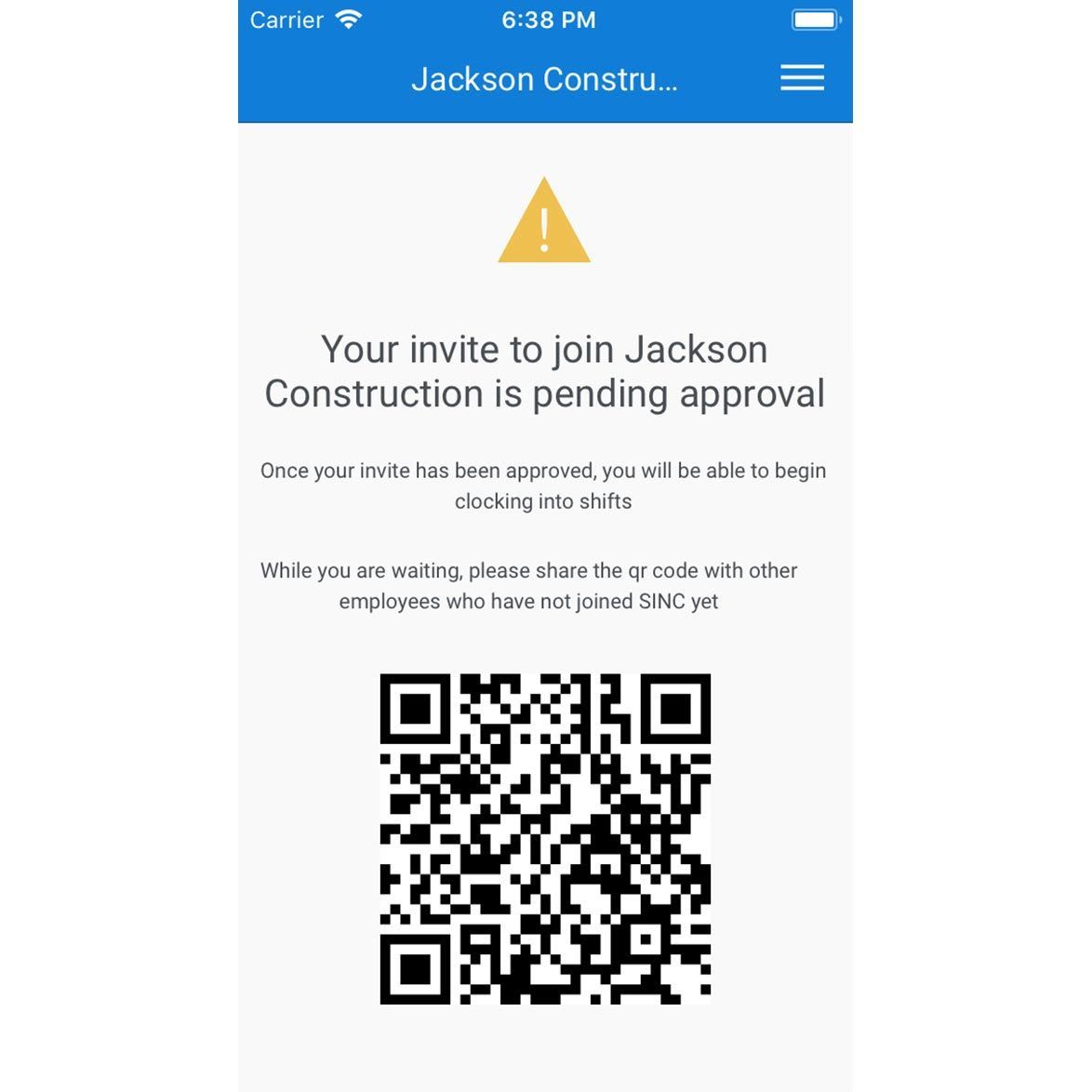
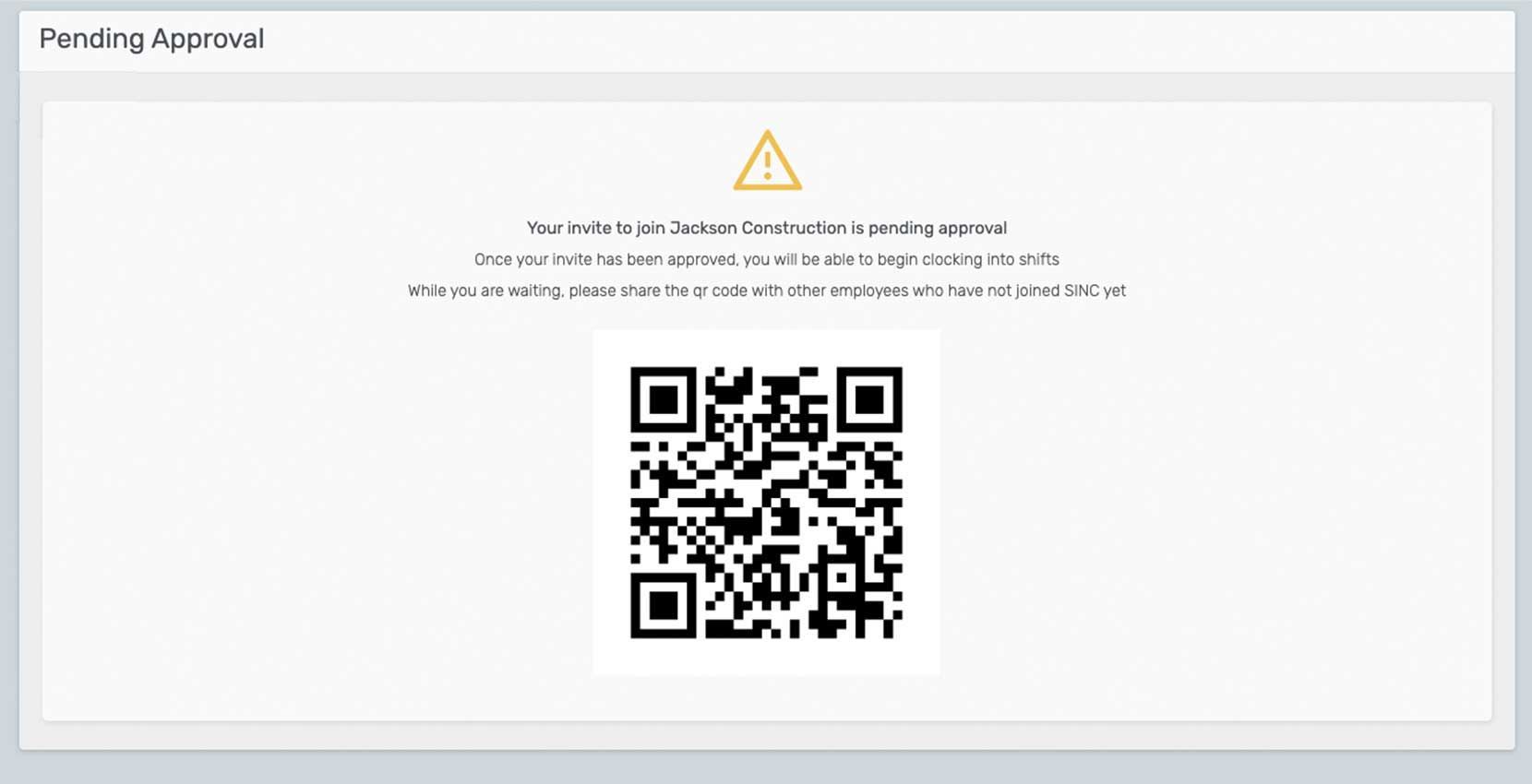
Step 6, Via QR Code Invite: You will see the home screen with a warning and QR Code Invite to share with other employees. You will just have to wait until the admin's approval, then you can clock-in your shifts.
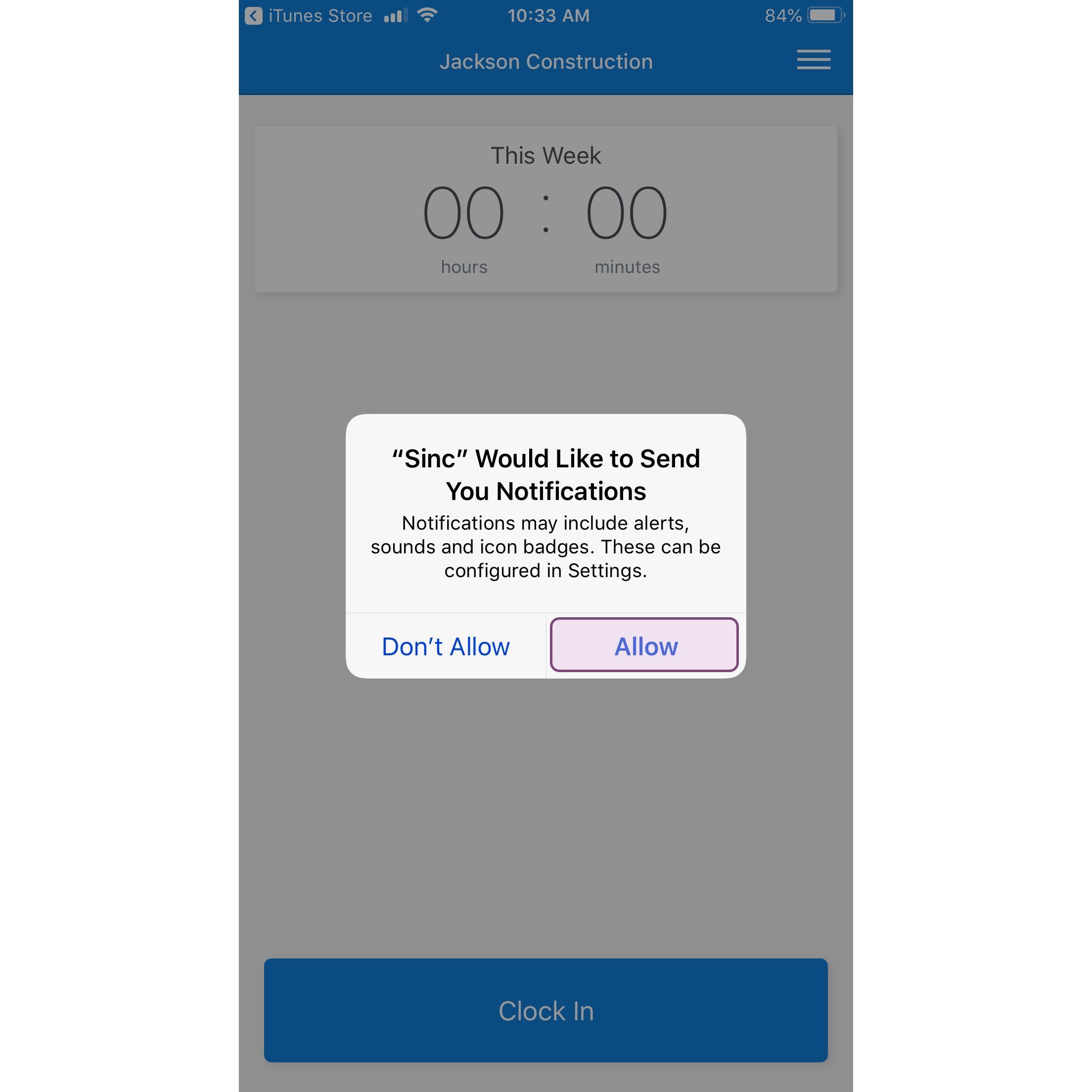
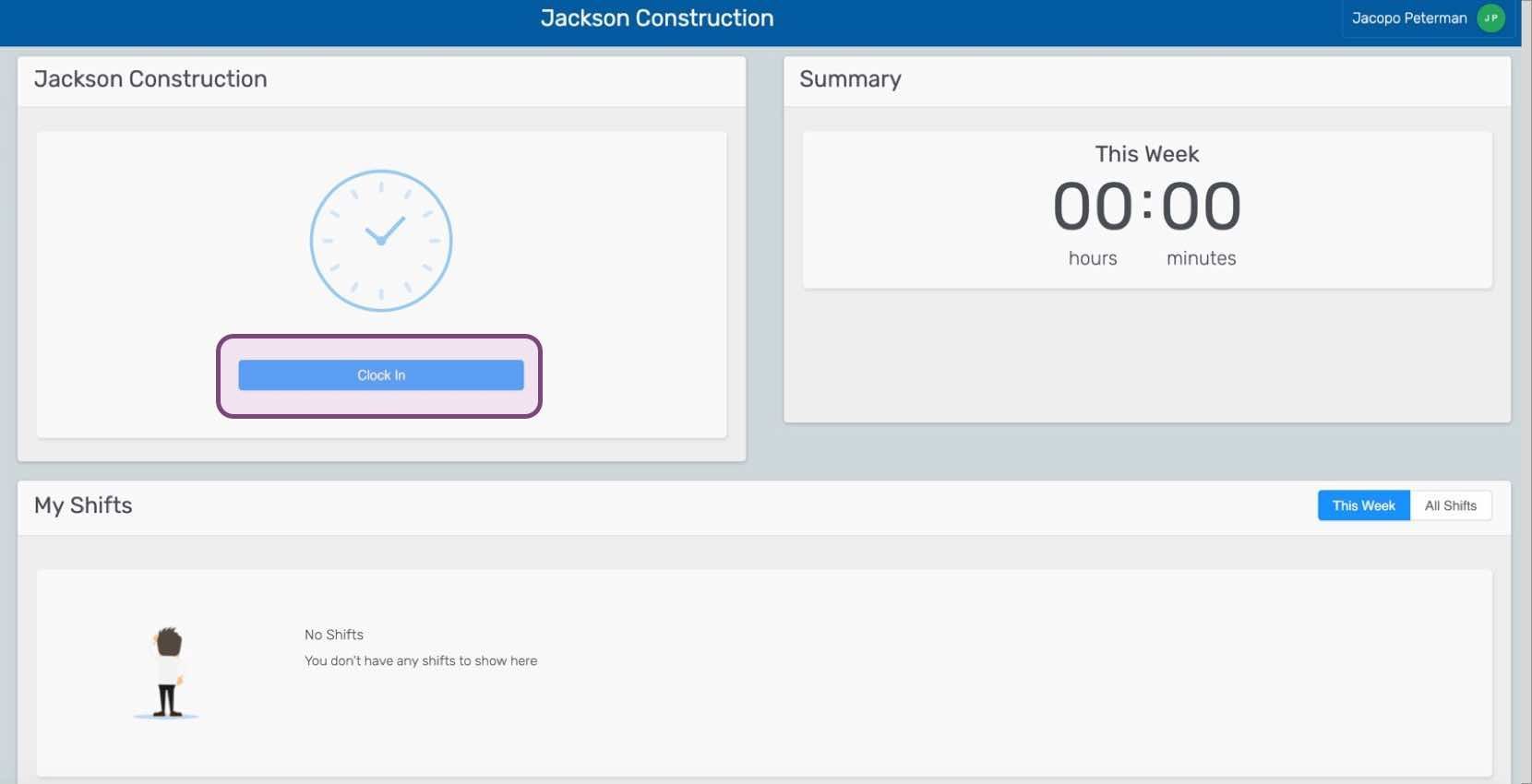
Via Email Invite: Upon following the instructions properly, you will be added to your organization and can clock in for the first time! We recommend allowing SINC any permissions we ask for, to enable the best user experience.
Web Version: Click on Click Here To Join
Enter your new account details and be sure to remember the password and email you choose, then Click on Sign Up With Email
After you log in to SINC console, Click on I Accept, for the SINC Terms of Service.
Via QR Code Invite: You will see the home screen with a warning and QR Code Invite to share with other employees. You will just have to wait until the admin's approval, then you can clock-in your shifts.
Via Email Invite: Upon following the instructions properly, you will be added to your organization and can clock in for the first time!
Did this answer your question?