Adding Employees to your Organization

This is a step by step guide on how to invite new employees to your company on SINC via QR Code, Email or SMS.

Sam Dolbel
Sam Dolbel
Jun 3rd, 2024

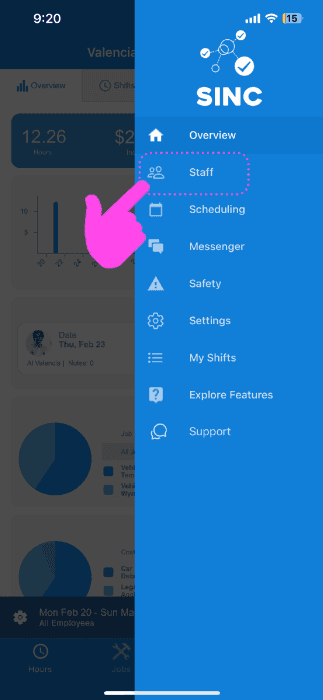
Tap on Staff

SINC mobile app side menu with a pink arrow pointing to the Staff icon

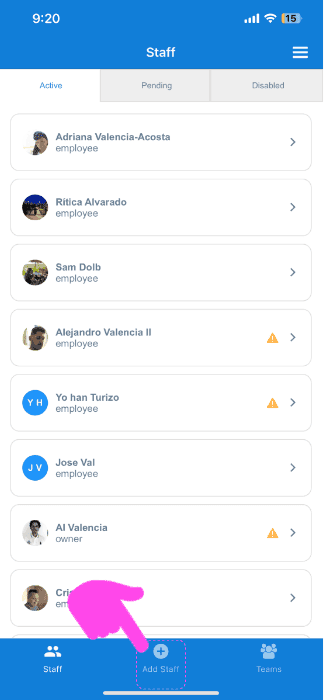
Tap on Add Staff

SINC mobile app Staff list with a pink arrow pointing to the Add Staff button at the bottom of the screen

There are three ways to send an employee an invite

QR Code, SMS, Email.

1.) To invite an employee via QR Code.

Ask the employee to scan the QR Code.
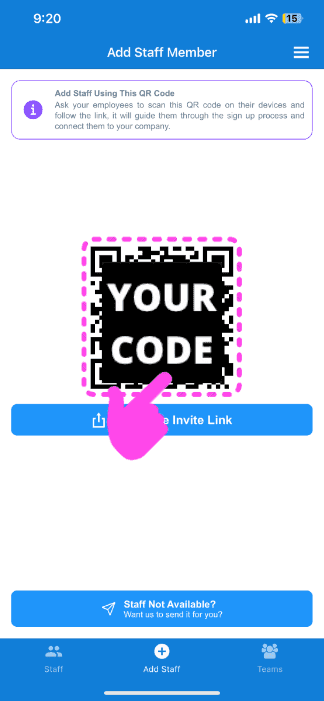
Add Staff Member screen with a QR code and a pink arrow pointing to the Invite Link button

After the staff has joined the organization through the scanned QR Code, Tap on Menu Staff.
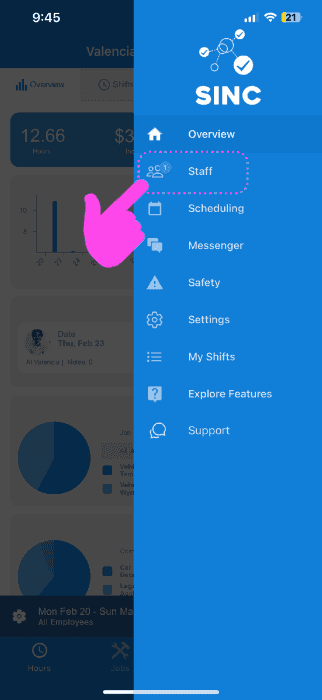
SINC mobile app side menu with a pink arrow pointing to the Staff icon

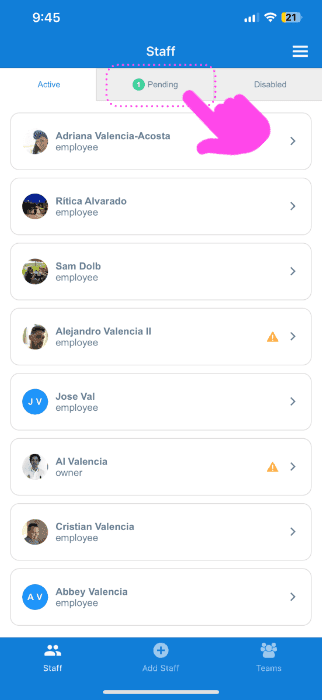
Tap on Pending.

SINC mobile app Staff screen with a pink arrow pointing to the Pending tab above a list of employees

You will be able to see the individuals who requested to join the organization through the QR Code on the list. You can click on checkbox for each approval and tap on Approve Selected Requests.
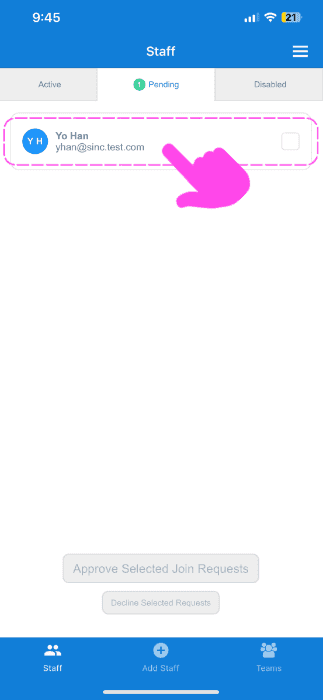
SINC mobile Staff screen on the Pending tab with a pink arrow pointing to a pending join request's approval checkbox

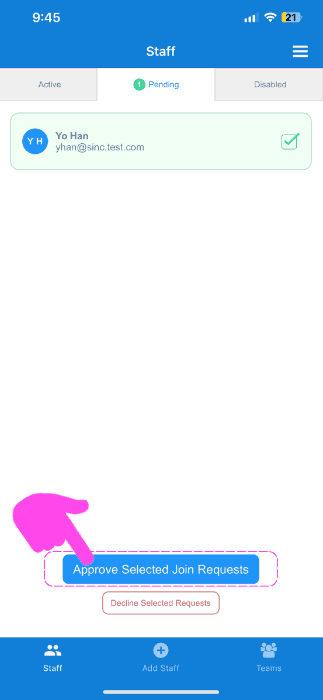
Tap on OK to approve the invite(s).

SINC Staff screen Pending tab showing a join request with a pink arrow pointing to the Approve Selected Join Requests button

After the join invite is approved, you will be able to view them in the Active tab.
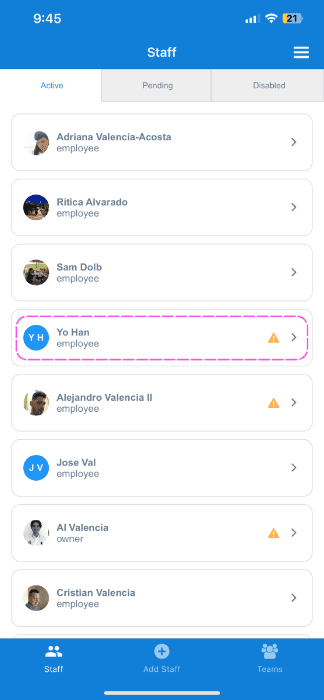
SINC mobile app Staff screen Active tab listing employees, with a pink dashed box highlighting one staff member's row

2.) To invite an employee via Email or SMS.

After navigating to Menu Staff Add Staff

Click on Staff Not Available? Tap here to send them an invite via email or sms button under the QR Code.

Select the option that works best among SMS and email and fill out the employee's details, then Tap on Send Invite
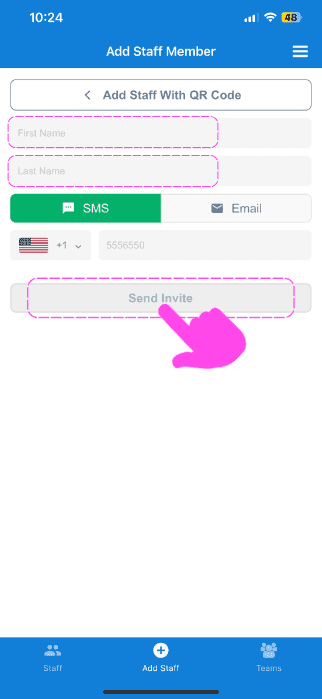
Add Staff Member screen with name and contact fields, Send Invite button highlighted by a pink arrow

You will now see the staff member added to the staff list as a pending invite. This will change once they follow the steps to join the organization.
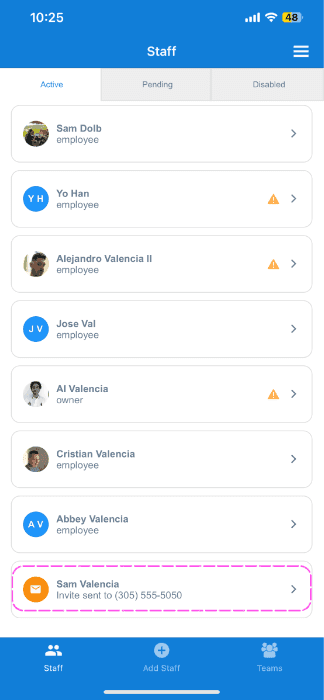
SINC mobile Staff list with the newly added pending invite for Sam Valencia highlighted in a pink dashed box

If you are using the web version, it will look like this:

Click on Staff
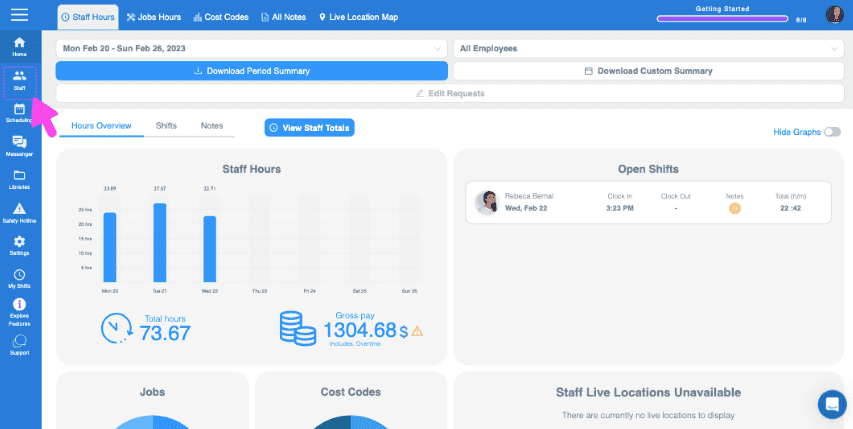
SINC web dashboard with a pink arrow pointing to the Staff icon in the left sidebar

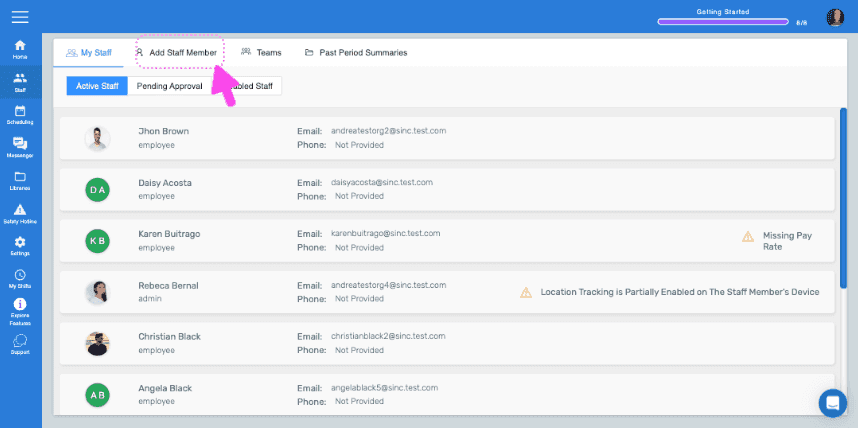
Click on Add Staff Member

SINC web Staff screen with a pink arrow pointing to the Add Staff Member tab

1.) To invite an employee via QR Code.
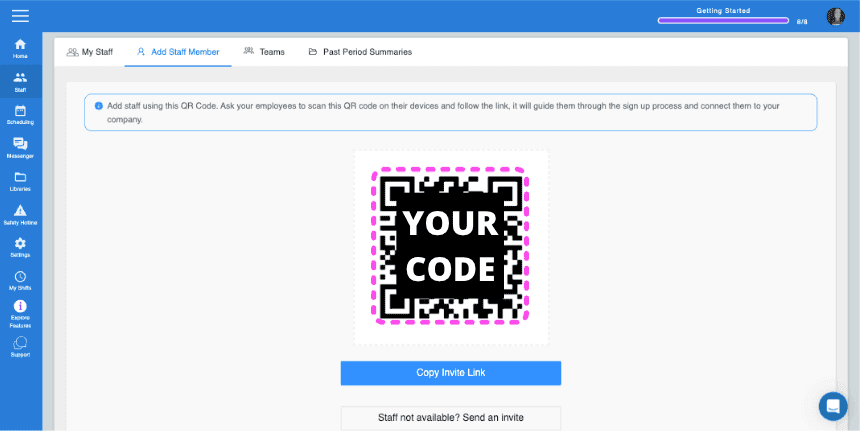
SINC web Add Staff Member screen showing a QR invite code and Copy Invite Link button

Click here to see what an employees should do to join your organization using the QR Code Invite

After the staff has joined the organization through the scanned QR Code, click on Staff.
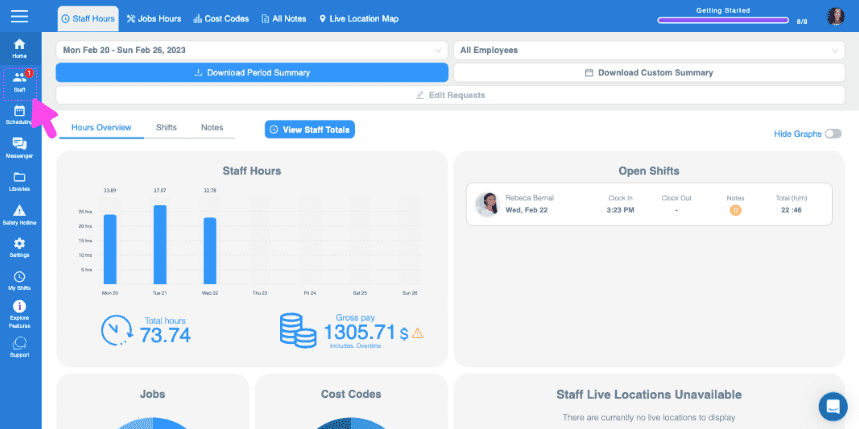
SINC web dashboard Overview page with a pink arrow pointing to the Staff icon in the left sidebar navigation

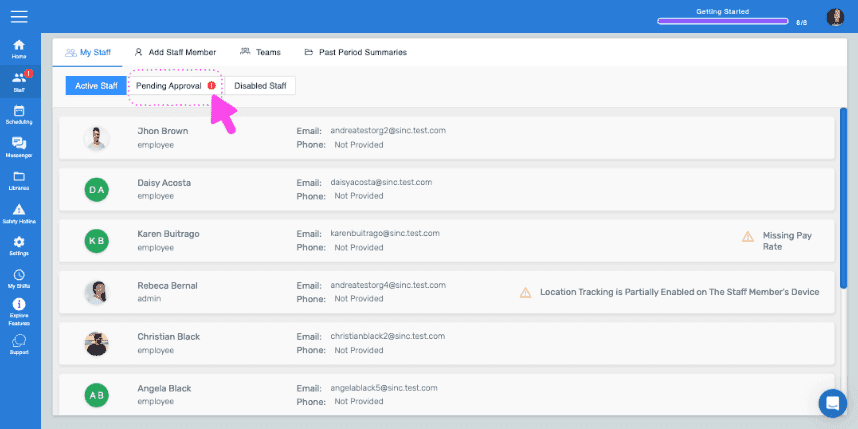
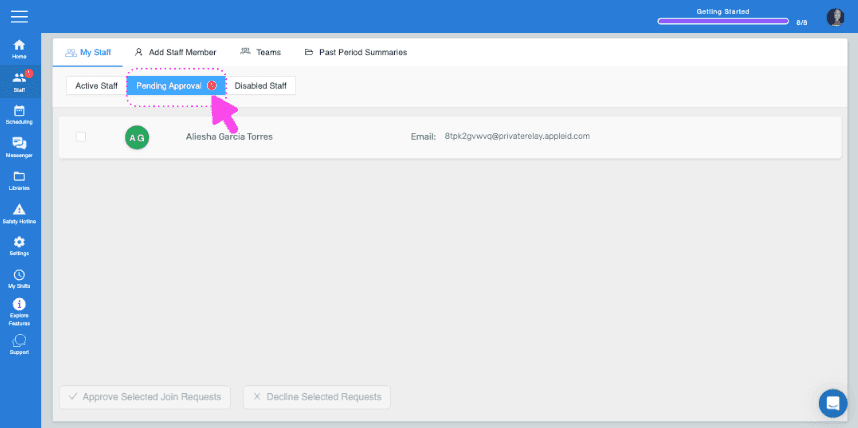
Click on Pending Approval.

SINC web Staff page listing active employees, with a pink arrow pointing to the Pending Approval tab

You will be able to see the individuals who requested to join the organization through the QR Code on the list. You can click on checkbox for each approval.
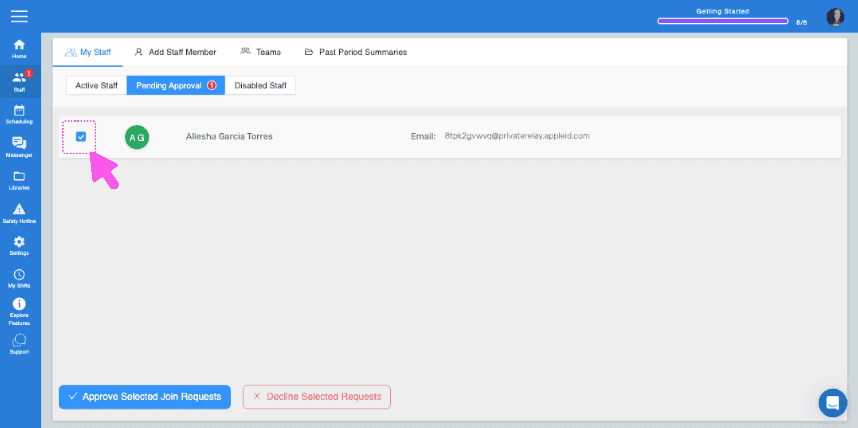
Web My Staff page, Pending Approval tab, with a pink arrow pointing to a staff request checkbox
SINC web Pending Approval staff tab showing a join request with a pink arrow pointing to its selection checkbox

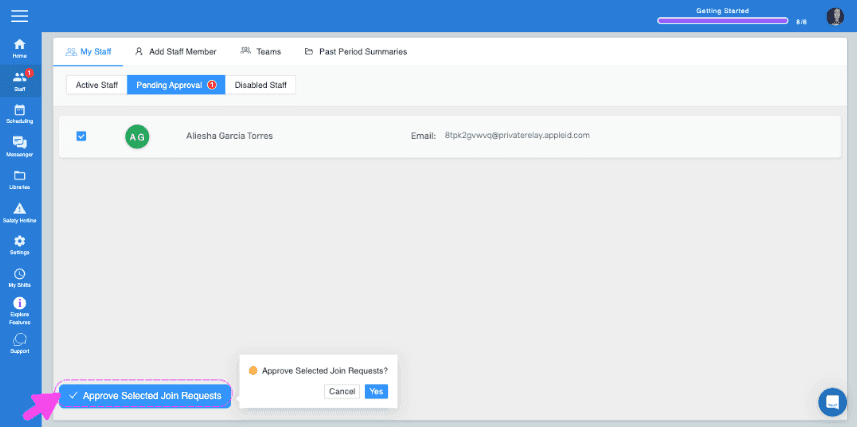
Click on Approve Selected Requests.

Staff Pending Approval list with a pink arrow on the Approve Selected Join Requests button

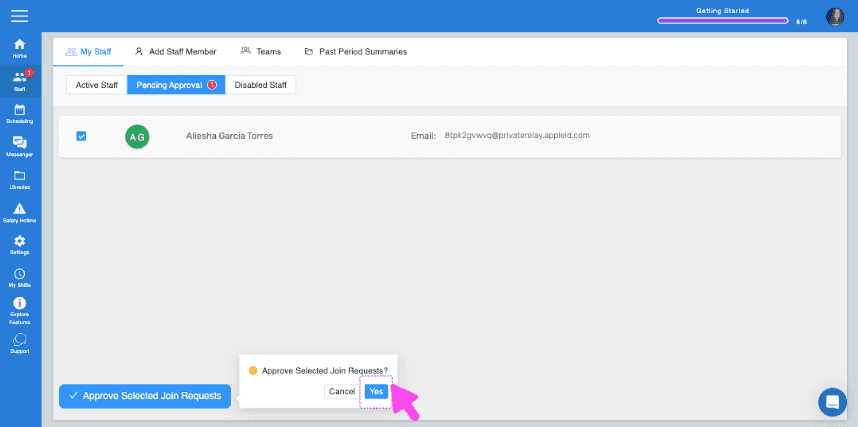
Click on Yes.

Pending staff approval list with a confirmation popup asking to approve join requests, Yes button highlighted

After the join invite is approved, you will be able to view them under Active Staff.
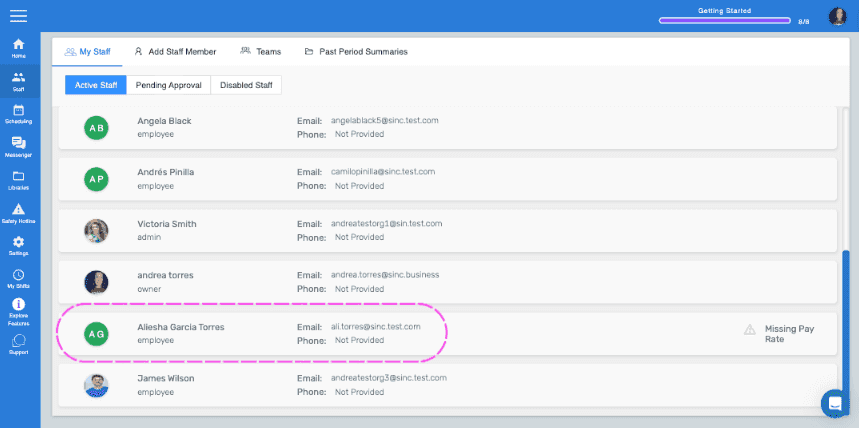
SINC web dashboard Active Staff list with employee Alesha Garcia Torres circled in pink

2.) To invite an employee via Email or SMS.

After navigating to Menu Staff Add Staff

Click on Staff not available? Send an invite button under the QR Code.

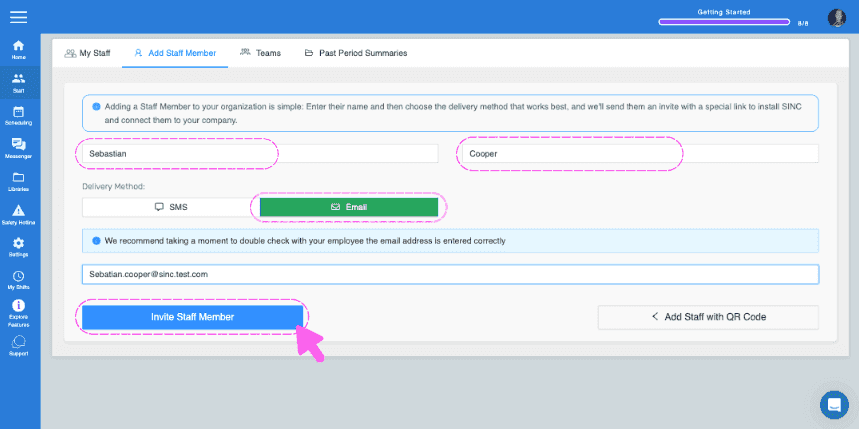
Select the option that works best among SMS and Email and fill out the employee's details, then Click on Invite Staff Member
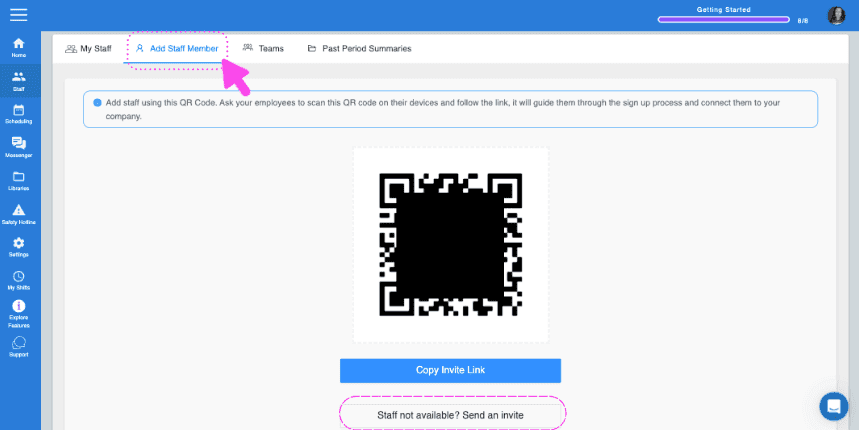
SINC web Add Staff Member tab showing an invite QR code with the 'Staff not available? Send an invite' link highlighted in pink
Add Staff Member form with first and last name fields, Email delivery selected, and the Invite Staff Member button highlighted

You will see the staff member added to the staff list as a pending invite. This will change once they follow the steps to join the organization.
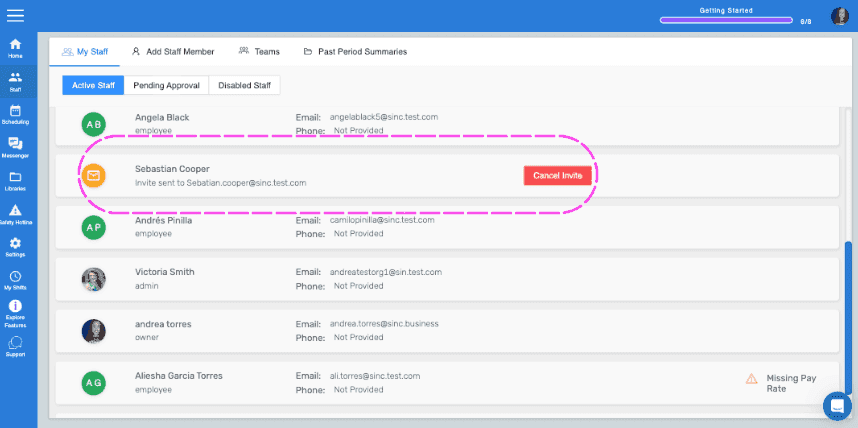
SINC web staff list with a pink circle around a pending invite row showing the Cancel Invite button

Did this answer your question?