Assign Employees to Jobs

Let's take a look at how admins can assign employees to an existing job or when creating a job

SINC Support Team
SINC Support Team
Feb 24th, 2023

This feature requires assign employees to jobs feature to be turned on. Once enabled, an employee can only clock in and out of a job they have been assigned to. To assign teams to a job, please create the team first.

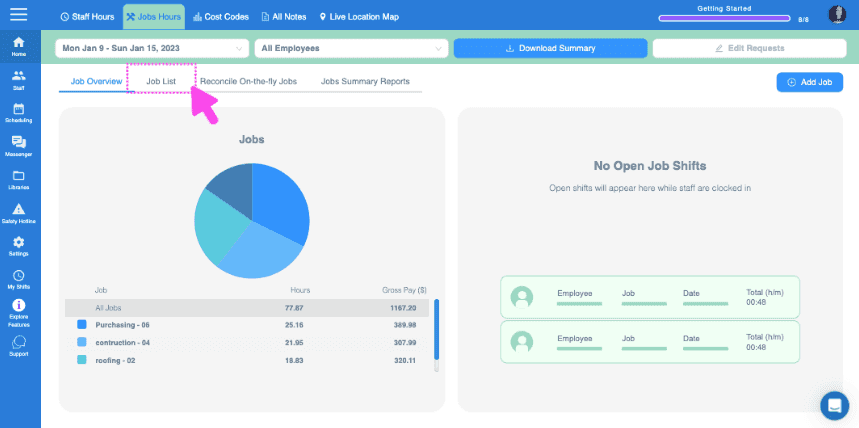
To assign an employee or a team to an existing job. On Web: Click on Home Job Hours Job List
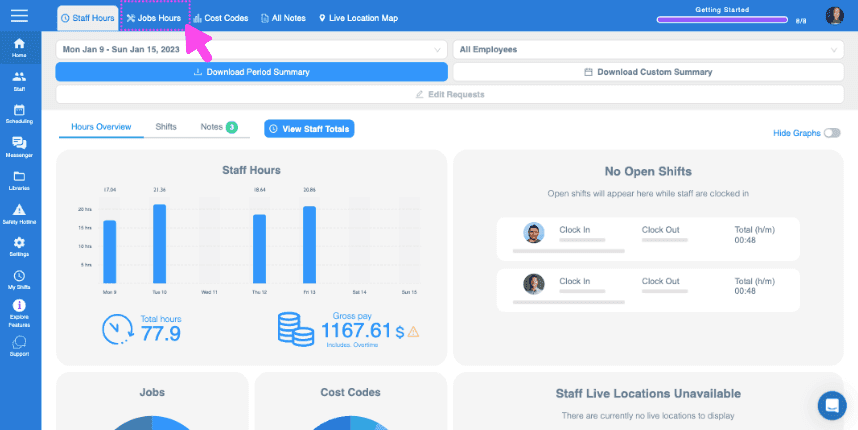
Web dashboard with the Jobs Hours tab highlighted in the top navigation bar
SINC web dashboard Job Hours menu with the Job List tab highlighted in pink

Click on The Job to be assigned to employees
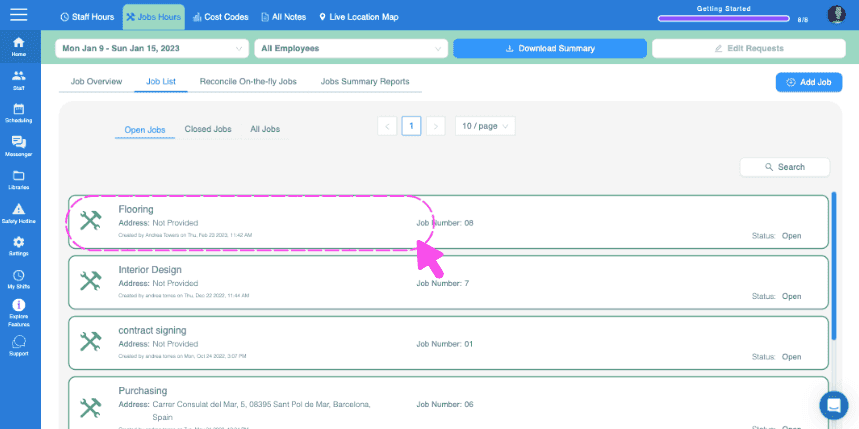
SINC web Job List screen with the 'Flooring' job entry circled in pink

Click on Info Edit next to Employees Assigned
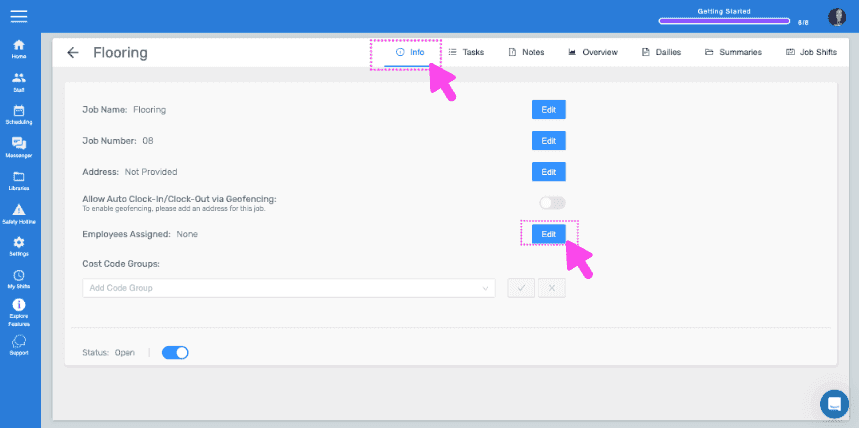
Job Info tab with pink arrows pointing to the Info tab and the Edit button next to Employees Assigned

Select the employees/teams to be assigned, Tap on Confirm
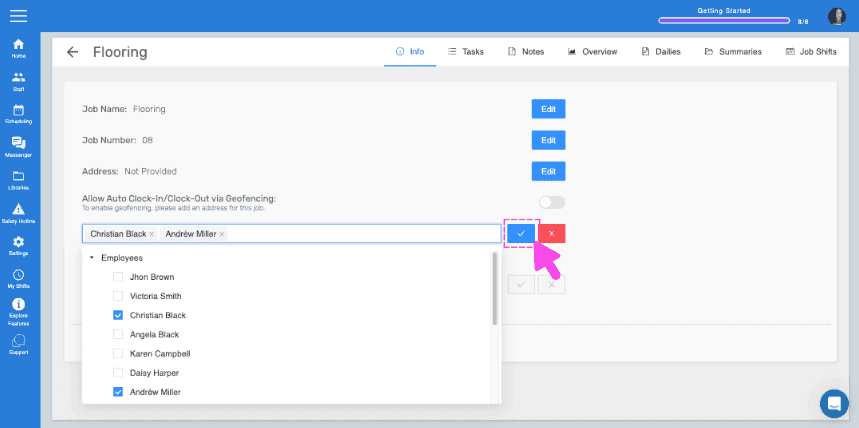
SINC web job Employees tab showing a staff checklist with selected names and a pink arrow pointing to the confirm button

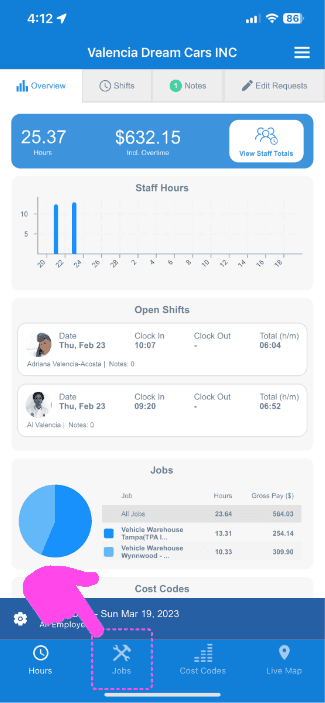
On Mobile: Tap on Menu Overview Jobs

Web dashboard Overview screen with a pink arrow pointing to the Jobs tab in the bottom navigation

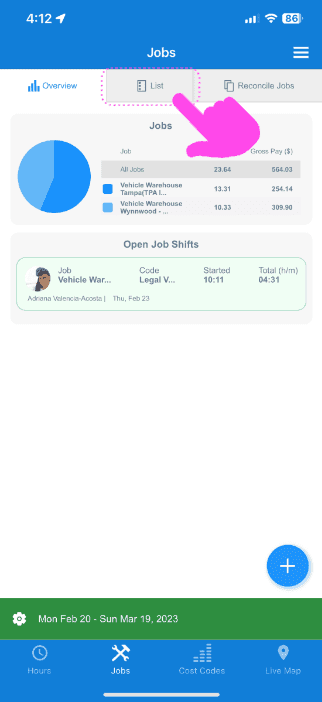
Tap on List

SINC mobile Jobs screen with a pink arrow pointing to the List tab above the jobs pie chart

Tap on The Job to be assigned to employees
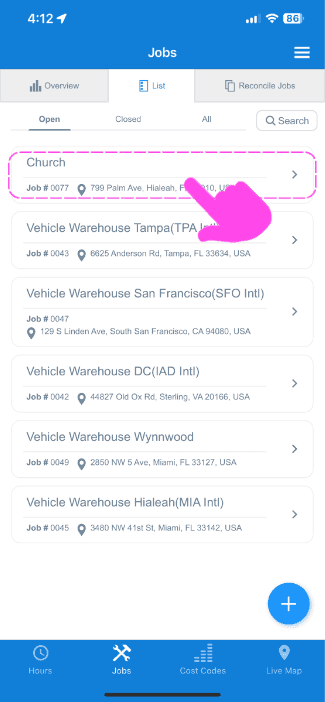
SINC mobile Jobs list with a pink arrow pointing to a highlighted job entry named Church

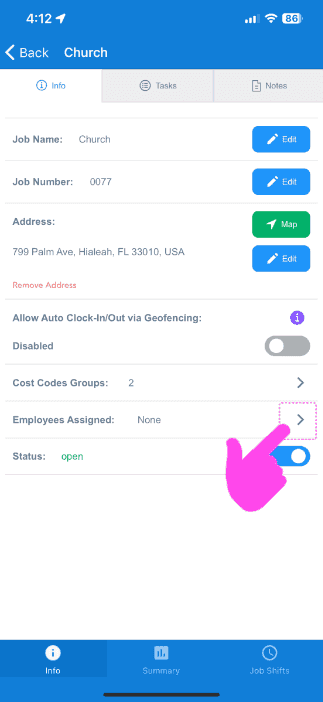
Tap on Info Info Employees Assigned

Job Info screen for a Church job with the Employees Assigned row circled by a pink arrow

Select the employees/teams to be assigned, Tap on Confirm
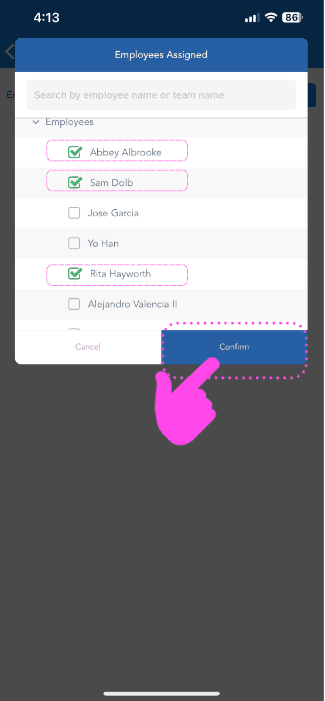
SINC mobile Employees Assigned screen with staff checkboxes selected and the Confirm button highlighted

Did this answer your question?