Jobs: Cost codes

Sam Dolbel
Sam Dolbel
Feb 24th, 2023

Cost codes are an important part of any successful job costing system. They allow you to track not only what job your employee was working on that shift, but what tasks within that job.

To get started: Tap on Menu Settings
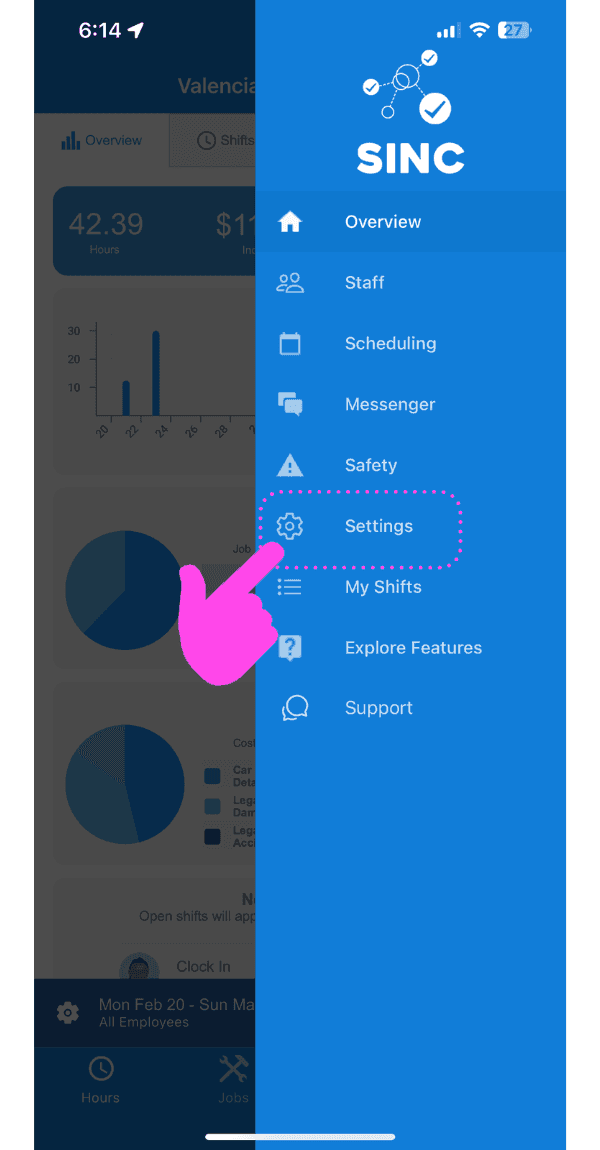
SINC mobile app side menu open with a pink arrow pointing to the Settings gear icon in a dashed highlight

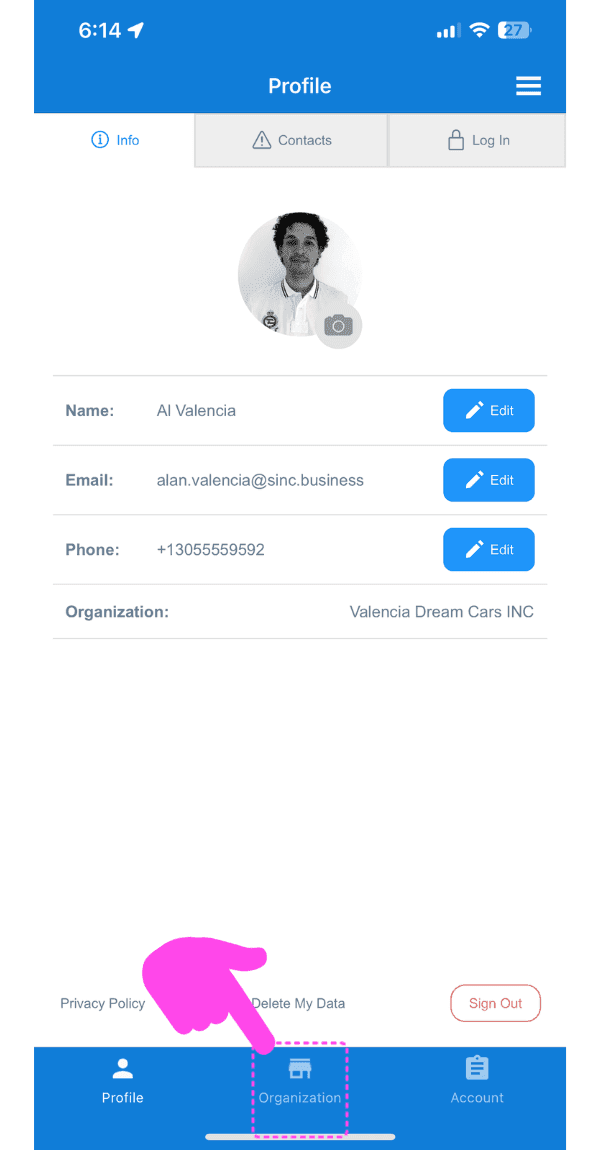
Tap on Organization

SINC mobile Profile screen with a pink arrow pointing to the Organization icon in the bottom navigation bar

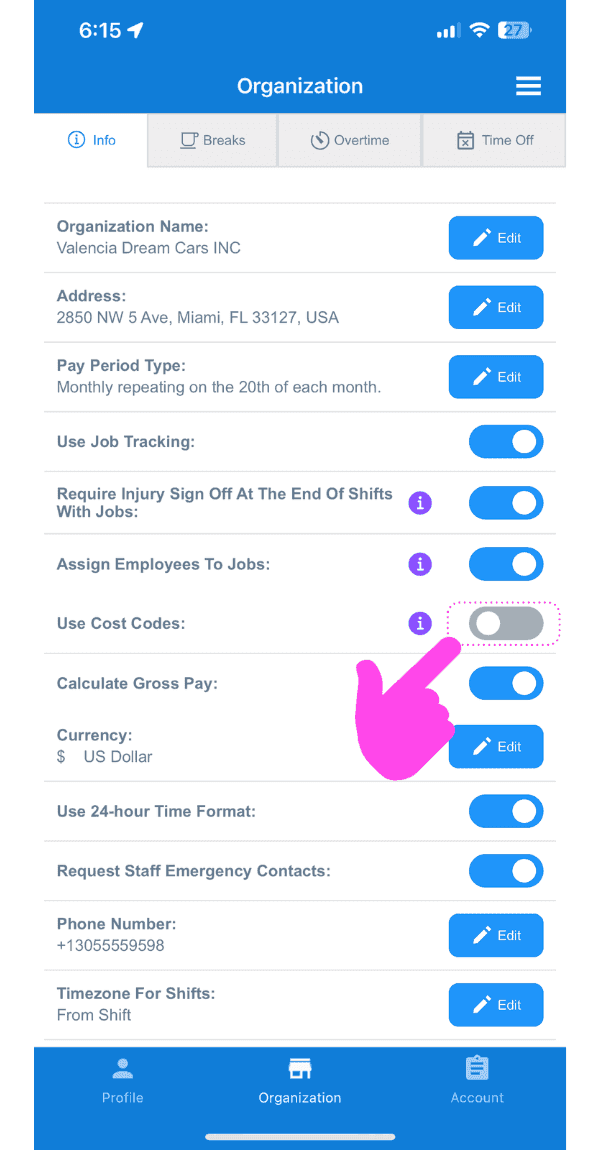
Toggle on Use Cost Codes

Web Organization settings Info tab with the Use Cost Codes toggle circled and a pink arrow pointing to it

Now let's add a cost code! From the overview screen, tap on Cost Codes
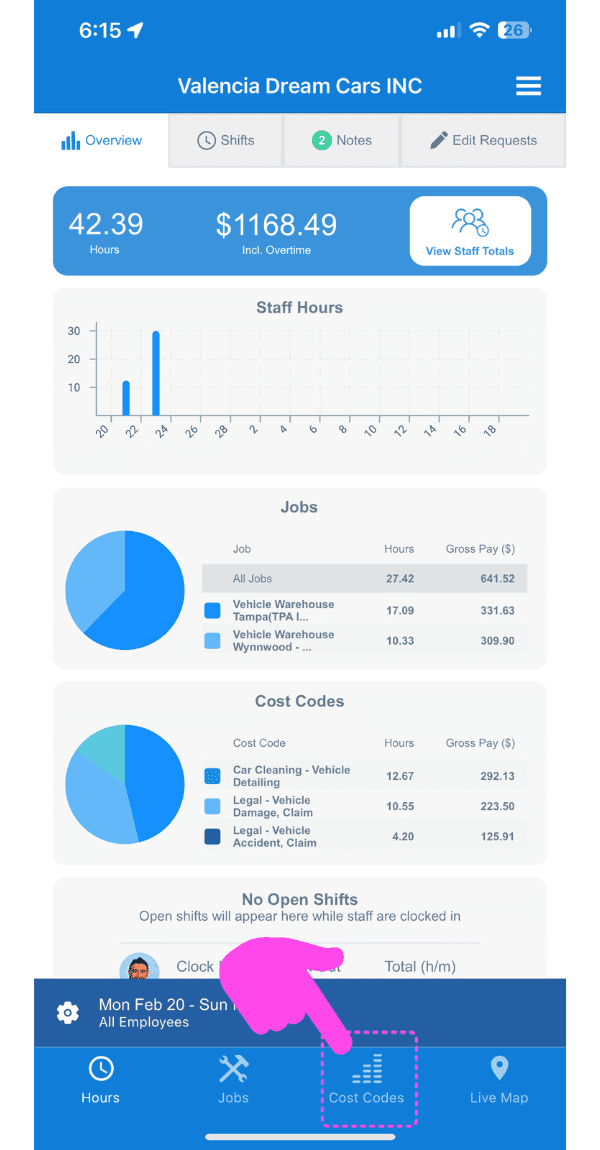
SINC mobile job overview screen with a pink hand pointing to the Cost Codes tab at the bottom

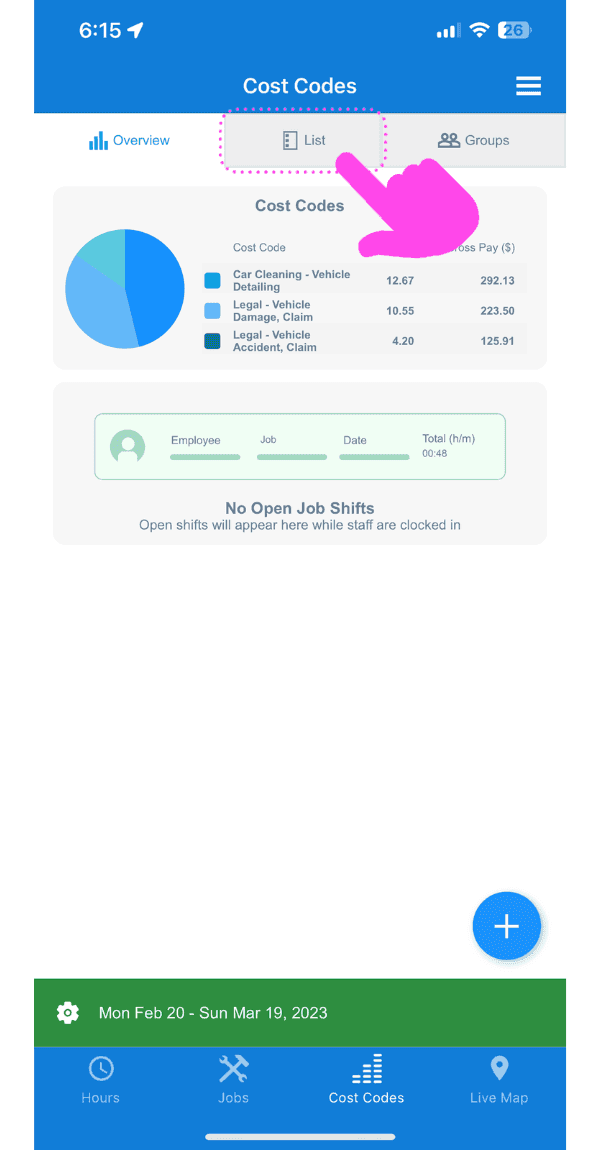
Tap on List

Cost Codes screen with a pink arrow pointing to the List tab above a cost codes pie chart

Tap on The + button down the bottom right
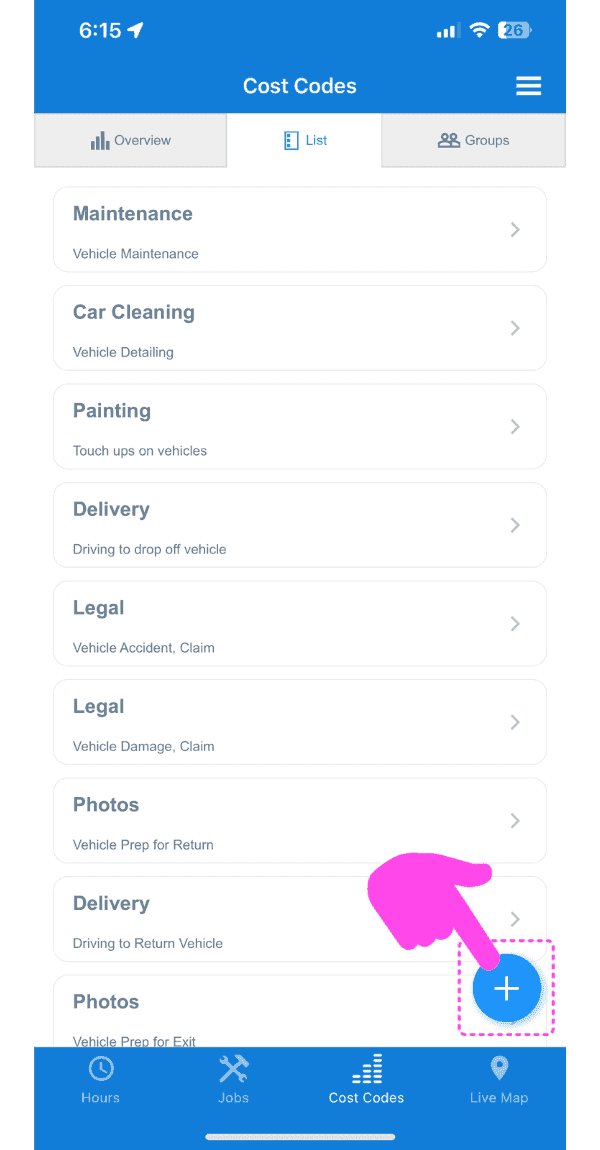
Mobile Cost Codes list with a pink arrow pointing to the plus button in the bottom right

From here you have two options. The first is to just add your own custom cost code by adding a code name and optional description.
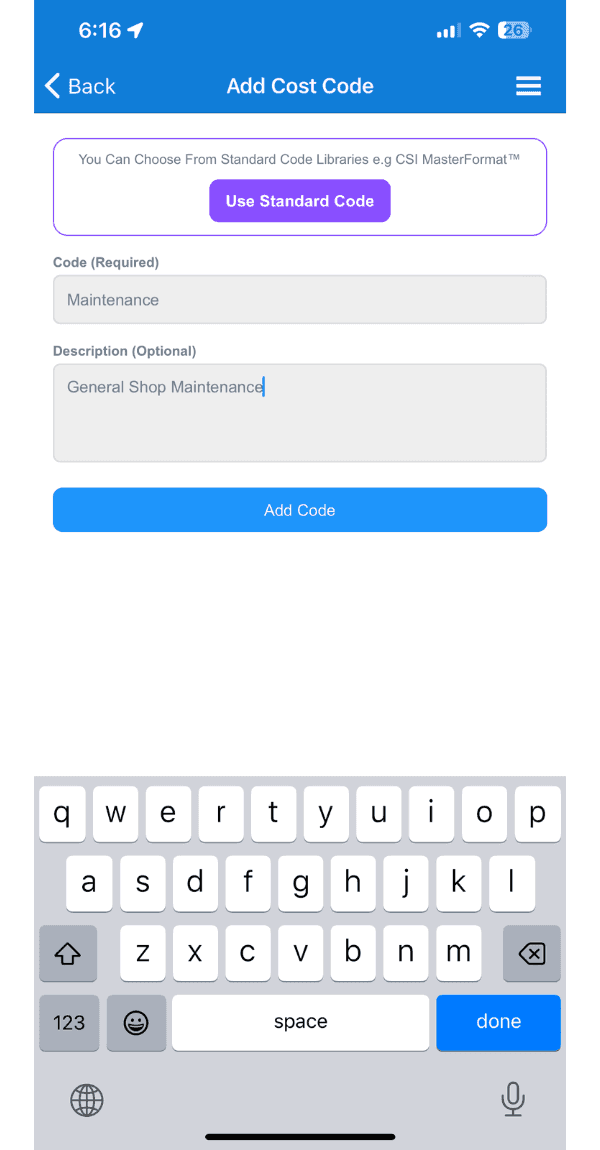
SINC mobile Add Cost Code screen showing Code and Description fields with the Add Code button and keyboard open

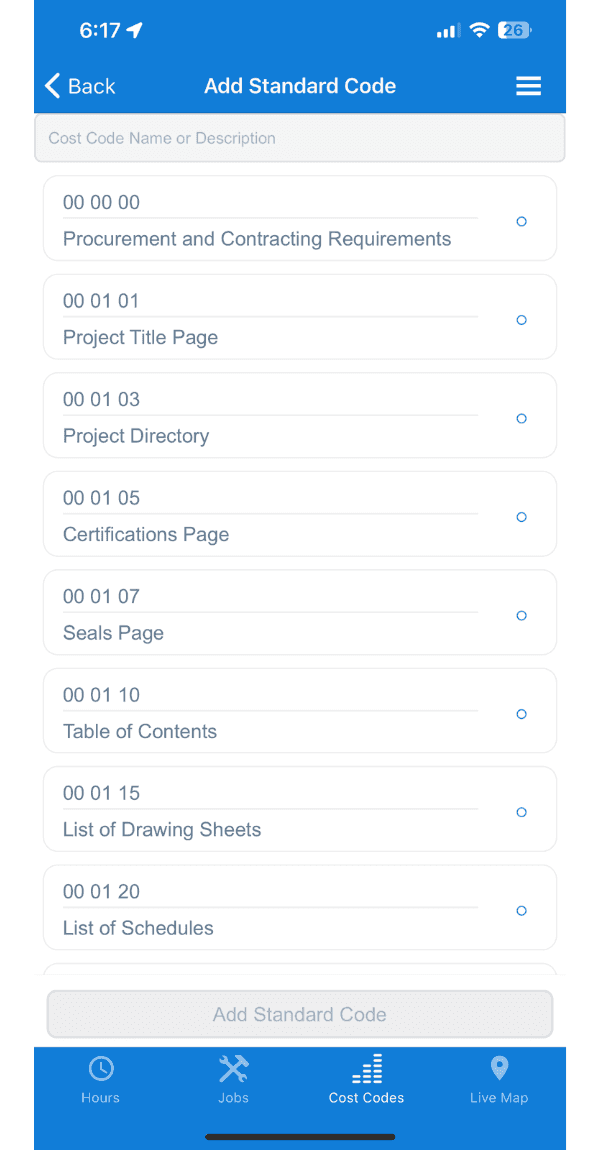
The other option is to select from our Preloaded CSI Master Format™ Cost-Codes For Industry Standard Construction Accounting
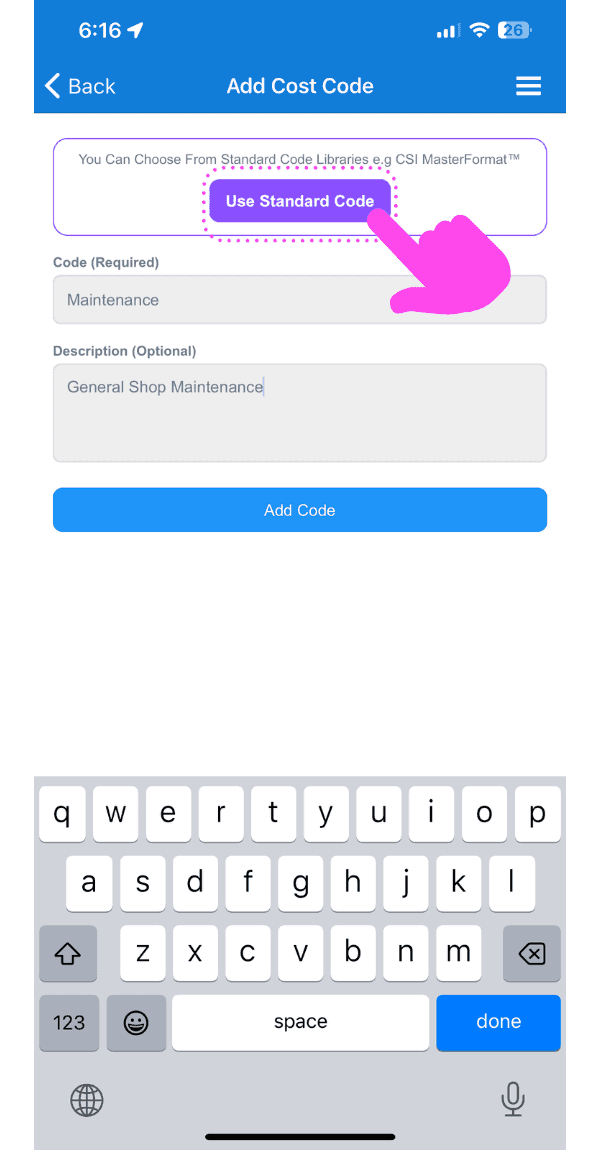
SINC mobile Add Cost Code screen with a pink arrow pointing to the Use Standard Code button
Add Standard Code screen listing preloaded CSI cost codes such as Procurement and Project Title Page

If you want to limit codes your team can choose from, you can create cost codes groups. The get to make your first group, tap on groups.
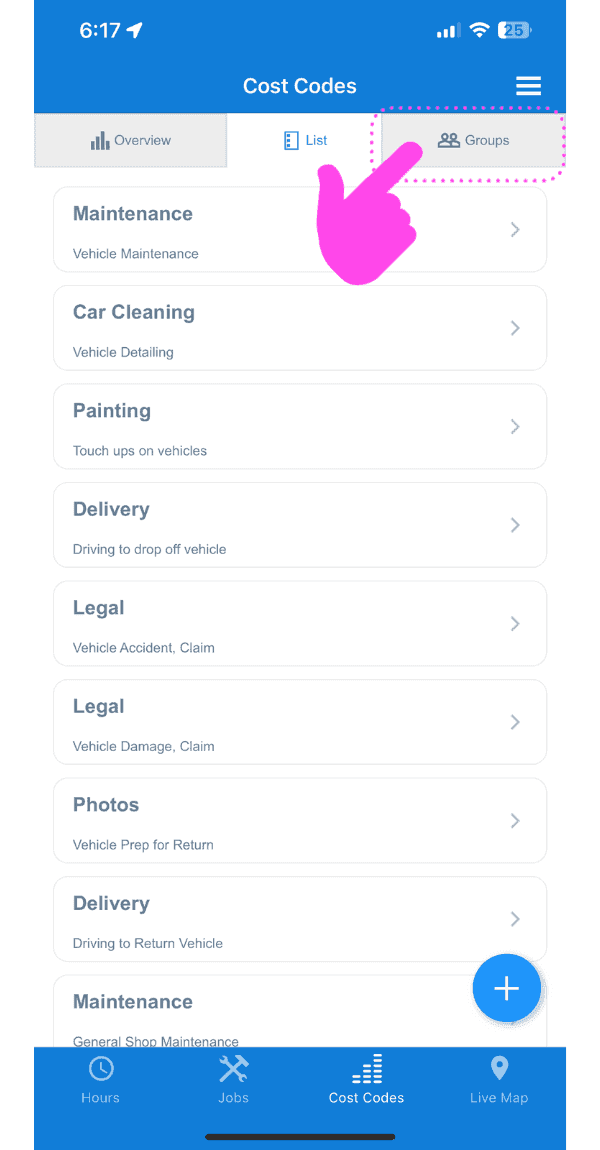
SINC mobile app Cost Codes screen with the Groups tab outlined in a pink dashed box and an arrow pointing to it

Tap on The + button down the bottom right
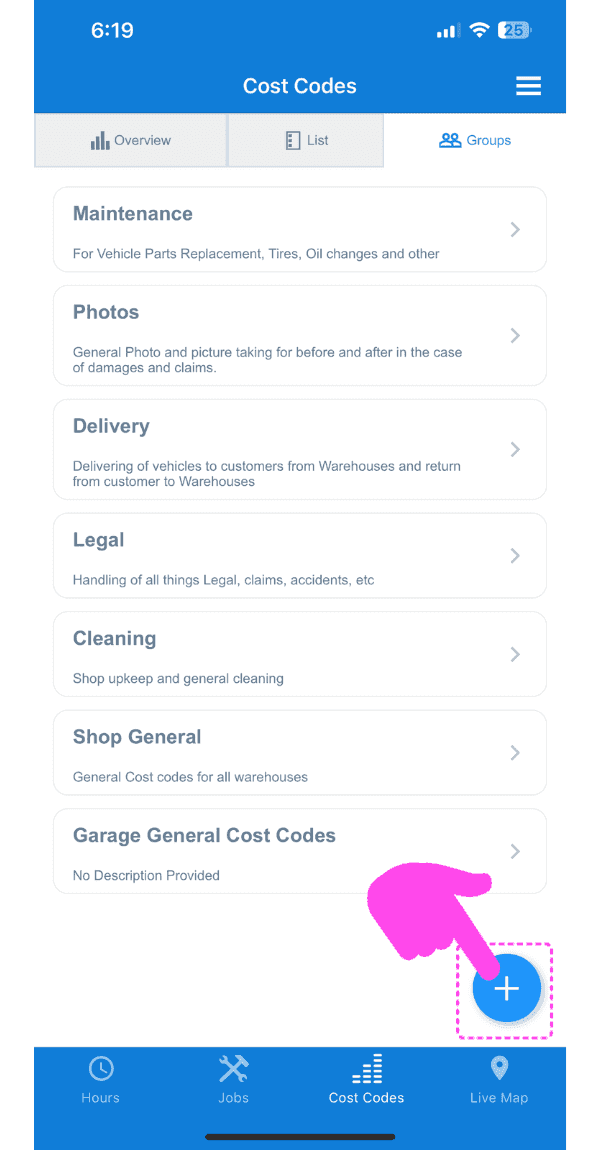
Cost Codes screen listing code categories with a pink arrow pointing to the + add button

Give the group a name and a description and tap on Add Code Group
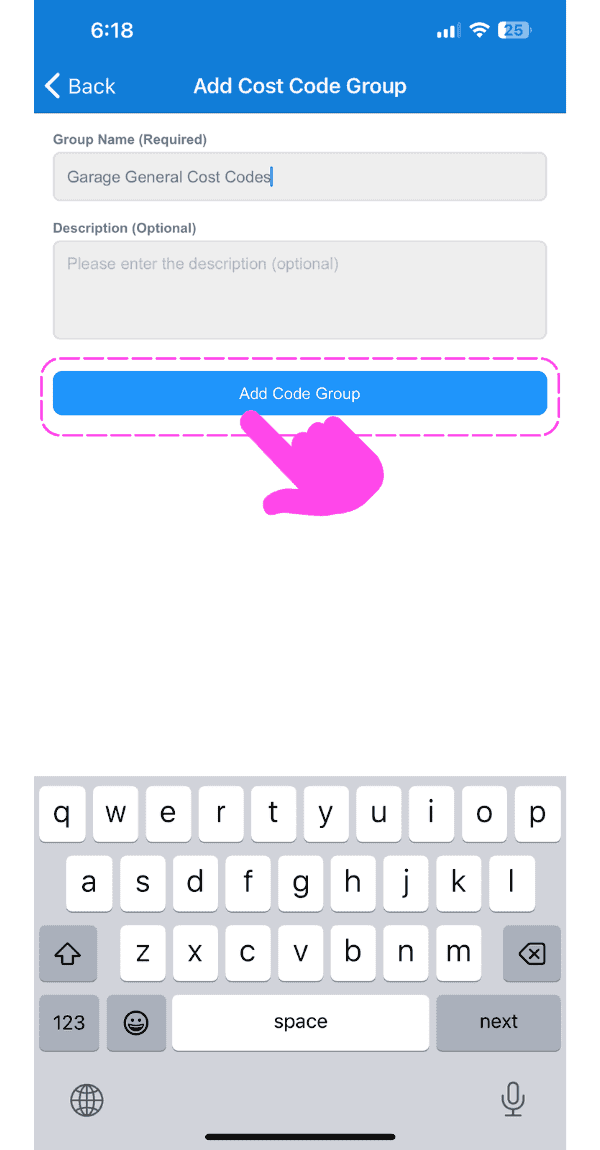
Add Cost Code Group screen with group name entered and the Add Code Group button highlighted by a pink arrow

Then, to add codes to the group tap on Codes
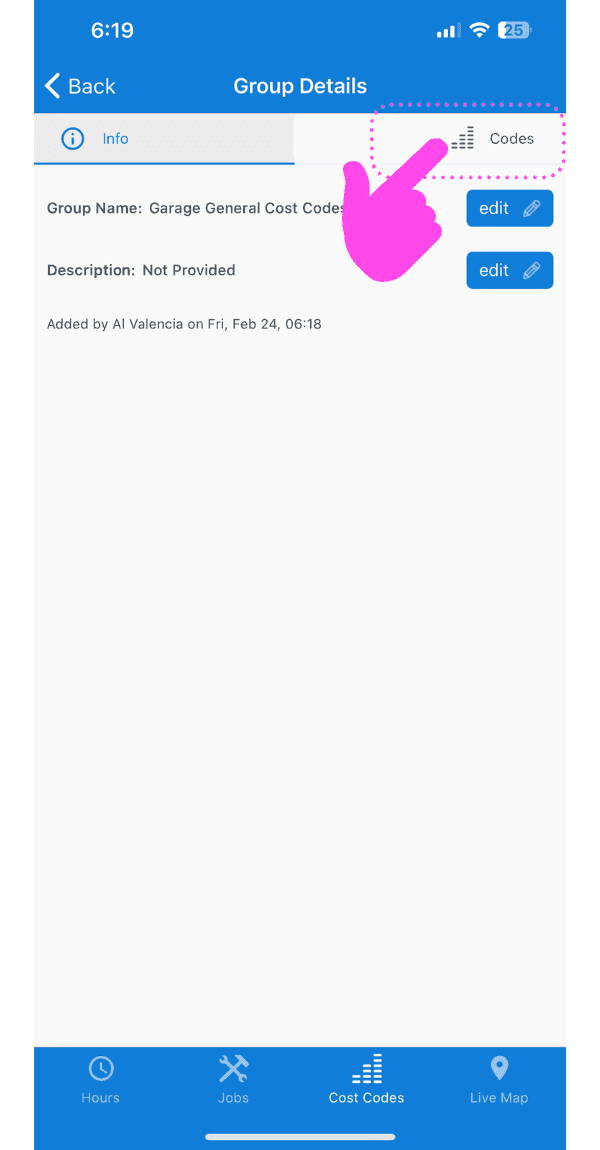
SINC mobile Group Details screen with a pink hand pointing to the Codes tab in the top right

Tap on The + button down the bottom right
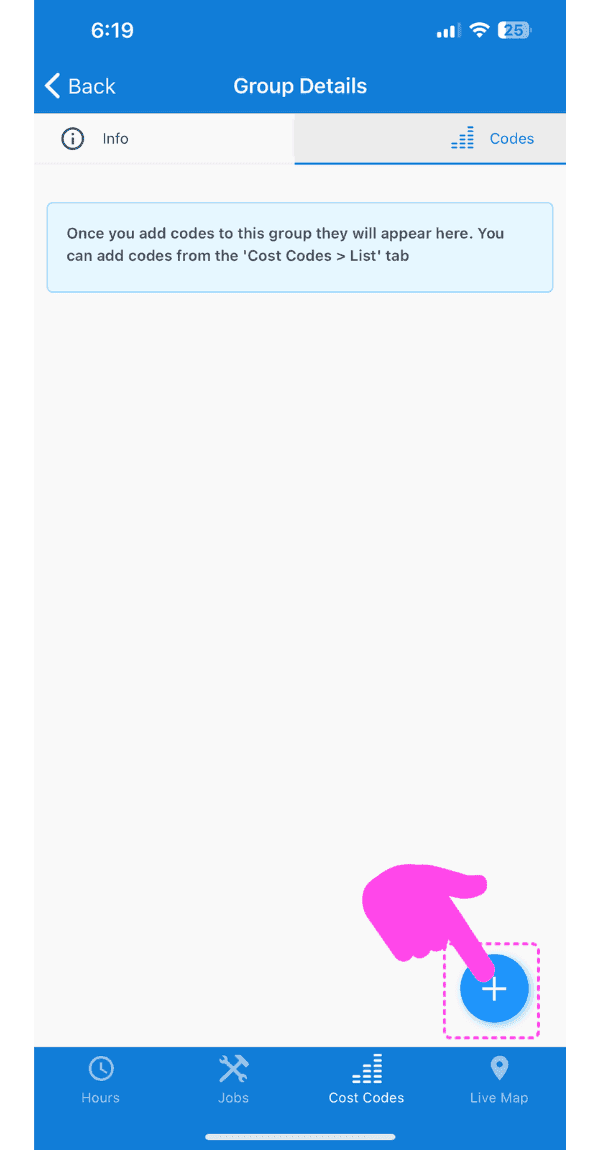
Empty Group Details Codes tab with the blue plus button circled by a pink arrow

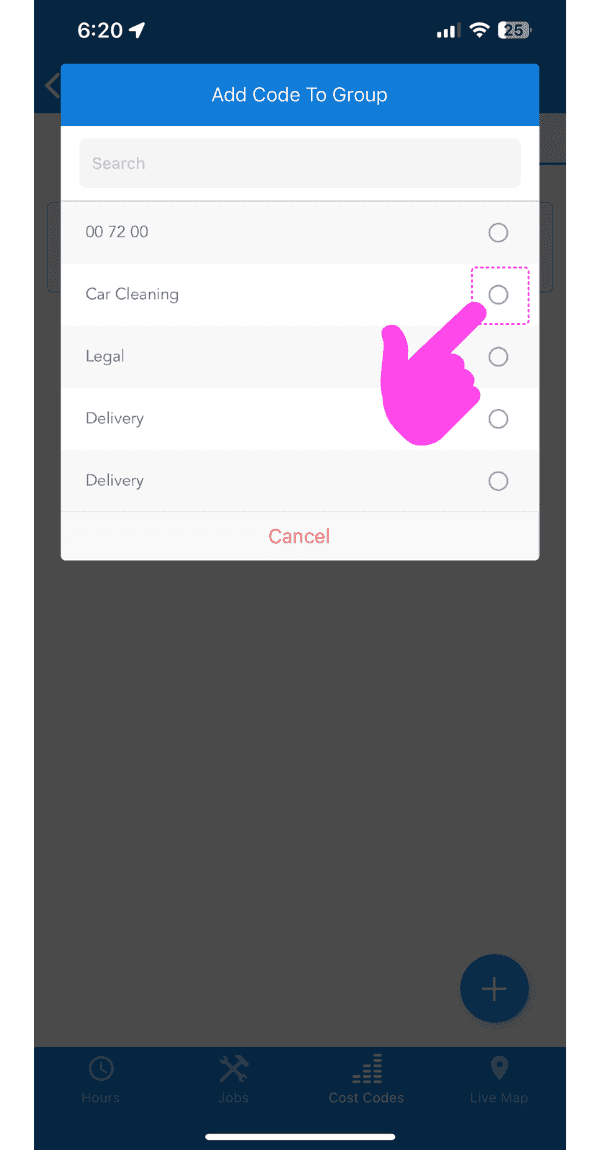
Select a code

SINC mobile Add Code To Group screen with a pink arrow pointing to a cost code radio button

Now, go ahead and add that code group to a job by tapping on Jobs
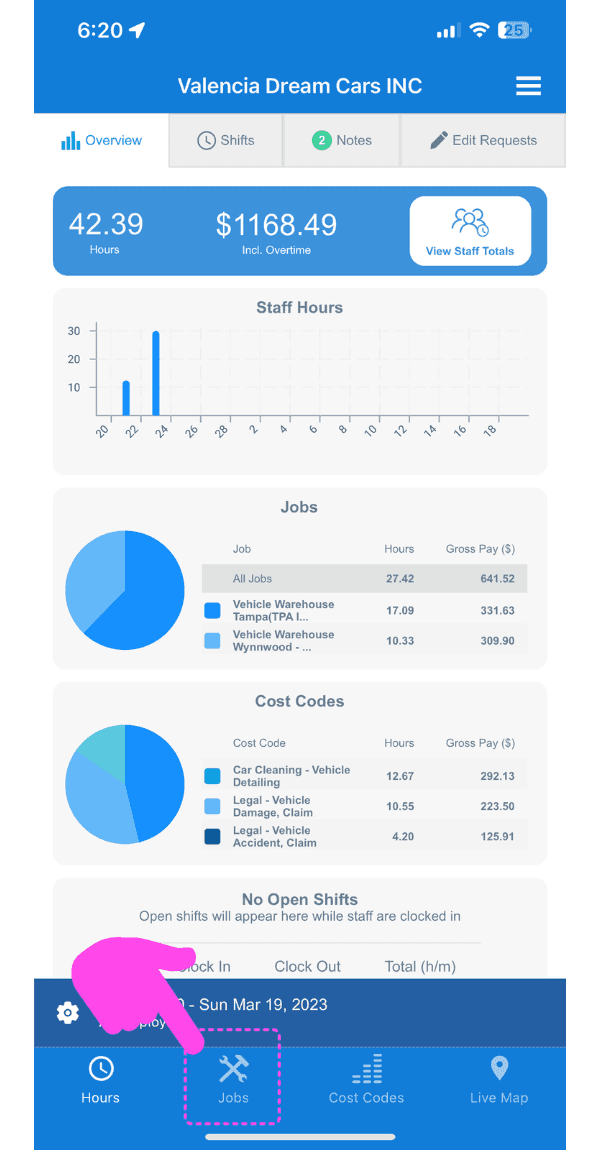
SINC mobile app Overview screen with a pink arrow pointing to the Jobs tab in the bottom navigation bar

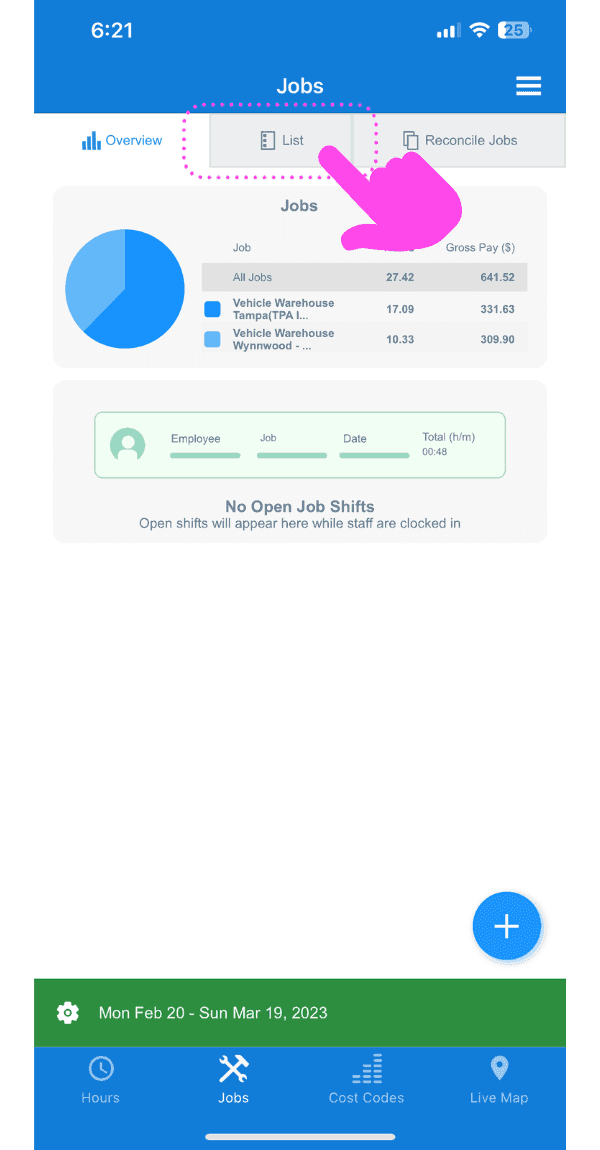
Tap on List

SINC mobile Jobs Overview screen with a pink arrow pointing to the List tab

Then The job you want to add the code group to
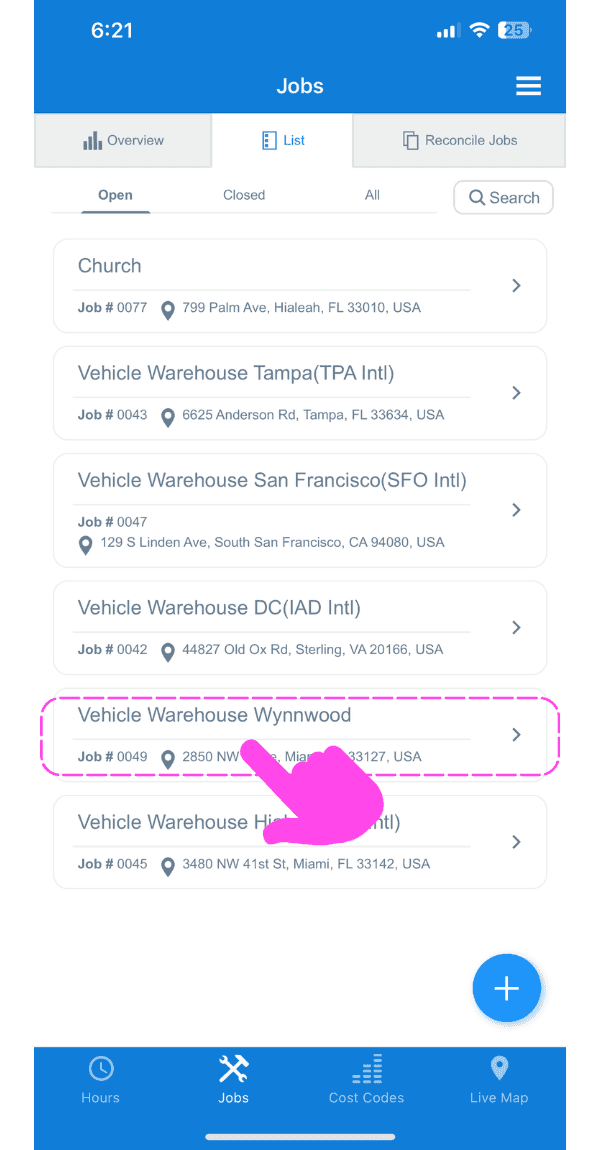
Web Jobs list showing a specific job entry, Vehicle Warehouse Wynnwood, boxed in pink with an arrow pointing to it

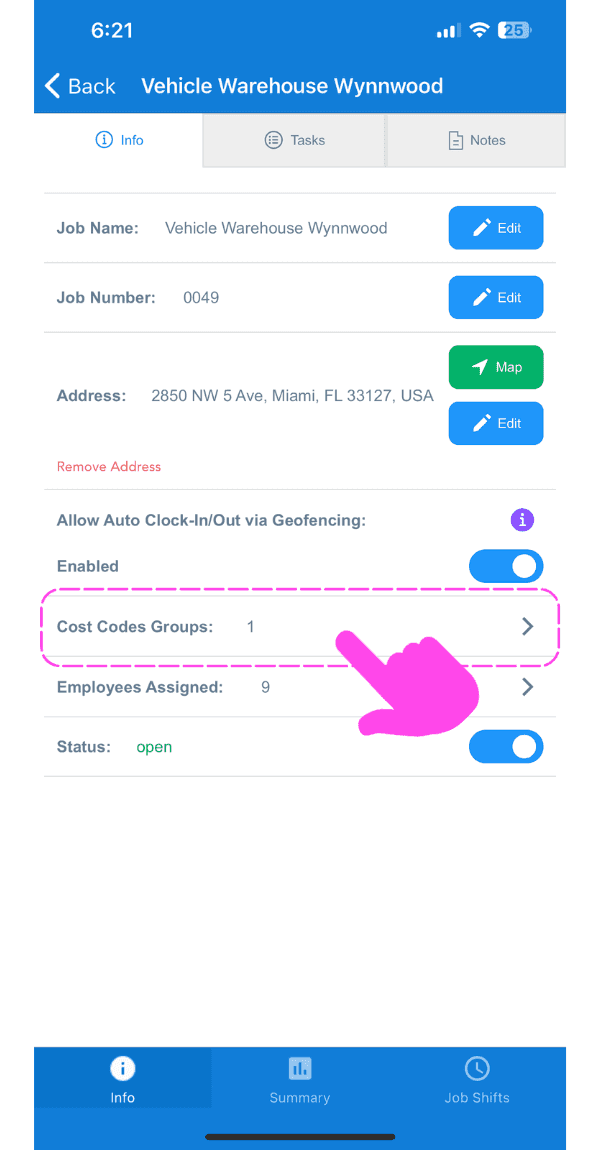
Tap on Cost Codes Groups

SINC mobile Job Info screen with a pink hand pointing to the Cost Codes Groups row

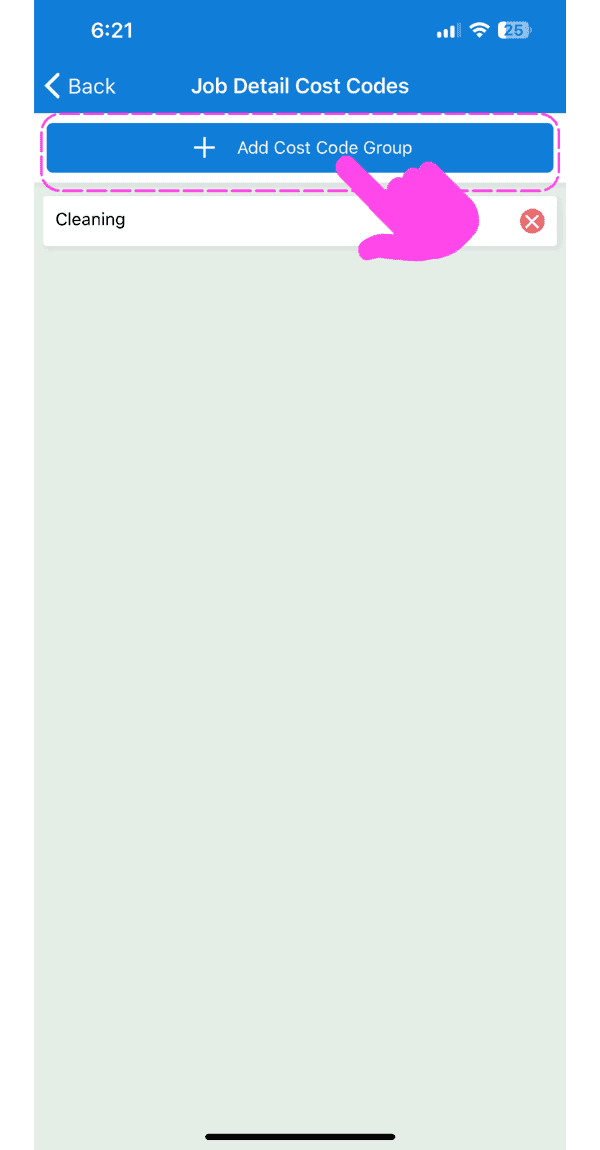
Tap on Add Cost Code Group

Job Detail Cost Codes screen with a pink arrow pointing to the Add Cost Code Group button

Select the code group you just created
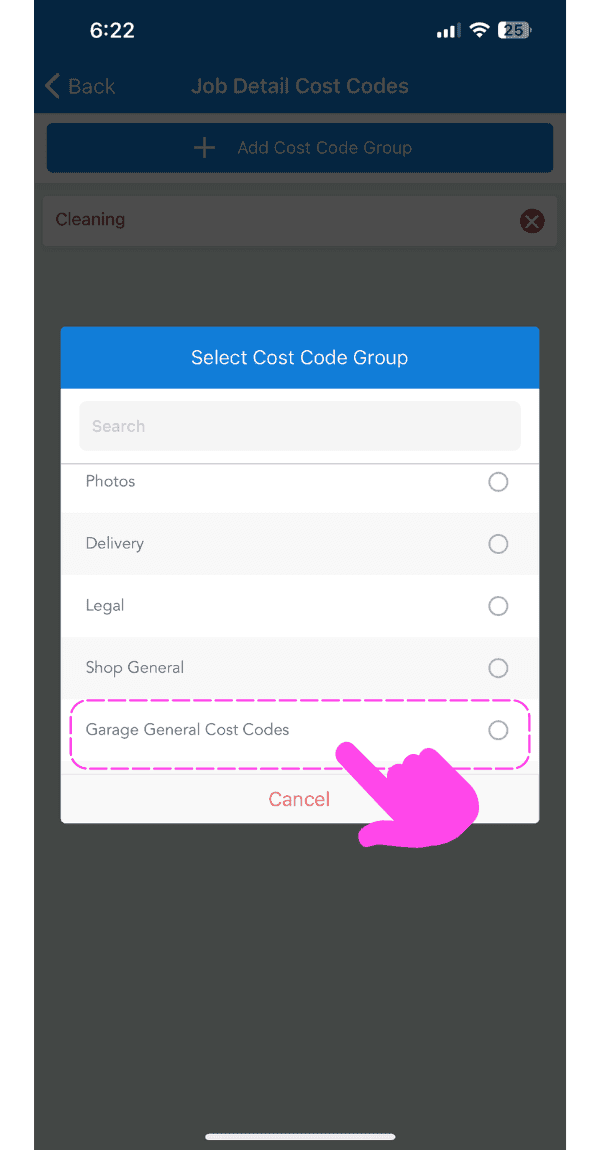
Mobile Select Cost Code Group popup with a pink arrow pointing to a highlighted cost code group option

Now, when your staff are clocked into that job, the codes you added to that group will be available to select when your staff go to start a cost code
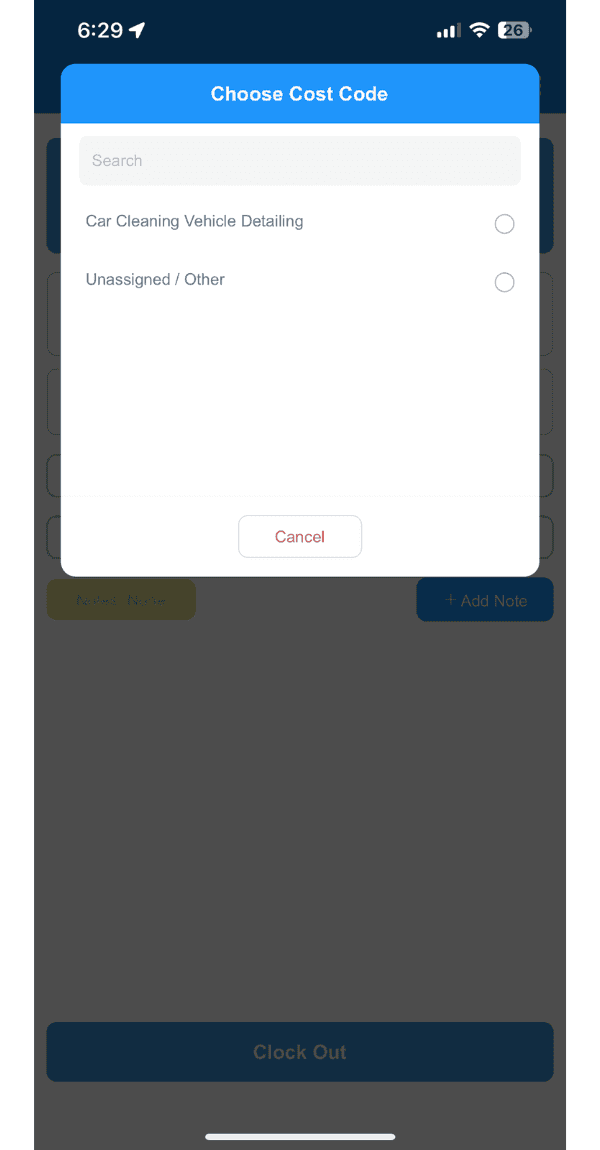
SINC mobile Choose Cost Code popup listing selectable cost codes with a Cancel button

Did this answer your question?