Jobs: Employee Walkthrough

This is a walk through showing the jobs work flow for an employee

Sam Dolbel
Sam Dolbel
Dec 15th, 2022

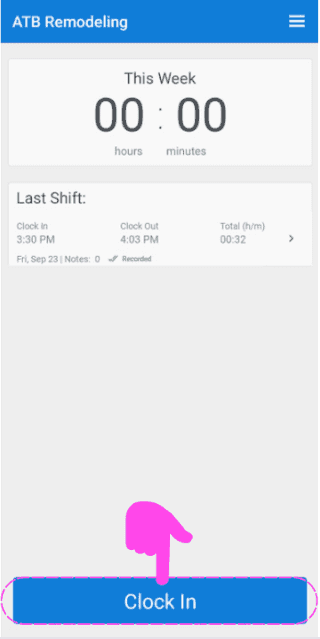
Tap on Clock In

SINC mobile app home screen with a pink hand icon pointing to the Clock In button

Slide the button right to confirm clock in
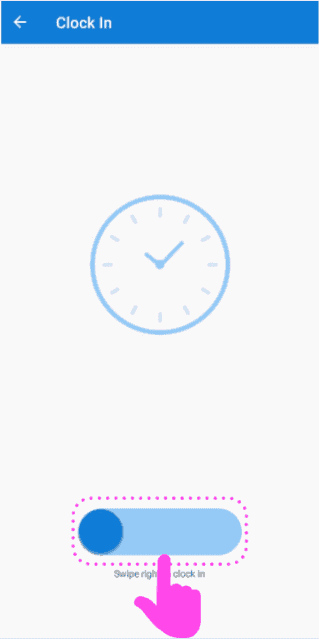
Clock In screen with a pink arrow showing how to swipe the slider right to clock in

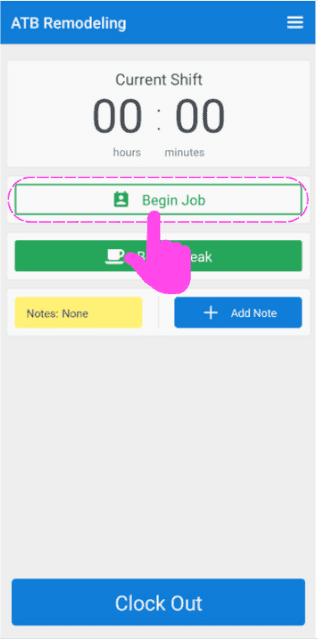
Tap on Start Job

SINC mobile Current Shift screen with the Begin Job button circled in pink

Here you see a searchable list of available jobs. Select the correct job name.
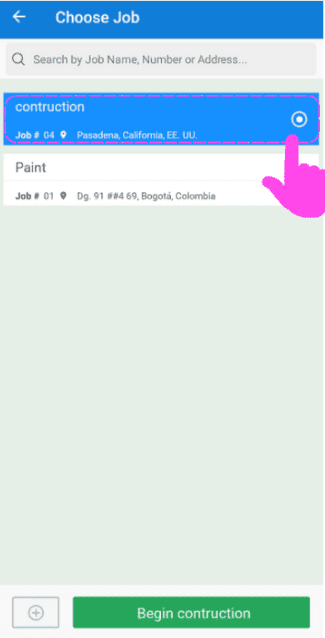
SINC mobile Choose Job screen with a pink hand pointing to a highlighted job in the searchable list

Now, to start working on a cost code, tap on Add (next to Code: Unassigned)
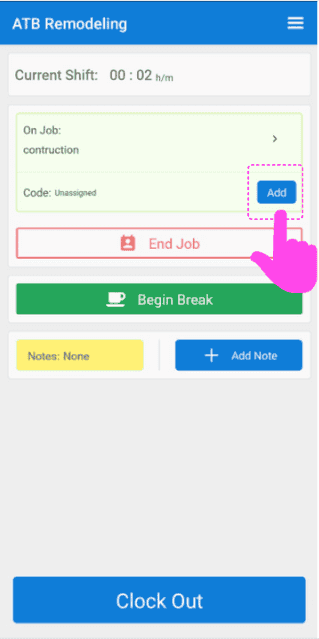
Mobile app Current Shift screen with the Add button next to the unassigned cost code highlighted by a pink arrow

Here you will see a list of all cost codes the admin has made available for this job. Select the one that applies
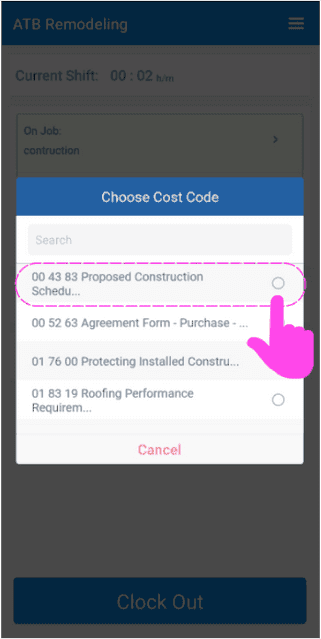
SINC mobile Choose Cost Code screen with the first cost code option highlighted in pink

Then, once you finish working on that code and want to change to another one, simply tap on Edit (next to Code:)
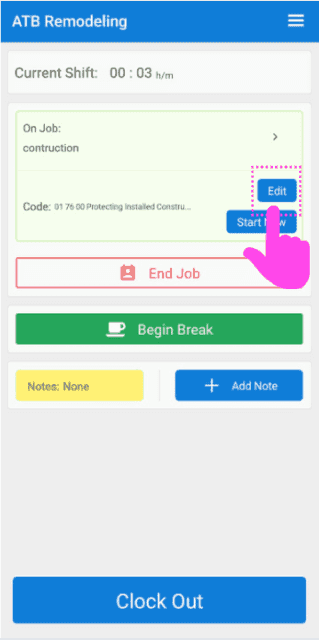
Job shift screen for ATB Remodeling with a pink hand pointing to the Edit button next to the job Code

And select the appropriate code from the list
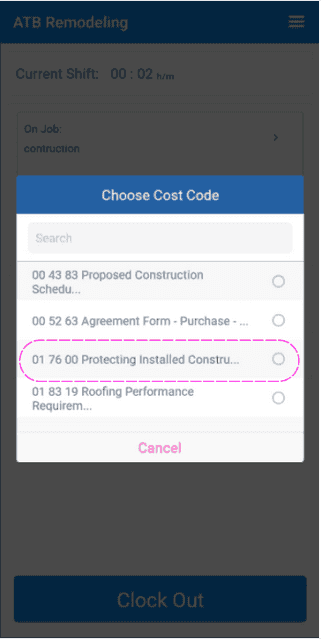
SINC mobile app Choose Cost Code list with one cost code option circled in pink

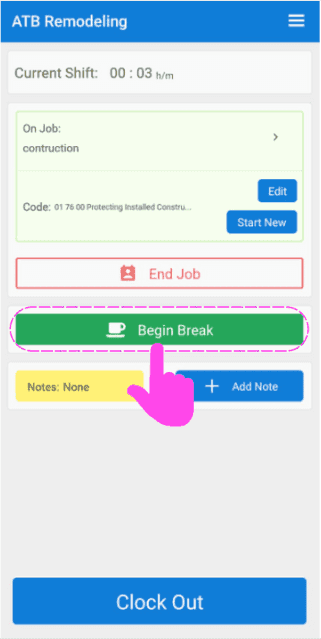
To begin a break, tap on Begin Break

Mobile job clock-in screen with the green Begin Break button circled in pink and an arrow pointing to it

Select the break that you qualify for based on the amount of time worked this shift
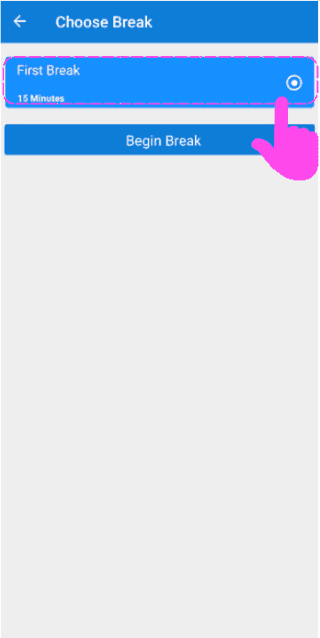
SINC mobile Choose Break screen with a pink hand pointing to the First Break option above the Begin Break button

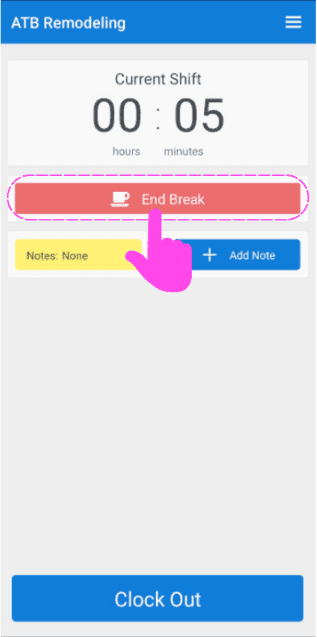
To end the break, tap on End Break

Mobile Current Shift screen during a break with a pink arrow pointing to the End Break button

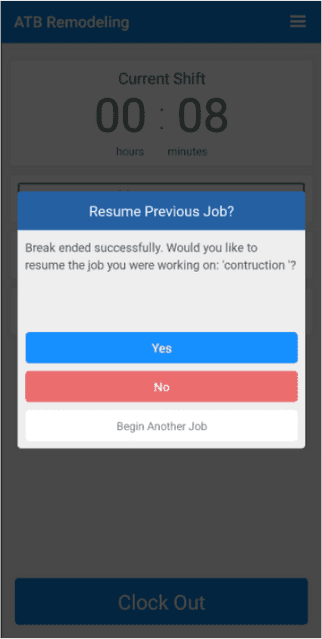
You will be asked if you would like to resume working on the job that you were working on prior to taking the break or start another job
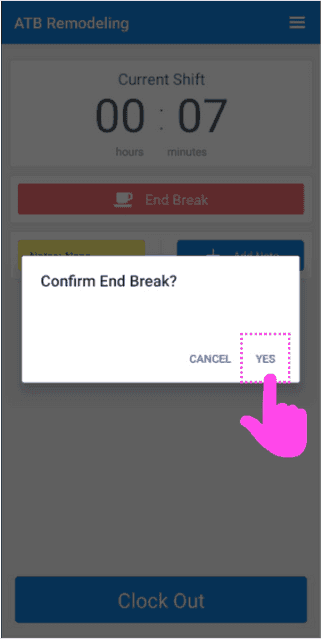
Mobile Confirm End Break popup with the Yes button circled in pink
SINC mobile app Resume Previous Job dialog with Yes, No, and Begin Another Job buttons

To see the job details, tap on the arrow next to On Job
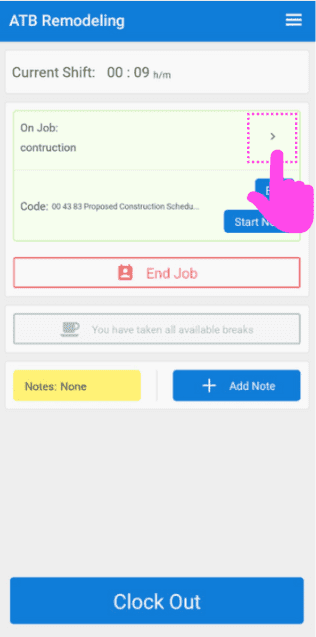
SINC mobile Current Shift screen with a pink arrow highlighting the expand arrow icon next to 'On Job'

To get quick directions to your job, tap on Map
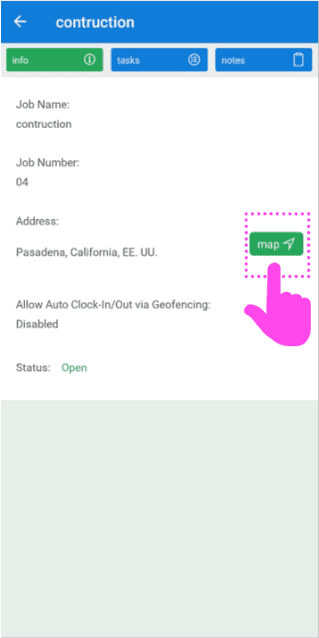
Mobile job info screen for a construction job with a pink arrow pointing to the green Map button

To see a list of tasks related to the job, tap on Tasks
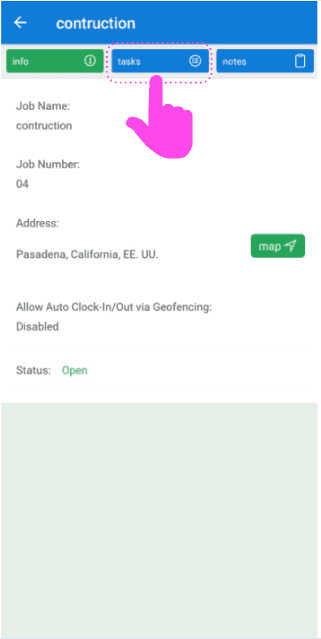
SINC mobile app job detail screen with a pink hand pointing to the Tasks tab

Here you will see a list of tasks for this job. To see the task descriptions, tap on Task Name
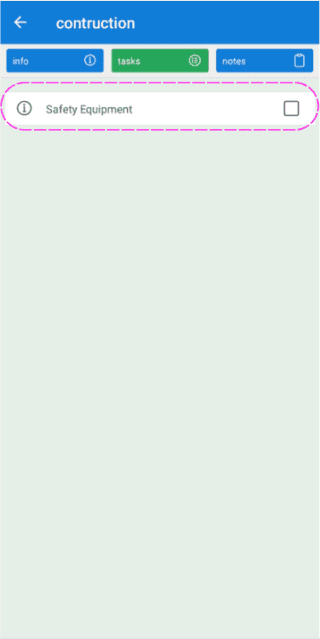
Job task list screen with the Safety Equipment task outlined in pink

You can mark a task as complete by tapping on the box next to the task
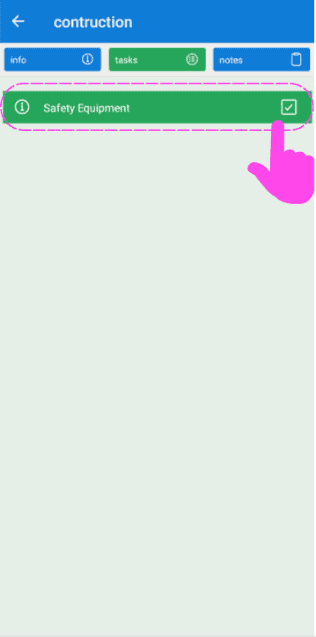
SINC mobile Job Tasks screen with the Safety Equipment task and its completion checkbox circled in pink

To add a note to the job, tap on notes
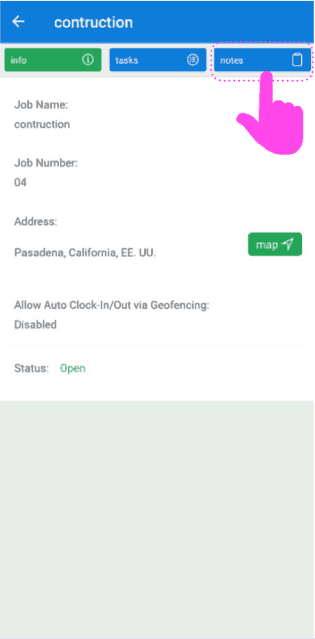
SINC mobile job detail screen with a pink arrow pointing to the Notes tab

Here you will see a list of all notes related to the job. To add a new one, tap on +Add Note
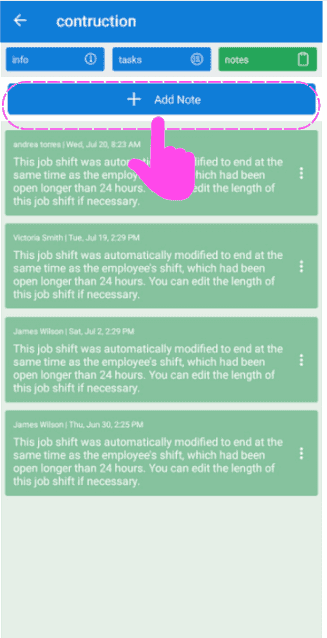
Job notes list screen with the +Add Note button outlined in pink at the top

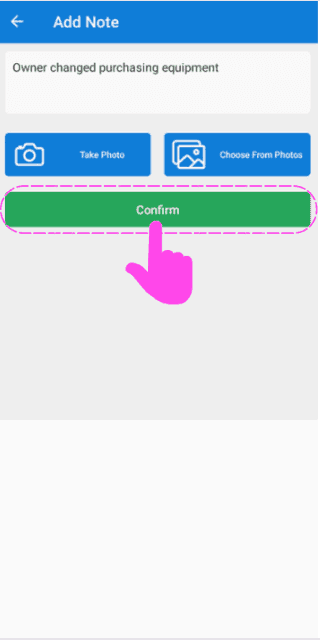
Here, you can enter a description, take a photo to attach to the note or select an image from your photo library on your device.
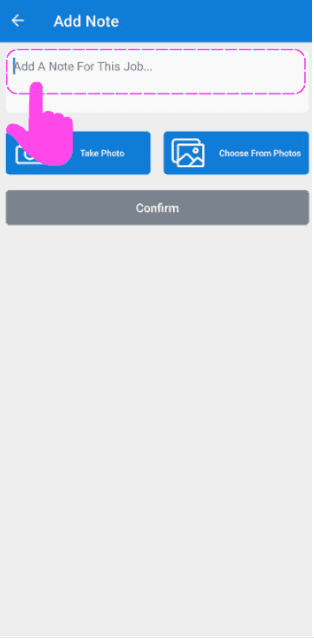
SINC mobile Add Note screen with the note text field highlighted and Take Photo and Choose From Photos buttons
Add Note screen with a typed description and a pink arrow pointing to the green Confirm button below the photo options

When your shift is finished and you want to clock out, tap on Clock Out
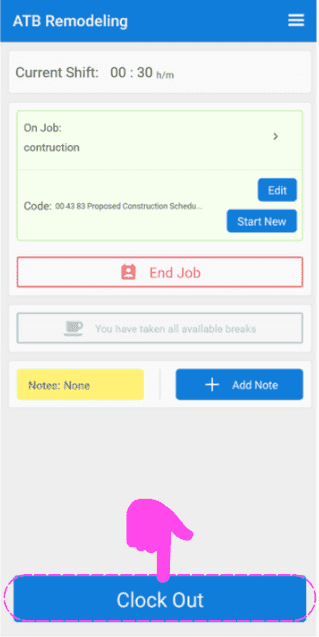
SINC mobile Current Shift screen for a job, with a pink arrow pointing to the Clock Out button

Slide the button right to confirm clock out
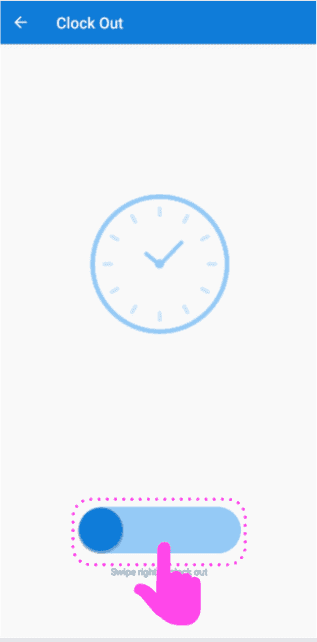
Mobile Clock Out screen with a clock icon and the slide-to-confirm button outlined in pink

Did this answer your question?