Jobs: Force End An Open Job Shift

Use this feature with caution! It is designed as a last resort when an employee does not have internet connectivity to sync their shifts

SINC Support Team
SINC Support Team
Feb 27th, 2023

If an employee is unable to get internet connectivity in time for you to generate a summary or hasn't been able to clock out yet for some other reason, you can force end their job shift using this feature. This feature should be used as a last resort.

On Mobile: Tap on The Open Job Shift In Question
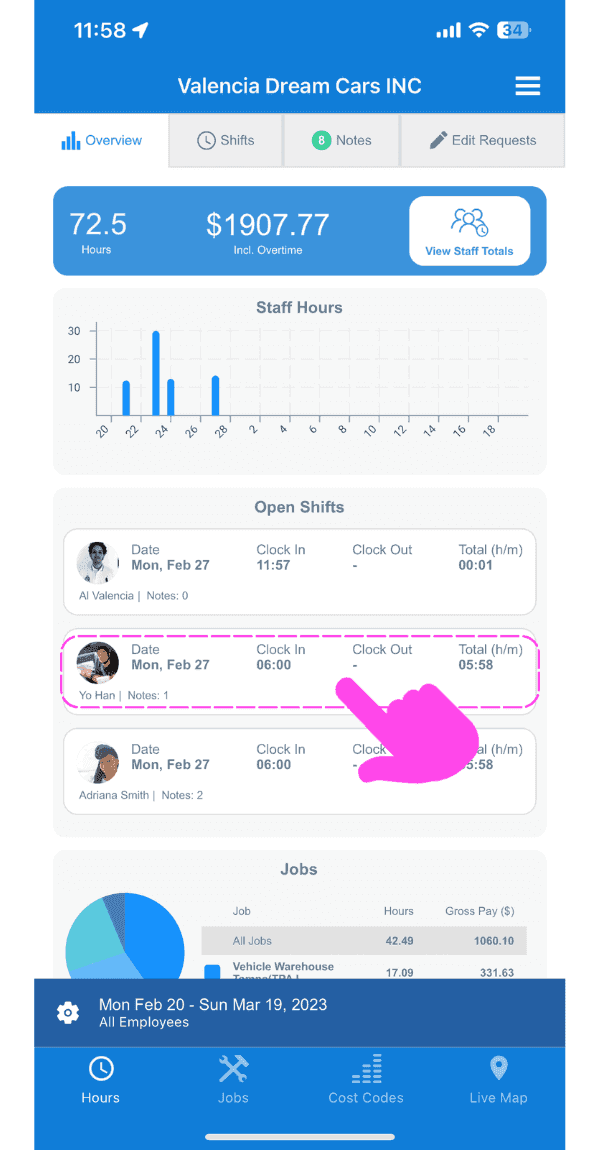
SINC web dashboard Open Shifts list with a pink hand pointing to a specific open shift row

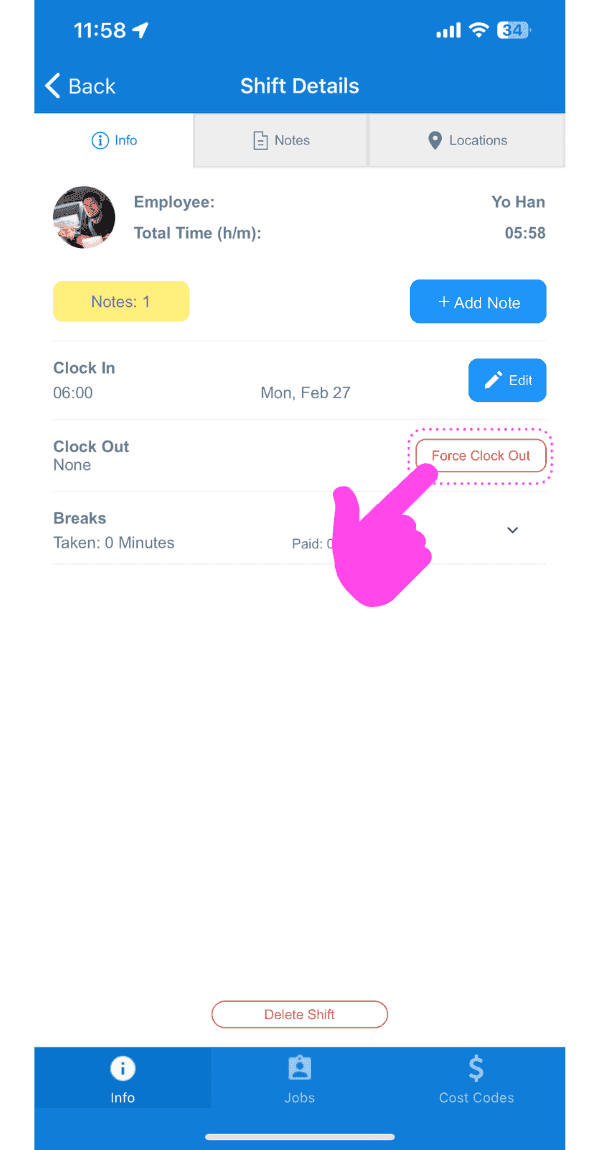
Tap on Force Clock Out

Shift Details screen with the Force Clock Out button outlined in pink

Select the date for the new clock out
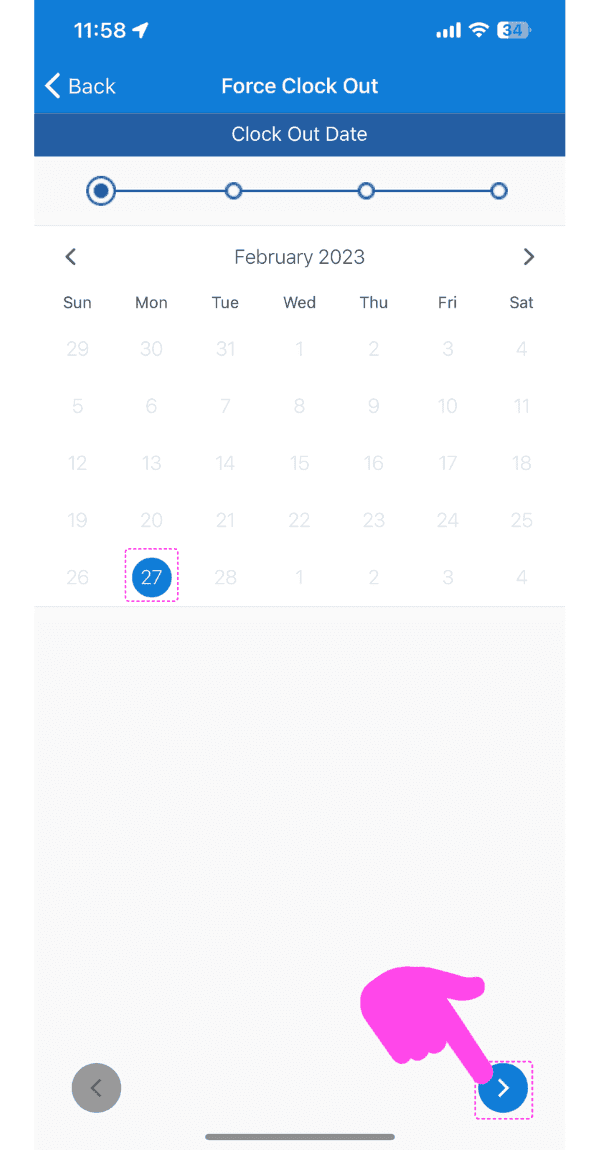
Force Clock Out screen showing a February calendar with the 27th selected and a pink arrow pointing to the next-step button

Select the time for the new clock out
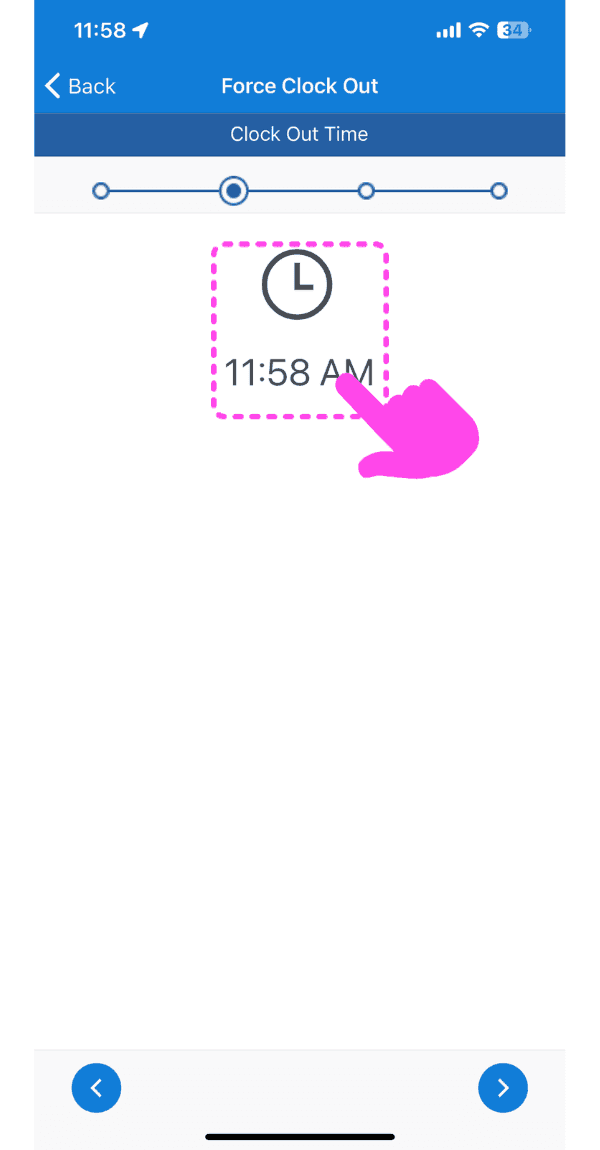
SINC mobile Force Clock Out screen with a pink arrow pointing to the clock-out time selector

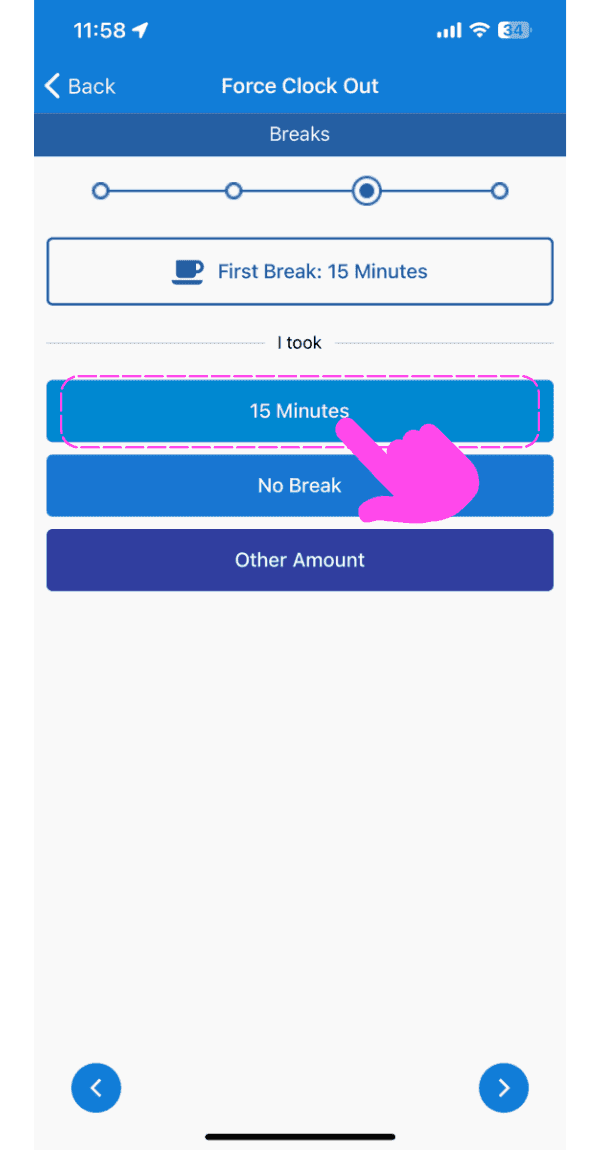
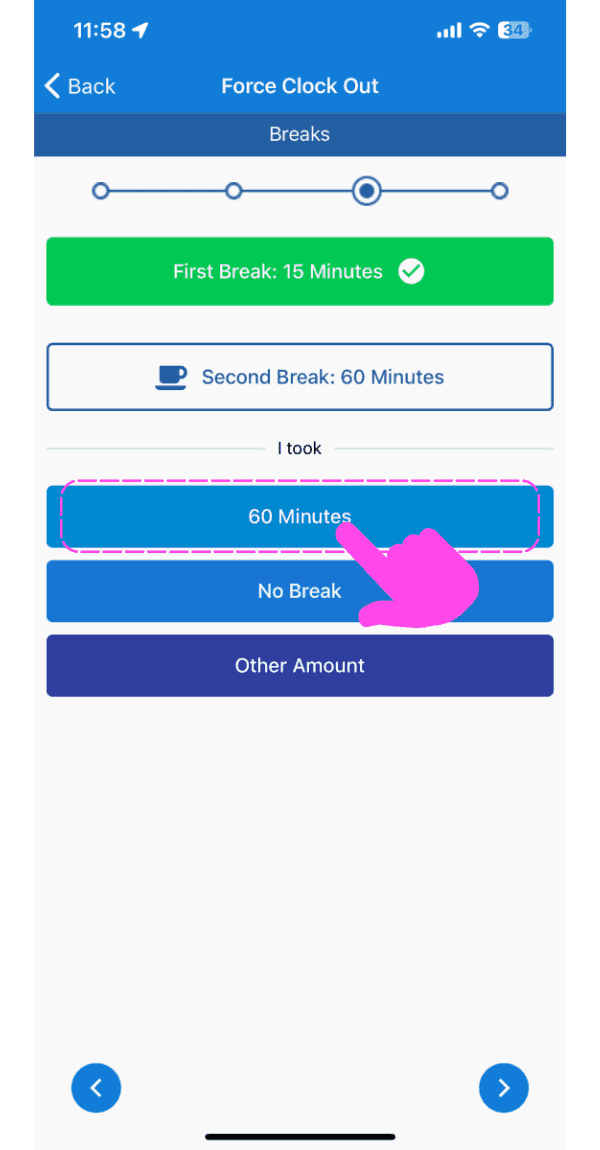
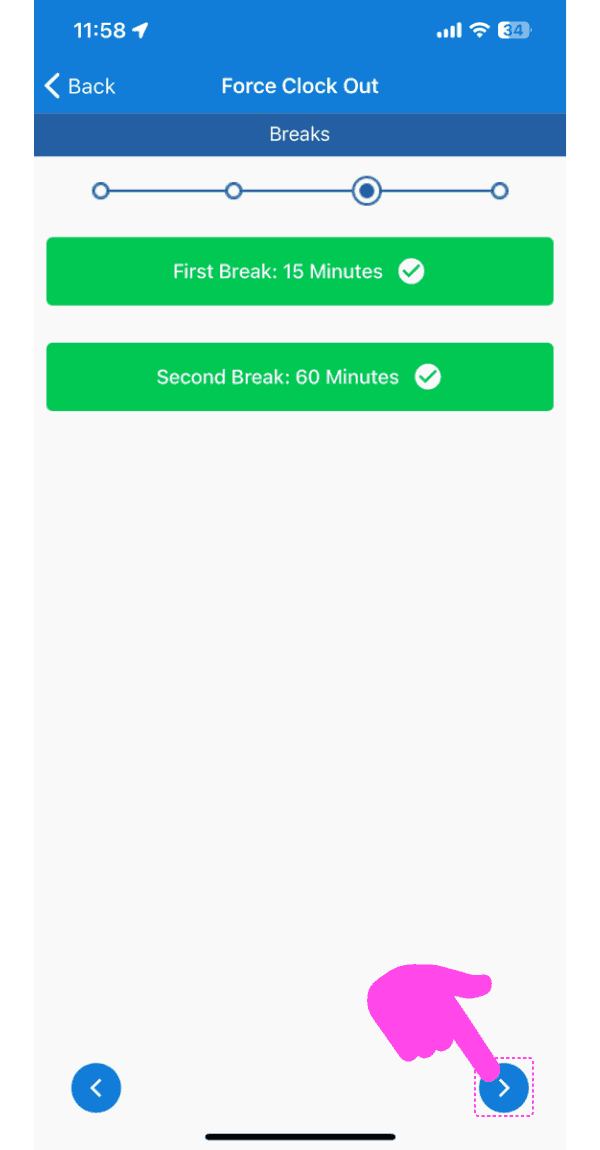
Select the break time

Force Clock Out breaks screen with the 15 Minutes break option highlighted by a pink arrow
SINC mobile Force Clock Out breaks screen with the 60 Minutes option highlighted in pink
Force Clock Out Breaks screen showing both breaks confirmed, with a pink arrow pointing to the next-step arrow button bottom right

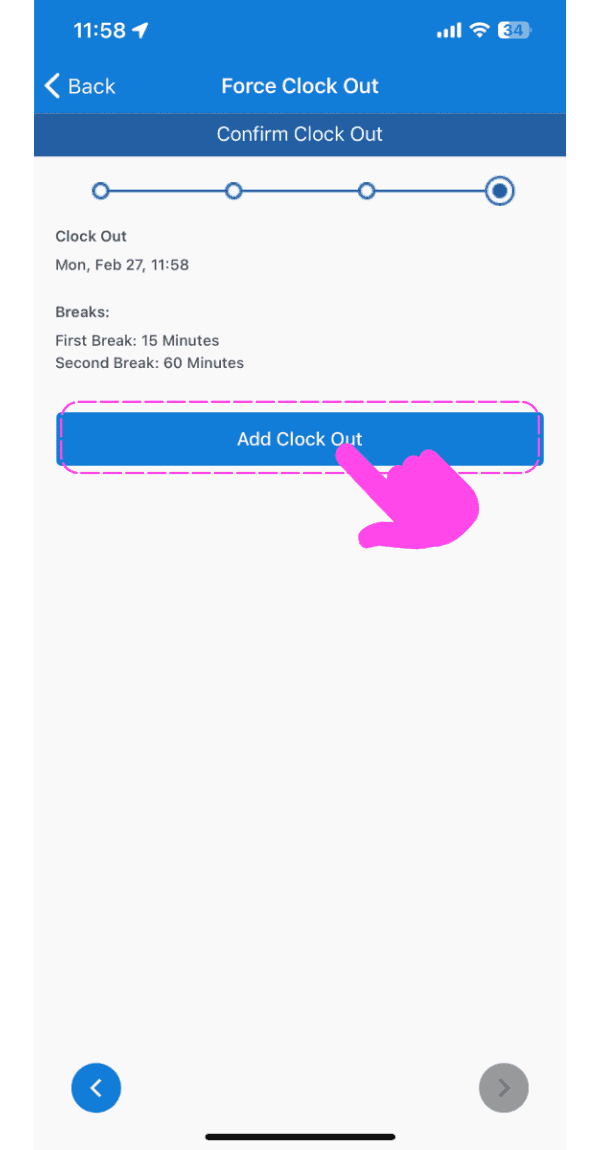
Tap on Add clock out

SINC mobile Confirm Clock Out screen with a pink arrow pointing to the Add Clock Out button

On Web: Click on The Open Job Shift In Question
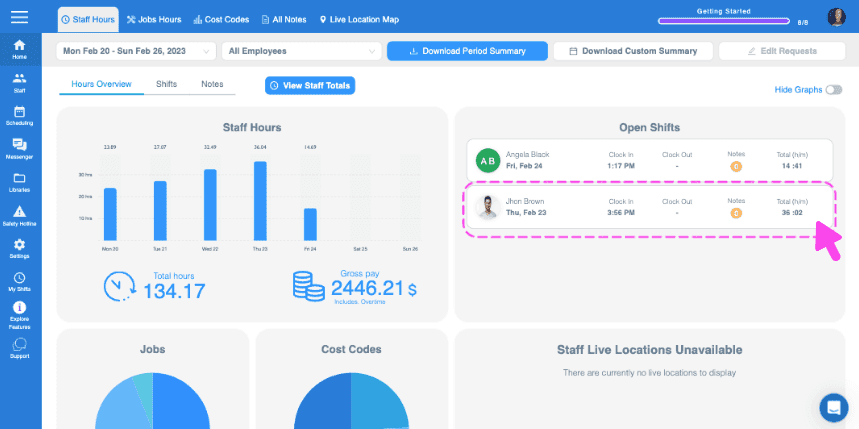
Web Staff Hours Overview with an open shift row outlined in pink and an arrow pointing to it

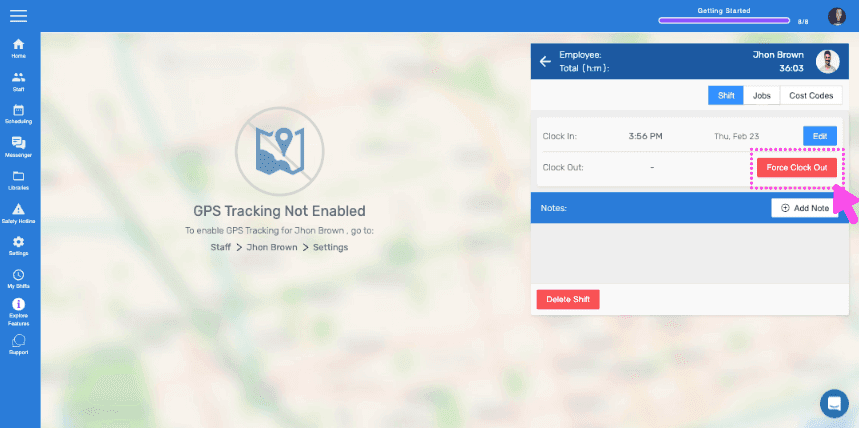
Click on Force Clock Out

SINC web Force Clock Out panel with a pink arrow pointing to the highlighted Clock Out Time field

Select the date for the new clock out
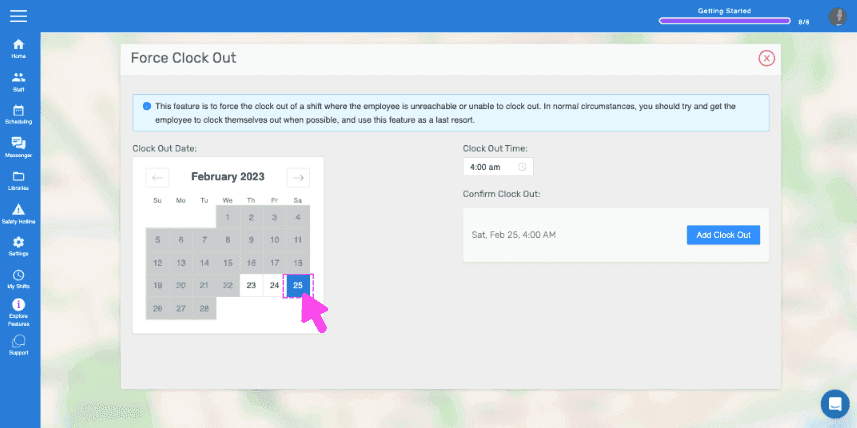
Force Clock Out screen with a calendar and a pink arrow selecting a clock-out date

Select the time for the new clock out
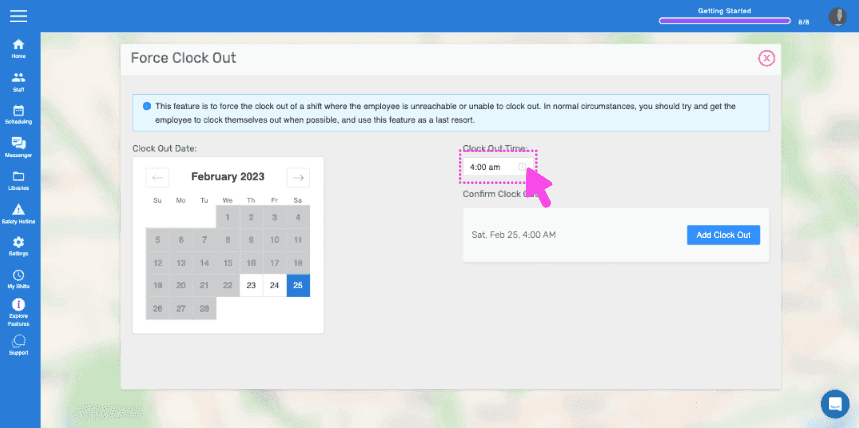
Web Force Clock Out screen with the Clock Out Time field circled in pink

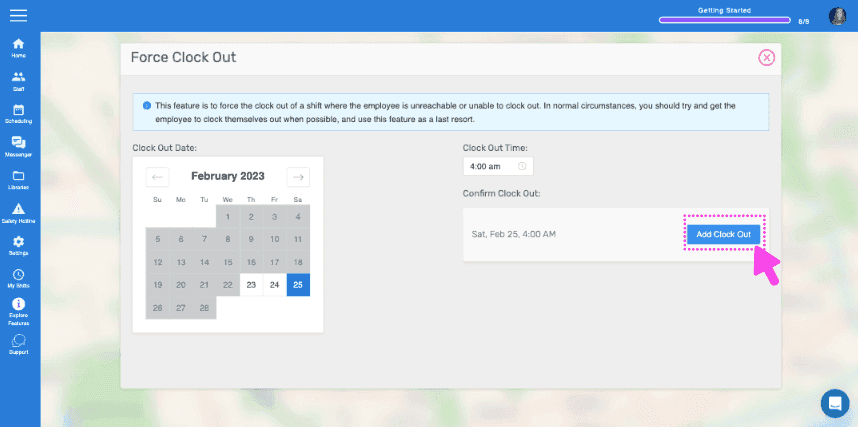
Click on Add Clock Out

SINC web Force Clock Out screen with a pink arrow pointing to the Add Clock Out button

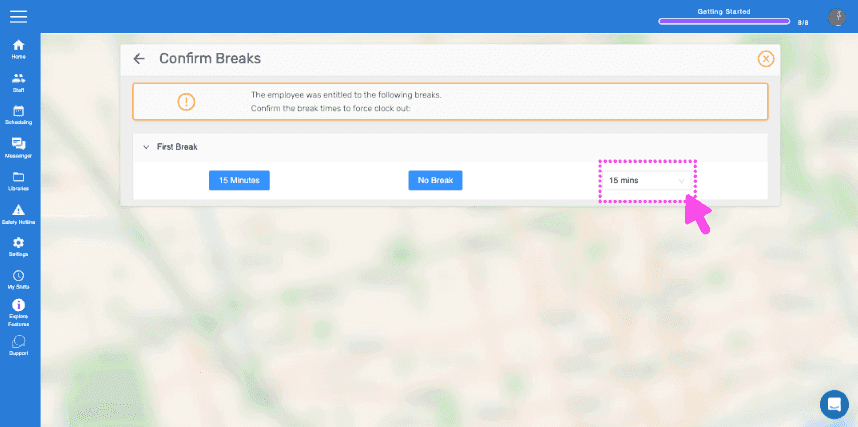
Click on Confirm Breaks

SINC web Confirm Breaks dialog with a pink arrow pointing to the break time field

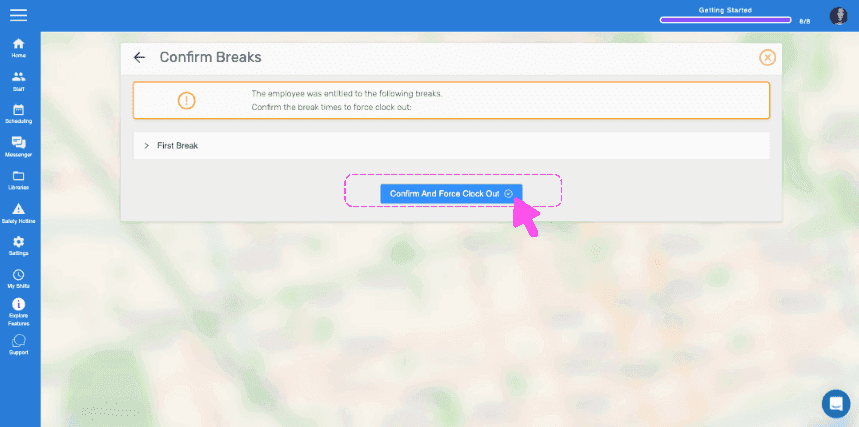
Click on Add Force Clock Out

Confirm Breaks dialog with a pink arrow pointing to the Confirm And Force Clock Out button

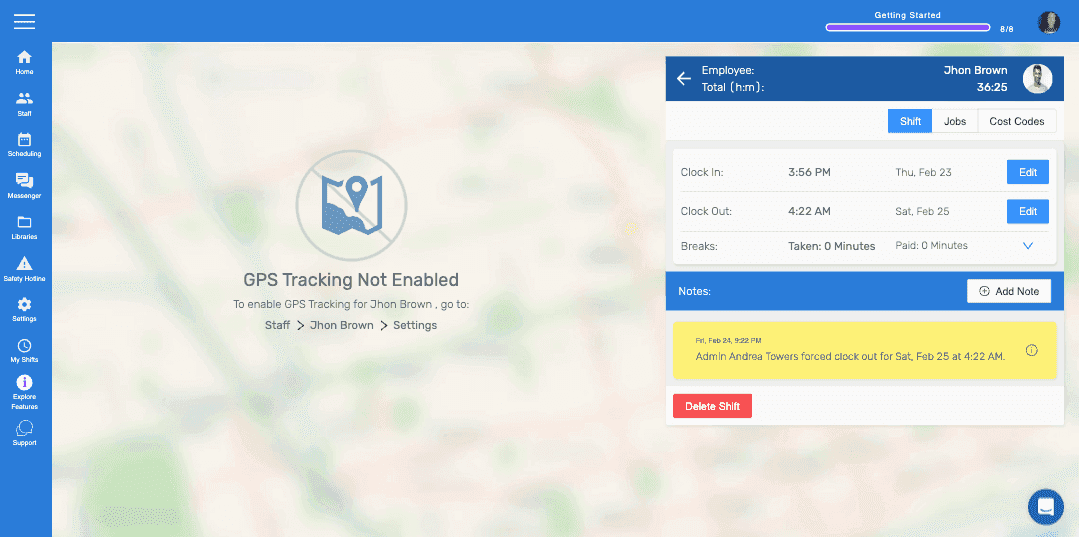
Click on Completed

SINC mobile app shift detail screen showing clock in/out times, a forced clock-out note, and the Delete Shift button

Did this answer your question?