Jobs: Summaries and exporting reports

Sam Dolbel
Sam Dolbel
Feb 24th, 2023

There are two types of job summaries you can export inside of jobs. The first is a summary of all of your open jobs, and the second is an overview of each specific job. Let's start by looking at the summary of all open jobs. Click on Home Jobs
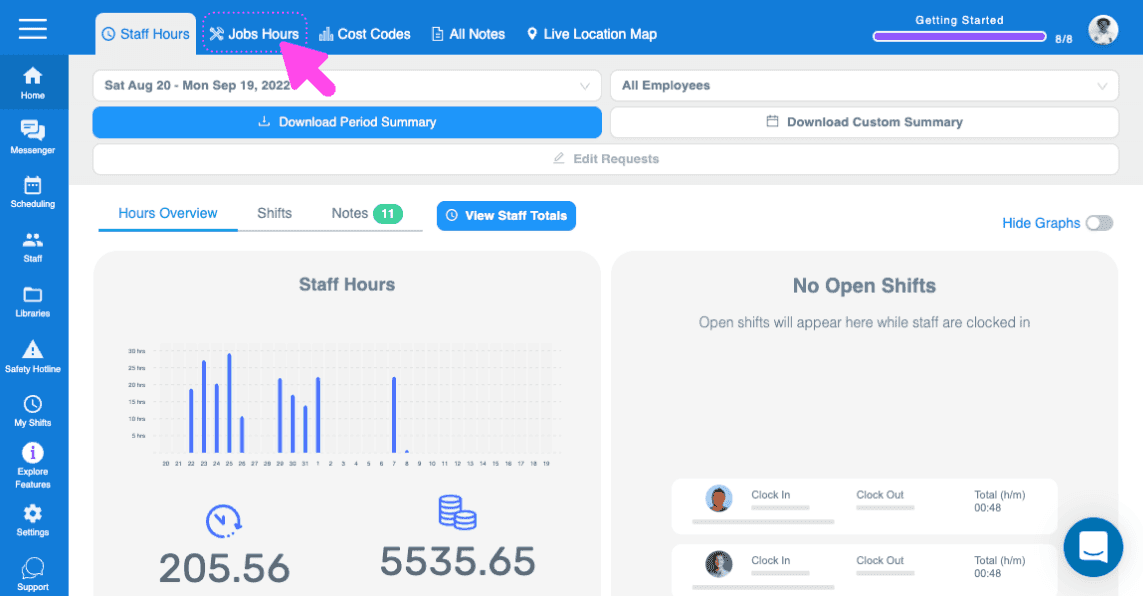
SINC web dashboard Jobs Hours tab highlighted with a pink arrow, showing the staff hours bar chart

Here, we will see a quick overview of all open jobs, showing the total hours worked, and gross pay costs associated with each open job. To export a detailed summary to your email showing all the data that went into each job, click on Download Summary.
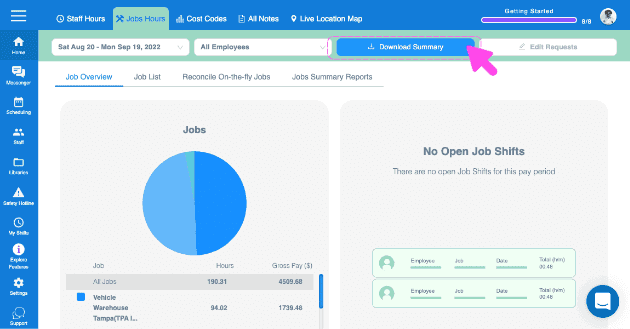
Web Jobs Hours Overview with a pie chart and the Download Summary button highlighted by a pink arrow

When the email from us arrives, open the attachment
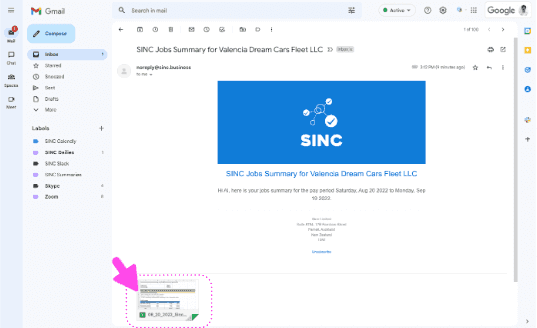
Gmail inbox showing a SINC Jobs Summary email with a pink arrow pointing to the attached report file

The first tab is a summary of all open jobs
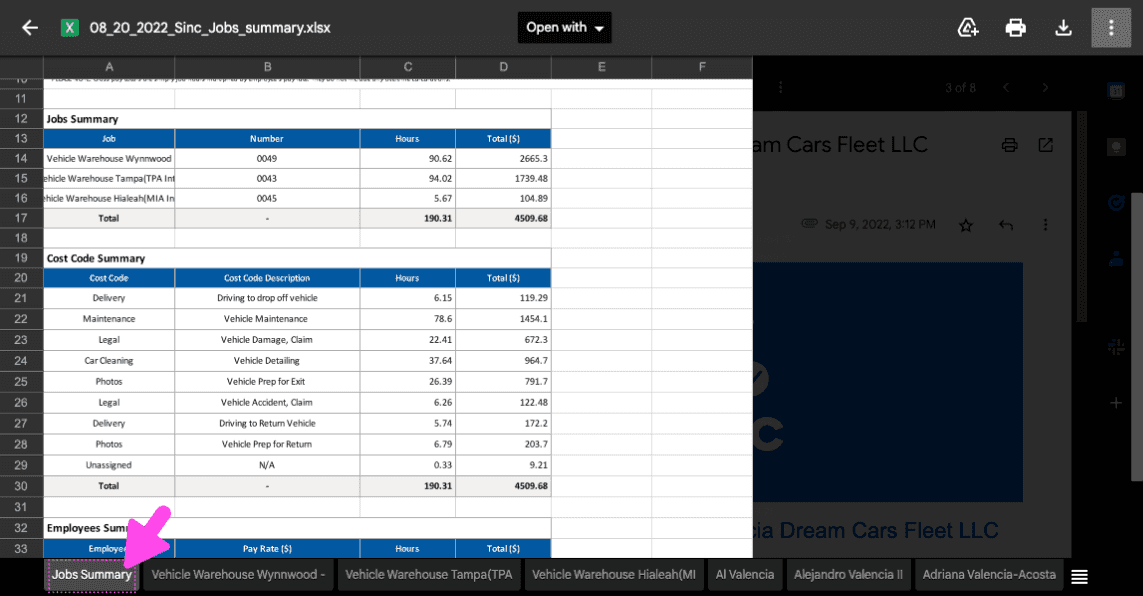
Exported Jobs Summary spreadsheet open in Excel with a pink arrow pointing to the Jobs Summary tab

There is an individual tab for each job
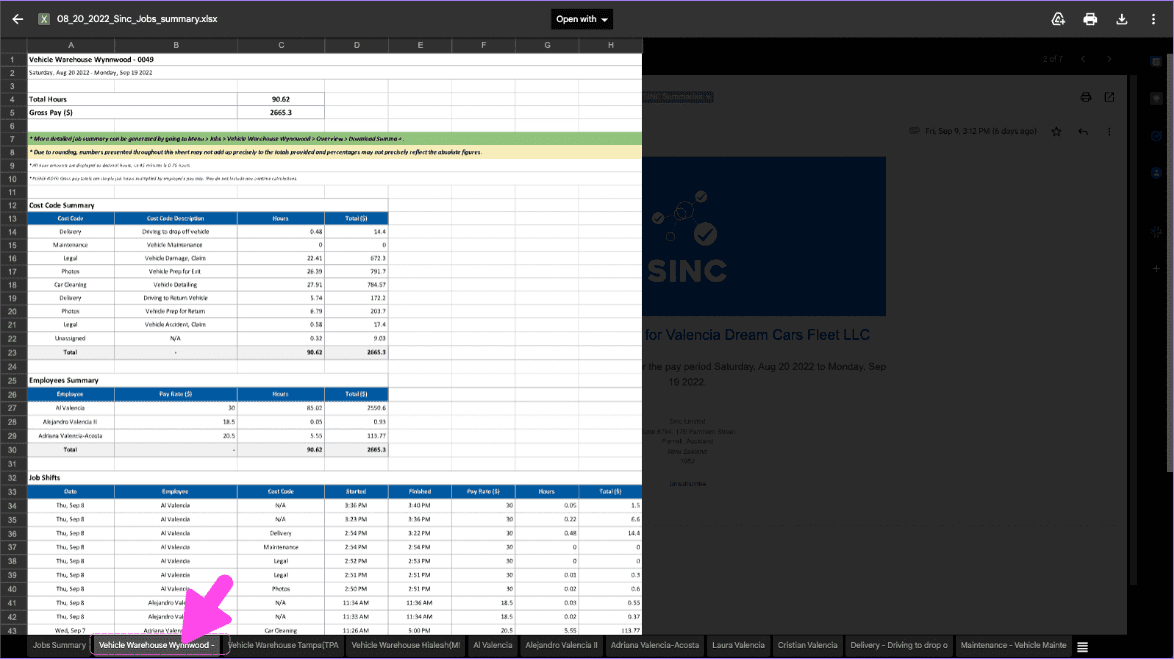
Excel jobs summary workbook open with a separate spreadsheet tab for each job, next to the SINC web app

And an individual tag for each cost code used
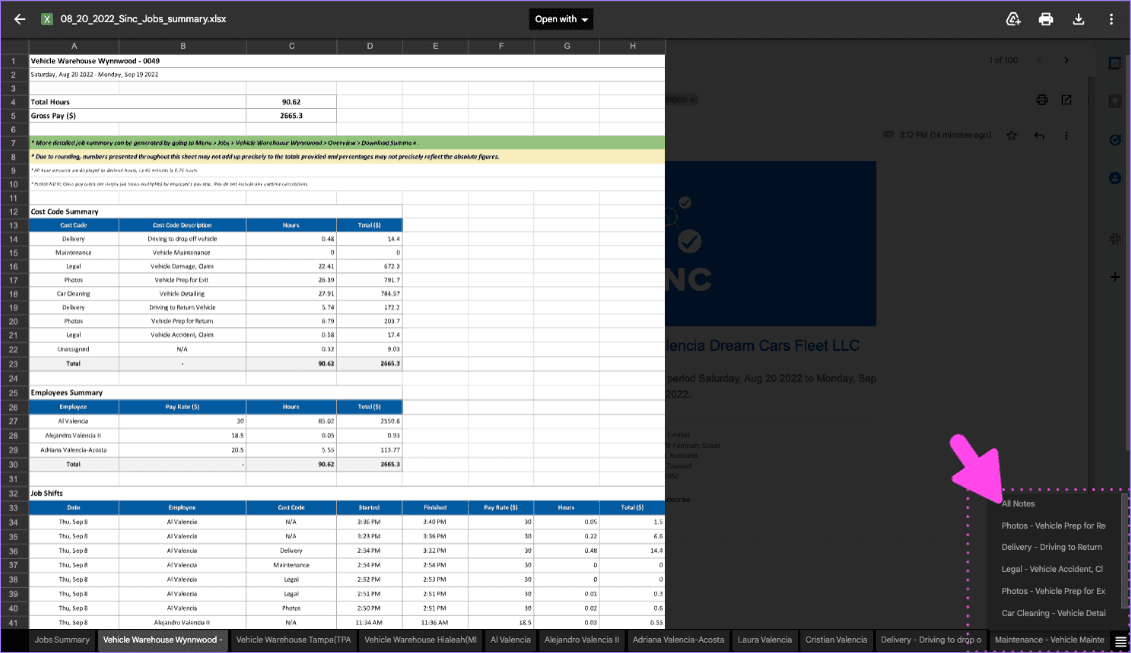
Exported SINC job summary spreadsheet with a pink arrow pointing to individual cost code tabs at the bottom

The last tab contains all the notes associated with your jobs
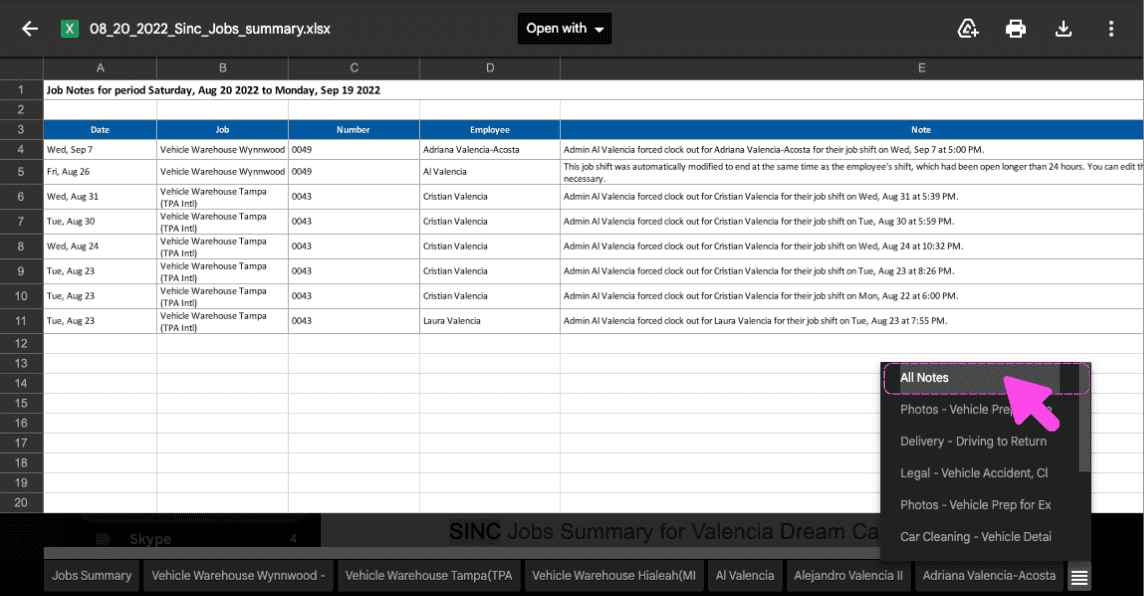
Exported SINC job notes spreadsheet with the All Notes filter dropdown open showing note categories

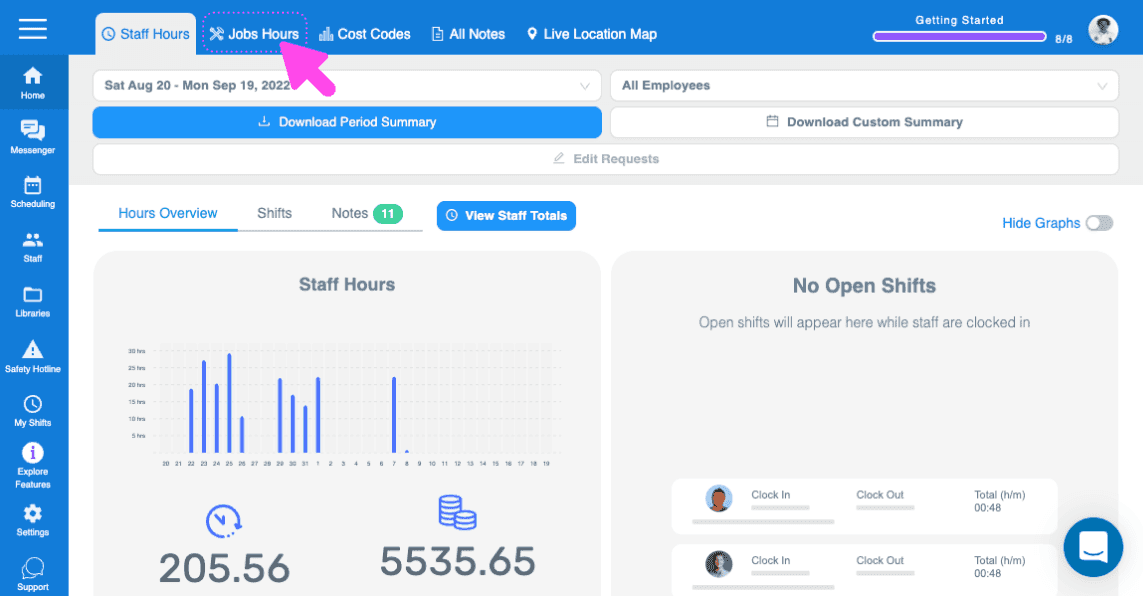
Now, let's look at the overview of each specific job. Click on Home Jobs Hours
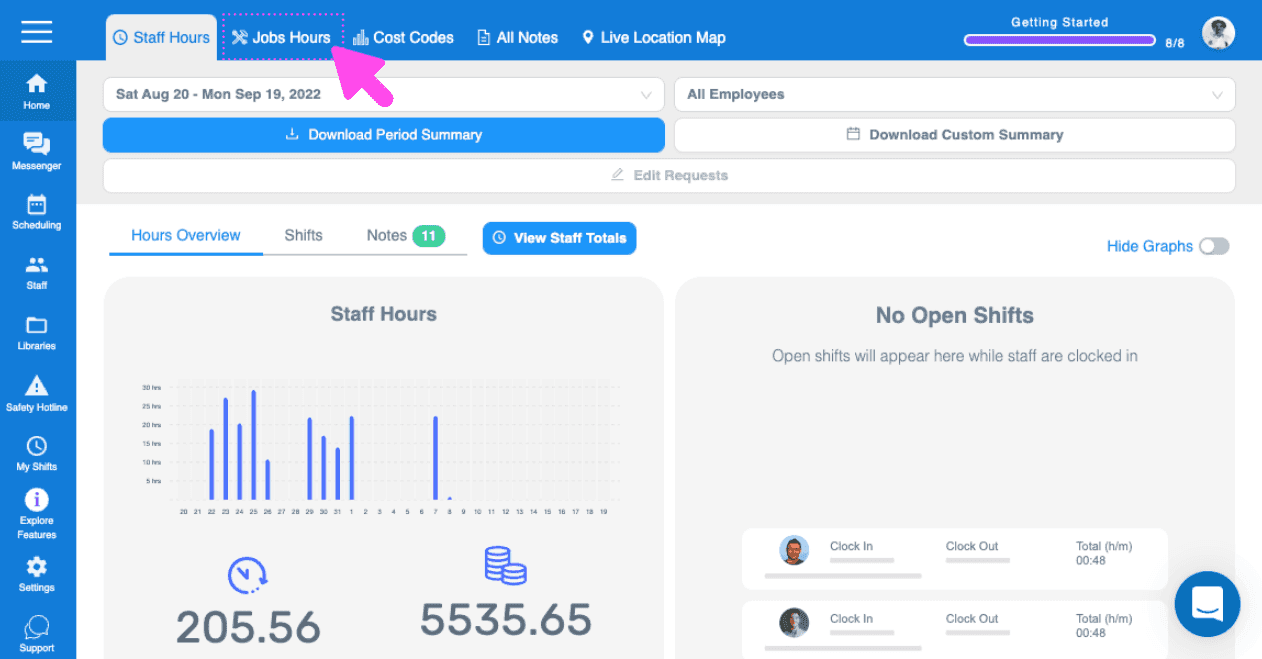
Web Jobs Hours dashboard bar chart of staff hours with the Jobs Hours tab highlighted at the top

Click on Jobs List

SINC web dashboard with a pink arrow pointing to the Jobs Hours tab in the top navigation bar

Click on The job you want to export a summary for
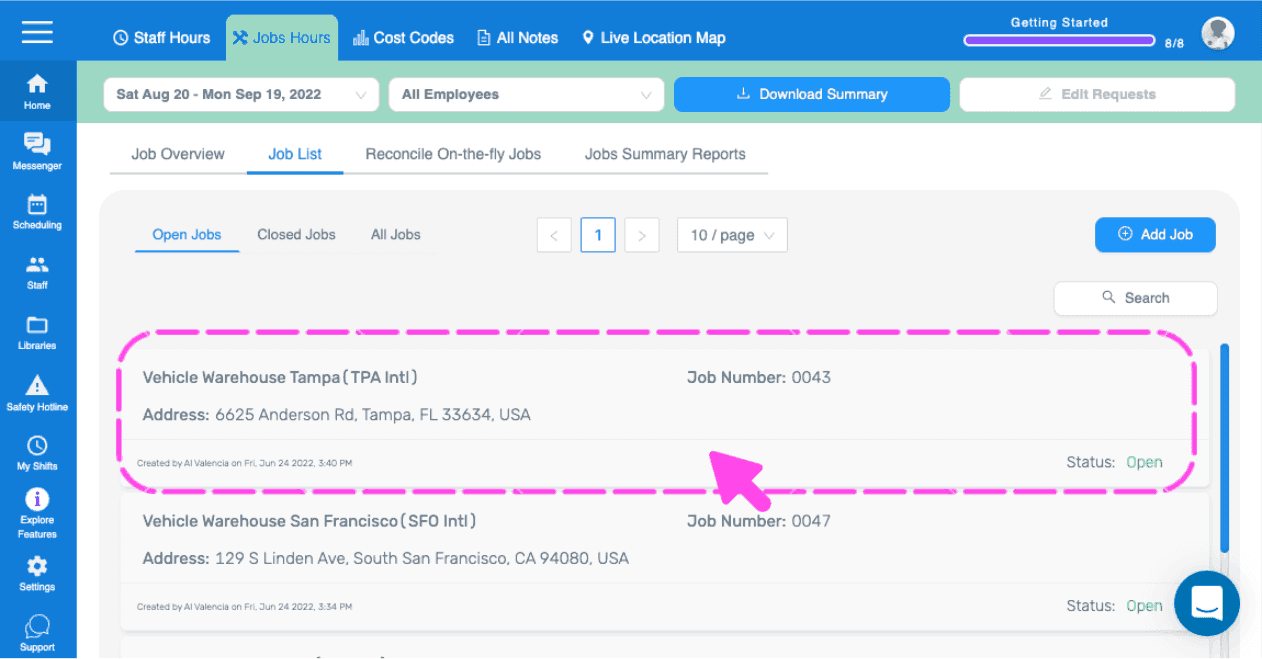
Web dashboard Job List with a pink dashed outline and arrow highlighting a job entry to select

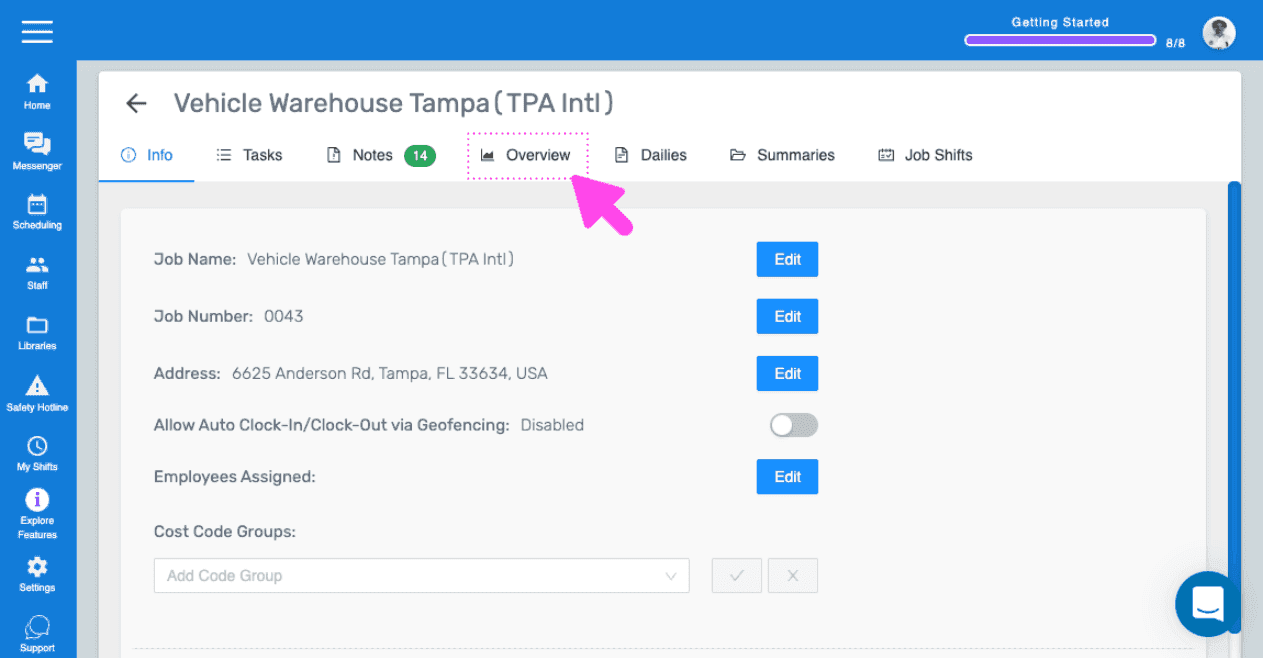
Click on Overview

SINC web Job Info screen with a pink arrow pointing to the Overview tab

Here you will see an overview of all shifts related to this job. To export a detailed report on all the data that went into this job, click on Download Summary.
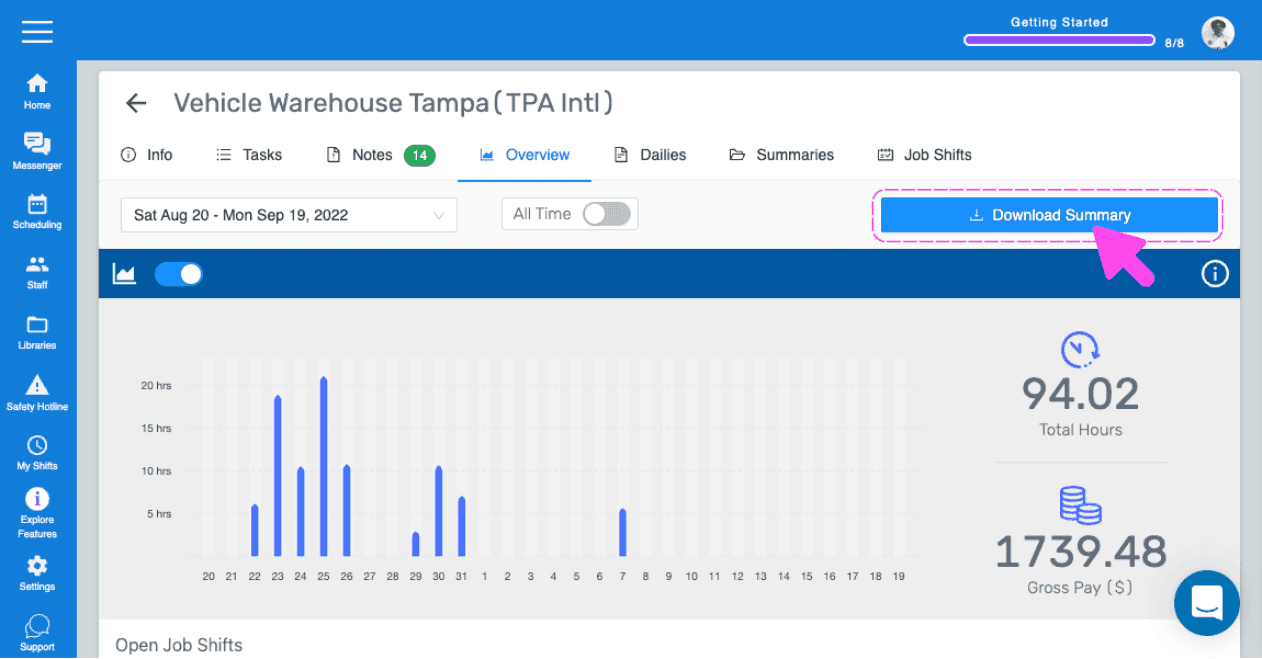
SINC mobile job Overview screen with a pink arrow pointing to the Download Summary button

When the email from us arrives, open the attachment
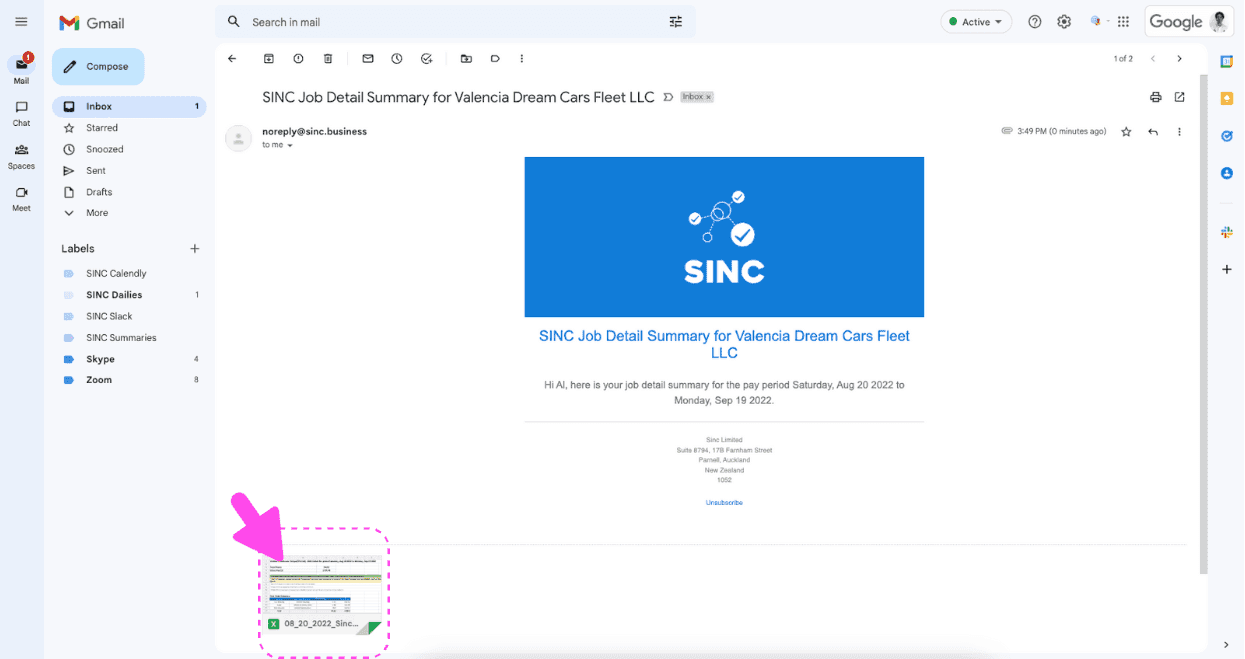
Gmail inbox showing a SINC Job Detail Summary email with the spreadsheet attachment highlighted by a pink arrow

The first tab is a summary of the job
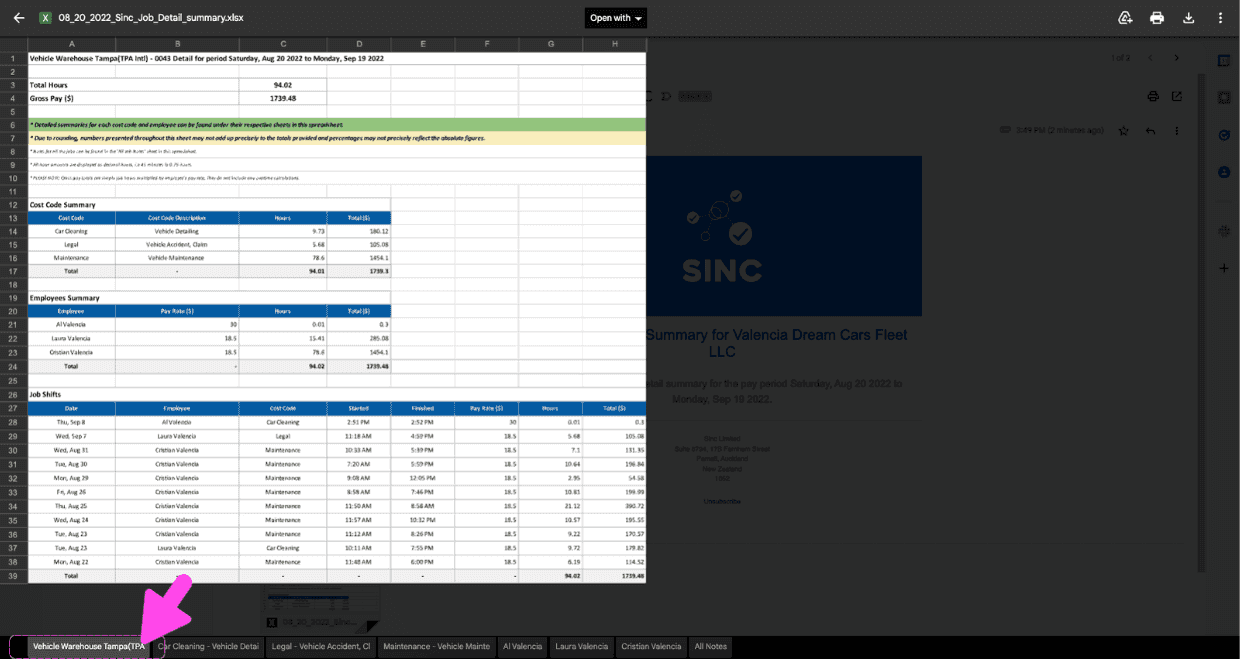
SINC web job summary report showing total hours, gross pay, and cost code breakdown for a job

There is an individual tab for each cost code used on the job
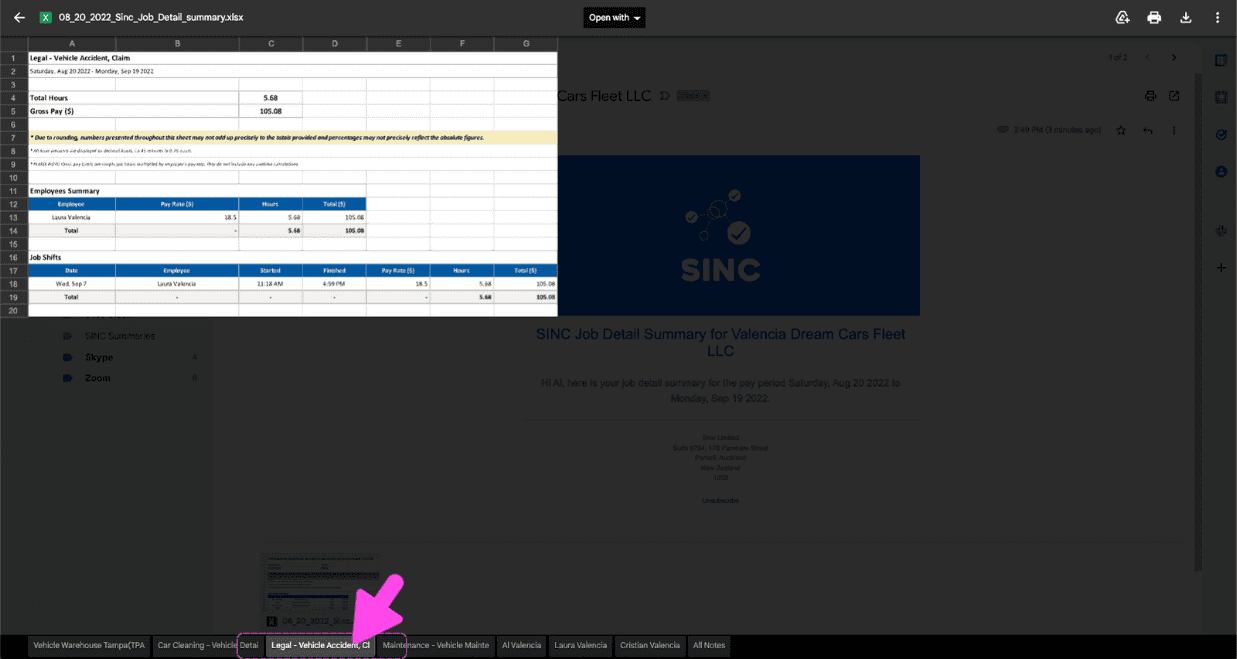
Exported job detail summary spreadsheet with cost code tabs at the bottom and a pink arrow pointing to a specific cost code tab

There is an individual tab for each employee who worked on the job
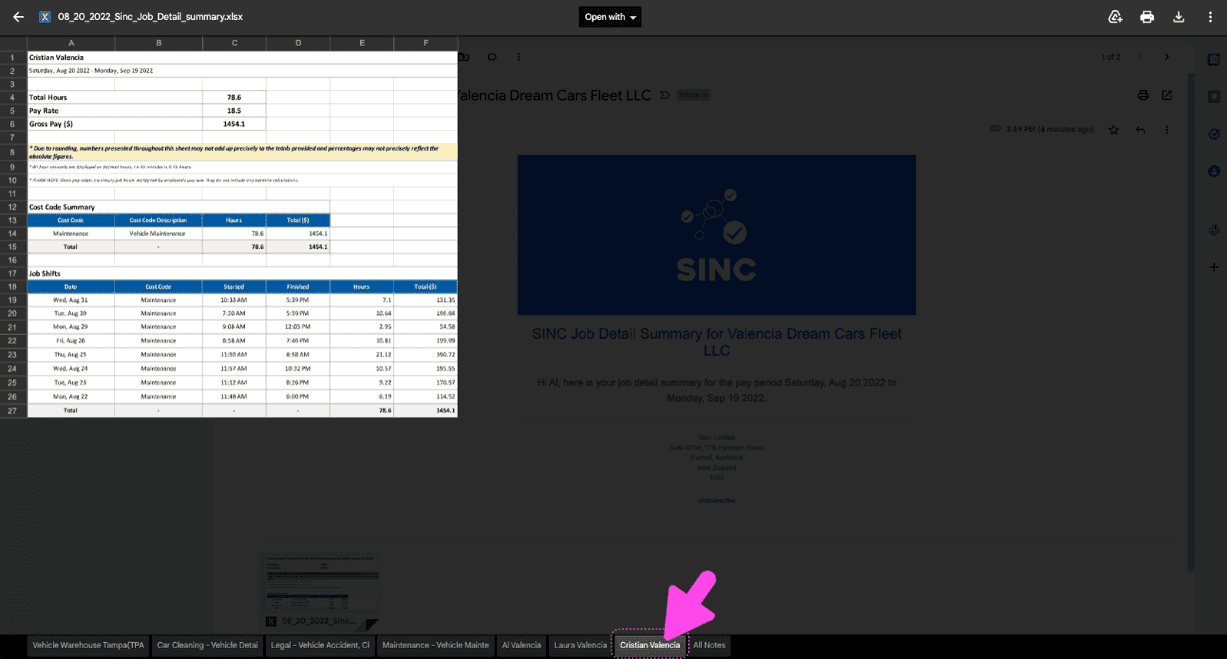
Exported SINC job detail summary spreadsheet with per-employee tabs, shown beside a chat conversation panel

The final tab includes all notes made on this job
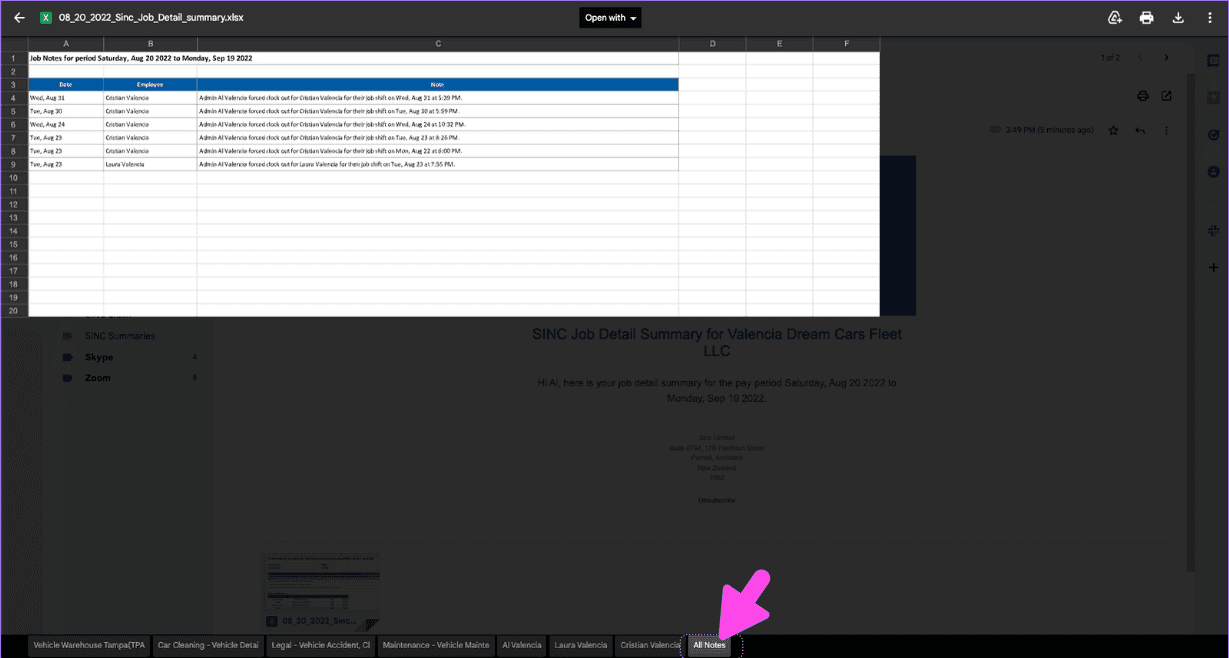
Exported job detail summary spreadsheet with the All Notes sheet tab circled in pink at the bottom

How To Download Your Summaries Directly. There may be times when you are not able to access your email account, or cannot find the email from SINC containing the summary reports. SINC now provides a way for you to download those summaries straight from the SINC web app. Click on Home Jobs Hours
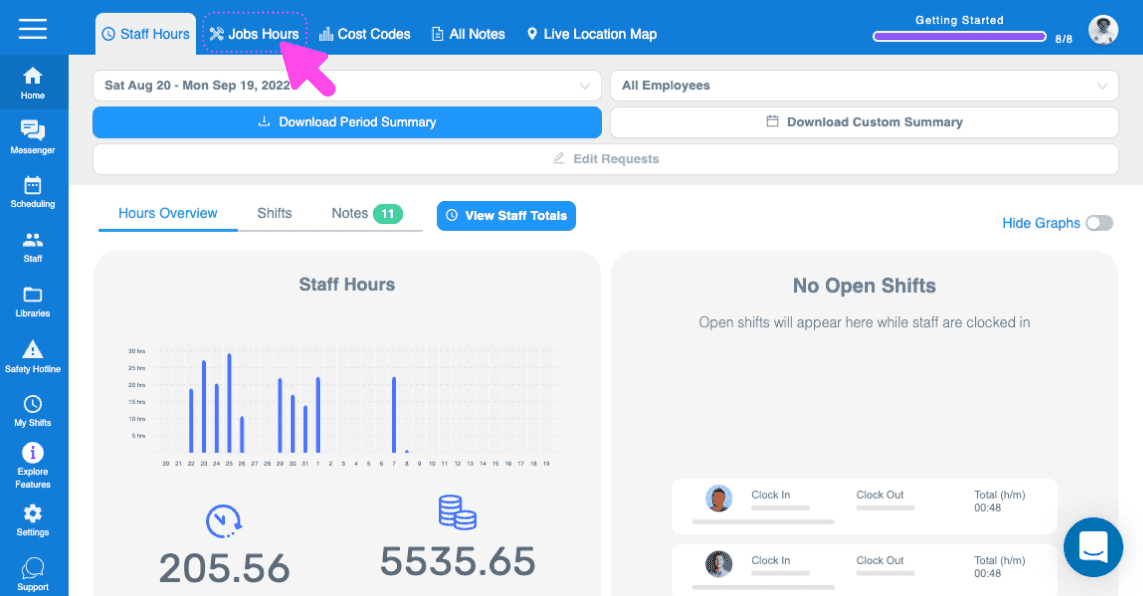
SINC web dashboard with a pink arrow pointing to the Jobs Hours tab in the top menu

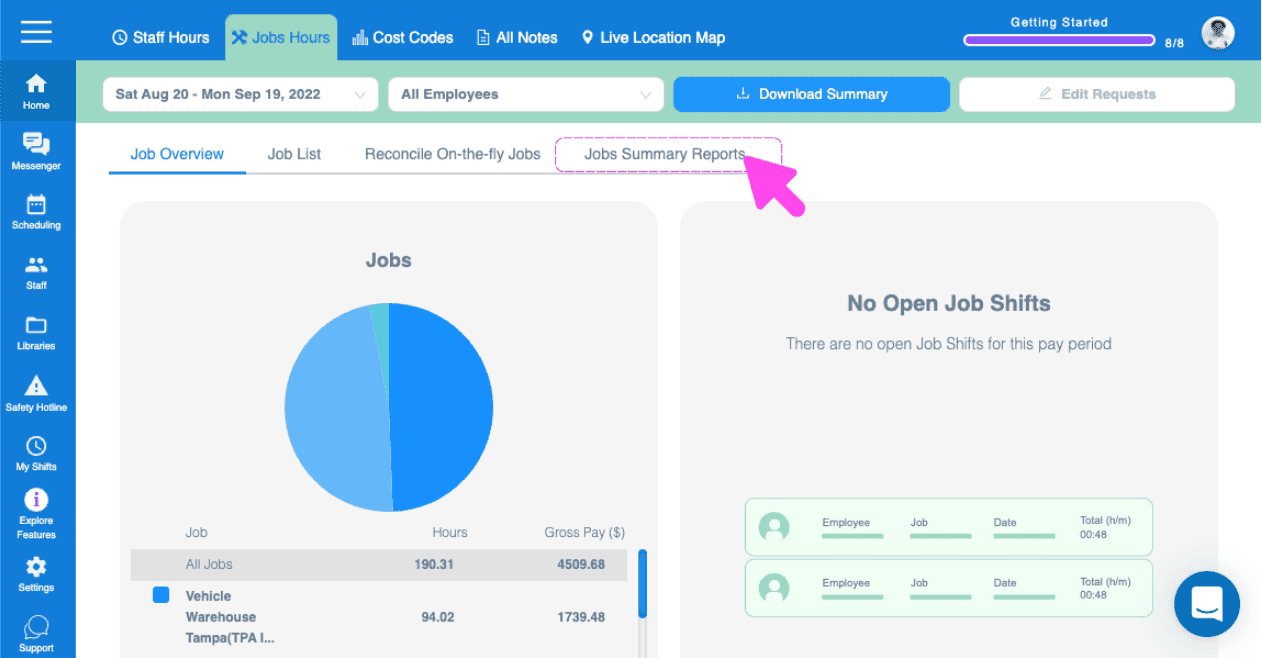
Click on Job's Summary Reports

Jobs Hours dashboard with a pink arrow pointing to the Jobs Summary Reports tab

Here, you will see the jobs summary reports that have been generated. You can see when it was generated, what period it covers and who generated it. You can then click on the Excel button to download the summary of all open jobs.
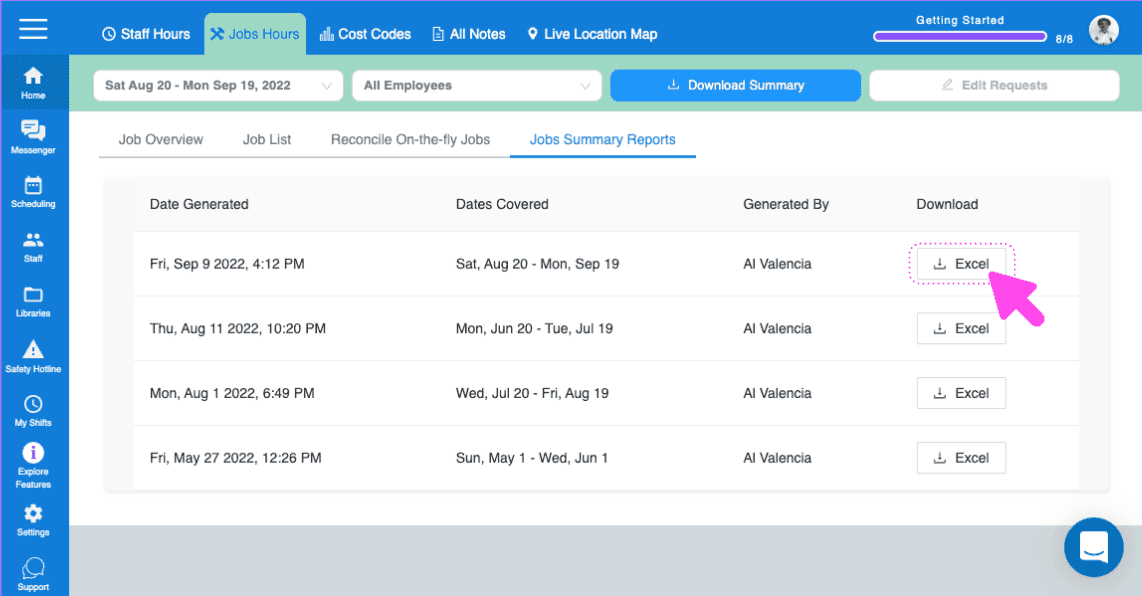
Web Jobs Summary Reports list with a pink arrow pointing to the Excel download icon for a report

Next, to download job detail summaries, go to a specific job's detail screen by clicking on a job name.
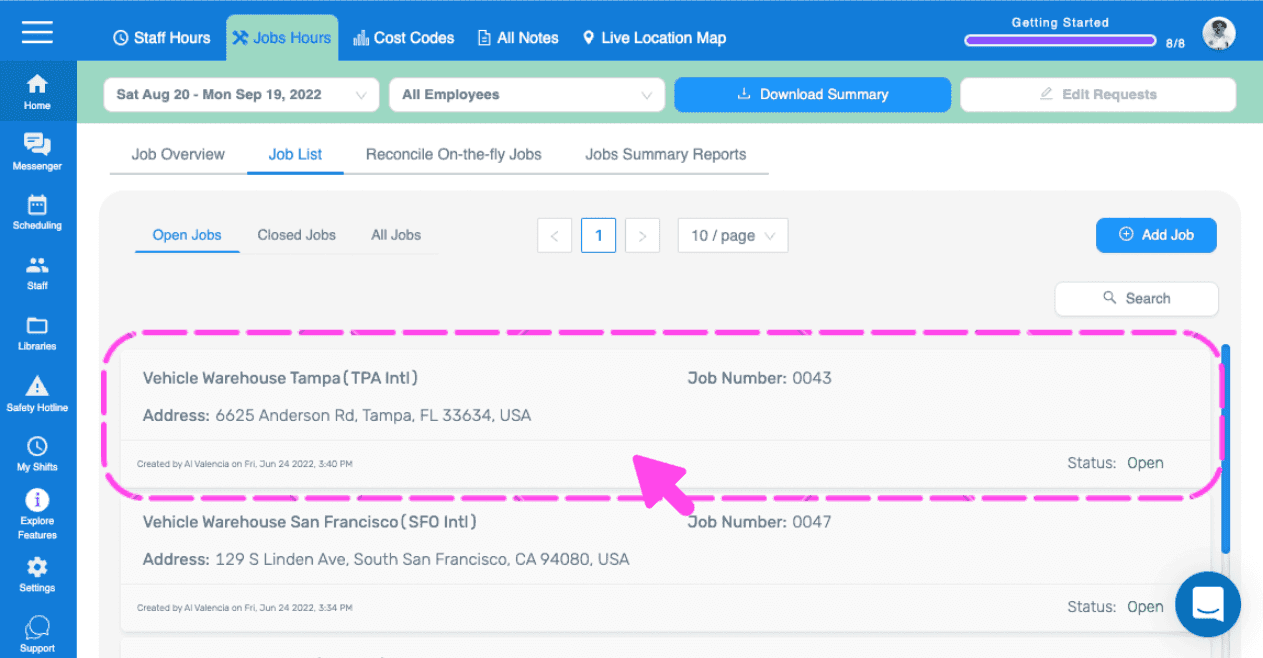
SINC web Job List screen with a pink arrow pointing to a specific job entry in Tampa

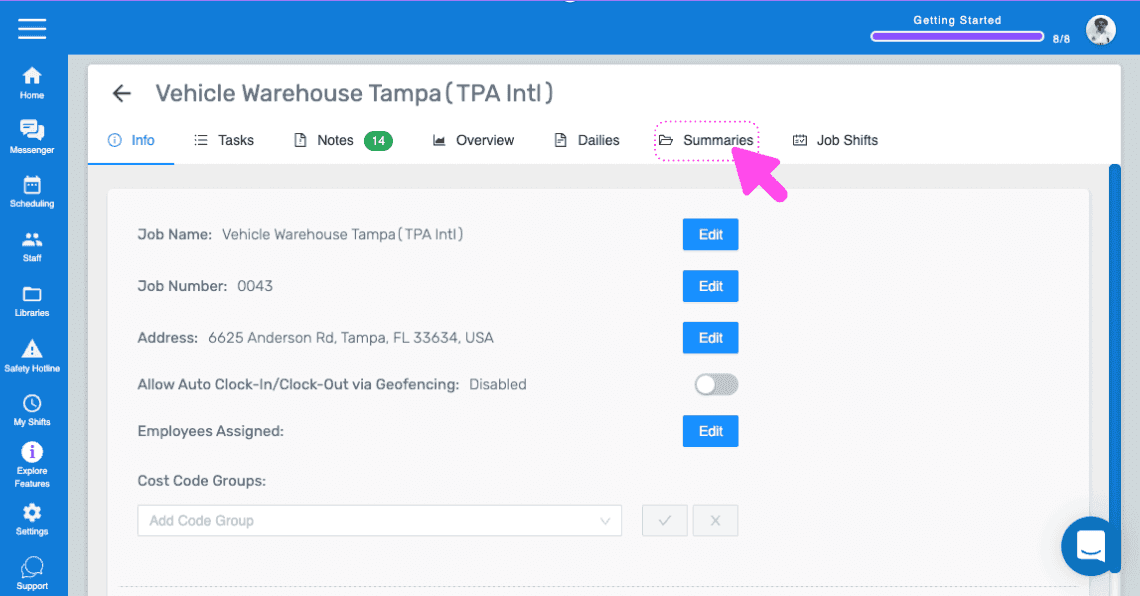
Then, go to Summaries

SINC web job details screen for Vehicle Warehouse Tampa with a pink arrow pointing to the Summaries tab

Here, you will see the job detail summary reports that have been generated for this job. You can then click on the Excel button to download the summary.
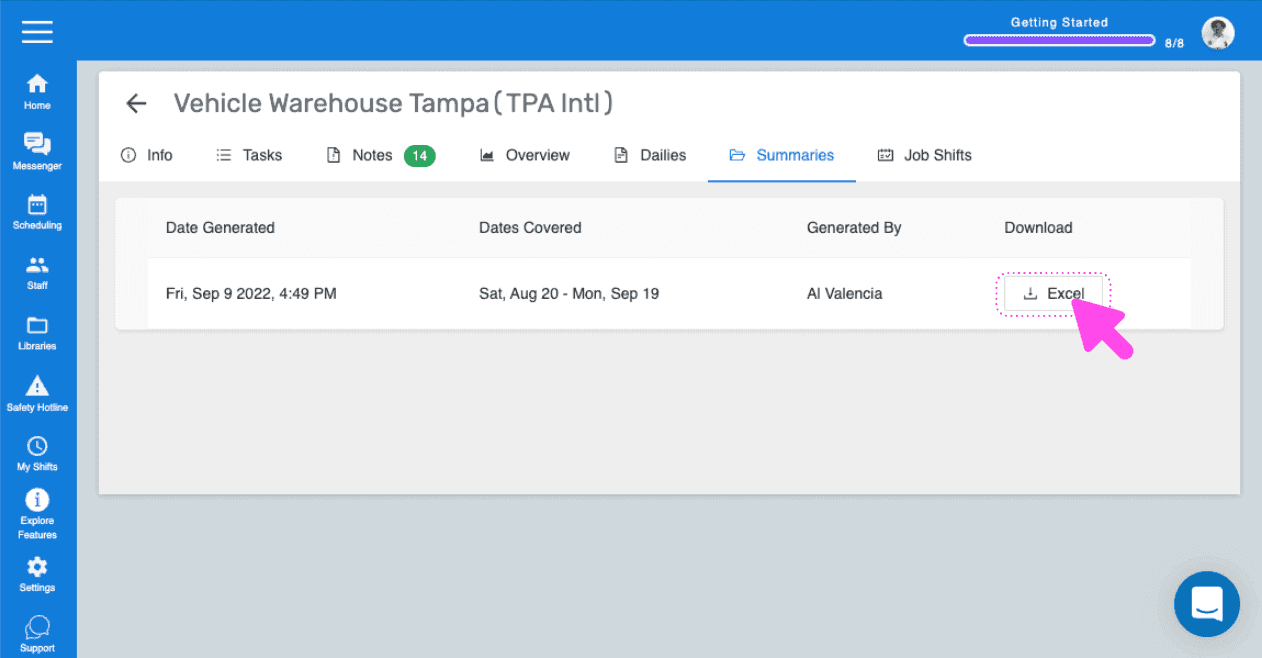
Job Summaries tab for a job showing a generated report with a pink arrow pointing to the Excel download icon

Did this answer your question?