
Allowing Auto Clock-In/Out to Jobs for your Staff via Geofencing
In this guide we will describe how you can get your staff to automatically clock-in/out of job shifts when they enter or leave a job site.

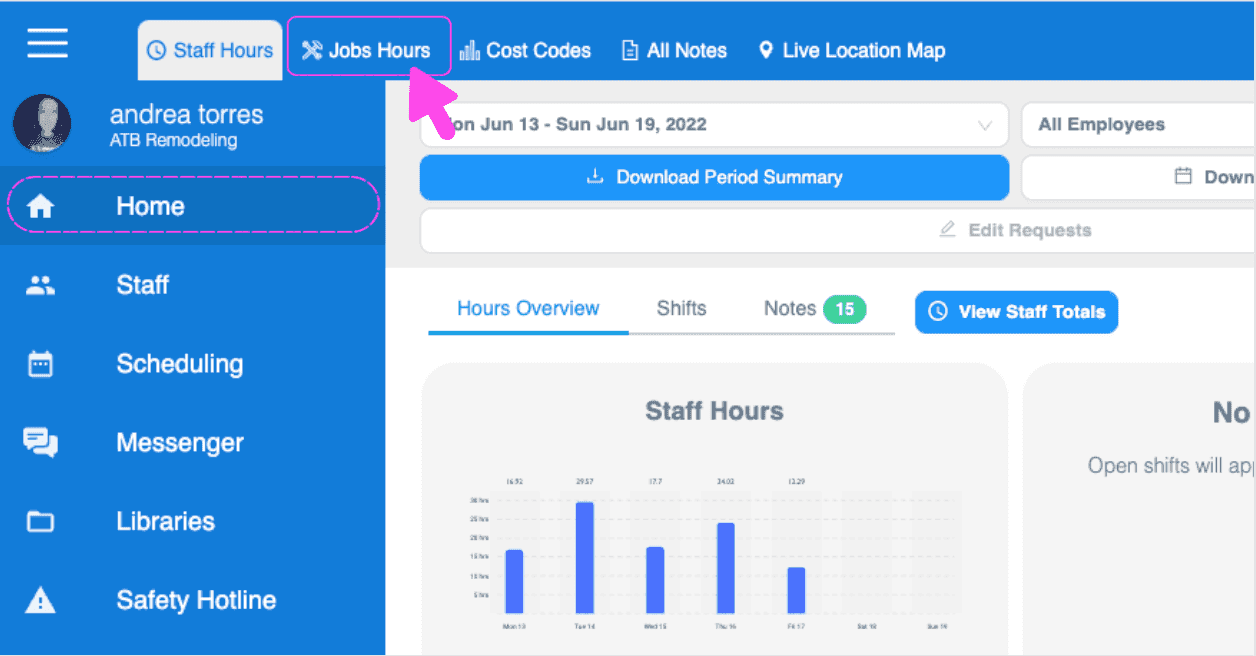
IMPORTANT: To use this feature, you have to make sure that you have enabled location tracking for your staff and that they have optimized their device for location tracking. First, this feature has to be enabled per job. Click on Home Jobs Hours
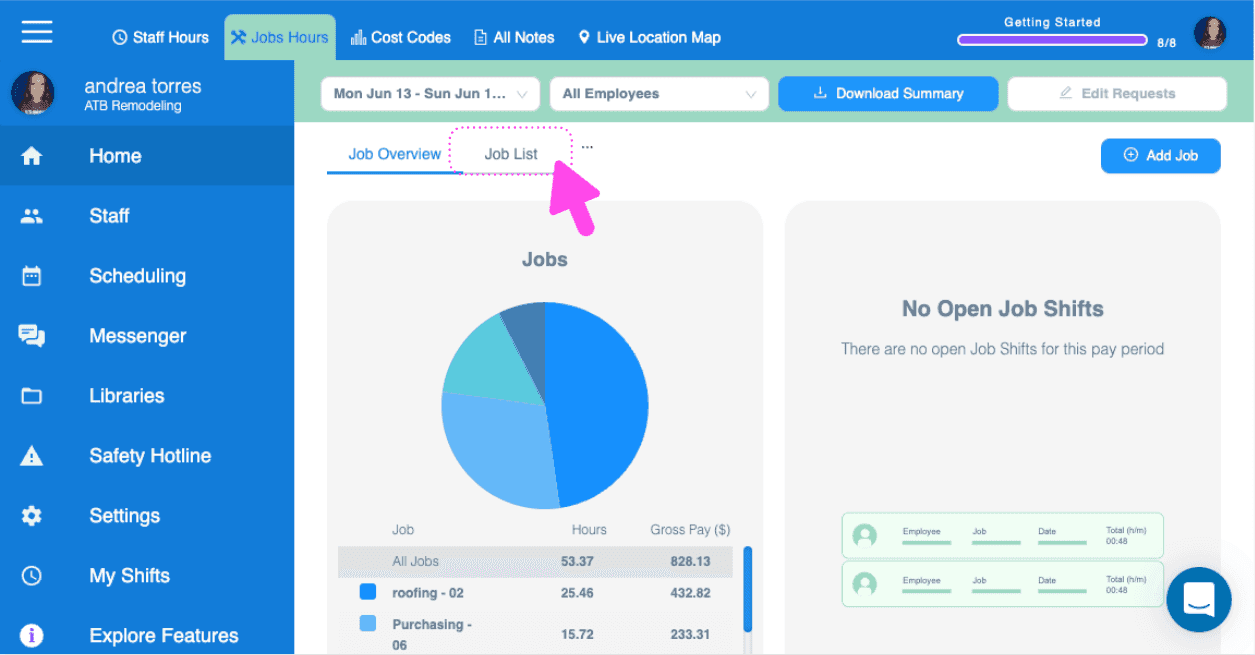
Click on Jobs List
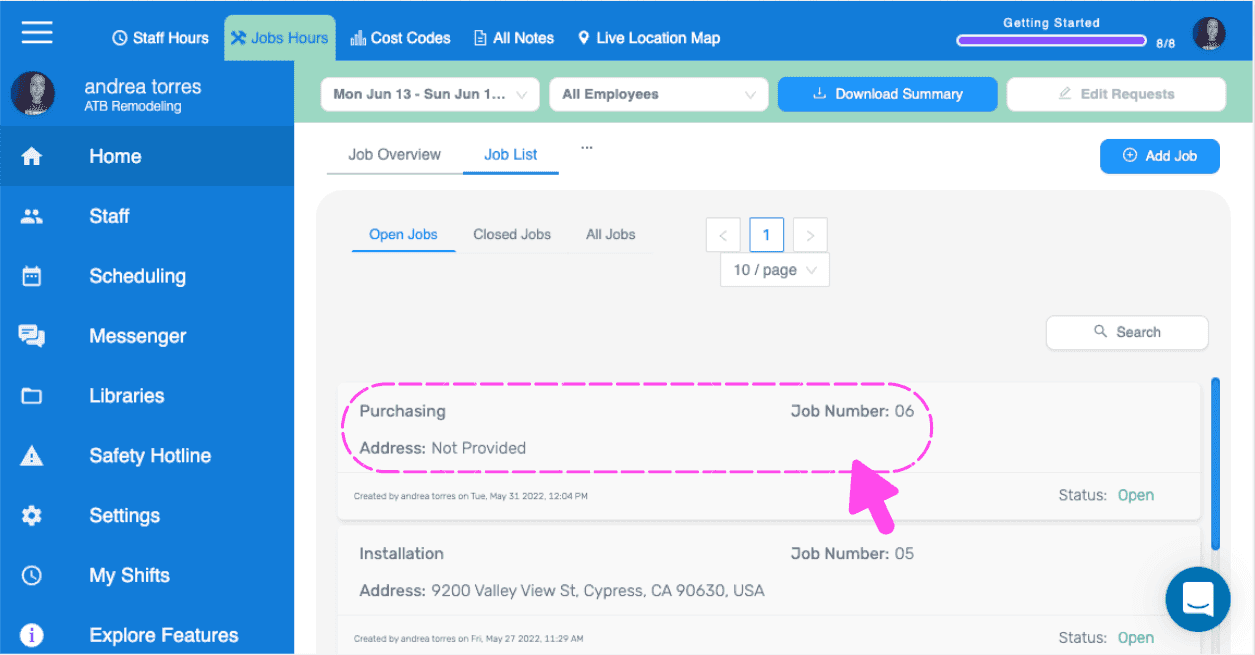
Click on Job Name
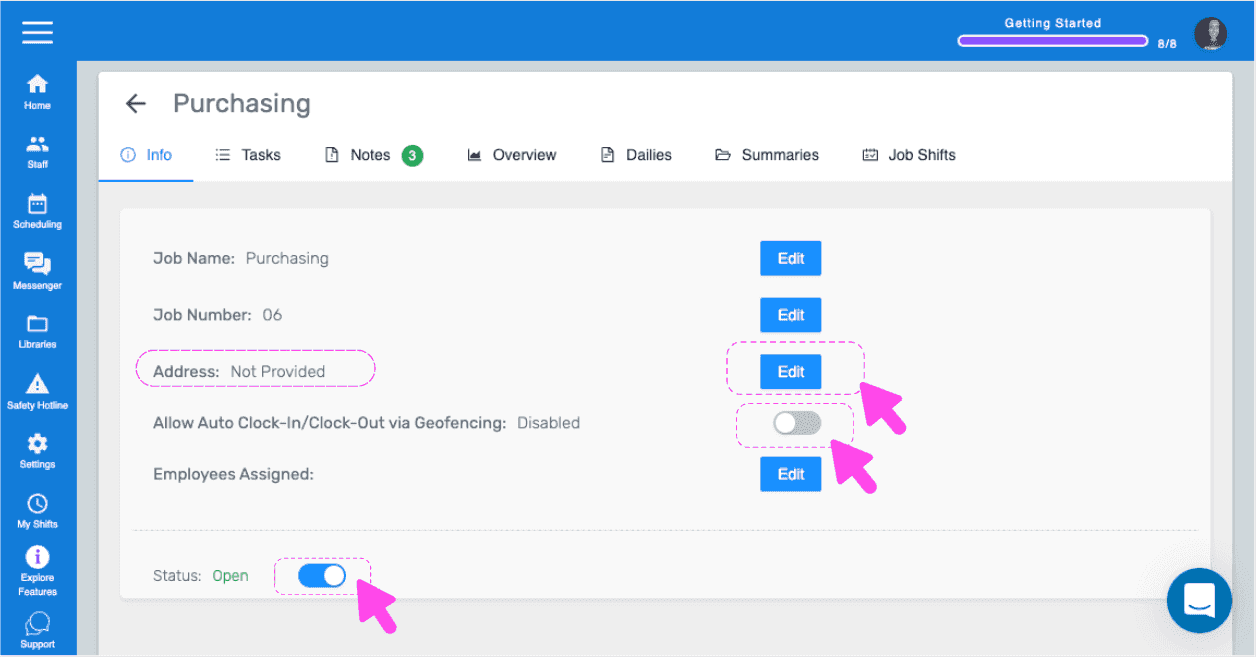
On the job info screen, make sure you have these settings: 1. Address: Make sure your job has an address saved. 2. Allow Auto Clock-In/Out via Geofencing: Enabled. 3. Status: Open. This is all that's required from your end as an admin.
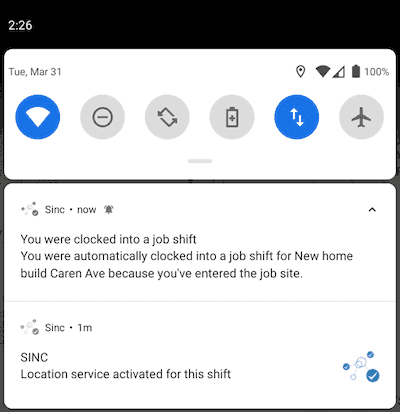
How it works: This feature is automatically enabled once your staff has clocked-in from their device, and turns off when they clock out. A job shift is automatically started when your staff is at most 200 meters near the job site, and ended when they leave the 200-meter area. Every time the staff's job shift is started or ended via this feature, a notification will appear on the staff's device, like the image below.
Did this answer your question?