
Optimizing Devices for Location Tracking
This guide will help you make sure your employee's phones are set up for our location tracking to work as accurately as possible

Overview: In order to get on-shift locations reliably from your employee's device, we need three core things: permission for the SINC App to access locations, our location process to still be running, and the phone to be able to locate itself. Generally these work out of the box once permissions are allowed, but this guide shows how to set devices up optimally.
1: General Tips. The SINC app should be left open as much as possible while on a shift, for the most accurate locations and to reduce the chance the phone shuts down location tracking to save battery. Have WiFi turned on, even without connecting, so the phone can triangulate its position faster and with less battery use. Turn off any battery-saving apps or services that could stop SINC's background location-tracking, or make sure SINC is exempt from them.
2. Correct Location Permissions. For SINC to get locations beyond just the clock in and out location, it needs permission to use locations all the time rather than just while using the app. Staff can be confident SINC's background location service only runs while they are on-shift, even with permission to run all the time.
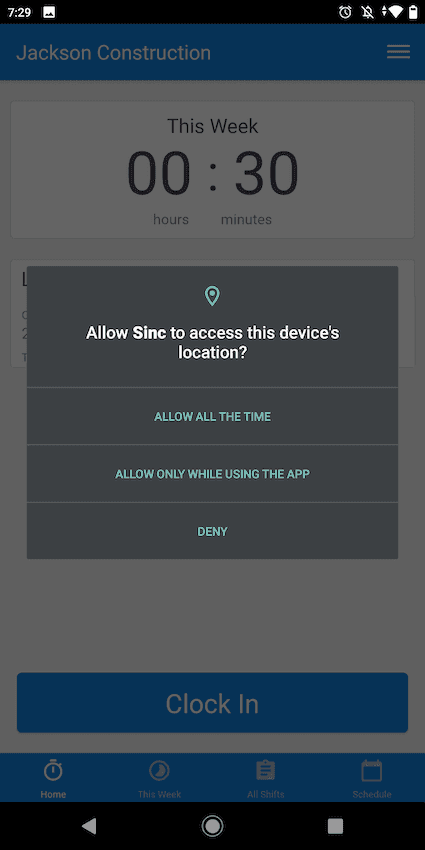
For Android devices: Device Location — Android 10: choose Allow All the Time. Android 9 and below: choose Allow.
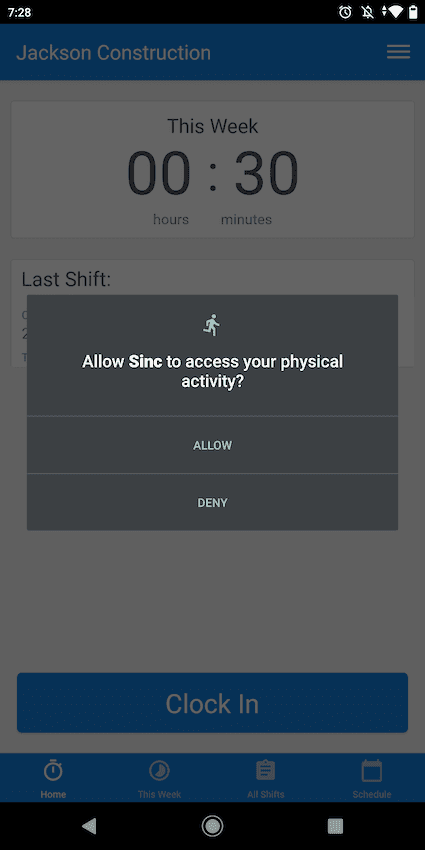
Motion/Physical Activity: Allow. Note: this setting helps us use less battery.
Note: If you have location services off, or don't have the optimal location settings, your device may show a prompt. Simply click OK to enable the optimal location settings.
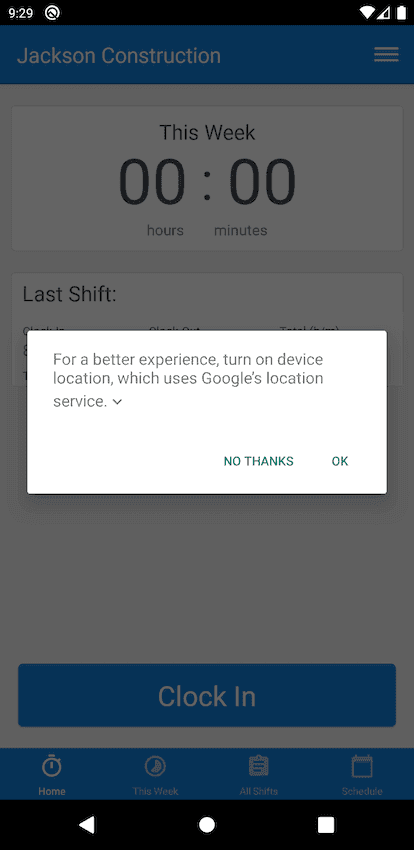
What this prompt does in one step (or manually): Android 10 — Settings Location Advanced Google Location Accuracy turn Improve Location Accuracy on. Android 9 and below — Settings Security & Location Location Mode High accuracy.
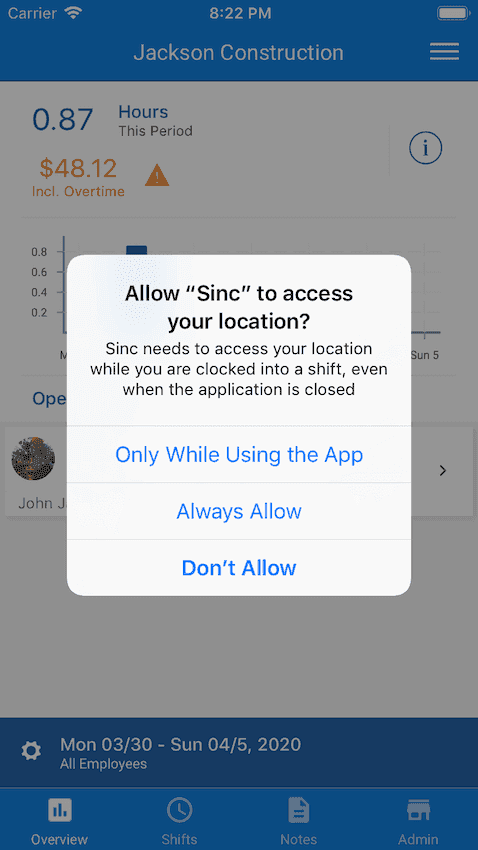
For iOS devices: Device Location — iOS 13: since the Always Allow permission can't be automatically requested, first give Allow While Using App when the prompt appears.
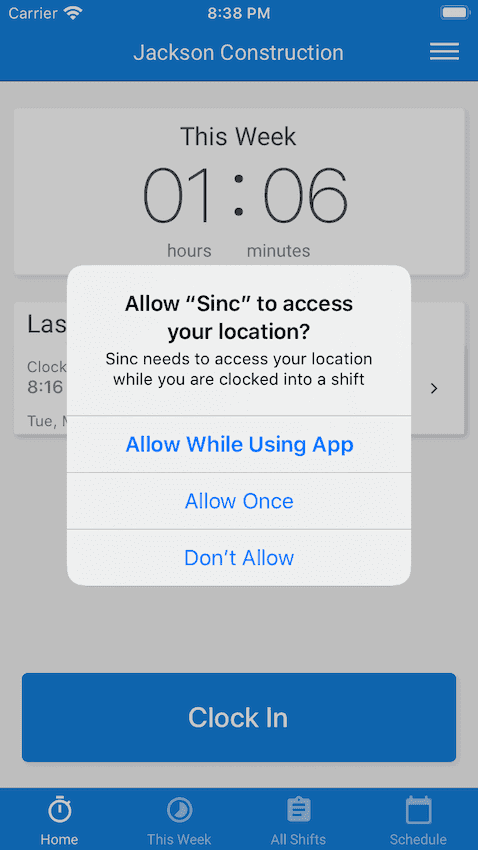
When you put the SINC app in the background or switch to another app, another prompt appears, and now you can choose Change to Always Allow.
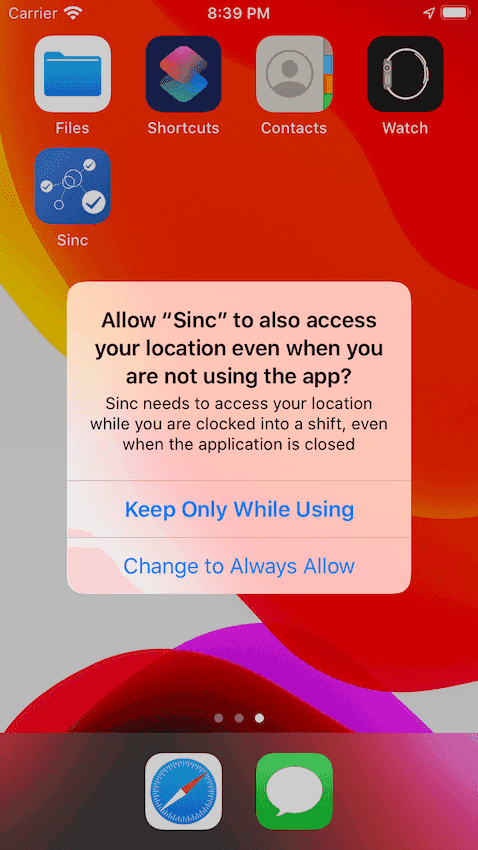
You will also receive another prompt some time later, asking if you are sure to allow background location-tracking for SINC. Make sure to choose Always Allow.
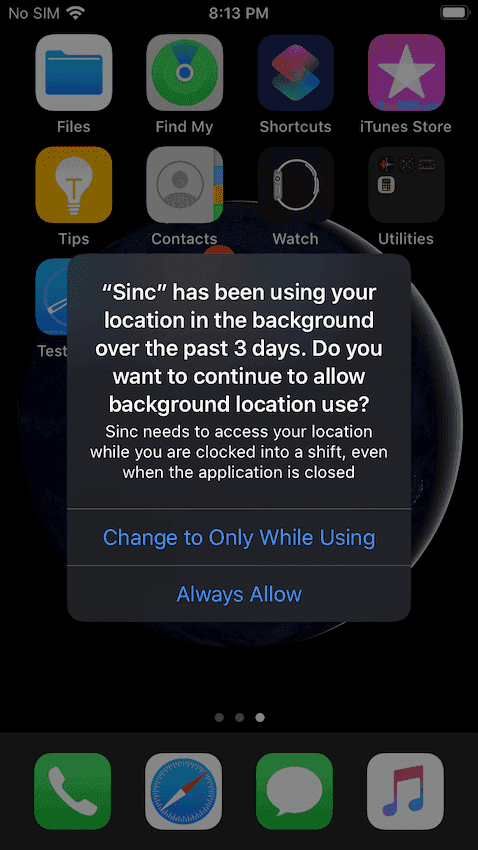
iOS 12 and below: Choose Always Allow.
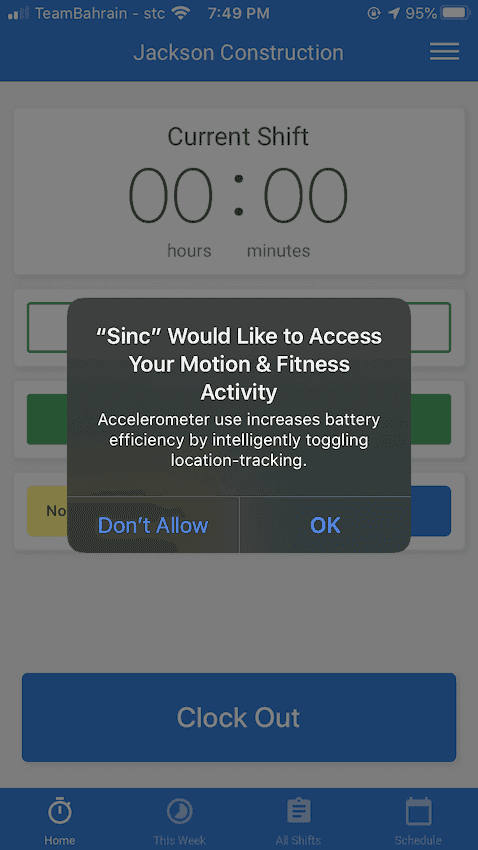
Motion & Fitness Activity: Allow/OK. Note: this setting helps us use less battery.
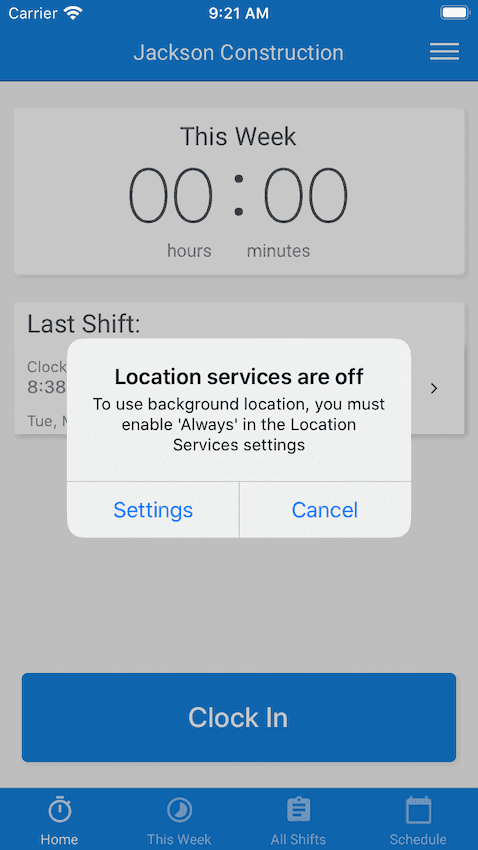
Note: If you have location services off, your device may show the following prompt below. Click on Settings.
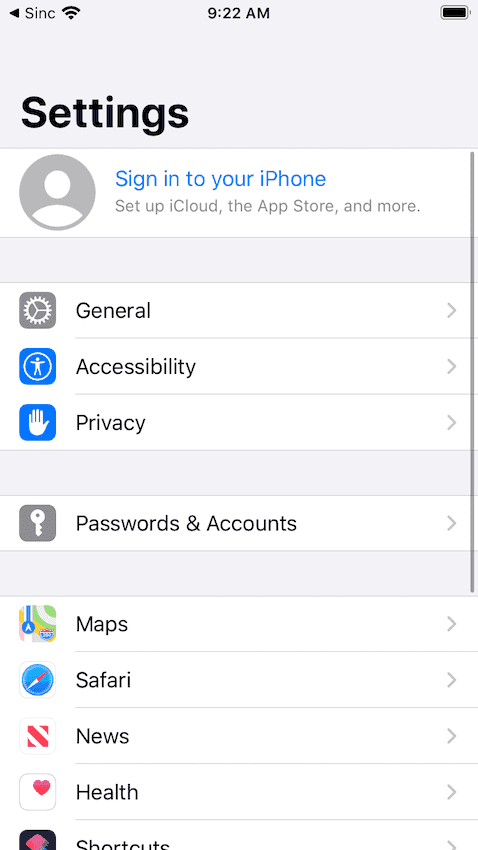
Go to Privacy.
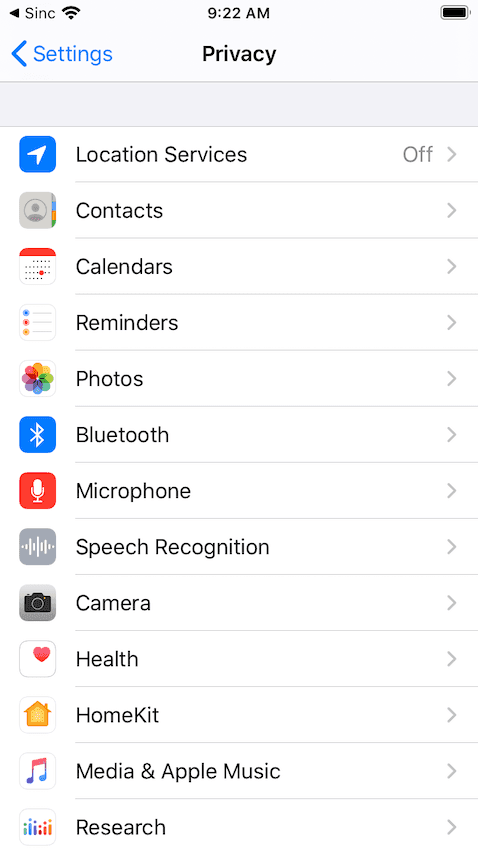
Go to Location Services.
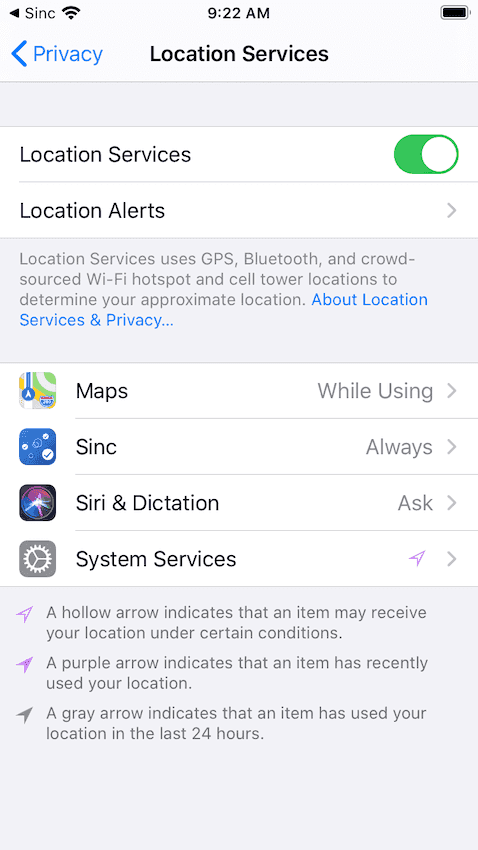
Make sure the Location Services switch is turned on.
Did this answer your question?