
How to connect with MYOB?
This article relates to authorizing SINC to access MYOB

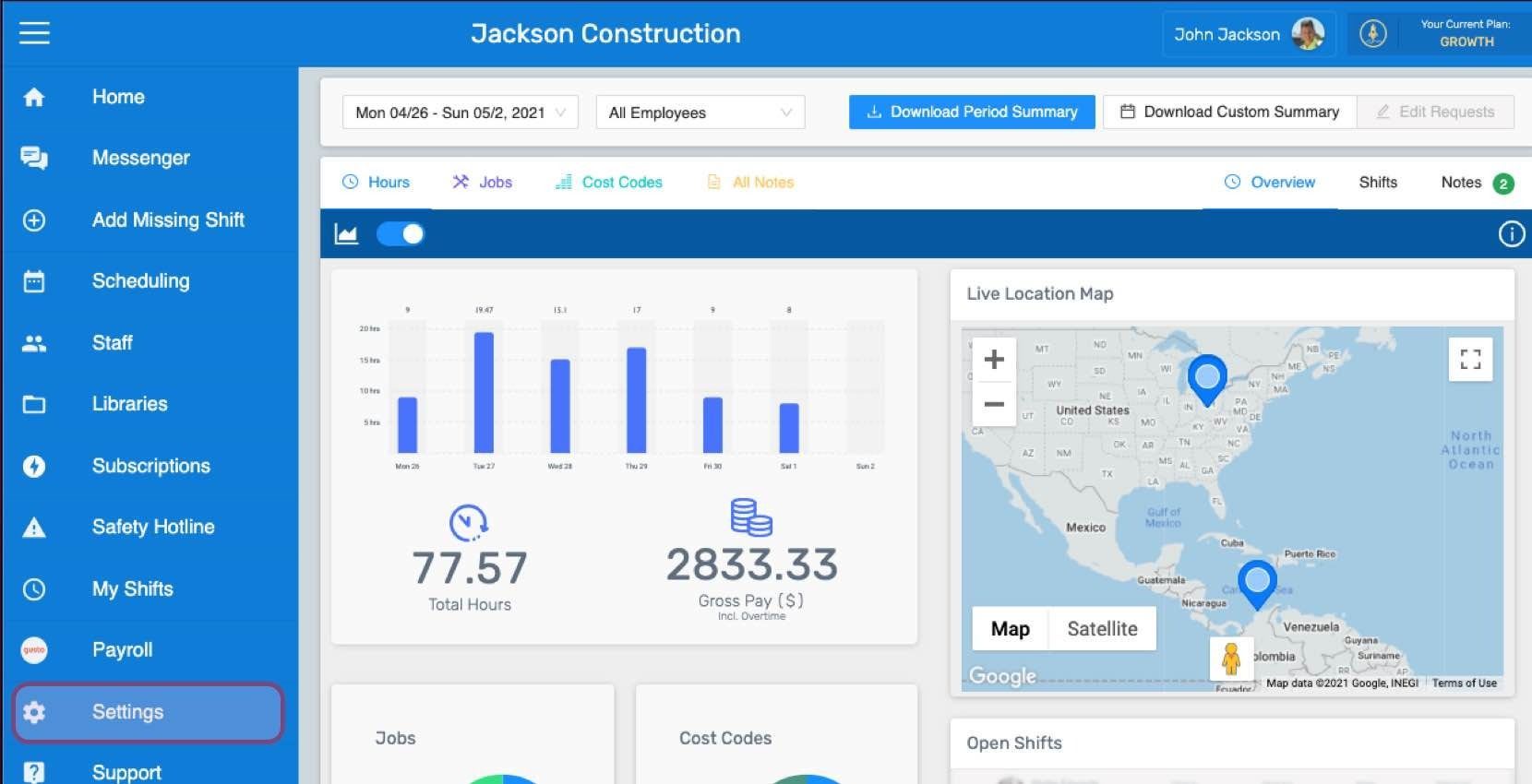
This is how you can authenticate MYOB integration within SINC. Login to SINC and click on the gear icon in the left pane in order to access the Settings.
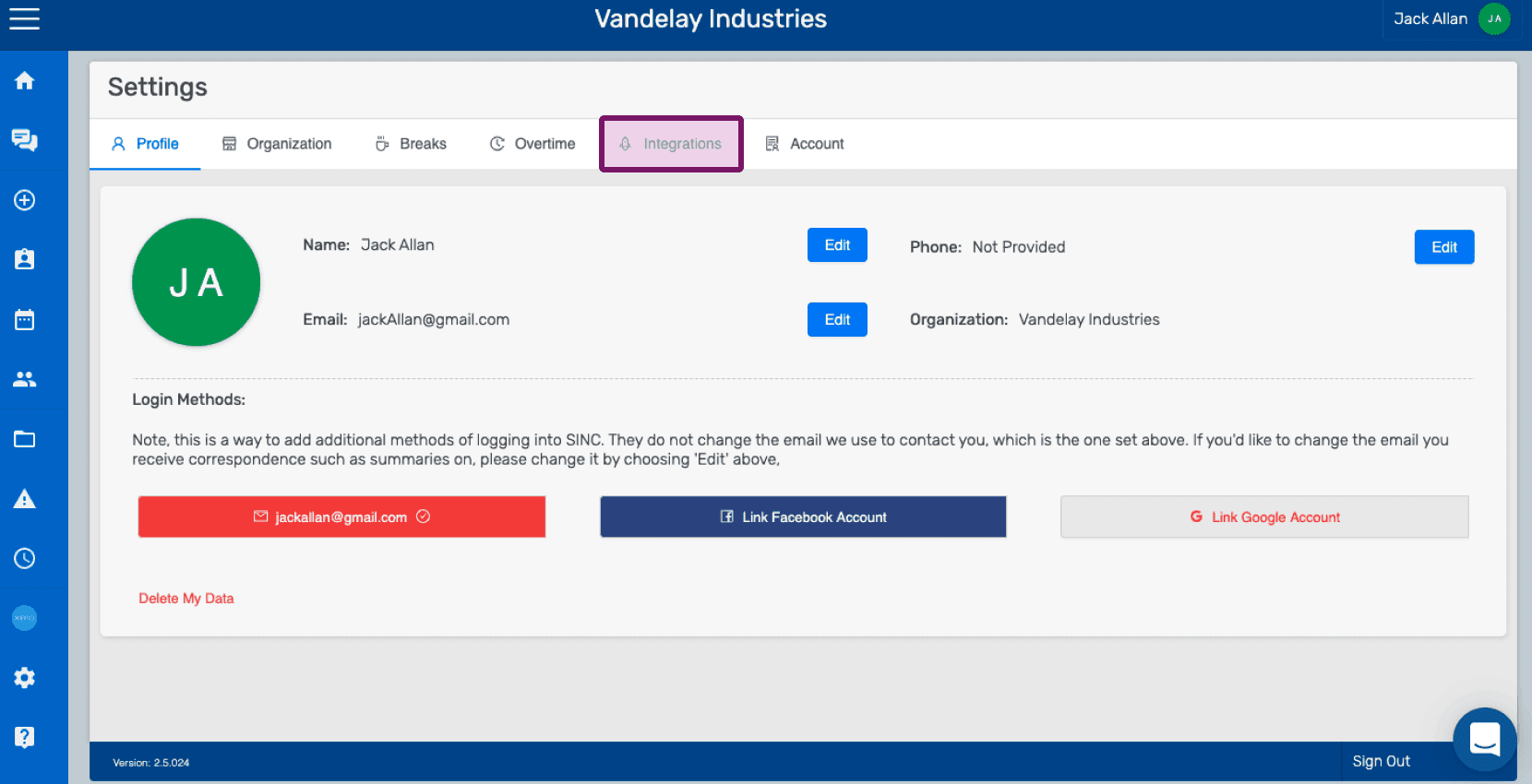
Click on the Integrations tab to view the list of apps that have been integrated with SINC.
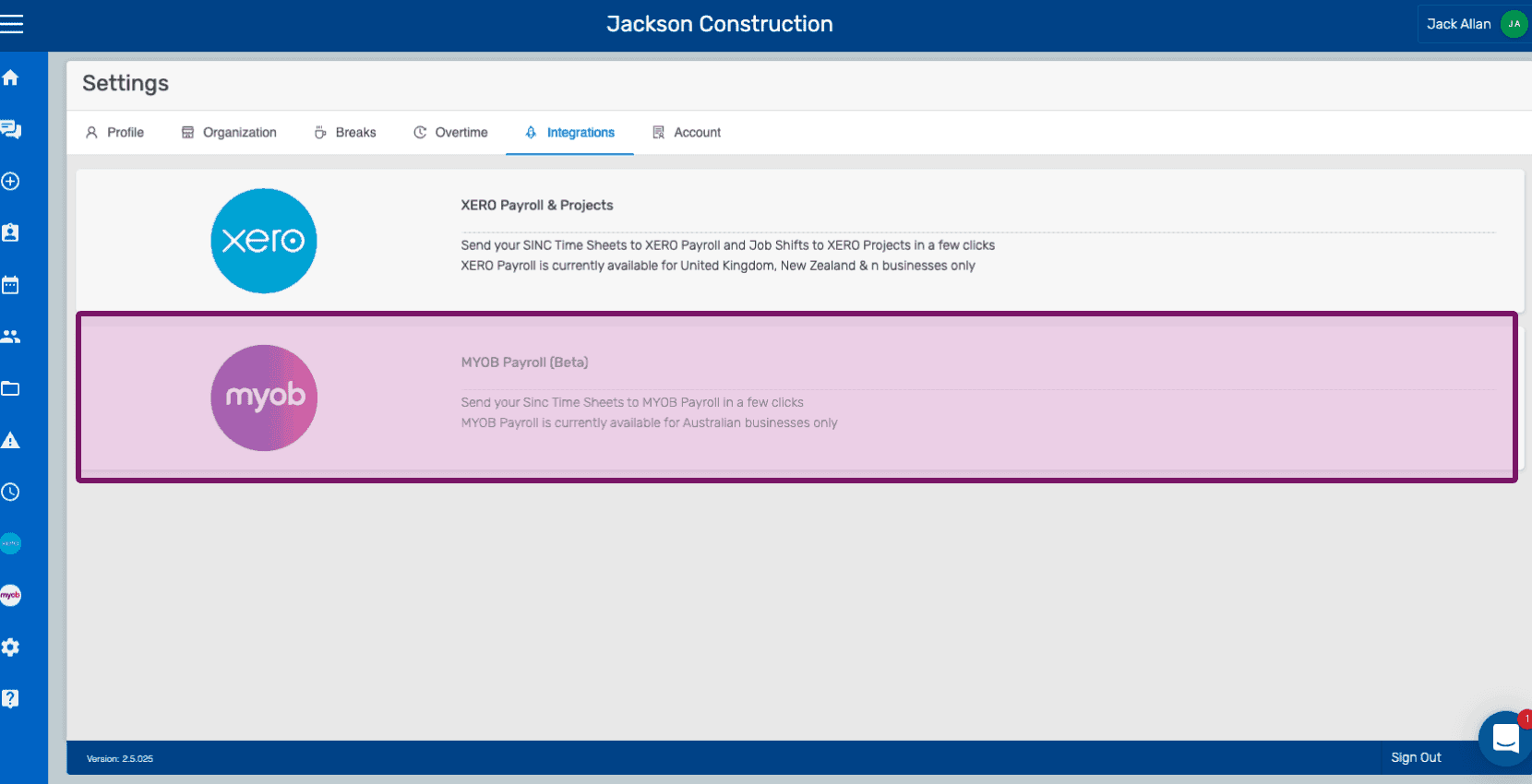
Click on MYOB Payroll (Beta)
You are now on the MYOB Payroll's tab. At this point, it is very crucial that the setup requirements mentioned in the MYOB Payroll: Getting Started guide are met.
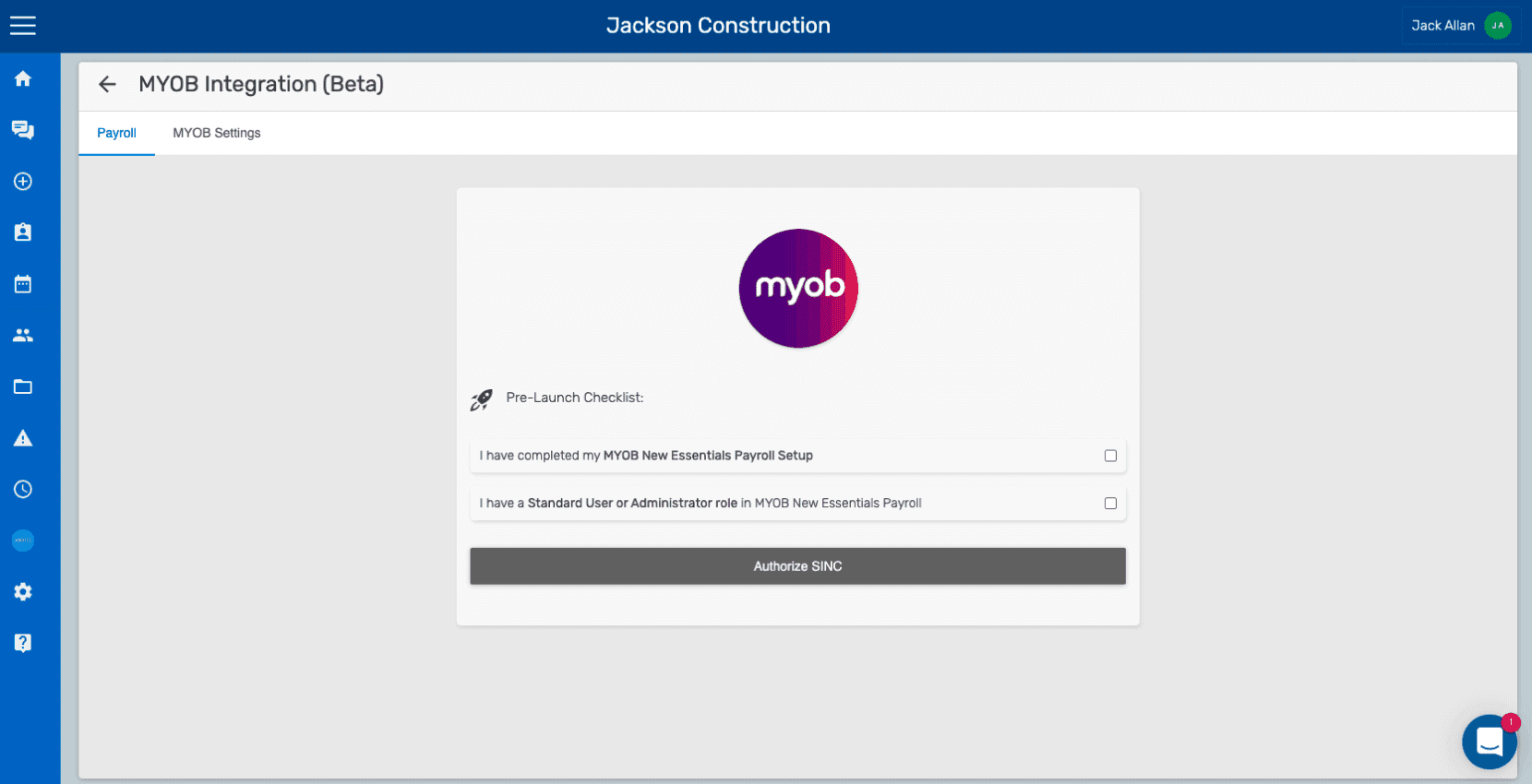
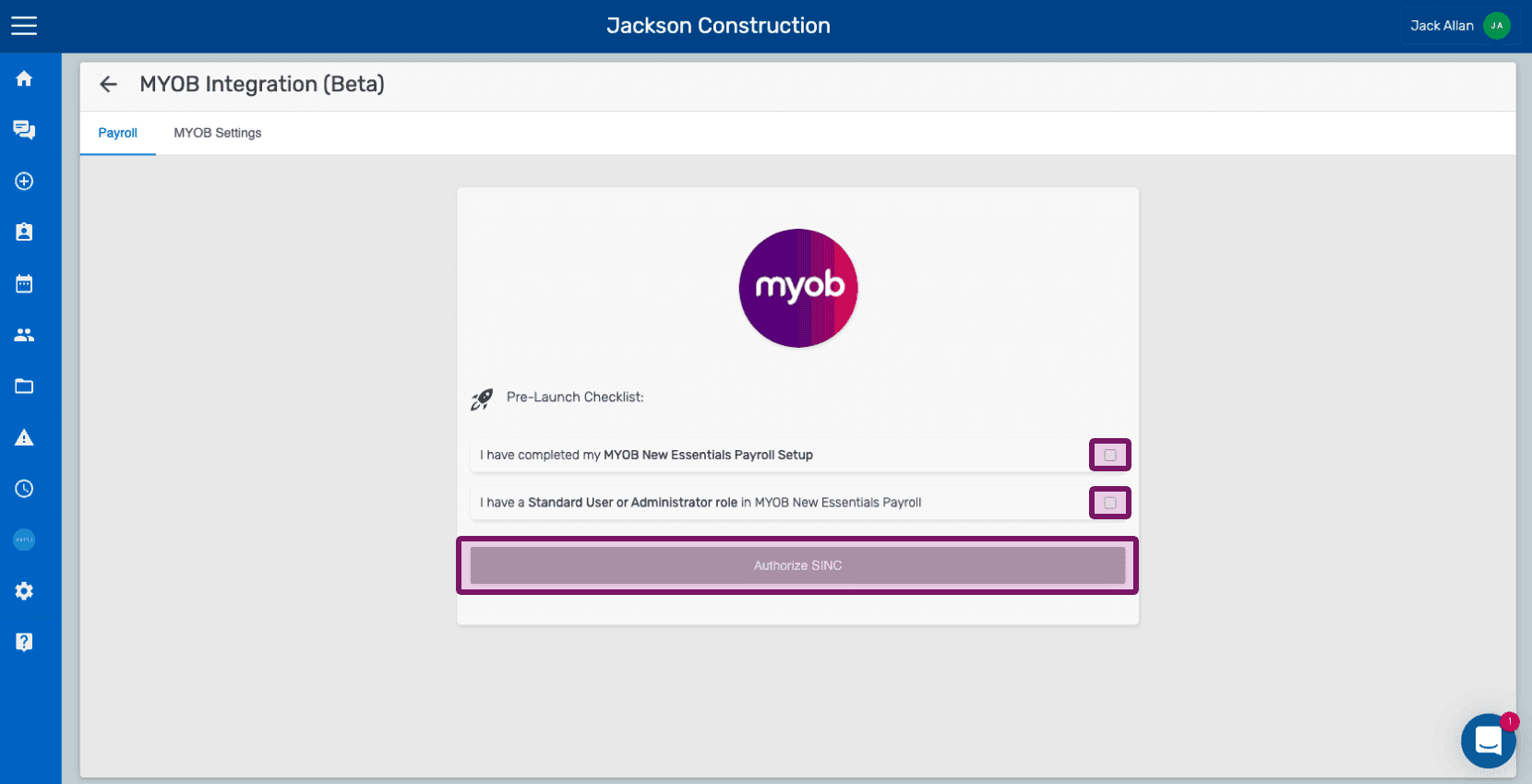
While making sure that setup requirements in your MYOB organization are fulfilled, click on the checkboxes, and proceed with the authorization by clicking on Authorize SINC button.
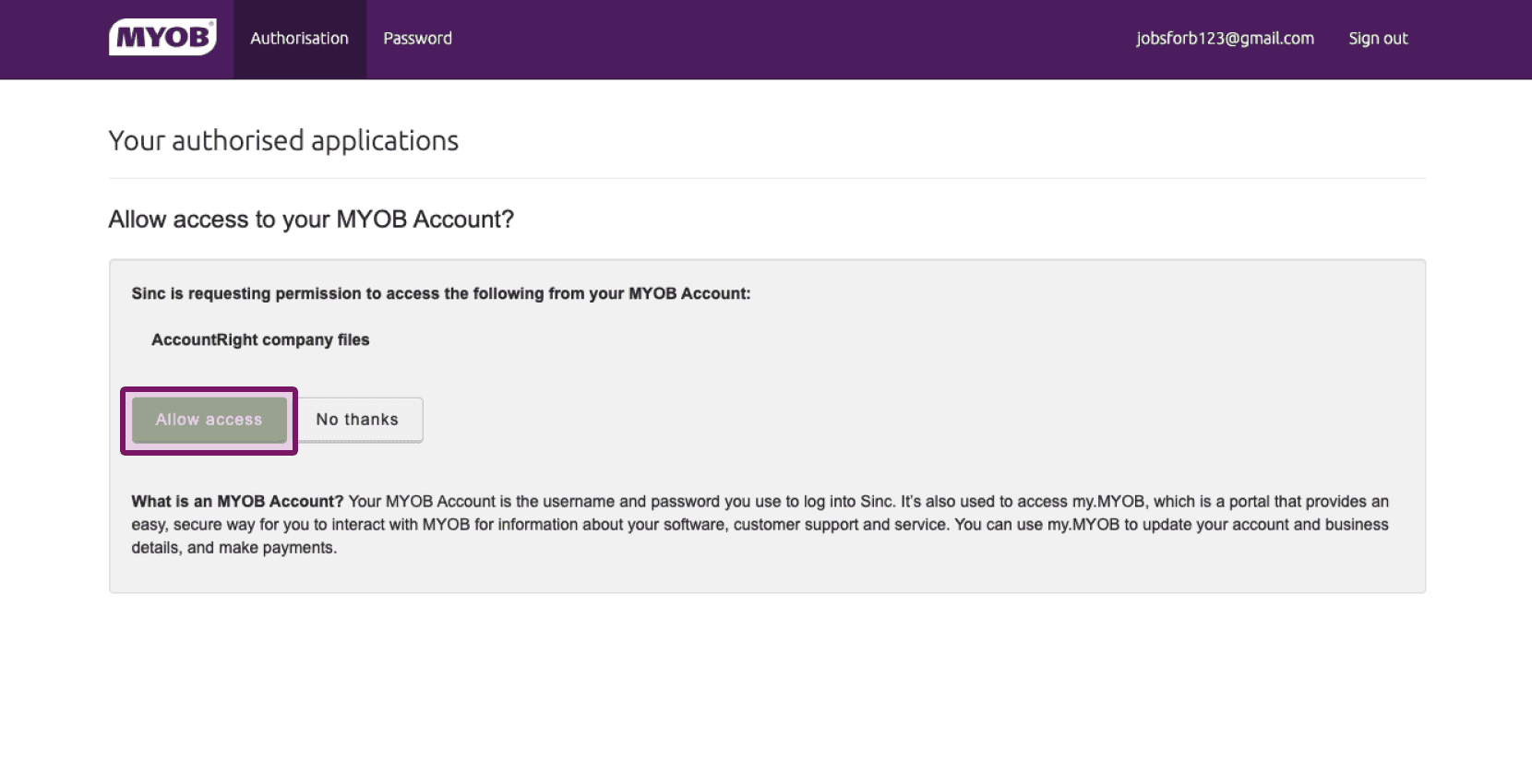
Click on the Allow Access button. (If you did not login to MYOB yet, then you will be taken to the MYOB login screen).
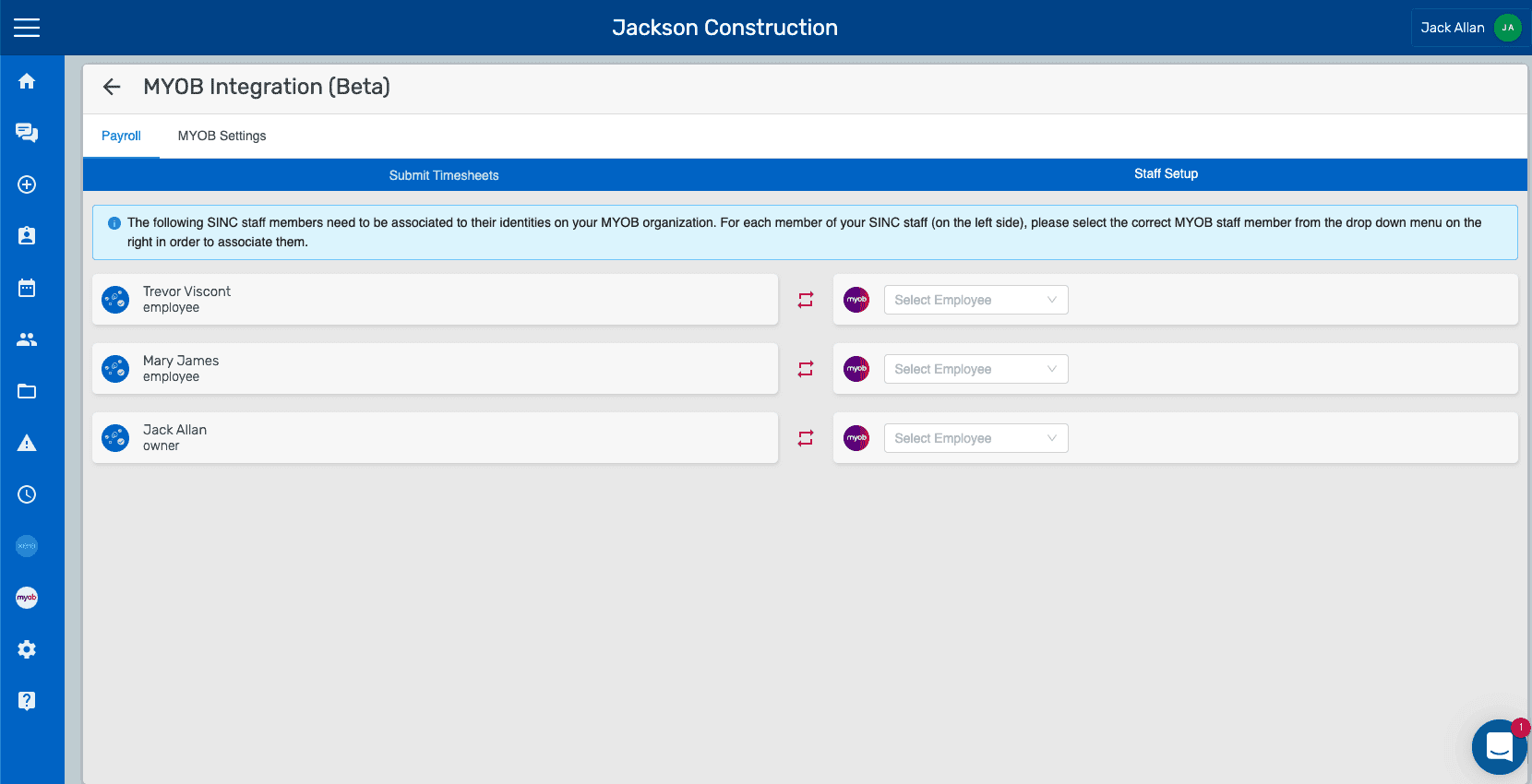
Once the authorization is successful, the following screen will be displayed. Keep in mind: you will have to allow SINC to access the MYOB organization data in order to process the timesheets of employee(s). If the authentication process results in any error or failure, the error messages will be shown on a Pre-Authentication Screen.
Did this answer your question?