
MYOB Payroll: How to link SINC data to MYOB data?
This article relates to linking SINC data with MYOB Essentials Payroll data.

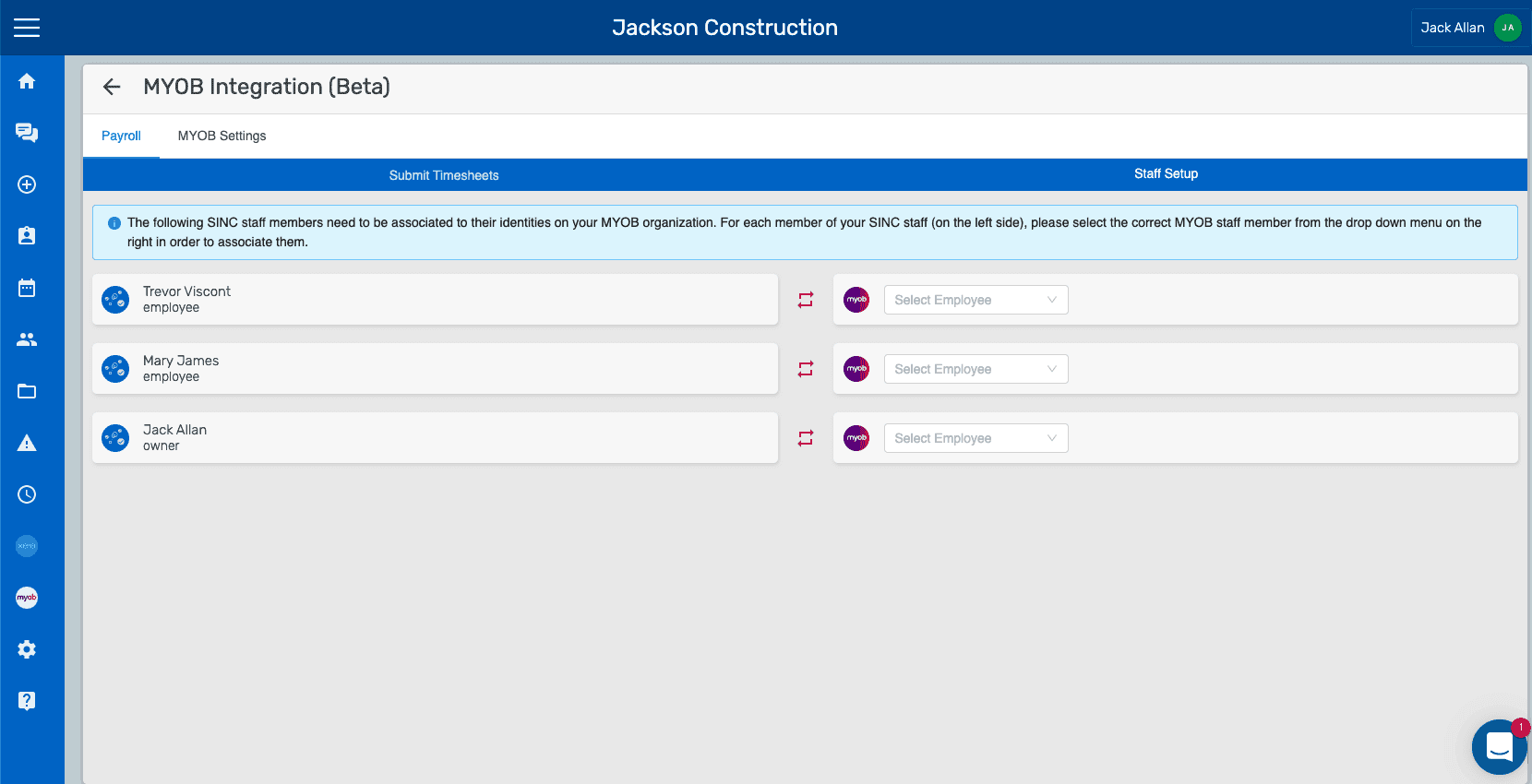
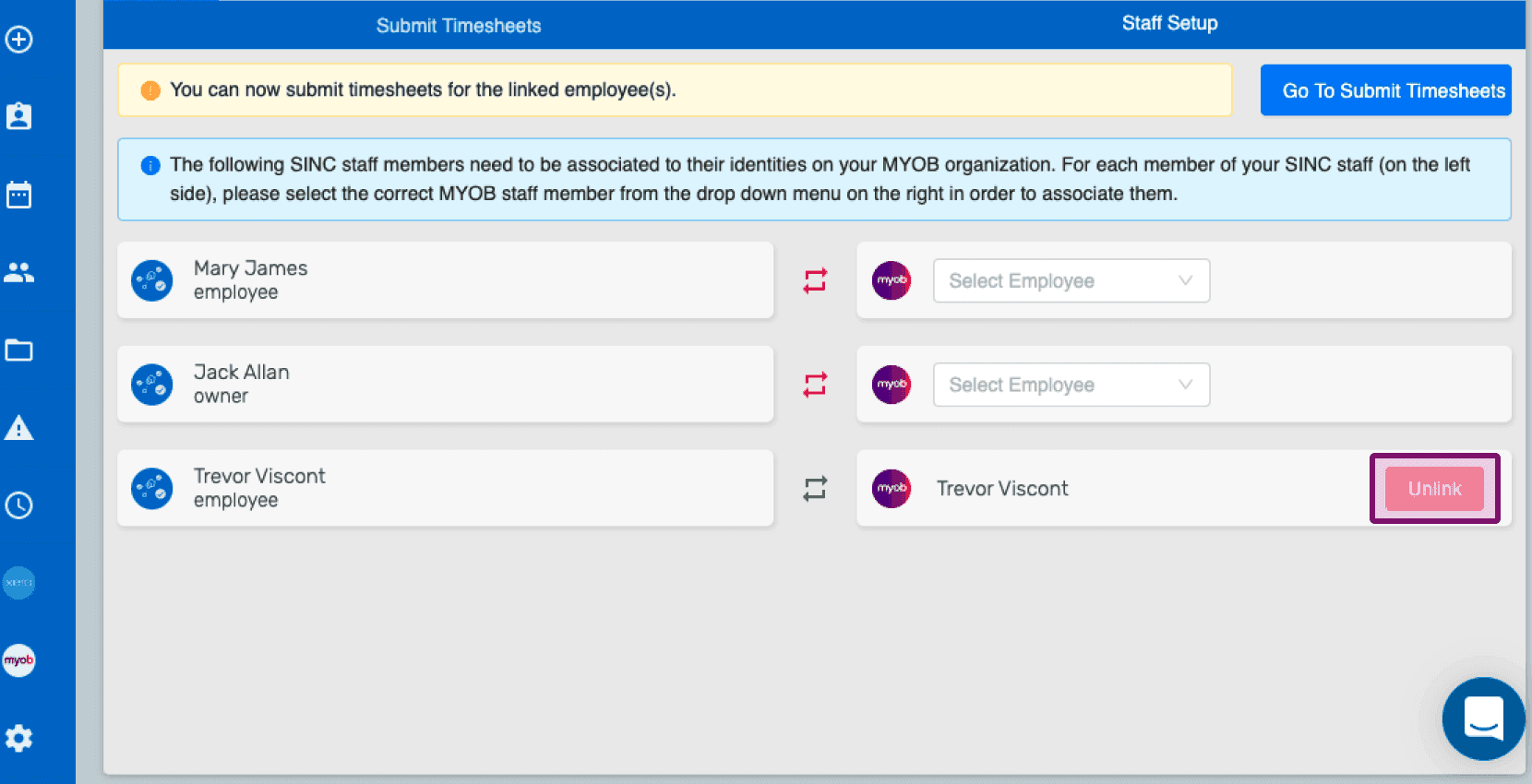
Once authorized with MYOB, you will have to link your SINC employees with their identities on the MYOB organization. For each member of your SINC staff (on the left side), you should select the correct MYOB staff member from the drop down menu (on the right side) in order to link them. The Submit Timesheets tab will be disabled in the beginning if no employee has been linked yet. Once the authentication process is a success, under the Payroll tab you will be shown the following screen.
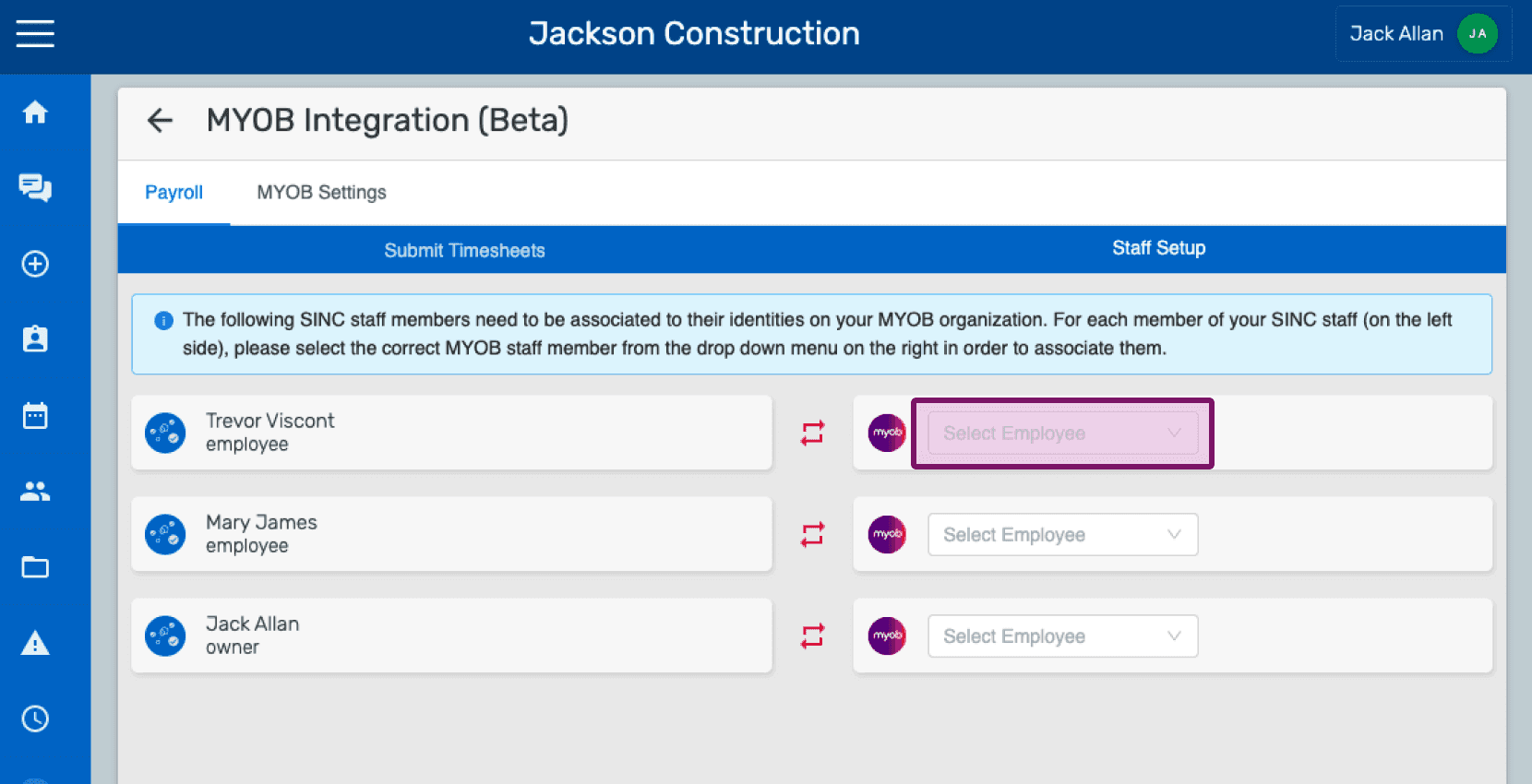
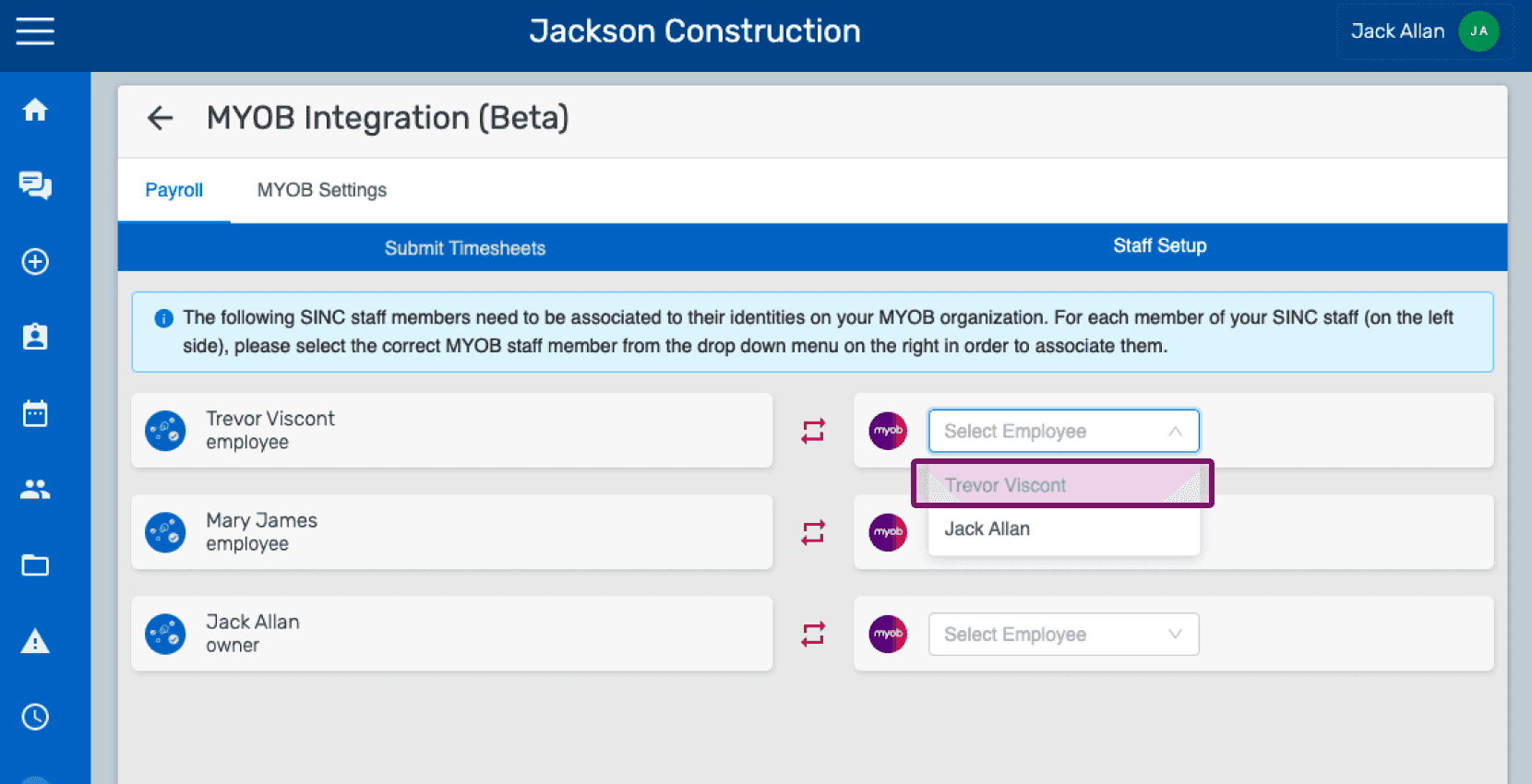
Click on Select an employee dropdown box in order to select the correct MYOB employee (on the right side of the screen) that is to be linked with the SINC employee (on the left side of the screen).
Upon linking at least one employee, you will be able to submit timesheets for that employee by navigating to submit timesheets by clicking on Go To Submit Timesheets button on the top right or by clicking on the Submit Timesheets tab directly.
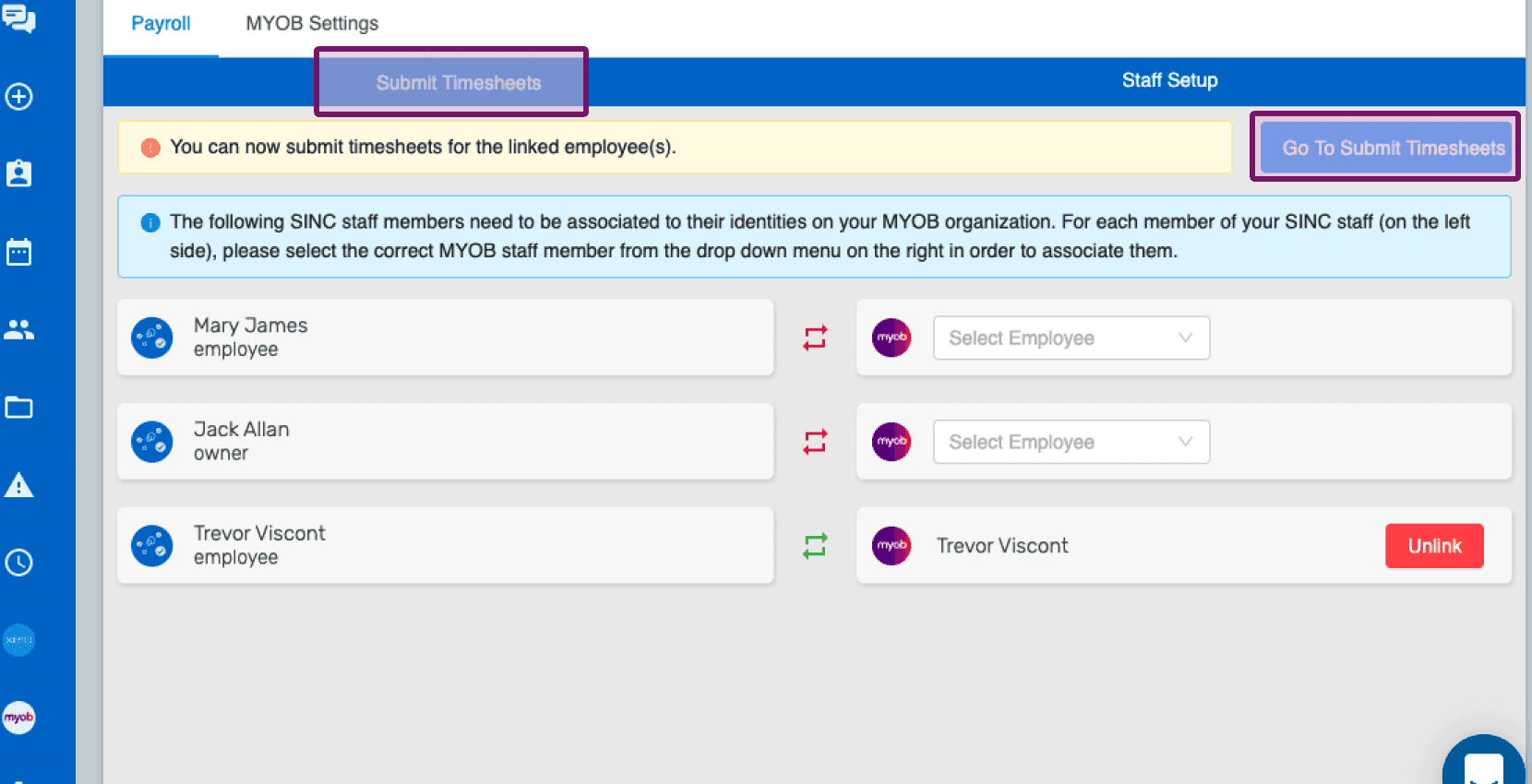
You can also unlink a staff member if they have been incorrectly associated.
Did this answer your question?