Where to find the Submitted Timesheets in MYOB?

This articles relates to finding the submitted timesheets for payroll in MYOB New Essentials Account.

SINC Support Team
SINC Support Team
Oct 18th, 2020

After the timesheets are submitted to MYOB via SINC, you can view, save, or delete the timesheets by logging into MYOB AccountRight Live or New Essentials Account. For AccountRight Live Users: Click on Time Billing
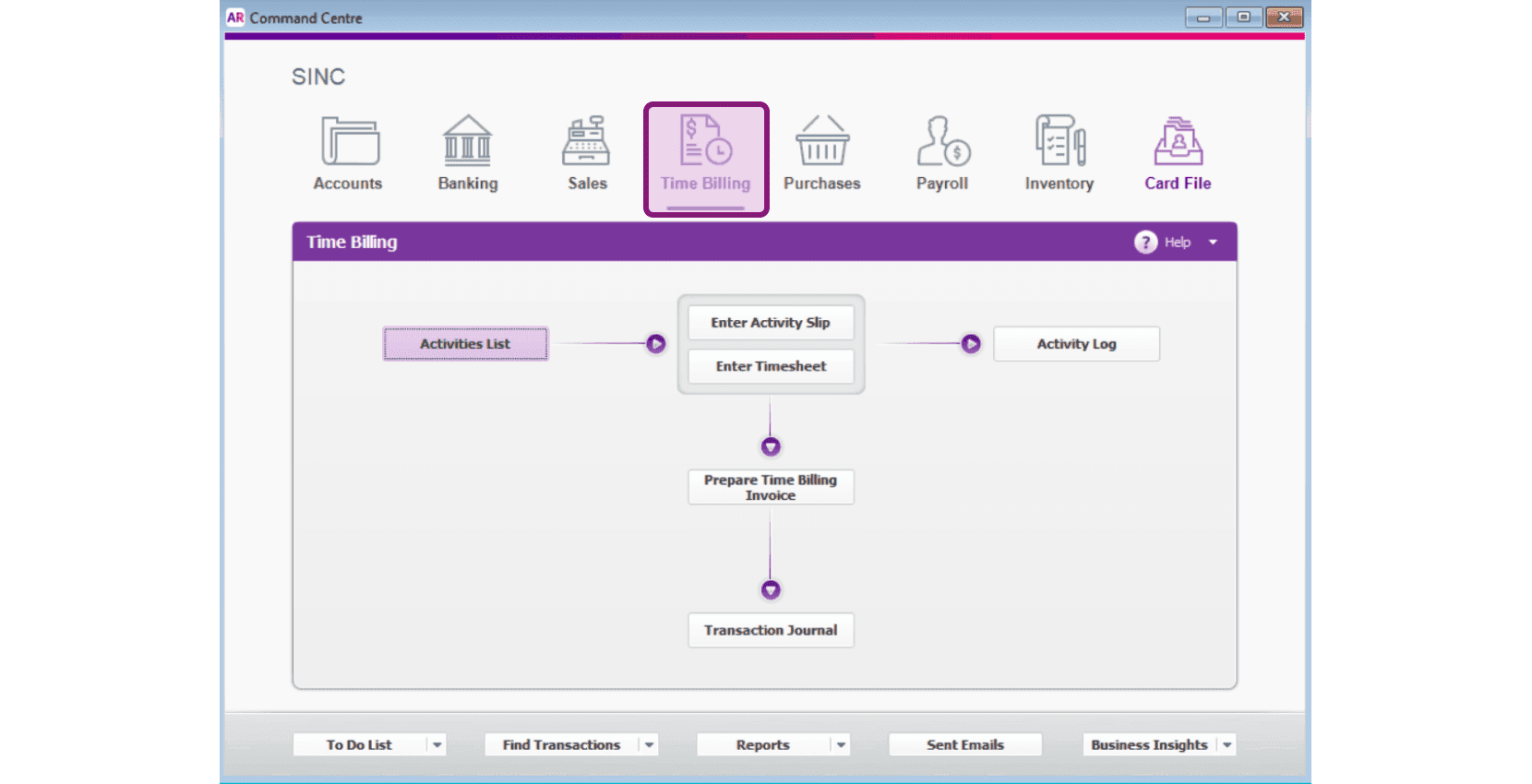
MYOB AccountRight Command Centre with the Time Billing icon highlighted in a purple box

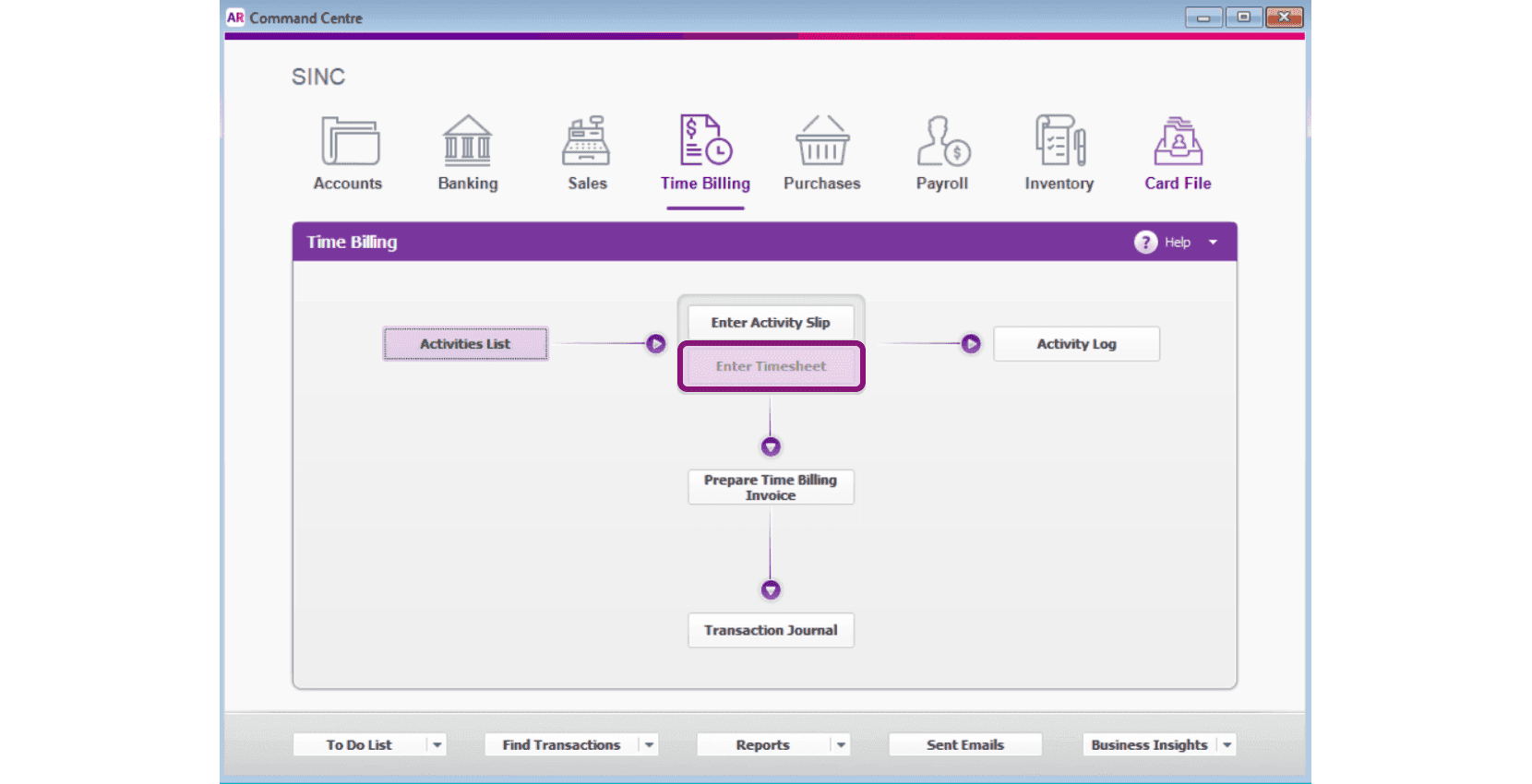
Click on Enter Timesheet

MYOB Command Centre Time Billing screen showing the Enter Timesheet workflow diagram

Select the employee name from the dropdown list.
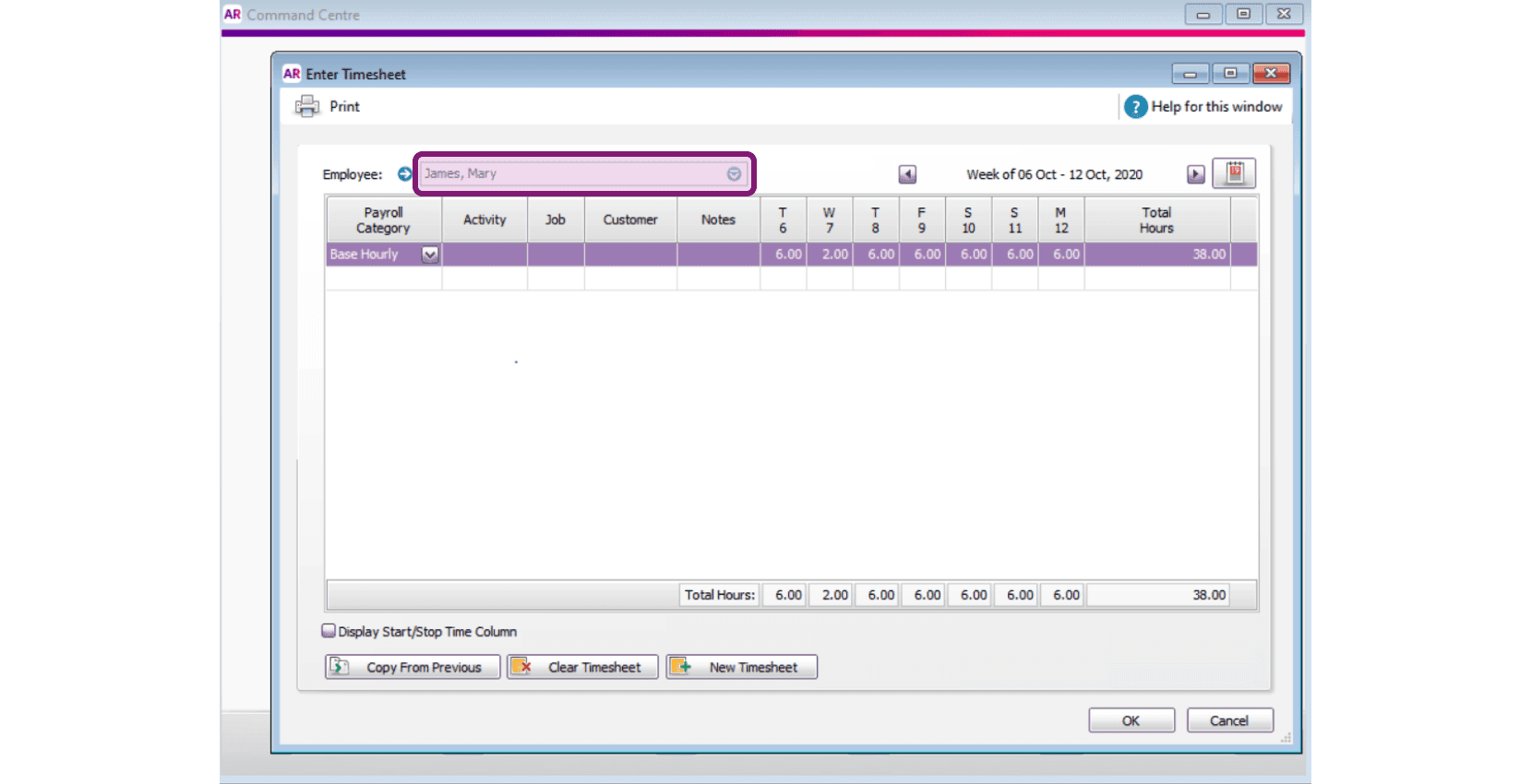
MYOB Enter Timesheet window with the Employee field outlined in pink above a weekly hours grid

Click on the calendar icon to select the Pay Period.
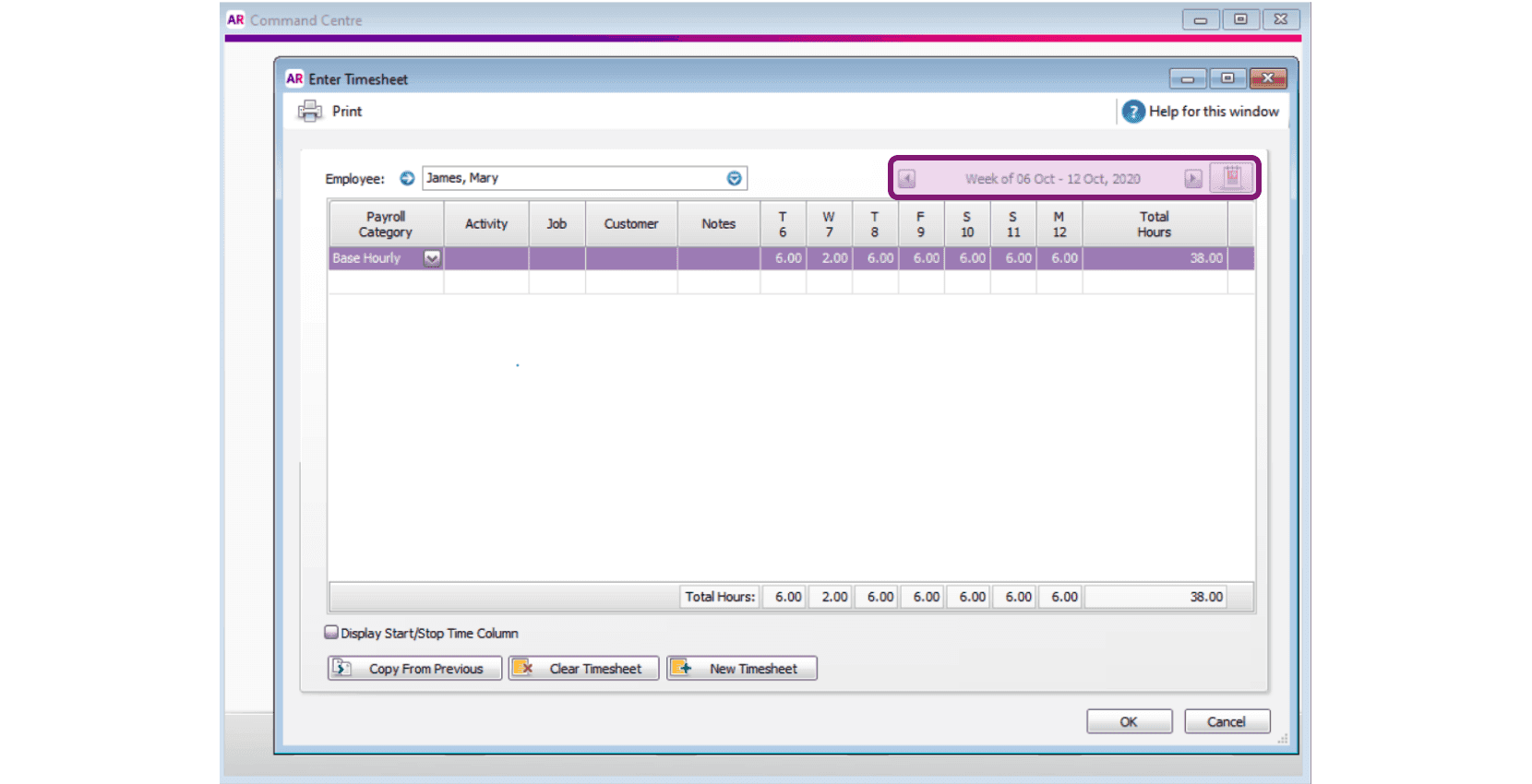
MYOB Enter Timesheet window with the pay period calendar icon outlined in pink

You can then see the Hours submitted for a specific employee under a specific pay period which you can Save, Edit or Delete.
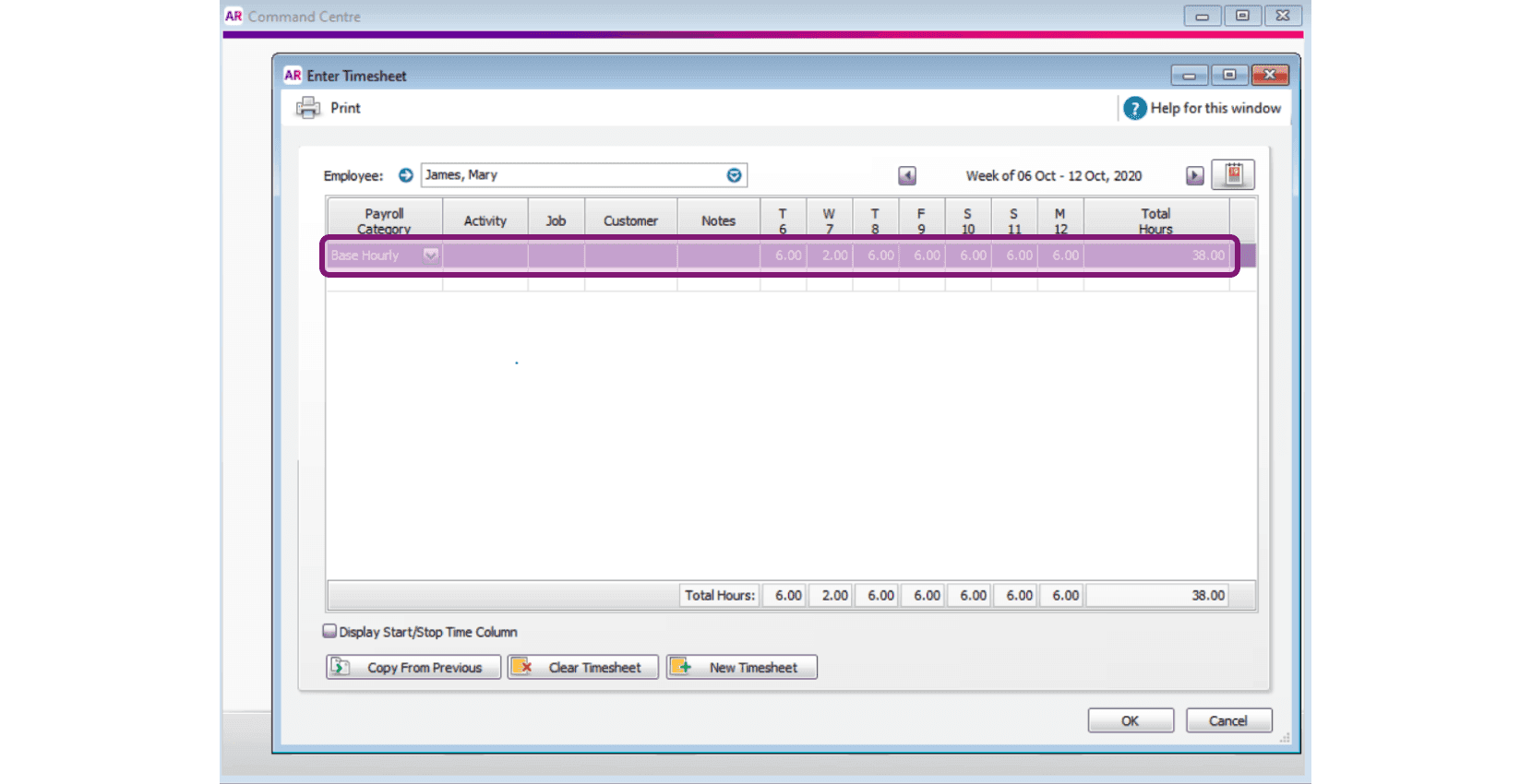
MYOB Enter Timesheet window with a pink box highlighting the row of daily submitted hours for an employee

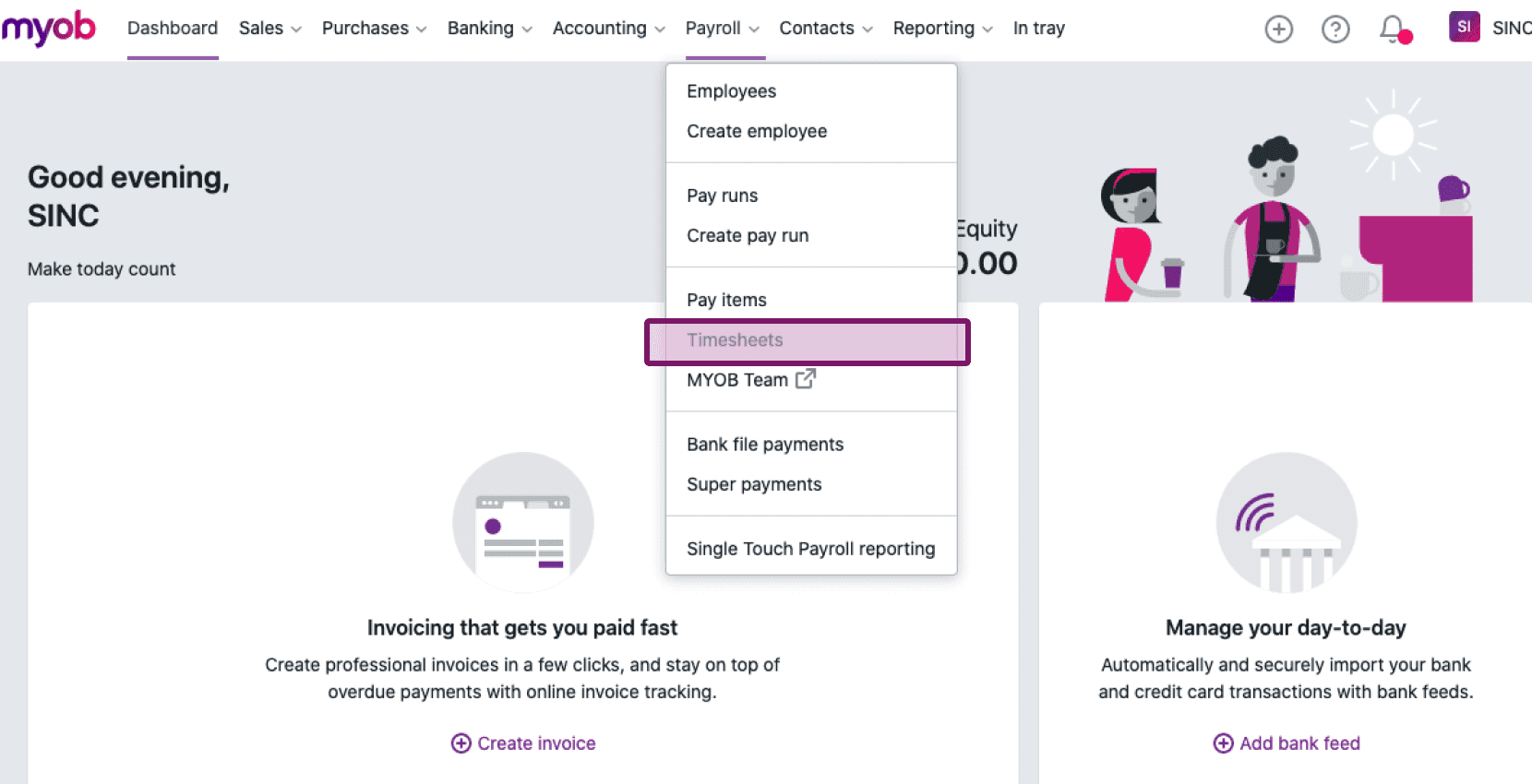
For MYOB New Essentials Users: Navigate to Payroll Timesheets
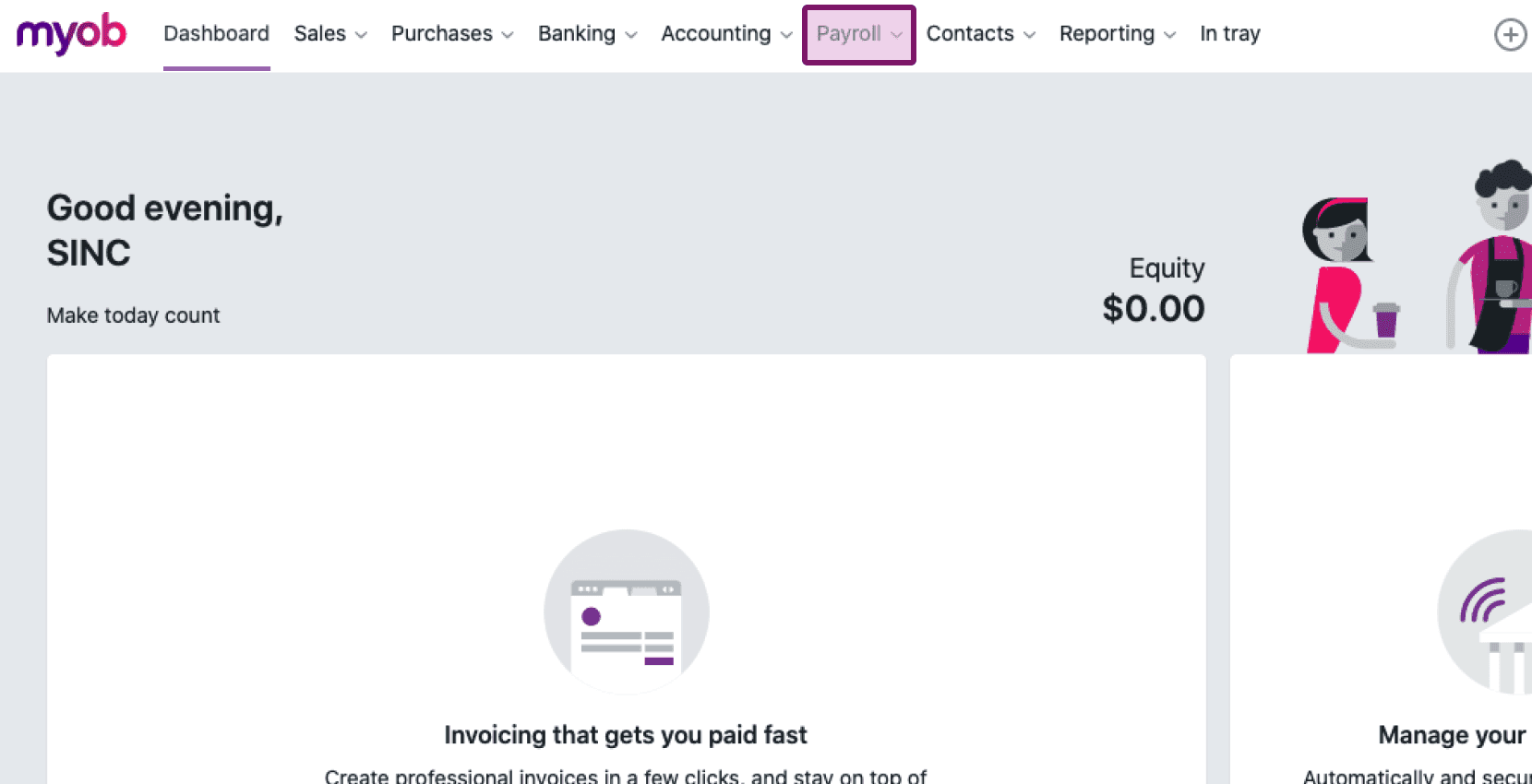
MYOB dashboard with the Payroll menu highlighted in the top navigation
MYOB dashboard with the Payroll menu open and the Timesheets option outlined in purple

Click on the dropdown under Employee and select the employee name from the dropdown list.
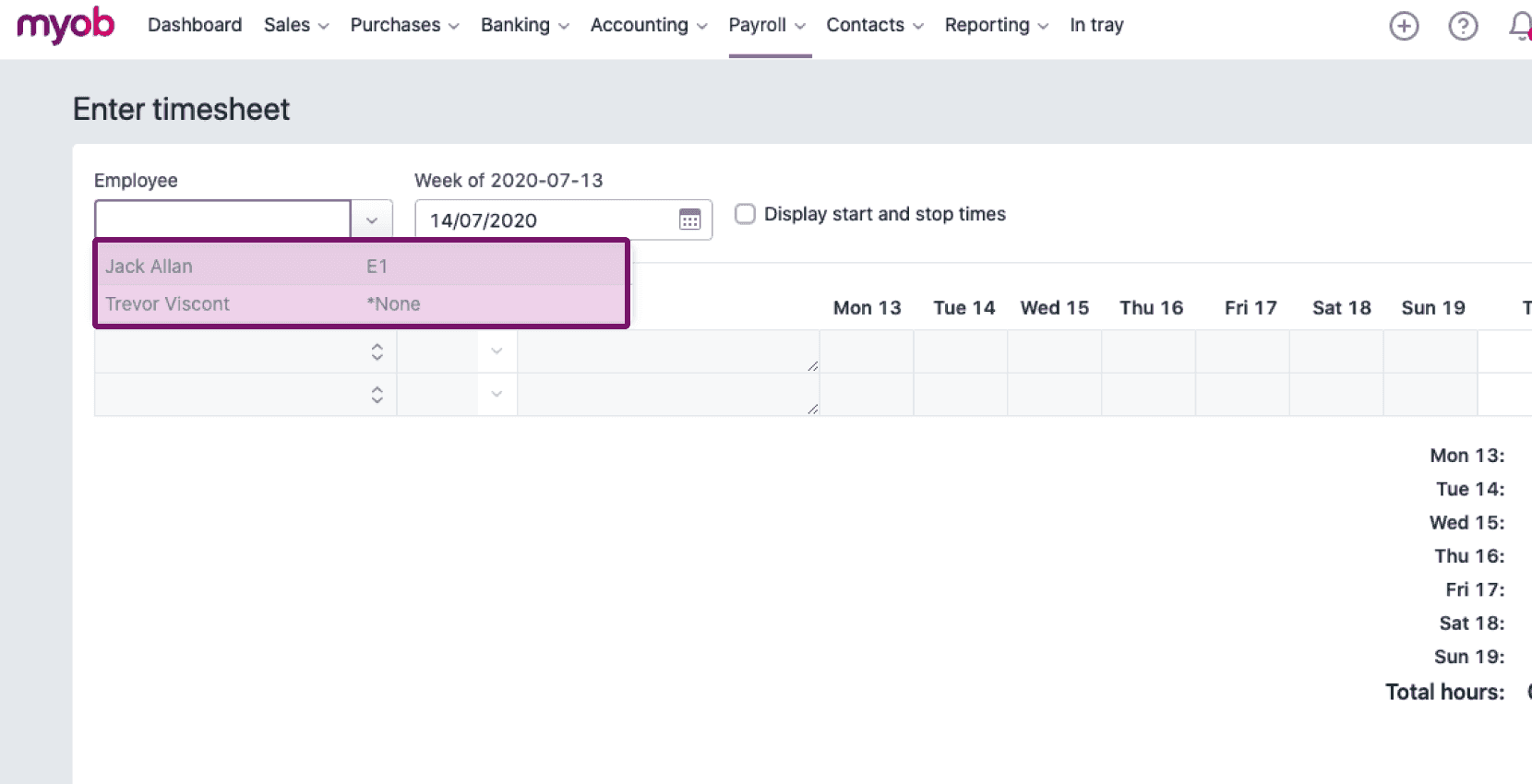
MYOB Enter Timesheet screen with the Employee dropdown circled showing a list of employee names

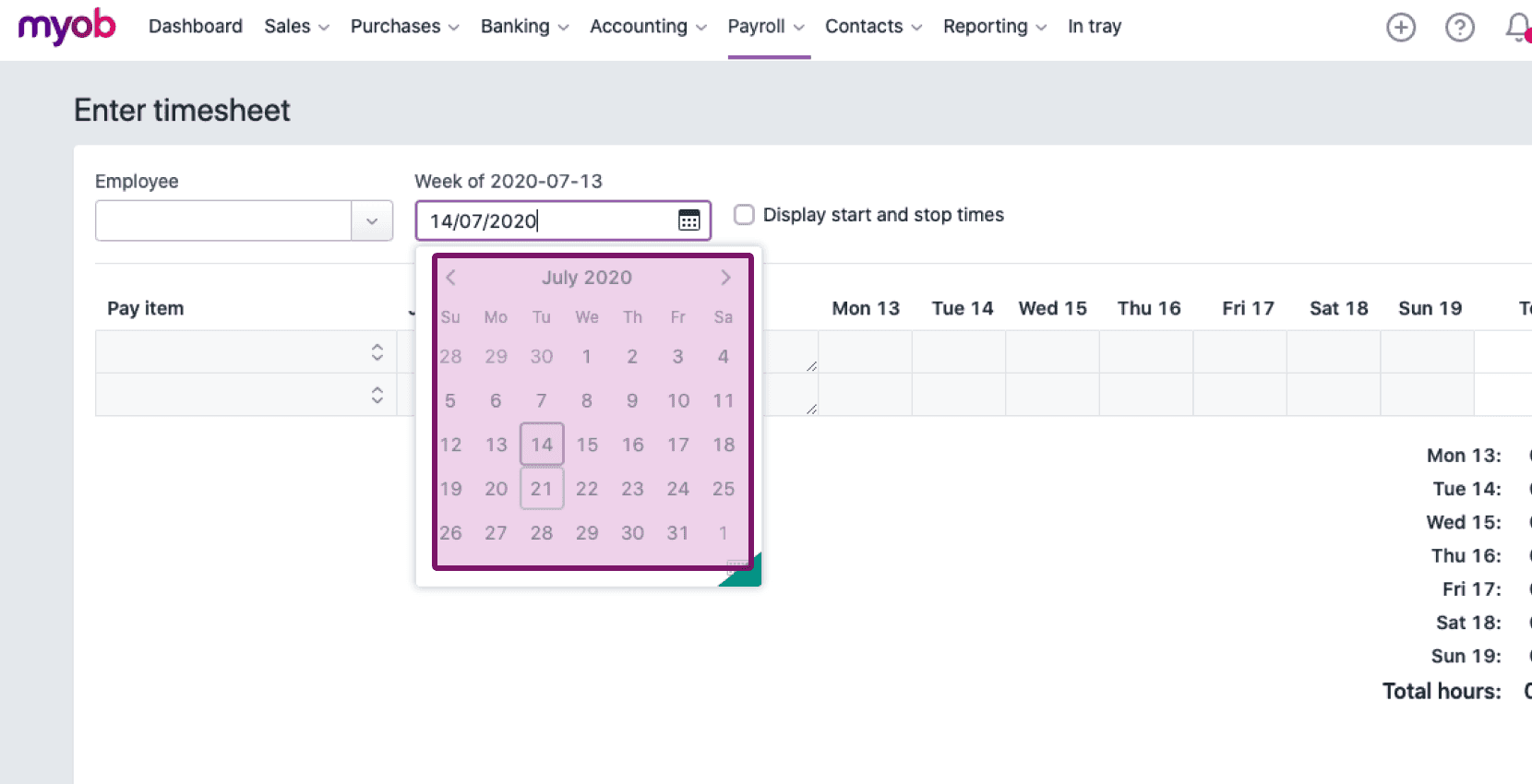
Click on the calendar icon under Week of.. and select the Pay Period.
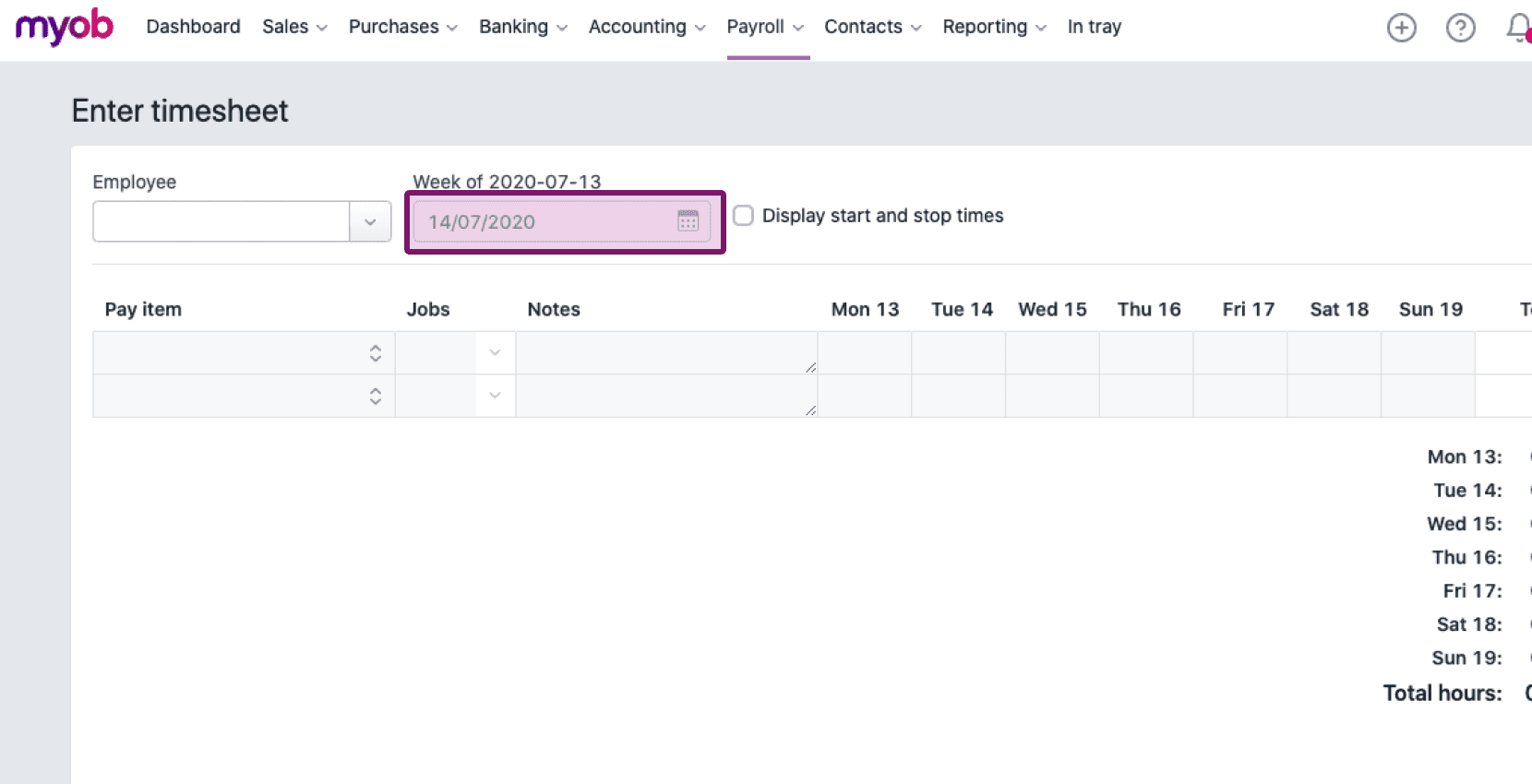
MYOB Enter Timesheet screen with the week date field highlighted
MYOB Enter Timesheet screen with the pay period date field and calendar outlined in purple

The following screen shows the Hours submitted for a specific employee under a specific pay period which you can Save, Edit or Delete.
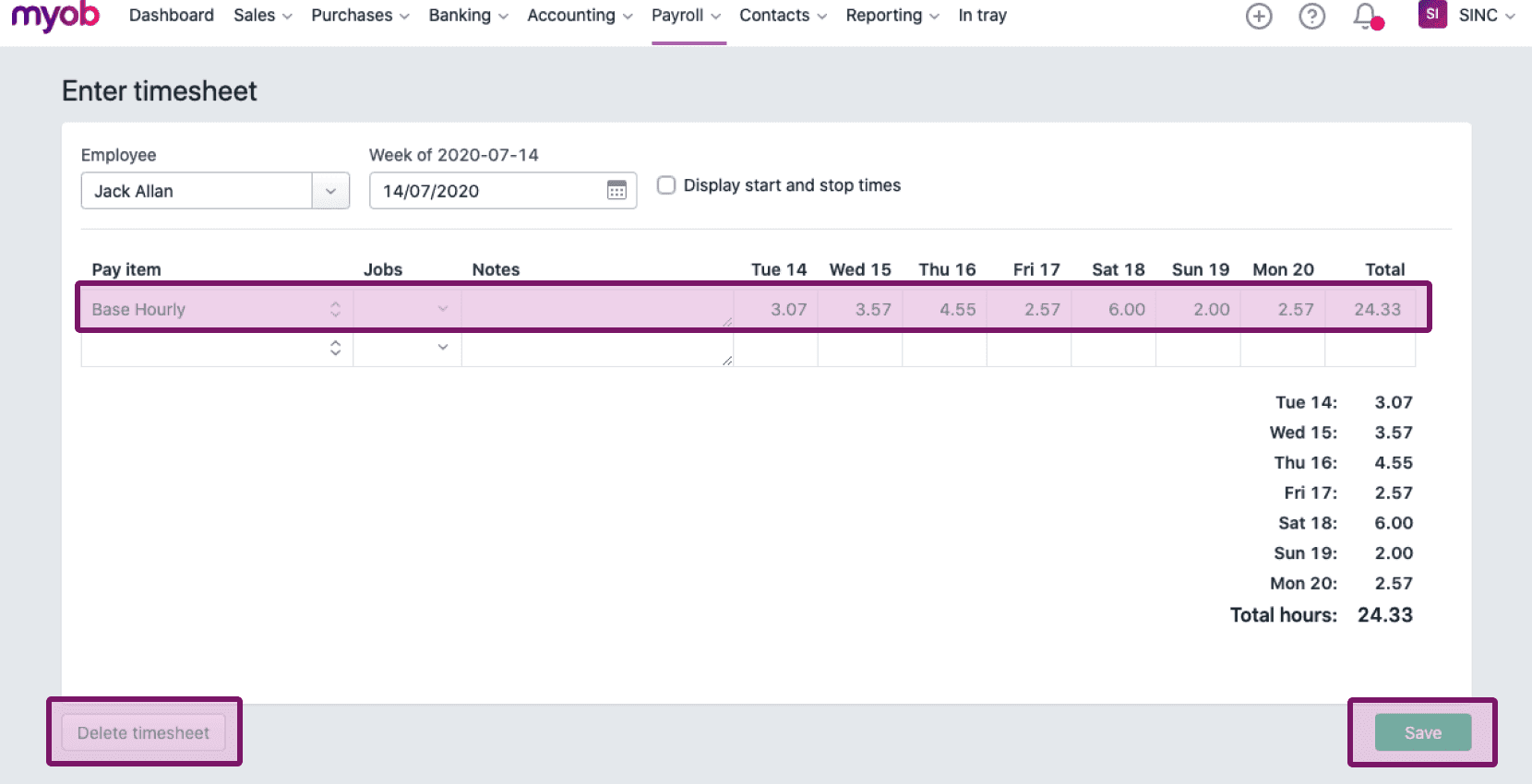
MYOB Enter Timesheet screen showing daily hours with the Delete Timesheet and Save buttons outlined

Did this answer your question?