
Adding Break Rules For Employees
In this guide we will cover how to add automatic break rules for your Organization and how time is calculated on SINC

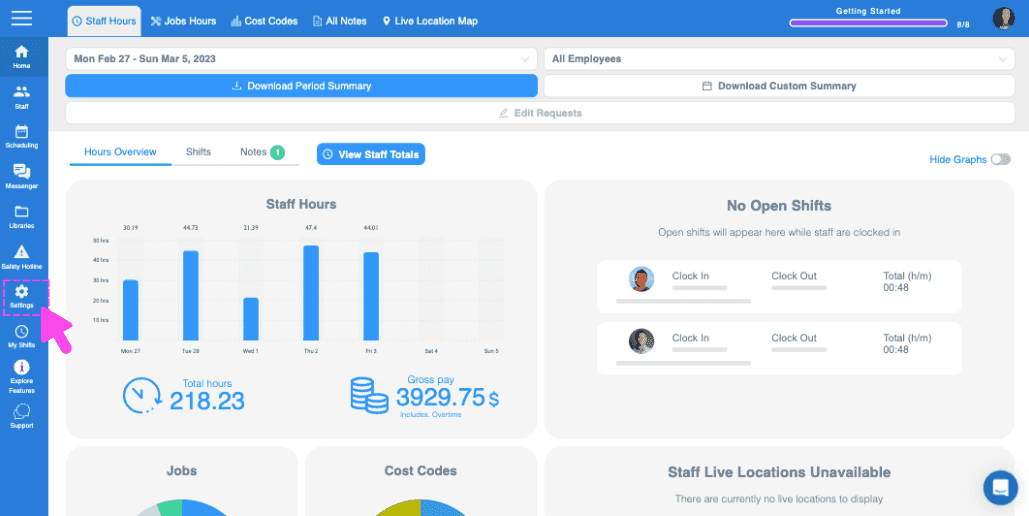
Tap on Settings
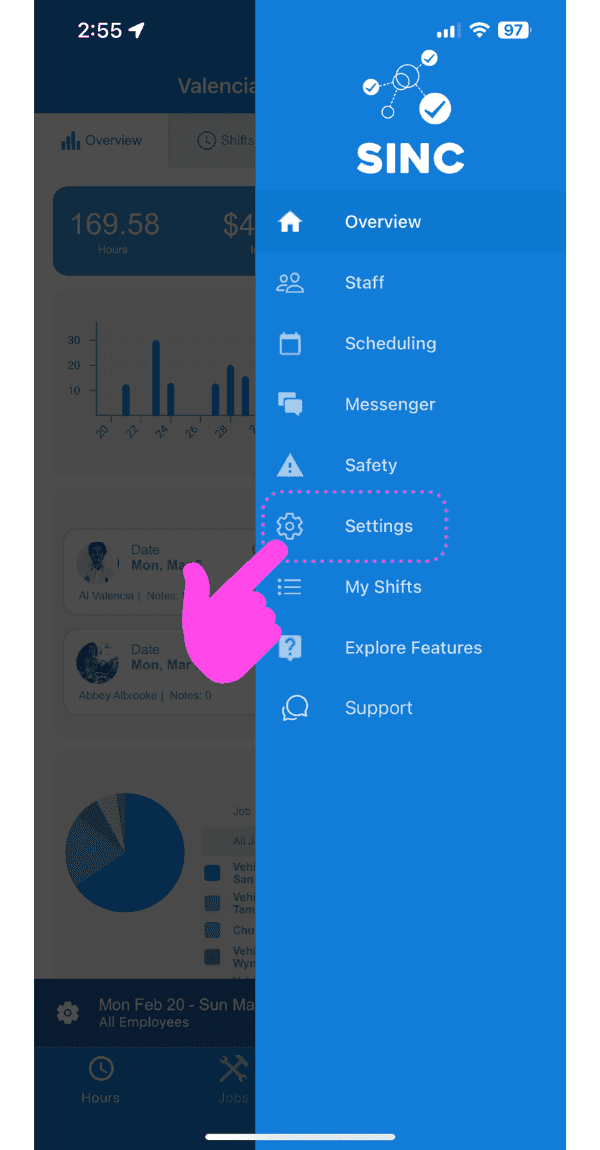
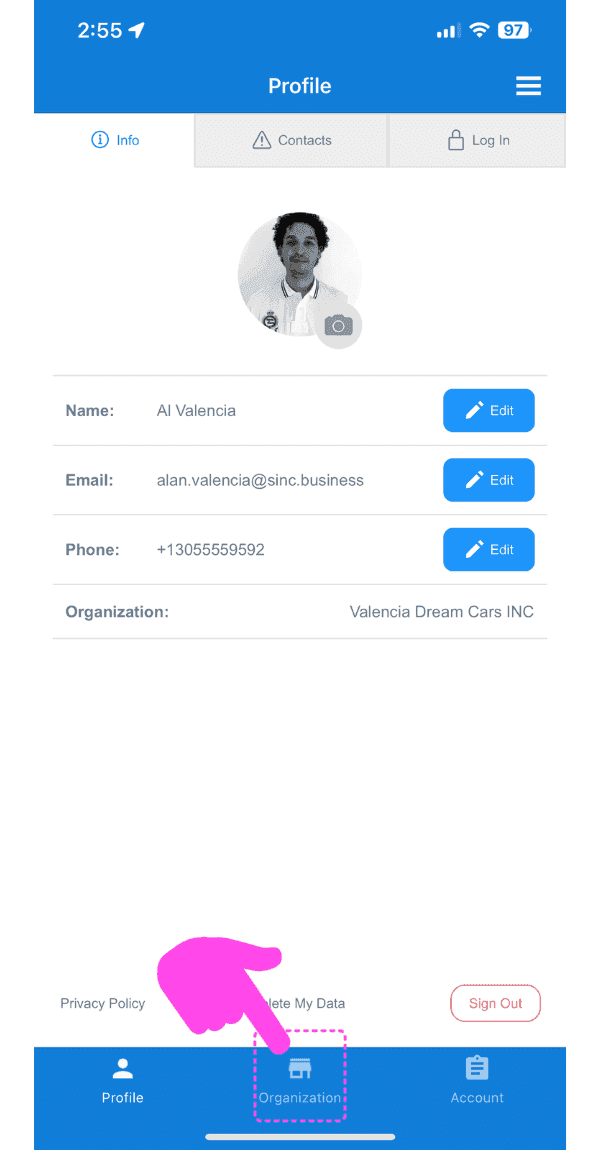
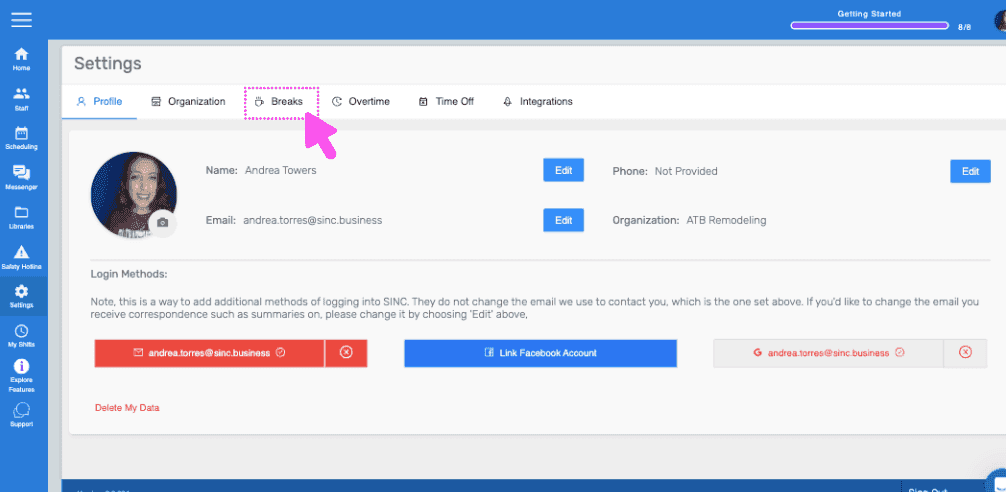
Tap on Organization
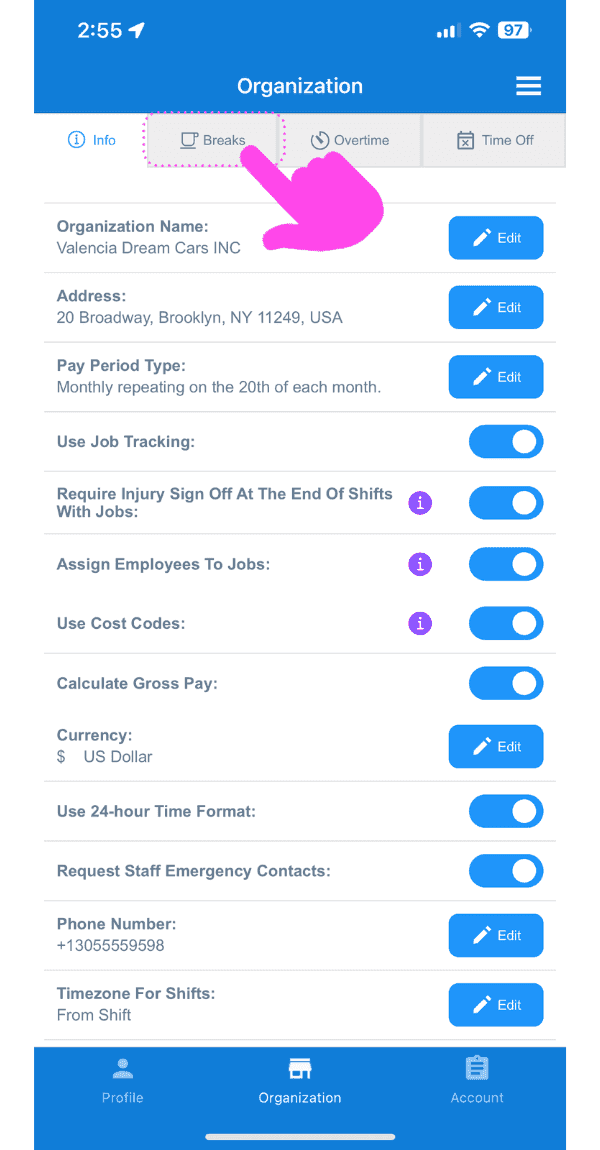
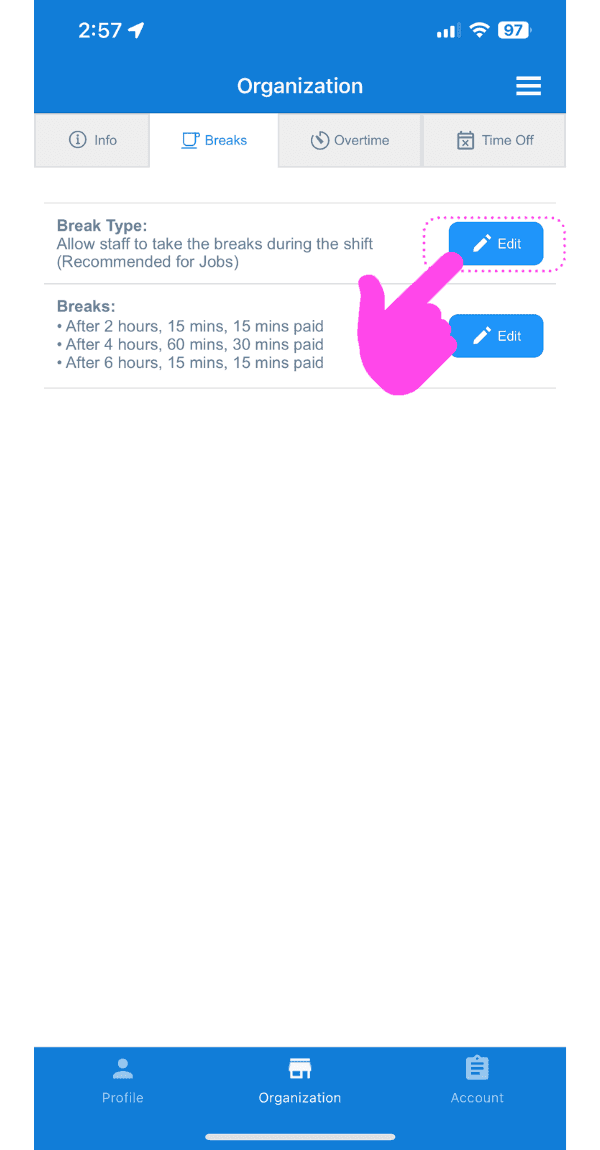
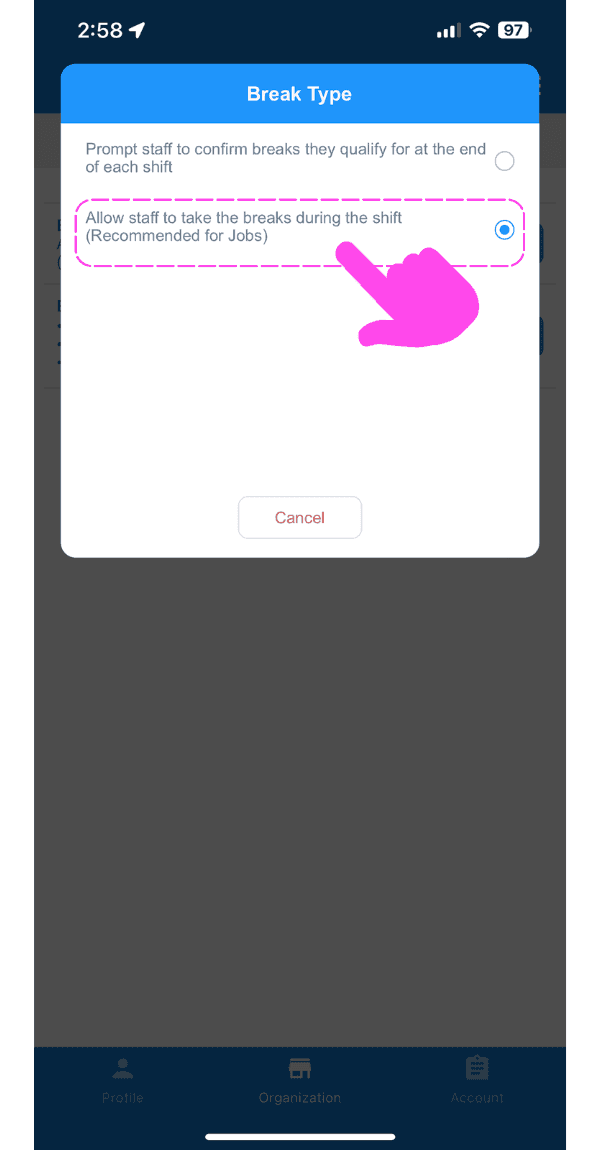
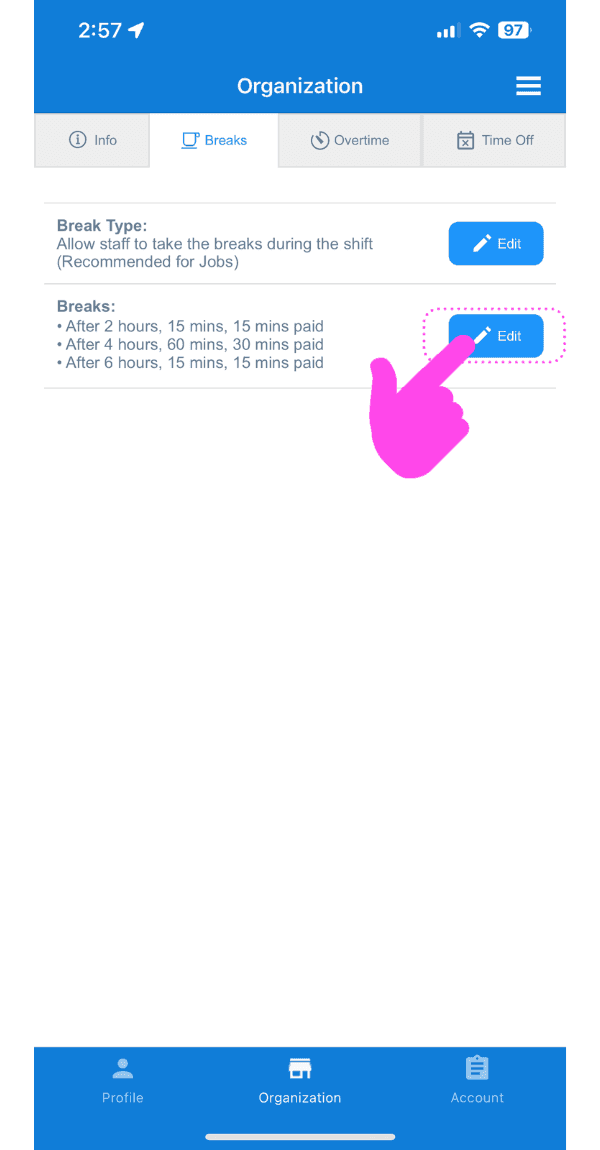
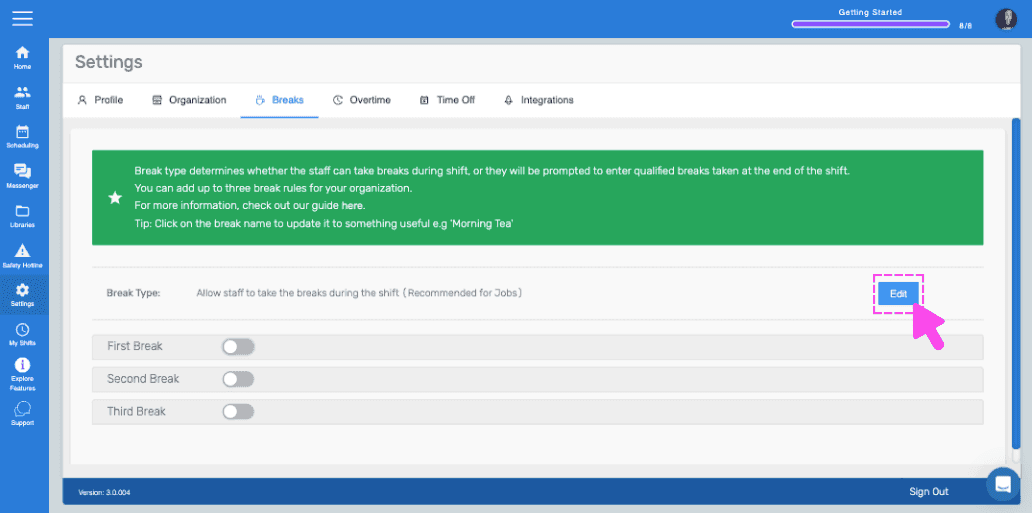
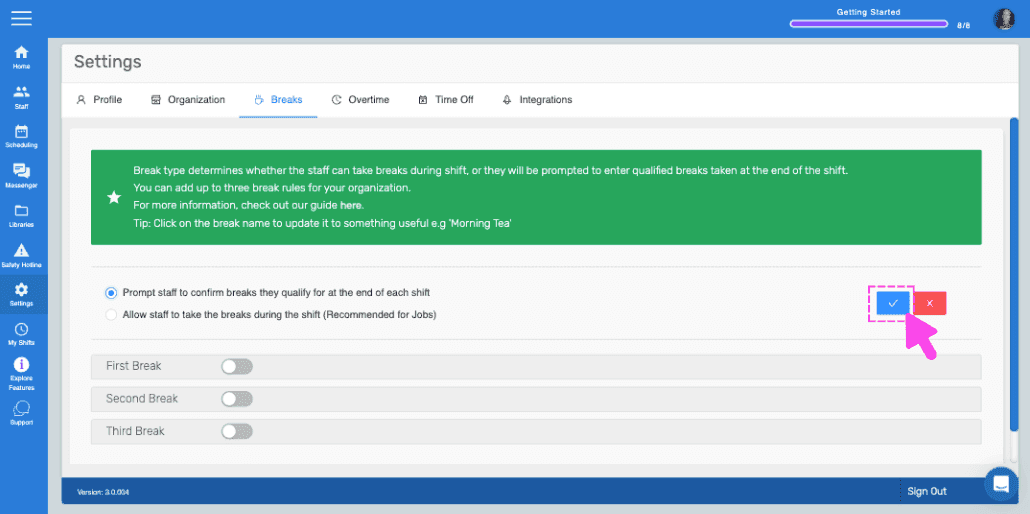
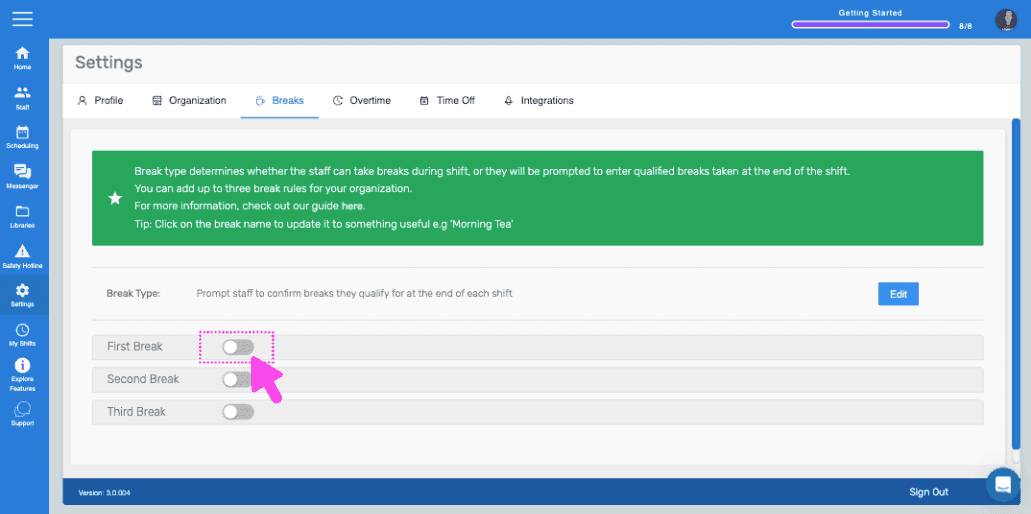
Tap on Breaks. Here you can update the break type and add break rules. You can update the break type to either: 1) Prompt staff to confirm breaks they qualify for at the end of each shift, or 2) Allow staff to take the breaks during the shift (Recommended for Jobs) — this separates breaks and jobs so total job hours reflect only time on the job.
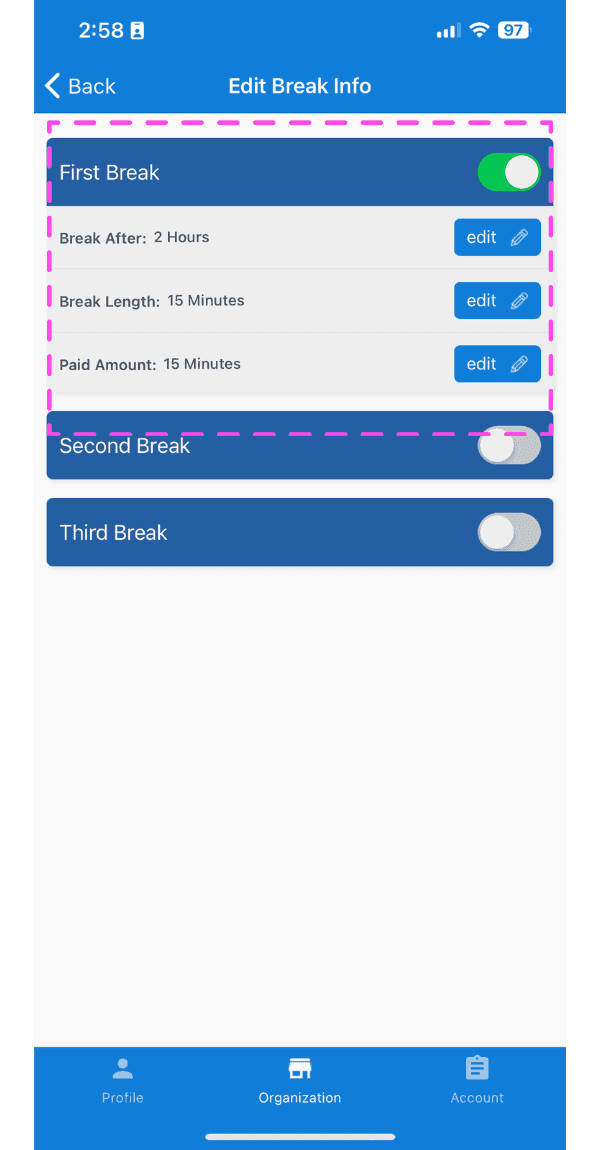
You have the option to add up to three automatic break rules. Toggle the switch next to First Break to enable it.
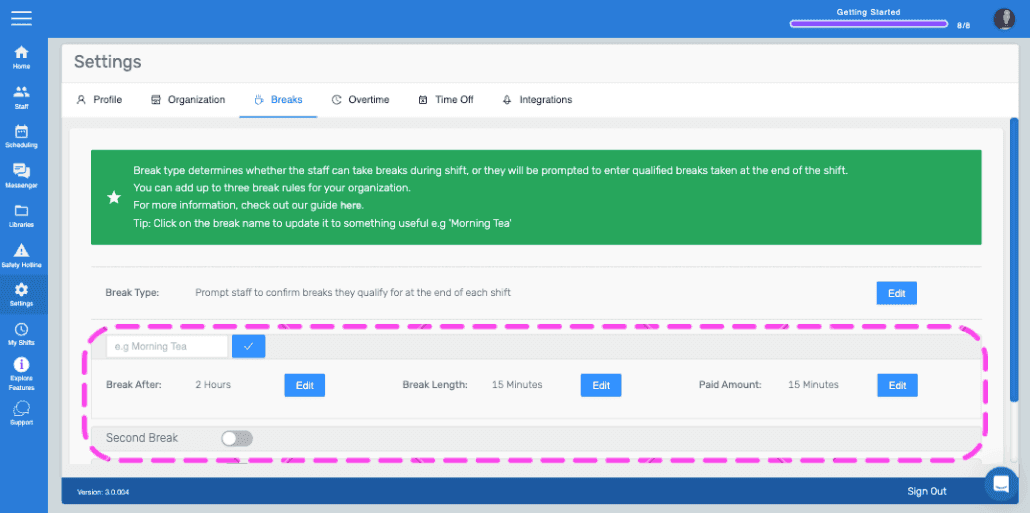
Change the name of the break by tapping on First Break, updating to something useful such as Morning Coffee Break. Update the values: Break After is the period after which employees are entitled to the break; Break Length sets a useful default the employee sees when confirming their break summary (it doesn't determine the actual length taken, which staff confirm each shift); Paid Amount is how much of the break the employee is paid for (0 minutes for unpaid).
If you navigate back to your Organization Page, you will see a summary of any breaks you added.
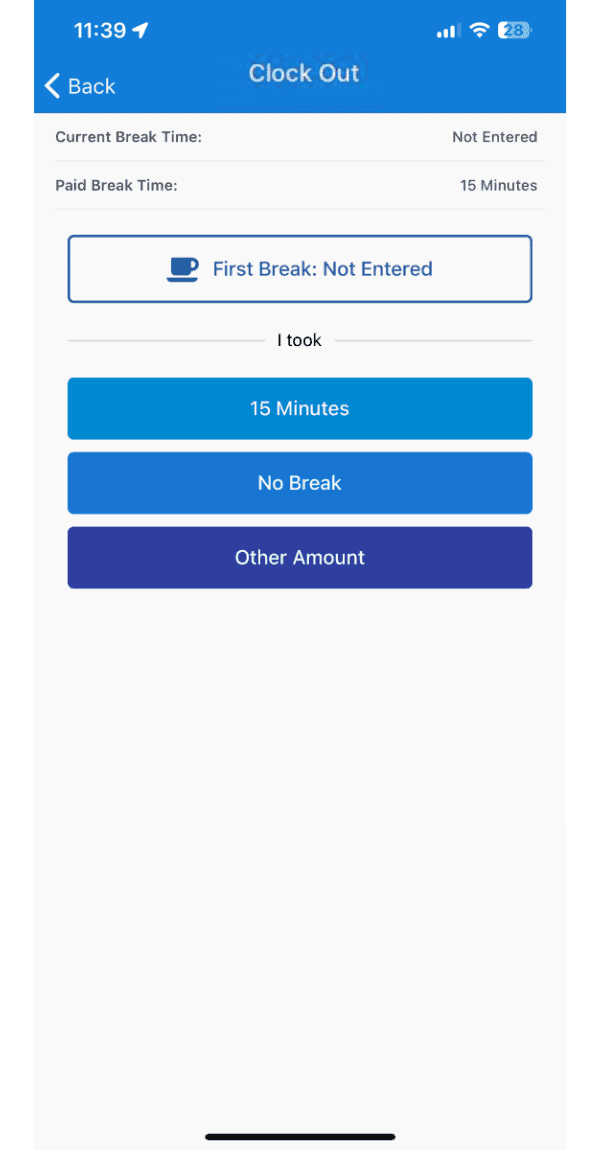
At the end of each shift, employees will be prompted to confirm any automatic breaks they were entitled to (based on shift length). For each break they can choose the default length, no break, or a custom amount.
When viewing the Shift Details of a shift that contained Automatic Breaks, you'll see how long the breaks taken were, and how much paid break the employee was entitled to. The payable Total Time is calculated as: Actual Shift Length - Breaks Taken Length + Paid Breaks Length. Example 1: 8-hour shift, 1 hour of breaks taken, 30 minutes paid → payable length is 7h30m. Example 2: 4-hour shift, entitled to a 15-min paid coffee break but works through it → payable length is 5h15m. For unpredictable breaks, the most flexible approach is one automatic break qualifying after a short time (e.g. 1 hour), letting staff set the custom amount each shift.
If you are using the web version it will look like this:
Did this answer your question?