Calculating Gross Pay

In this tutorial we cover how to enable the gross pay calculation feature inside SINC

Sam Dolbel
Sam Dolbel
Mar 9th, 2023

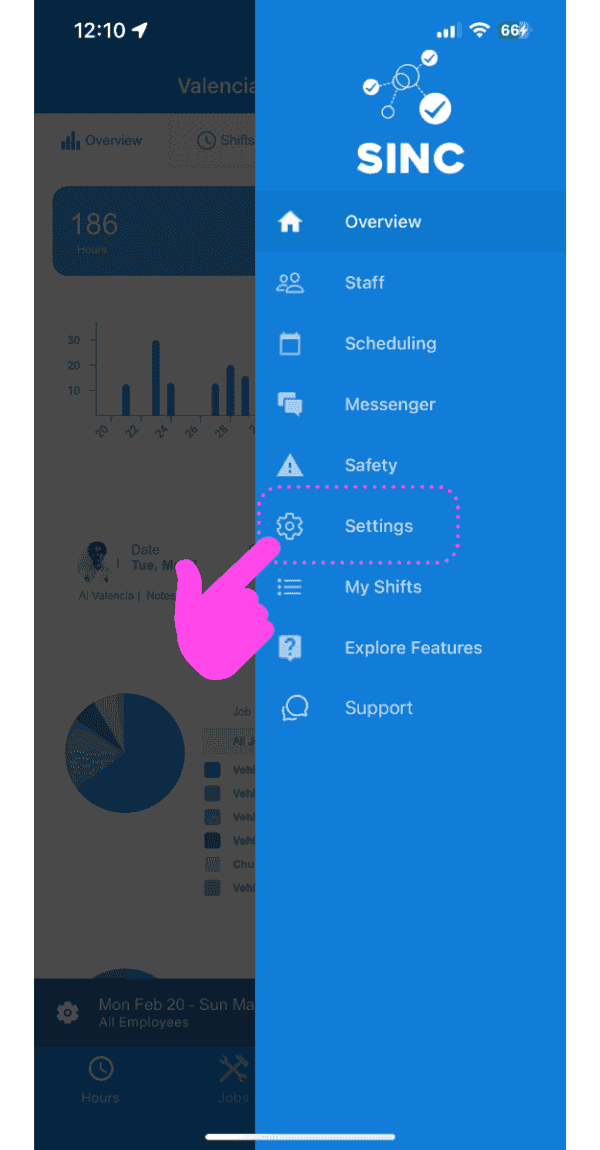
Tap on Settings

SINC mobile app side menu with a pink hand pointing to the Settings option

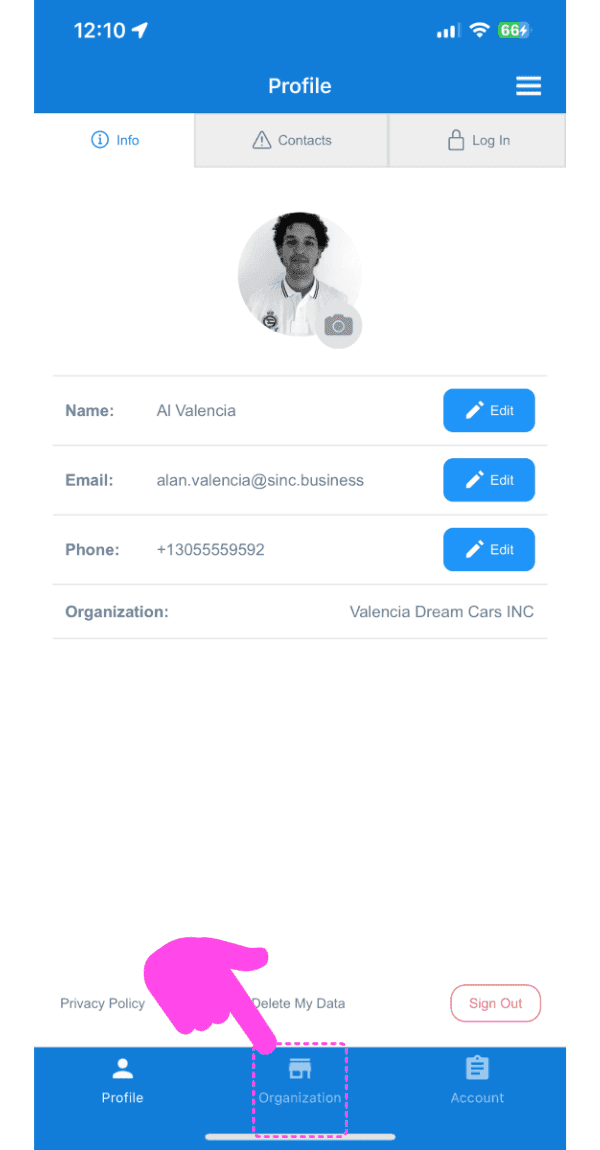
Tap on Organization

SINC mobile Profile screen with a pink arrow pointing to the Organization tab at the bottom

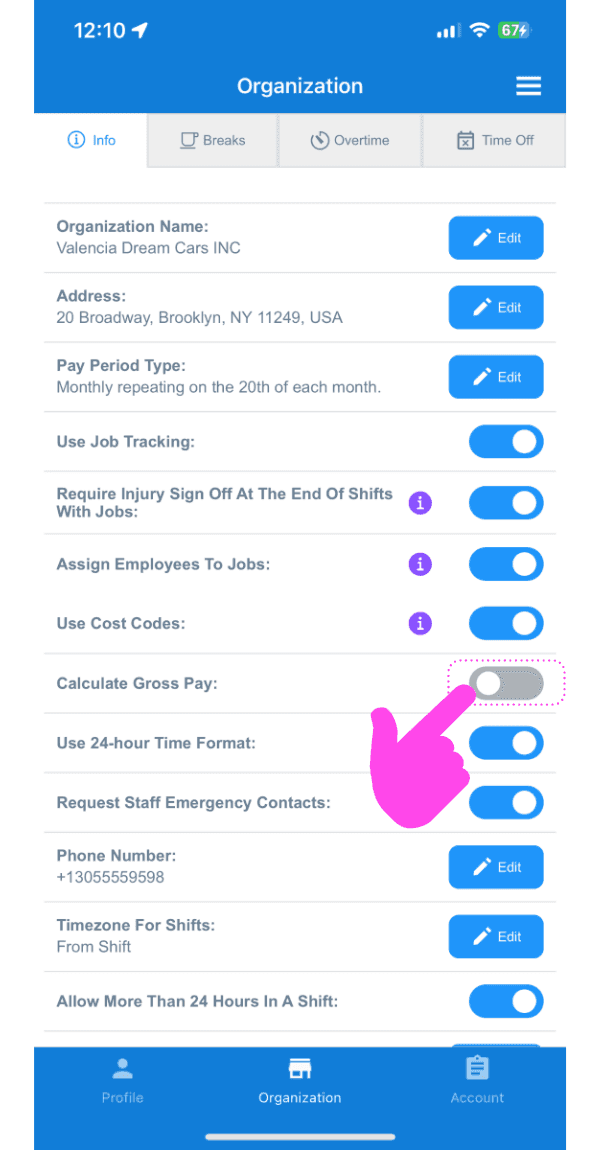
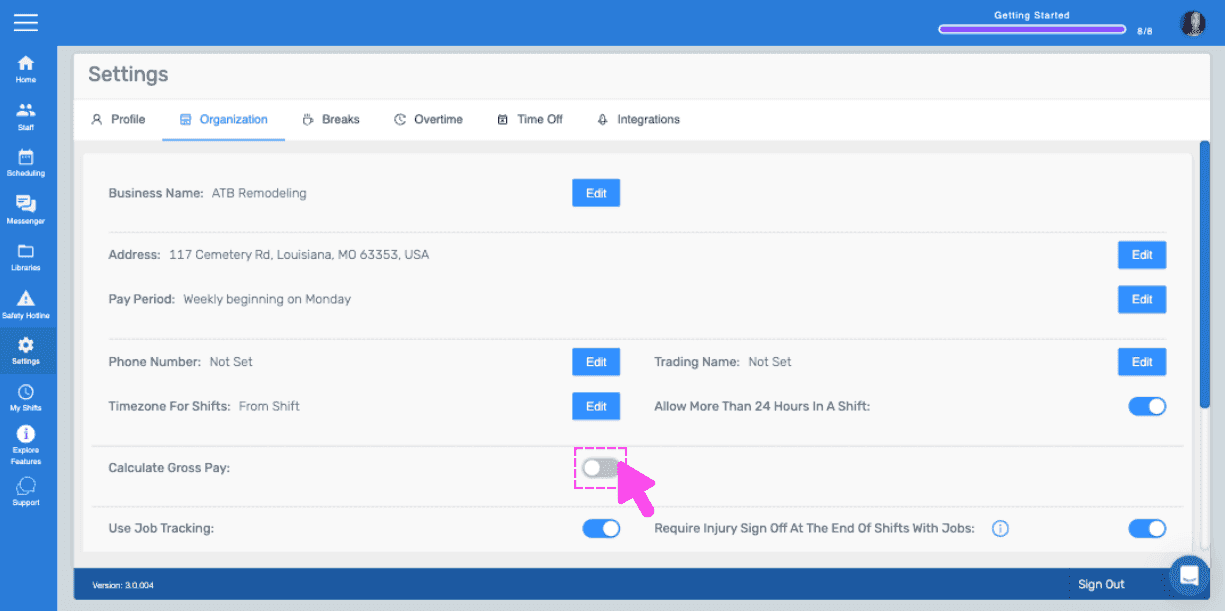
Tap on Calculate Gross Pay

Organization Info screen with a pink arrow pointing to the Calculate Gross Pay toggle switch

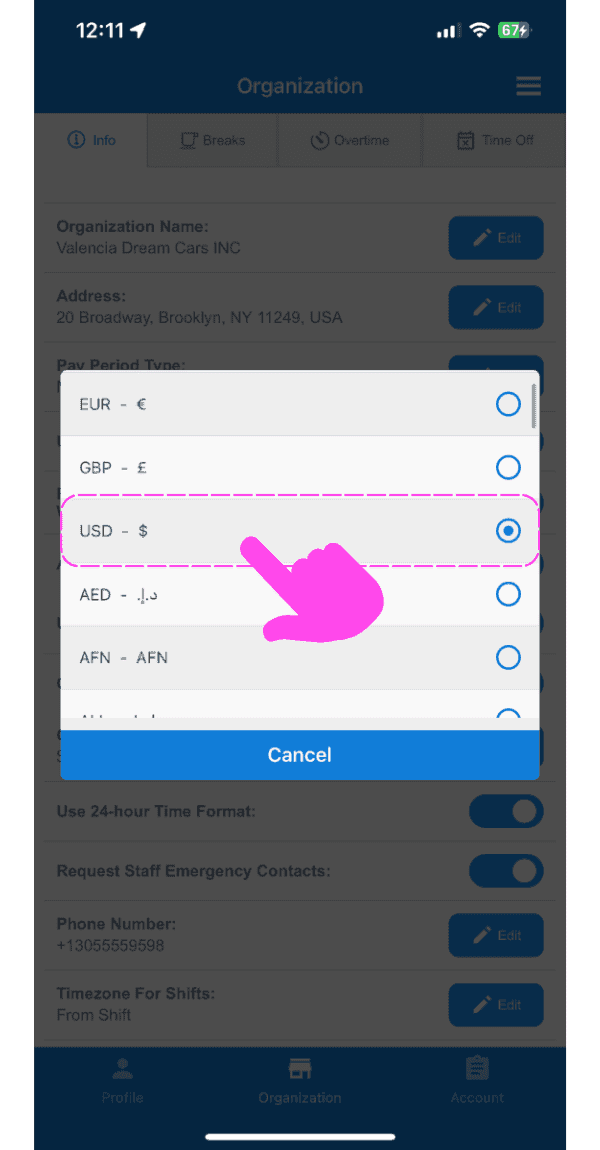
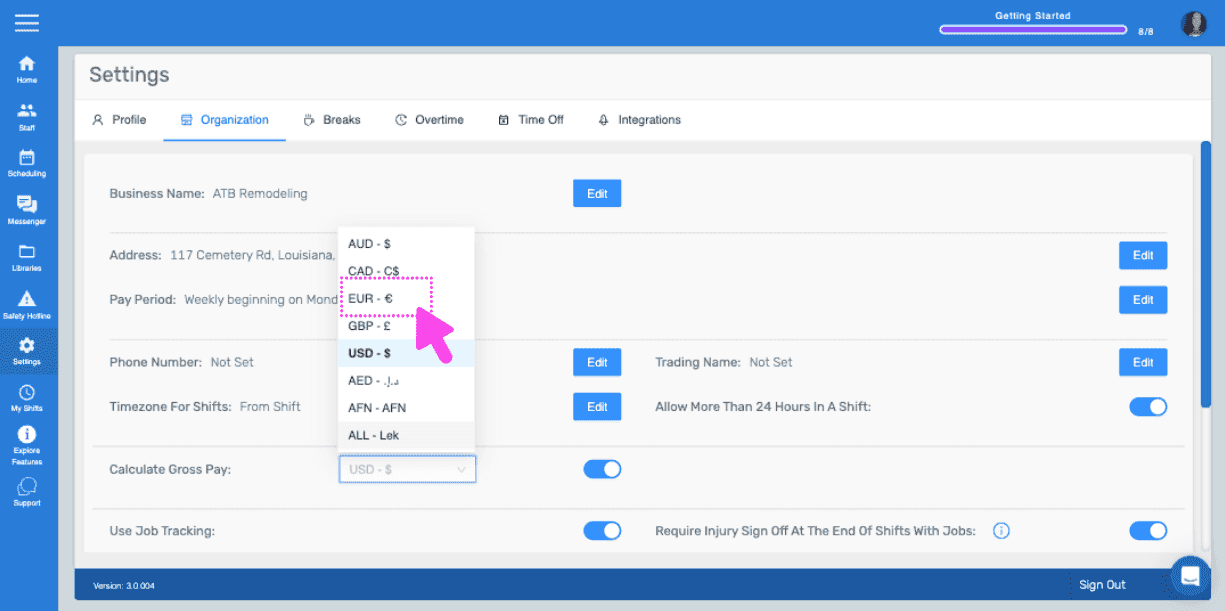
Tap on Preferred Currency

SINC mobile app currency selection popup with USD highlighted in a pink dashed box and arrow

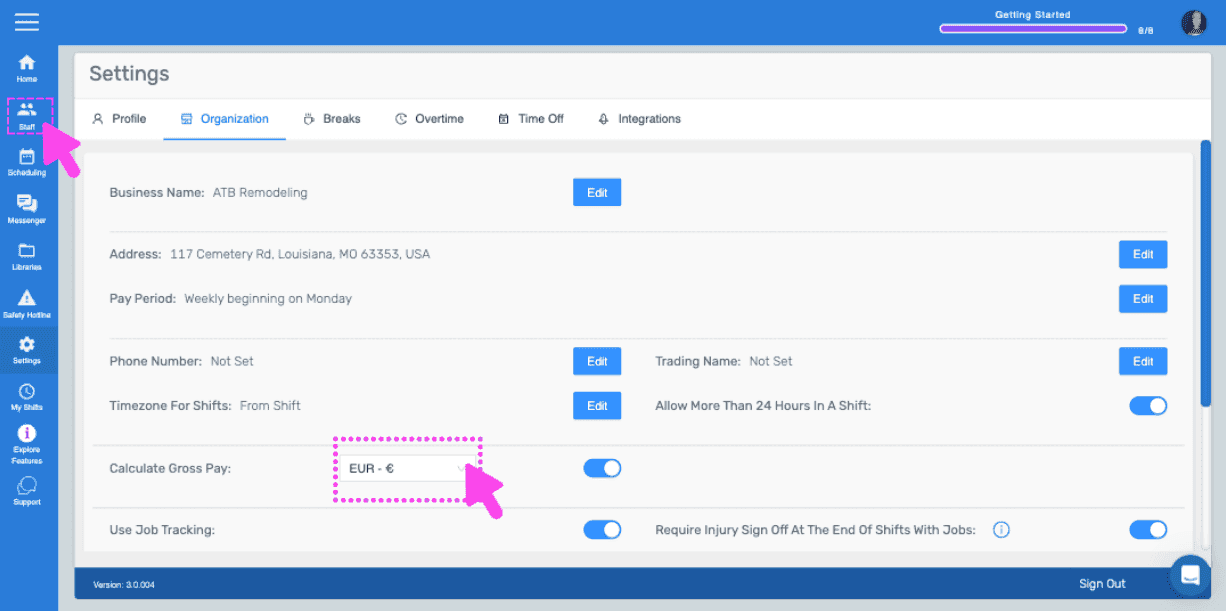
Now, you need to go into each staff member's settings and select a pay rate. Tap on Staff
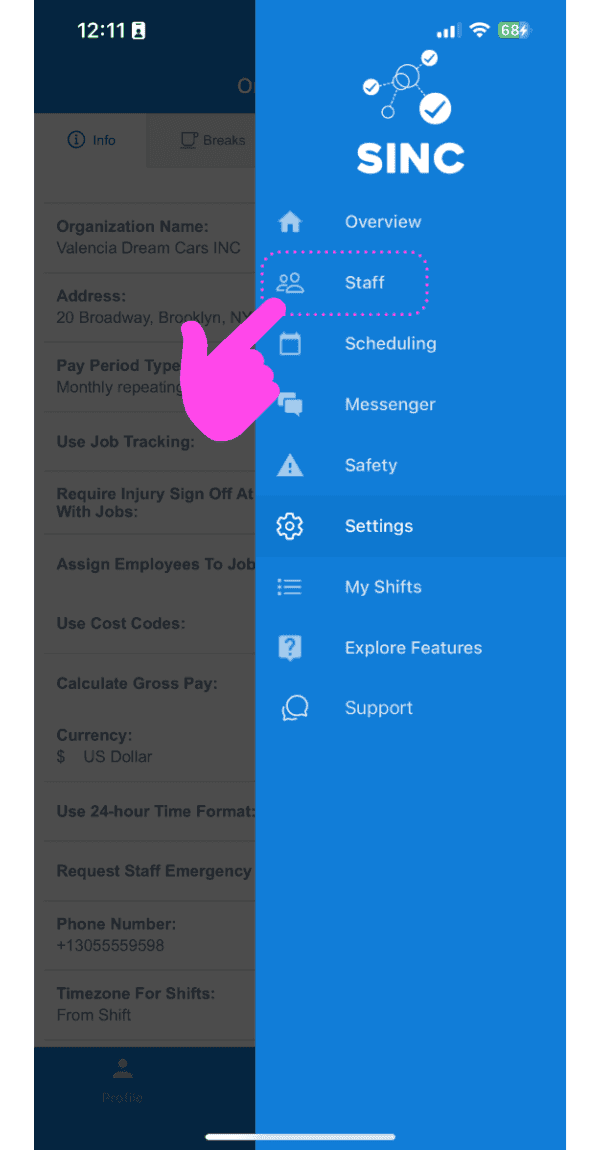
SINC mobile app menu with a pink arrow pointing to the Staff option

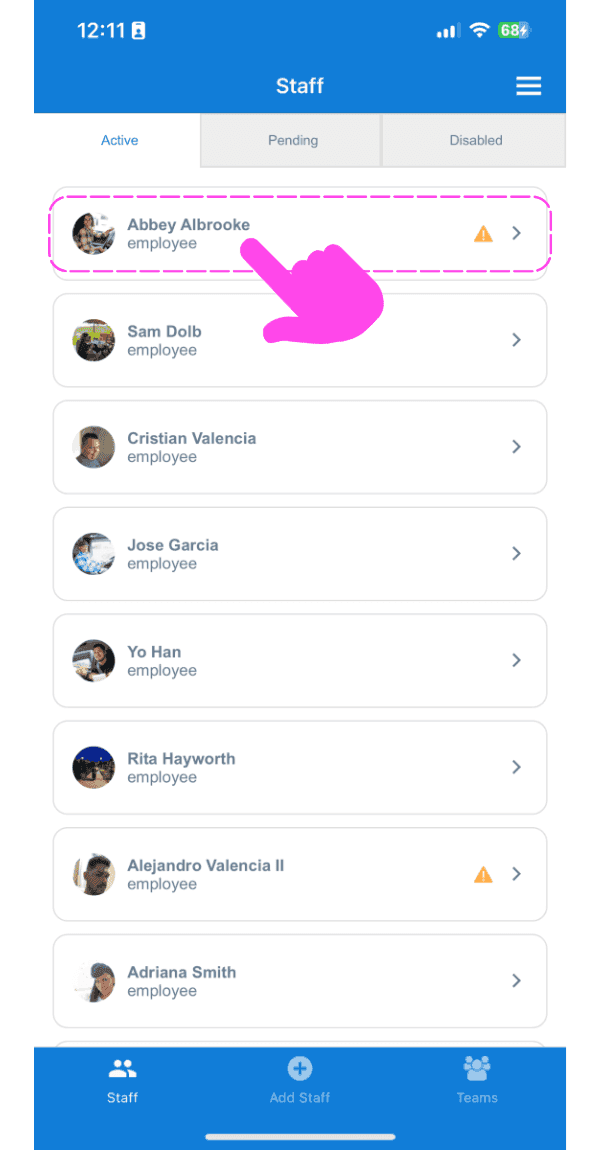
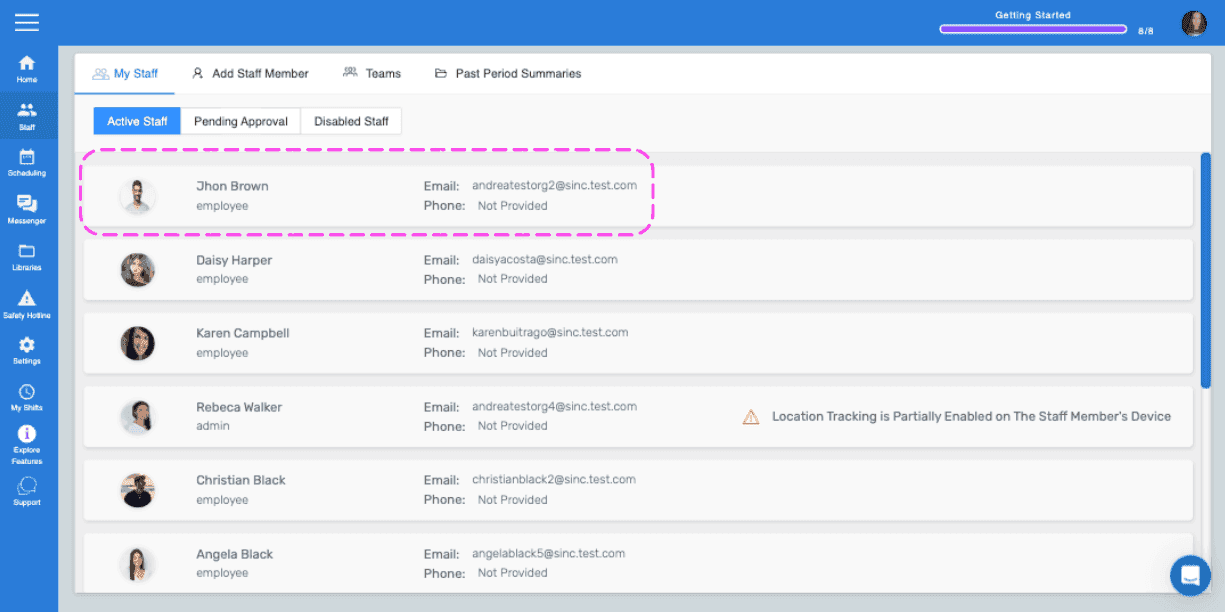
Tap on Employee's Name

SINC mobile Staff list with a pink arrow pointing to Abbey Albrooke's name at the top

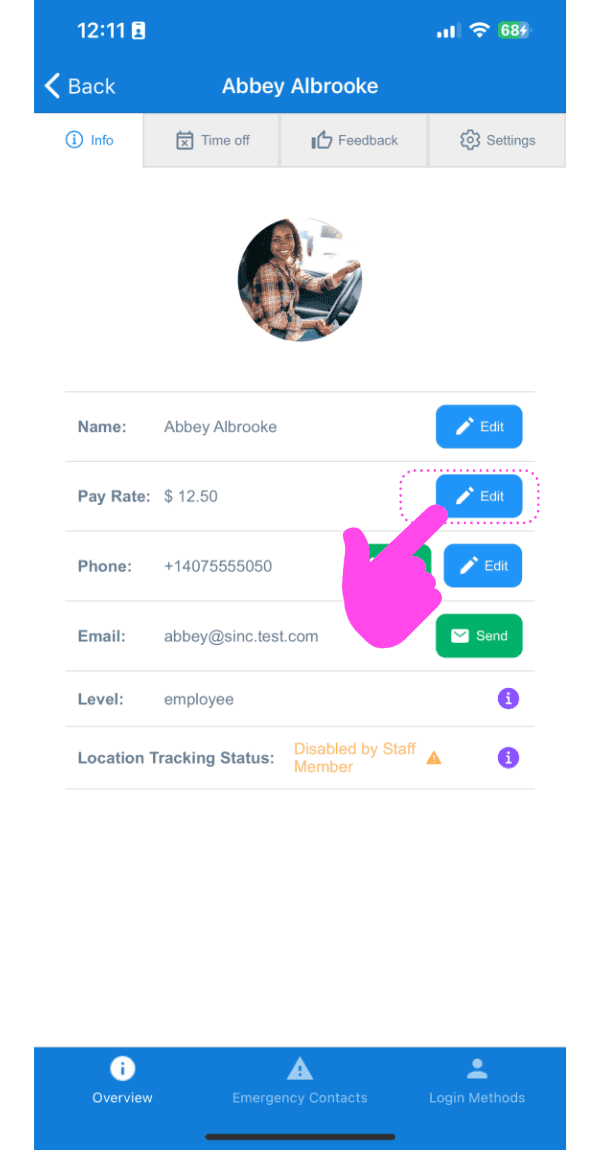
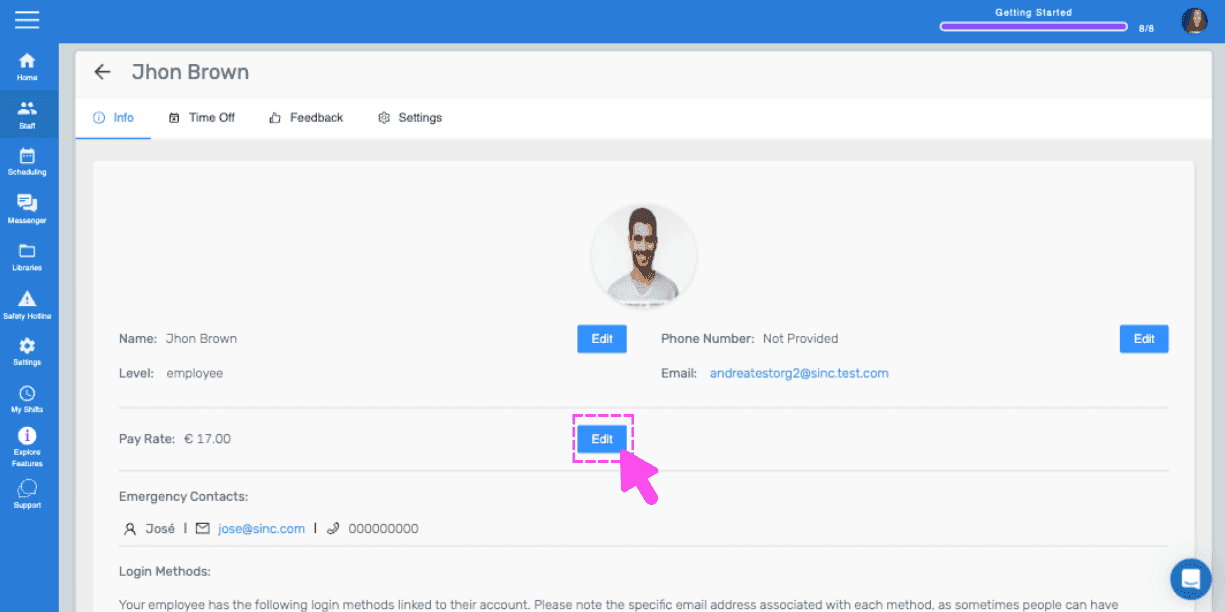
Tap on Edit (next to Pay Rate)

SINC mobile staff profile screen with a pink hand pointing to the Edit button next to Pay Rate

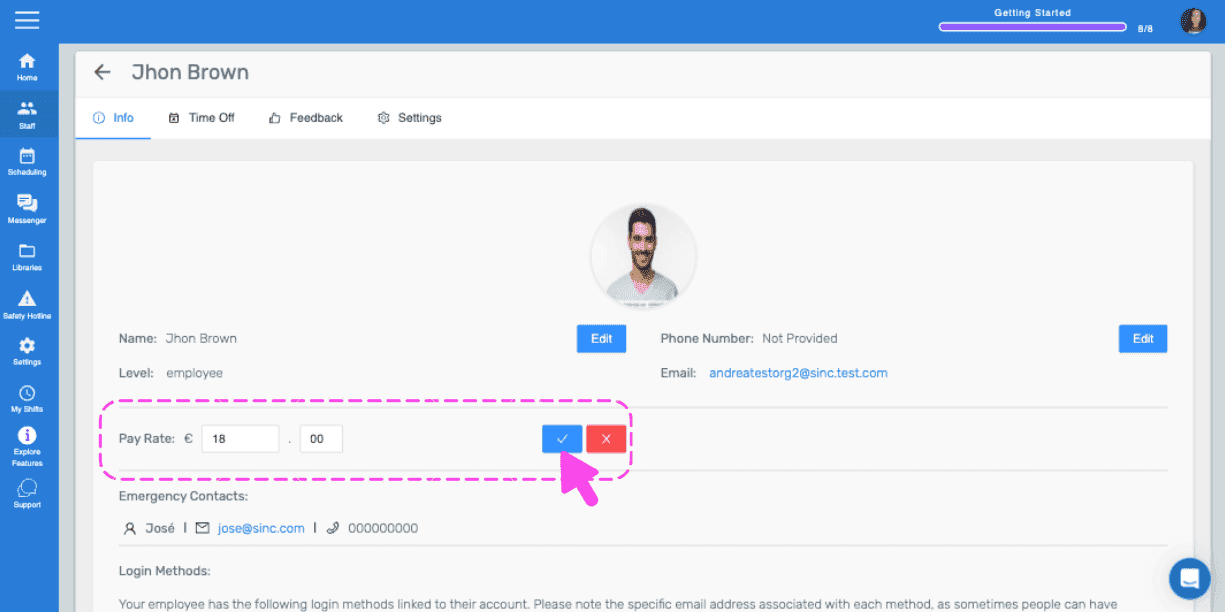
Select the correct hourly pay rate for this employee and Tap on Confirm. Then repeat for any other employees you wish to calculate gross payroll for.
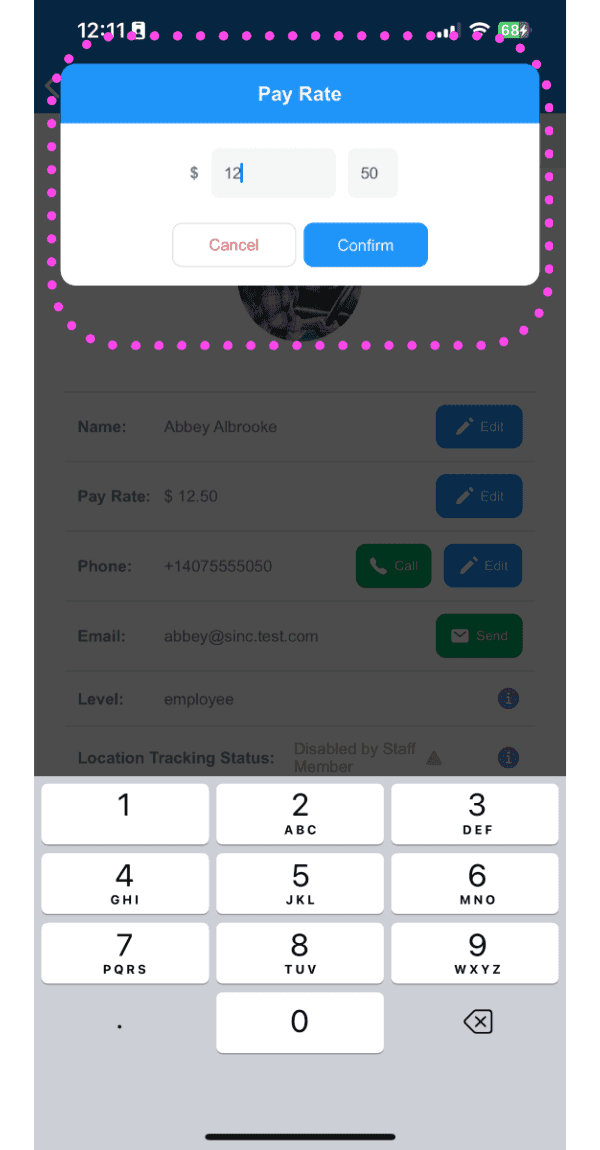
Pay Rate entry popup with a numeric keypad outlined in pink, showing the dollar amount field and Confirm button

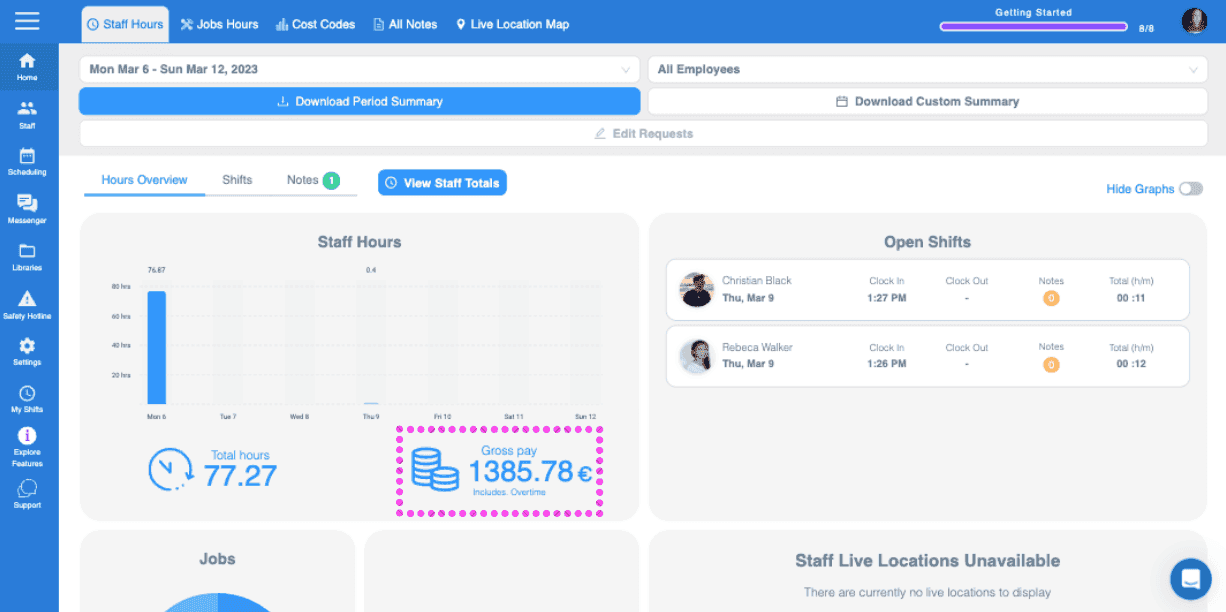
Now you will see the total gross payroll for the pay period displayed on the admin home screen
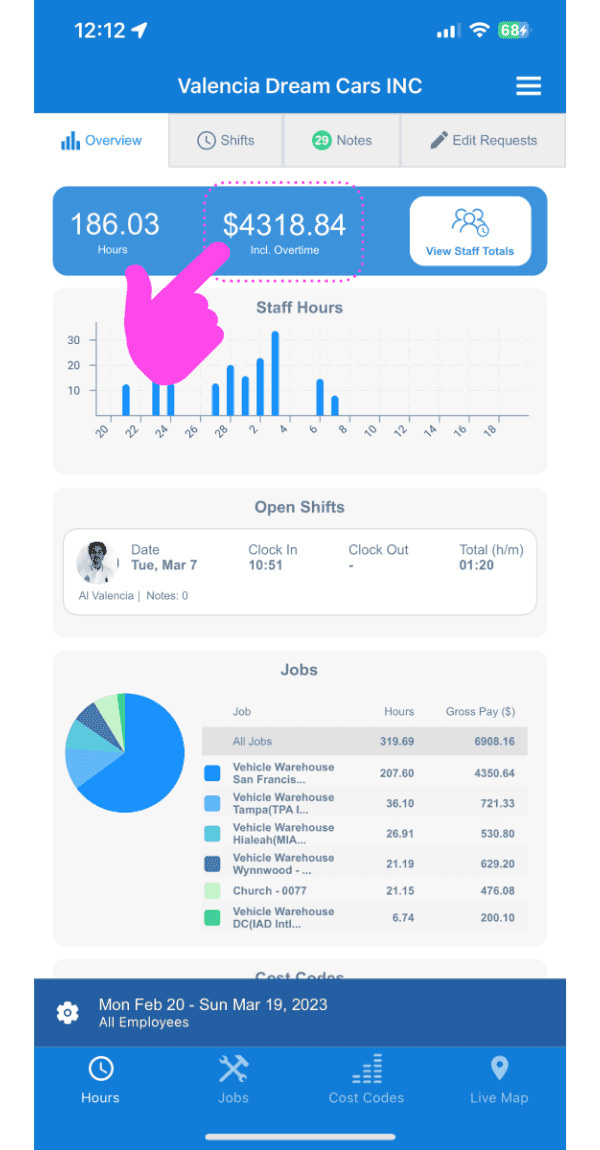
SINC mobile Overview dashboard with a pink arrow pointing to the total hours and gross pay figures

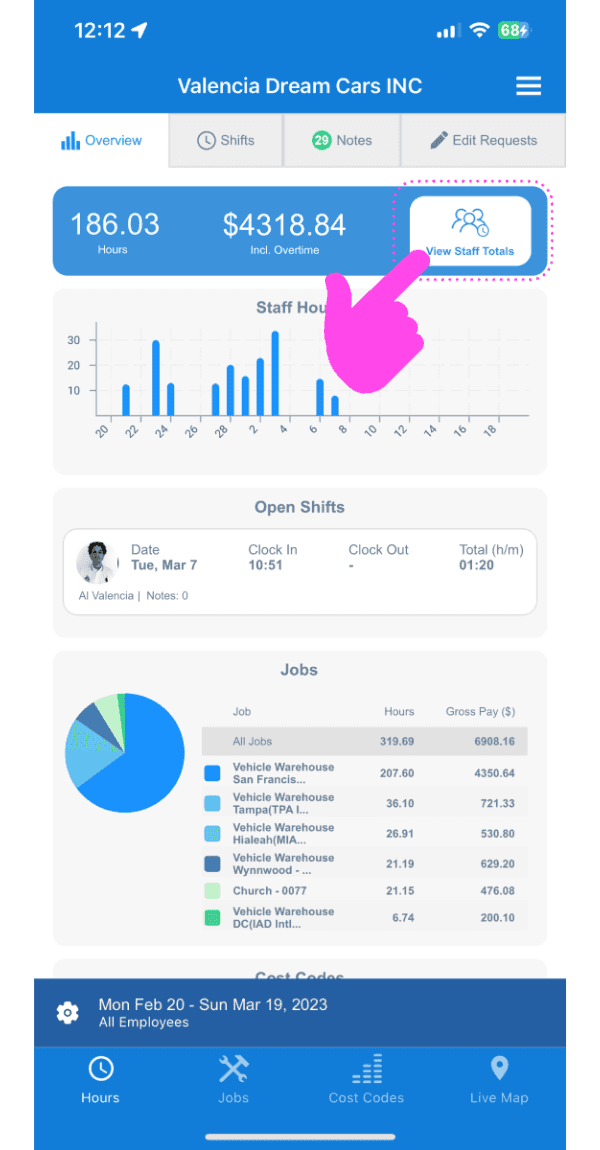
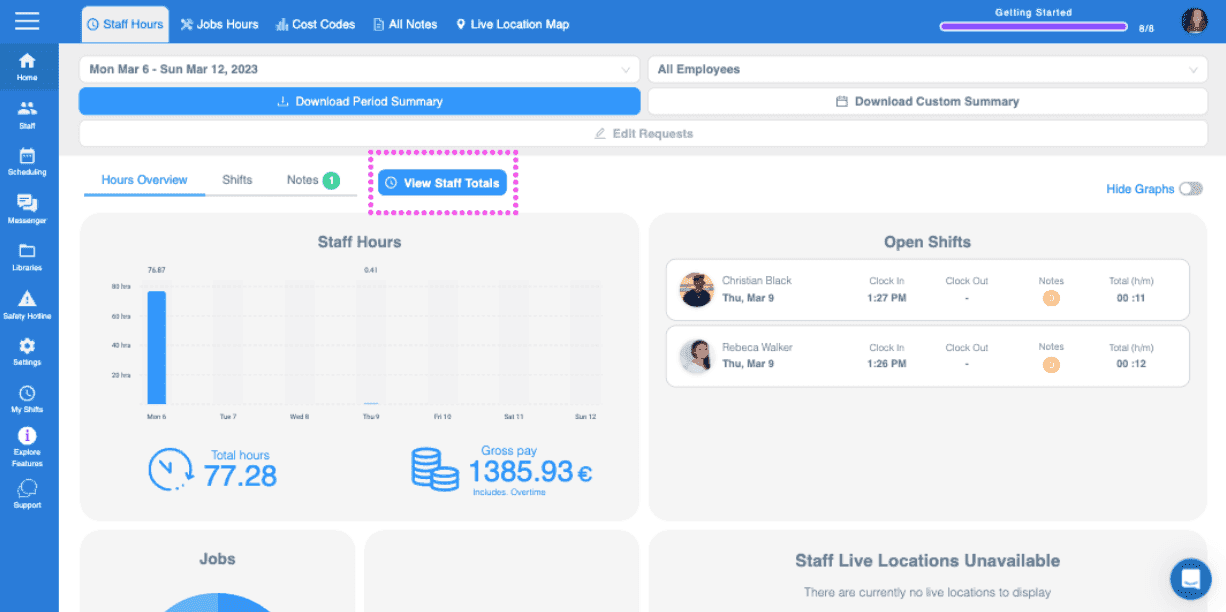
Tap on The Info Icon

SINC mobile app Overview screen with a pink arrow pointing to the View Staff Totals button

You will now see the gross payroll totals for each individual employee for the selected pay period
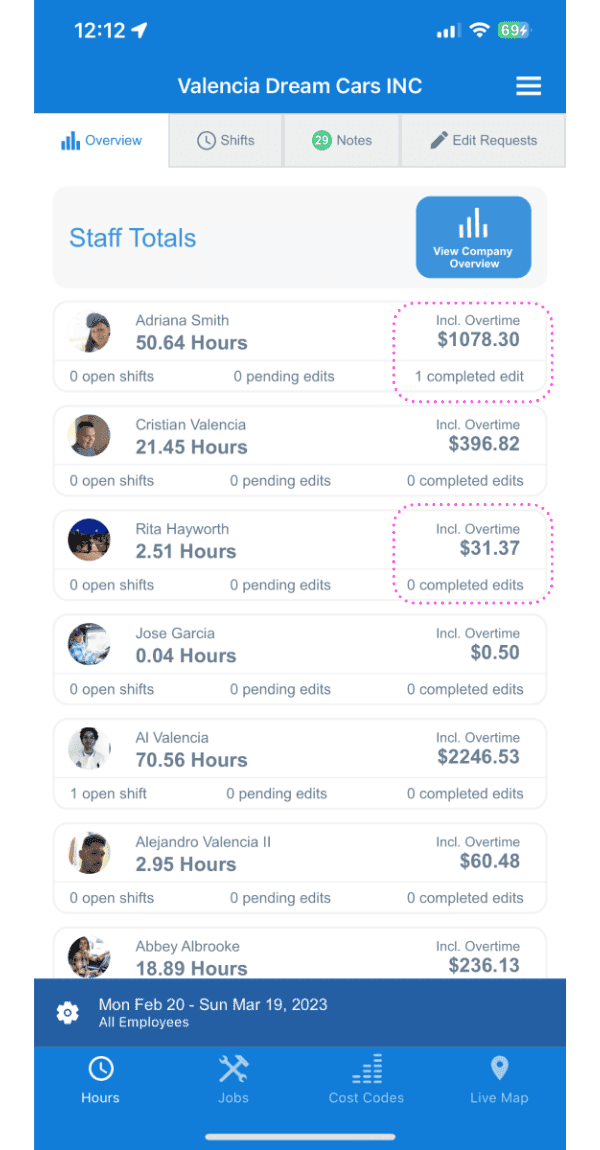
SINC mobile Staff Totals list showing hours and overtime pay, with some pay amounts circled

If you are using the web version it will look like this:
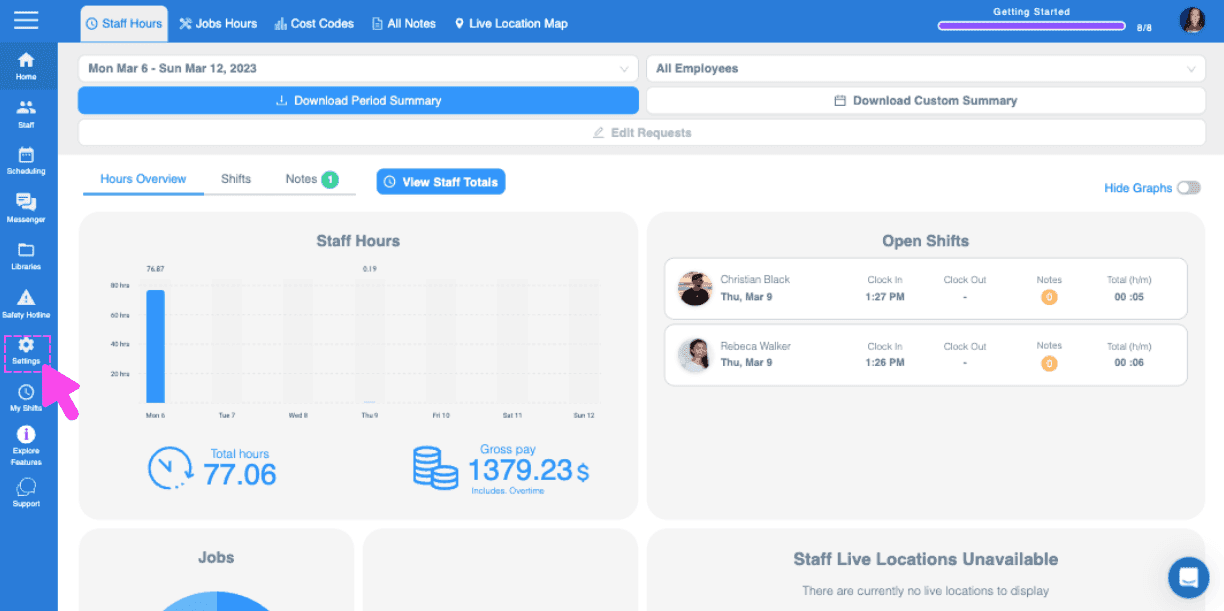
Web Staff Hours Overview dashboard with a pink arrow pointing to the side menu Settings icon
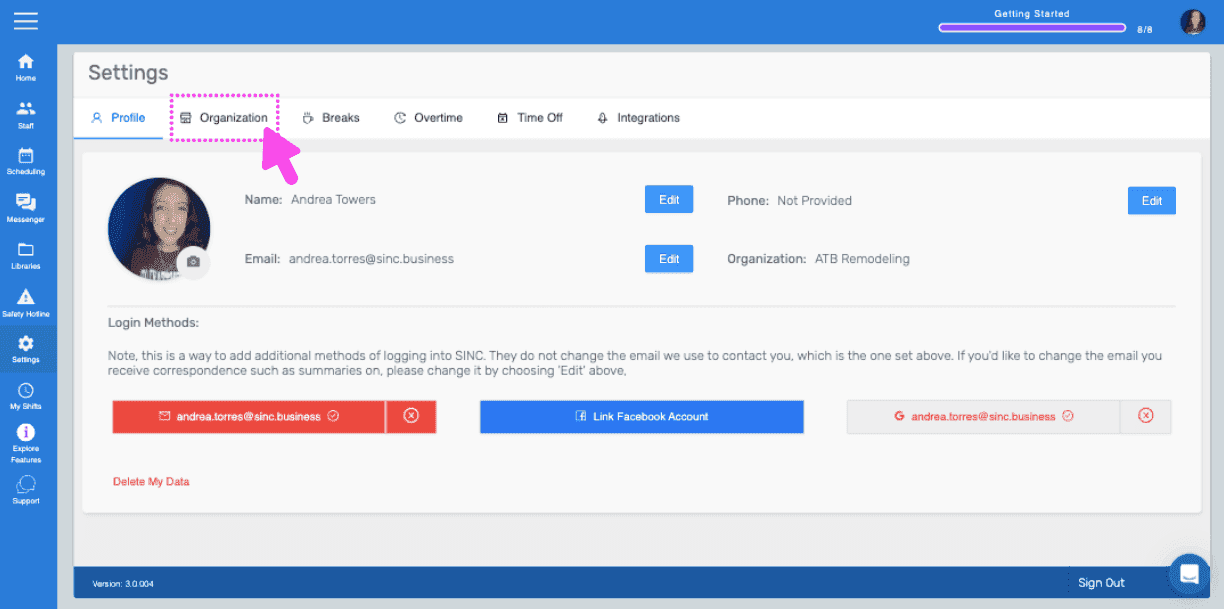
SINC web Settings Profile tab with a pink arrow pointing to the Organization tab
Organization settings screen with a pink arrow pointing to the Calculate Gross Pay toggle
Web Organization settings screen with a pink arrow pointing to the currency dropdown for Calculate Gross Pay
SINC web Settings Organization tab with a pink arrow pointing to the Calculate Gross Pay field
SINC web Staff list with an employee's row outlined in pink
Employee profile screen with a pink arrow pointing to the Edit button next to Pay Rate
SINC web staff profile Info tab with the Pay Rate field outlined in pink and a hand pointing to the confirm checkmark
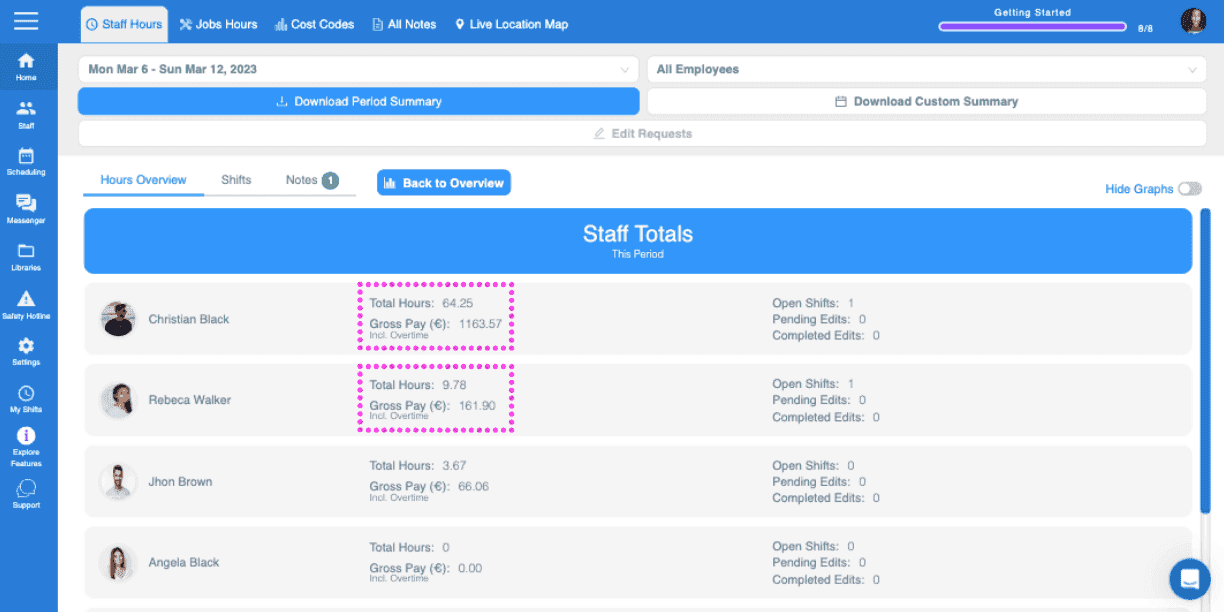
Web dashboard Staff Hours overview with the total gross pay figure outlined in pink
SINC web dashboard Overview tab with the View Staff Totals button circled in pink
SINC web Staff Totals screen listing each employee's total hours and gross pay for the period

Did this answer your question?