
Editing Pay Periods of an Existing Organization
This is an overview of the different pay period options on SINC and how to go about editing and existing organization's pay period.

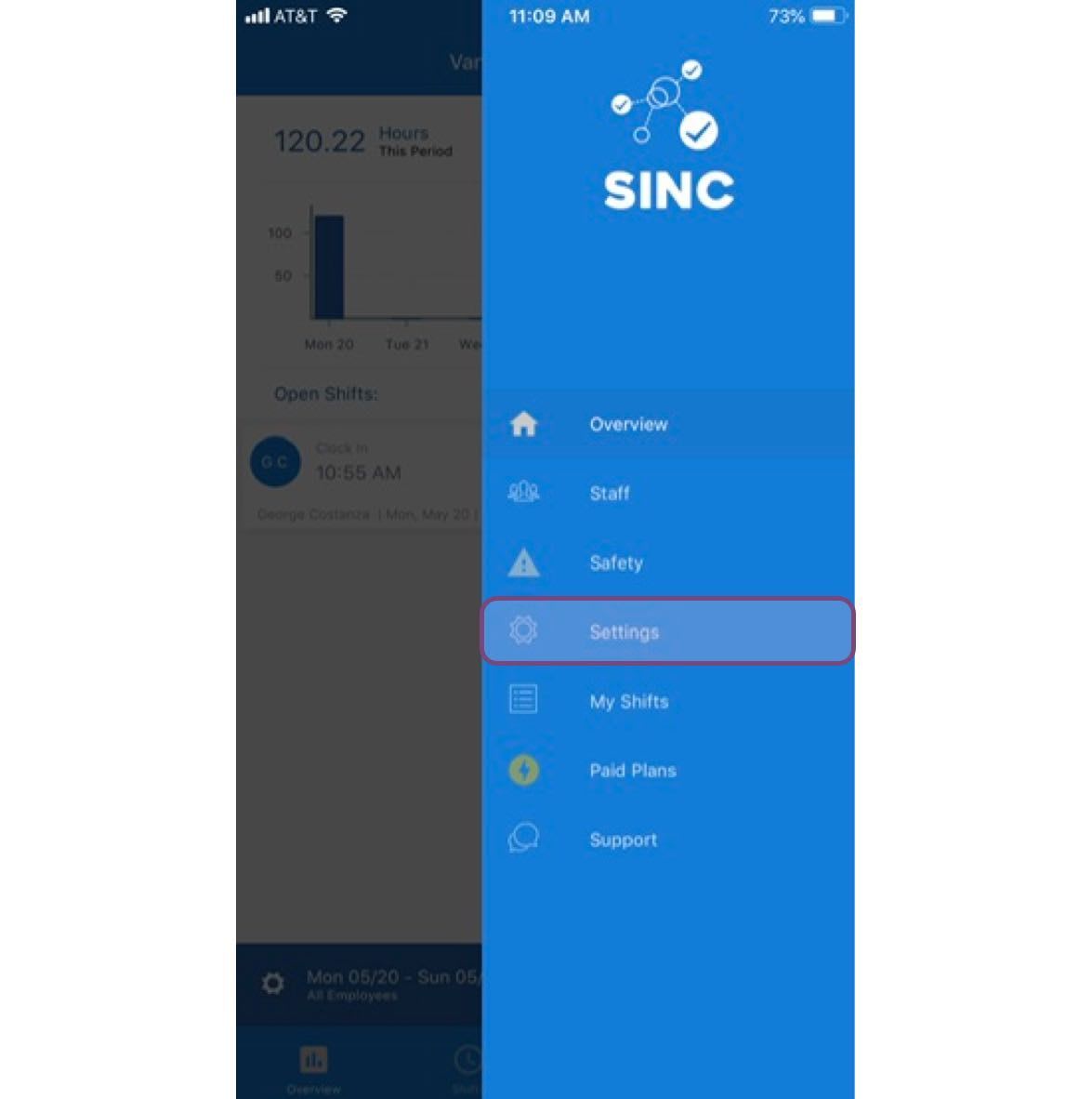
Overview: the different pay period options available in SINC and how to change the pay period of an existing organization. To access the pay period settings: Tap on Menu Settings
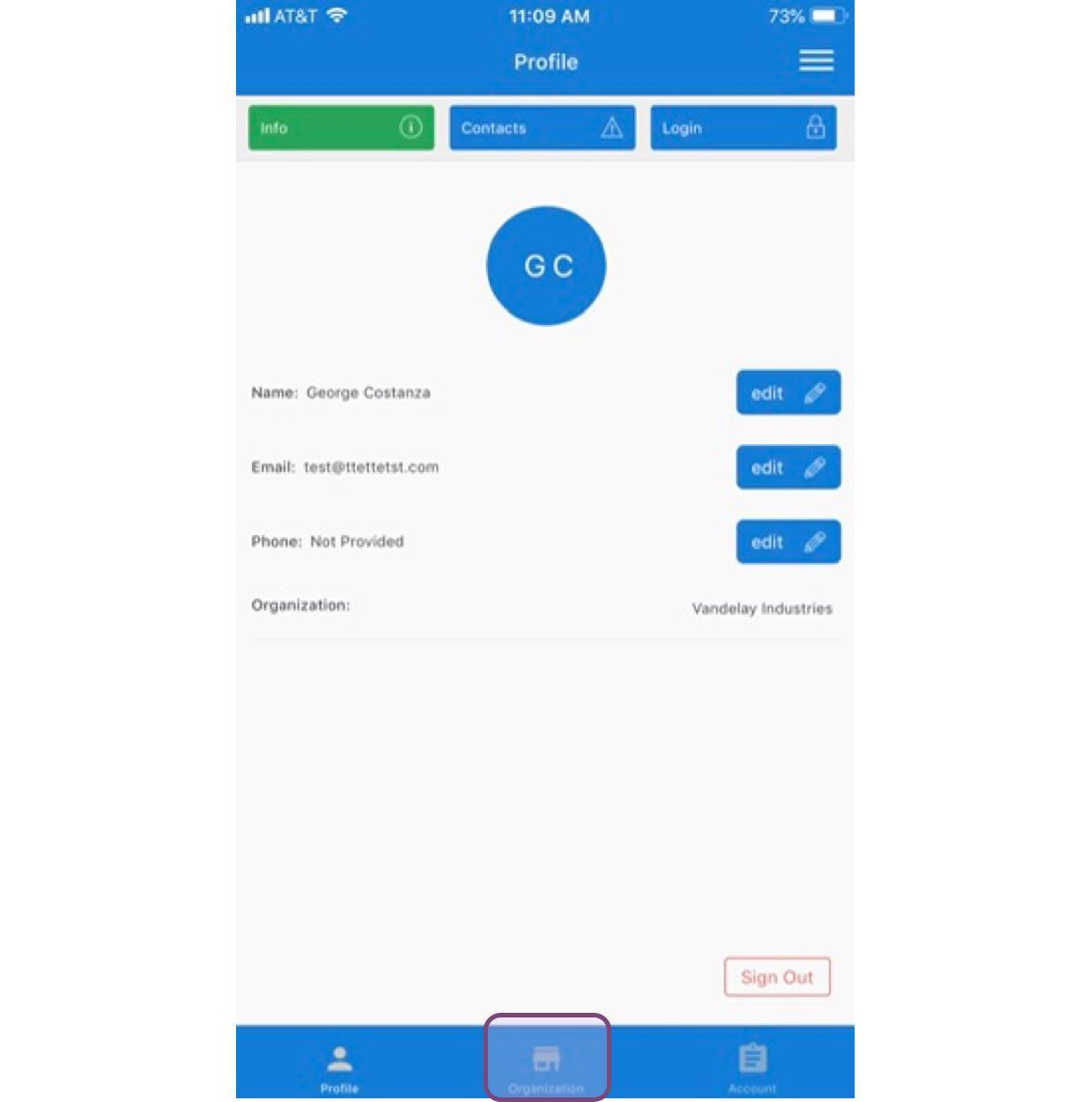
Tap on Organization
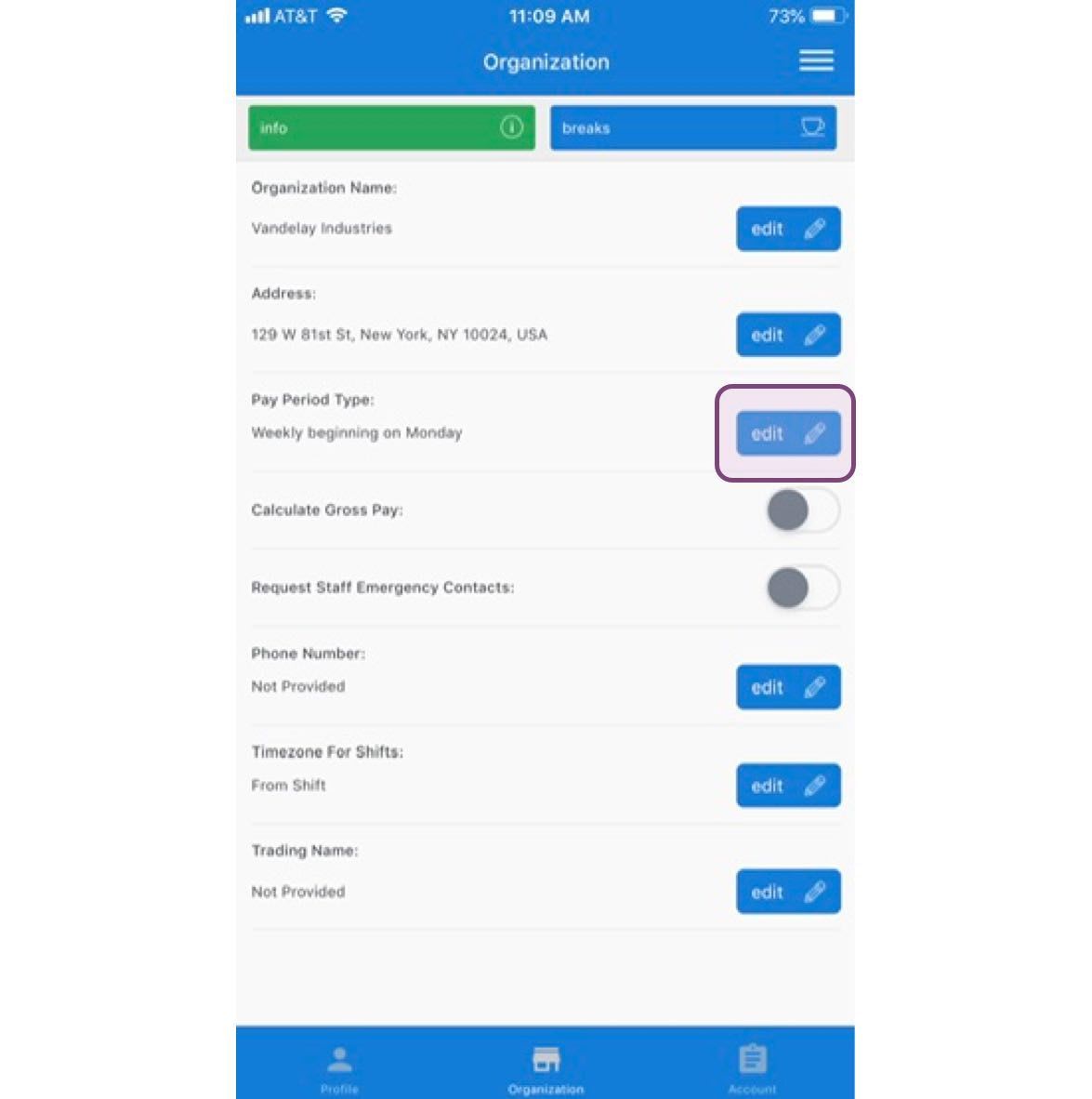
Tap on Edit next to Pay Period Settings
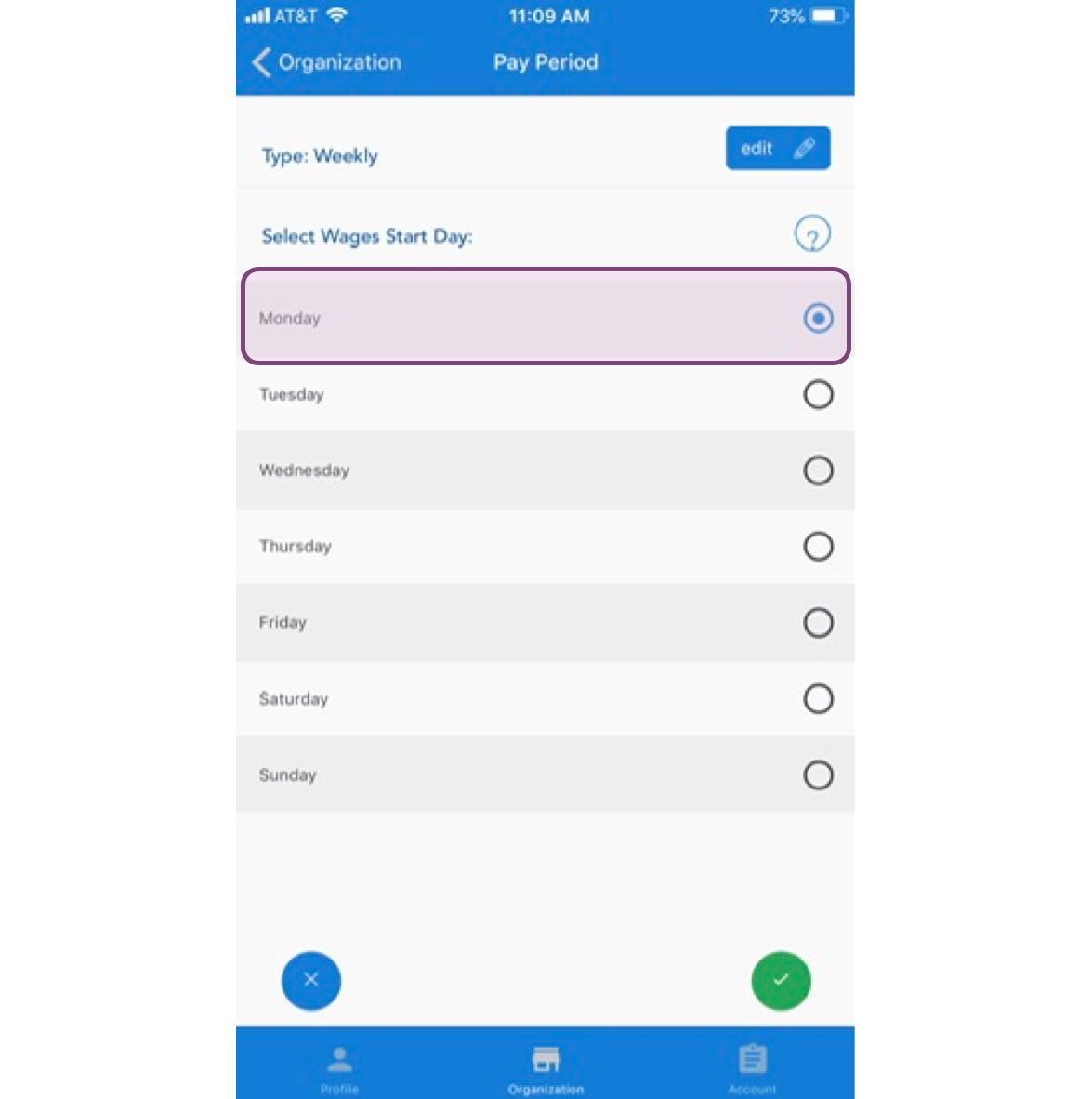
The first pay period option is Weekly.
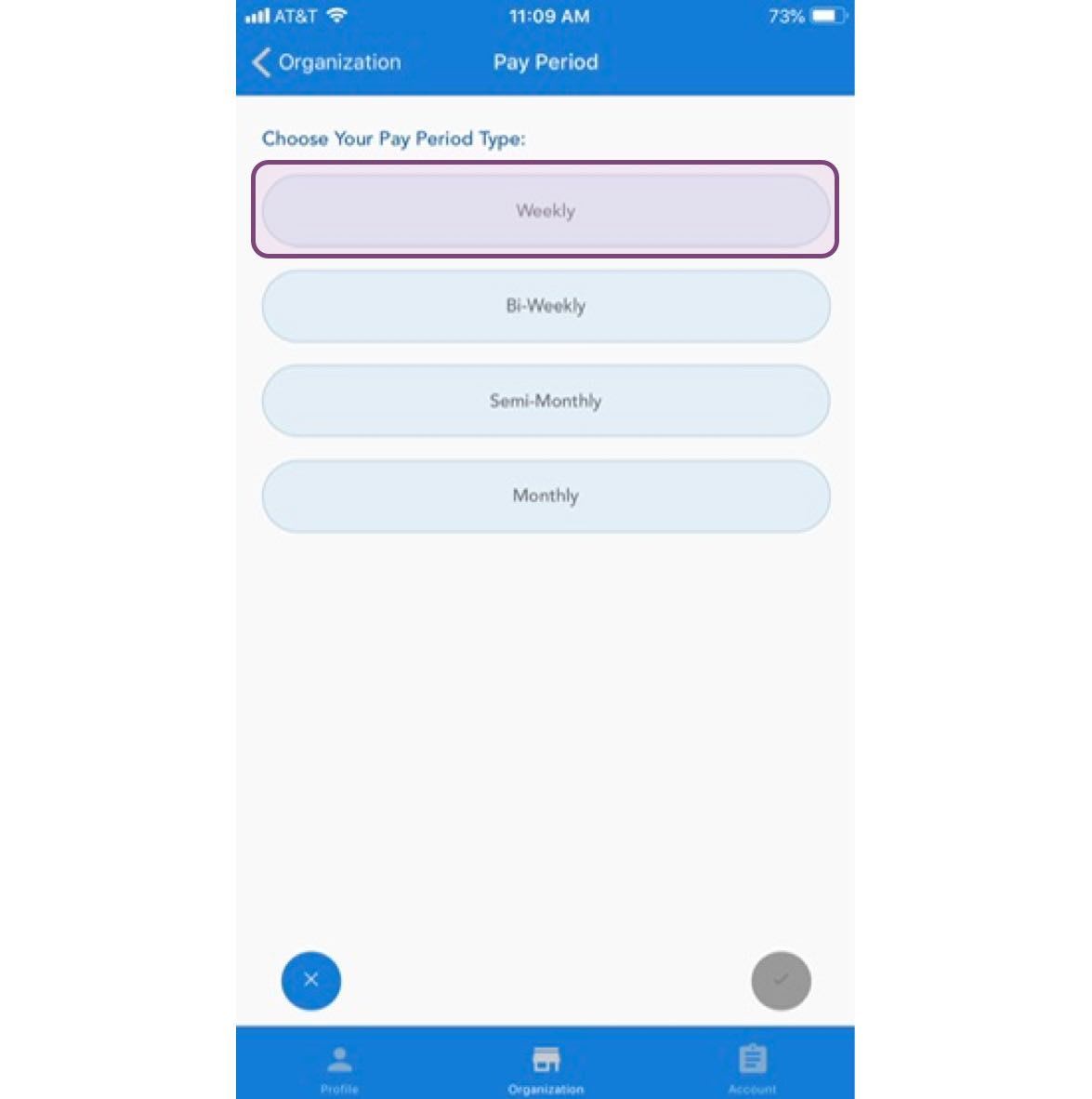
The only thing you need to select with a weekly pay period is the start day. For a Start Day of Monday, each pay period will include all shift Clock-Ins from midnight Monday to 11:59pm the next Sunday.
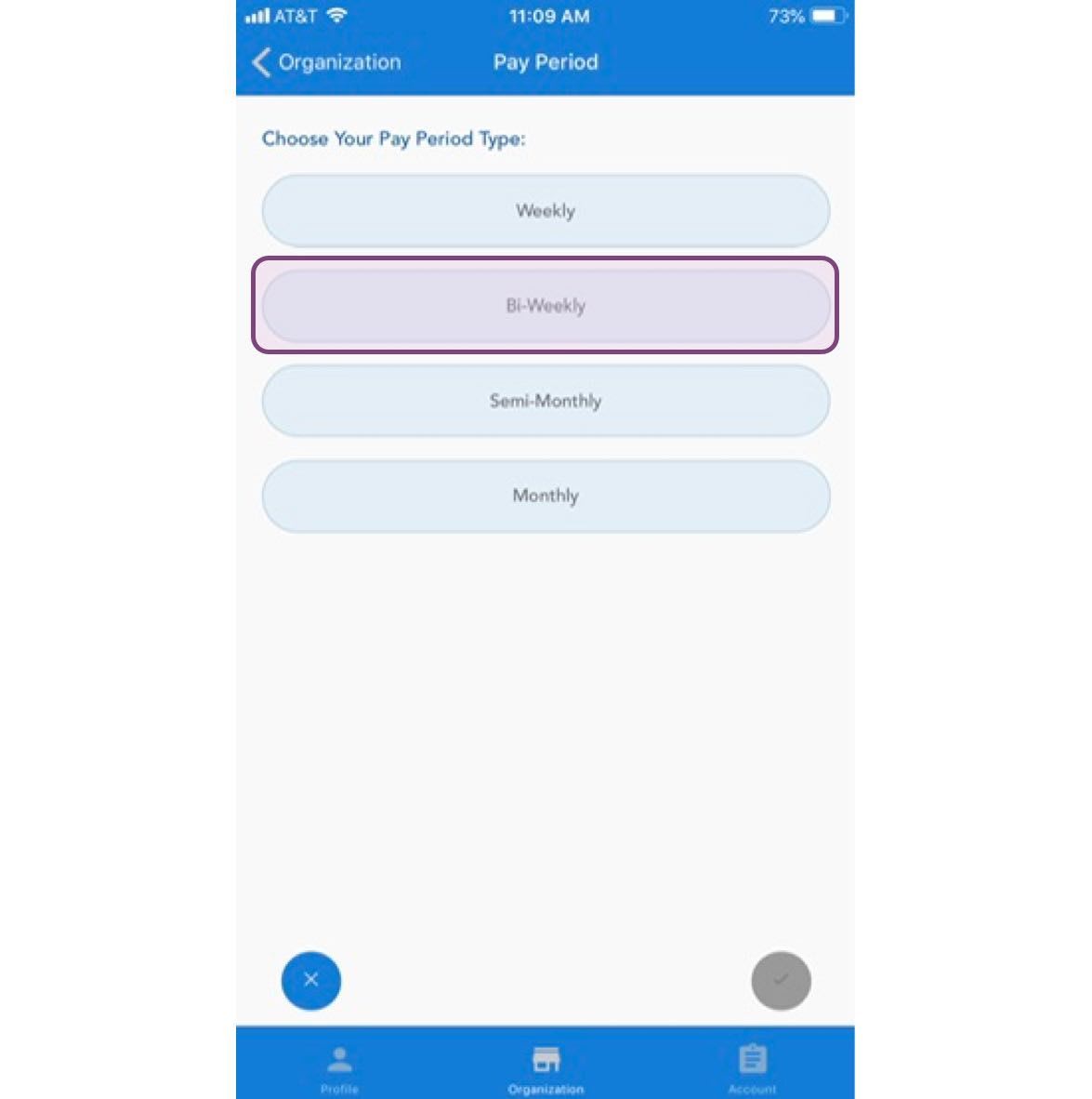
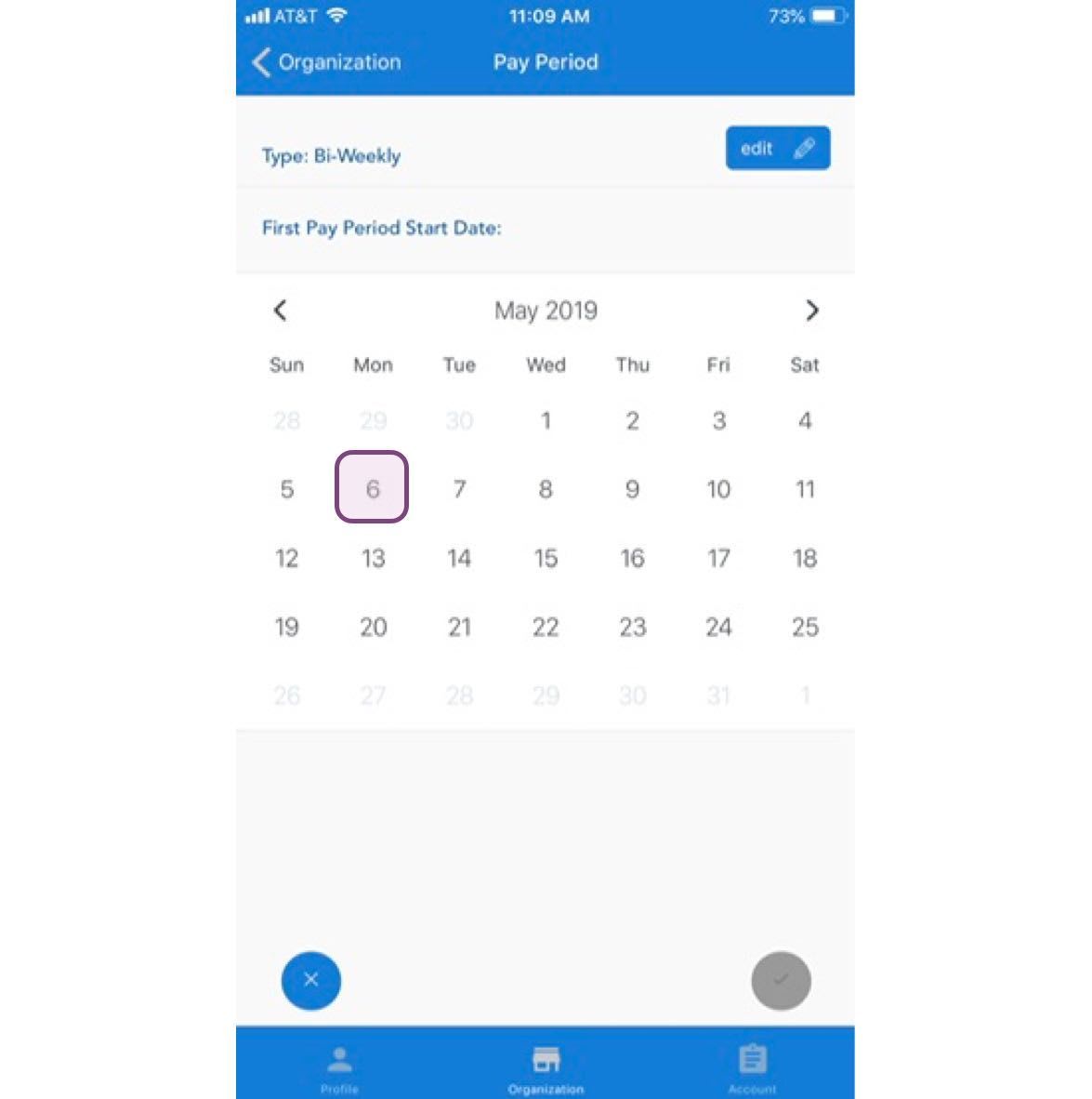
The next pay period option is Bi-Weekly. You select a start date and the pay period will begin at midnight that day and repeat every two weeks.
It is important to note that if you select a Bi-Weekly pay period, you should select a start date that is prior to the first day you started using SINC.
The next pay period option available is Semi-Monthly.
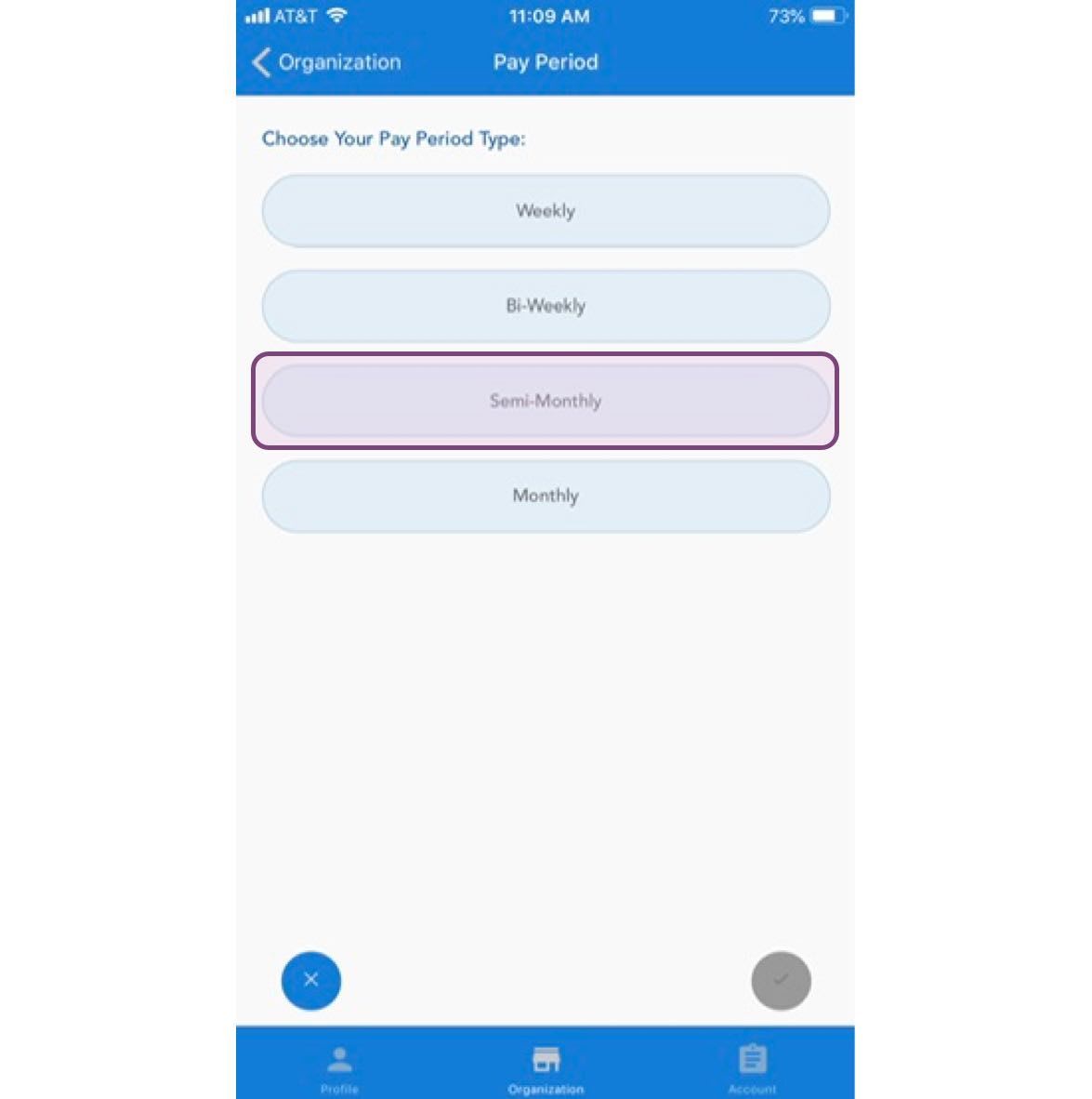
Semi-Monthly pay periods can either start on the first or last day of a month, and repeat on a chosen mid-month date.
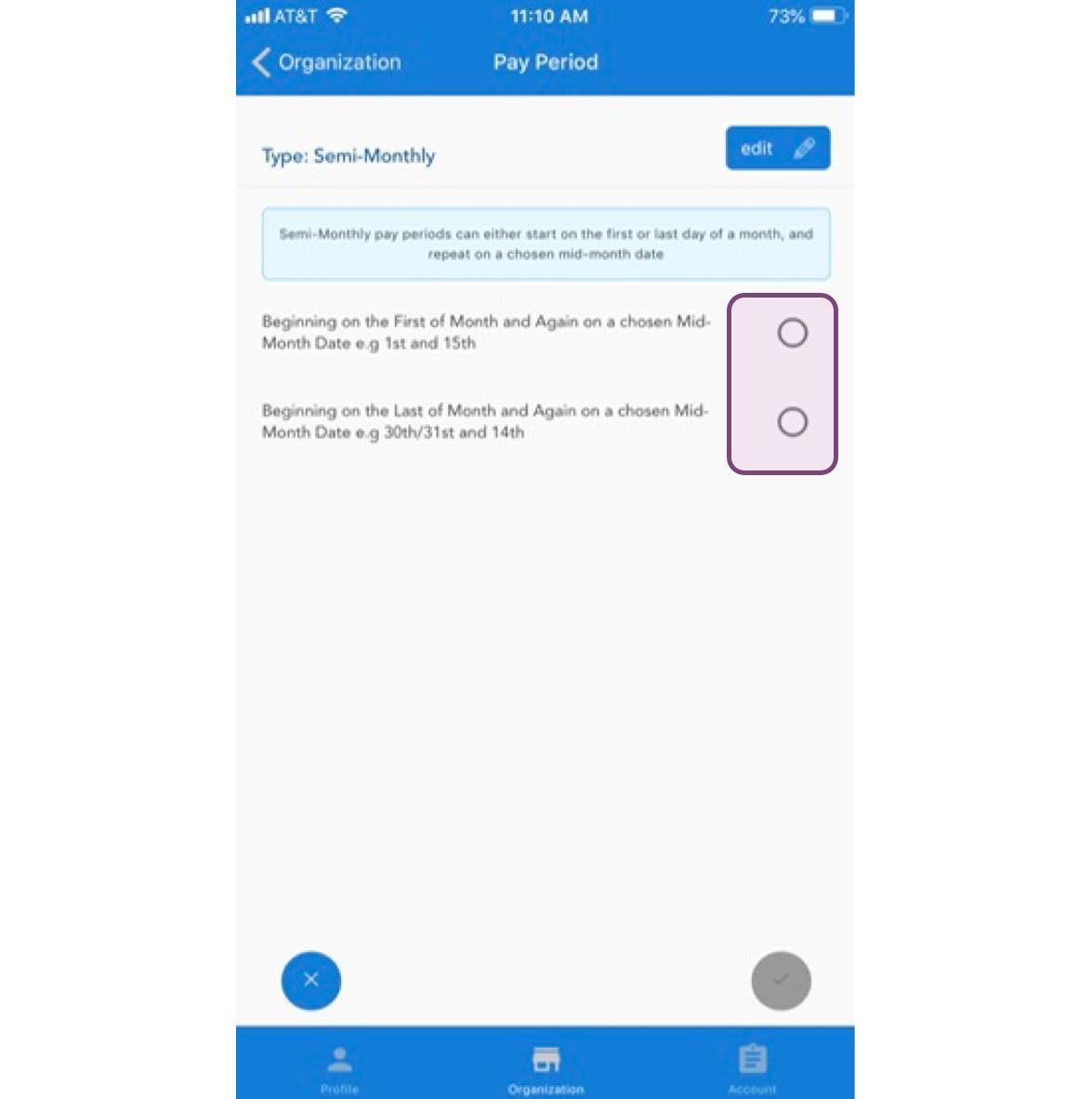
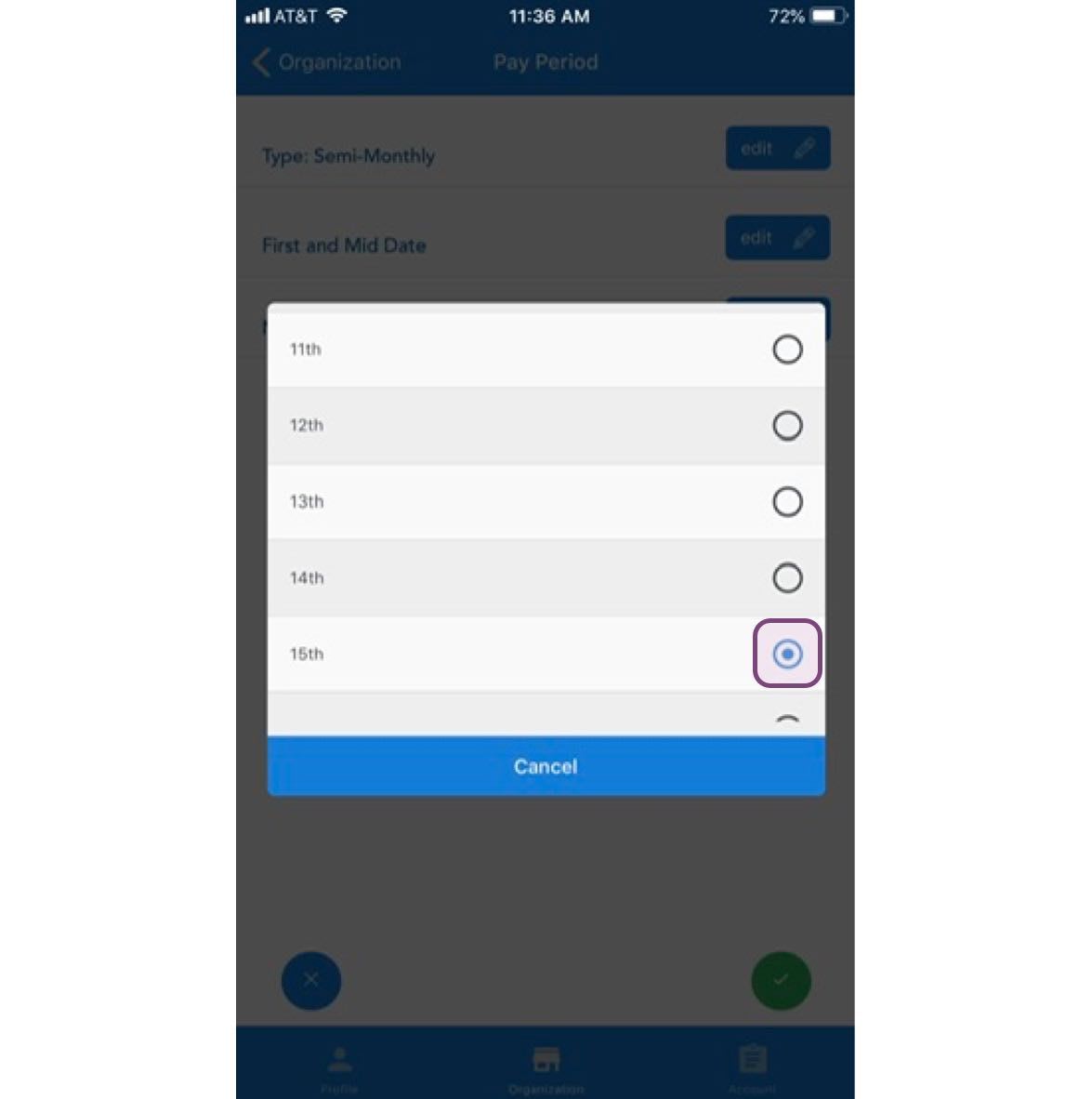
Once you make a selection, you will be asked for a first pay period start date. This date must fall before the first day you started using SINC, so you can view all your historical shift data.
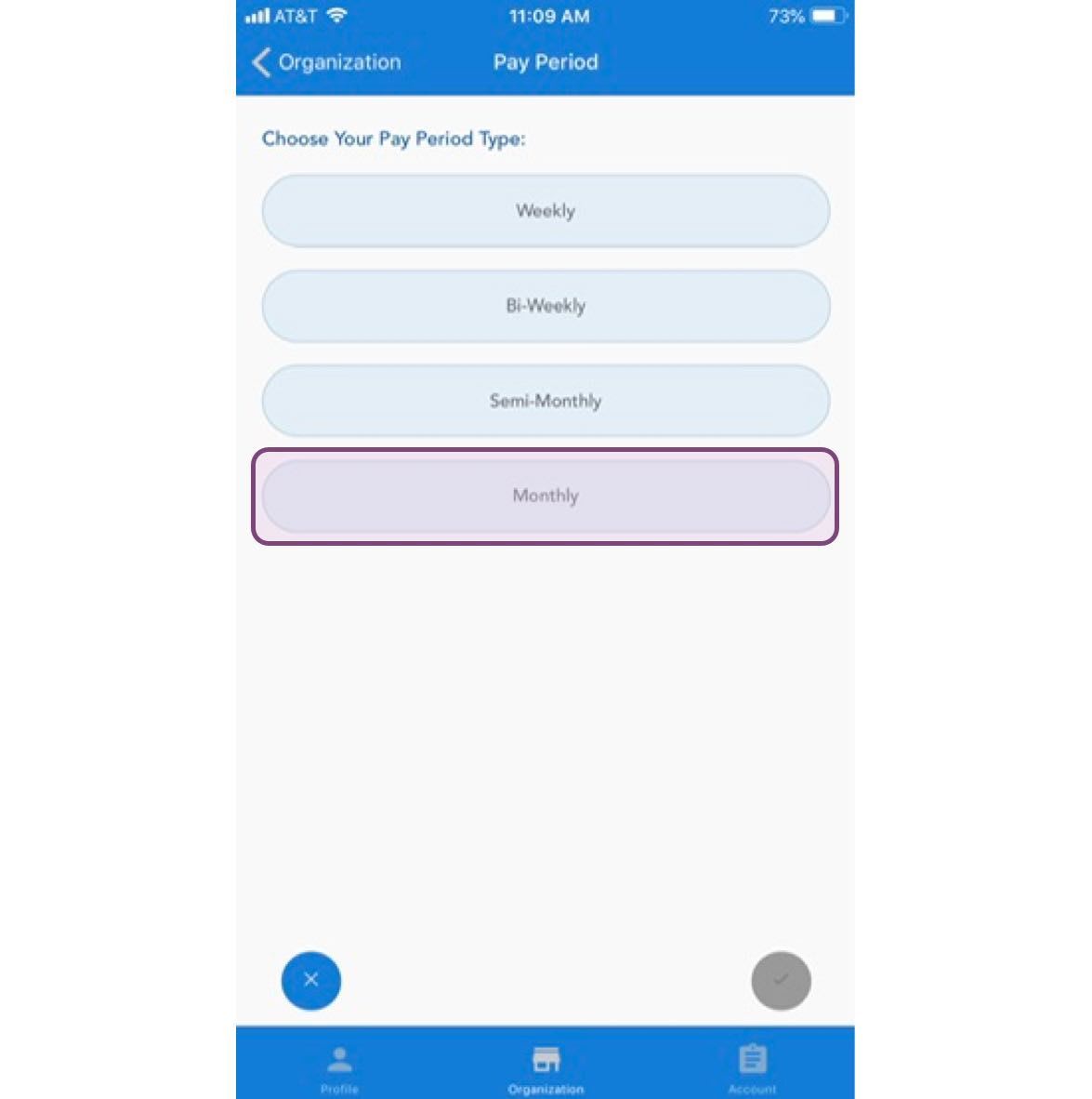
Finally, we have the monthly pay period.
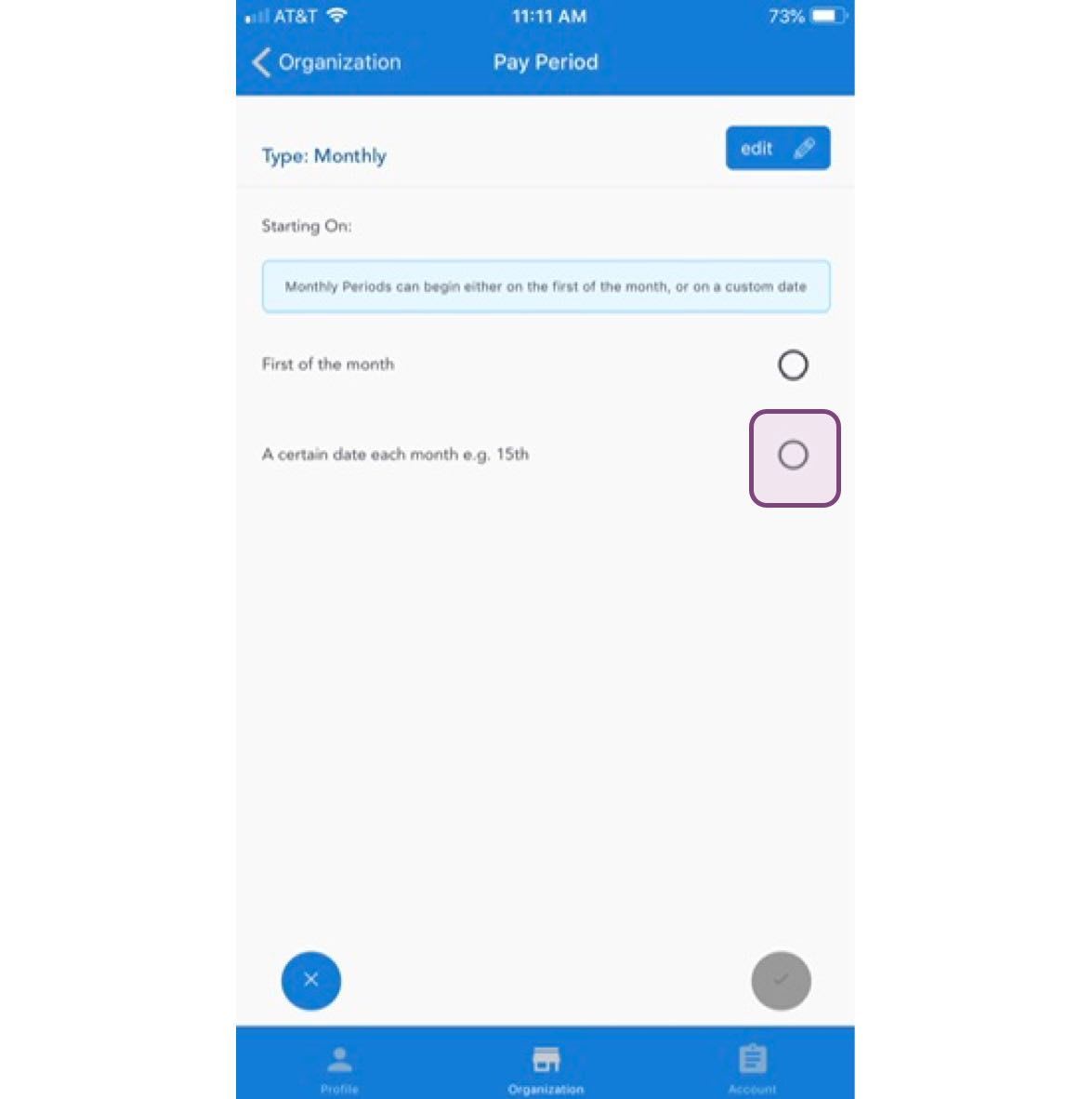
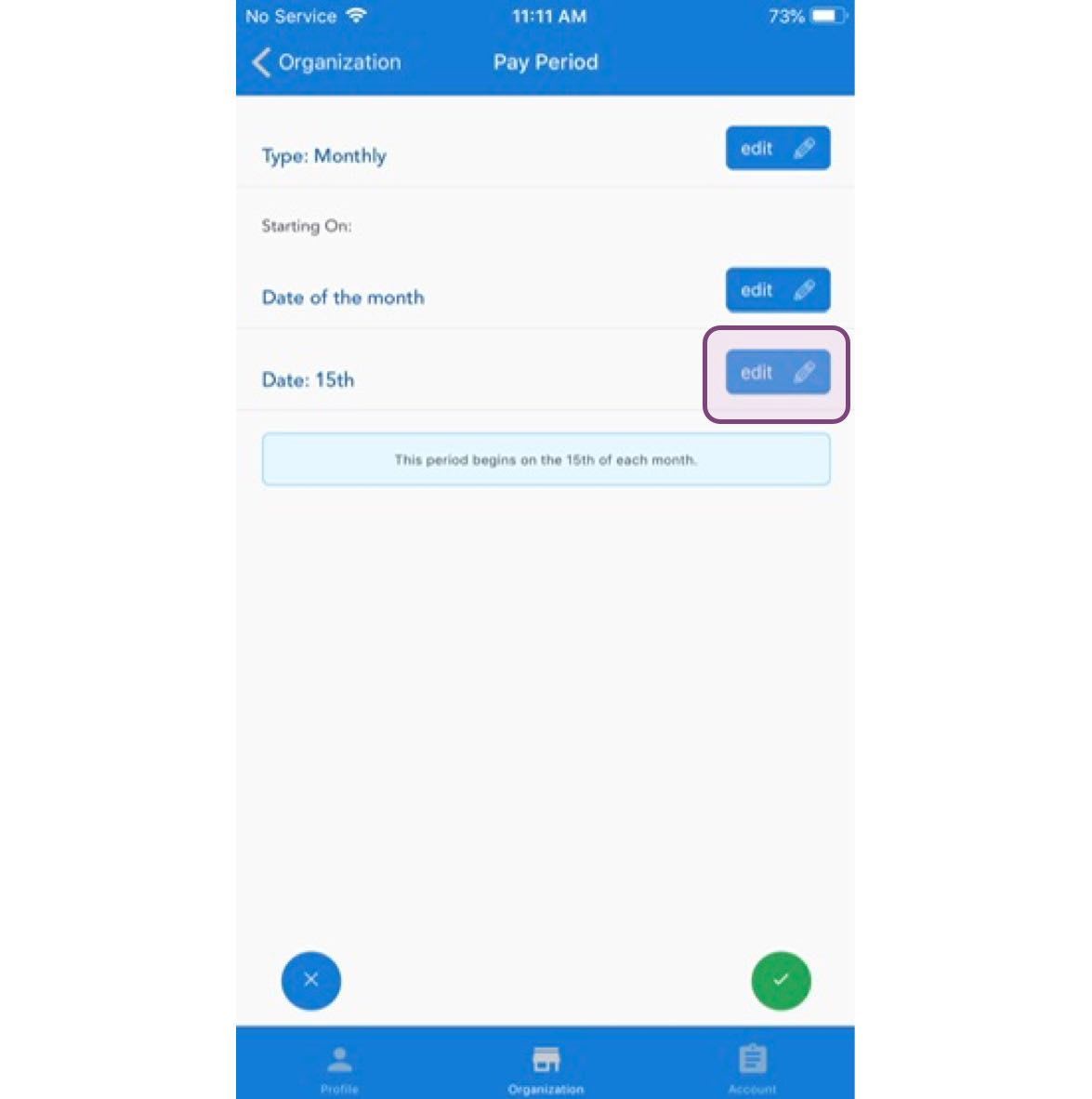
Monthly pay periods can either begin on the first of the month or on a certain date each month. If you select the first of the month, you can go ahead and confirm. If you select a certain date each month, you will need to select a start date.
Tap on Edit next to Date
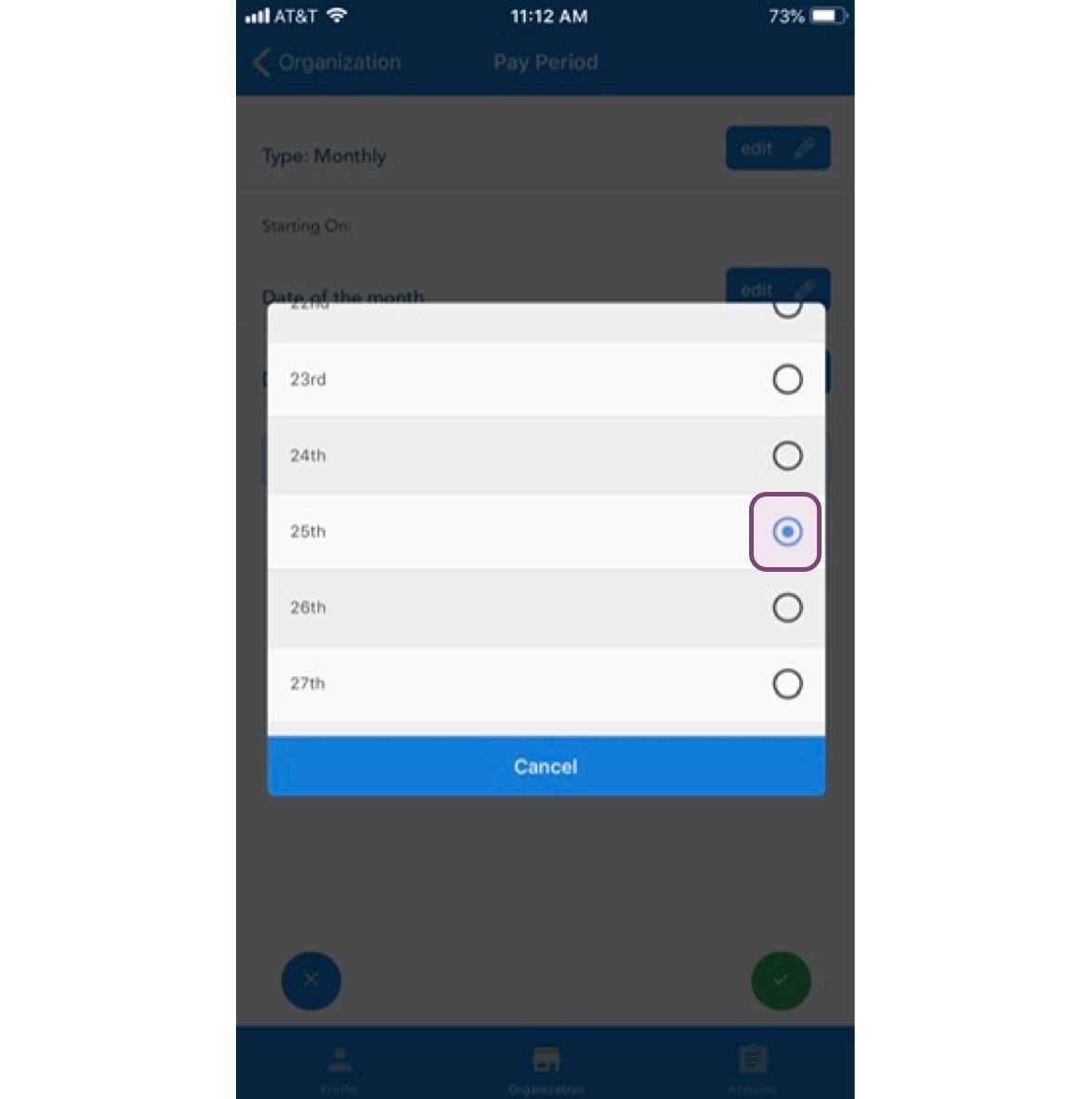
Tap on The date you prefer
Did this answer your question?