
How to Edit your Organization
In this guide we will cover how to update your Organization's info

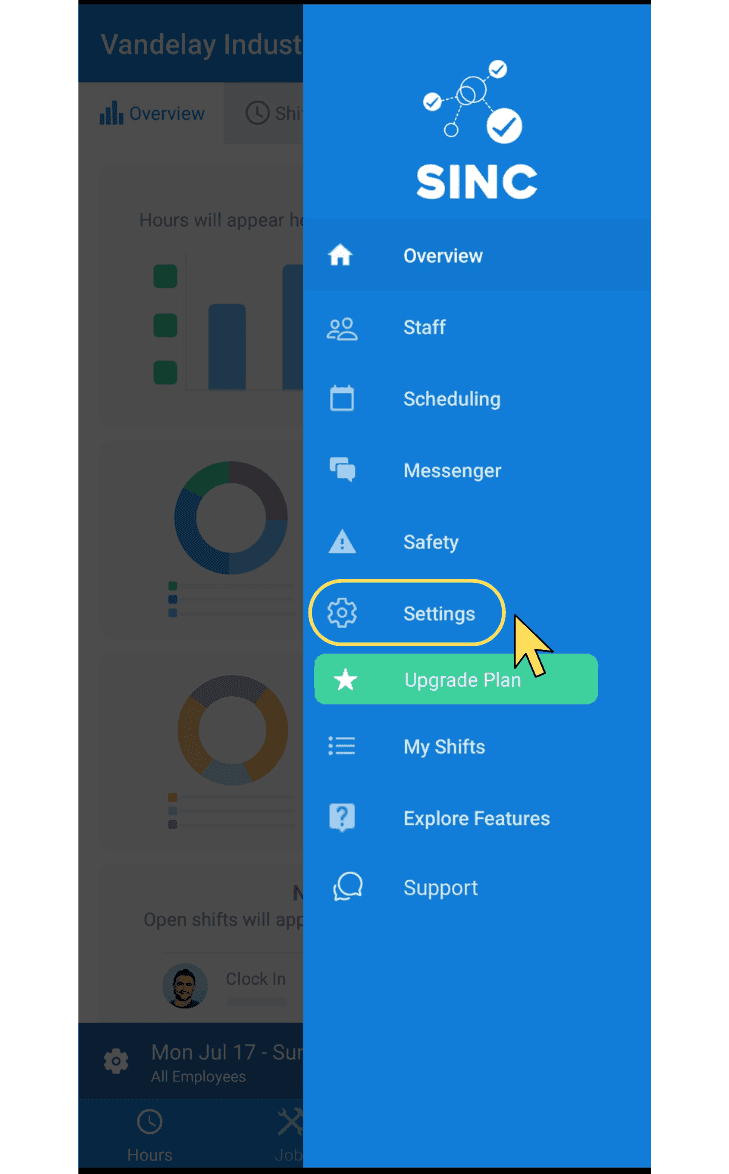
On Mobile: Tap on Settings
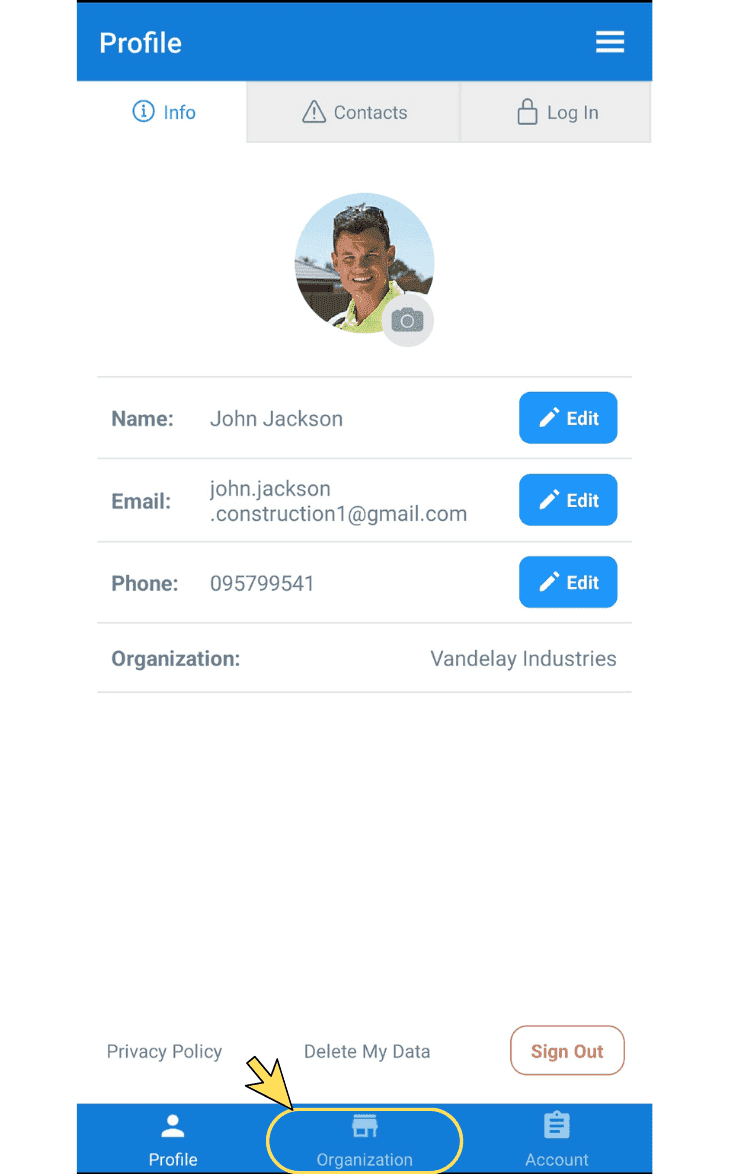
Tap on Organization
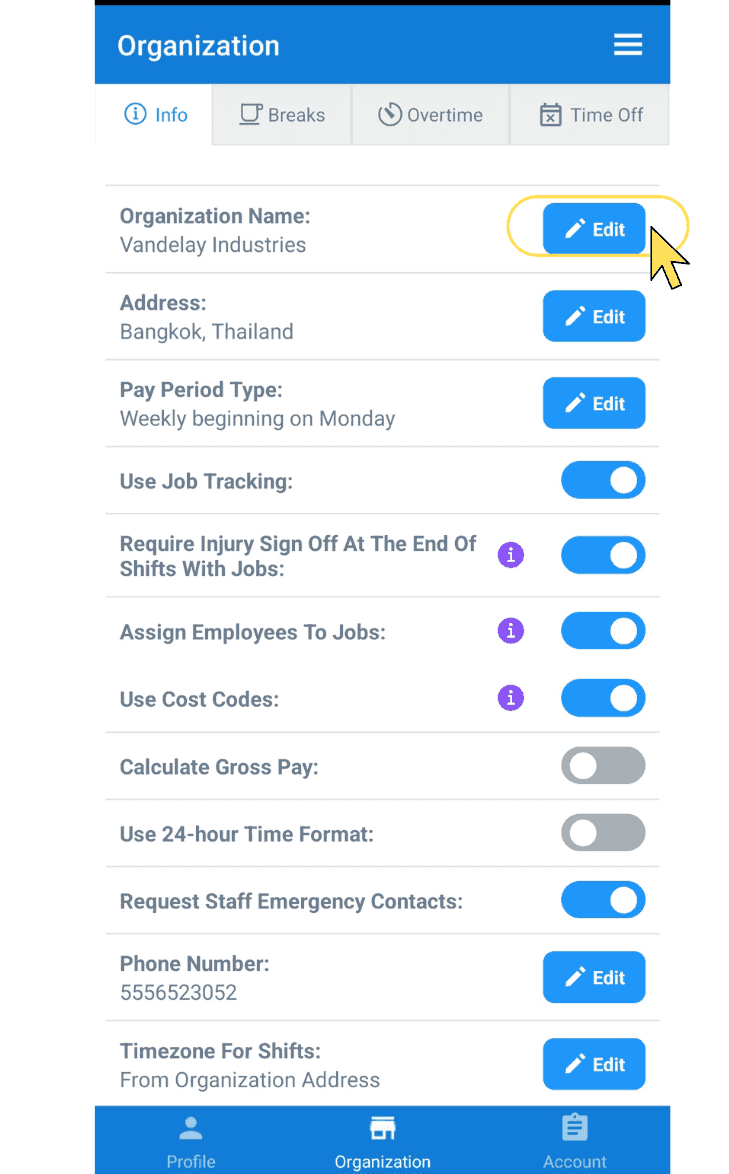
To edit your business name, tap on Edit (next to Organization Name)
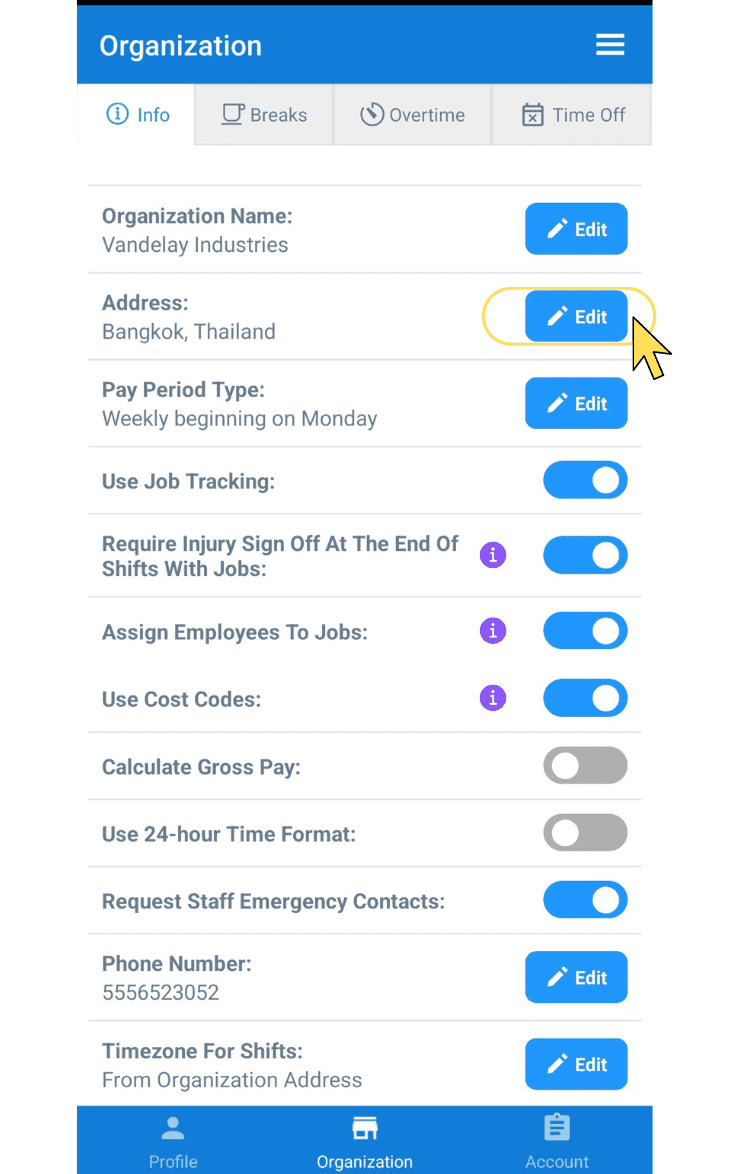
To edit your business address, tap on Edit (next to "Address")
To edit your pay period details, tap on Edit (next to Pay Period Type)
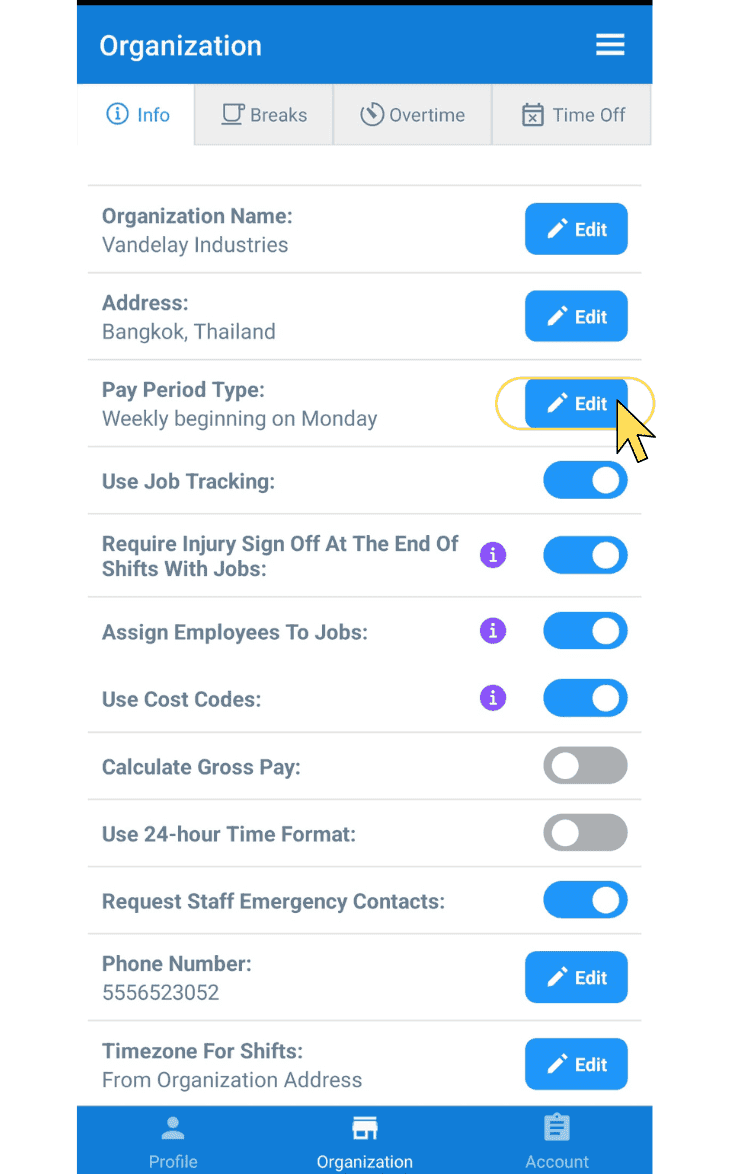
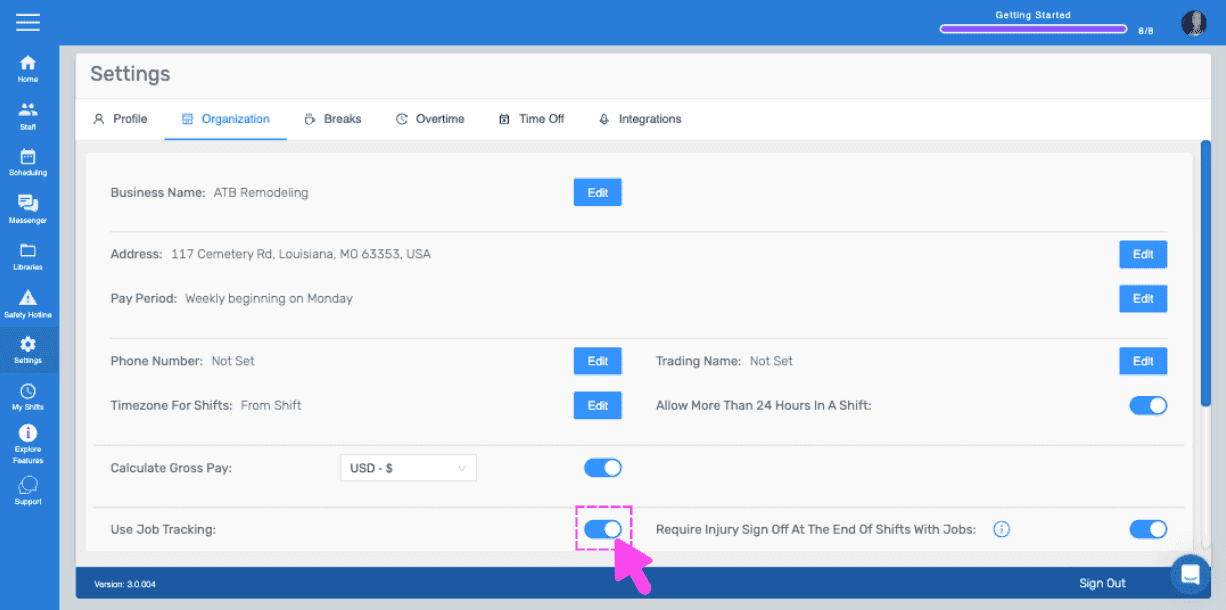
To turn job tracking on or off, toggle the switch (next to Use Job Tracking)
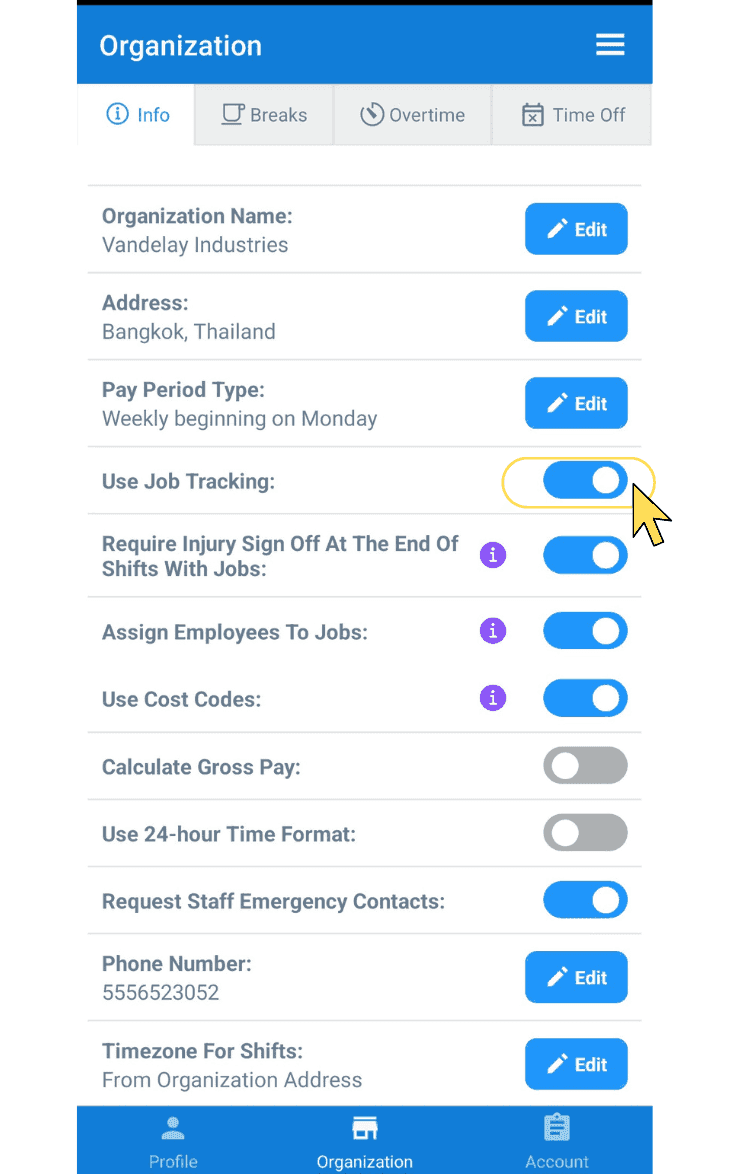
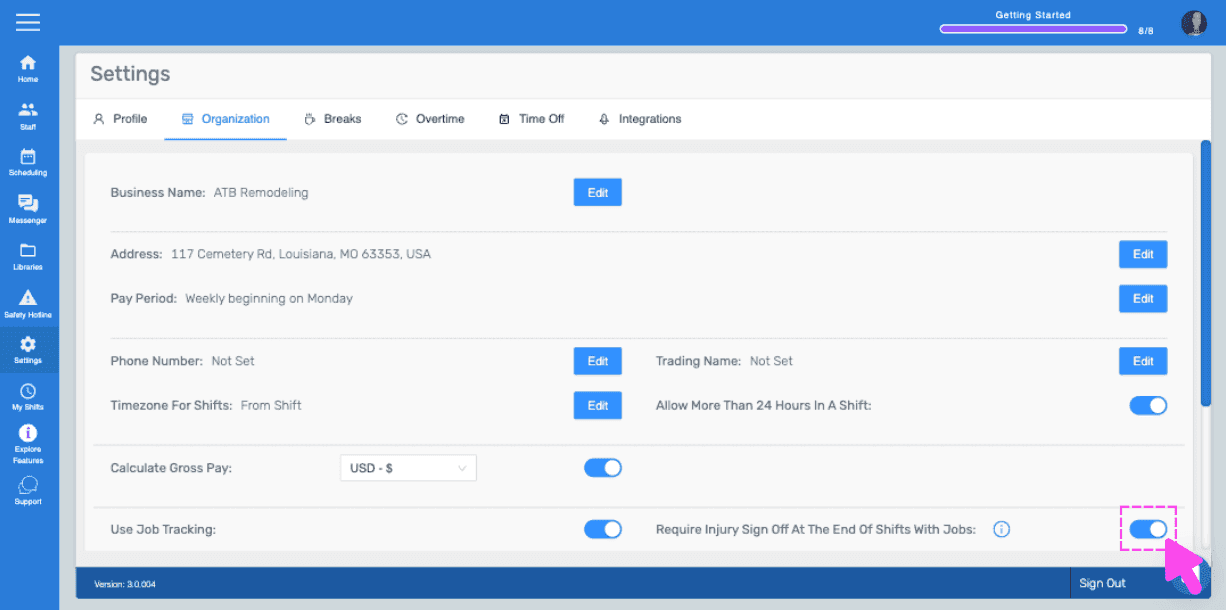
To turn injury sign off on or off, toggle the switch (next to "Require Injury Sign Off At The End Of Shifts With Jobs")
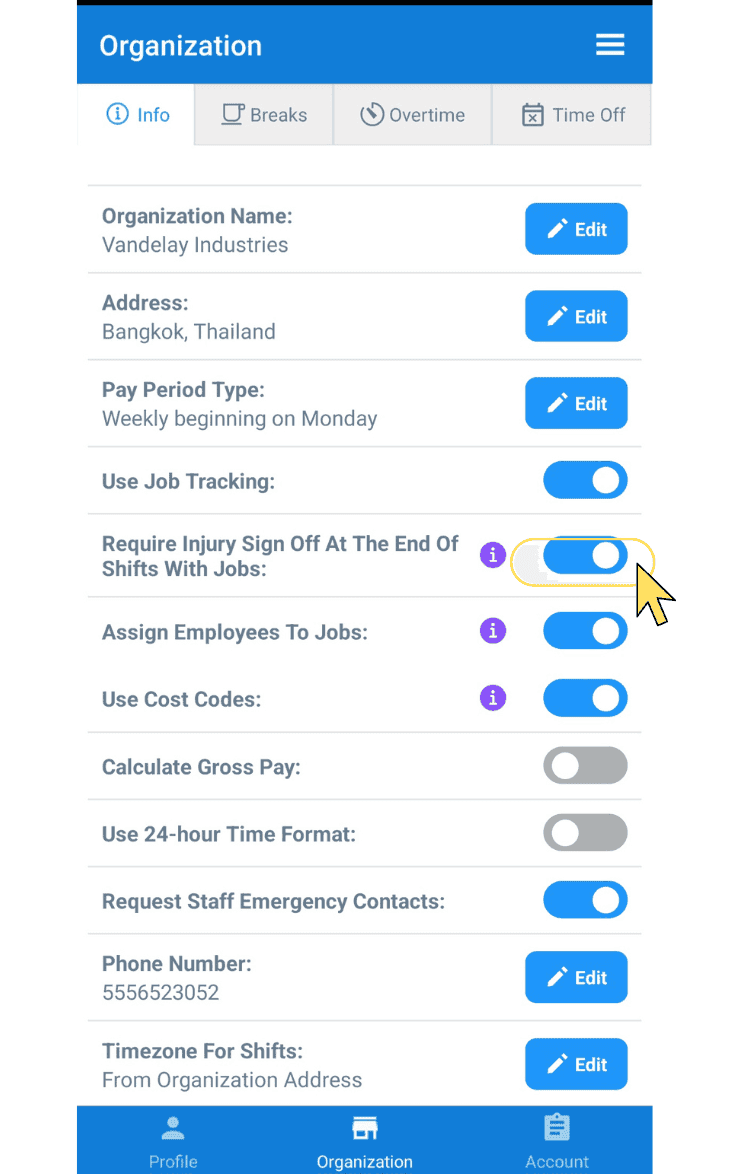
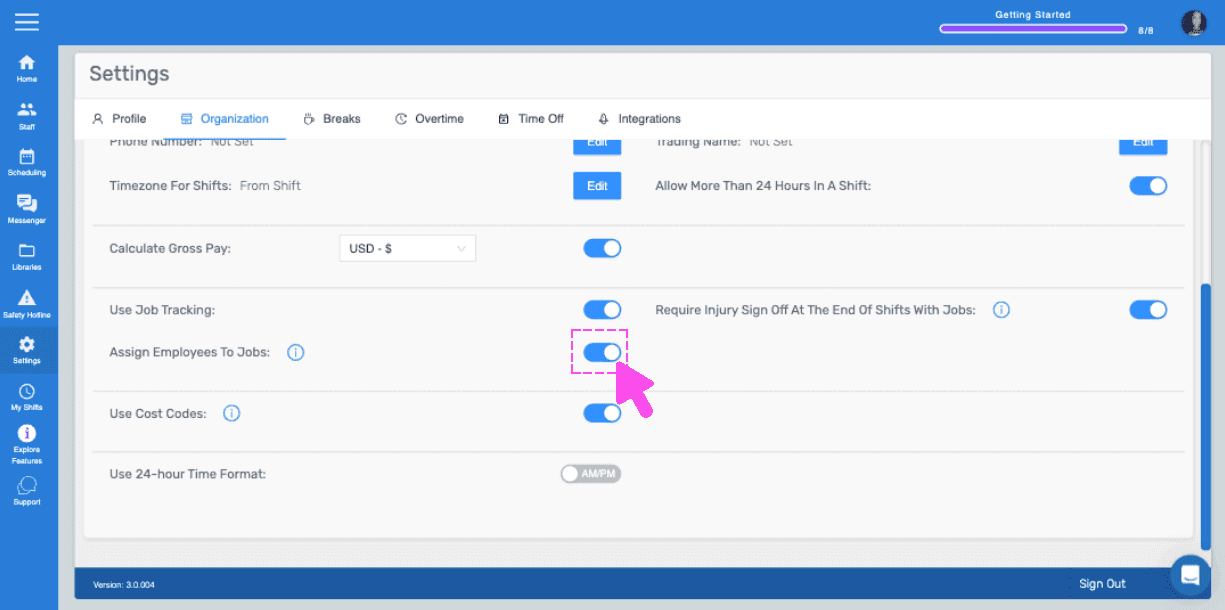
To assign employees to jobs, toggle the switch next to Assign Employees to Jobs
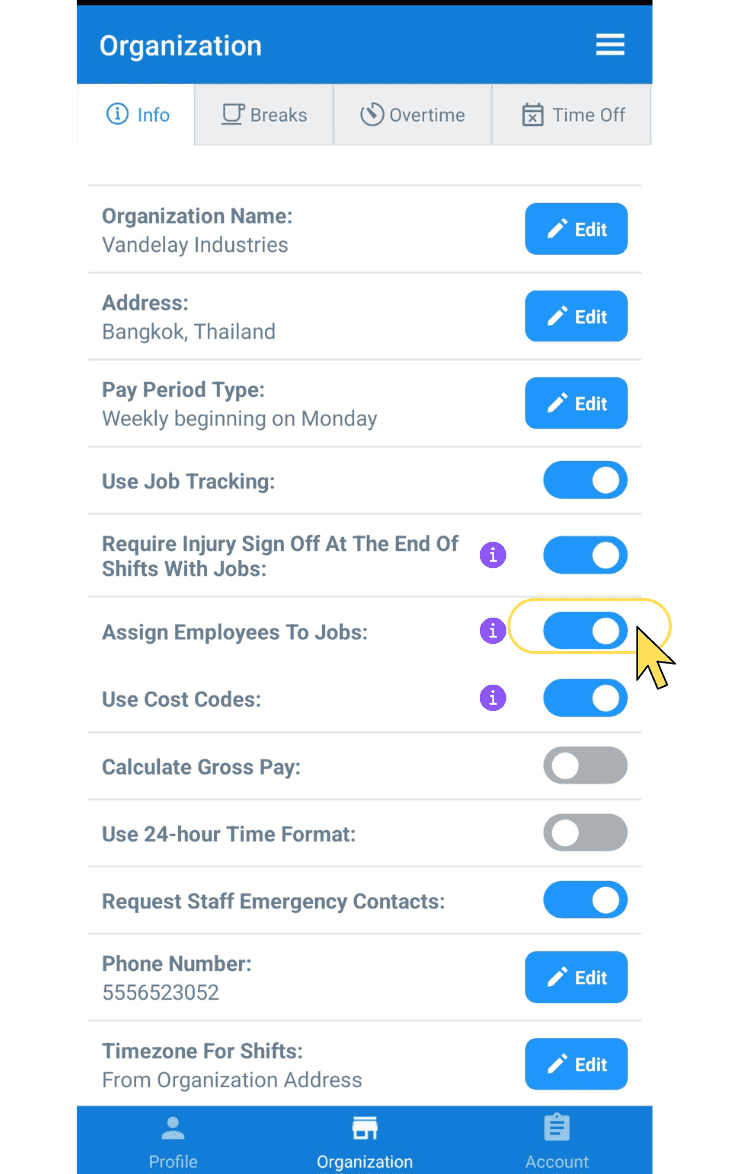
To turn cost codes on or off, toggle the switch (next to Use Cost Codes)
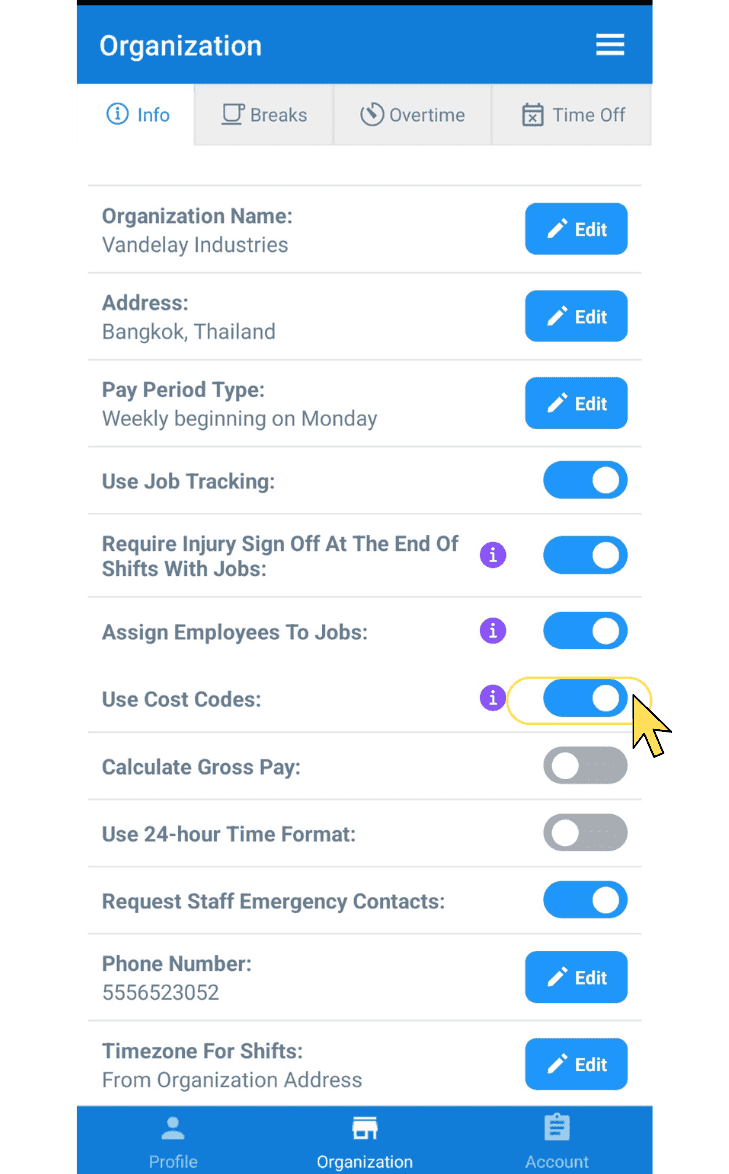
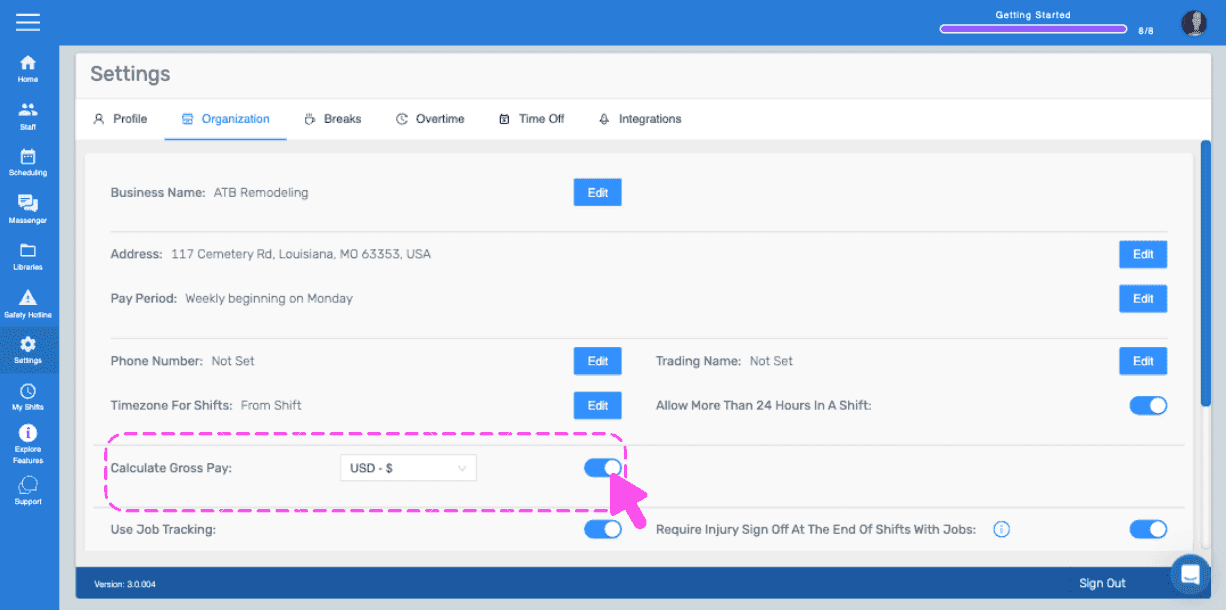
To turn gross pay calculations on or off, toggle the switch (next to Calculate Gross Pay), then tap on Edit (next to Currency) to select your currency.
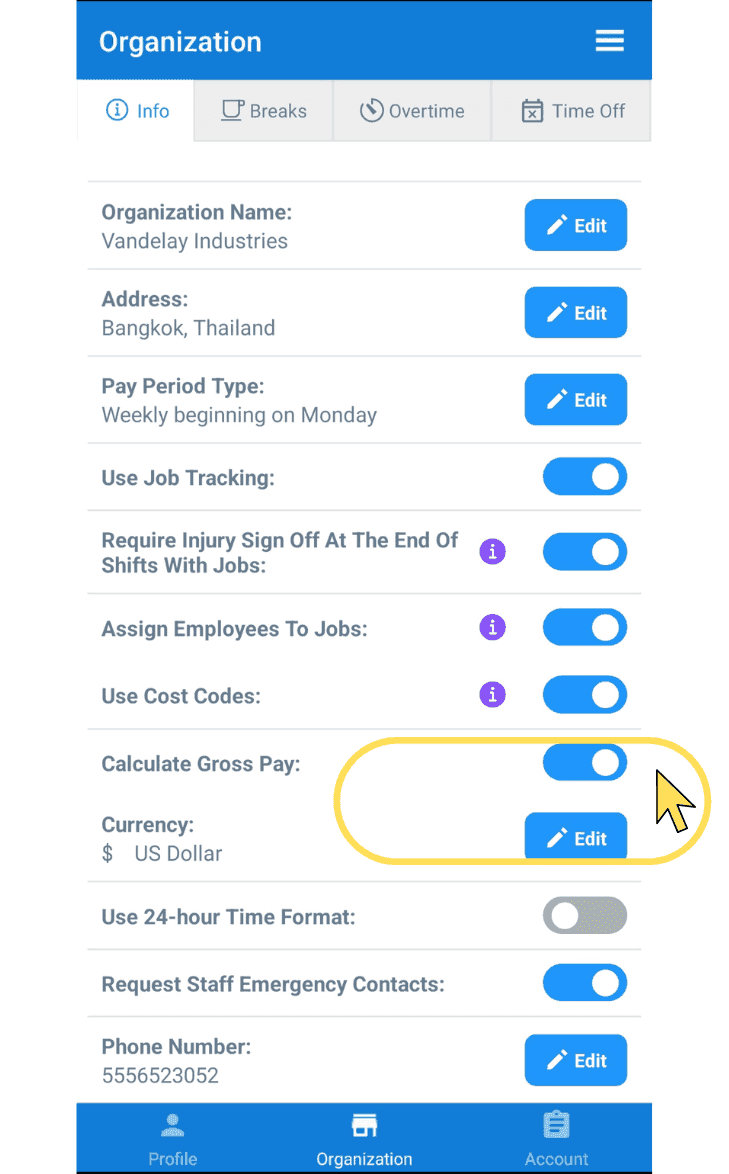
To use 24-hour time format or not, toggle the switch (next to Use 24-hour Time Format)
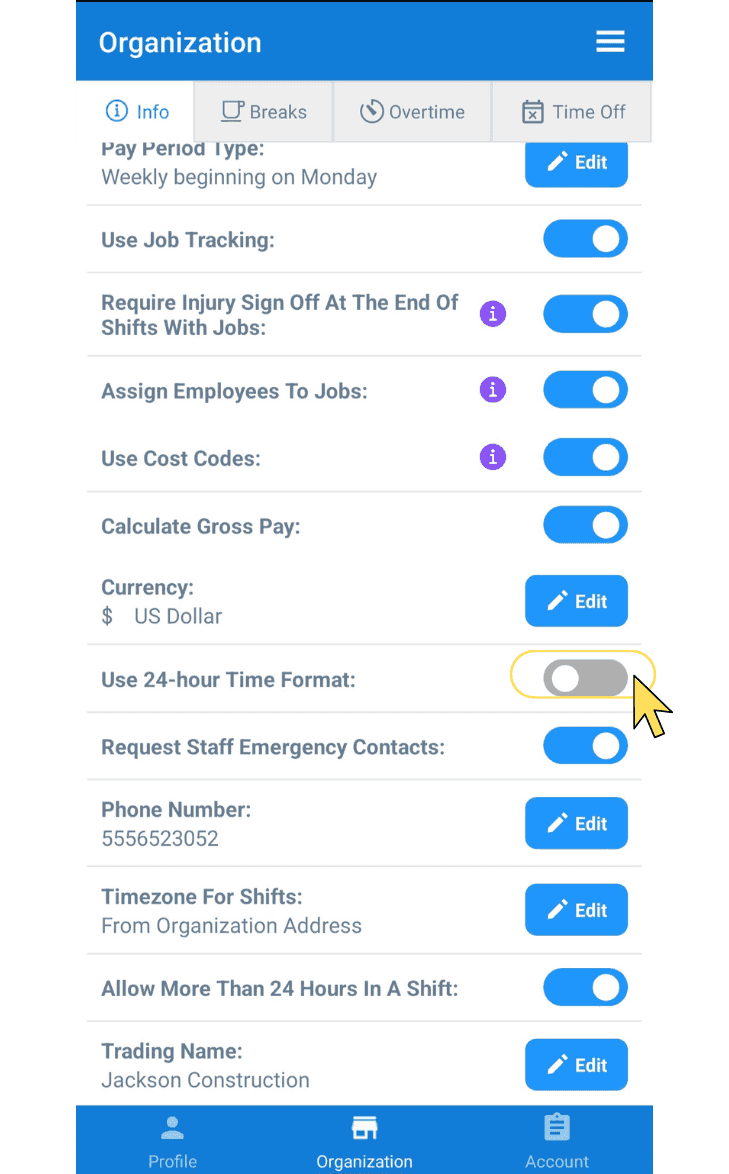
To require staff to enter their emergency contact or not, toggle the switch (next to Request Staff Emergency Contacts)
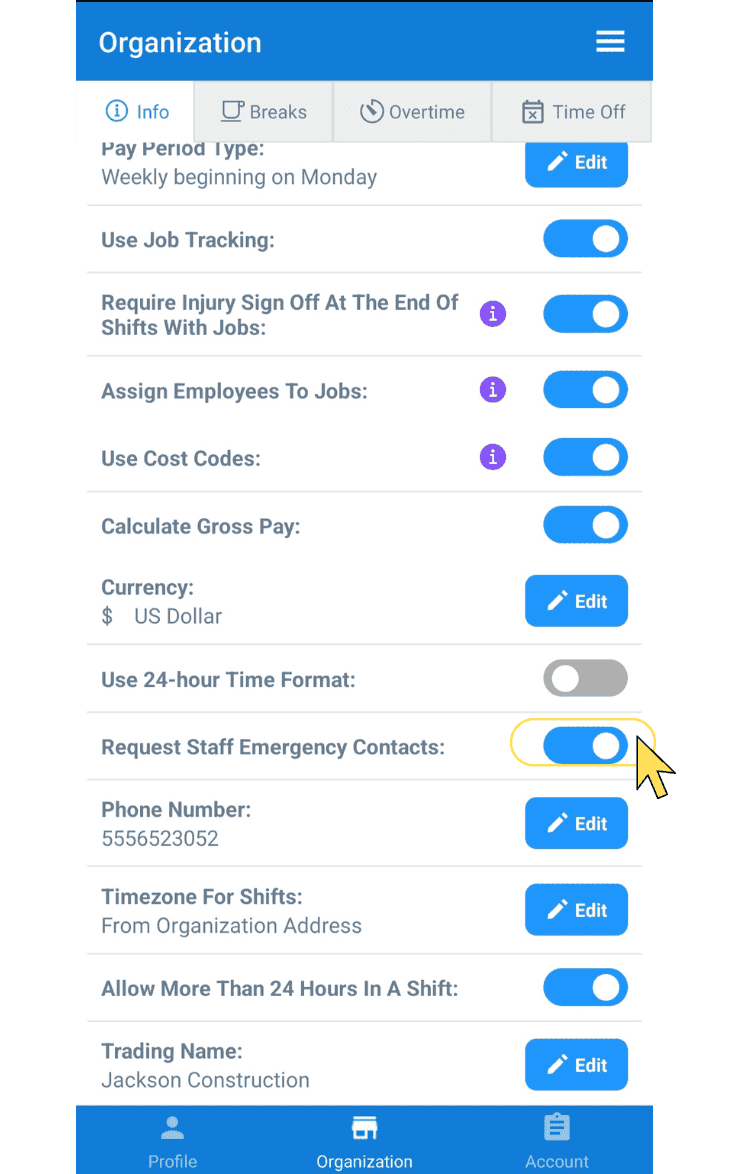
To edit your company phone number, tap on Edit (next to Phone Number)
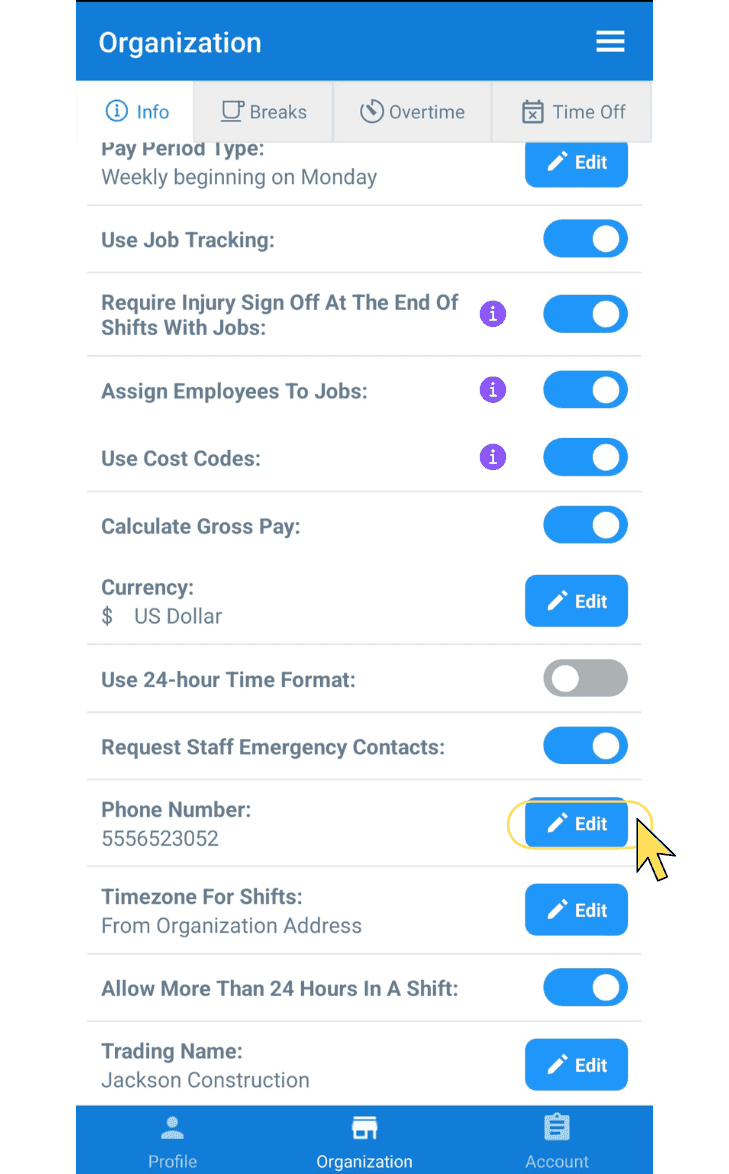
To edit your timezone for shifts, tap on Edit (next to Timezone For Shifts)
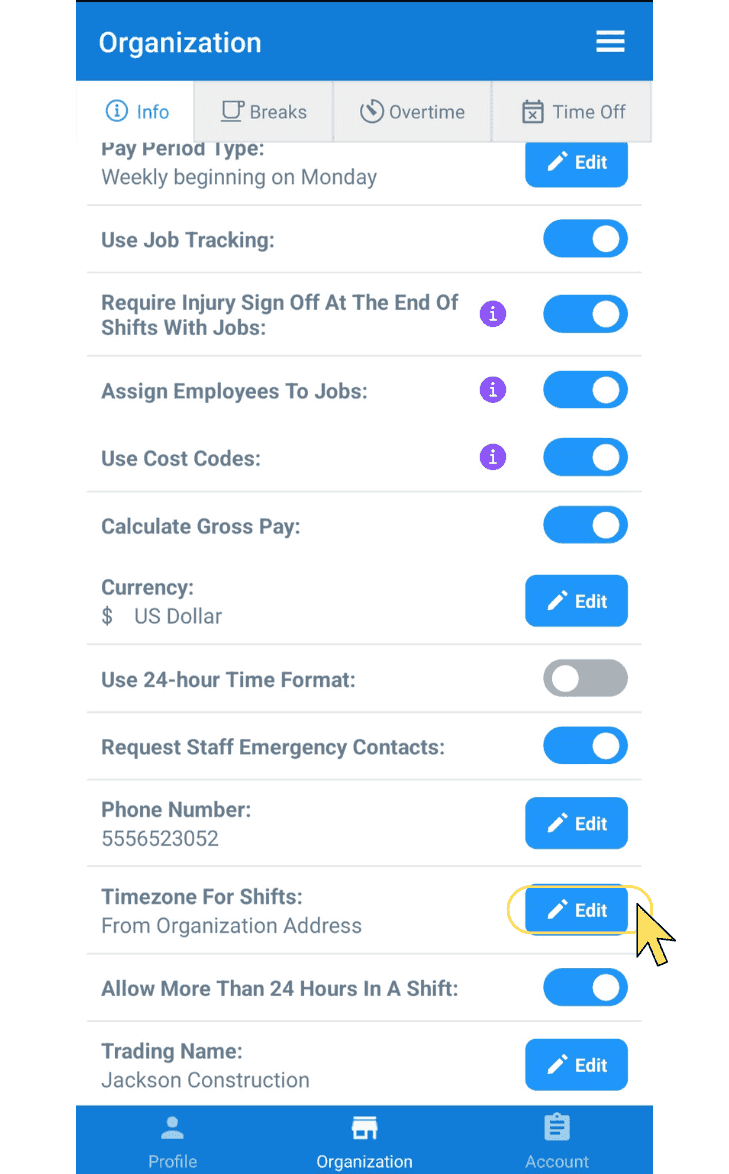
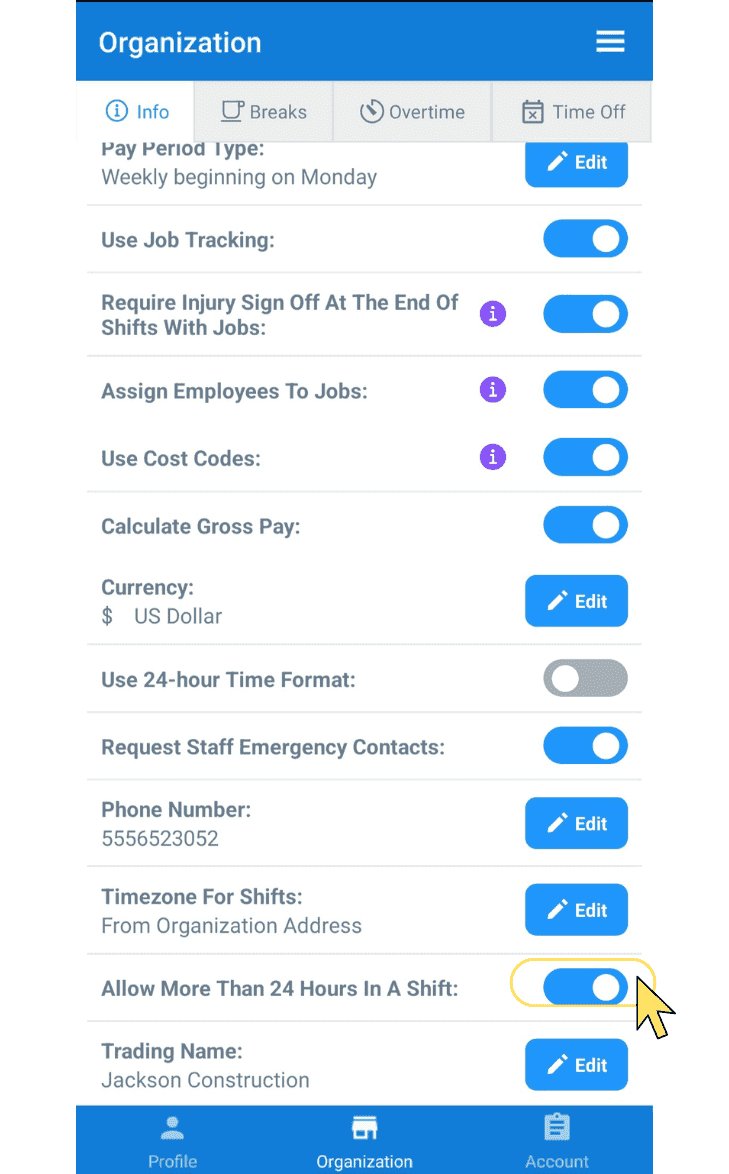
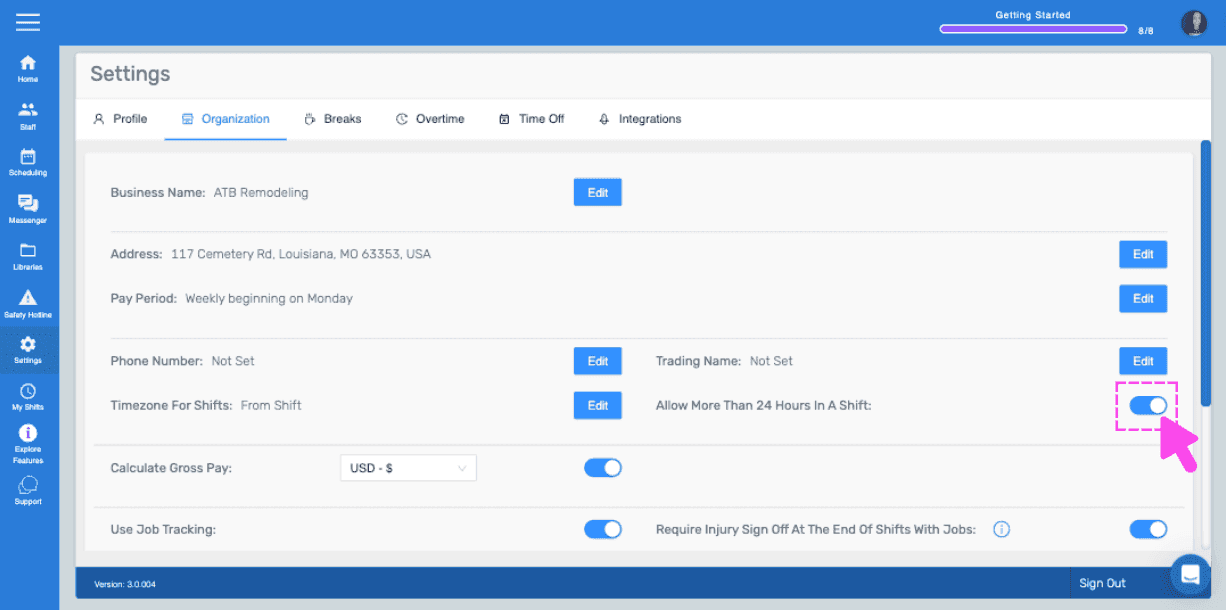
To turn on or off the ability to allow more than 24 hours in a shift, toggle switch (next to "Allow More Than 24 Hours In A Shift")
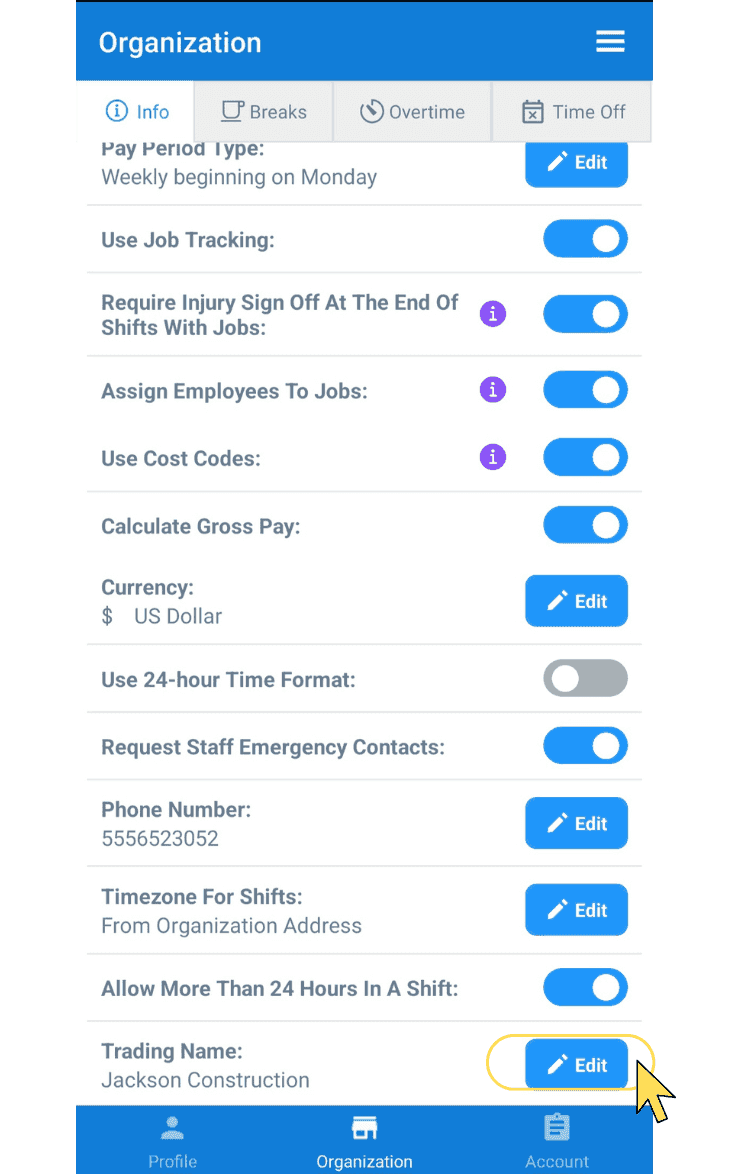
To edit your business trading name, tap on Edit (next to Trading Name)
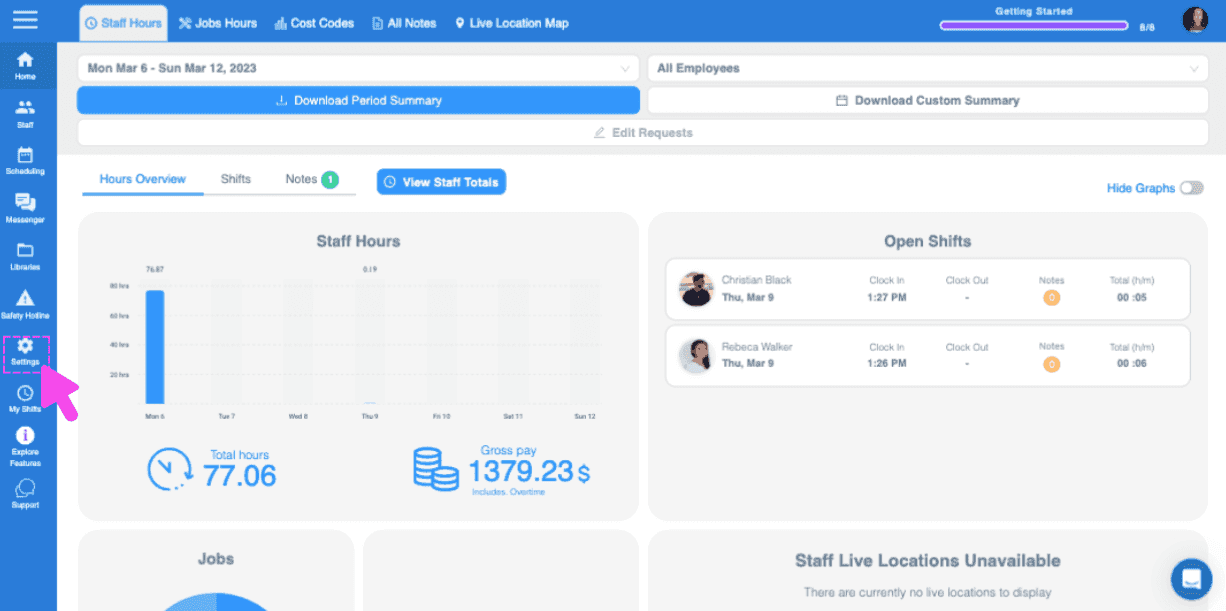
On Web: Click on Settings
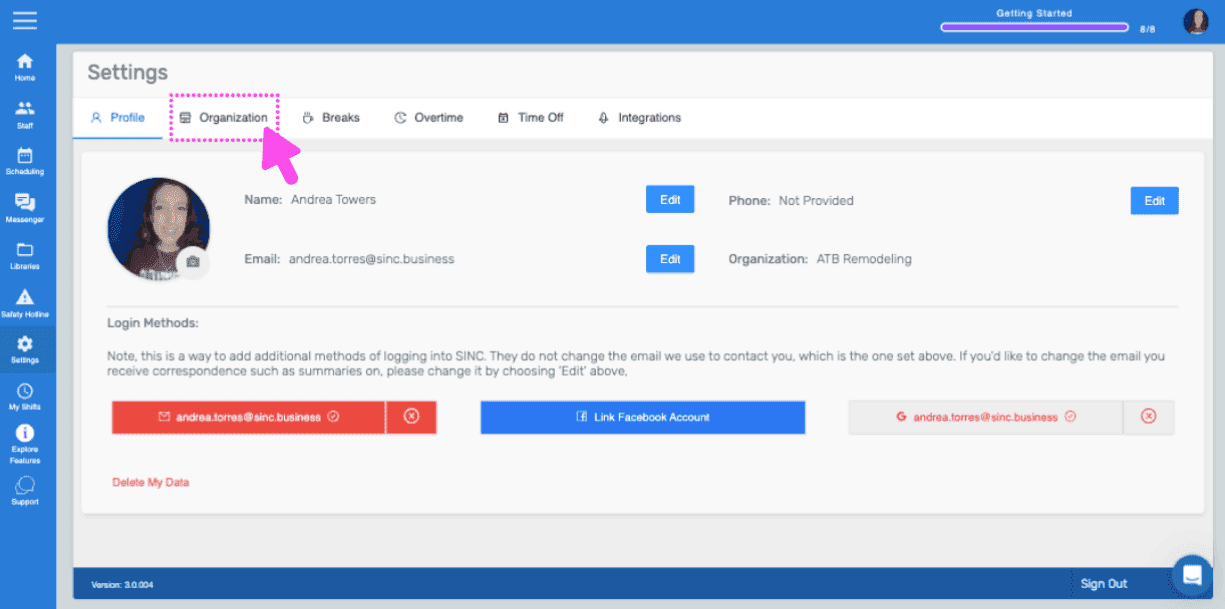
Click on Organization
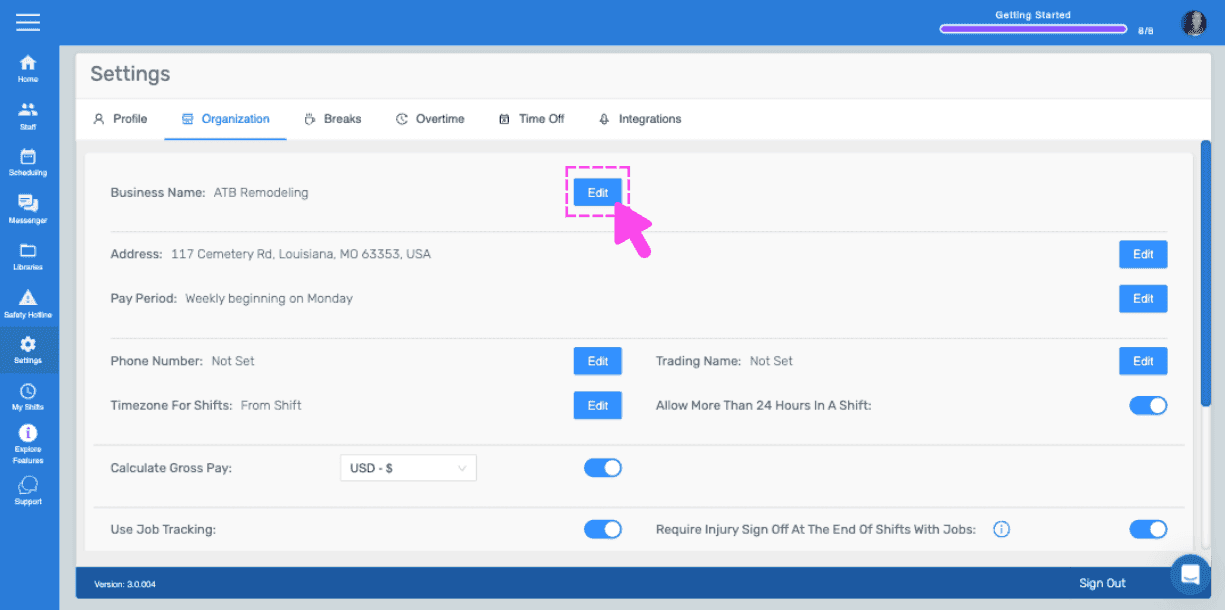
To edit your business name, click on Edit (next to Business Name)
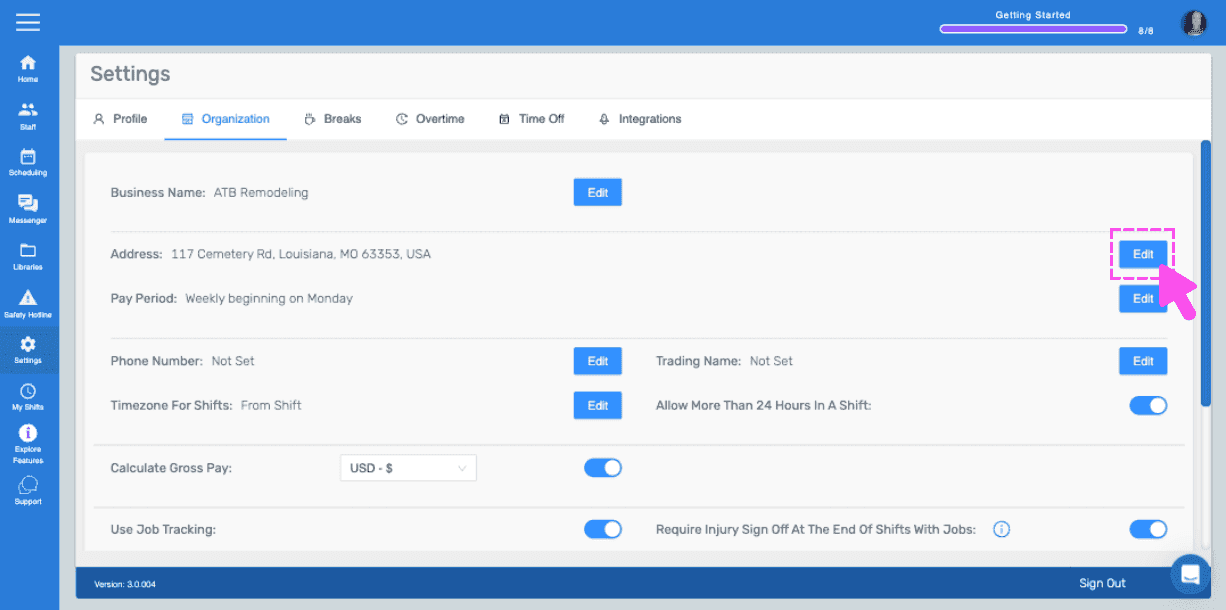
To edit your business address, click on Edit (next to "Address")
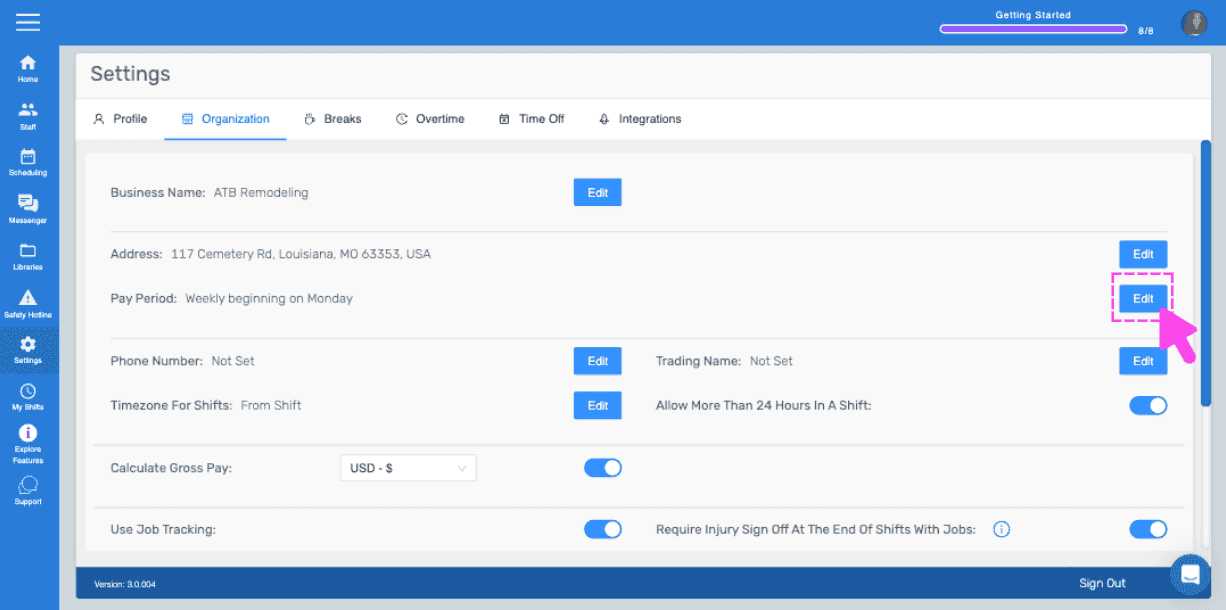
To edit your pay period details, click on Edit (next to Pay Period)
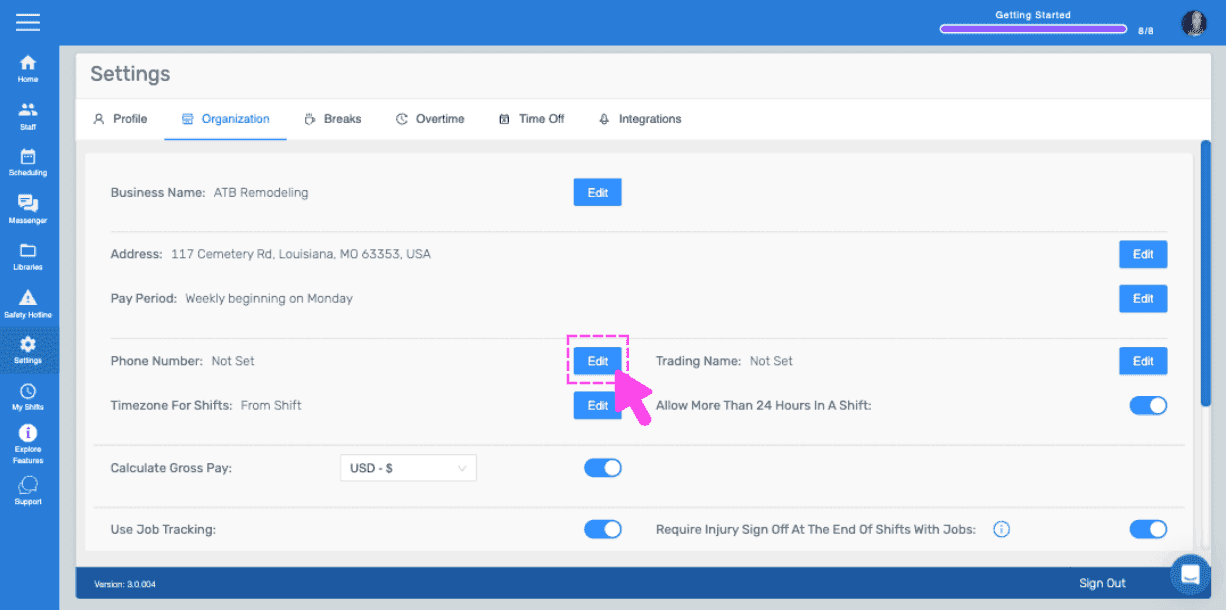
To edit your company phone number, click on Edit (next to Phone Number)
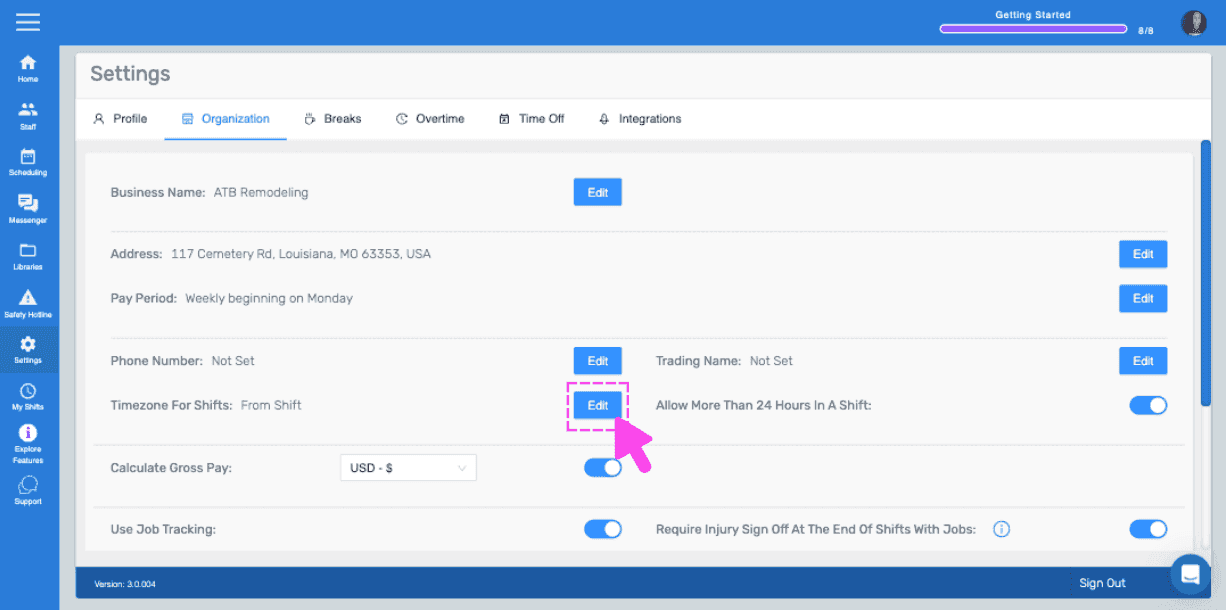
To edit your timezone for shifts, click on Edit (next to Timezone For Shifts)
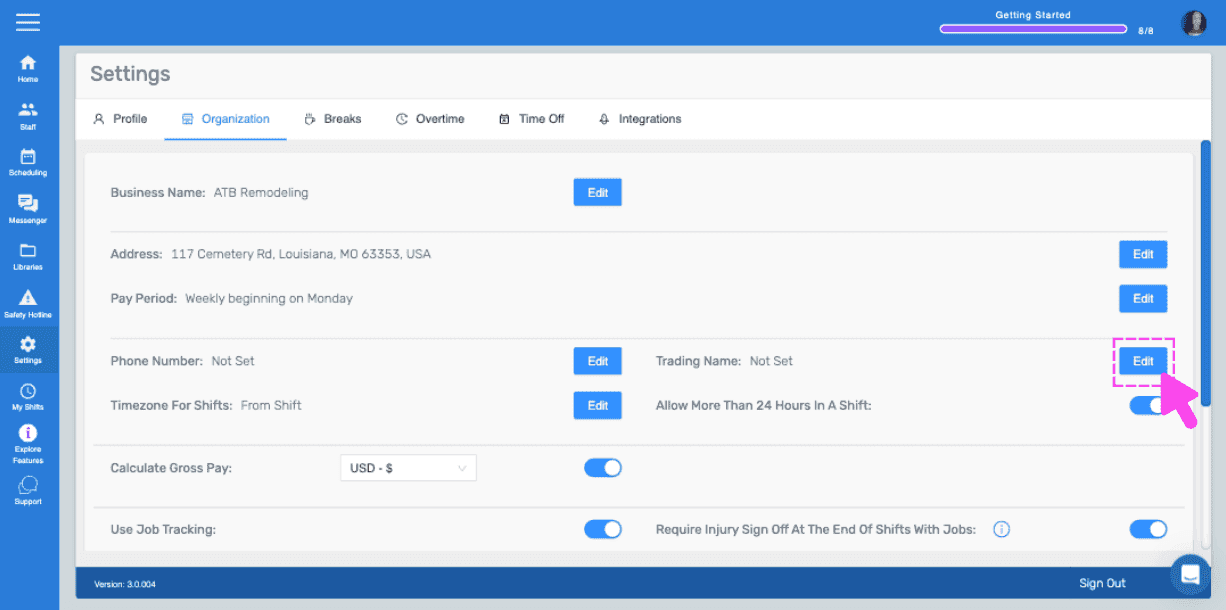
To edit your business trading name, click on Edit (next to Trading Name)
To turn on or off the ability to allow more than 24 hours in a shift, toggle switch (next to "Allow More Than 24 Hours In A Shift")
To turn gross pay calculations on or off, toggle the switch (next to Calculate Gross Pay), then select your currency
To turn job tracking on or off, toggle the switch (next to Use Job Tracking)
To turn injury sign off on or off, toggle the switch (next to "Require Injury Sign Off At The End Of Shifts With Jobs")
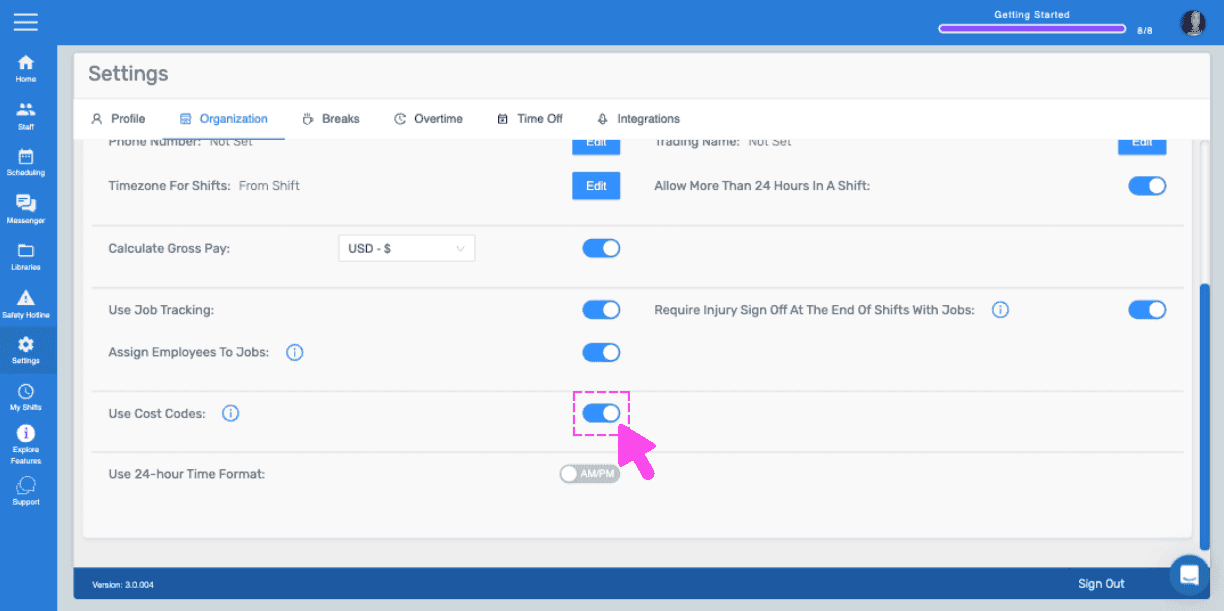
To turn cost codes on or off, toggle the switch (next to Use Cost Codes)
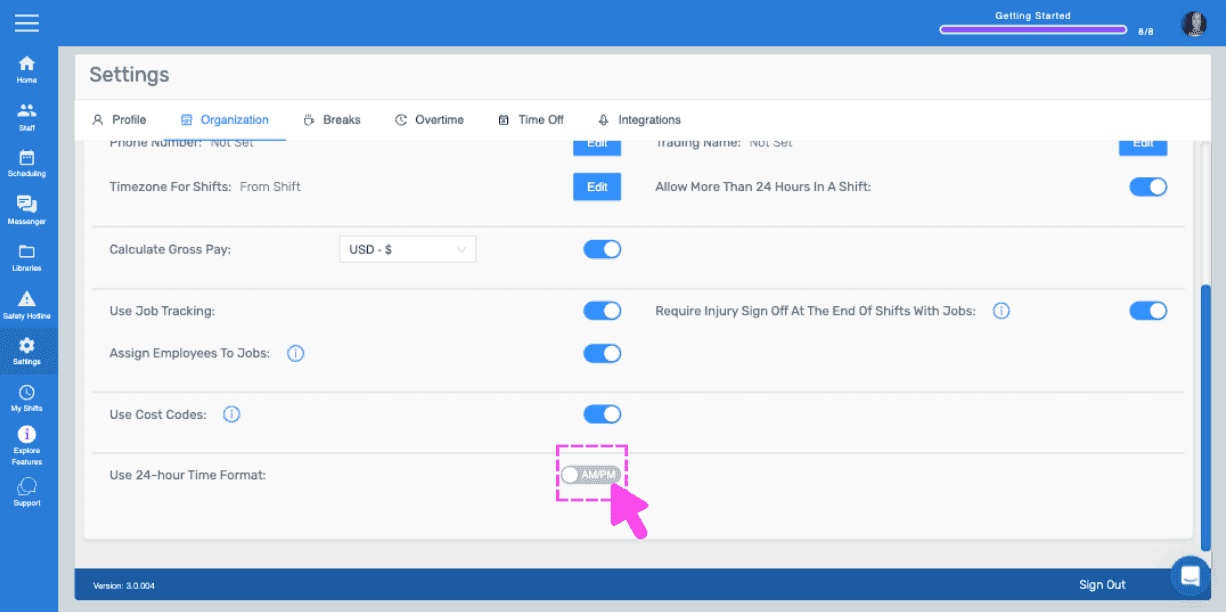
To use 24-hour time format or not, toggle the switch (next to Use 24-hour Time Format)
Did this answer your question?