Overtime Calculations: Custom Rules

To start calculating overtime using Custom Rules inside of SINC, there are some settings you need to change. This guides shows you how.

Sam Dolbel
Sam Dolbel
Mar 24th, 2023

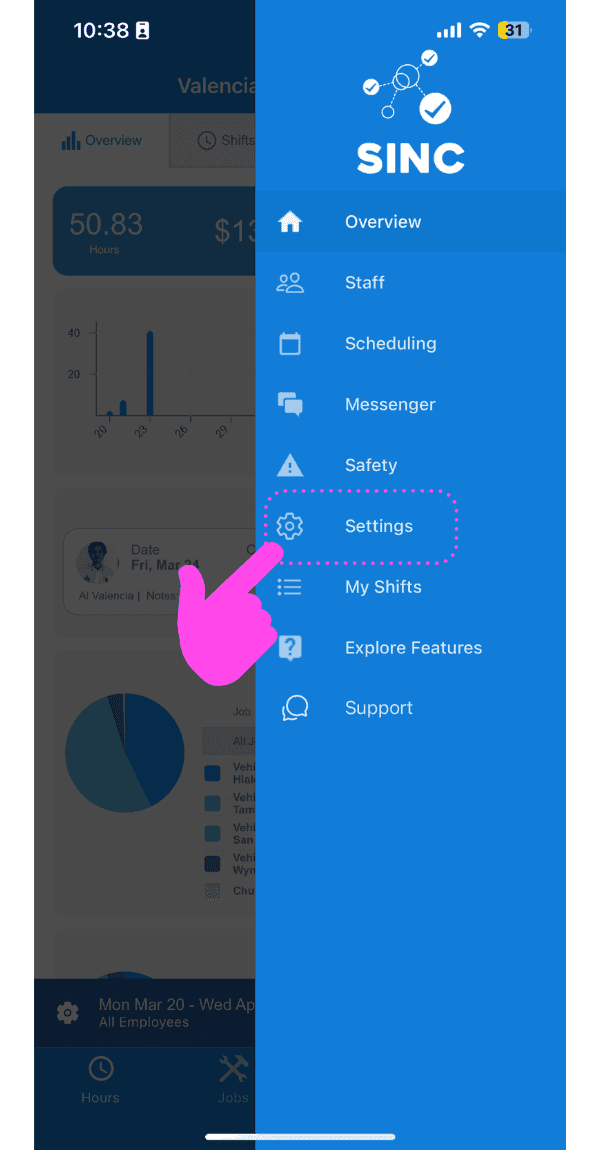
Tap on Settings

SINC mobile app side menu with a pink arrow pointing to the Settings icon

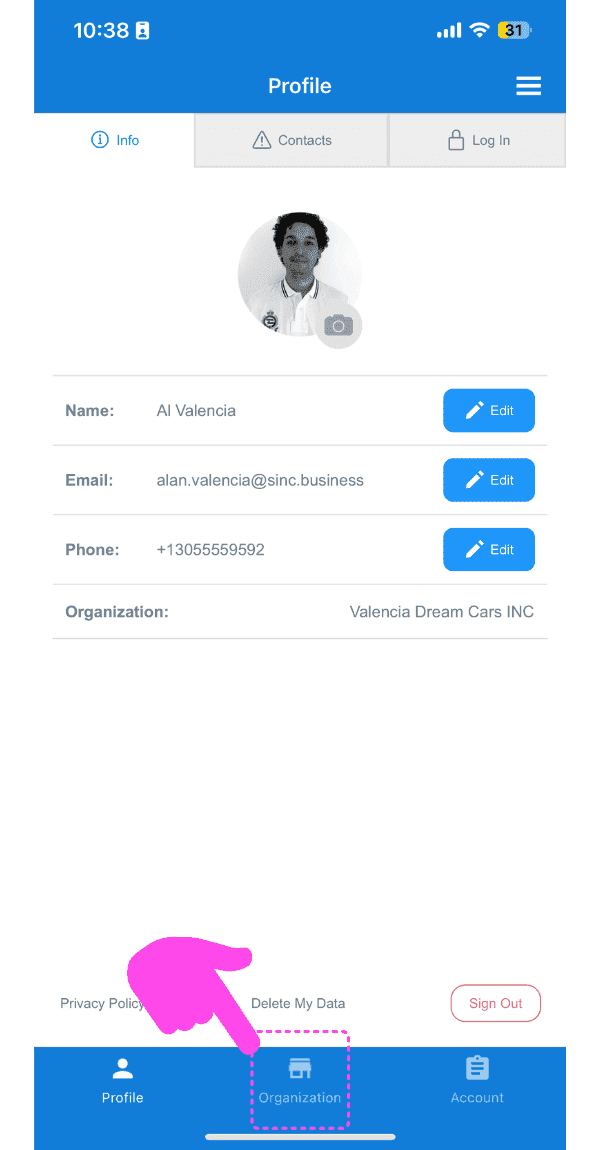
Tap on Organization

SINC mobile Profile screen with a pink hand pointing to the Organization tab at the bottom

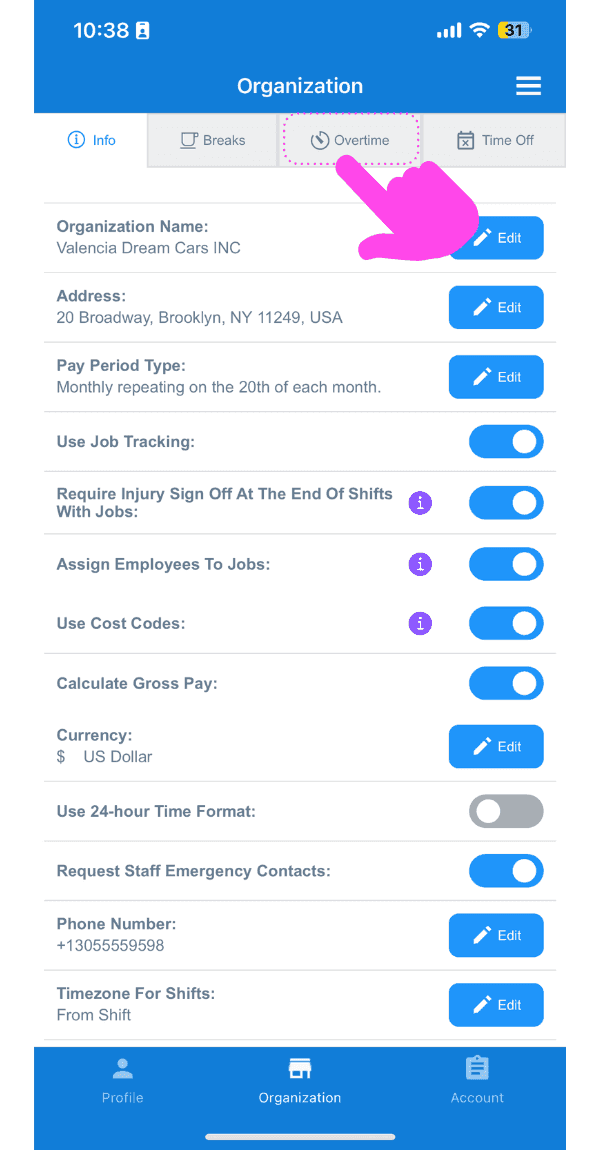
Tap on Overtime

Organization settings screen with a pink arrow pointing to the Overtime tab

First you need to select the overtime week start day which determines the overtime work week. Overtime work week is a period of seven days starting from the overtime week start day, i.e., for overtime week start day of Monday, the overtime work week runs from Monday to Sunday. Tap on Edit next to Choose Your Overtime Week Start Day
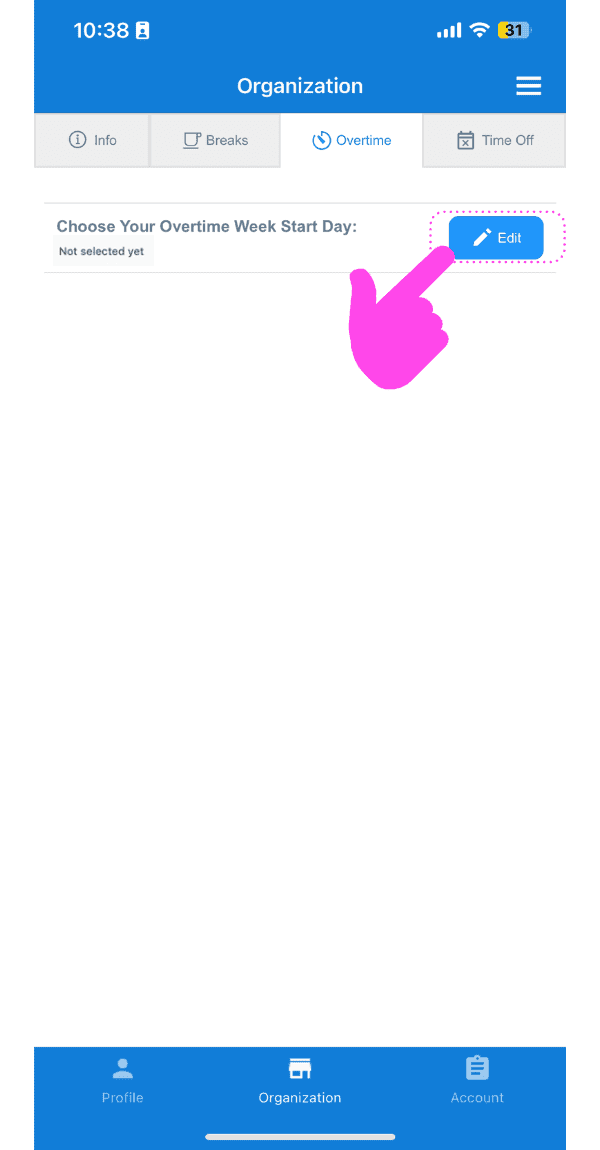
Web Organization Overtime tab with a pink arrow pointing to the Edit button for the overtime week start day

Tap on The day you want as Overtime Week Start Day
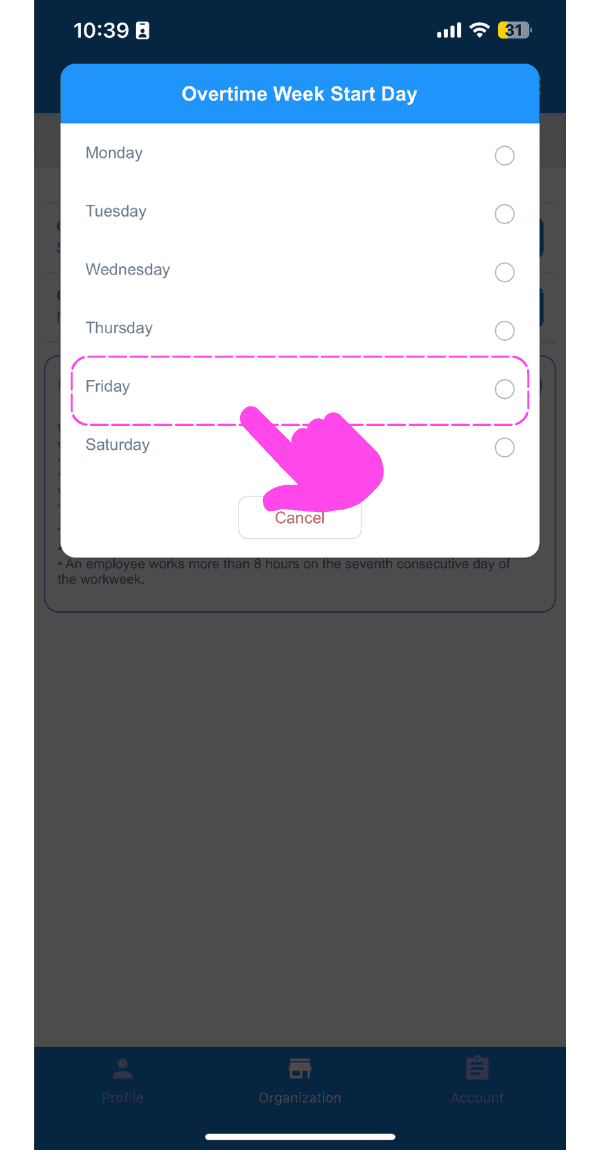
SINC mobile Overtime Week Start Day popup with a pink hand pointing to the Friday option

Tap on Edit next to Custom Overtime Rules. SINC supports five types of overtime rules: Daily (hours worked beyond the normal hours in a work week day), Daily Double (like daily, but paid at a higher rate, e.g. Daily after 8 hours at 1.5 rate and Daily Double after 12 hours at 1.75 rate), Weekly (hours worked beyond the normal hours in a work week), Seventh Consecutive Day (hours worked on the seventh consecutive work week day), and Seventh Consecutive Day Double (like seventh consecutive day but at a higher rate, e.g. after 0 hours at 1.5 rate and after 8 hours at double the rate).
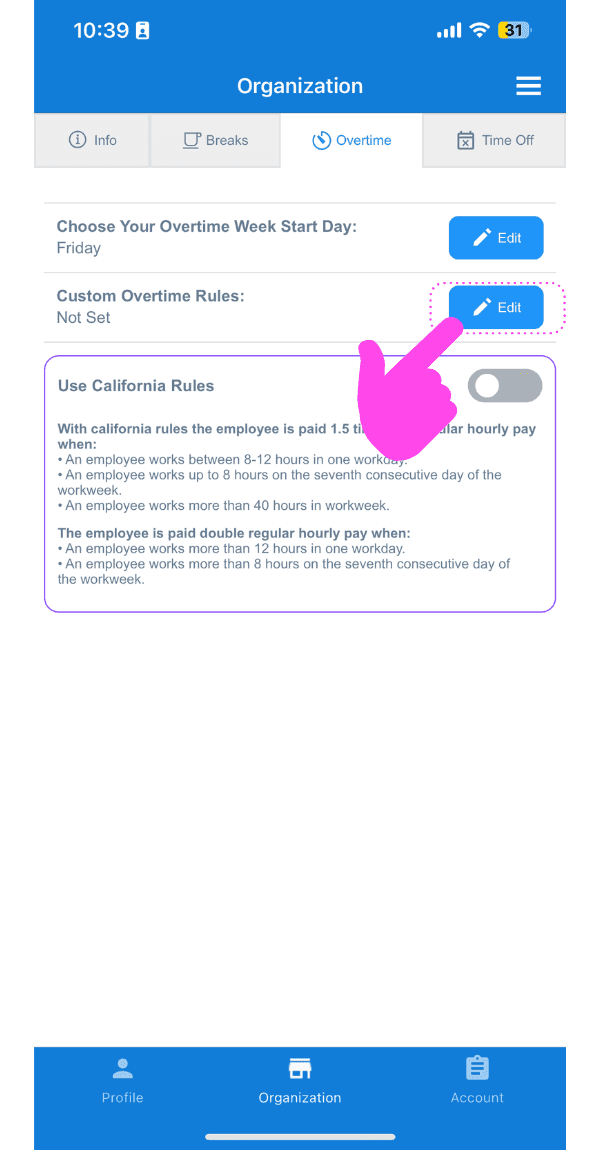
SINC mobile Organization Overtime tab with a pink arrow pointing to the Custom Overtime Rules Edit button

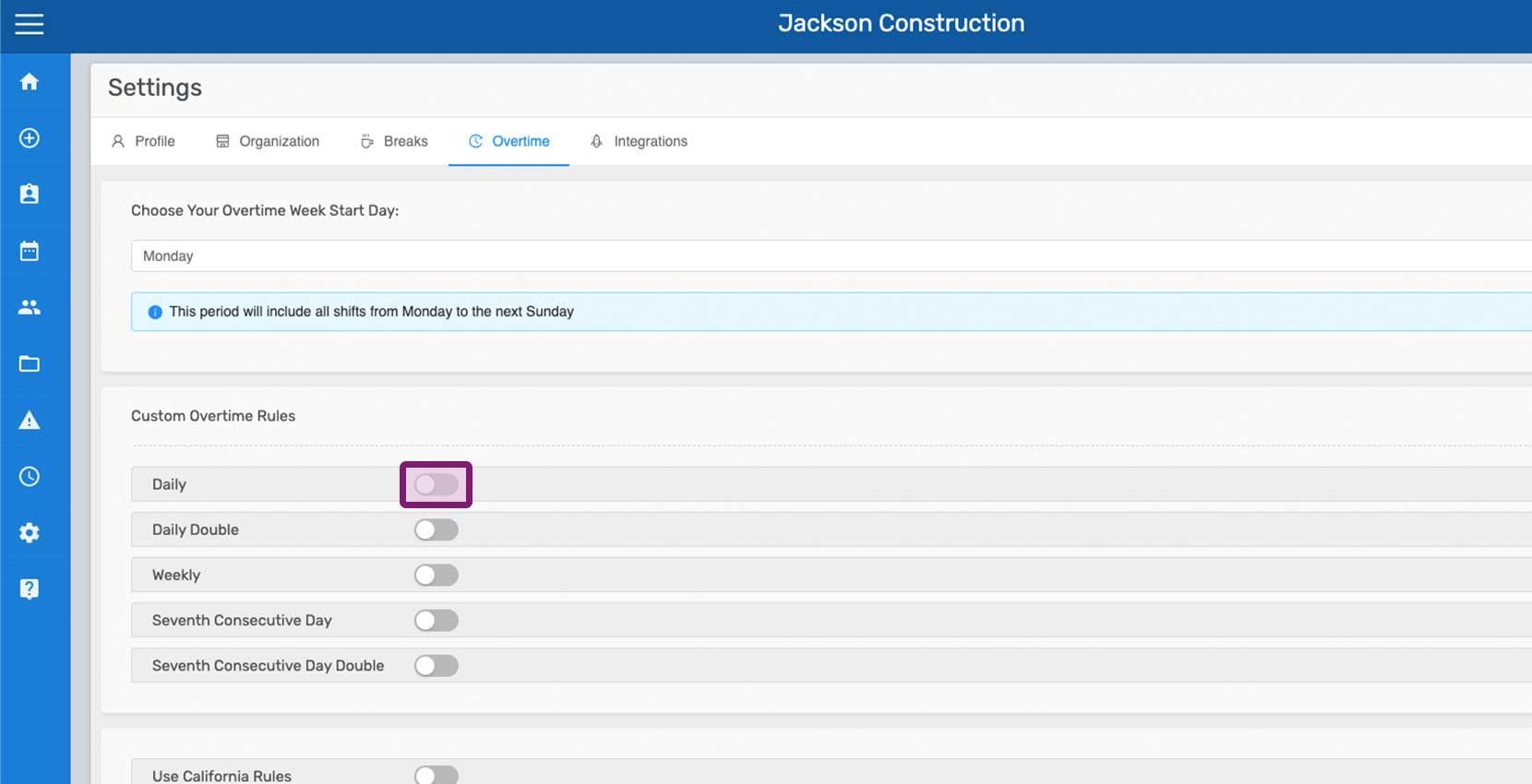
Toggle on The Custom Rule You Want To Use (i.e., Daily)
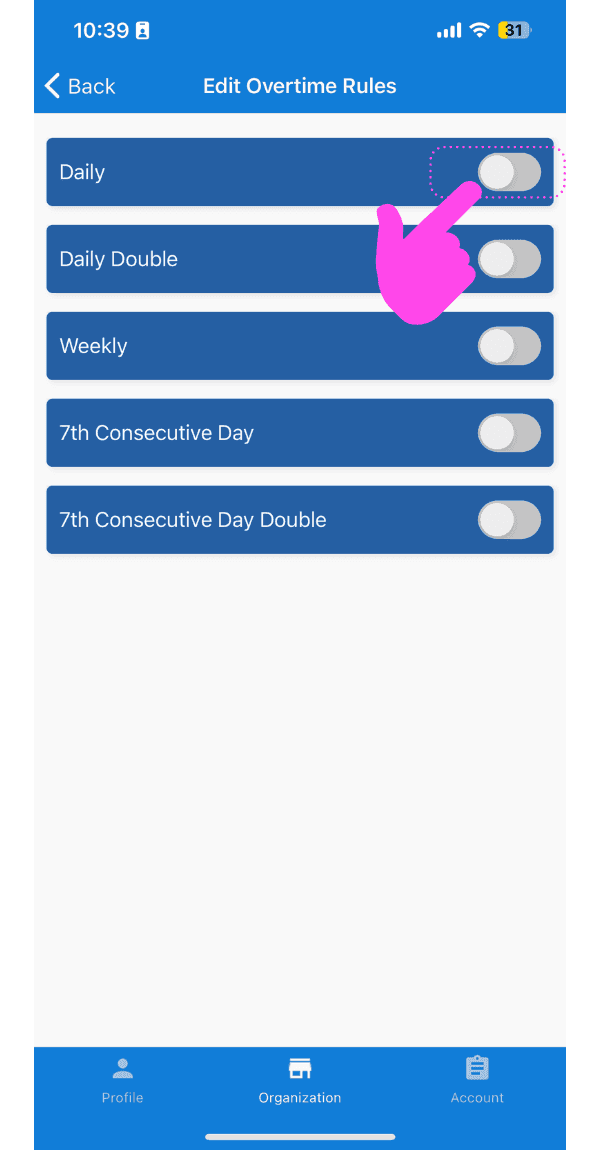
Edit Overtime Rules screen with a pink arrow pointing to the Daily overtime toggle switch

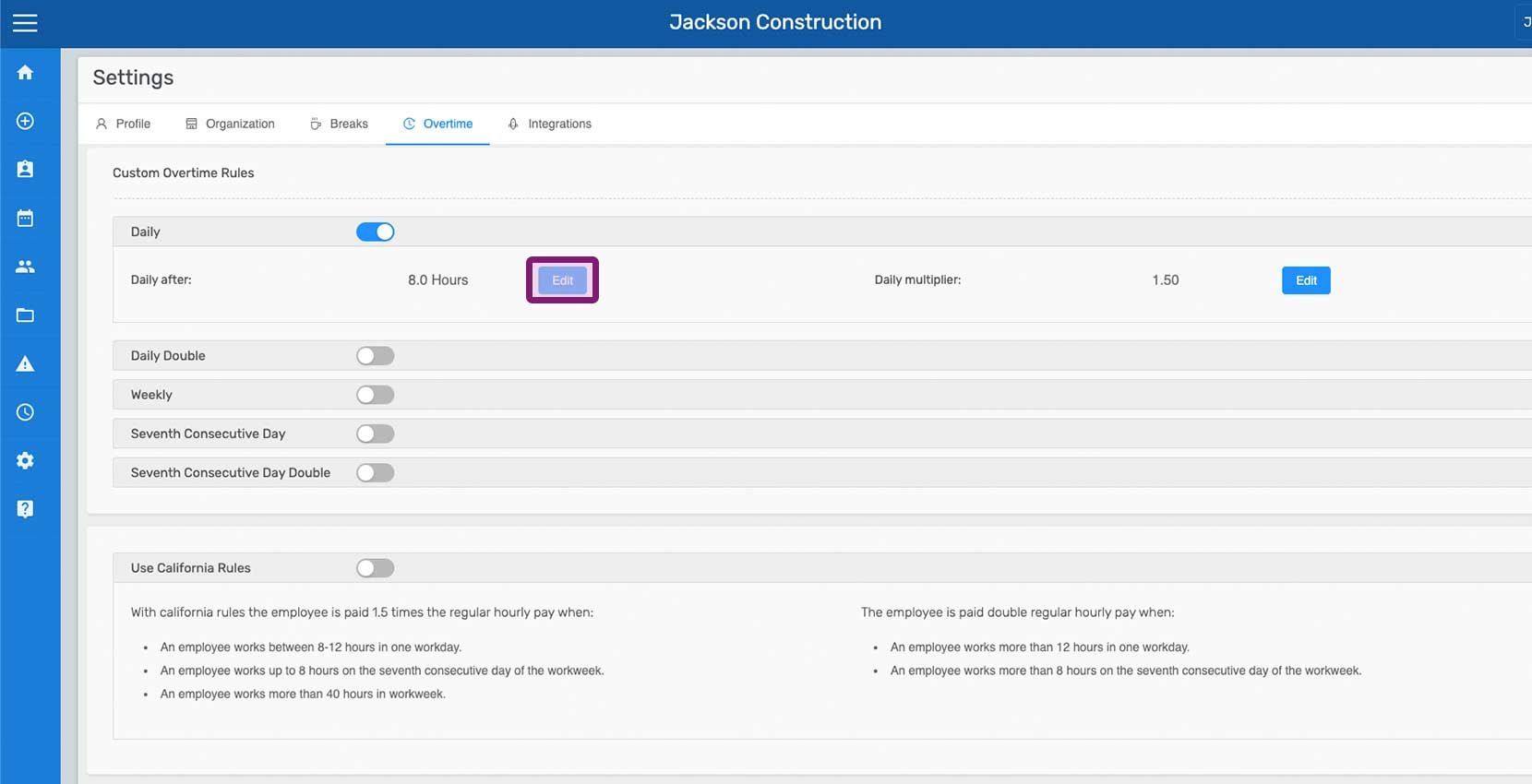
If required, edit the hours after which the overtime rule will apply: Tap on Edit next to After Hours
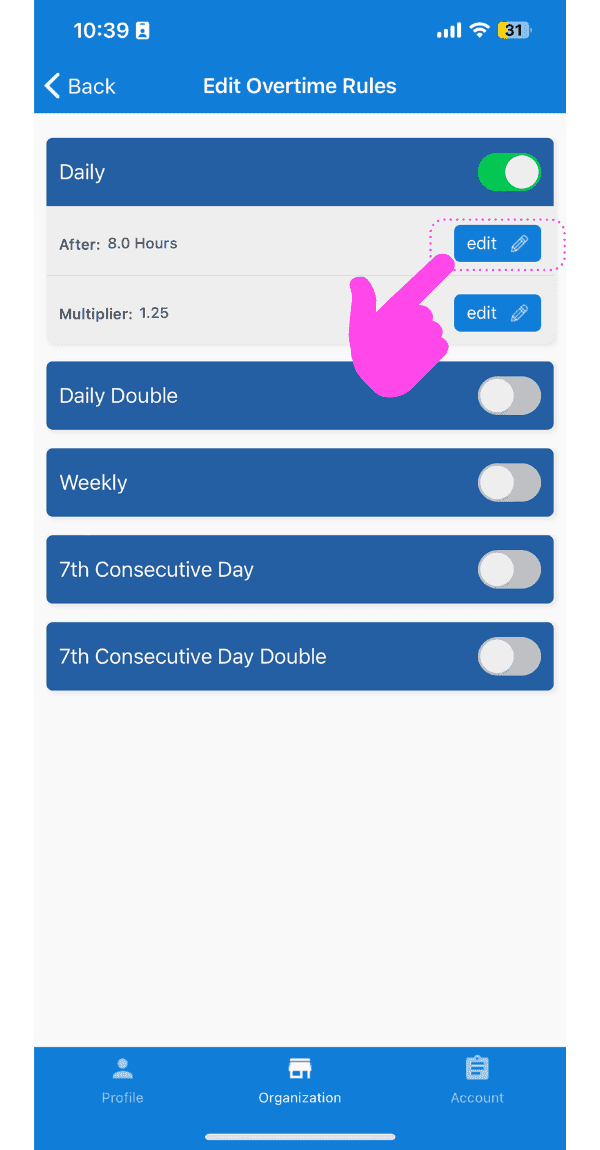
SINC mobile app Edit Overtime Rules screen with a pink hand pointing to the Edit button next to the Daily after-hours setting

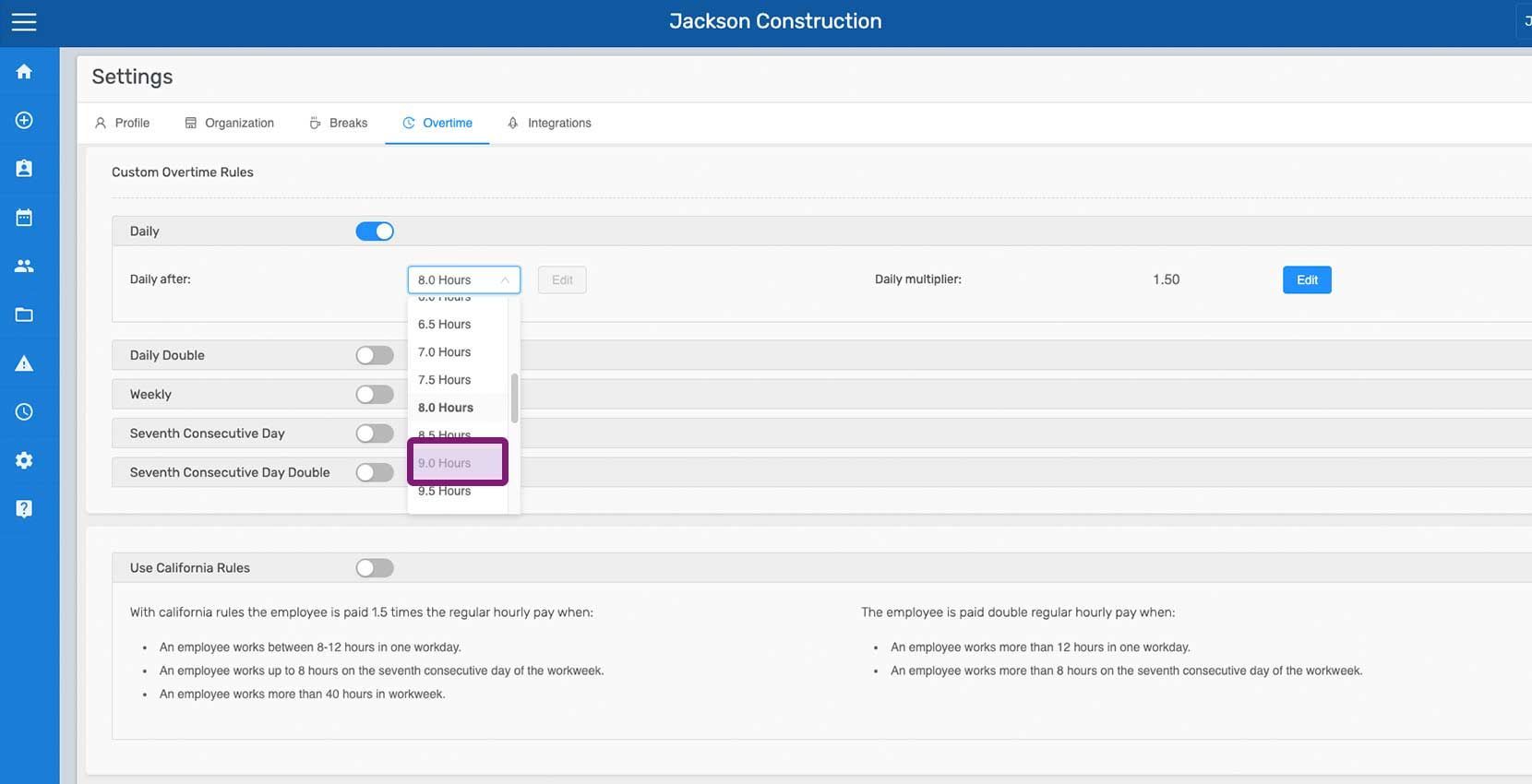
Tap on The Hours After Which The Rule Should Apply
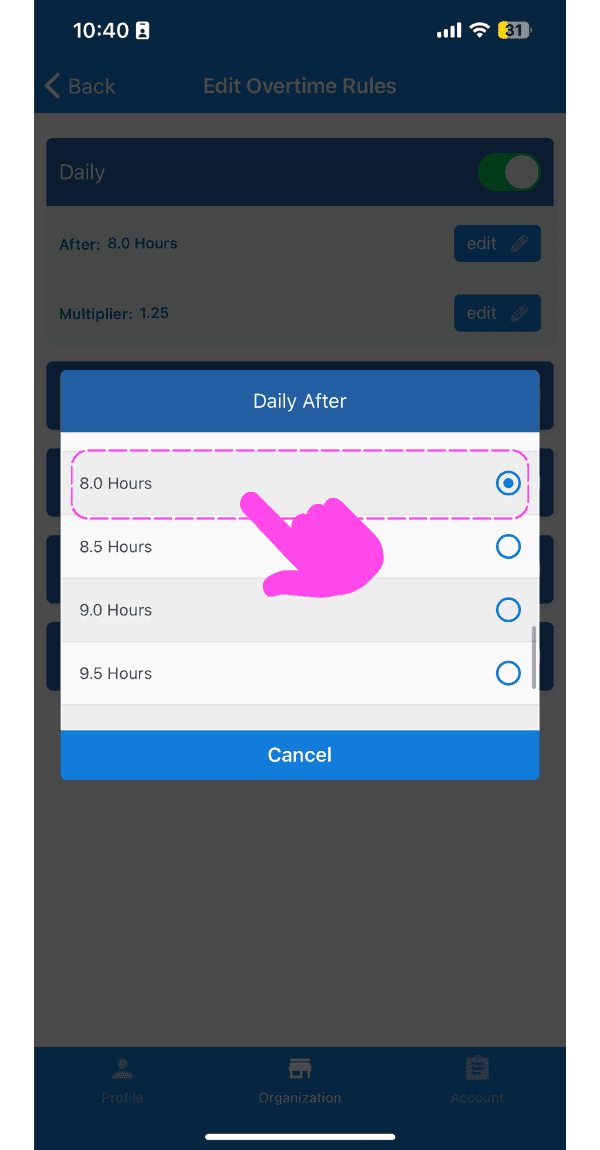
Edit Overtime Rules popup showing Daily After hour options with 8.0 Hours selected and pointed out by a pink arrow

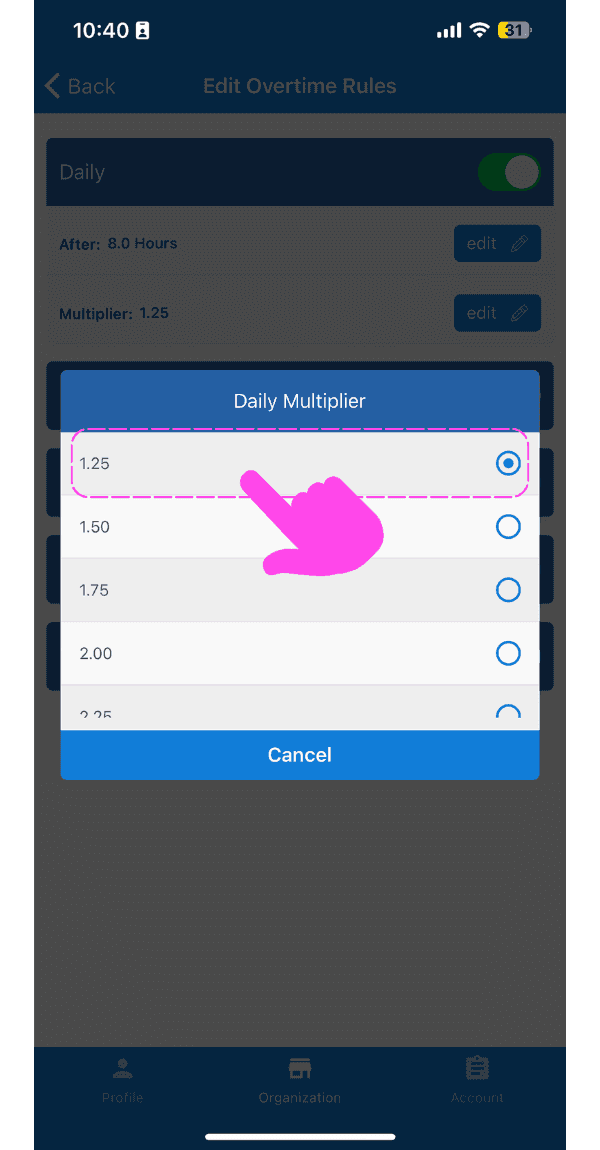
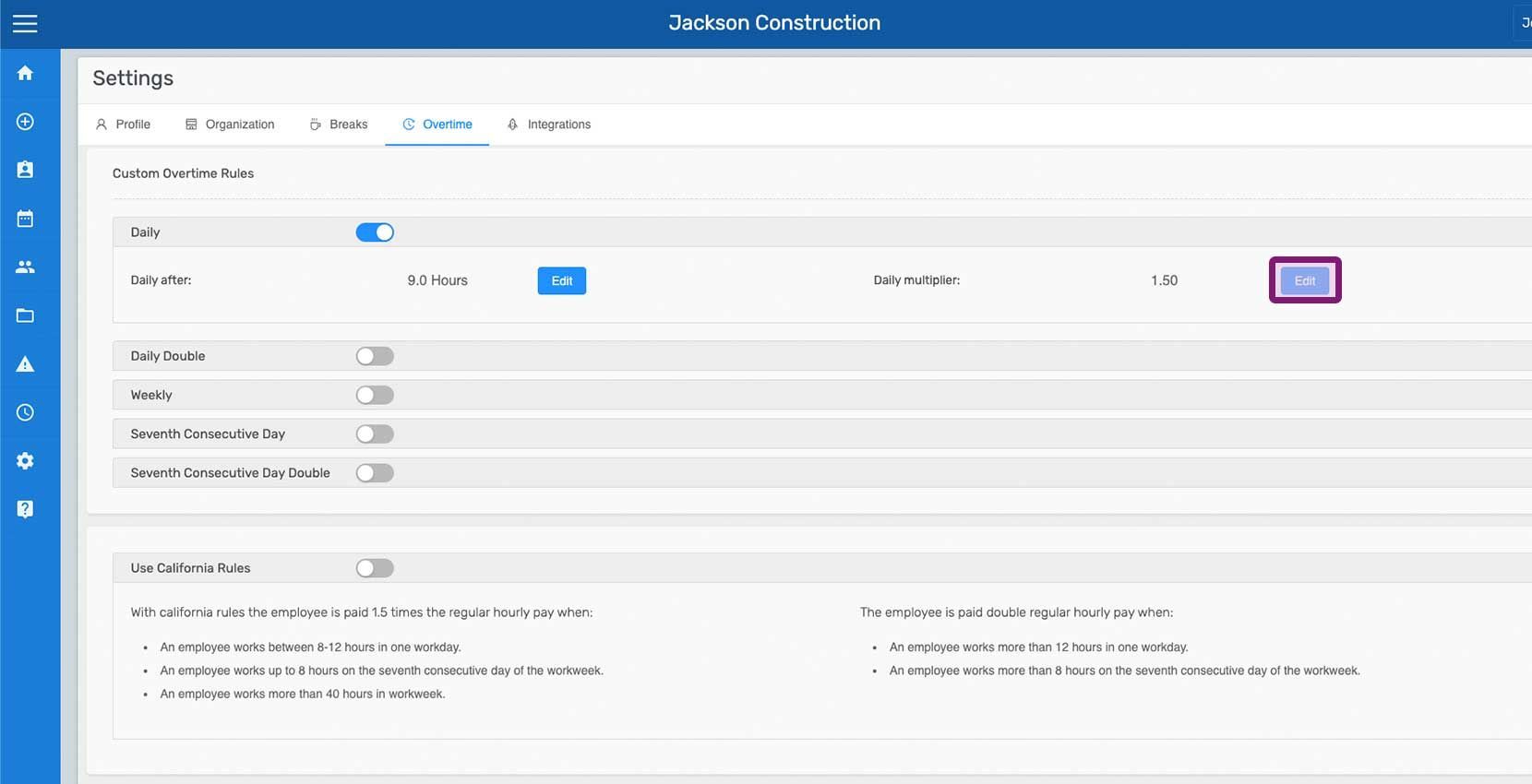
If required, edit the overtime rule rate by editing the multiplier: Tap on Edit next to Multiplier
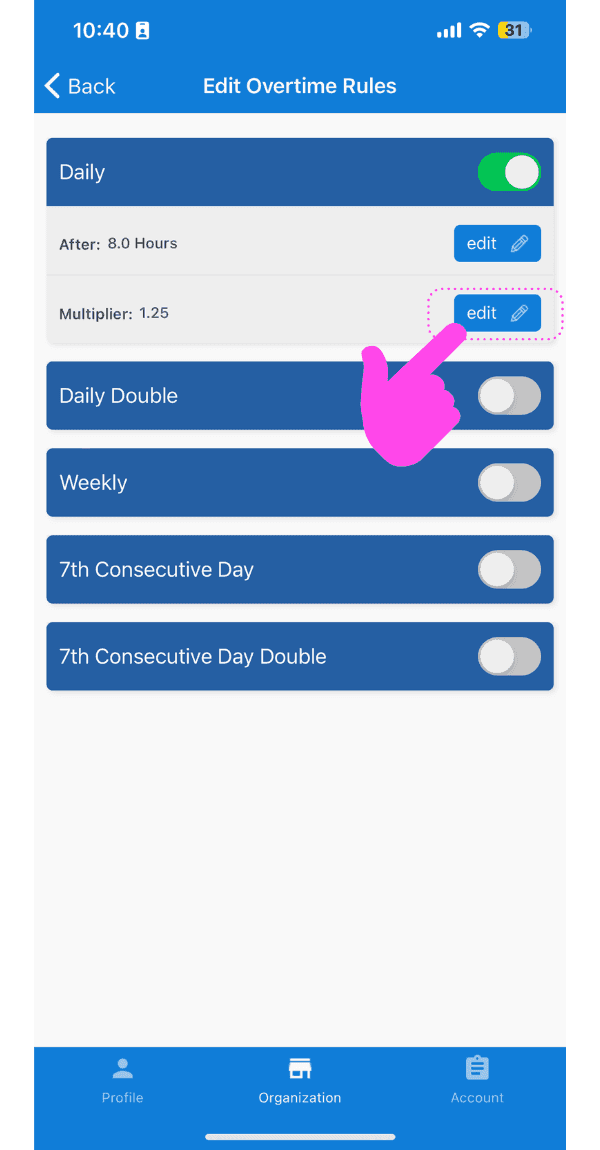
Edit Overtime Rules screen showing the Daily rule with the Multiplier Edit button highlighted by a pink arrow

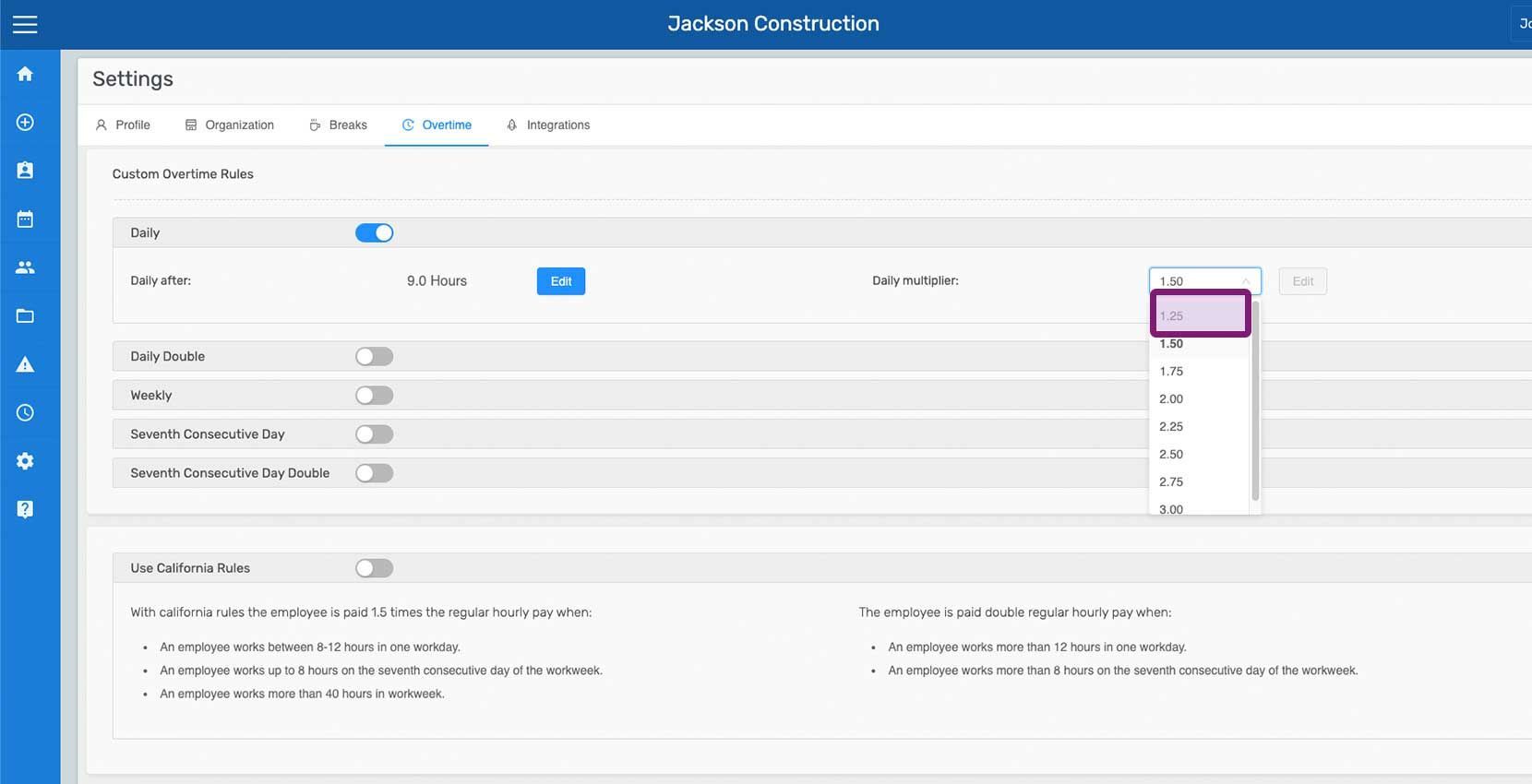
Tap on The Multiplier For The Rule

SINC mobile Daily Multiplier picker with a pink hand pointing to the 1.25 option

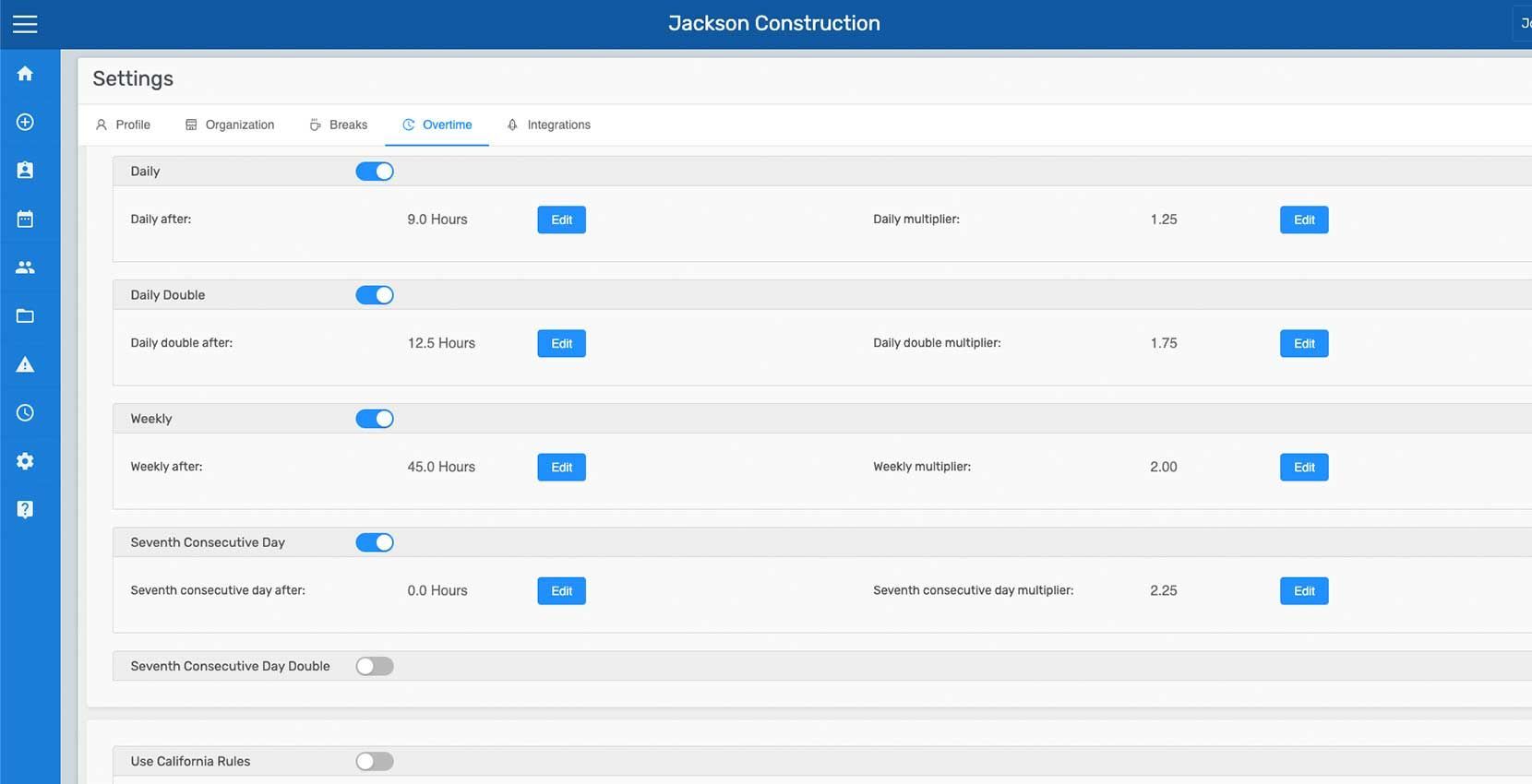
Similarly, the remaining rules can be enabled as required. The hours after which they apply and their multipliers can also be adjusted.
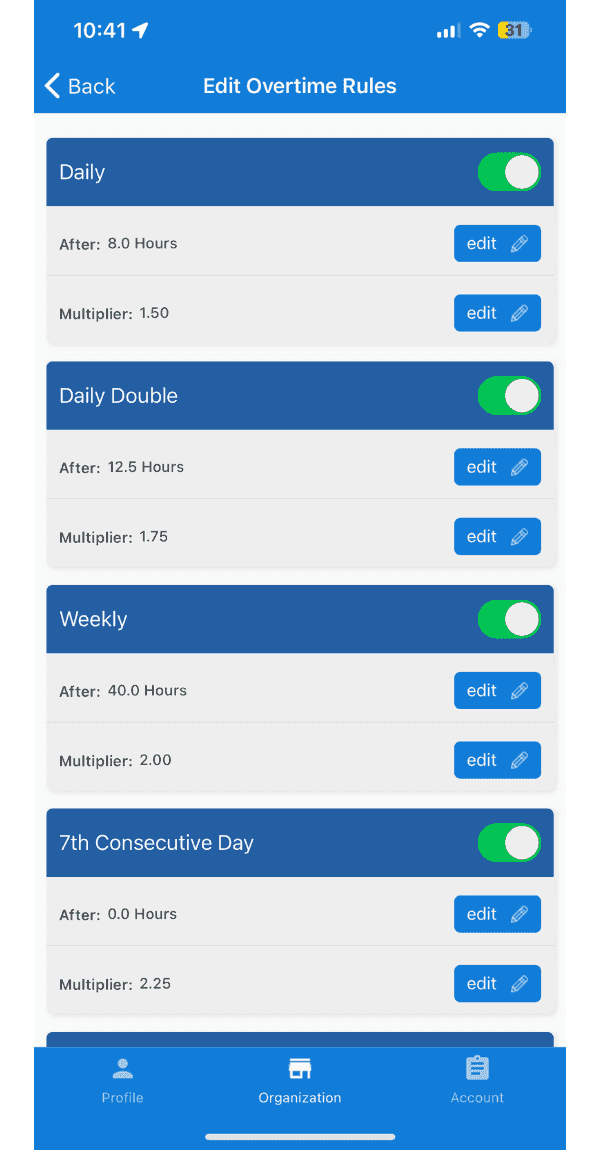
Edit Overtime Rules screen listing Daily, Daily Double, Weekly, and 7th Consecutive Day rules with toggles and multipliers

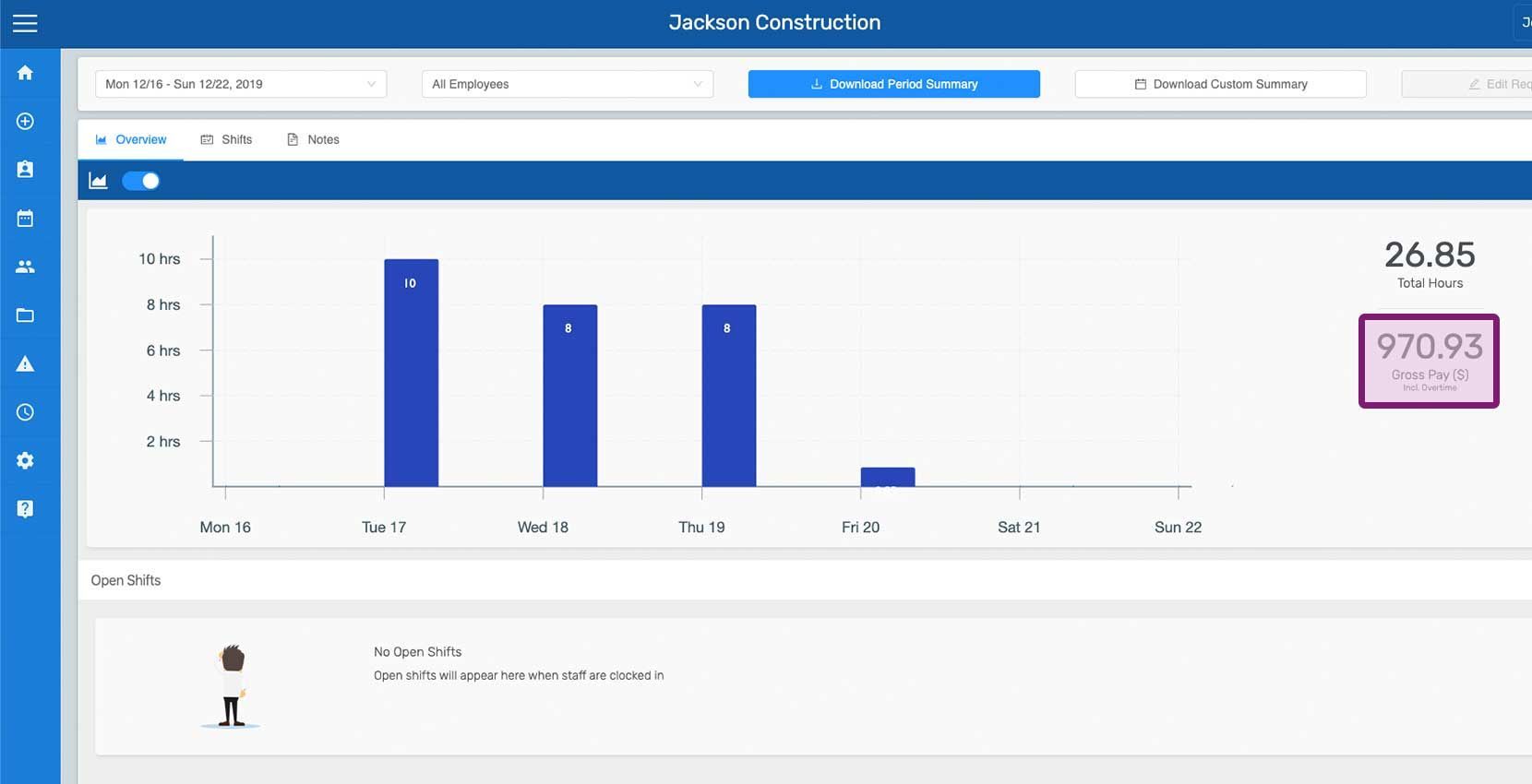
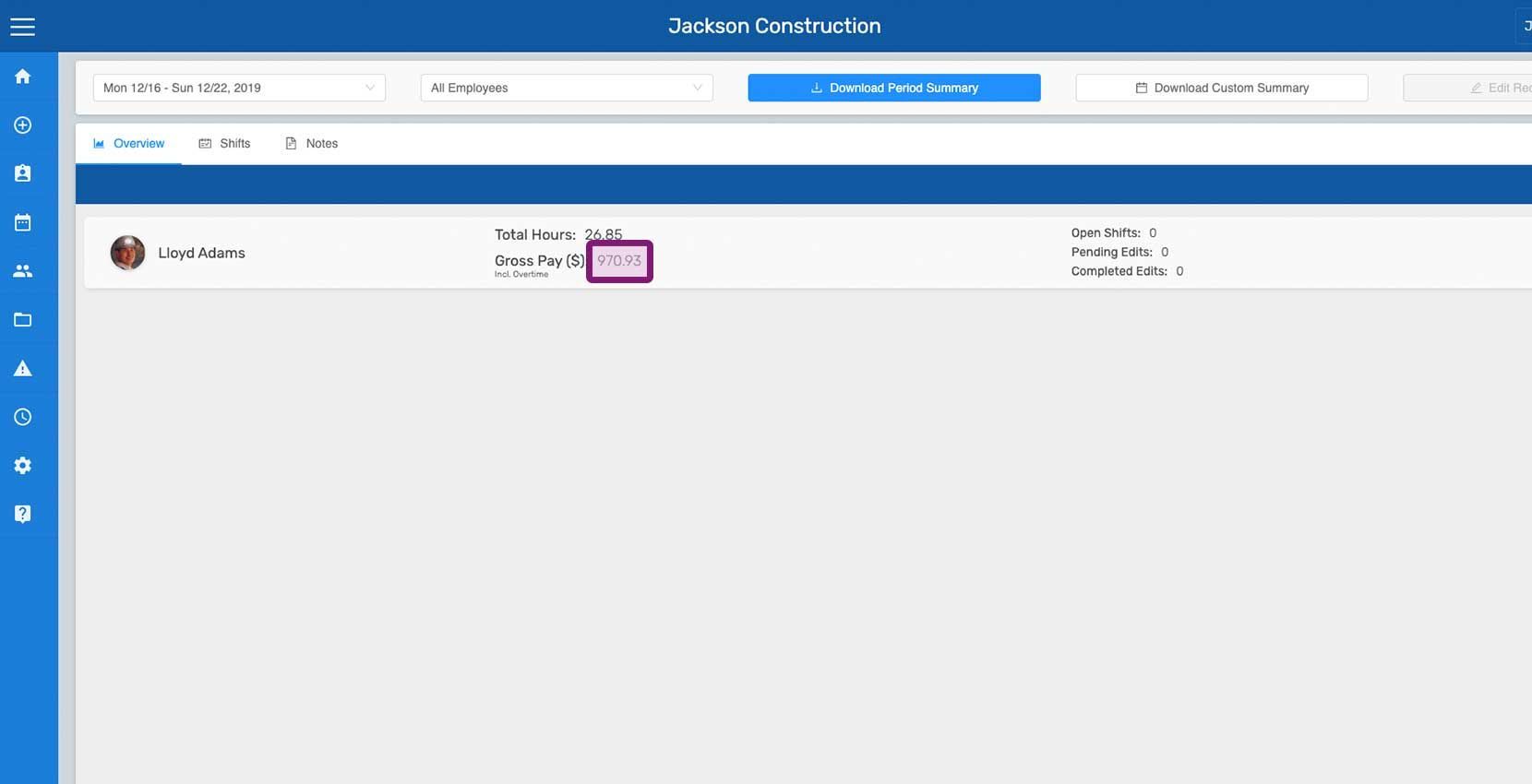
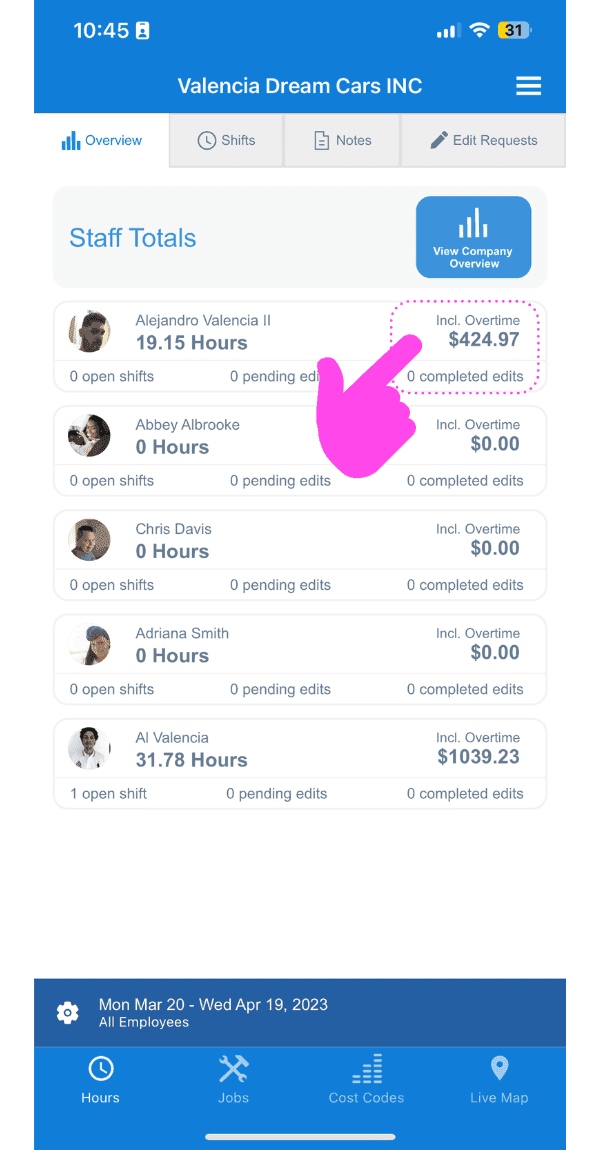
Once Overtime Week Start Day is set and a Custom Rule has been toggled on, Gross Pay on Overview and Employee Summaries is calculated and displayed with Overtime (Overtime is calculated for clocked out shifts, open shifts' gross pay don't include overtime calculations).
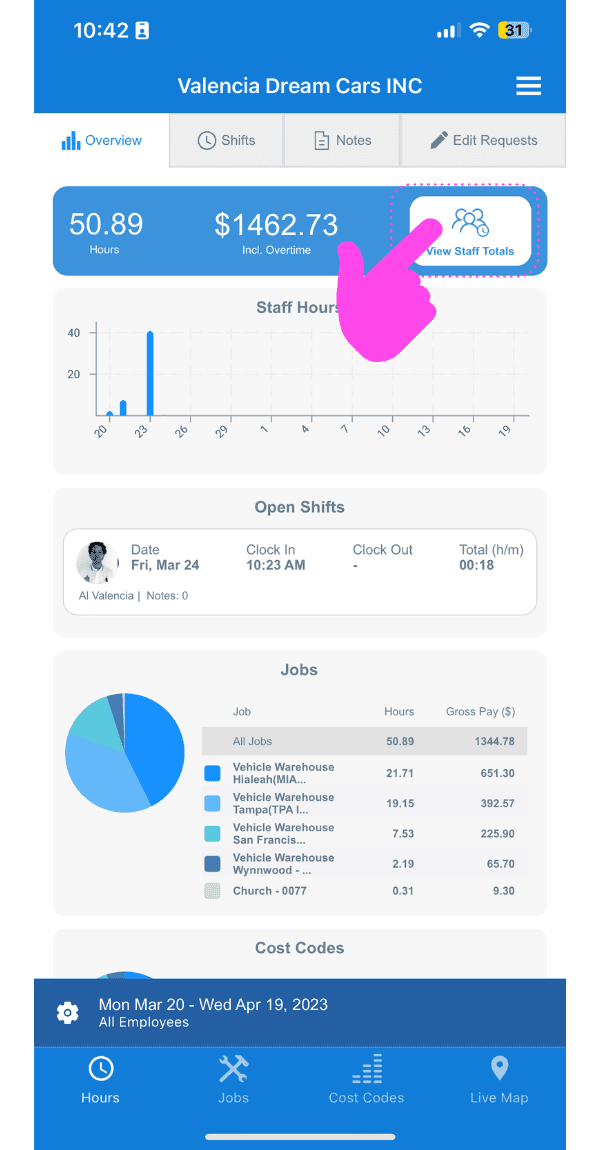
SINC mobile Overview dashboard with a pink arrow pointing to hours and gross pay including overtime
Staff Totals screen with a pink arrow pointing to an employee's hours and gross pay including overtime

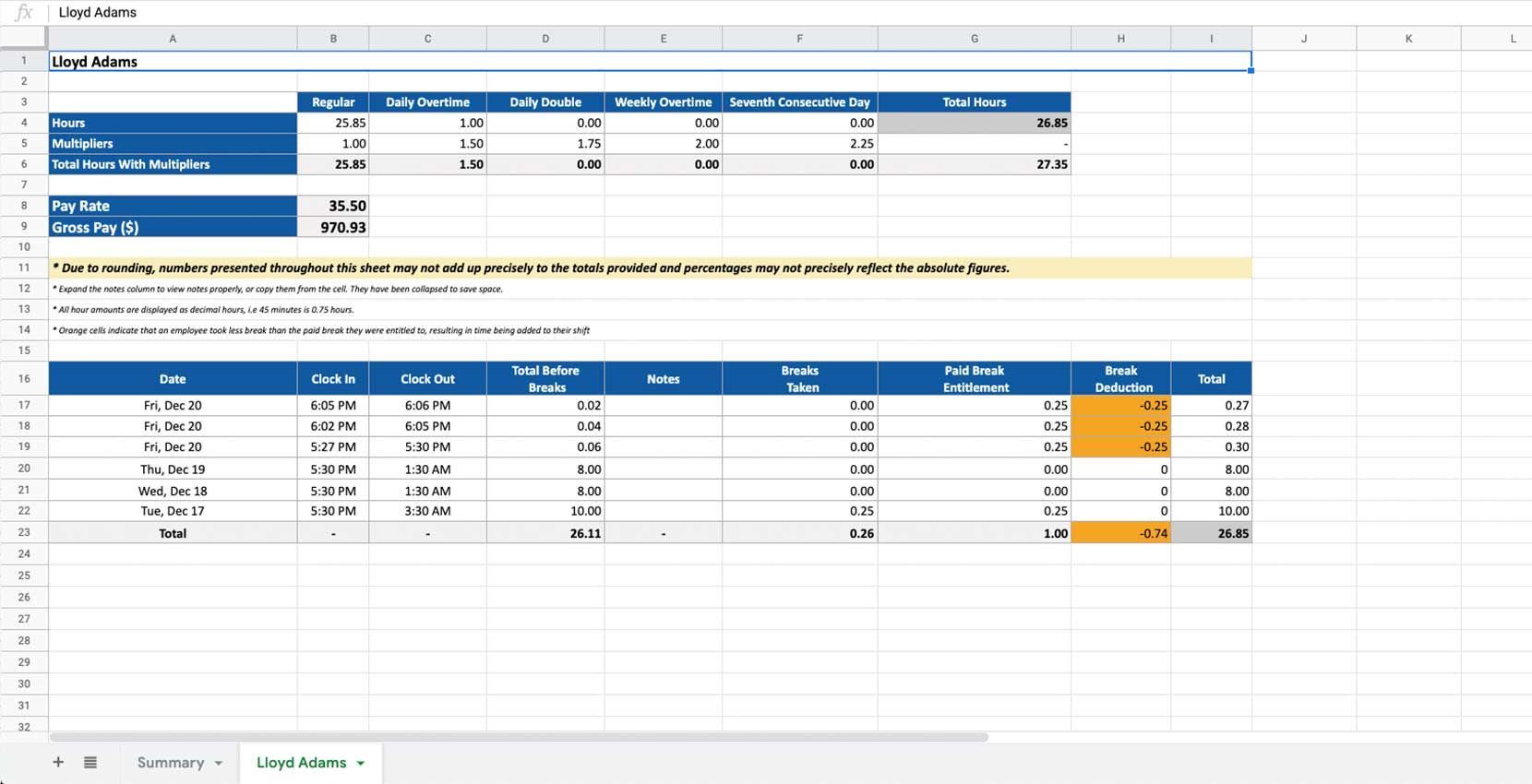
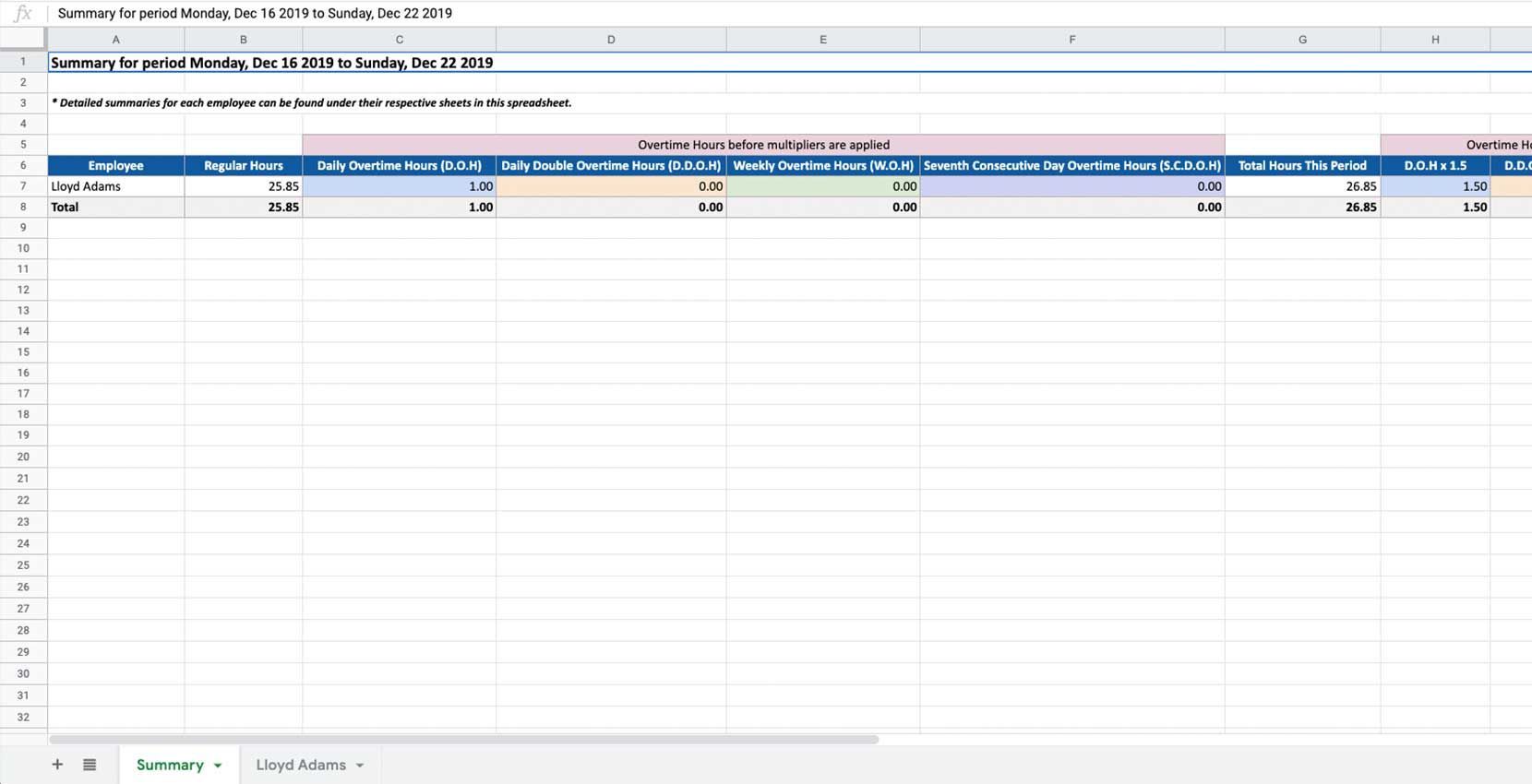
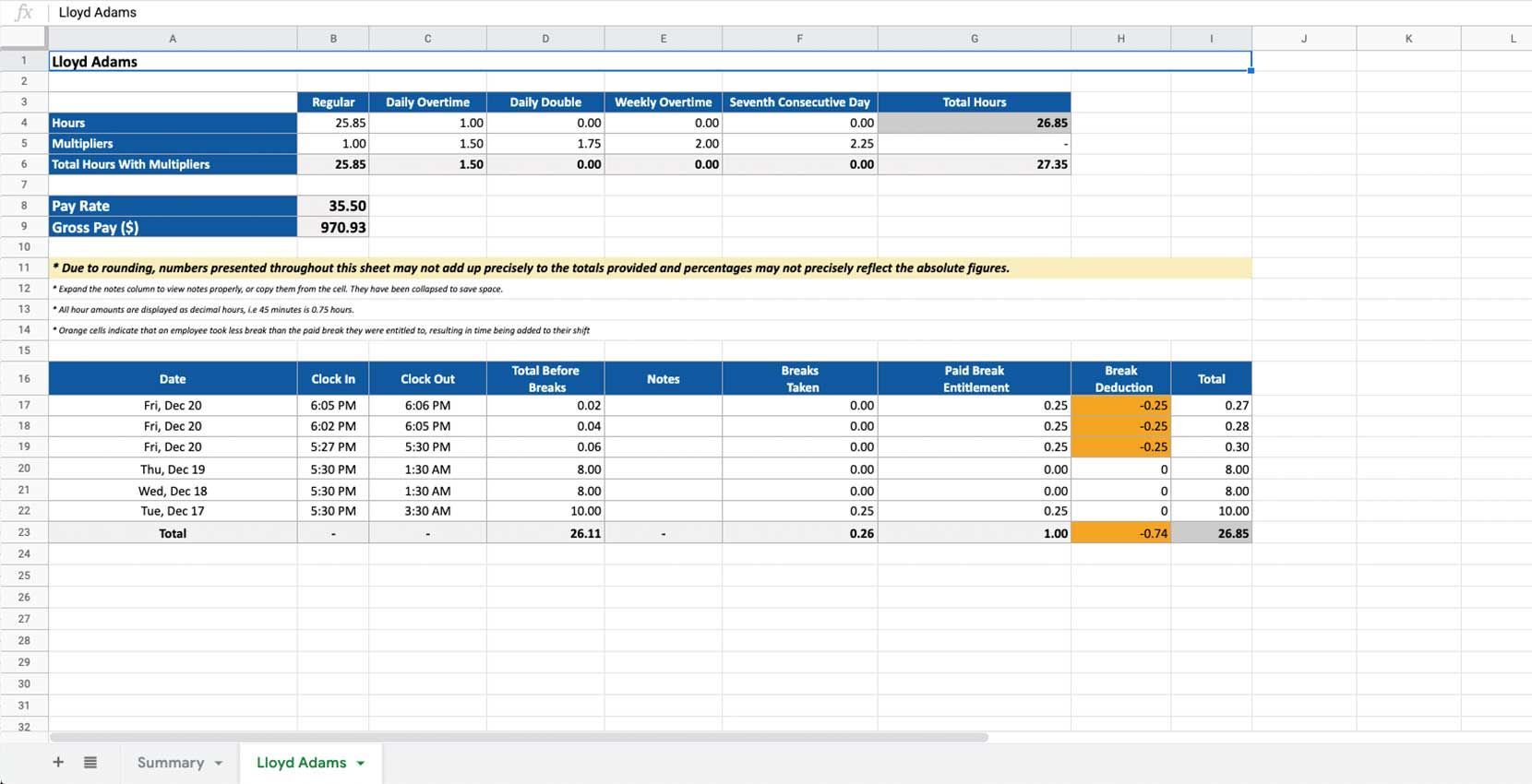
Details of the overtime calculations are displayed on the Exported Pay Period Summaries.
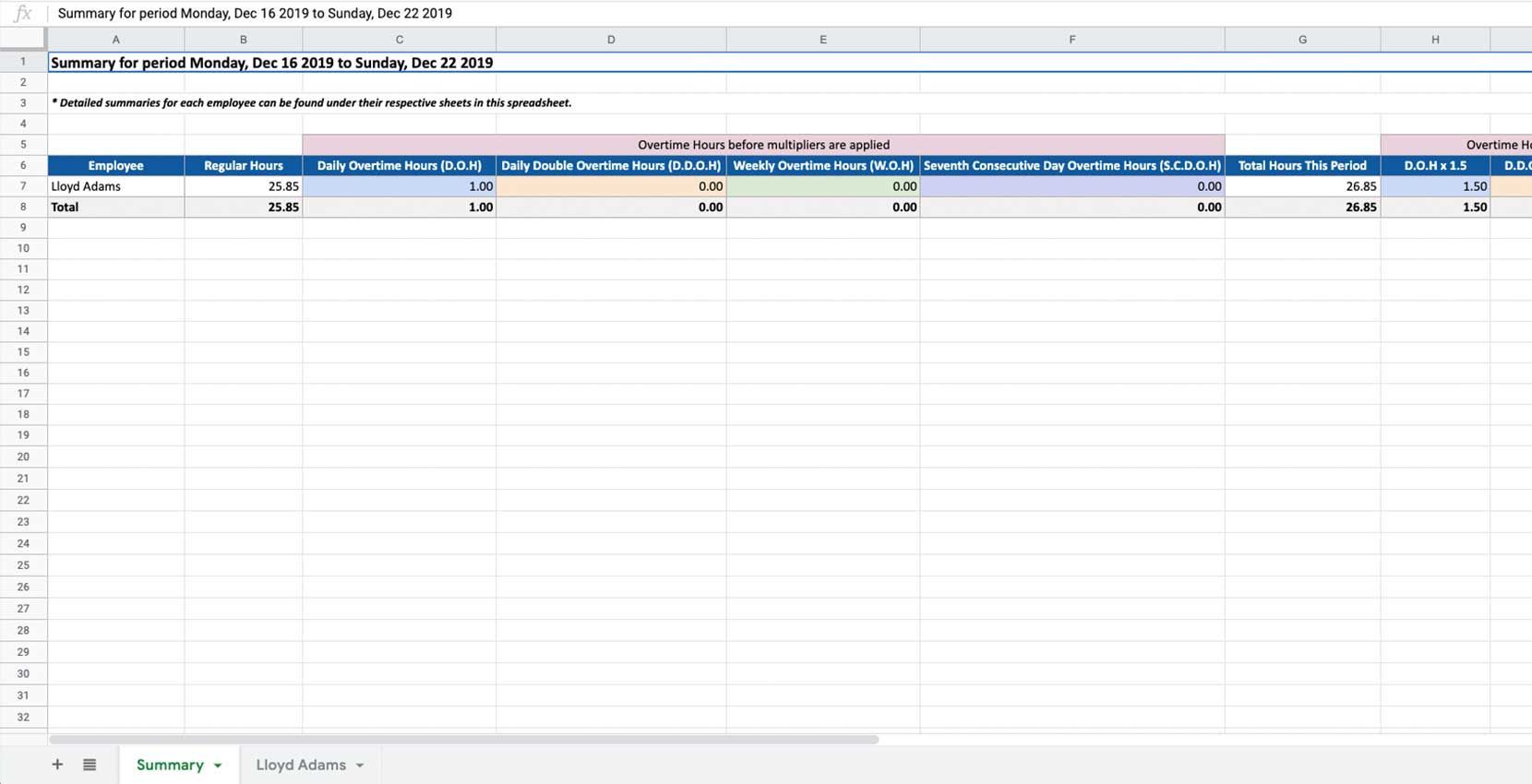
Exported pay period summary spreadsheet showing regular and overtime hours totals for an employee
Exported pay period summary spreadsheet showing overtime, double time, and total hours columns for an employee

If you are using the web version it will look like this:
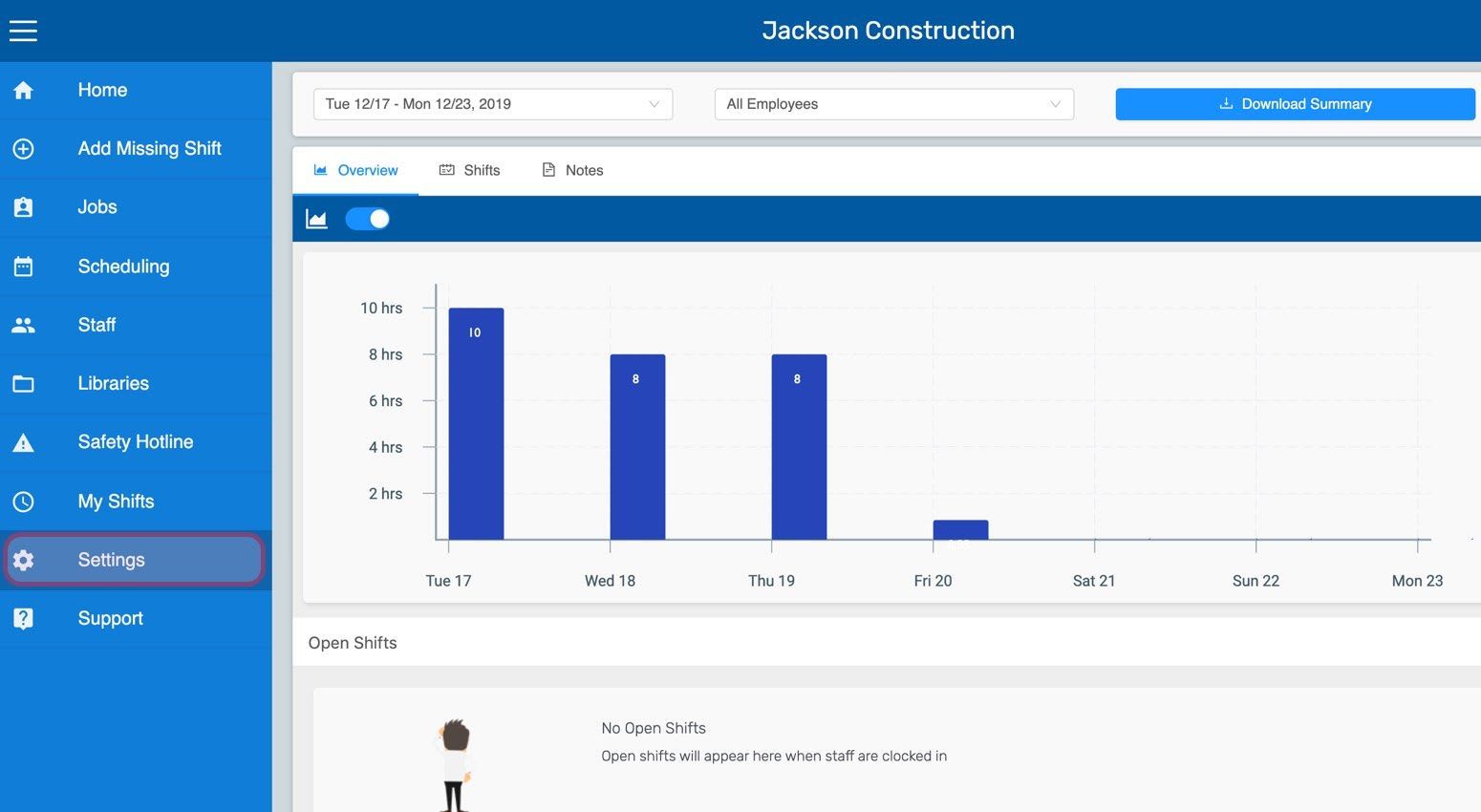
SINC web dashboard sidebar with the Settings menu item circled
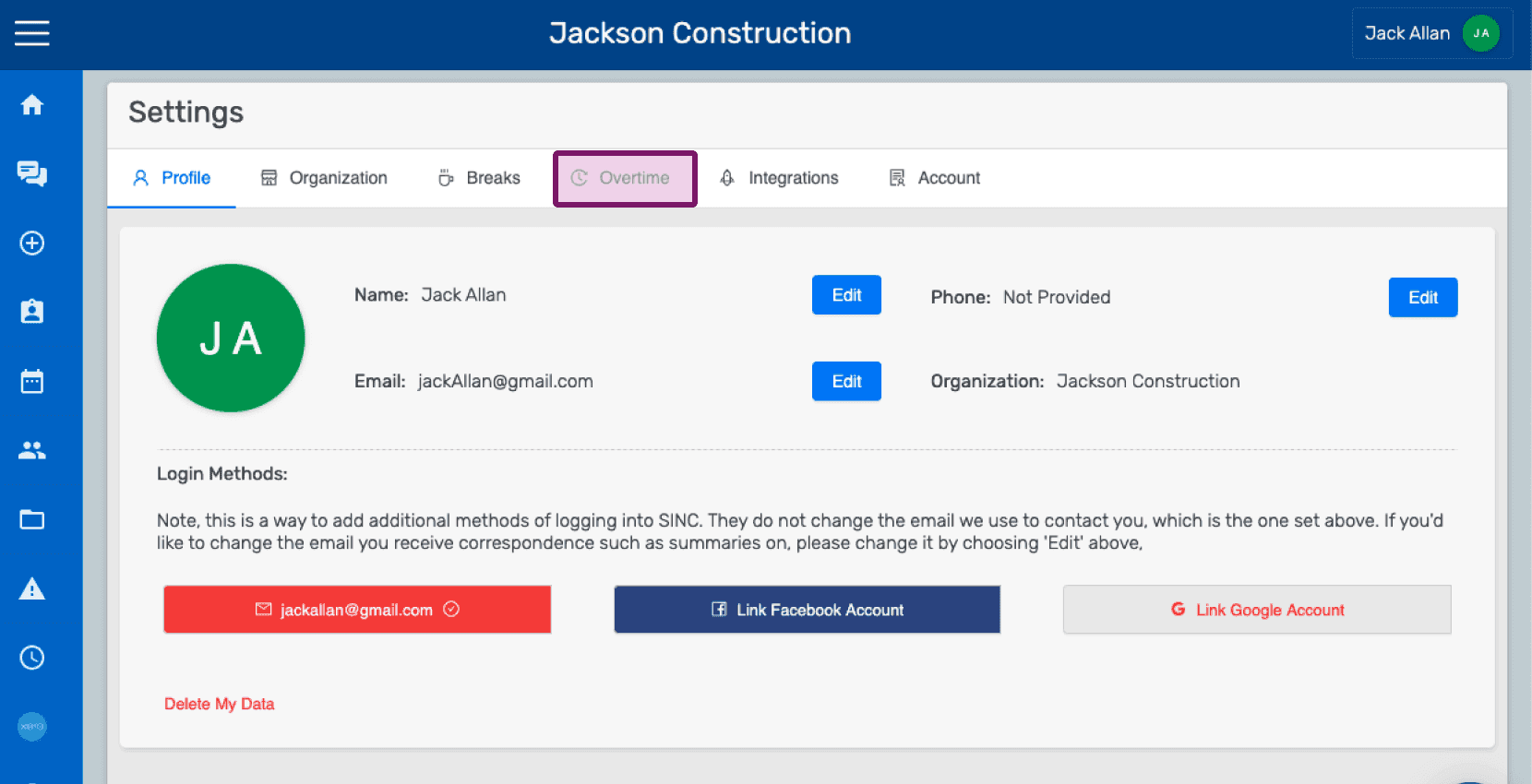
Settings Profile screen with the Overtime tab highlighted
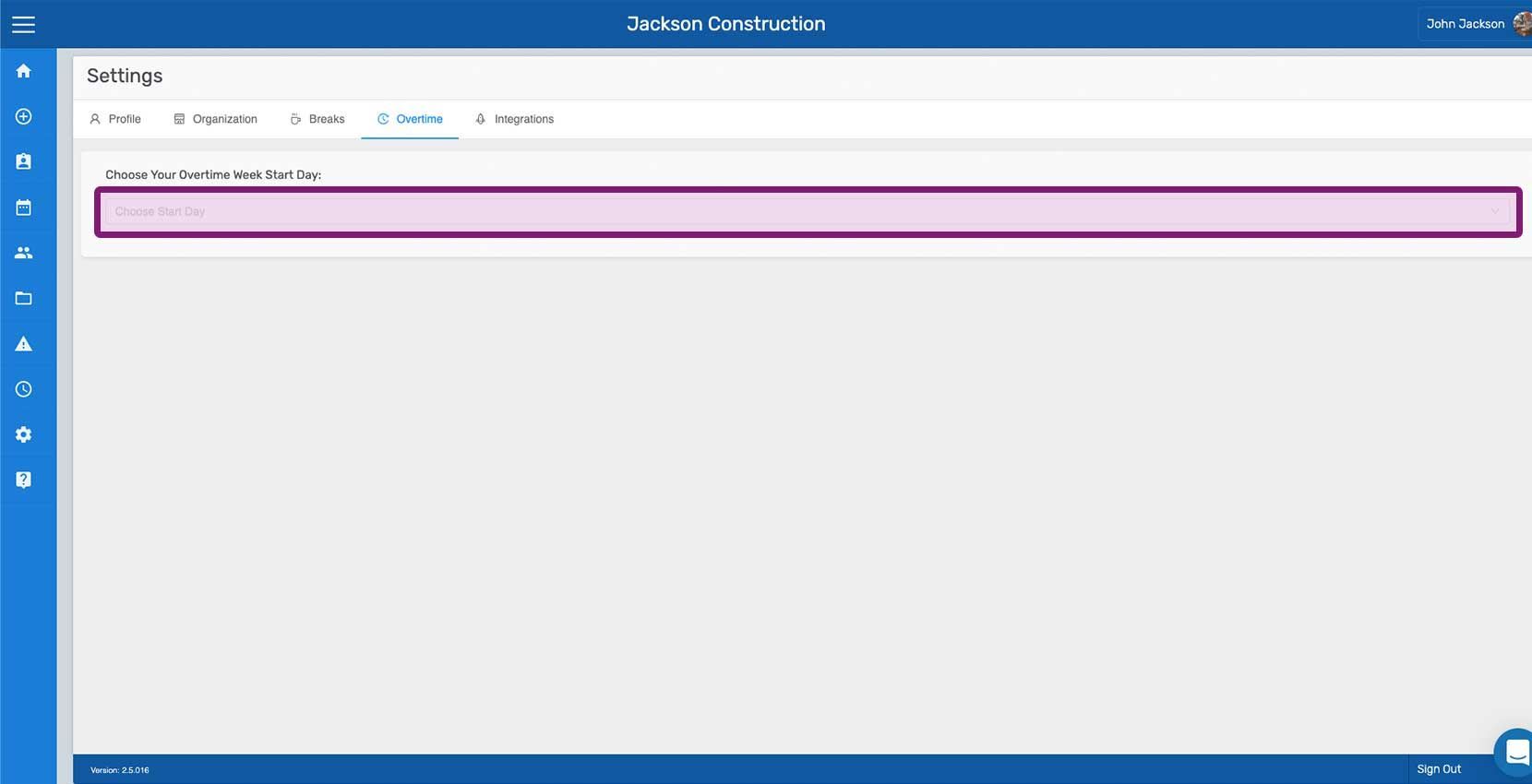
Web Organization Overtime tab with the Choose Your Overtime Week Start Day field outlined in purple
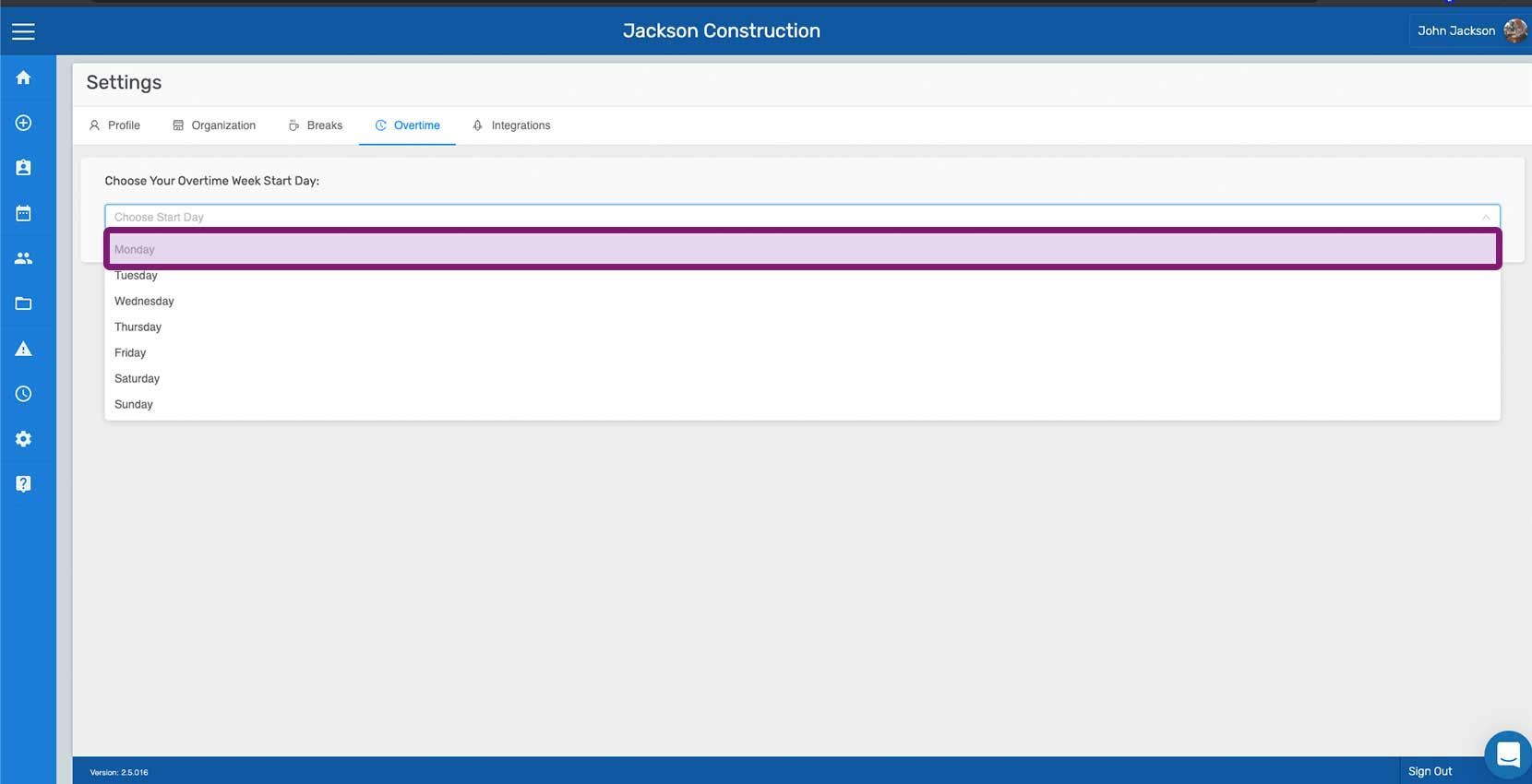
SINC web Settings Overtime tab with the Choose Overtime Week Start Day dropdown outlined
SINC web Settings Overtime tab with the Daily custom overtime rule toggle outlined in pink
Custom Overtime Rules screen showing the Daily rule enabled with hours and multiplier fields, Edit button outlined
SINC web Custom Overtime Rules settings with the Daily after-hours dropdown open and an hour option highlighted in pink
Web Settings Overtime tab showing custom daily overtime rules with the multiplier Edit button outlined in purple
Organization Settings Overtime tab showing custom Daily overtime rule with the multiplier dropdown highlighted in purple
SINC web Overtime settings tab listing Daily, Daily Double, Weekly, and Seventh Consecutive Day rules with their multipliers
Web dashboard Overview screen showing a weekly hours bar chart with the gross pay total outlined in pink
SINC web employee overview screen with the gross pay figure outlined in pink
Exported overtime summary spreadsheet showing regular hours, overtime categories, and total hours for the pay period
Exported spreadsheet showing an employee's overtime hours breakdown under custom overtime rules

Did this answer your question?