
Add Overnight Shifts To Your Employee Schedules
In this tutorial we show you how to add overnight shifts to your employee schedules

Schedules have to be created using the web version, not the app. First, please navigate to users.sinc.business on a computer using Chrome or Firefox. Before adding a shift, it's important to review what a Scheduled Shift is: it's a way to let an employee know when they're working and what they'll be doing that shift. A Scheduled Overnight Shift starts on one day and ends on the next. A scheduled (overnight) shift is NOT by itself a shift that will be recorded against hours for the pay period; shifts and their hours are only recorded when an employee clocks in or out in the usual way.
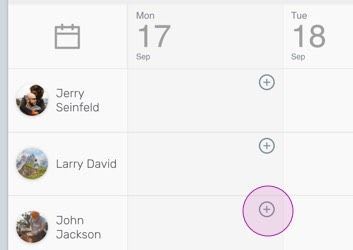
On Web: Add an overnight shift by clicking the circular plus icon for the employee and day you want to add a shift for.
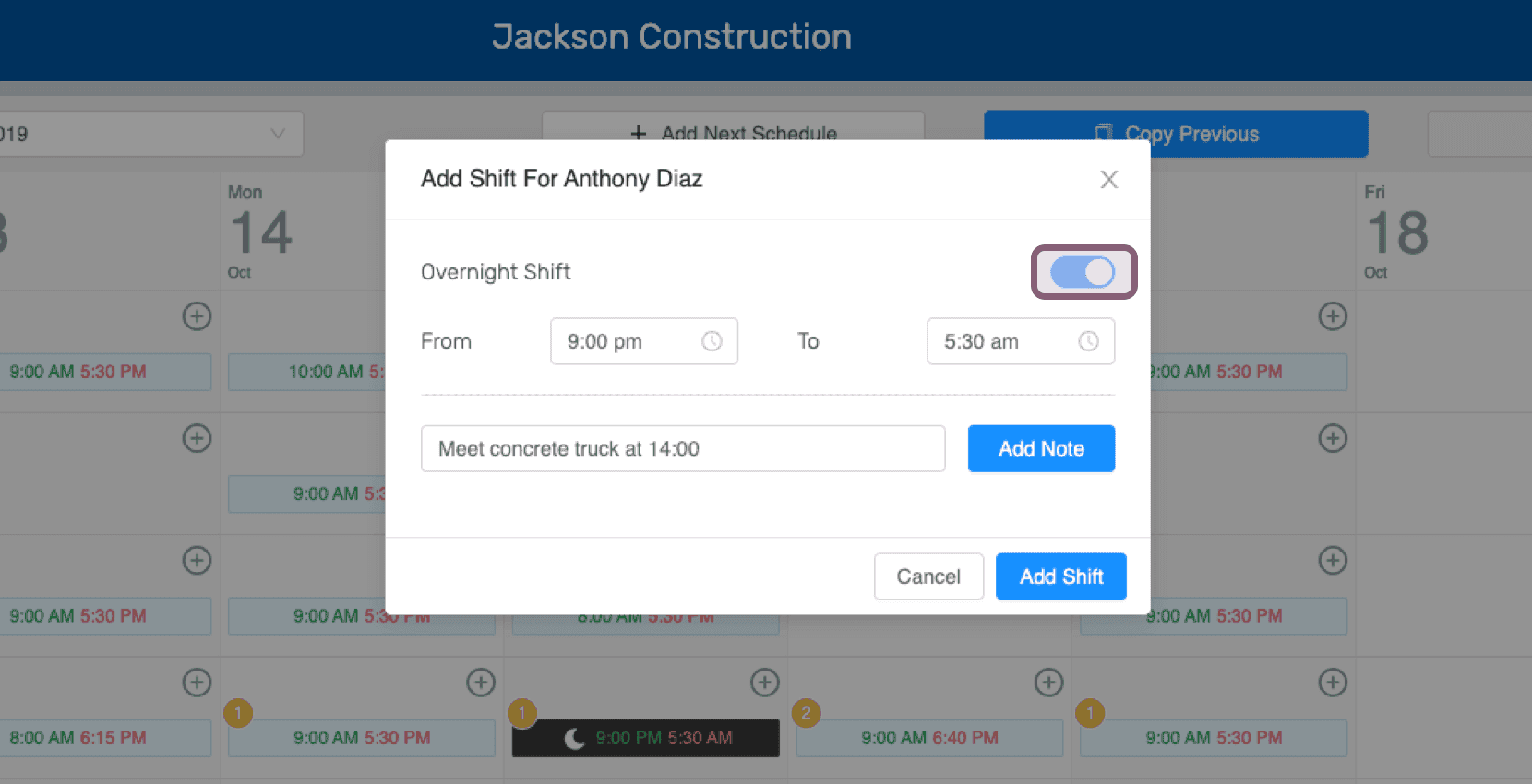
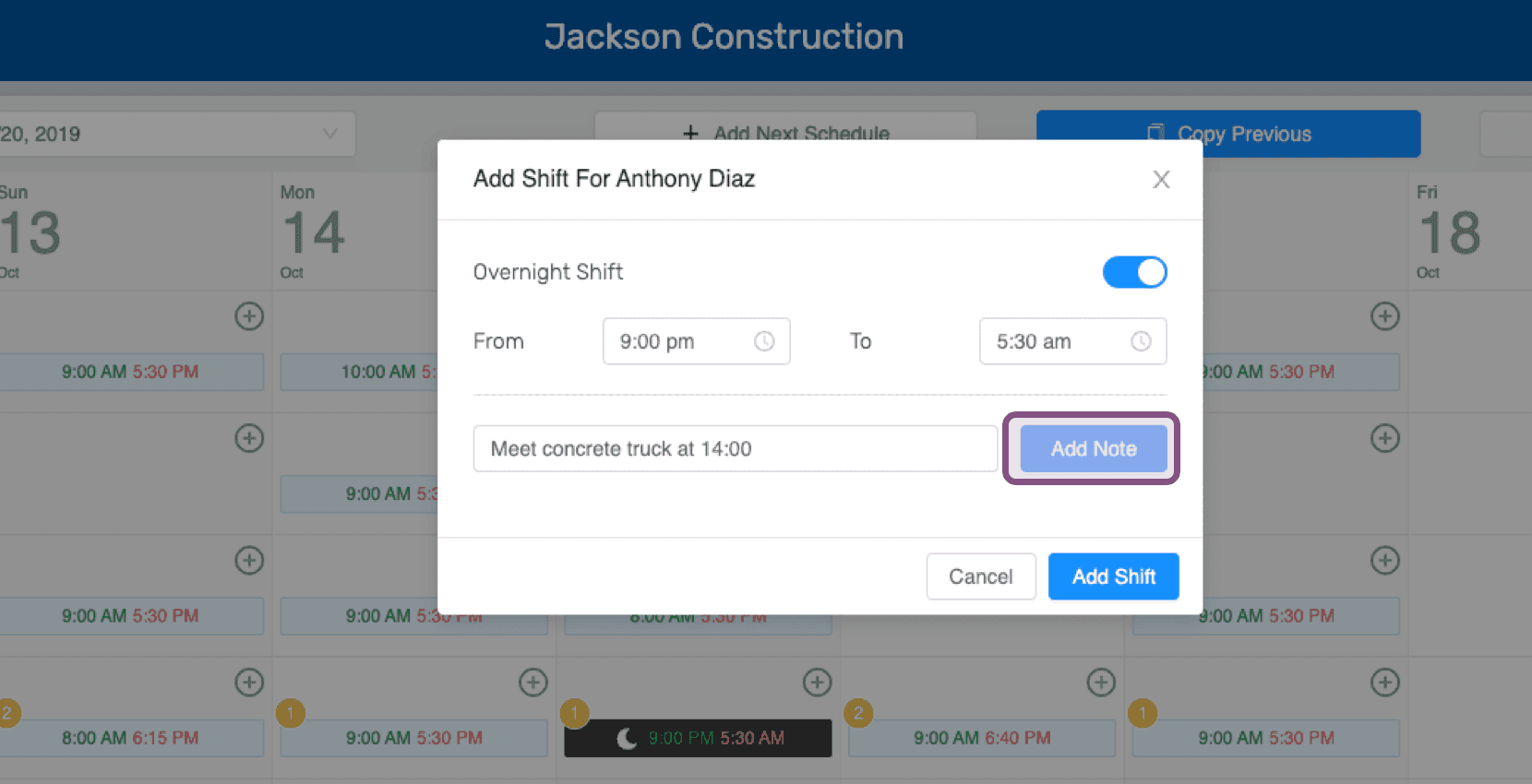
Toggle on Overnight Shift.
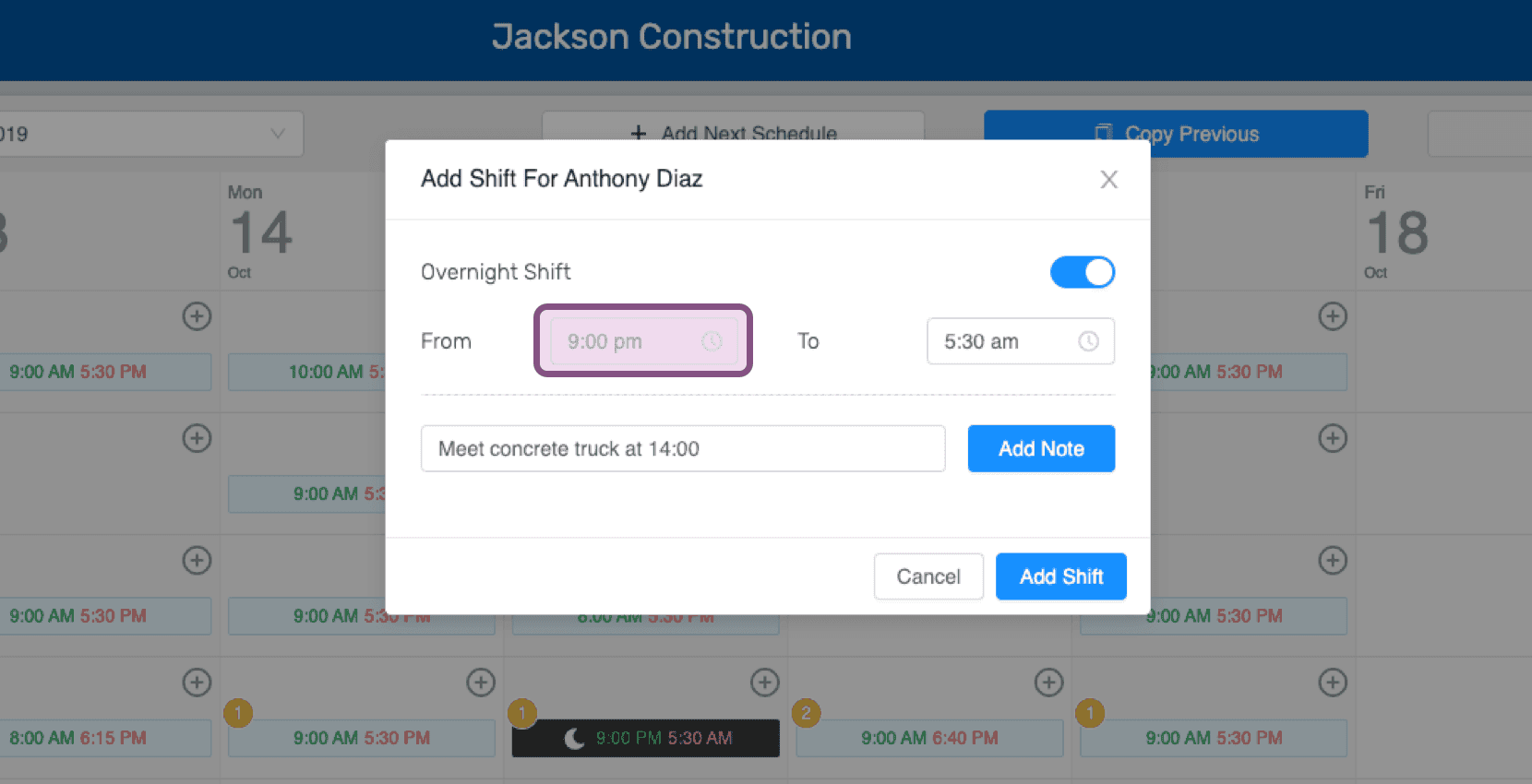
Choose schedule overnight shift clock in time. This can be edited later.
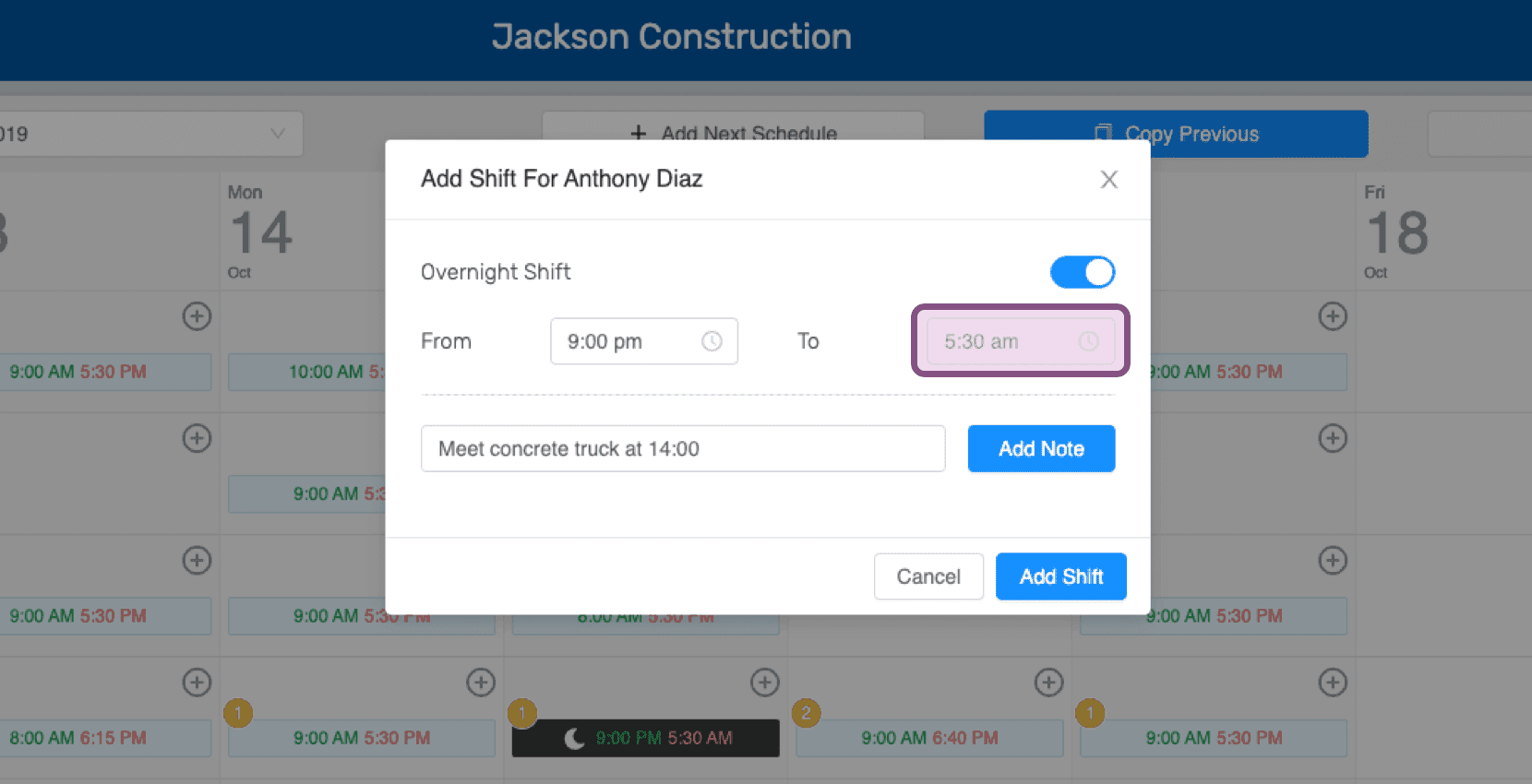
Choose schedule overnight shift clock out time. This can be edited later.
You can add any important notes you'd like here as well. These can always be added or removed later.
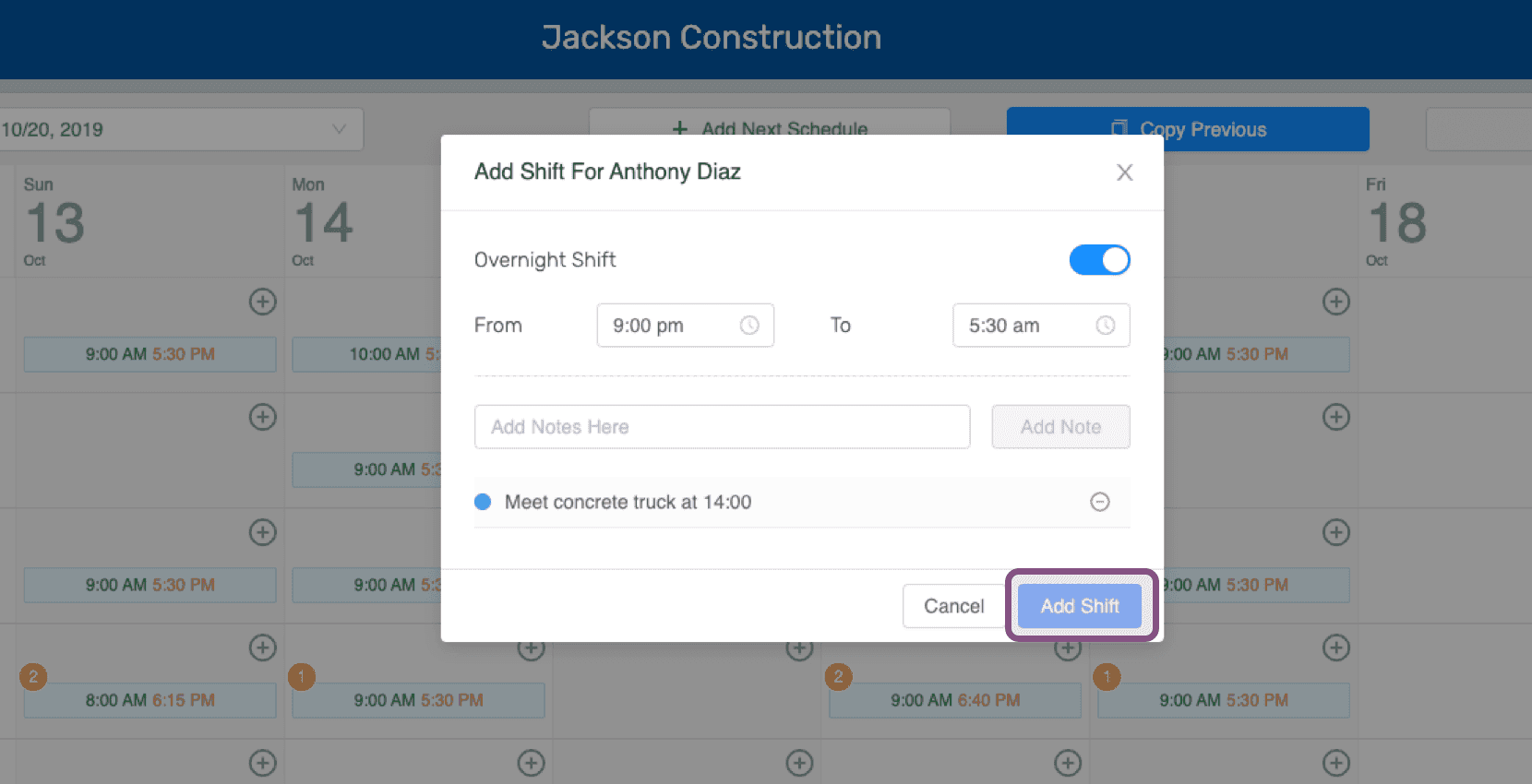
Click on Add Shift.
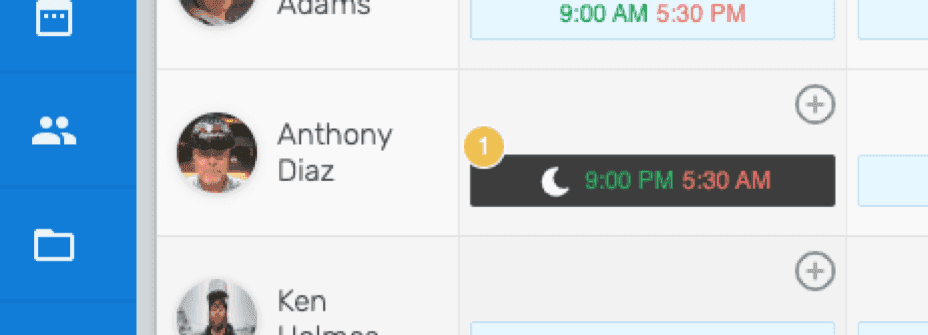
You can now see the added shift on the schedule. The yellow circle on the corner indicates that this scheduled overnight shift has a note.
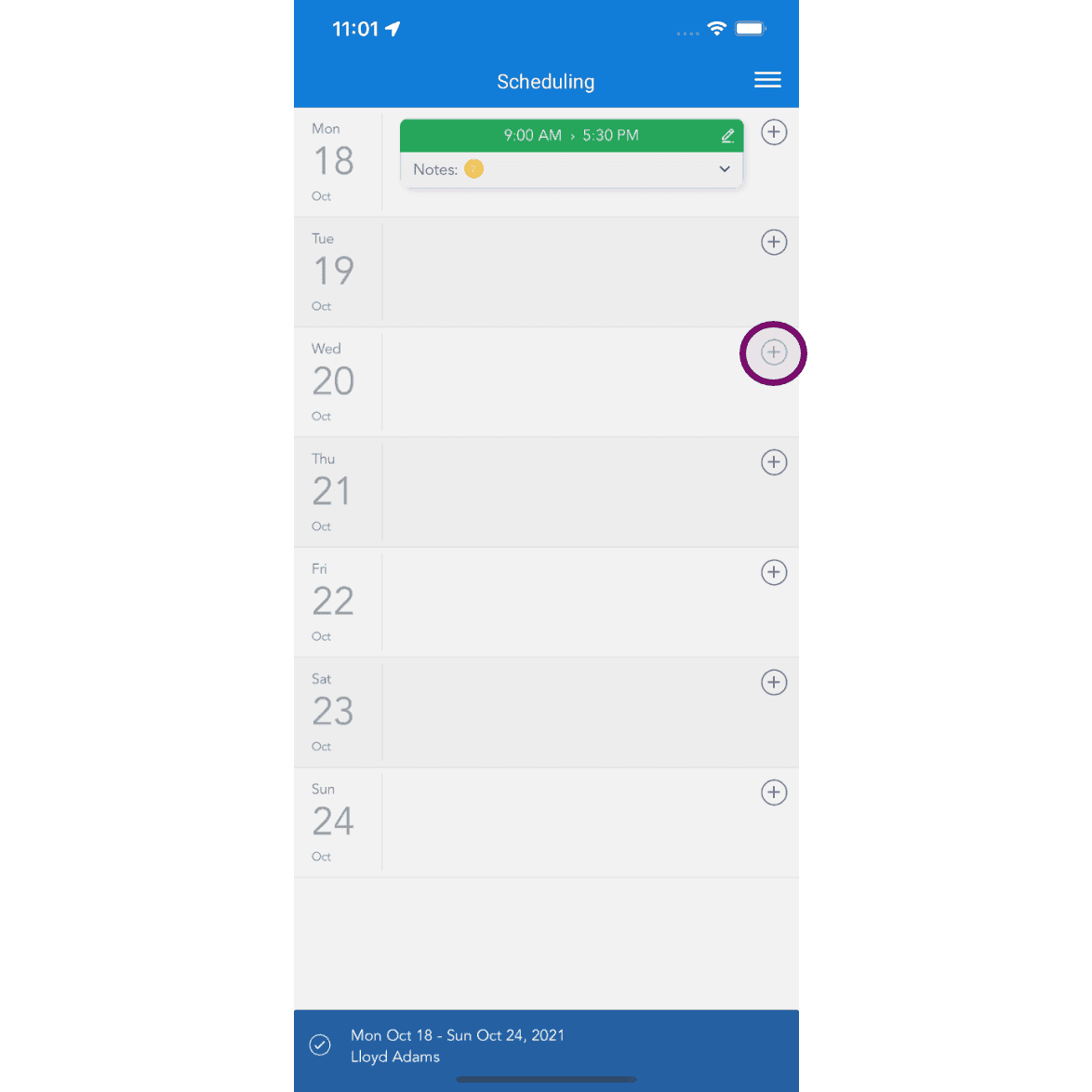
On Mobile: Tap on plus icon to add a scheduled shift.
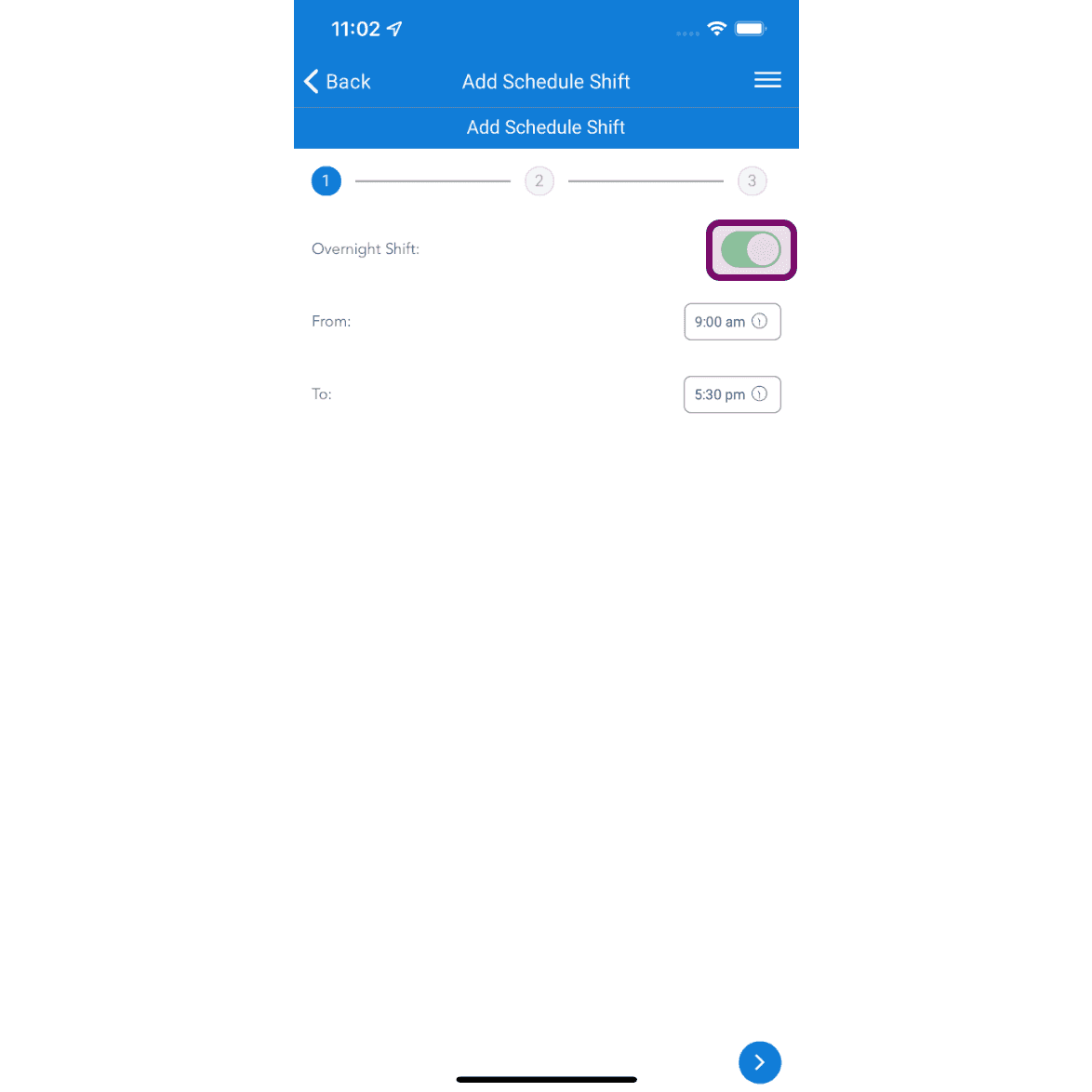
Toggle on Overnight Shift.
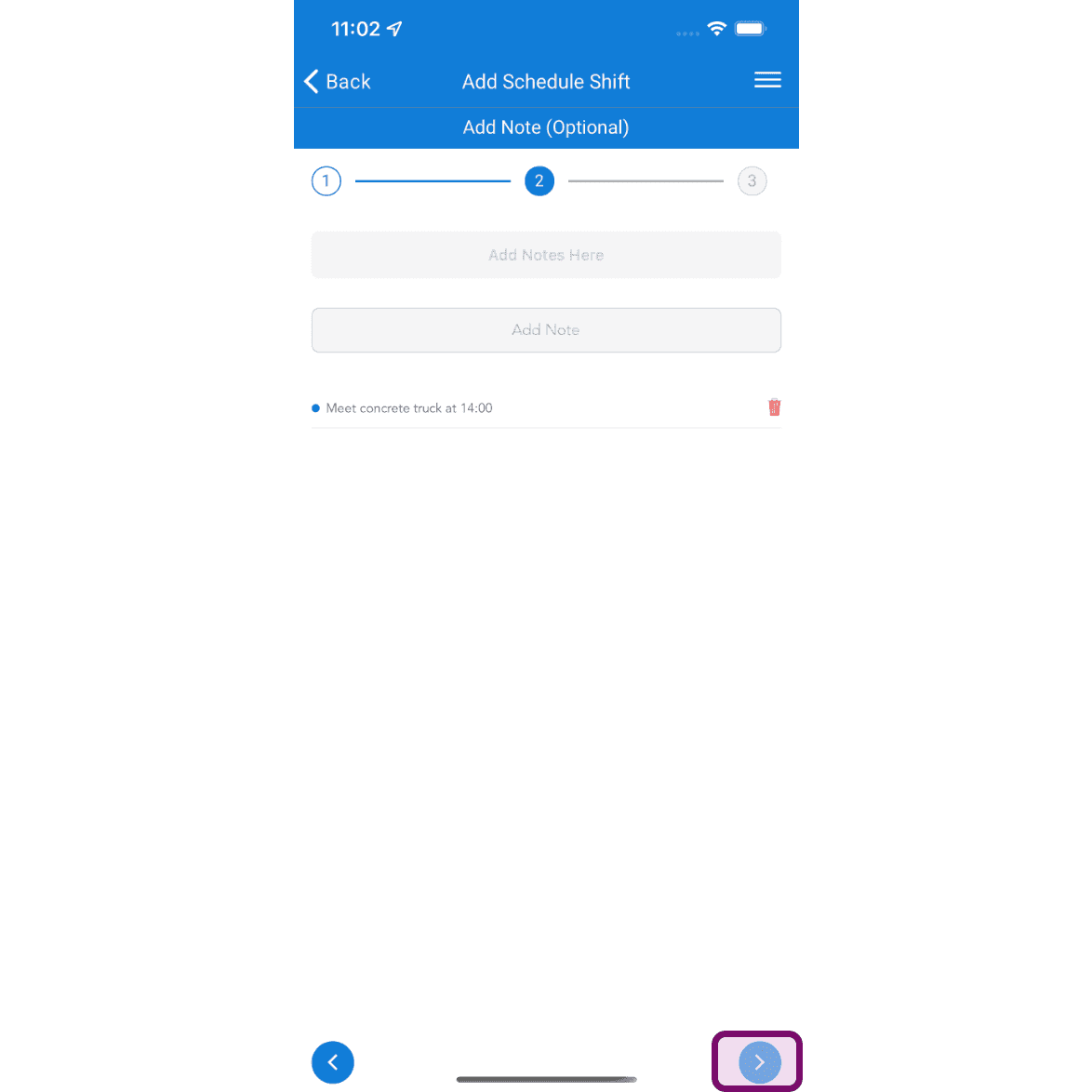
Add Note if necessary, then tap on next button.
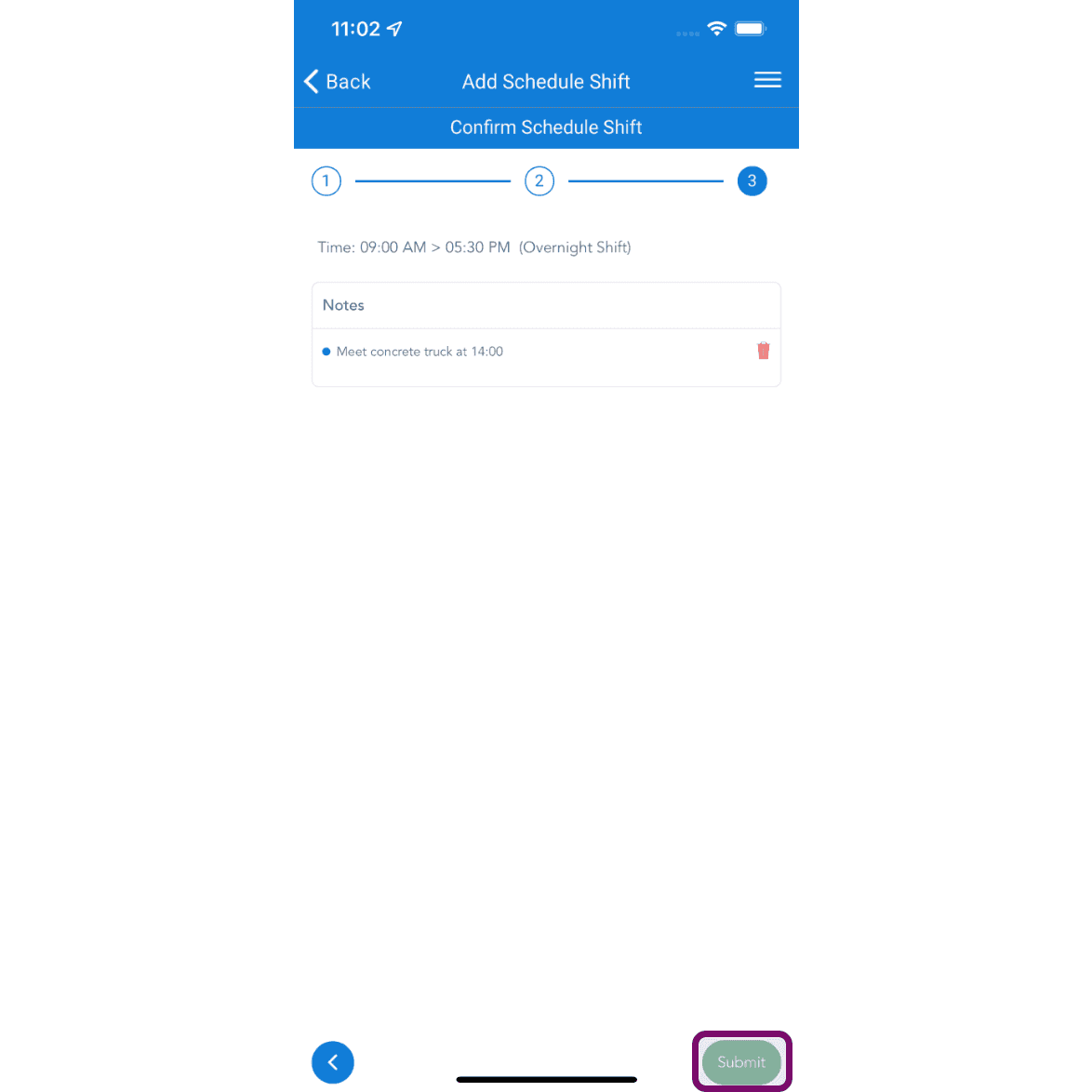
Click on Submit button to add the shift.
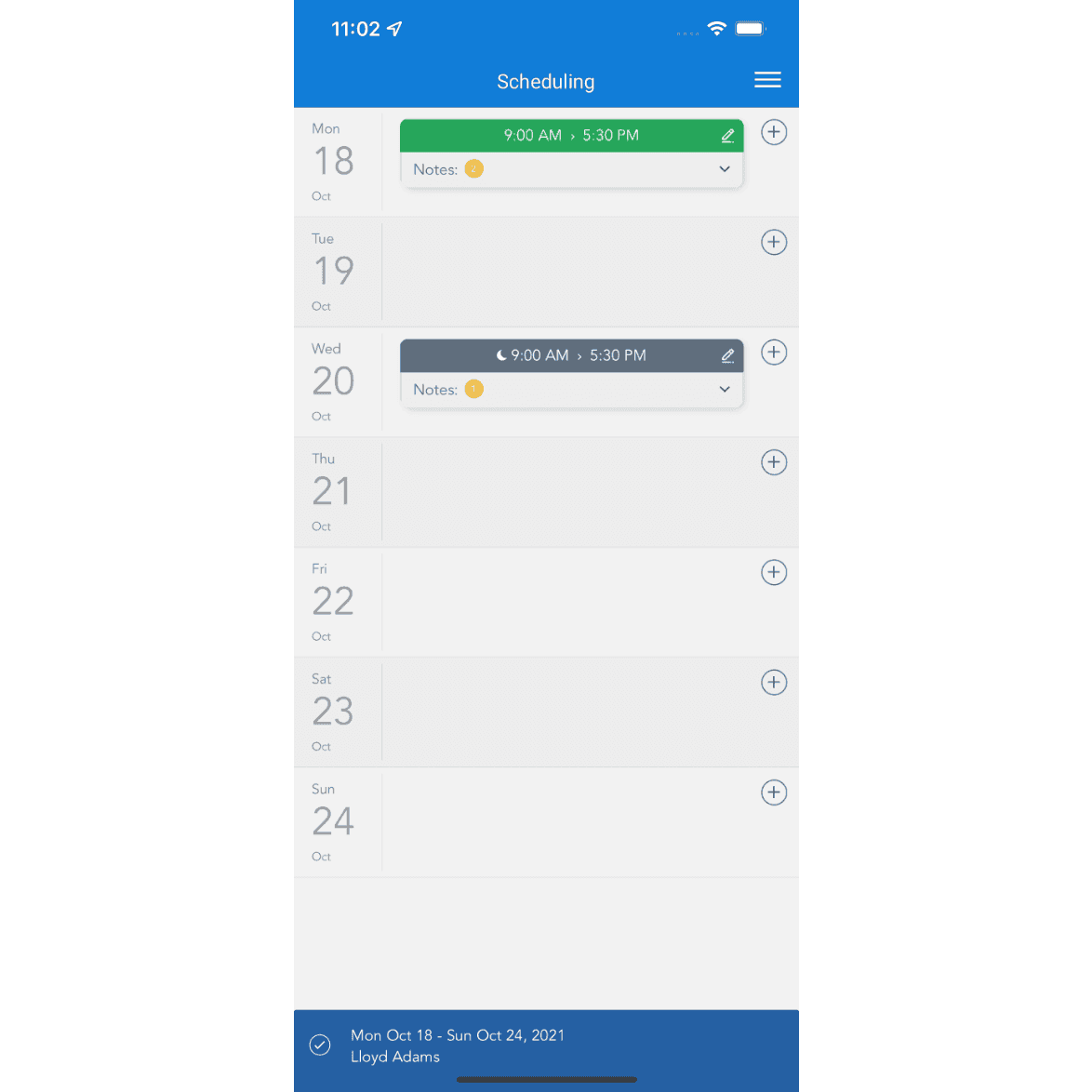
You can now see the added shift on the schedule. If the schedule has been published, the employee will receive a notification about a shift being added on that day. They can then view the details in the My Schedule section of their SINC App.
Did this answer your question?