
Add Predefined Template
In this tutorial we show you how to add predefined template to your employee schedules

SINC Support Team
May 7th, 2021
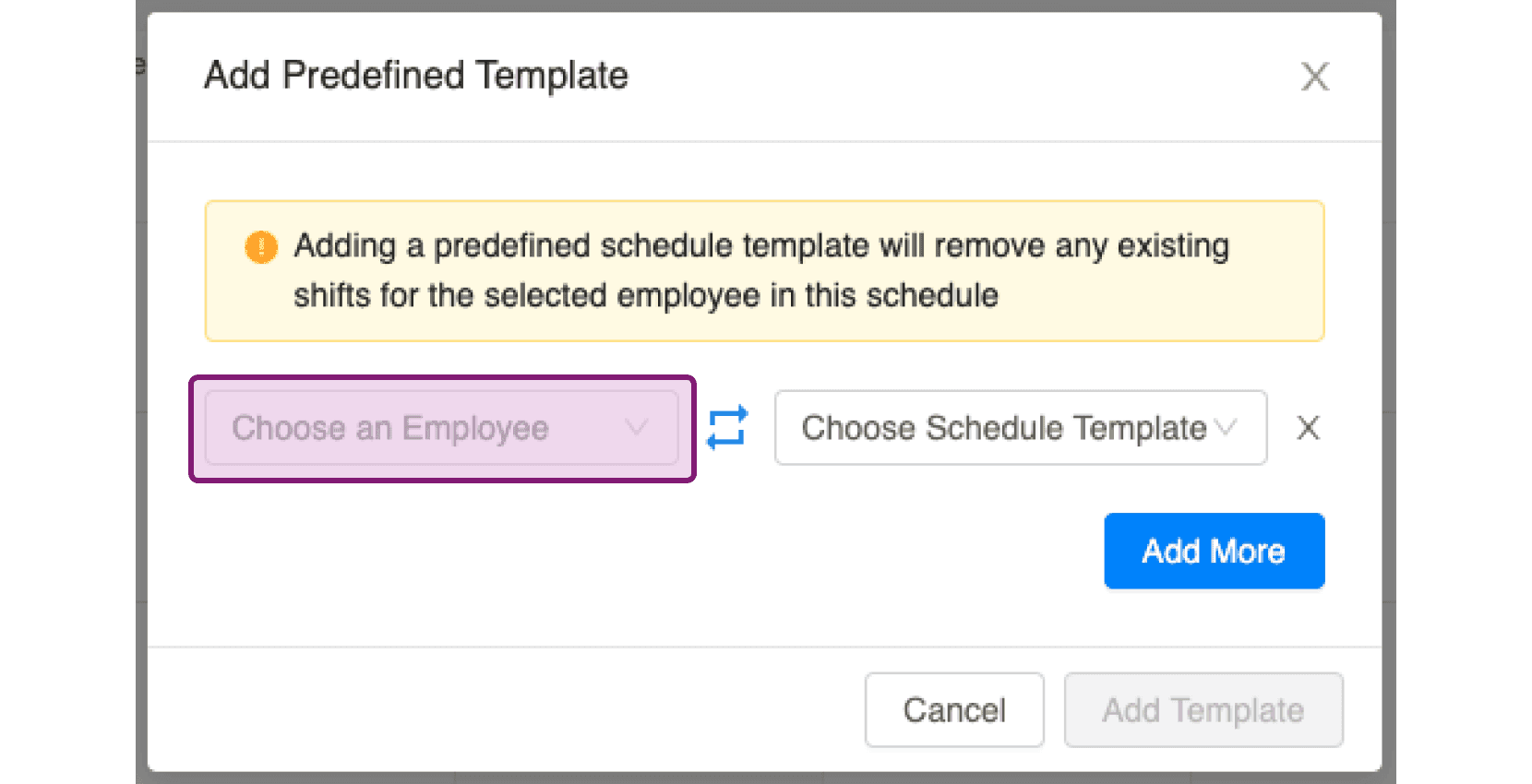
Add Predefined Template allows you to assign a default or customized weekly/bi-weekly schedule template to a group of staff. Note that adding a predefined schedule template will remove any existing shifts for the selected employee in your current schedule.
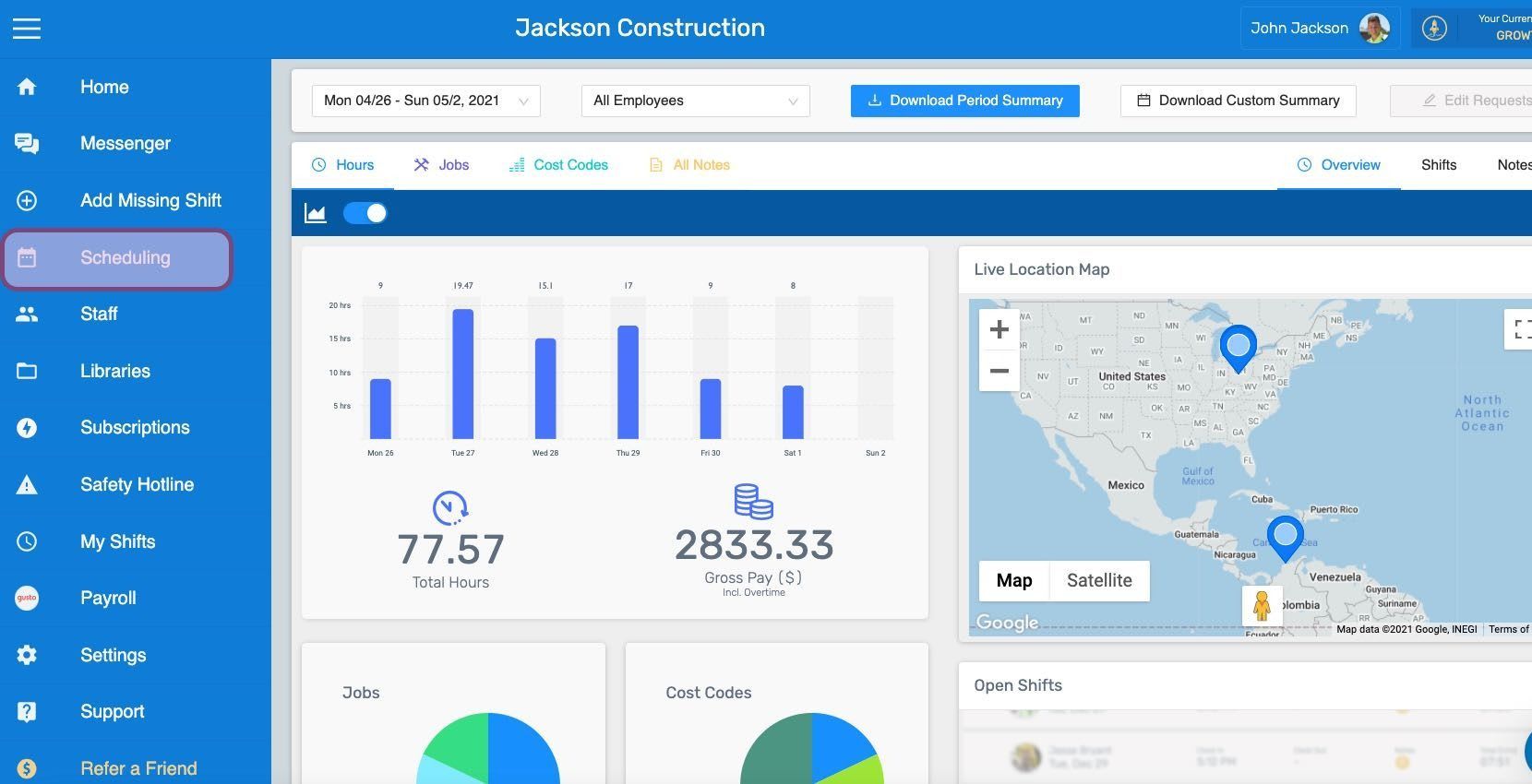
Click on Menu Scheduling.
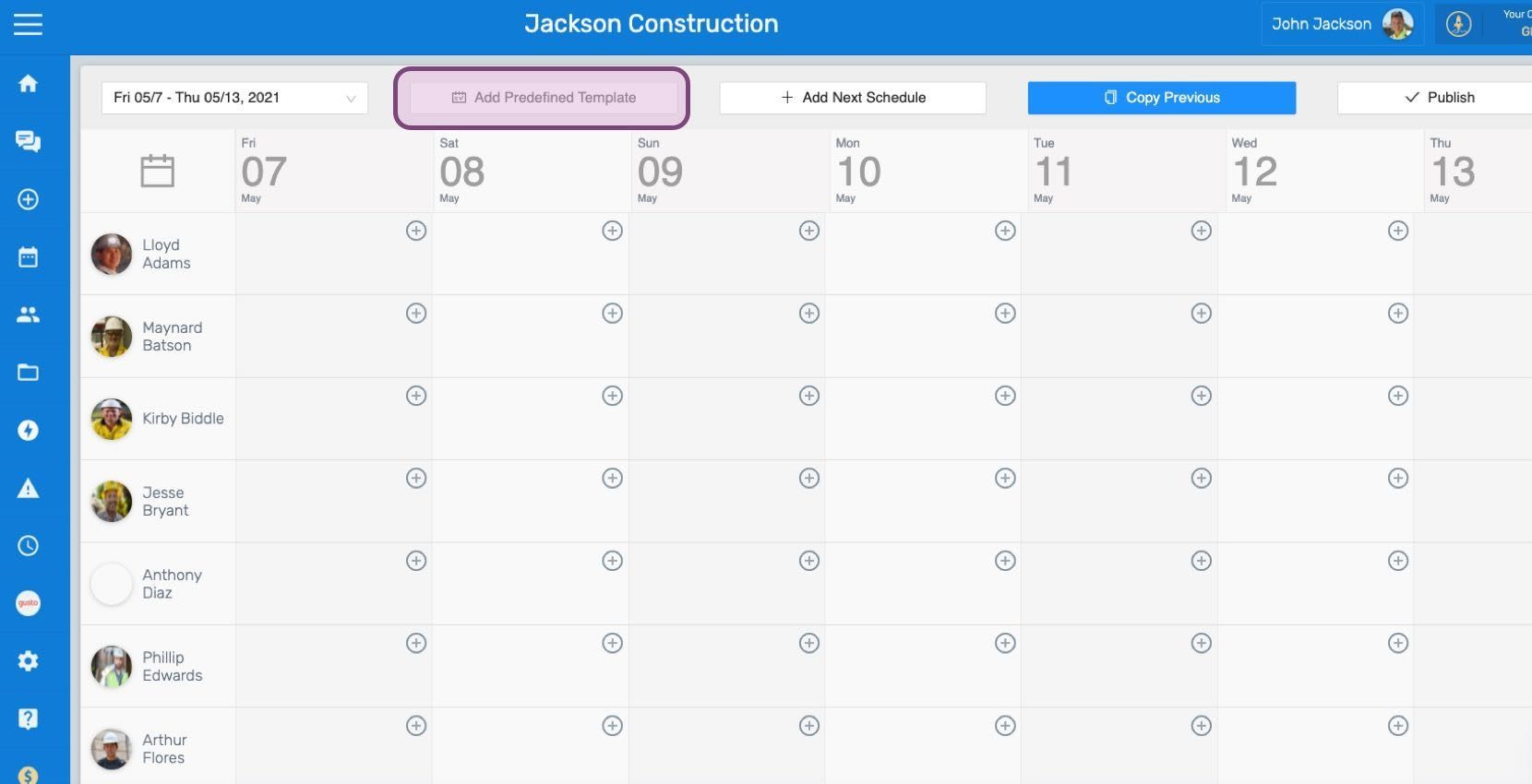
Click on Add Predefined Template button.
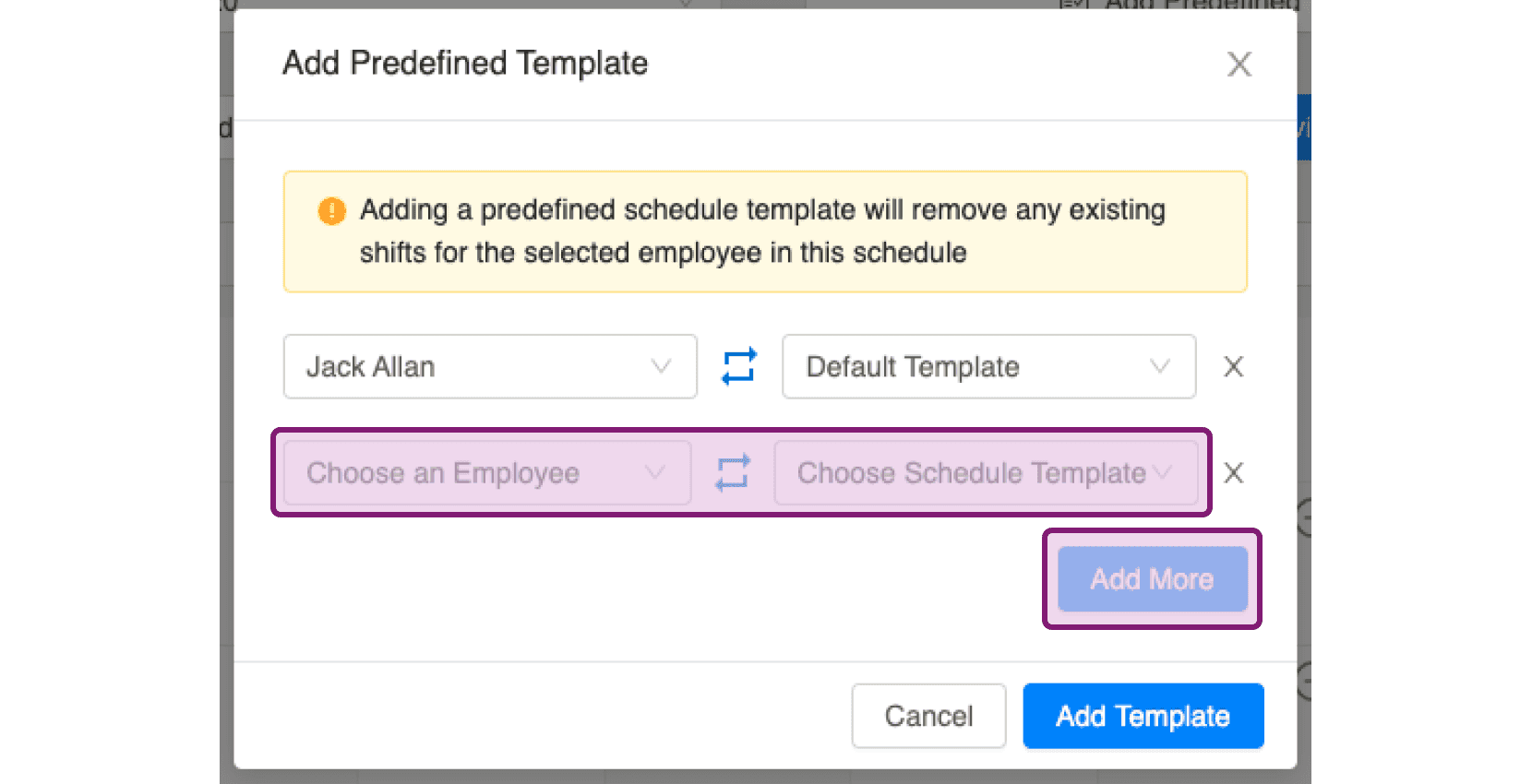
Click on Choose an employee to select an employee from the drop down.
Click on Choose a schedule template from the dropdown in order to assign it to the selected employee.
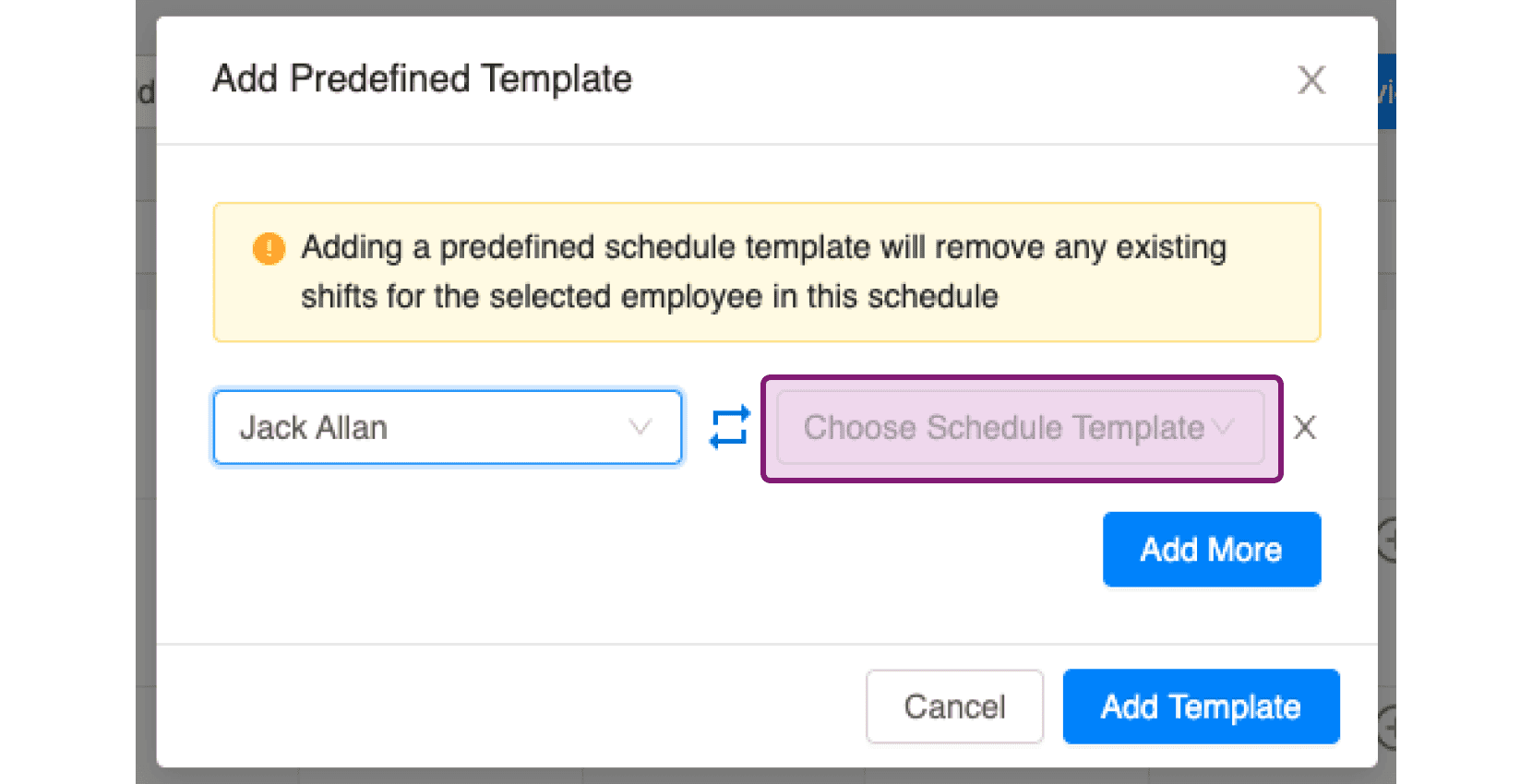
In case you want to assign a schedule to more than one employee, click on Add More button.
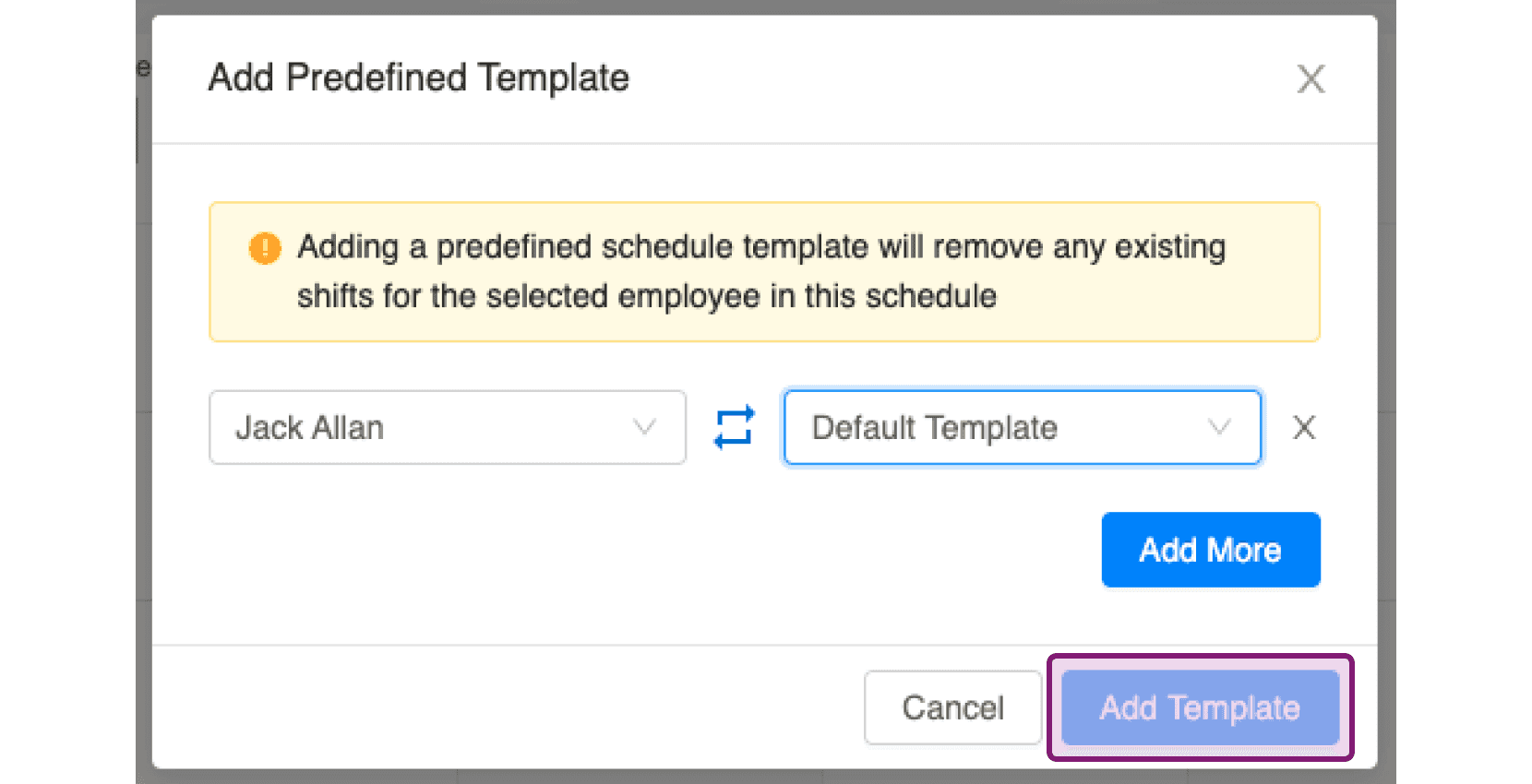
Click on Add Template.
Did this answer your question?