
Add Scheduled Job Shifts
In this tutorial we show you how to add job shifts to your employee schedules

Before adding a job shift to your employees' schedules, you have to make sure that Jobs Tracking is enabled. If you want to assign cost codes to the job shifts, then please enable Cost Codes as well. For adding a scheduled job shift, please go to Menu Scheduling.
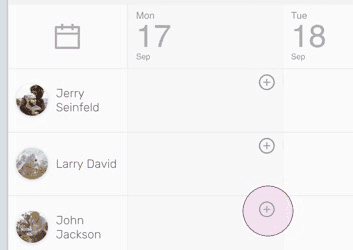
On Web: To add a job shift to the employee schedule, click on the circular plus icon, as if you are adding a shift for the employee on a specific day.
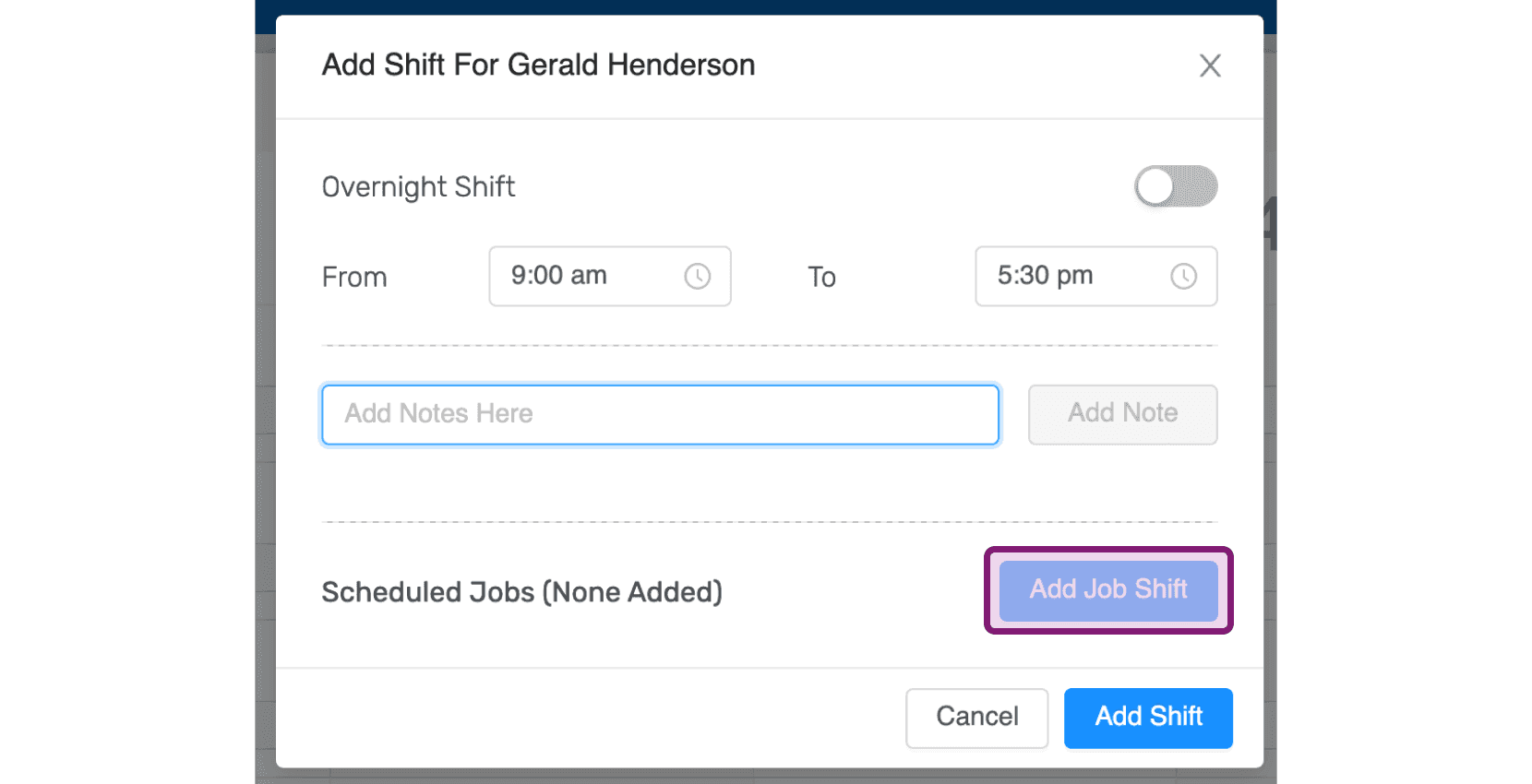
Click on Add Job Shift.
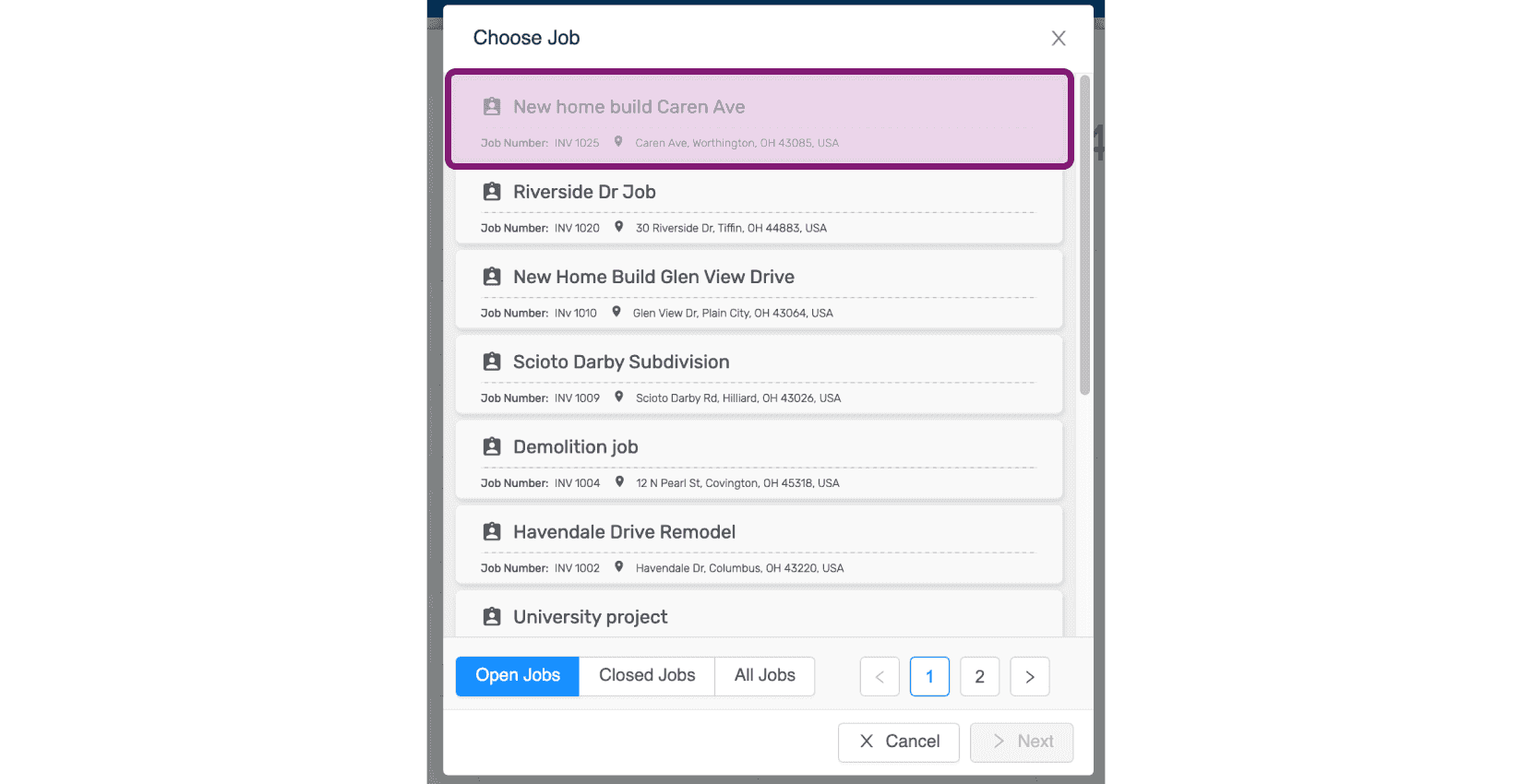
Select a job.
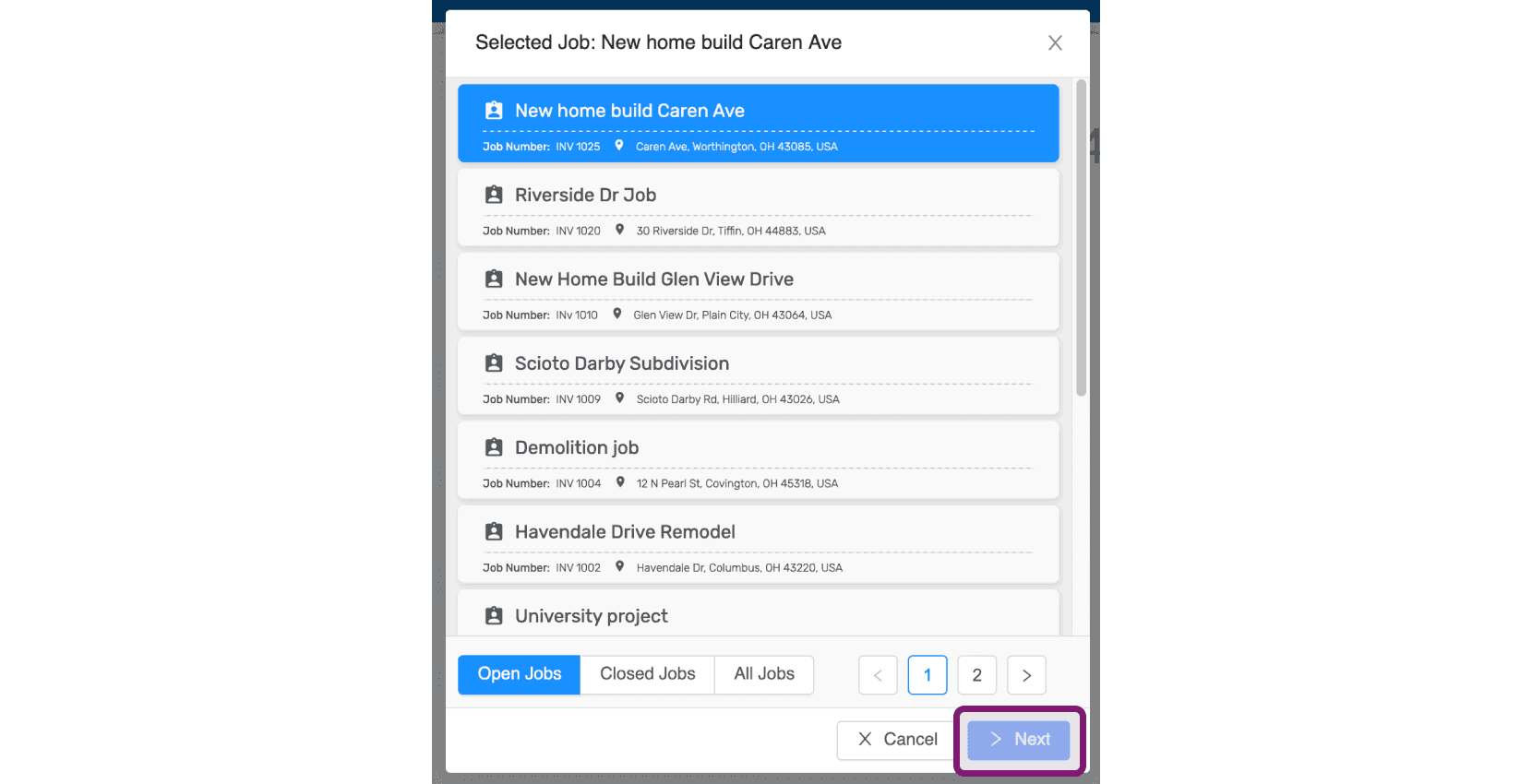
Click on Next.
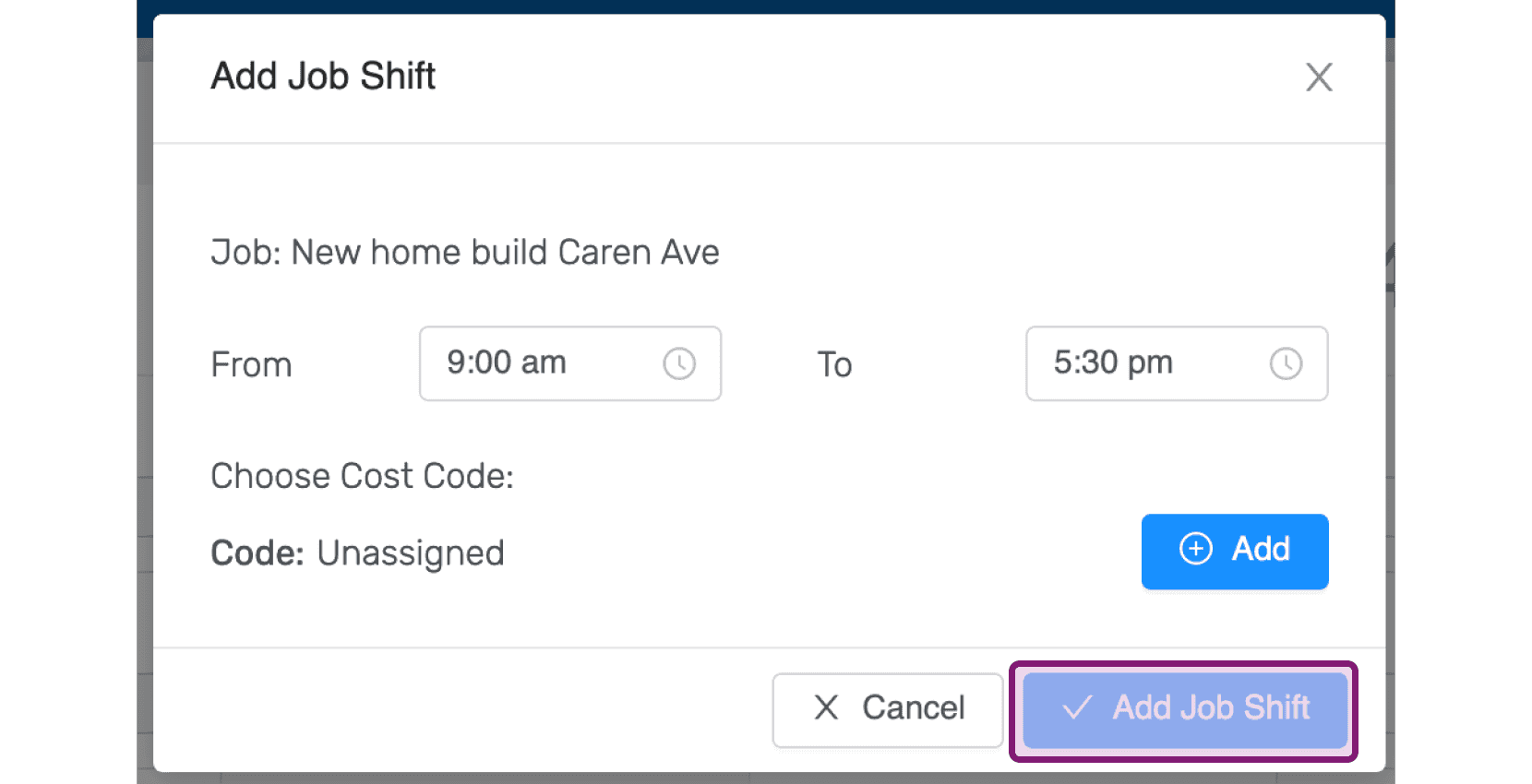
Select the job shift times as suitable and assign a cost code for the job shift if required. Then click on Add Job Shift.
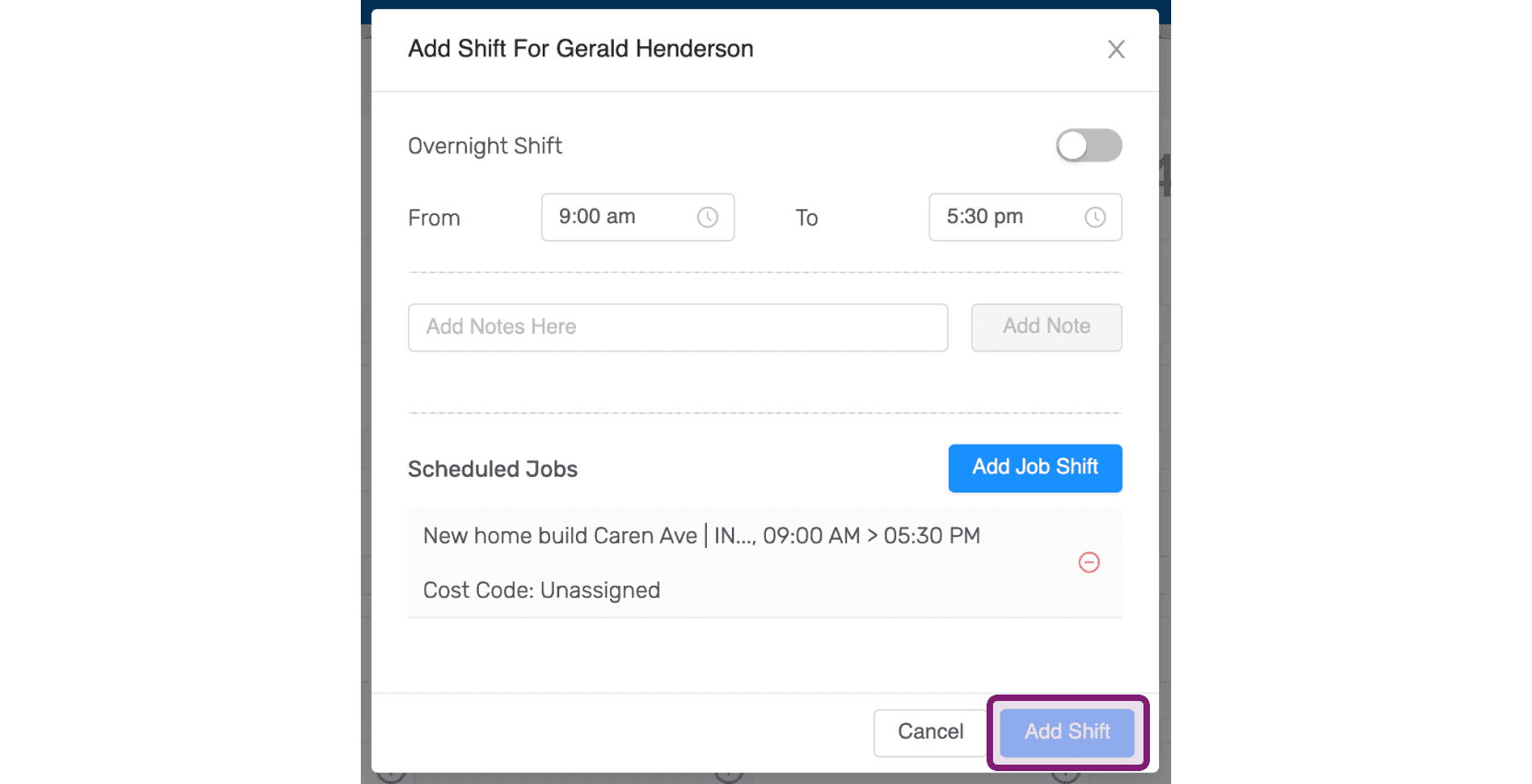
Click on Add Shift.
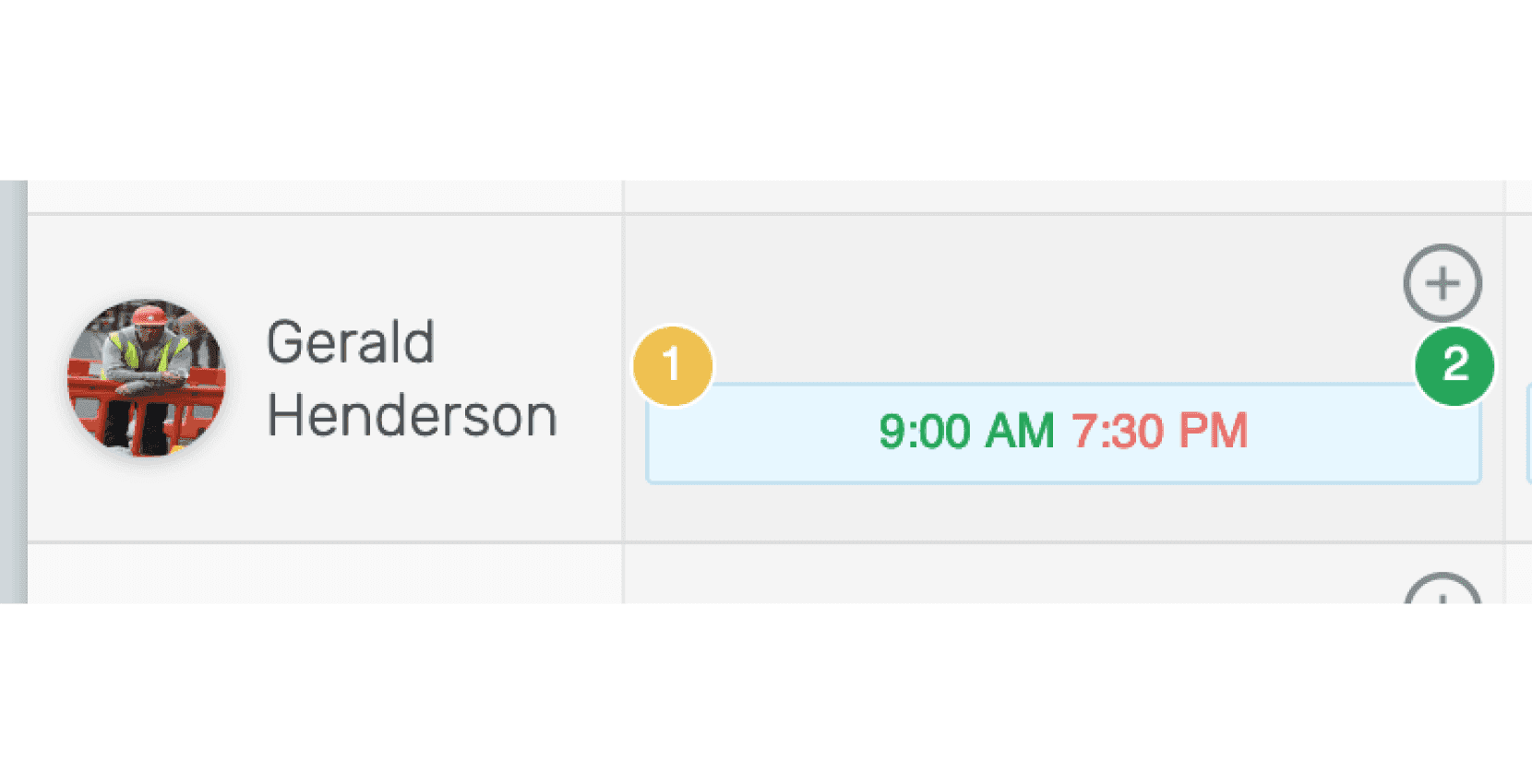
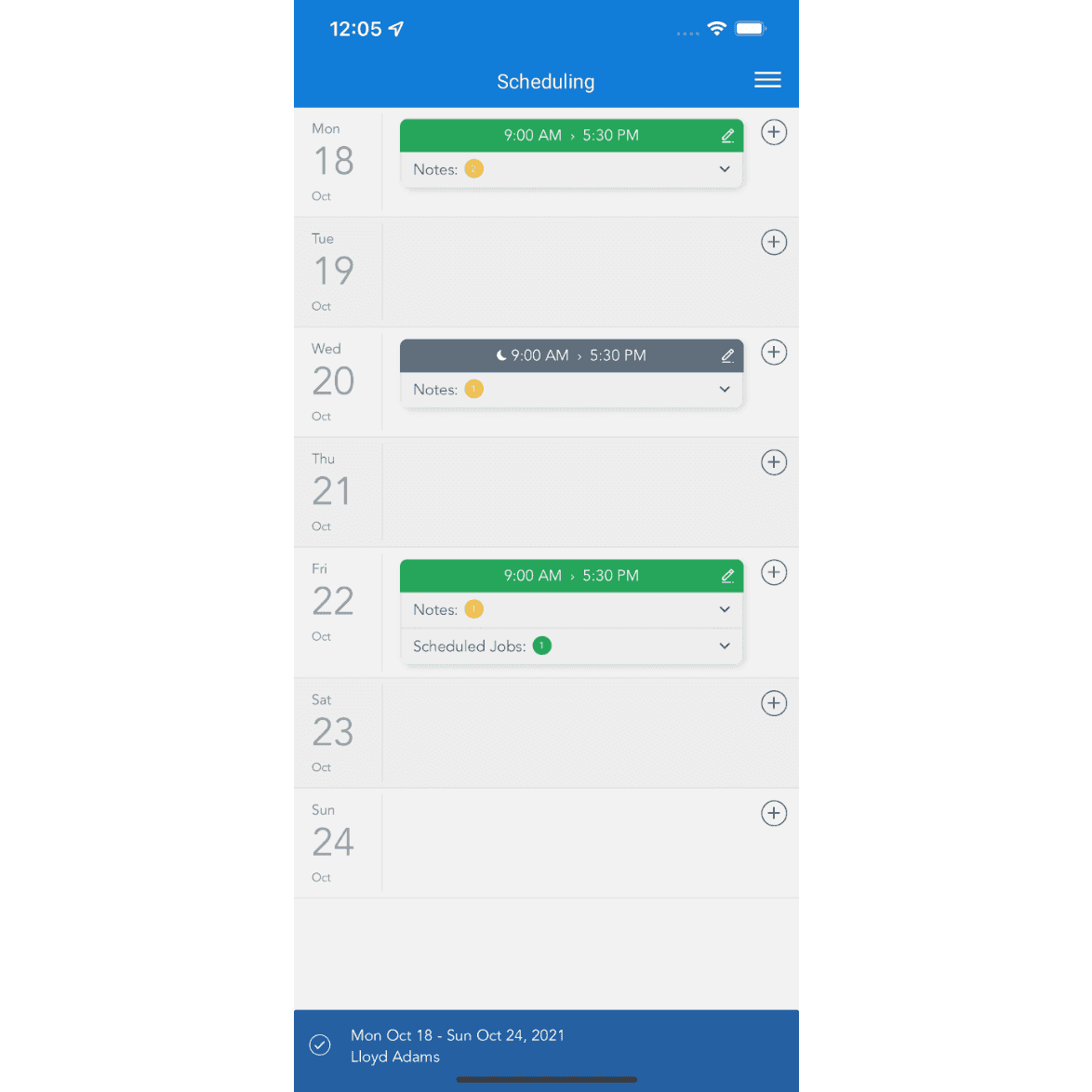
Job shifts and notes added to scheduled shifts can be viewed under Scheduling. The yellow circle on the left corner indicates the notes added while the green circle on the right corner denotes the number of job shifts.
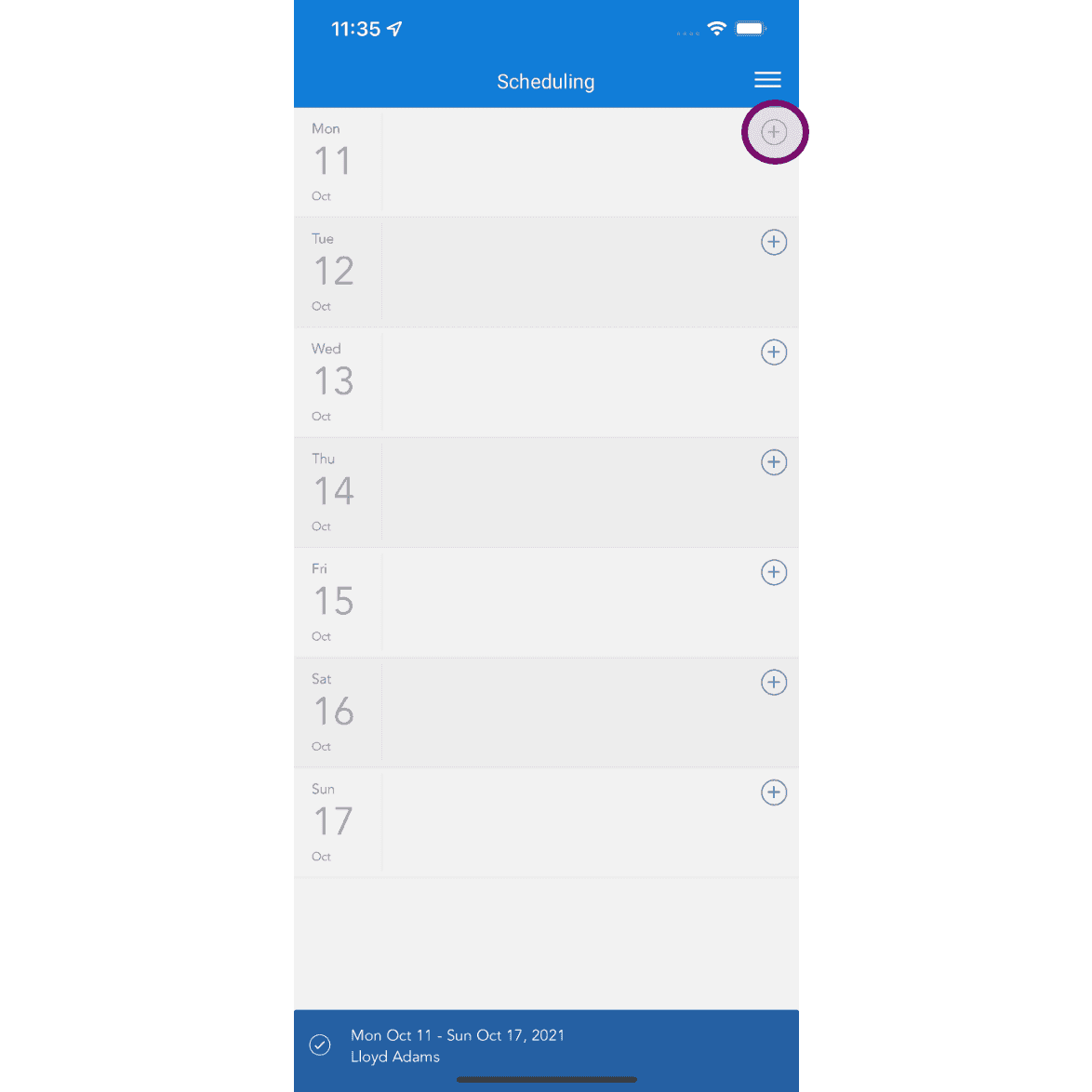
On Mobile: Tap on plus icon to add a scheduled shift.
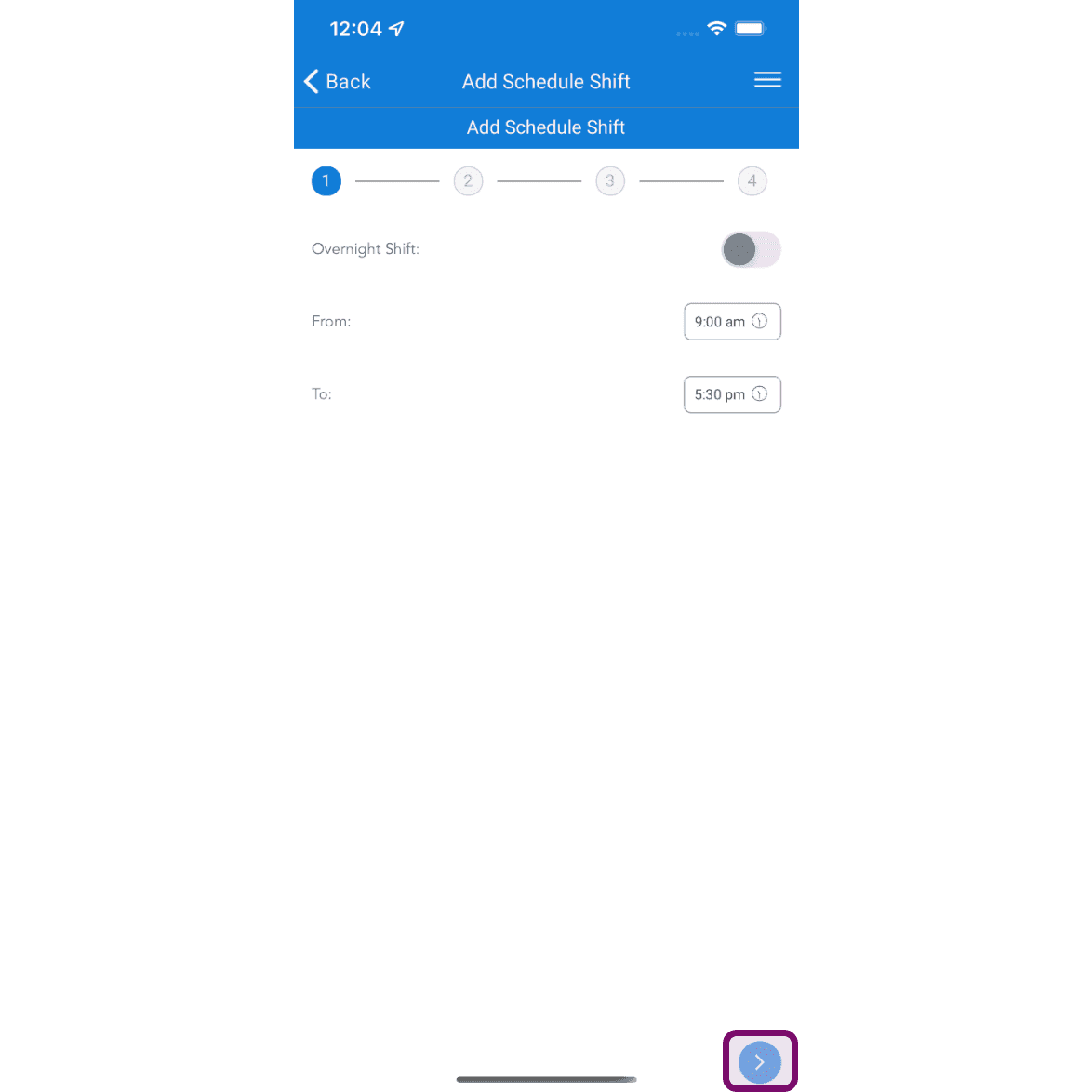
Select the scheduled shifts times and tap on next button.
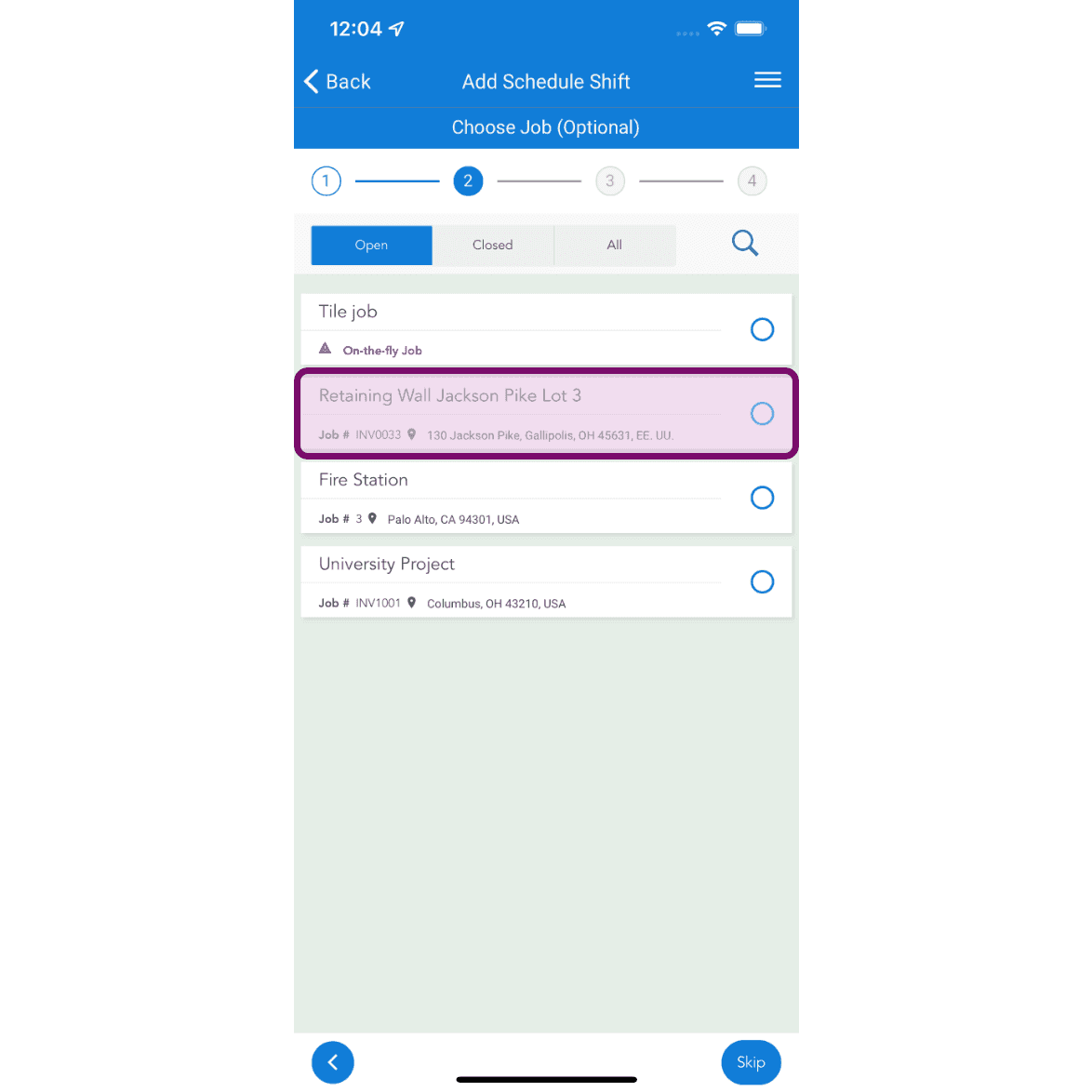
Tap on the job to select it.
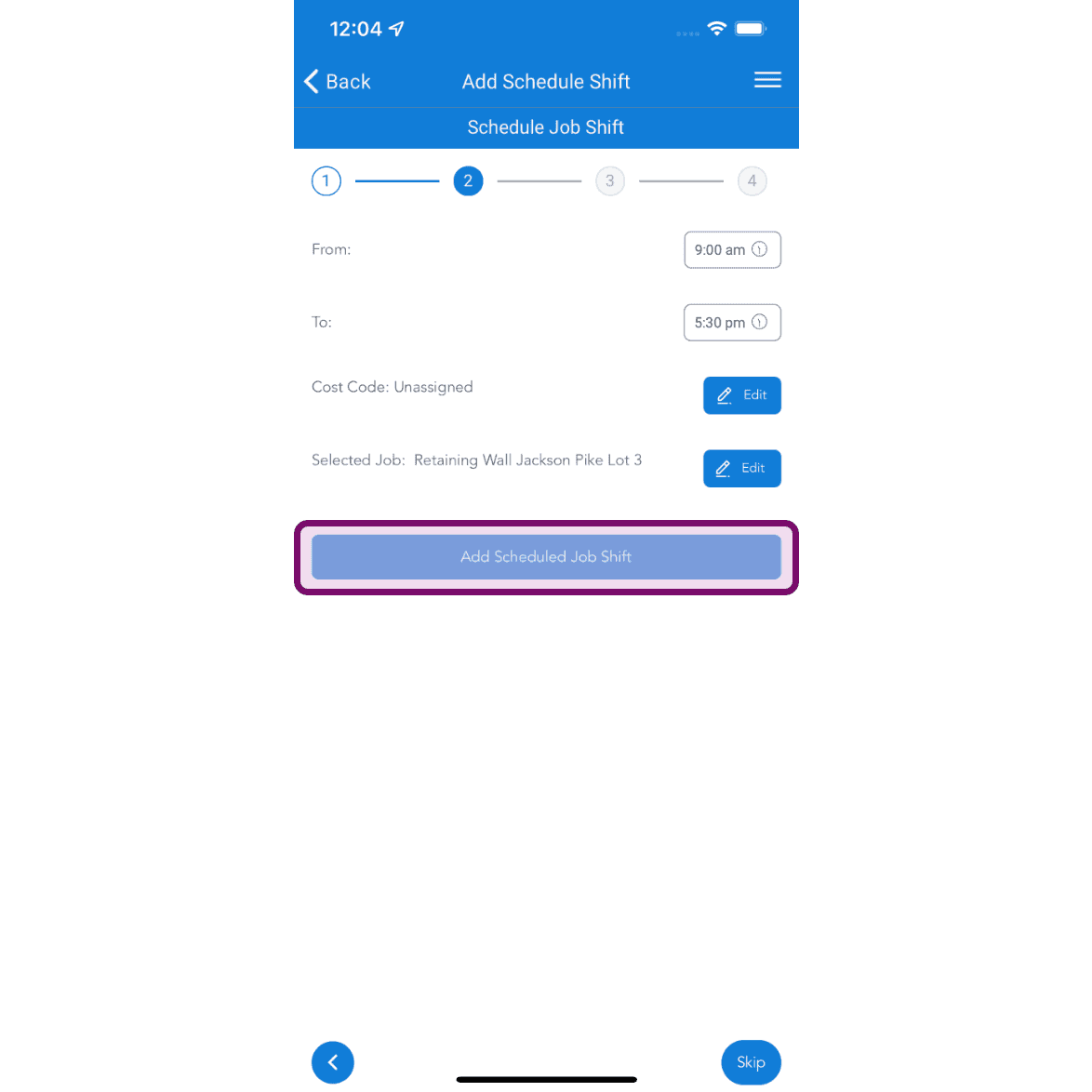
Select the appropriate times for scheduled job shift and assign a cost code if necessary. Then tap on Add Scheduled Job Shift button.
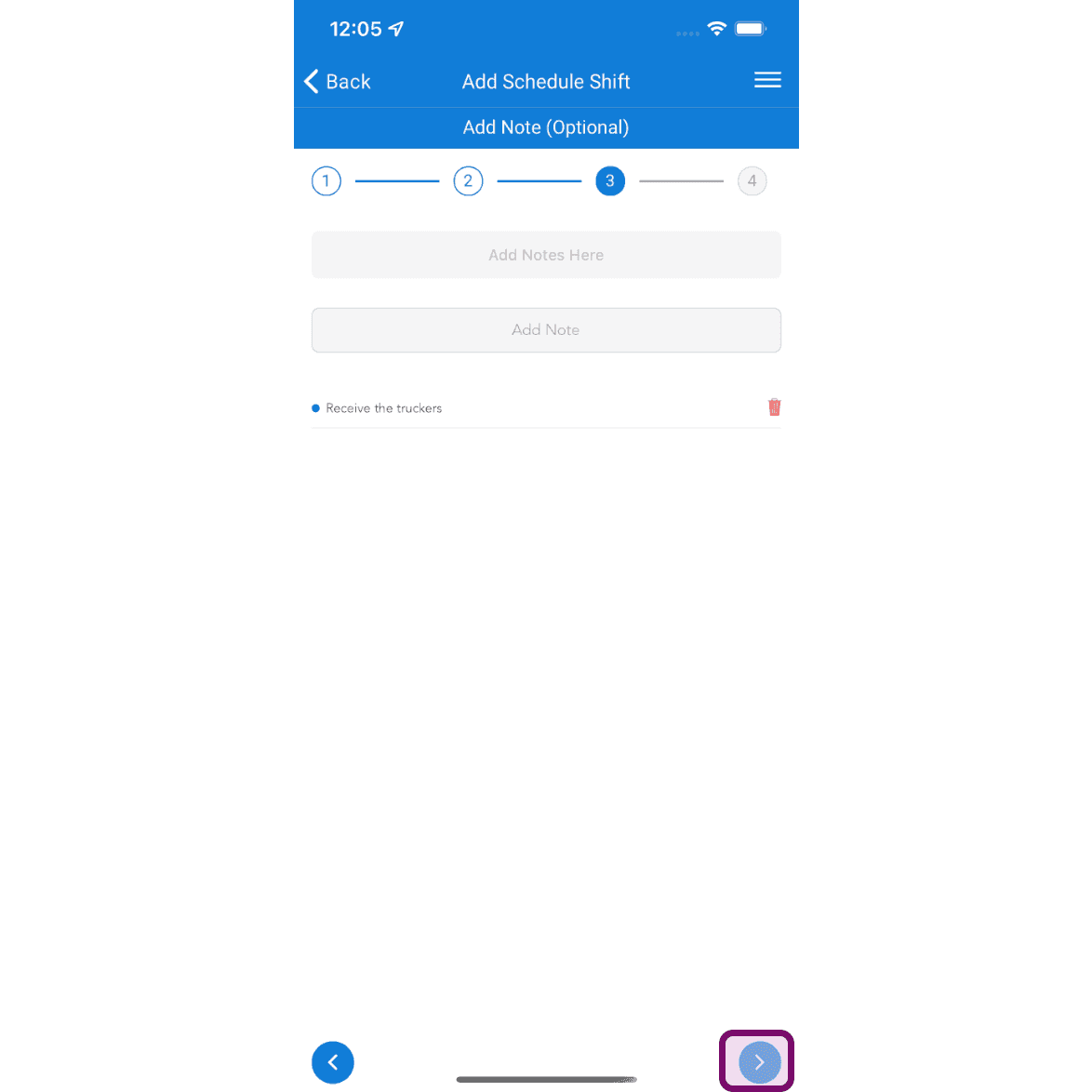
Add notes if required, then tap on next button.
Tap on Submit button to add the shift.
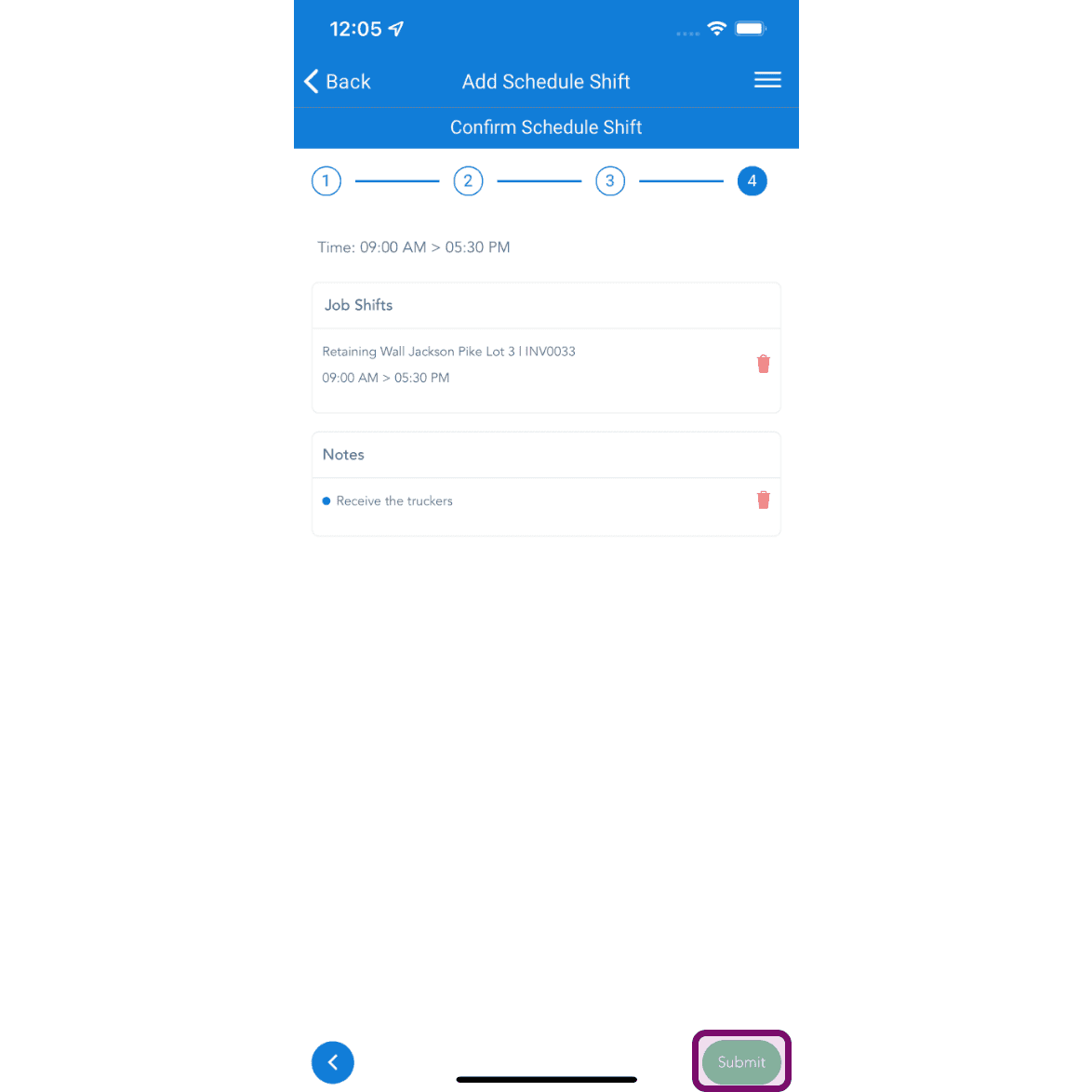
Job shifts and notes added to scheduled shifts can be viewed under Scheduling.
Did this answer your question?