
Adding Shifts to Your Employee Schedules

This tutorial shows you how to add shifts to your employee schedules

SINC Support Team
SINC Support Team
Jun 13th, 2022

On Web: Click on the circular plus icon for the employee and day you want to add a shift for.
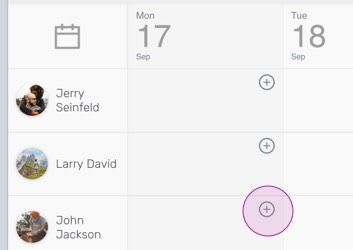
SINC web schedule grid with a pink circular plus icon highlighted for adding an employee shift

Choose the schedule shift start and end time.
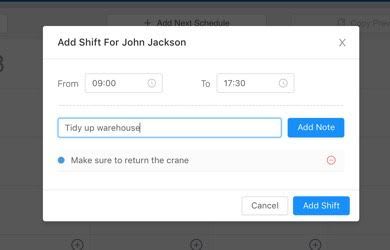
SINC web Add Shift popup showing start and end time fields with a note added below

Add any notes if needed, then click on Add Shift.
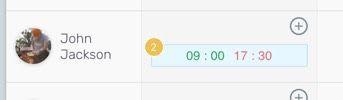
Scheduling grid row for an employee showing a shift block from 09:00 to 17:30

You can now see the added shift on the schedule.
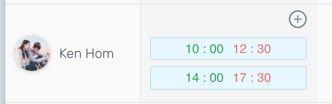
SINC web schedule grid row for an employee showing two scheduled shift time blocks

On Mobile: Tap on plus icon to add a scheduled shift.
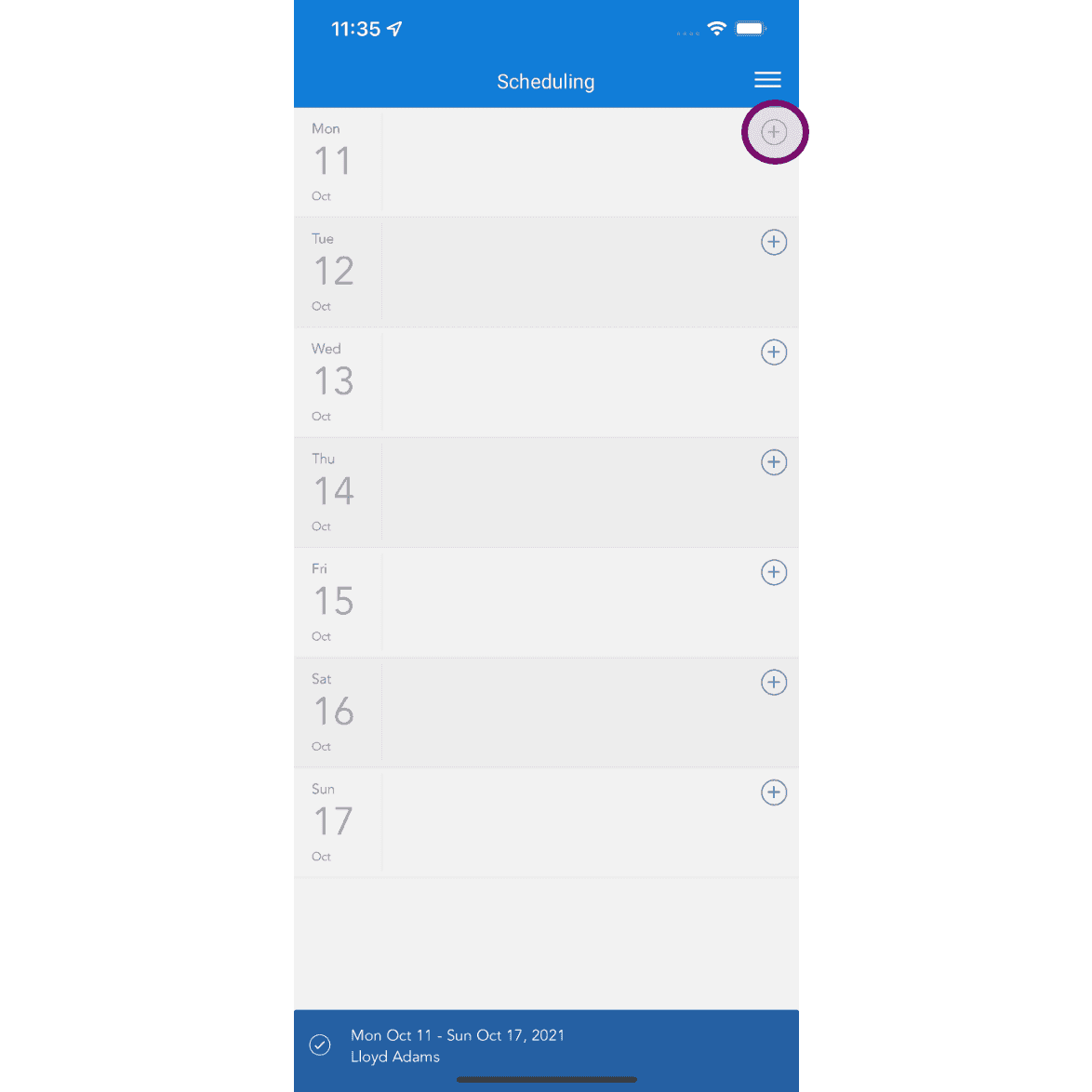
Scheduling calendar view for the week with the plus icon circled in the top right to add a shift

Choose the schedule shift start and end time.
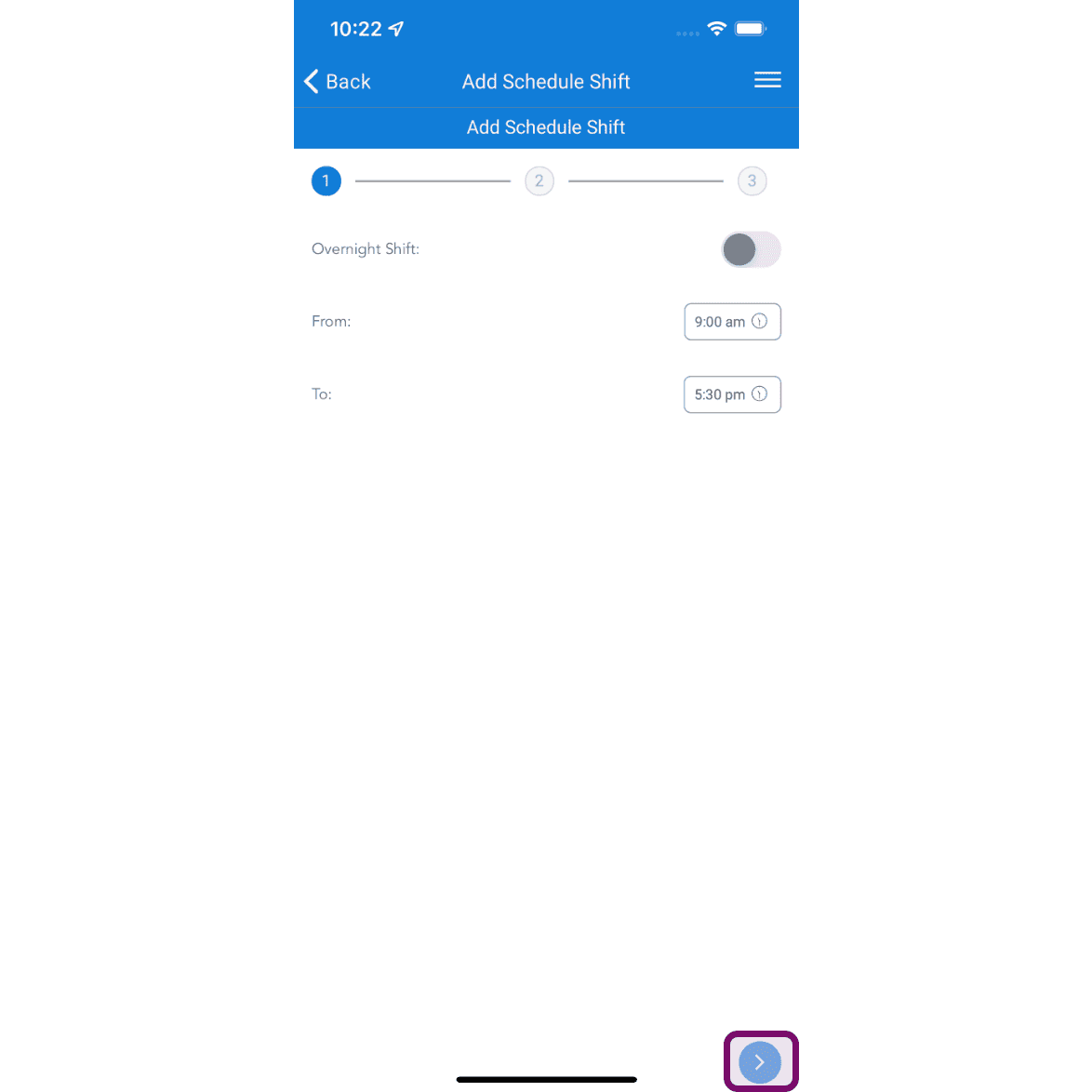
SINC mobile Add Schedule Shift wizard with From and To time fields and the next-step arrow highlighted

Add notes if necessary, then tap on next button.
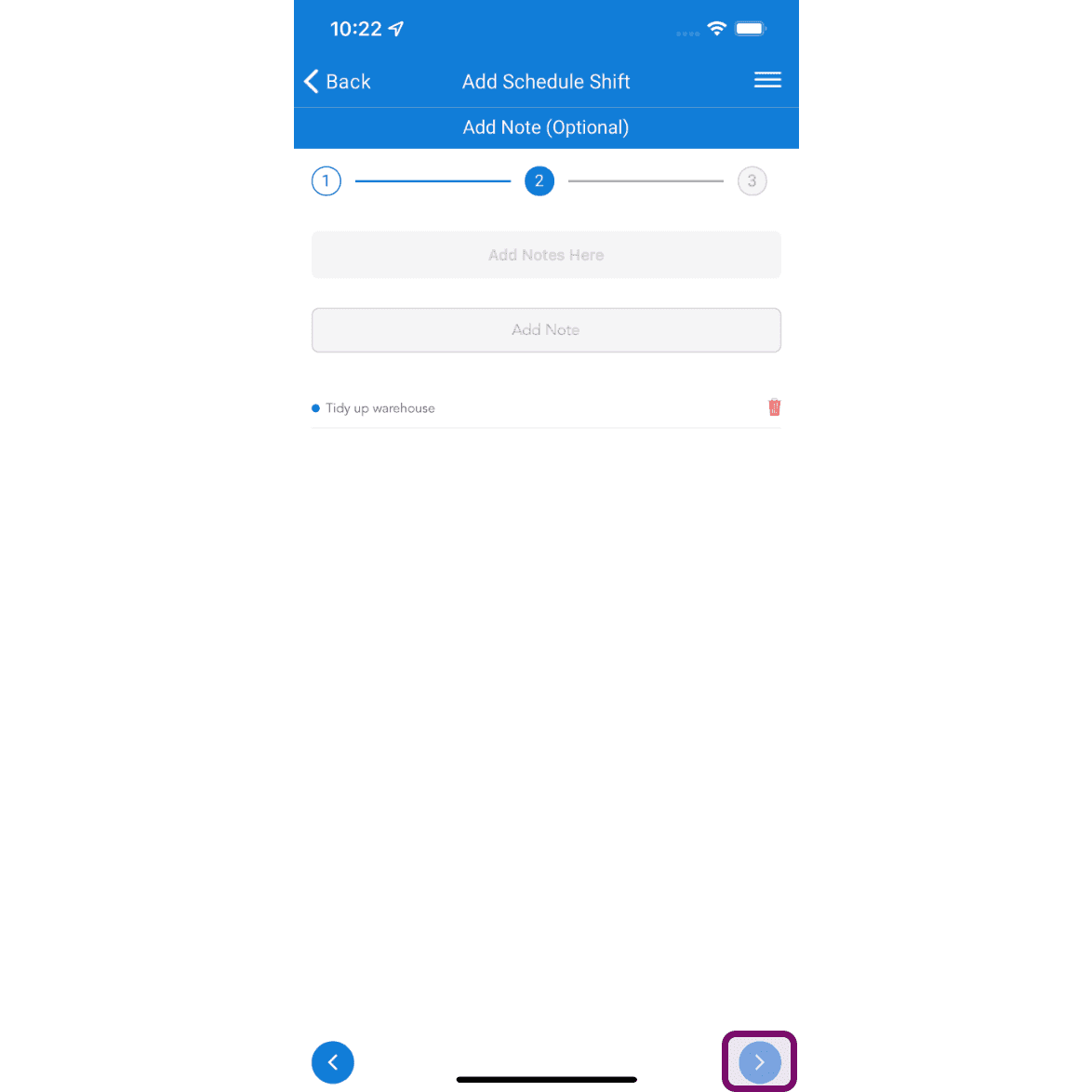
Mobile Add Schedule Shift screen showing the optional notes step with the Next arrow button outlined in pink

Tap on Submit button to add the shift.
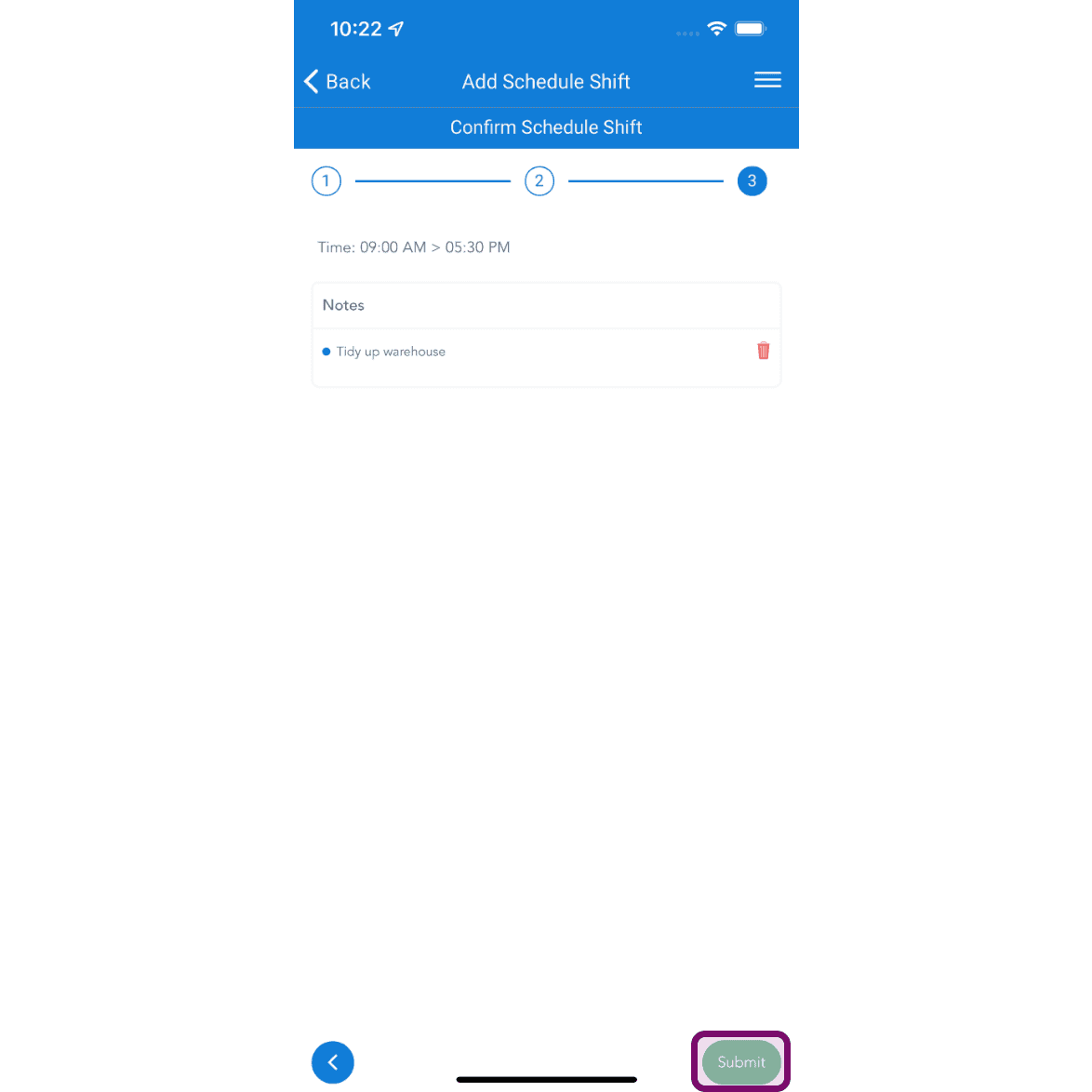
SINC mobile Confirm Schedule Shift step showing shift time and notes with the Submit button circled

You can add multiple shifts per day, and assign predefined templates to speed up scheduling regular employees.
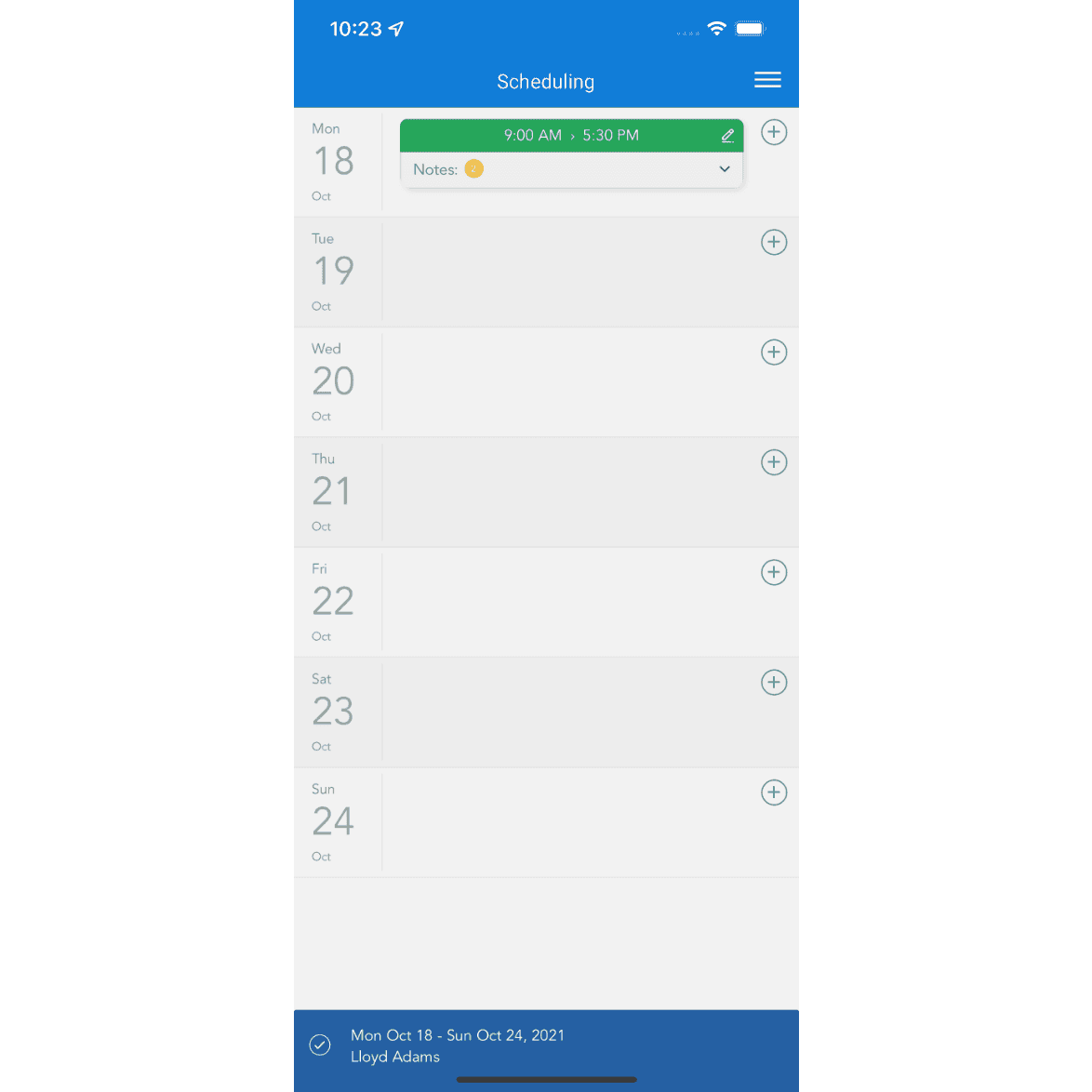
Weekly scheduling calendar showing a shift from 9:00 AM to 5:30 PM on Monday

Did this answer your question?