
Publishing The Staff Schedule
This tutorial shows you how to publish a staff schedule

It's important to understand the difference between a Draft and Published Schedule. A Schedule begins as a Draft: shifts can be added, deleted or modified and the employee isn't notified. If an employee views a Draft Schedule in their App, they'll see a notification that it hasn't been published yet. Once a Schedule is Published, employees can view their scheduled shifts in their My Schedule area of the App, and will be notified of any modifications to their shifts.
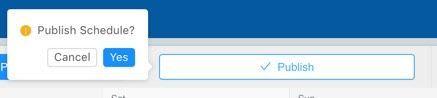
On Web: Publish a Draft Schedule by clicking the Publish button and confirming the pop up.
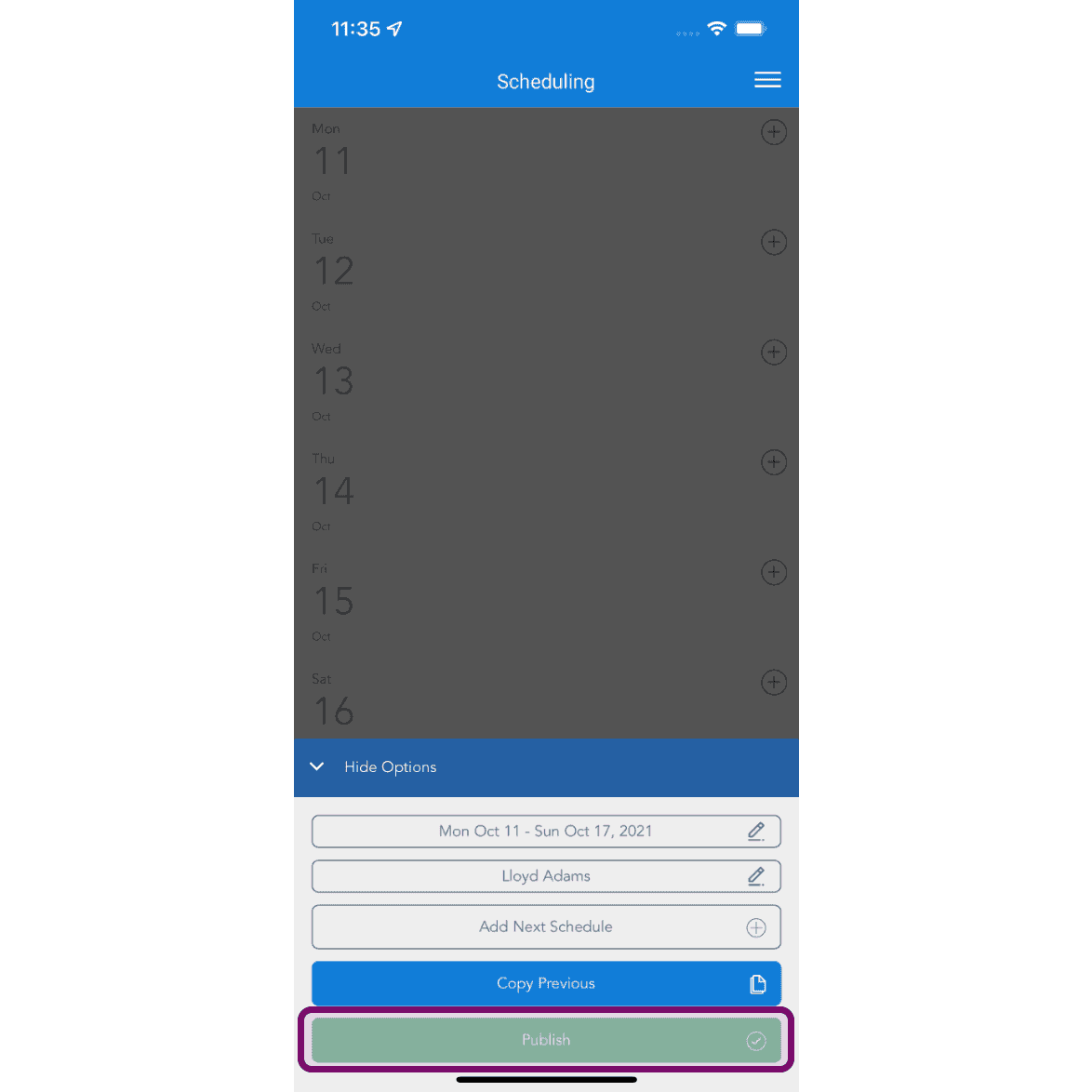
On Mobile: Publish a Draft Schedule by clicking the Publish button.
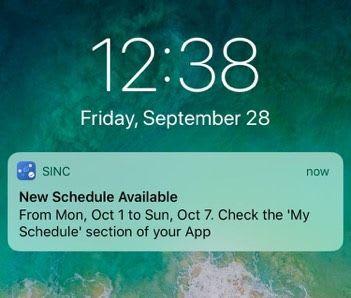
When you publish the Schedule, employees will be notified that they can view it in their app.
If any scheduled jobs or notes are added to the shift, the employee can view those as well by clicking on the expanding header for either notes or scheduled jobs.
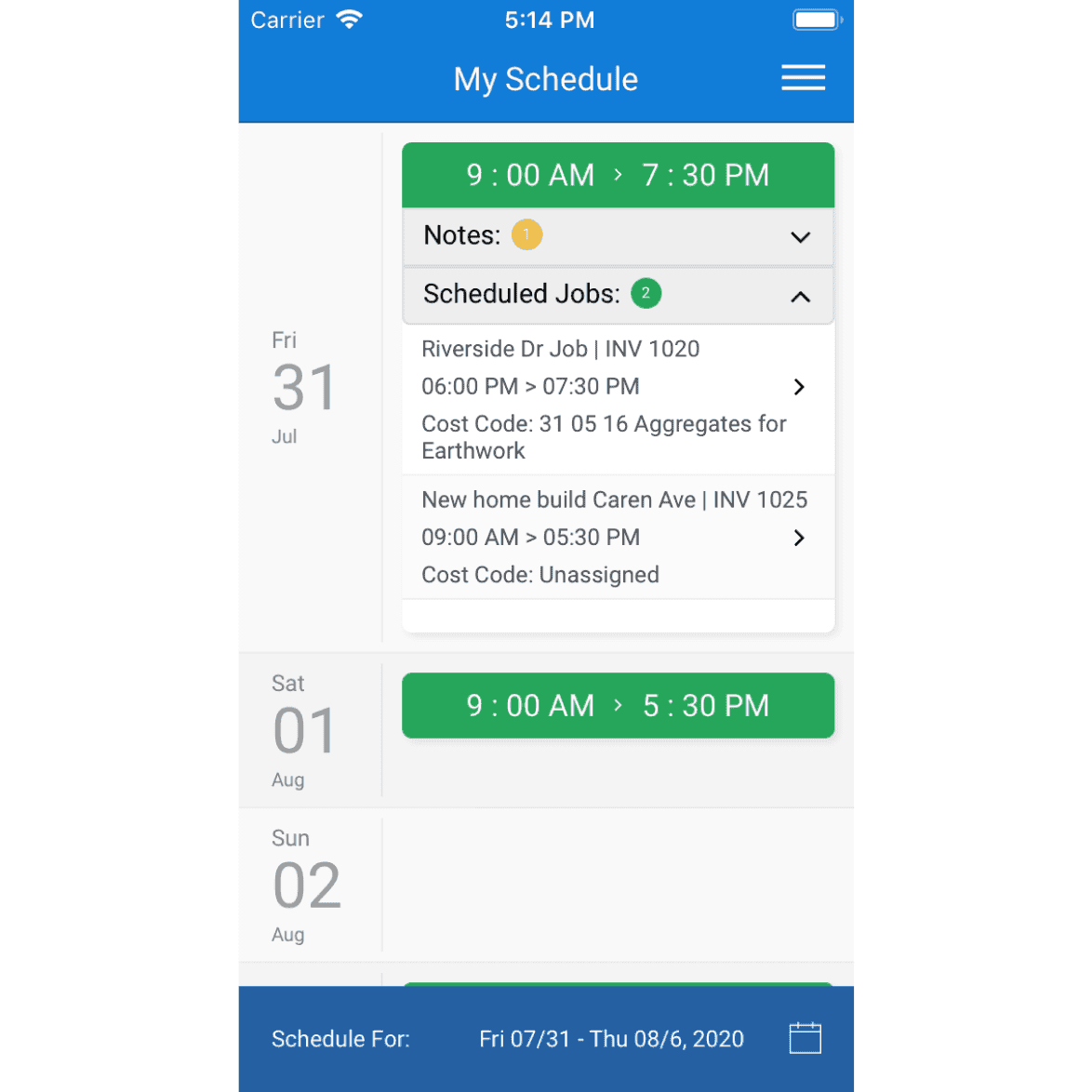
The employee can now view the published Schedule in the My Schedule section of their SINC App, including any notes added for the shift.
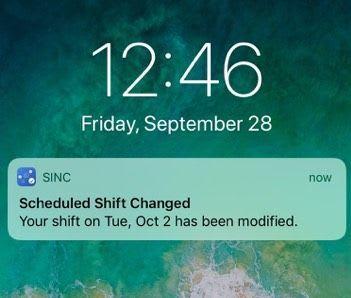
Once a Schedule is Published, employees will be notified of any changes to their shifts within that Schedule, including adding, deleting, modifying or adding notes to a shift.
Did this answer your question?