Staff Scheduling Initial Set-Up

This tutorial shows you how to set up staff scheduling for the first time

Sam Dolbel
Sam Dolbel
Apr 27th, 2023

On mobile: Tap on Menu Scheduling
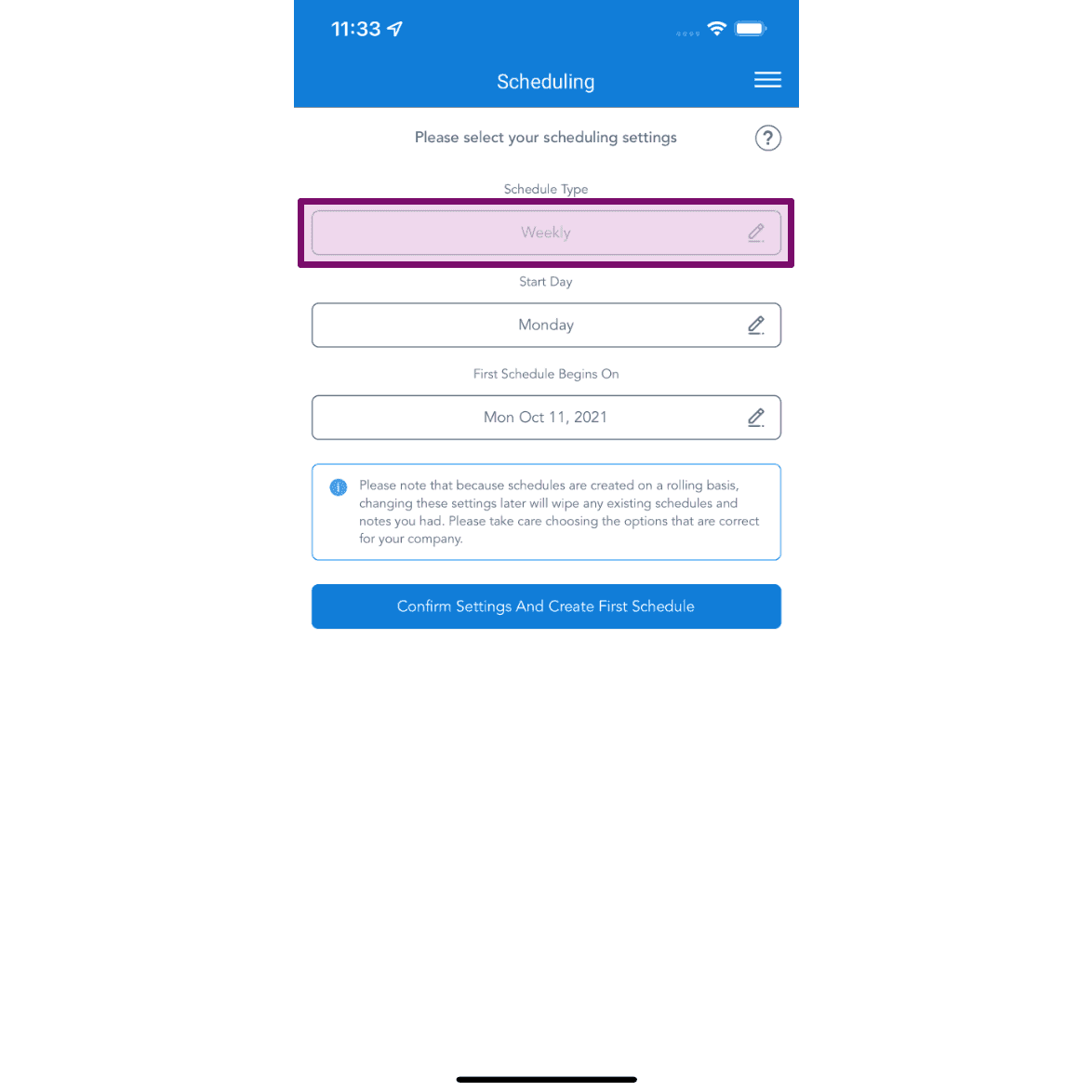
SINC mobile Scheduling settings screen with the Schedule Type field highlighted above Start Day and First Schedule Begins On

Choose the schedule type that fits your business.
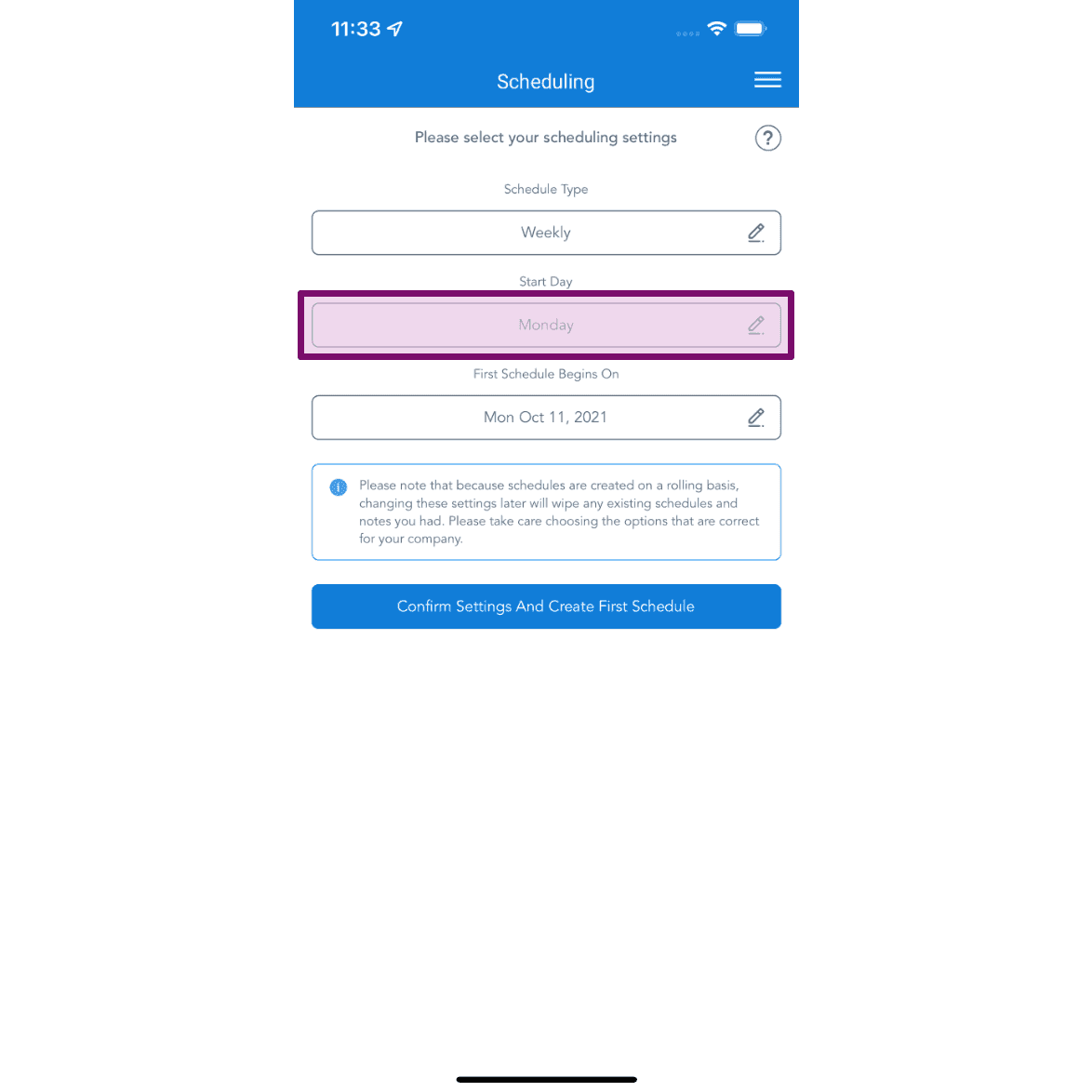
Scheduling initial setup screen with the Start Day field highlighted showing Monday selected

Choose the day your schedule should start on.
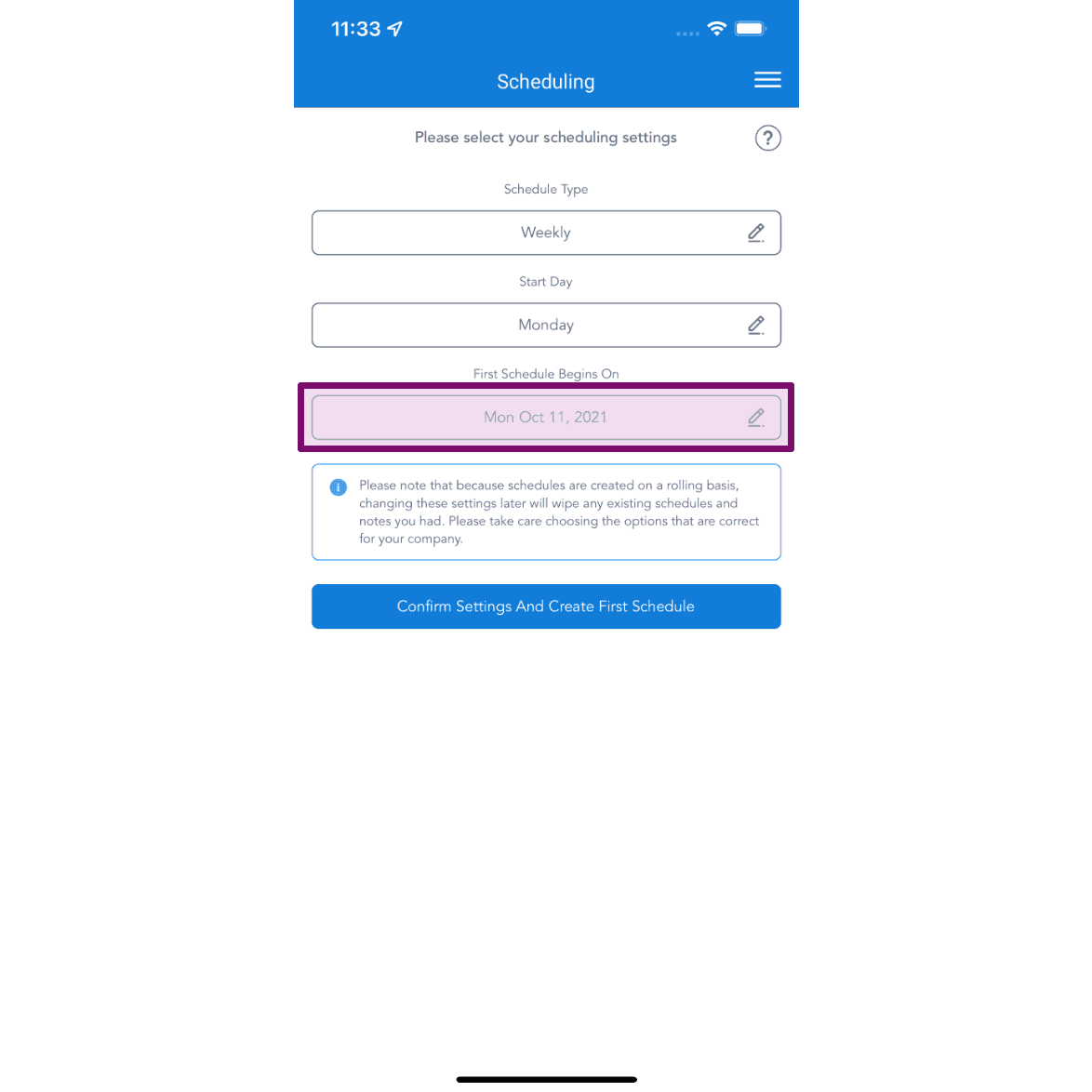
Mobile Scheduling setup screen with the First Schedule Begins On field outlined in purple

Choose the date of your first schedule, then tap on Confirm Settings.
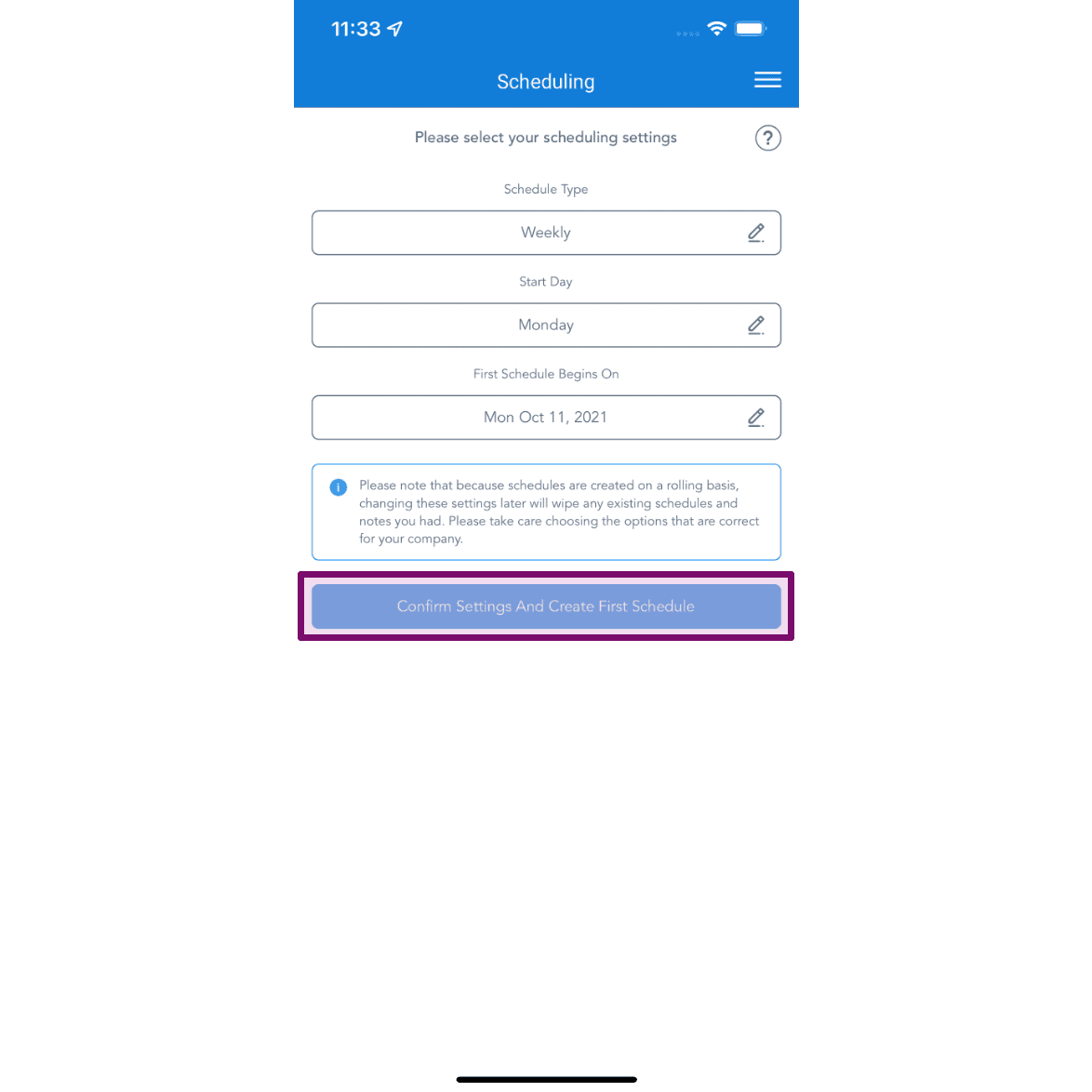
SINC mobile Scheduling setup screen with the Confirm Settings And Create First Schedule button outlined

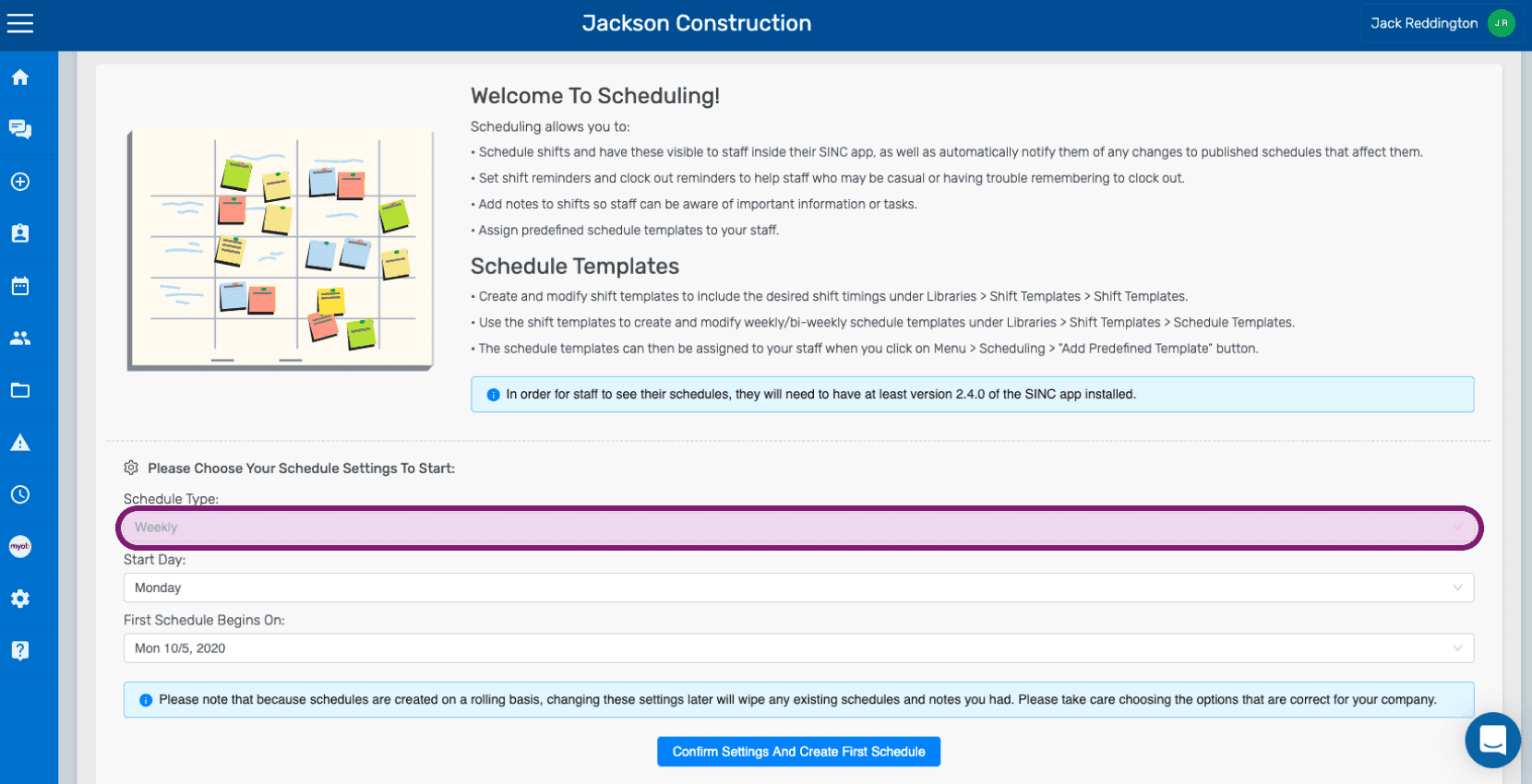
On web: Click on Menu Scheduling

SINC web Welcome to Scheduling setup screen with the Schedule Type field circled in pink

Choose the schedule type that fits your business.
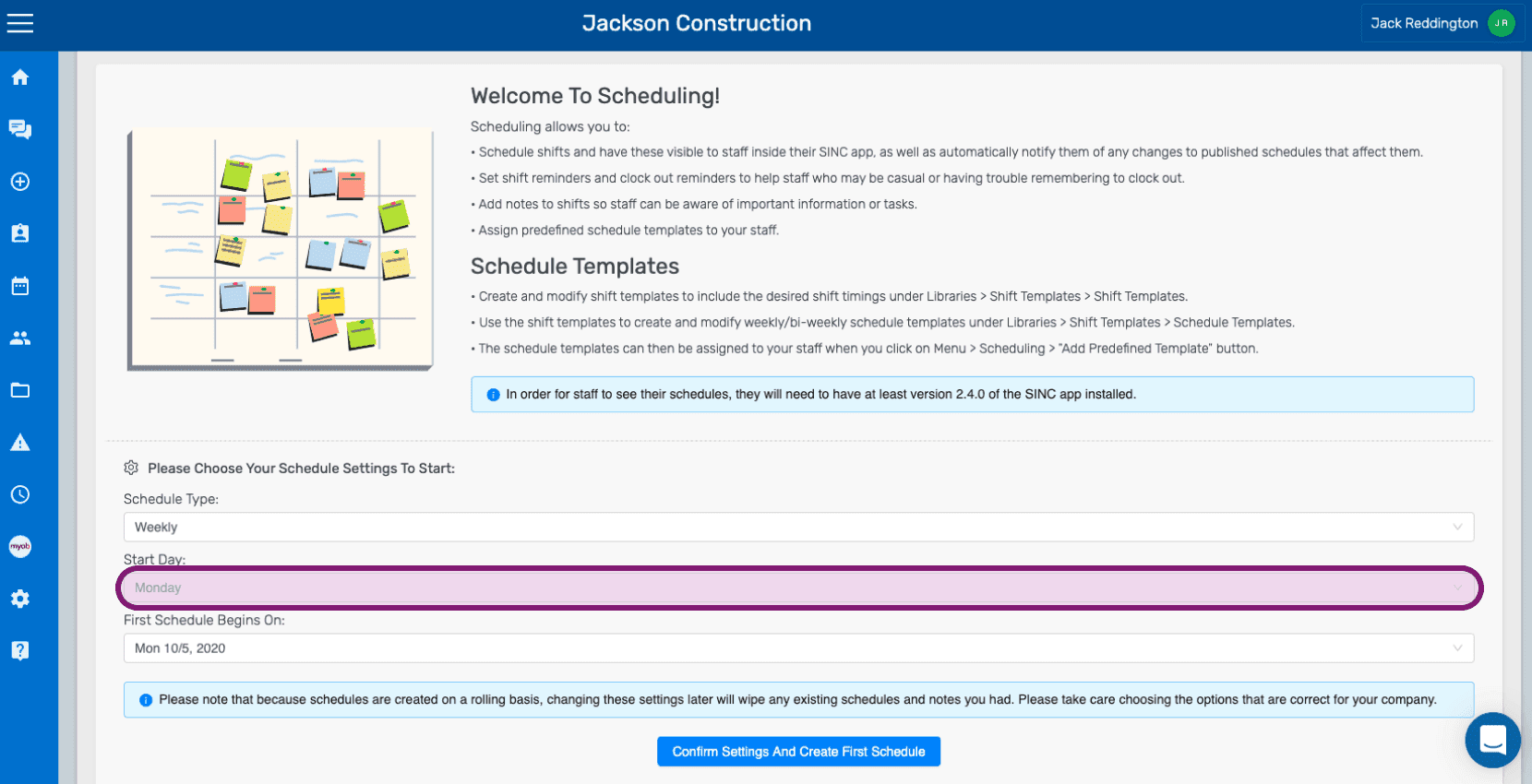
Welcome To Scheduling setup screen with the Schedule Type dropdown and Start Day field outlined

Choose the day your schedule should start on.
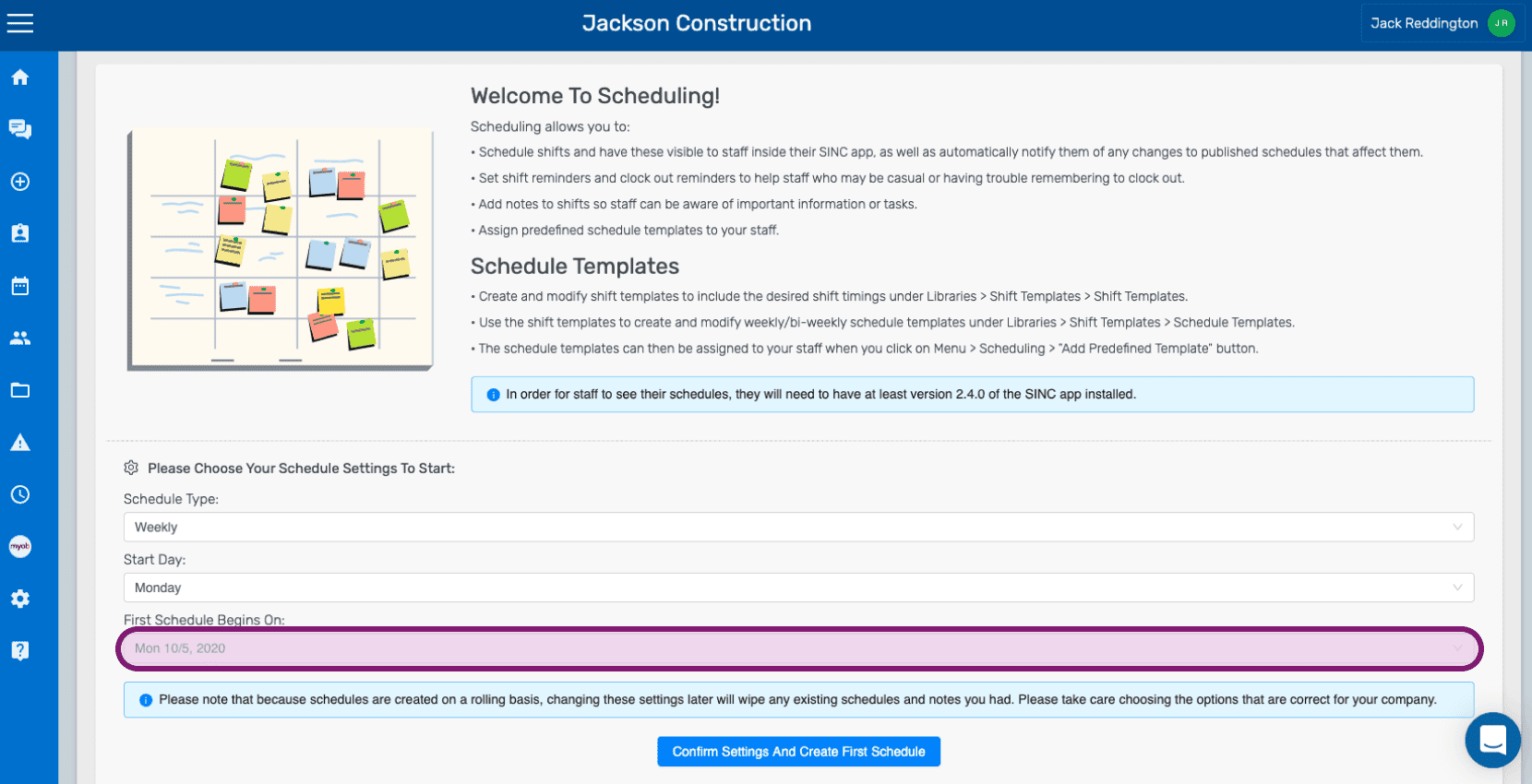
SINC web Welcome to Scheduling setup screen with the First Schedule Begins On date field highlighted in pink

Choose the date of your first schedule, then click on Confirm Settings.
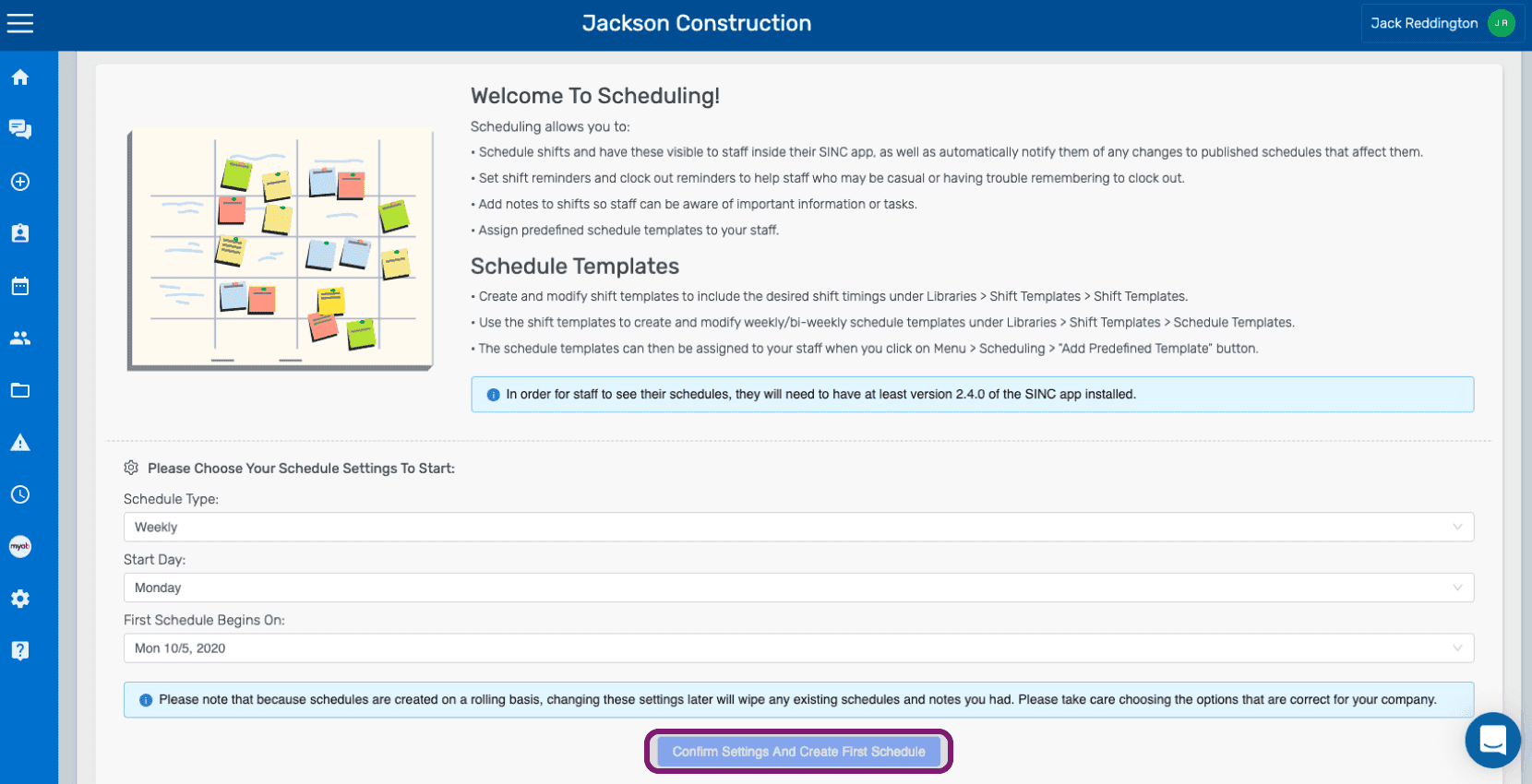
Scheduling initial setup welcome screen with the Confirm Settings and Create First Schedule button outlined in purple

Did this answer your question?