
Add Schedule Template
In this tutorial, we show you how to add a schedule template

On Web: Click on Menu Libraries Shift Templates Schedule Templates tab
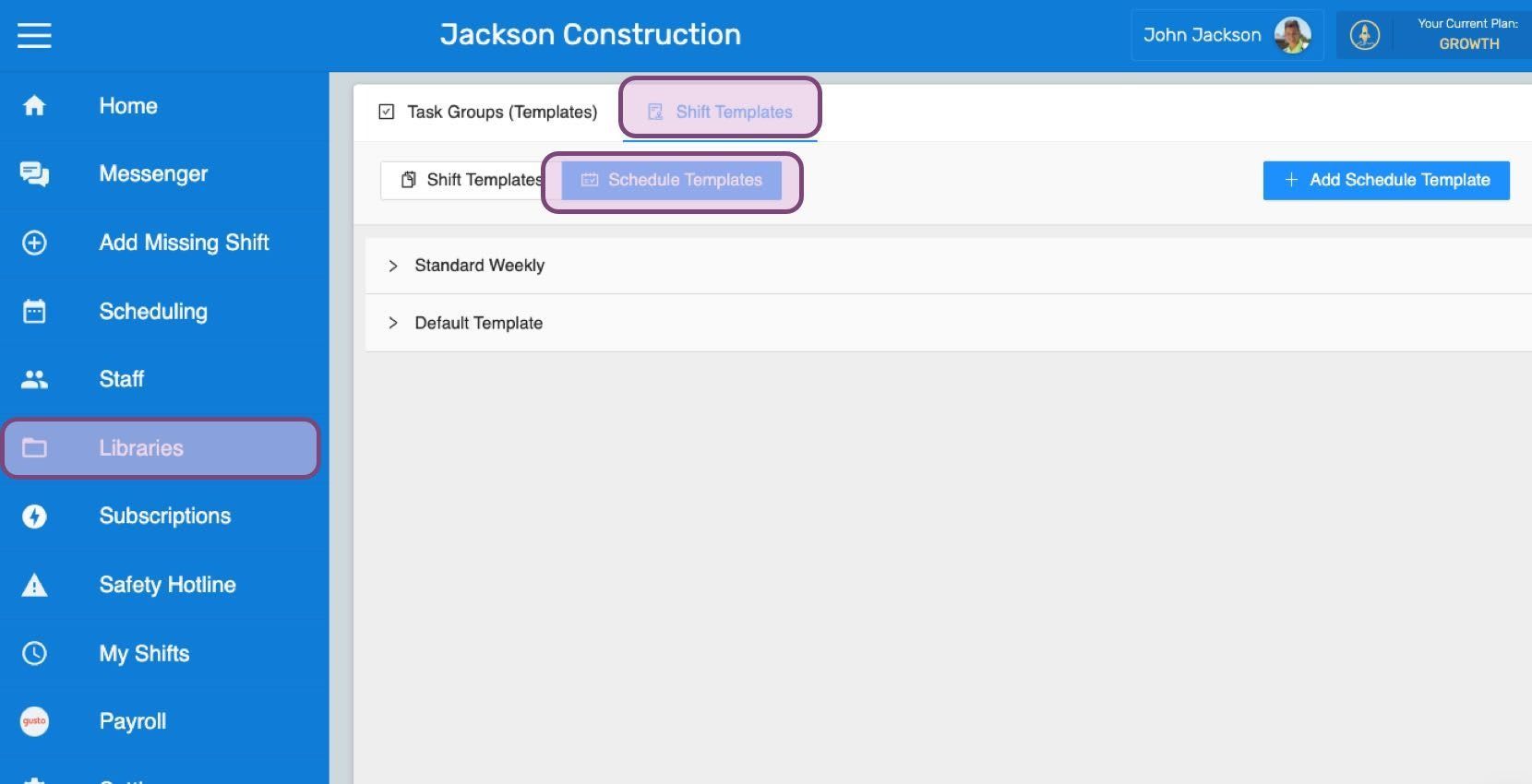
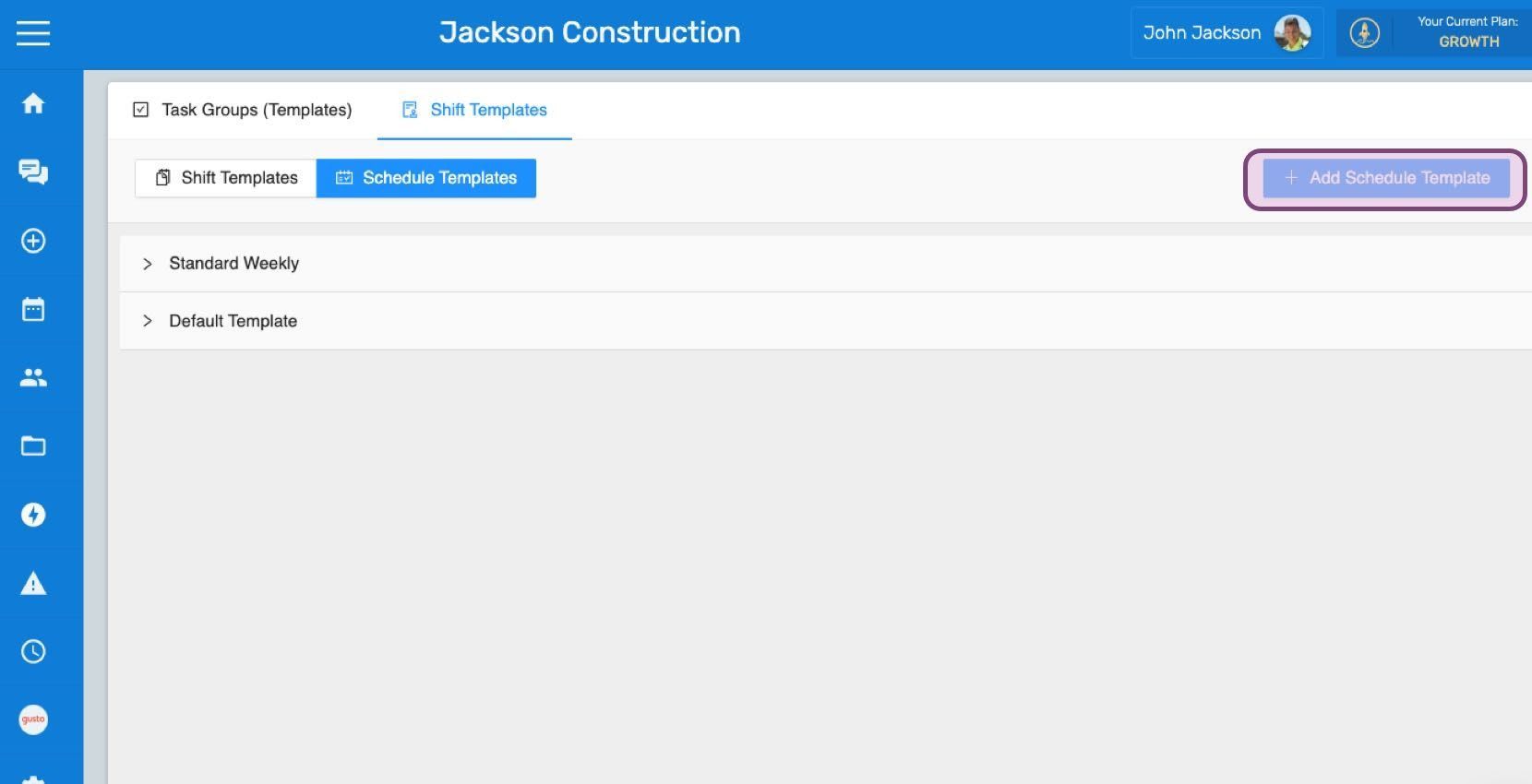
Click on Add Schedule Template
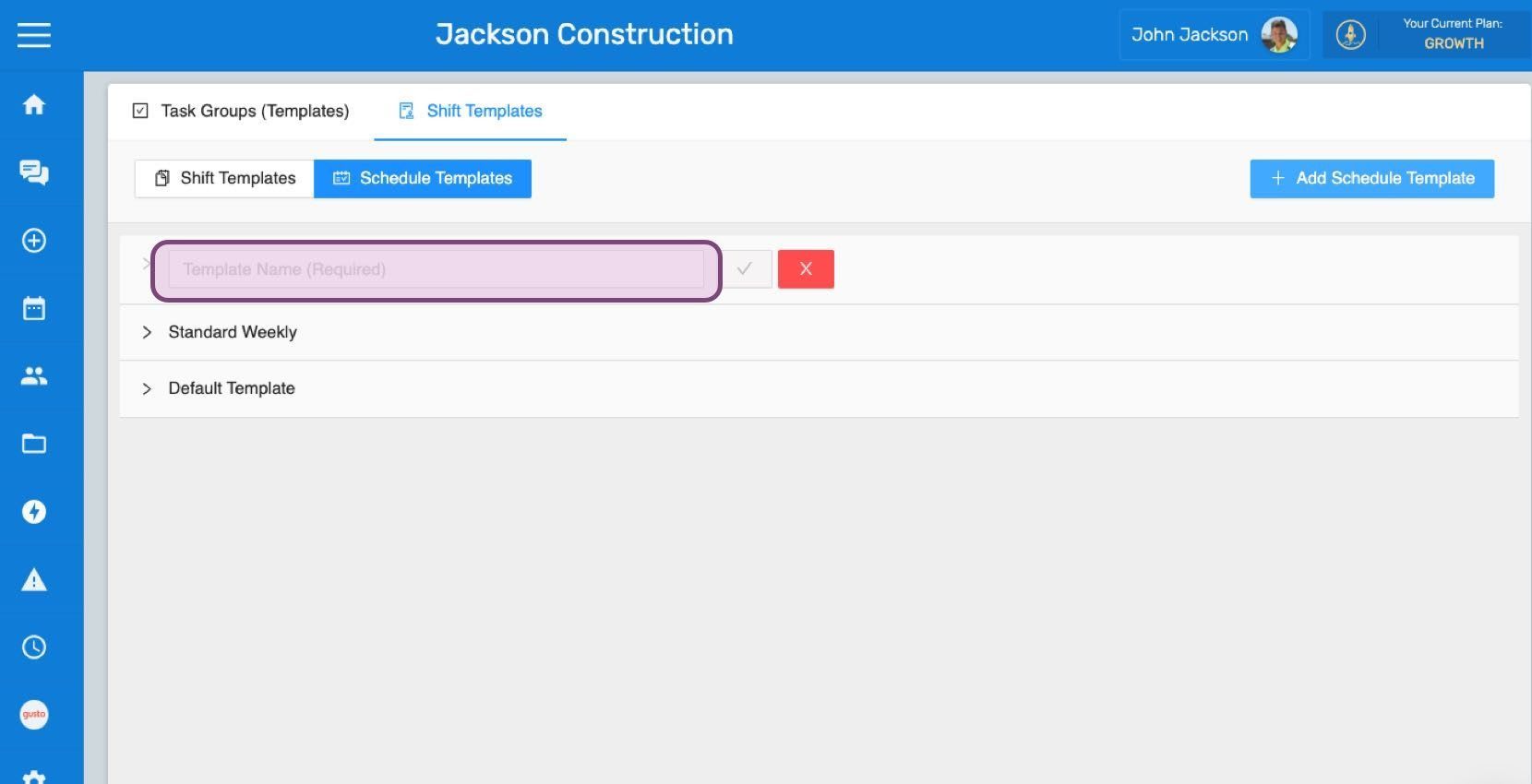
Enter the name you want to give the schedule template.
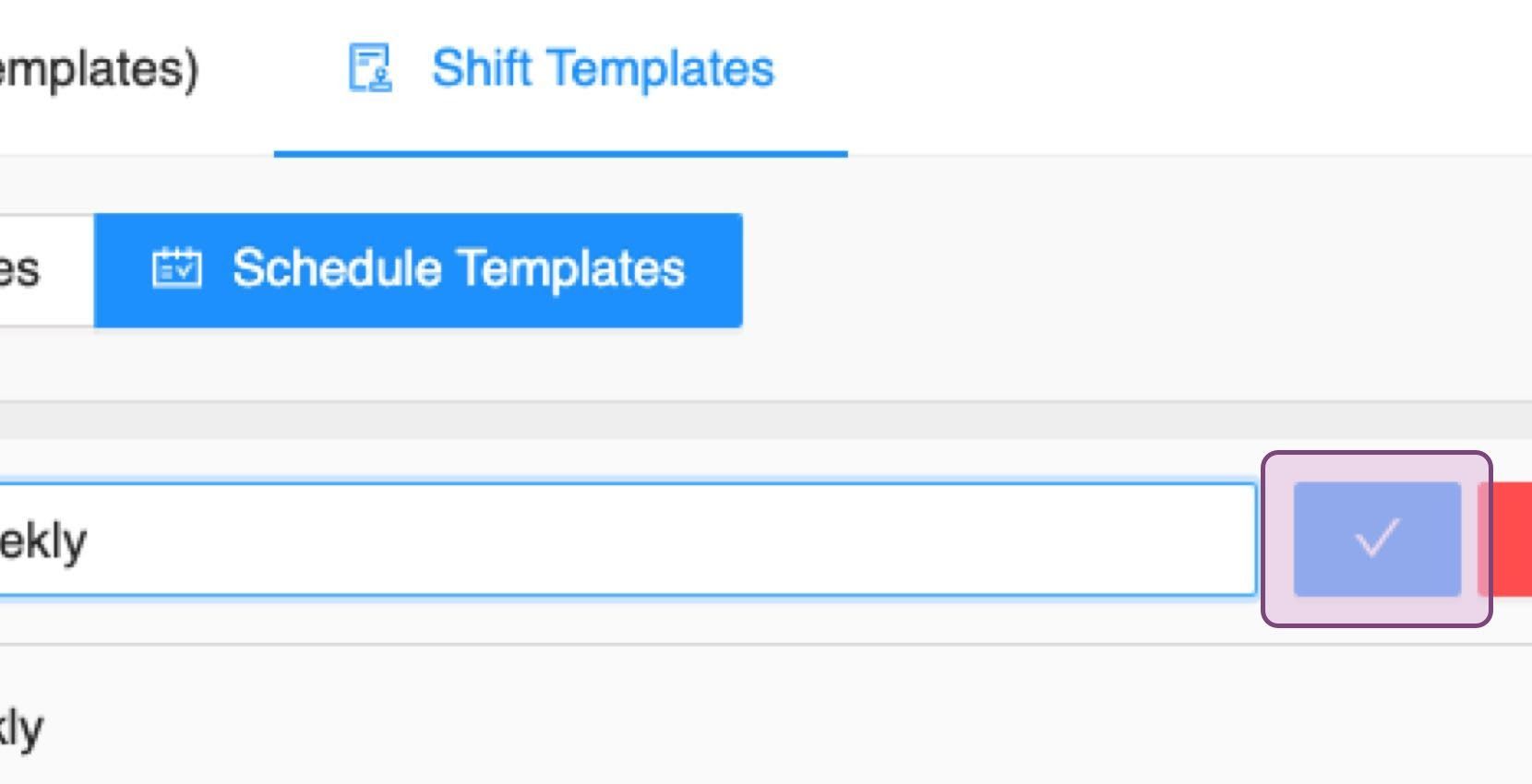
Click on Confirm
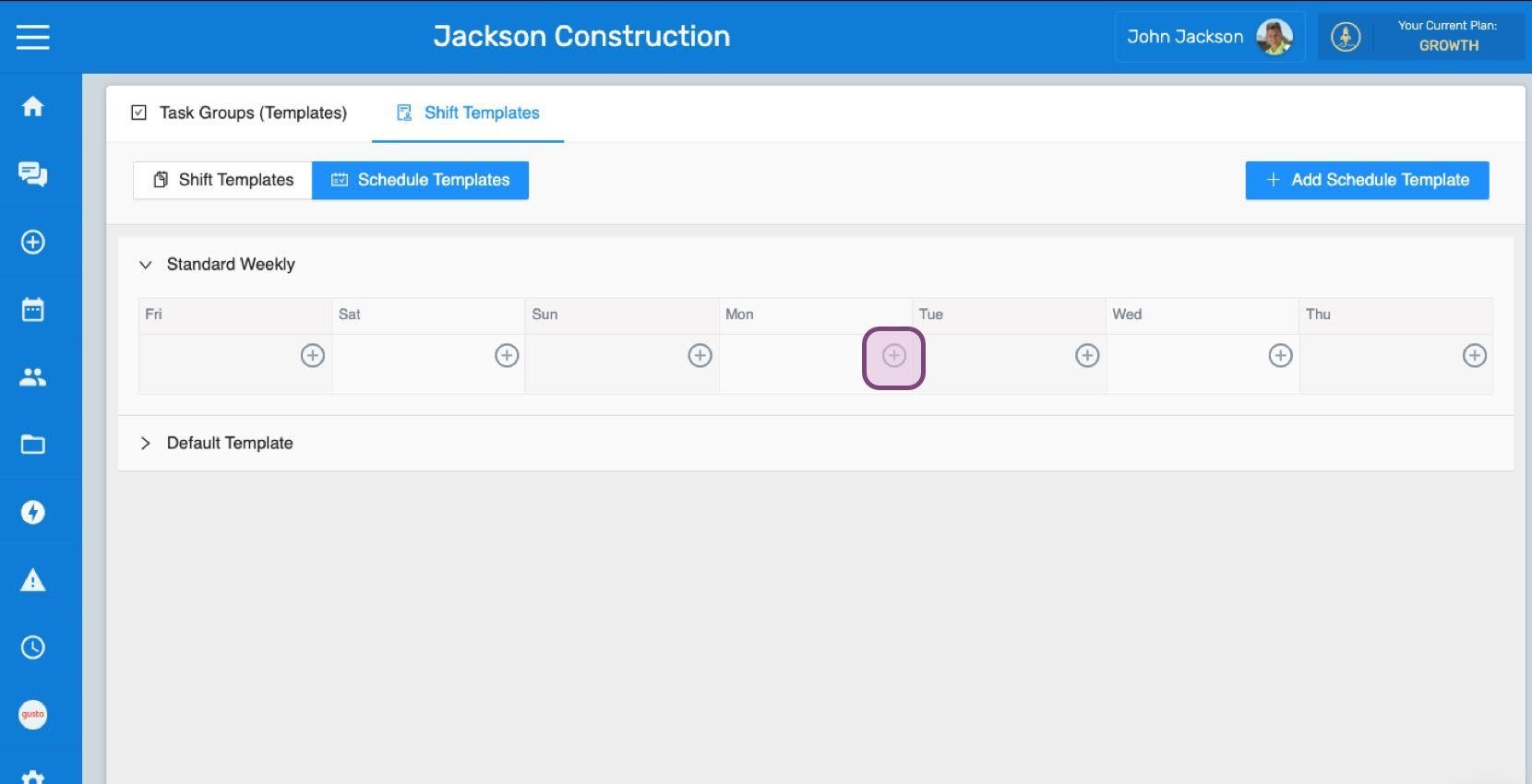
Click on the add icon to add a predefined shift template to this schedule template.
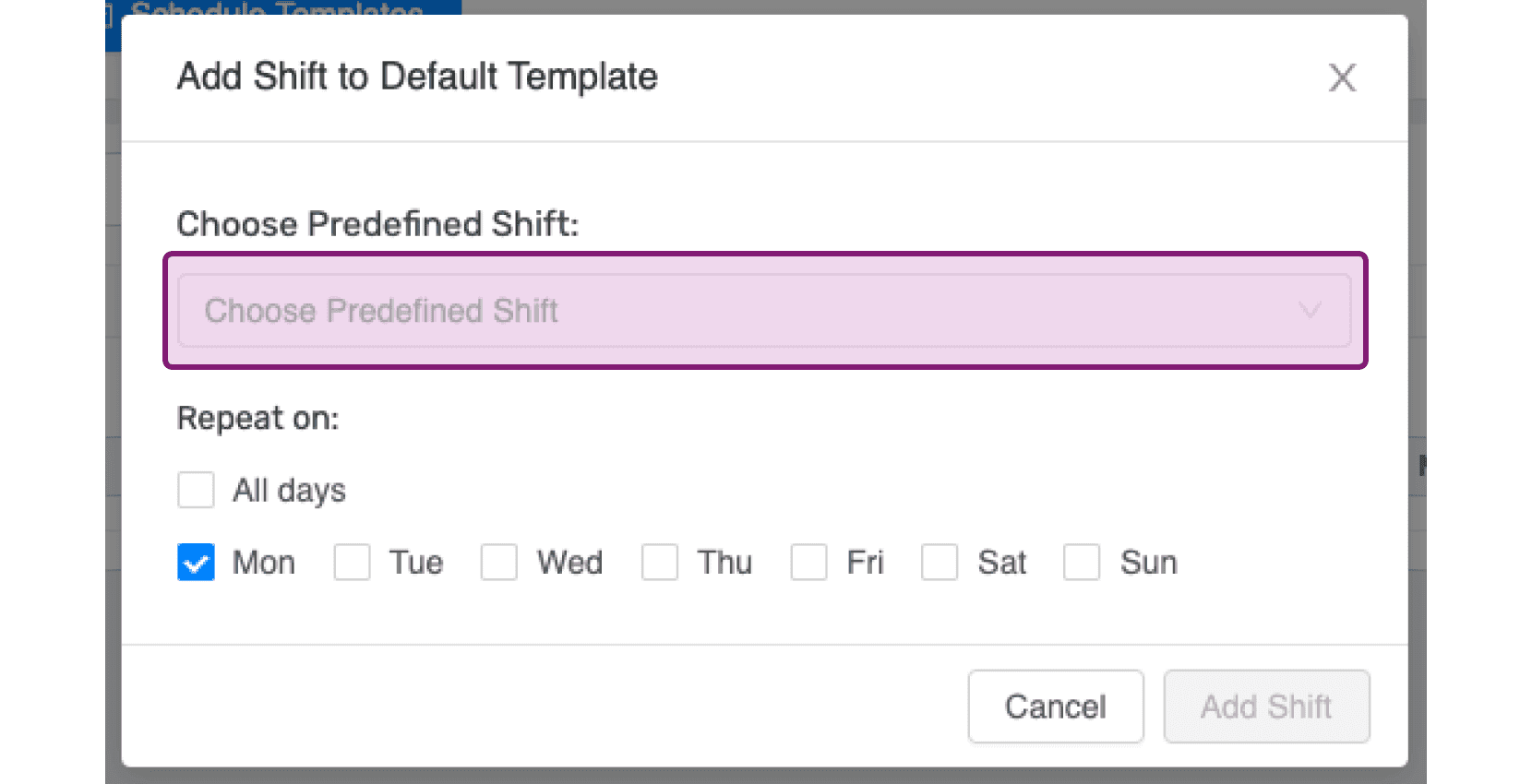
Click on Choose Predefined Shift to select a predefined shift template from the drop-down.
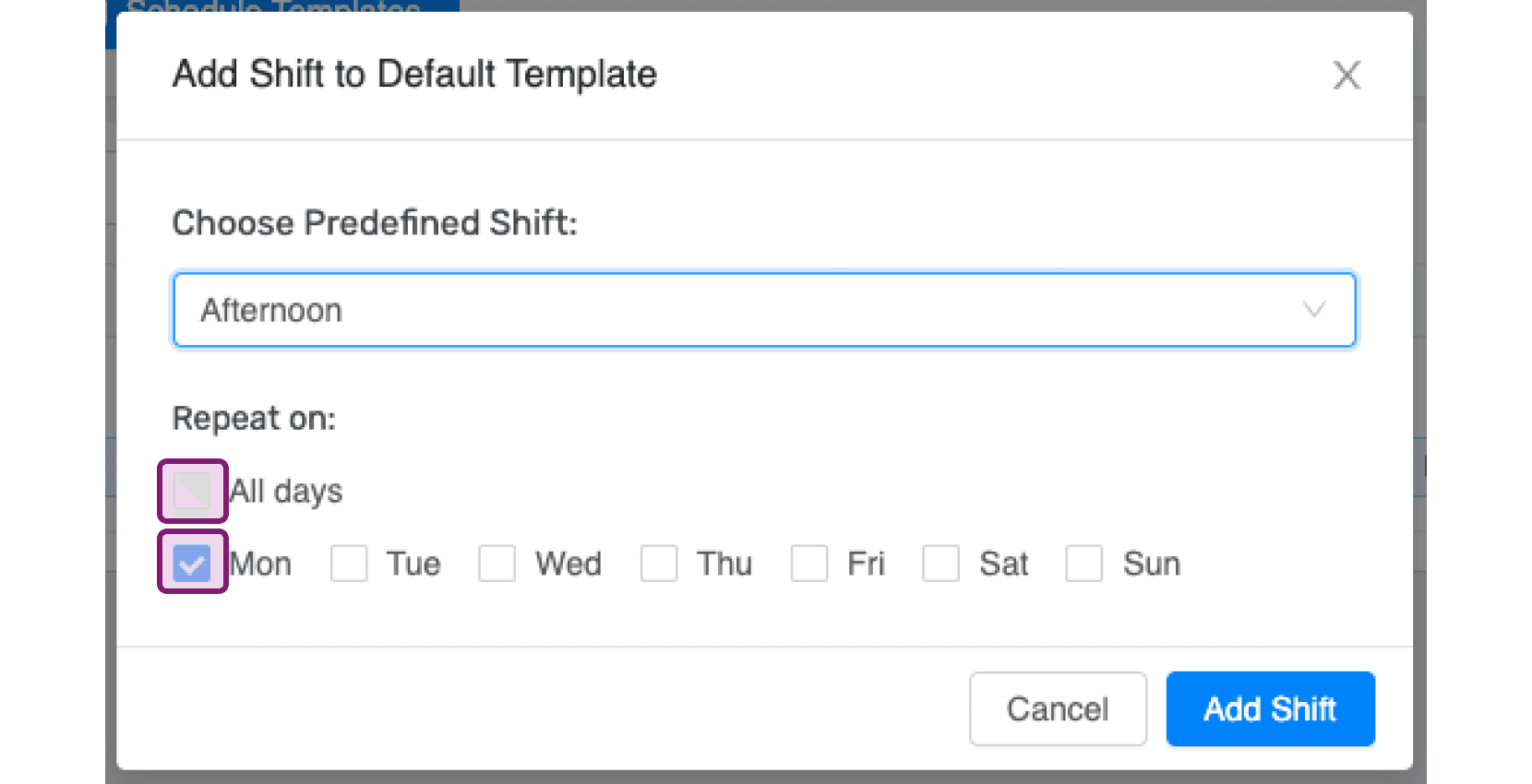
Tick the All days checkbox in case the selected shift is to be repeated on all days, or tick the checkbox for the specific days on which you would like to have it repeated.
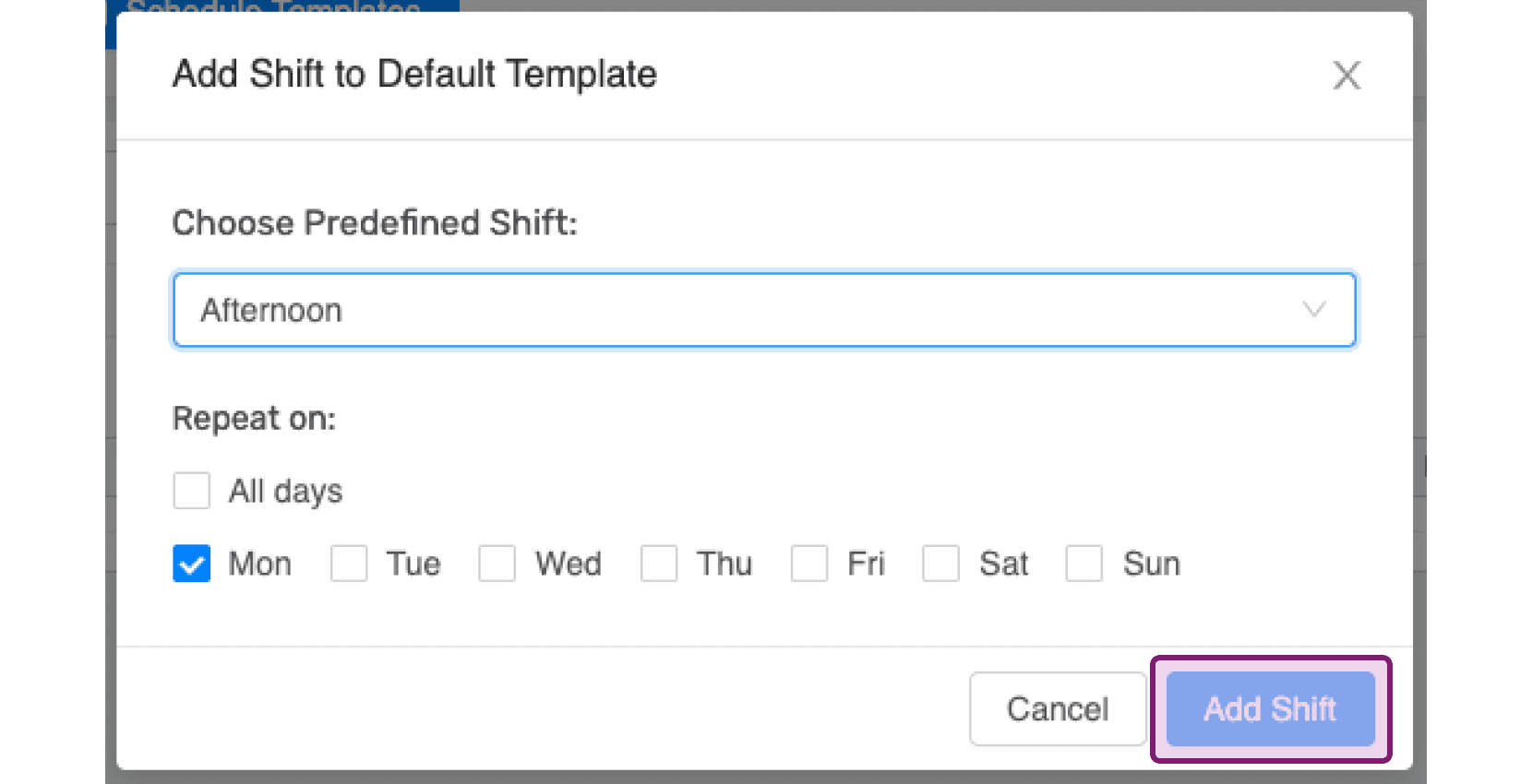
Click on Add Shift. Keep in mind: multiple predefined shifts can be added on the same day of a schedule template, for example, an employee who works a morning and afternoon shift. However, these shifts have to be more than 15 minutes apart, or you will get an error trying to add them.
Did this answer your question?