Edit Schedule Template

In this tutorial, we show you how to edit a schedule template

SINC Support Team
SINC Support Team
May 7th, 2021

On Web: Click on Menu Libraries Shift Templates Schedule Templates tab
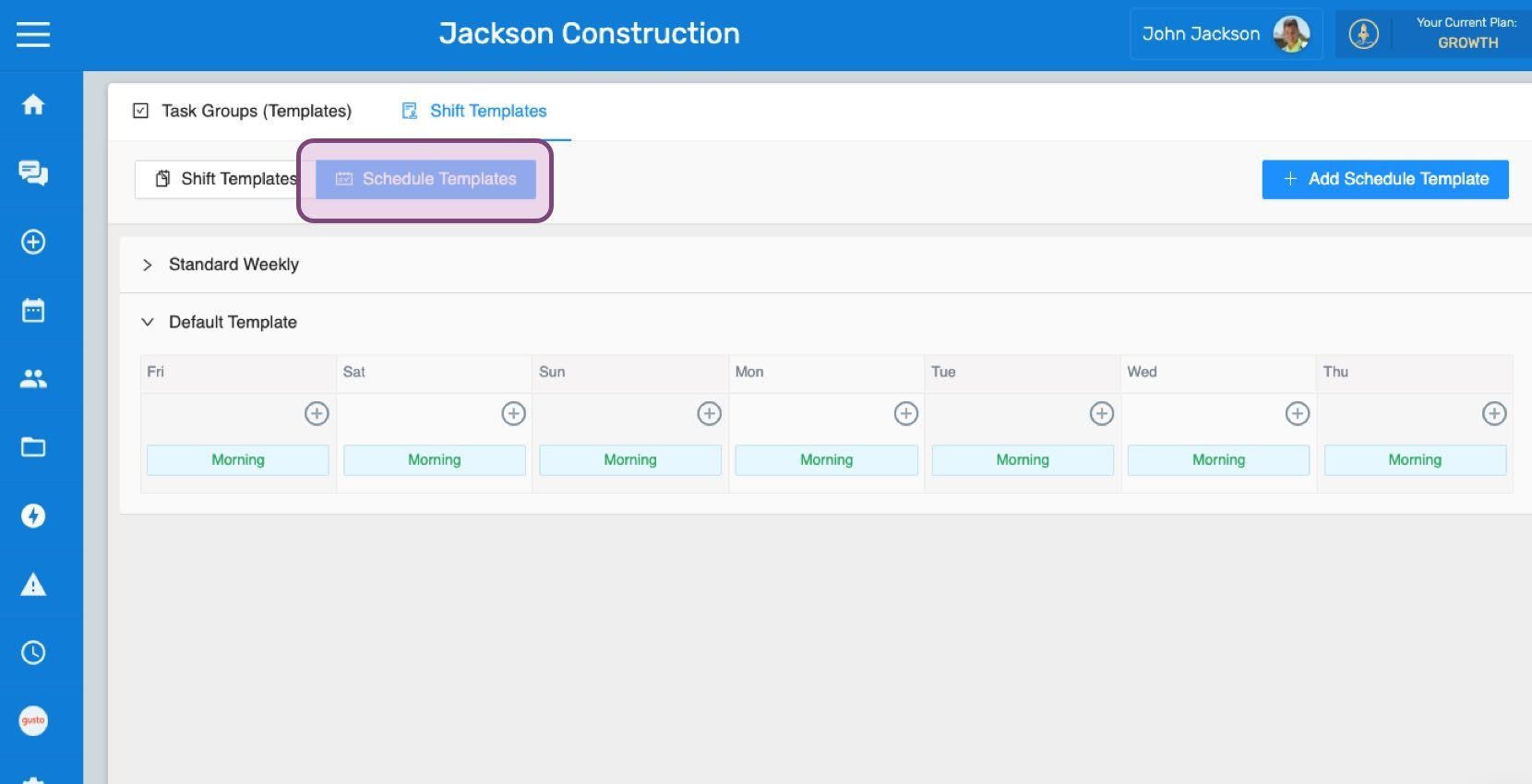
SINC web Shift Templates screen with the Schedule Templates tab outlined in pink above a weekly template grid

Click on the arrow to open the schedule template to be edited.
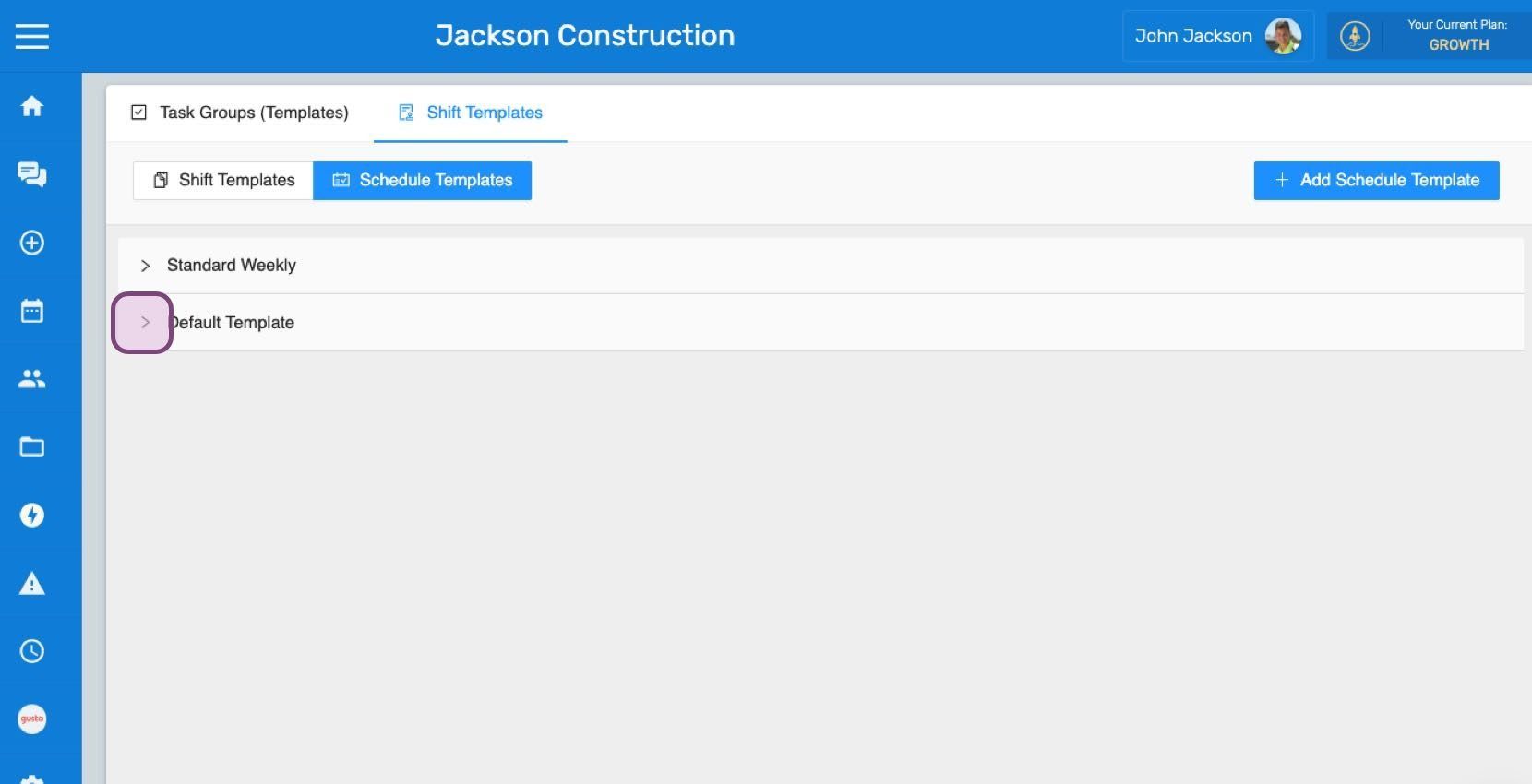
Web Shift Templates list showing Standard Weekly and Default Template with an expand arrow circled in purple

Click on the predefined shift to be edited.
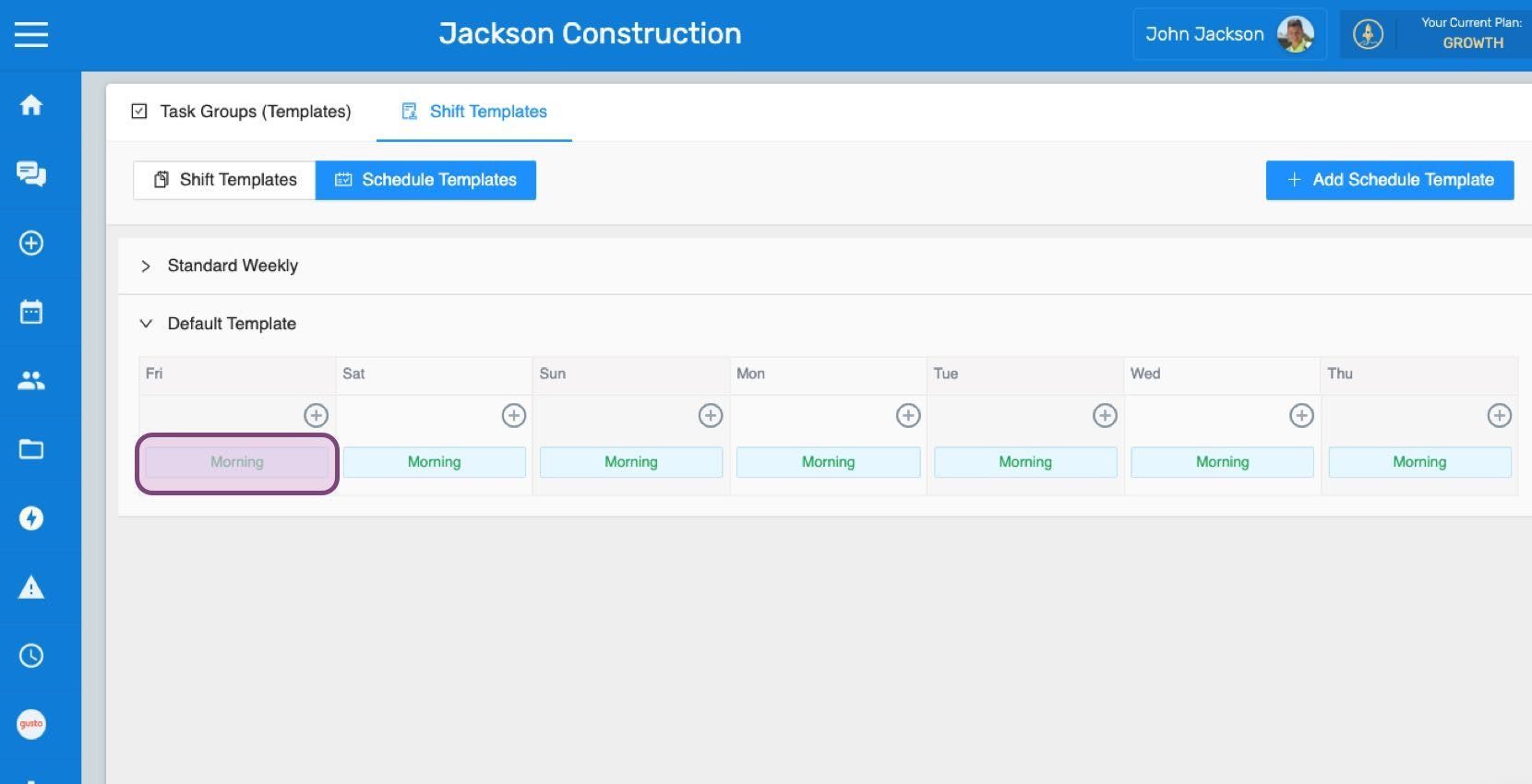
Schedule Templates weekly grid with the Morning shift template entry circled in purple

Choose a predefined shift from the dropdown, in order to replace the current shift with the desired shift.
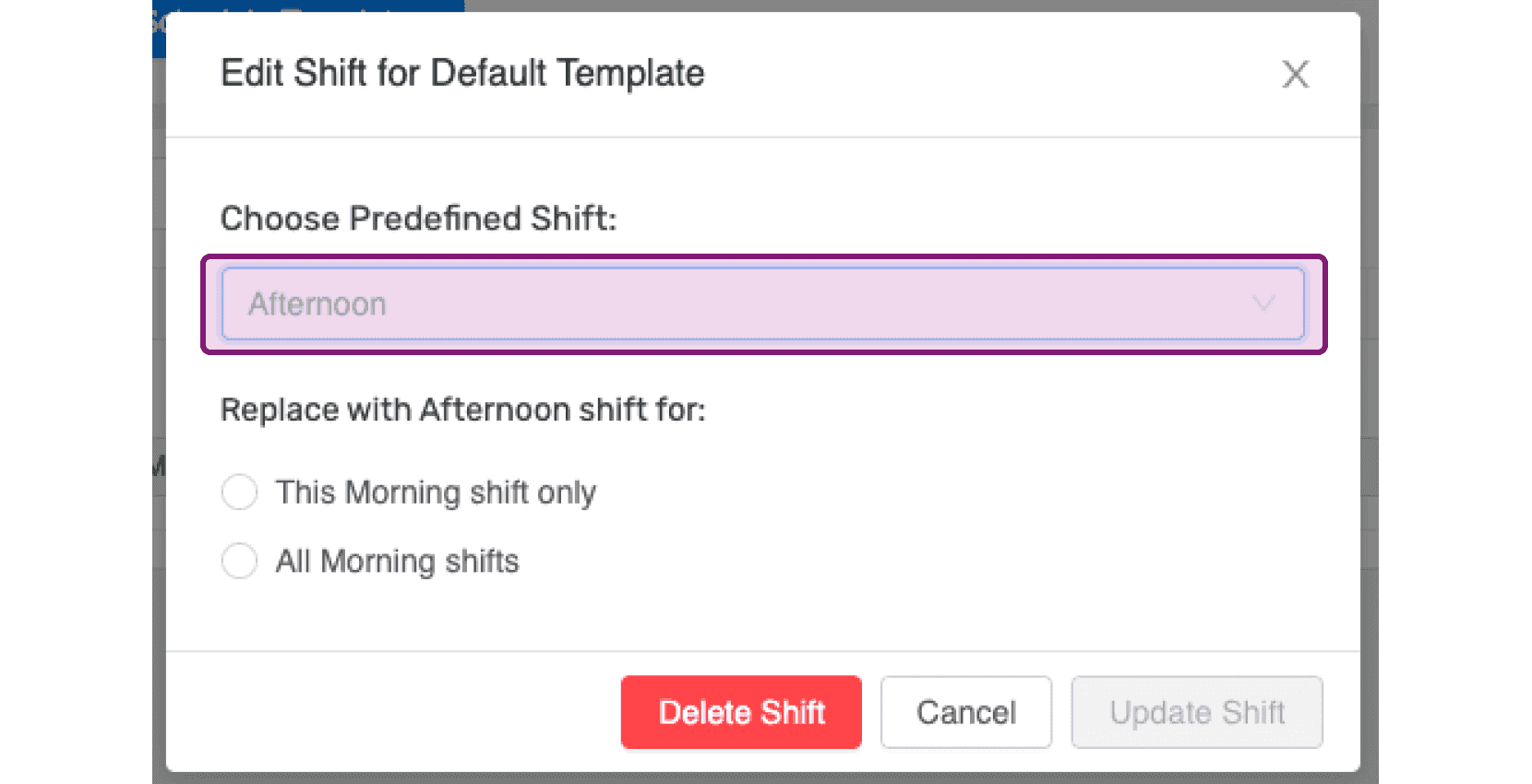
SINC web Edit Shift popup with the Choose Predefined Shift dropdown highlighted in purple

You can either choose to replace the desired shift on the specific day or all days in which the current shift is present.
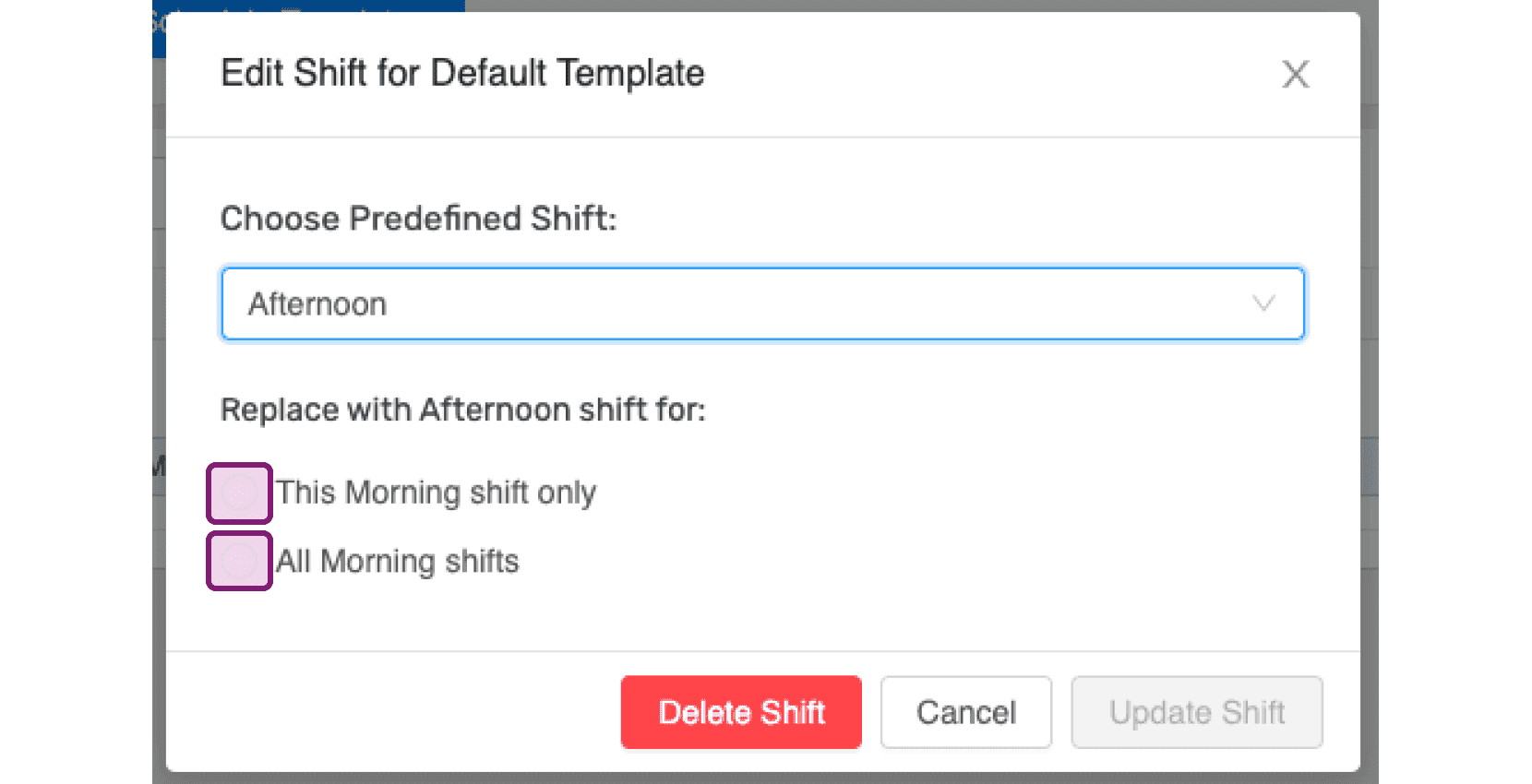
Edit Shift for Default Template popup with the Choose Predefined Shift dropdown and replace-shift checkboxes outlined in pink

In case you want to delete a predefined shift from this schedule template, click on Delete Shift
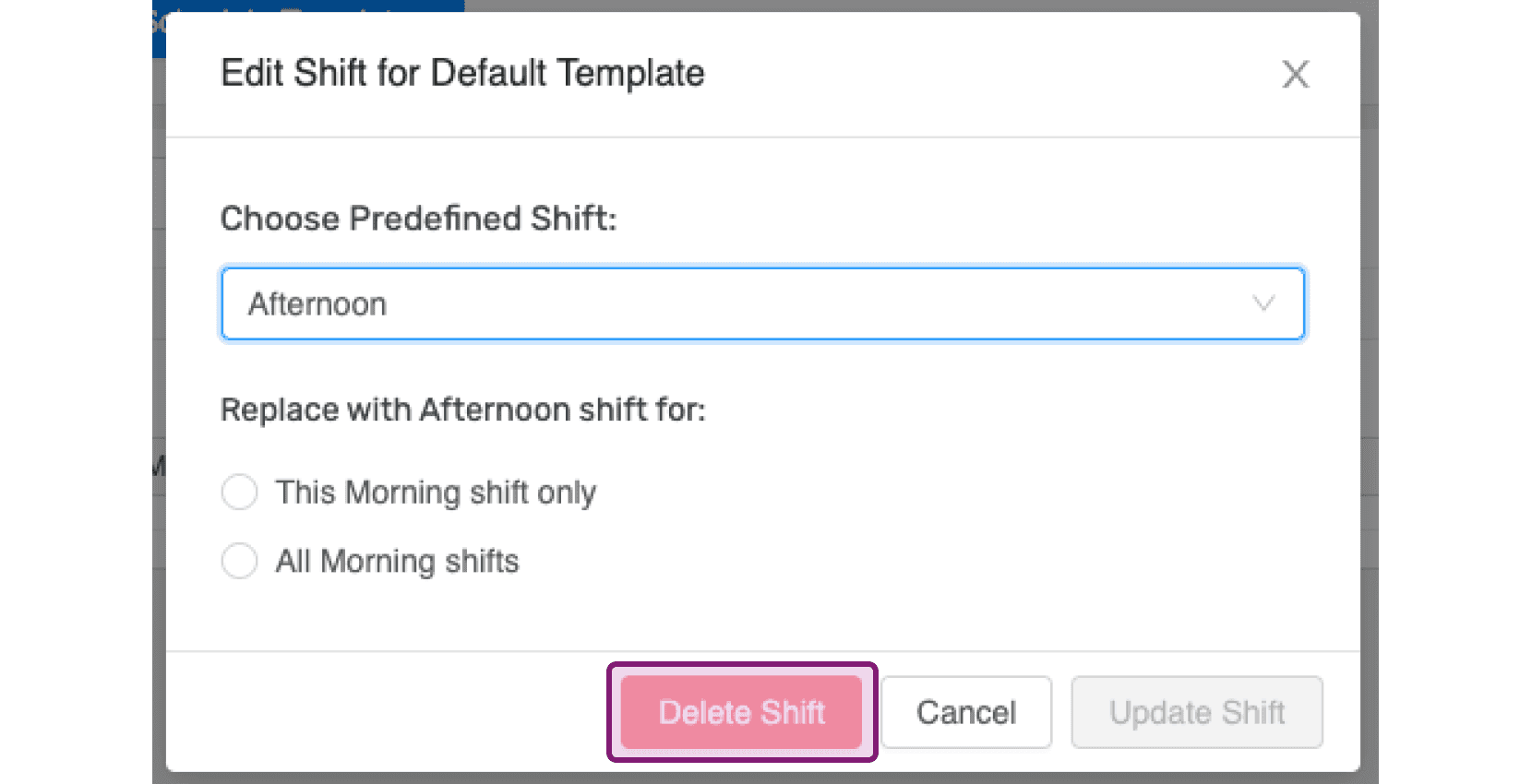
SINC web Edit Shift dialog with the Delete Shift button highlighted in pink

In case you want to edit the name of the schedule template, click on its name.
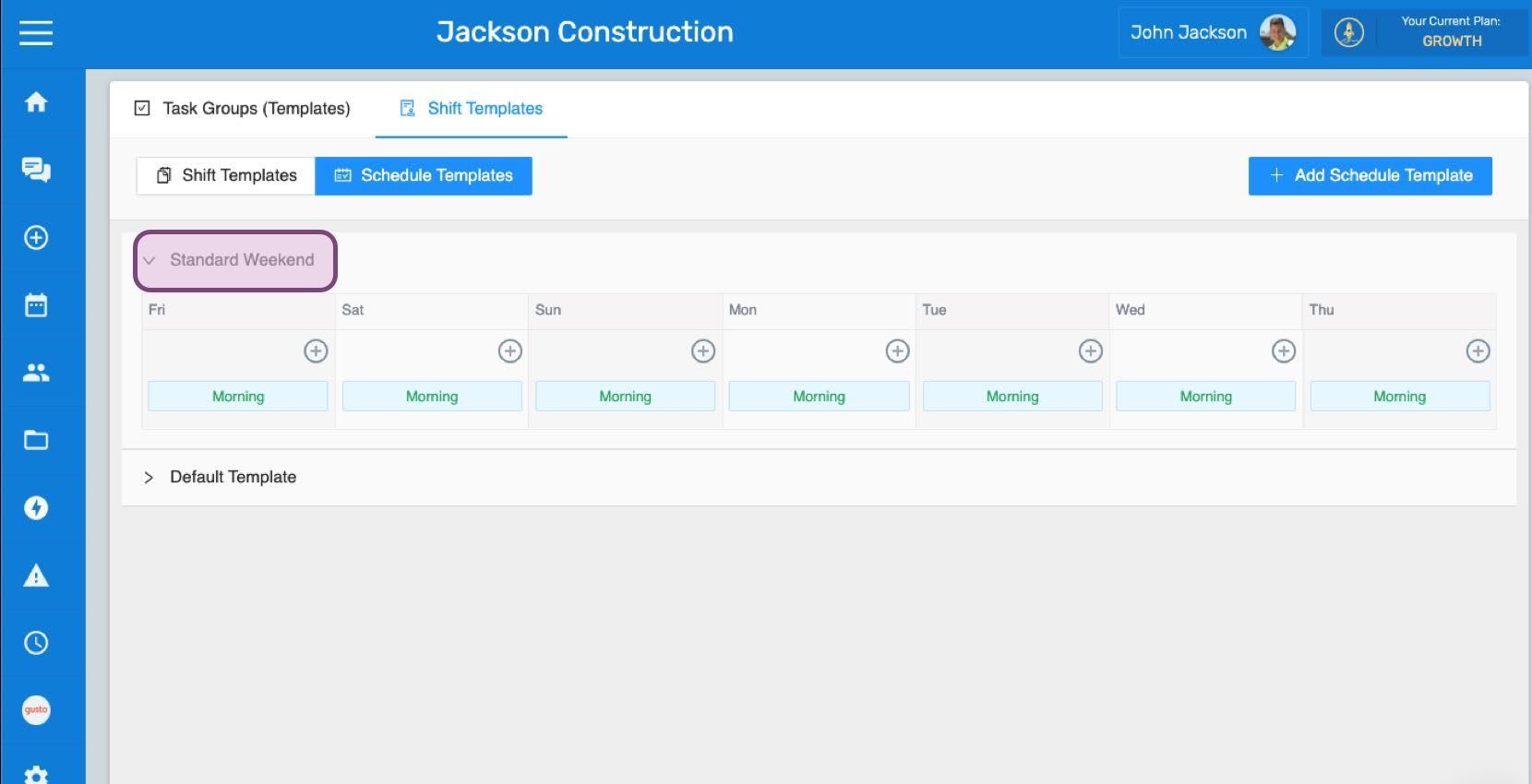
Schedule Templates screen with the "Standard Weekend" template name circled in pink

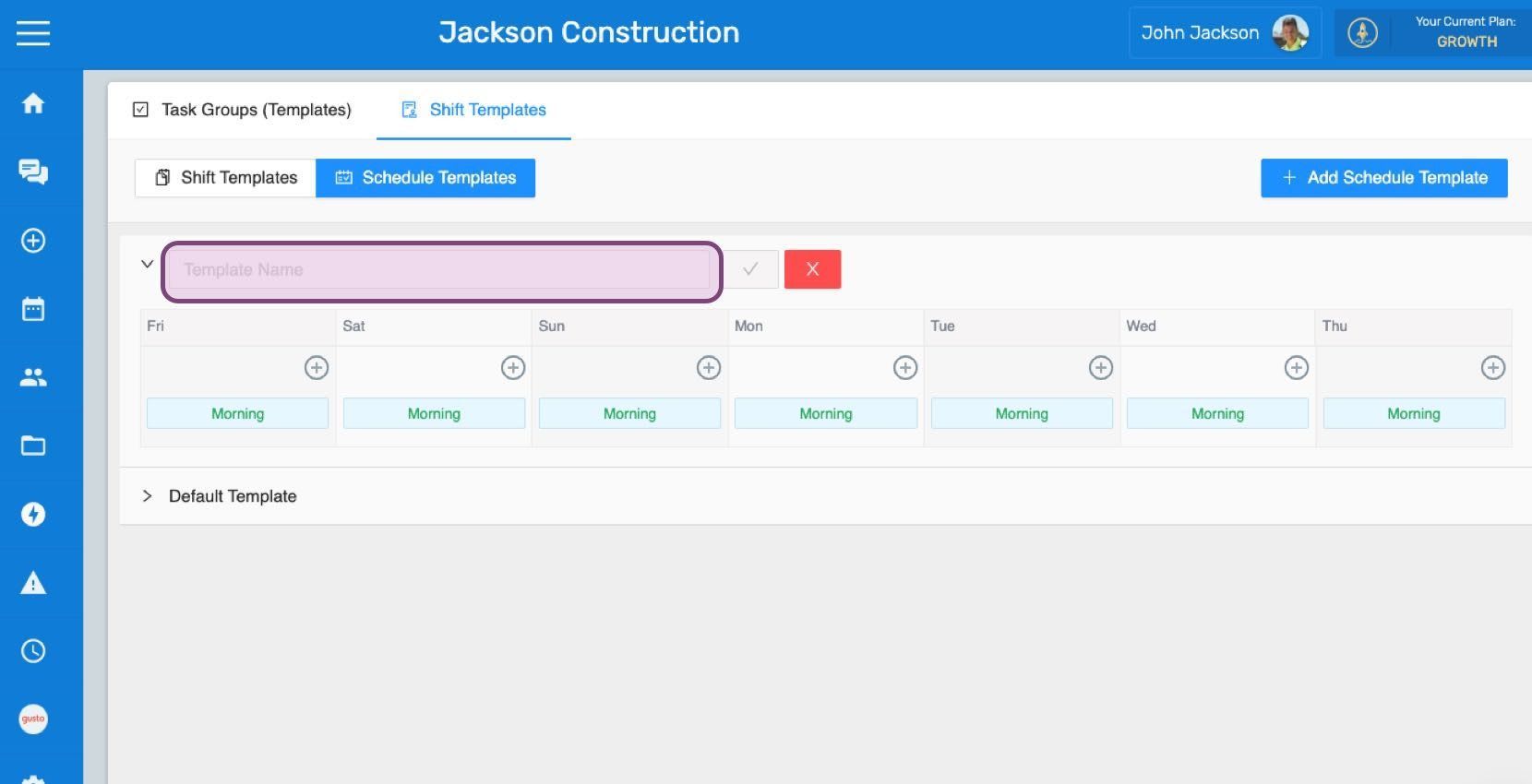
Enter the new name.

SINC web Schedule Templates screen with a template name field and a week of Morning shifts listed

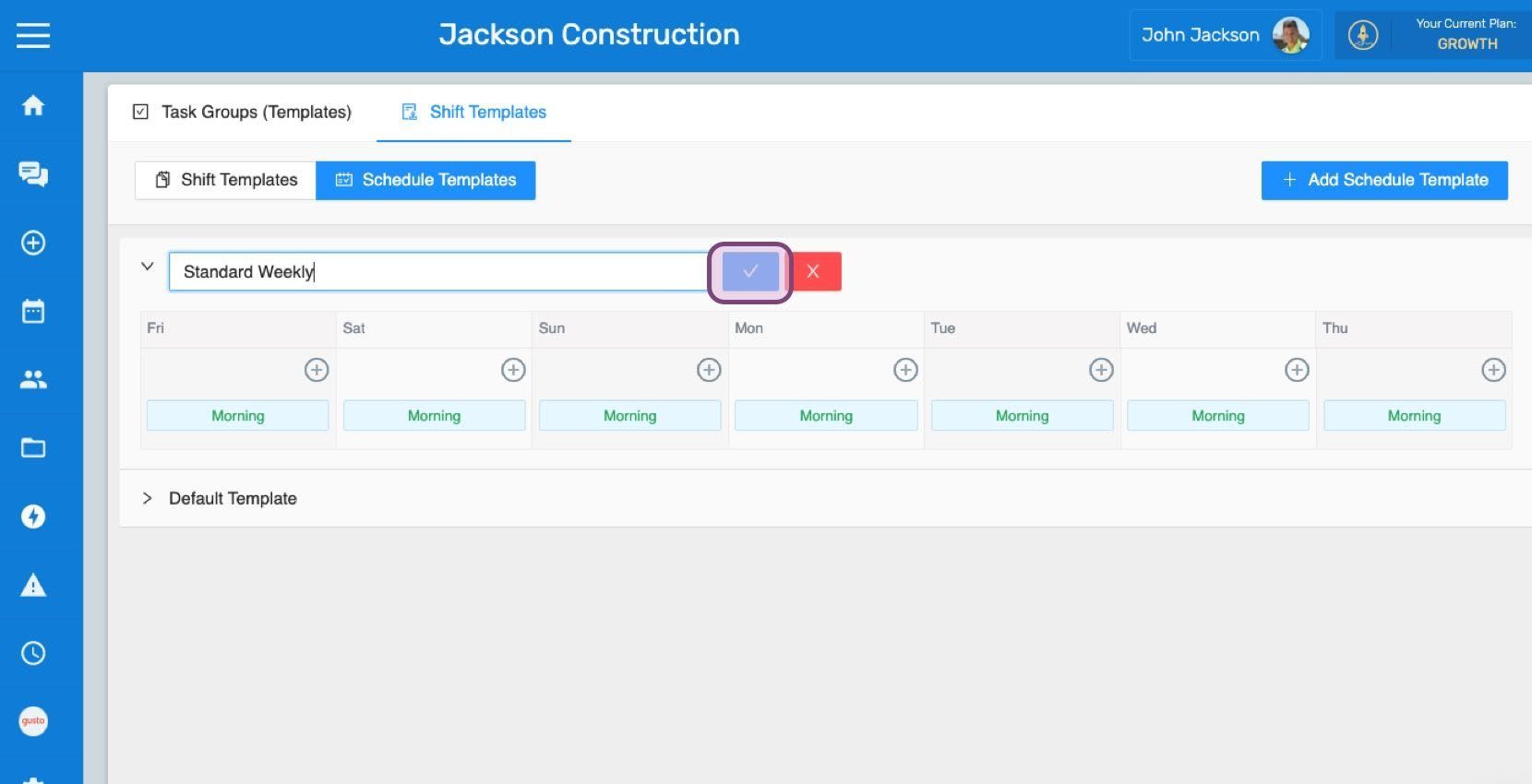
Click on Confirm

Web Schedule Templates tab with a weekly template name field and the confirm checkmark button outlined in pink

Did this answer your question?