
How Shift Templates Work
In this tutorial, we show you how are shift templates used in your scheduling area

Shift Templates are available on the web version, not the app. First, please navigate to users.sinc.business on a computer using Chrome or Firefox. Before you get started, it's important to review what Shift Templates are: they are a part of Scheduling that allows you to predefine commonly repeated shifts for your staff, e.g. Morning, Afternoon, Full Day, etc. You can assign these Shift Templates to Schedule Templates (e.g Standard Weekly, Standard Weekend, etc.) to create schedules that can be repeated and easily applied to a group of staff in your scheduling area. A shift template is NOT by itself a Shift that will be recorded against their hours for the pay period; shifts and their hours are only recorded when an employee clocks in or out in the usual way.
On Web: First, click on Menu Libraries Shift Templates Shift Templates tab
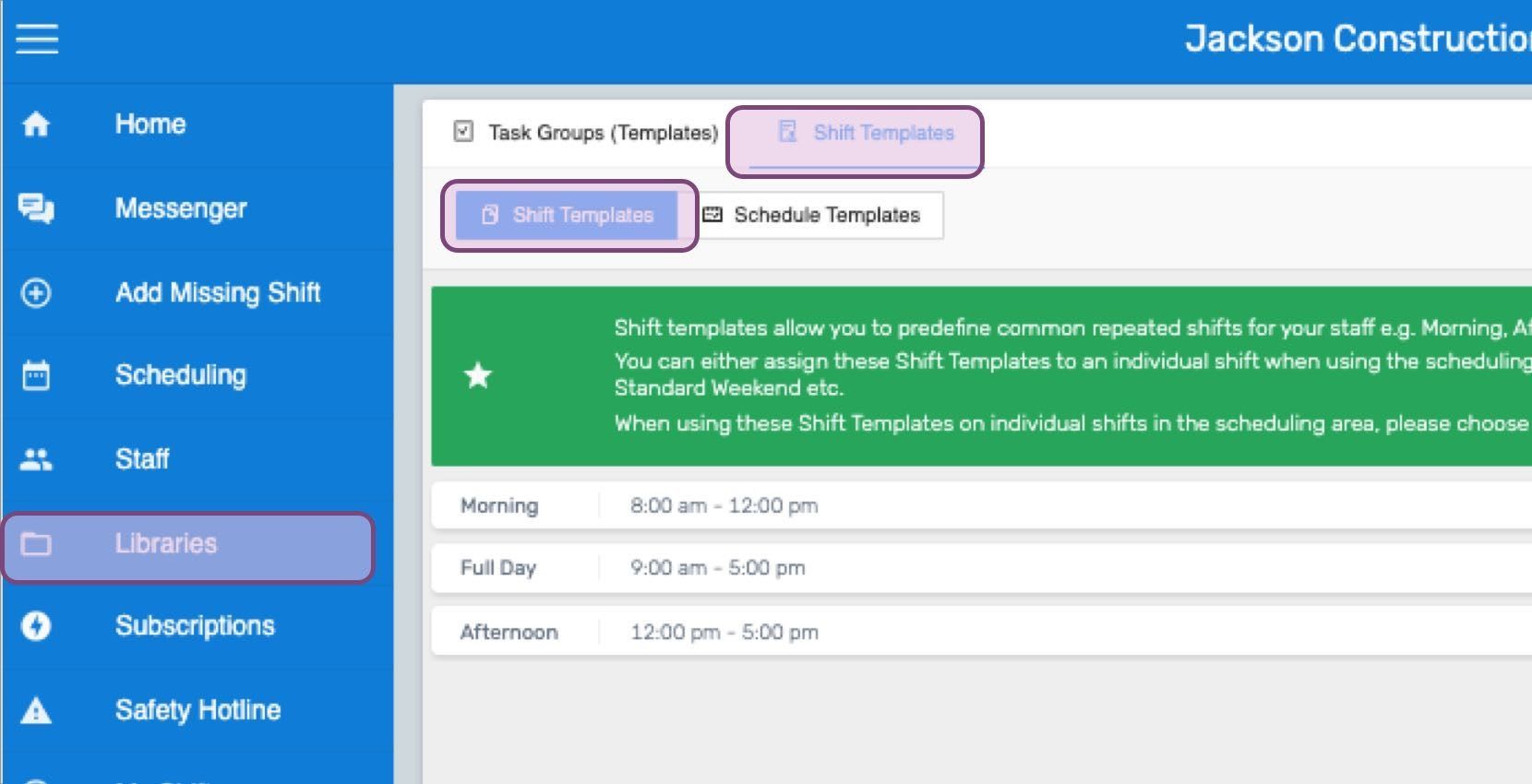
SINC provides you with three default Shift Templates: Morning, Afternoon, and Full Day. You can either edit their details or add new template shifts to the list.
Second, click on Menu Libraries Shift Templates Schedule Templates tab. In case you do not have scheduling set up, you can configure the initial schedule settings here. Note that these initial settings cannot be changed at a later date without wiping any existing scheduling shifts and notes.
Once the schedule settings are configured, SINC provides you with a default Schedule Template: Default Template. You can either edit it or add a new schedule template to the list. You can now assign these schedule templates to a group of staff in your scheduling area.
Did this answer your question?