How to Edit a Team

In this tutorial, we show you how to edit a team

SINC Support Team
SINC Support Team
Mar 1st, 2023

On Web: Click on Menu Staff Teams.
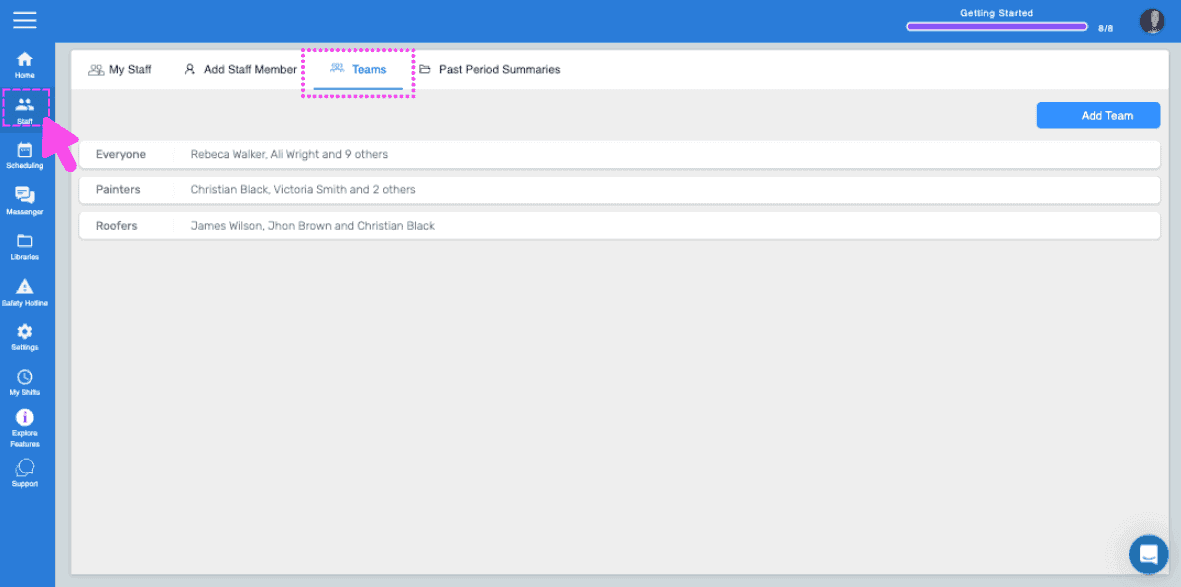
SINC web My Staff breadcrumb menu with the Teams tab highlighted in a pink dashed box

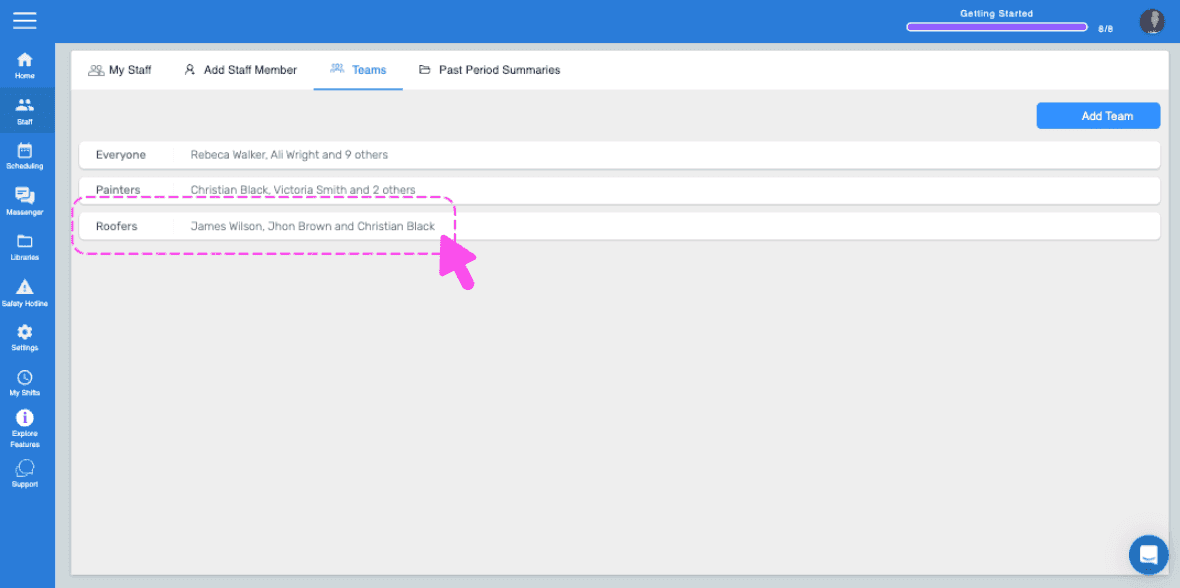
Click on the team to be edited.

Web Teams list with the Painters team row outlined in pink and an arrow pointing to it

To edit the name of the team, click on Edit next to Team Name.
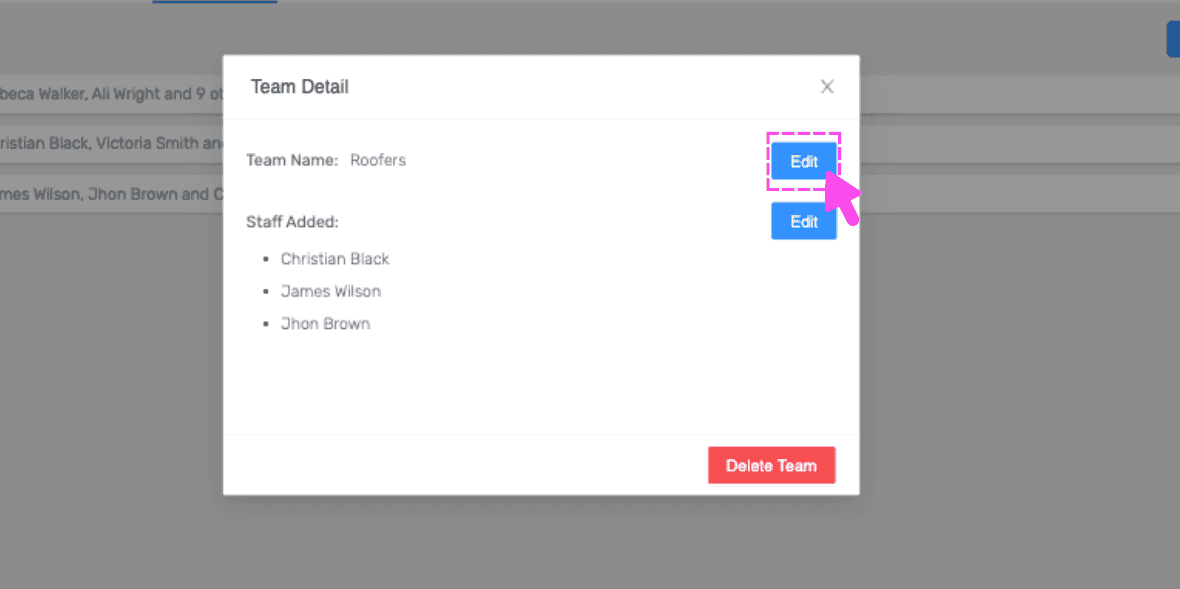
SINC web Team Detail popup listing team members with a pink arrow pointing to the Edit button next to Team Name

To edit the members of the team, click on Edit next to Staff Added.
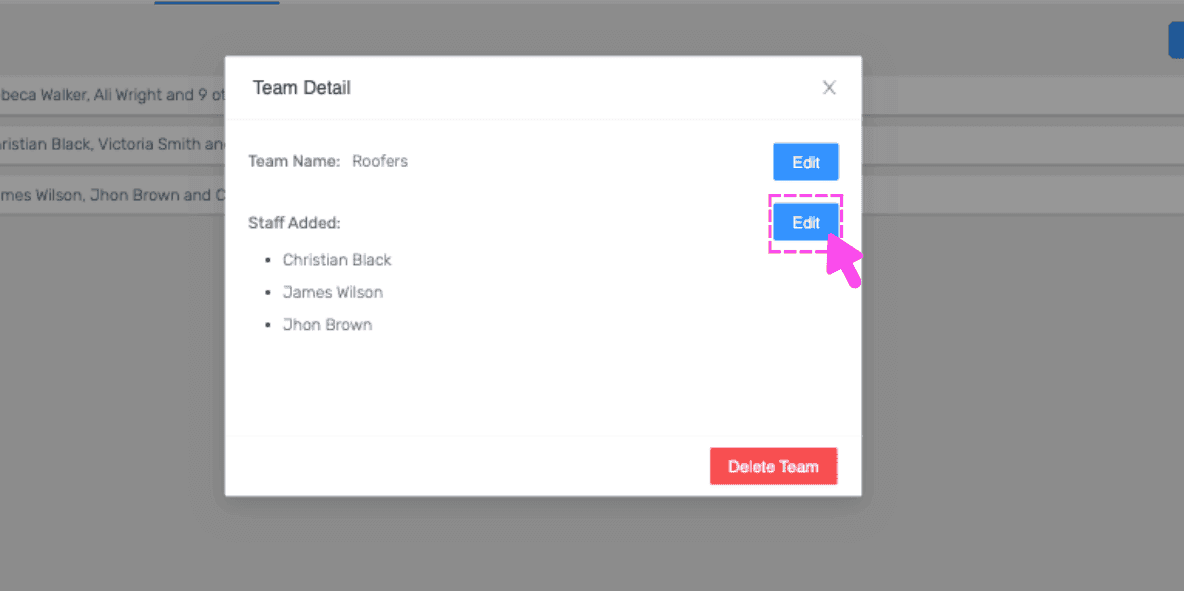
Team Detail popup with a pink arrow pointing to the Edit button next to Staff Added

To delete a team, click on Delete Team.
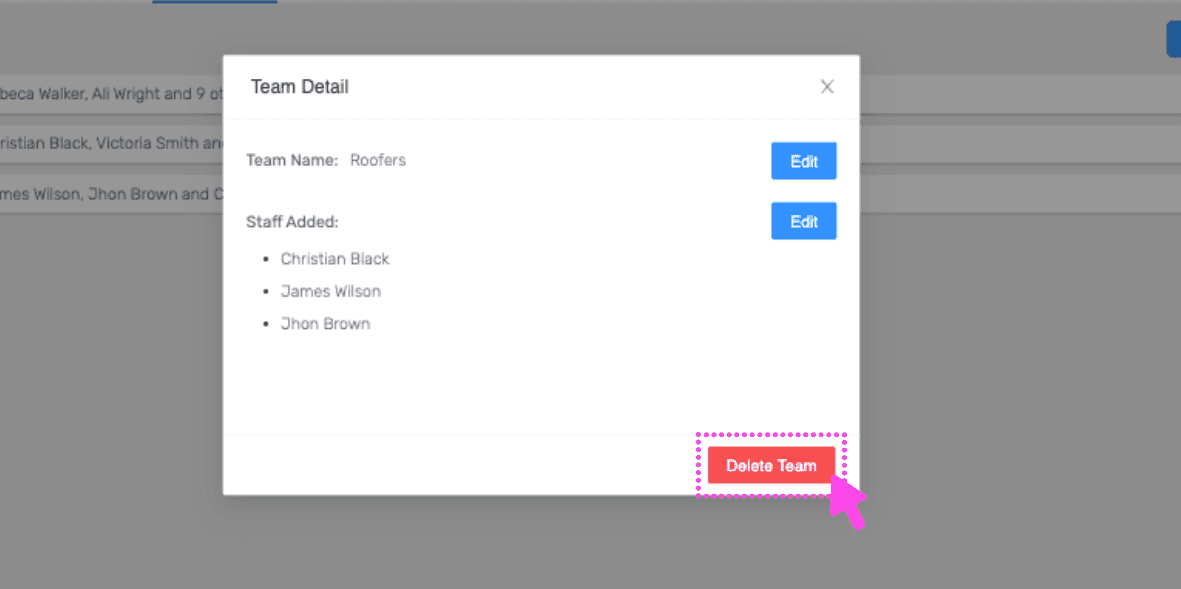
Web Team Detail popup listing team members with the Delete Team button circled in pink

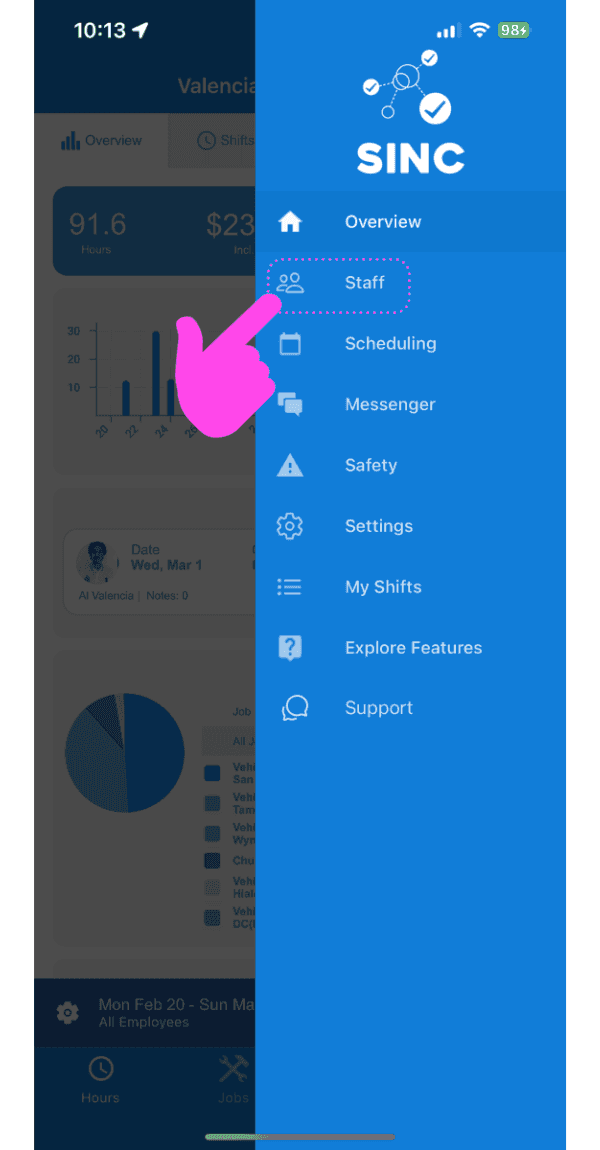
On Mobile: Tap on Staff.

SINC mobile app side menu with a pink hand pointing to the Staff option

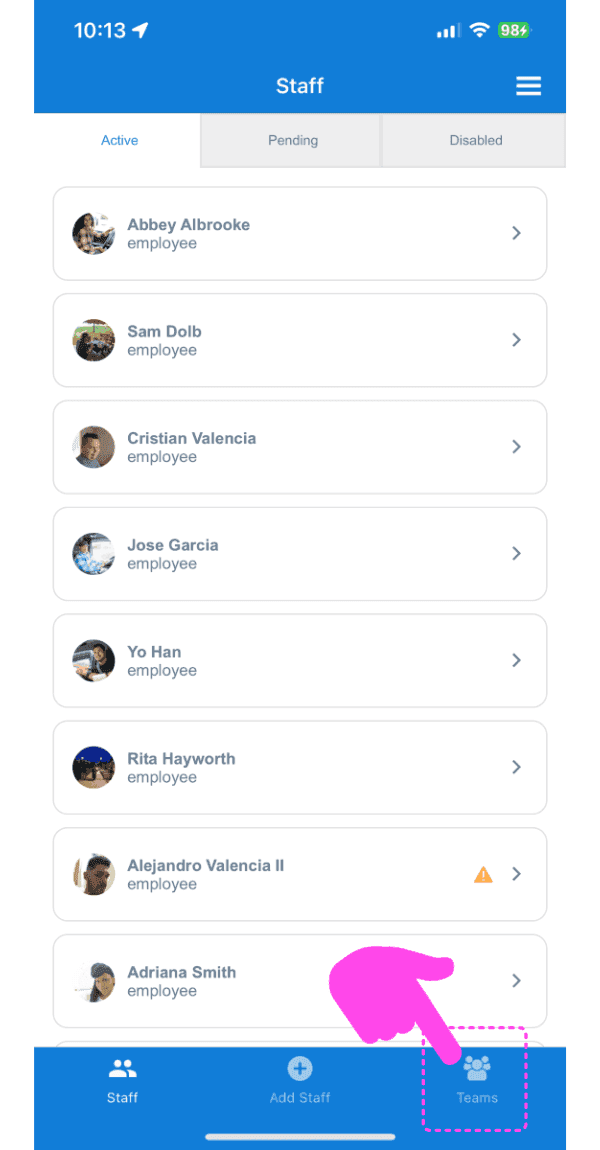
Tap on Teams.

SINC mobile Staff list on the Active tab with a pink arrow pointing to the Teams tab at the bottom

To edit the name of the team, tap on Edit next to Team Name.
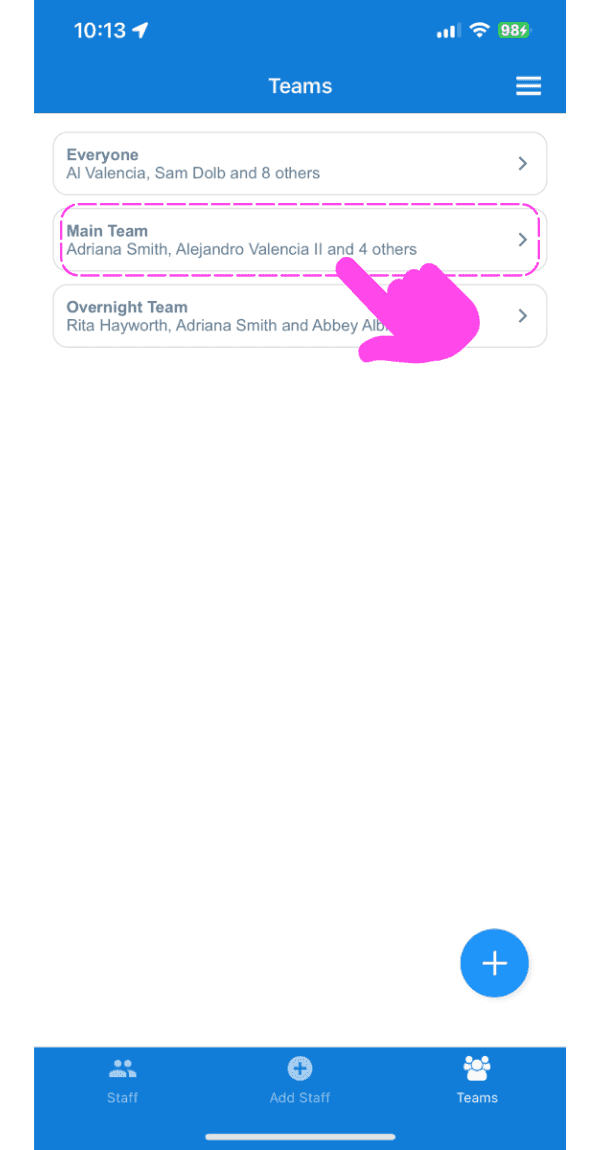
Teams list screen with a pink arrow pointing to the Main Team entry

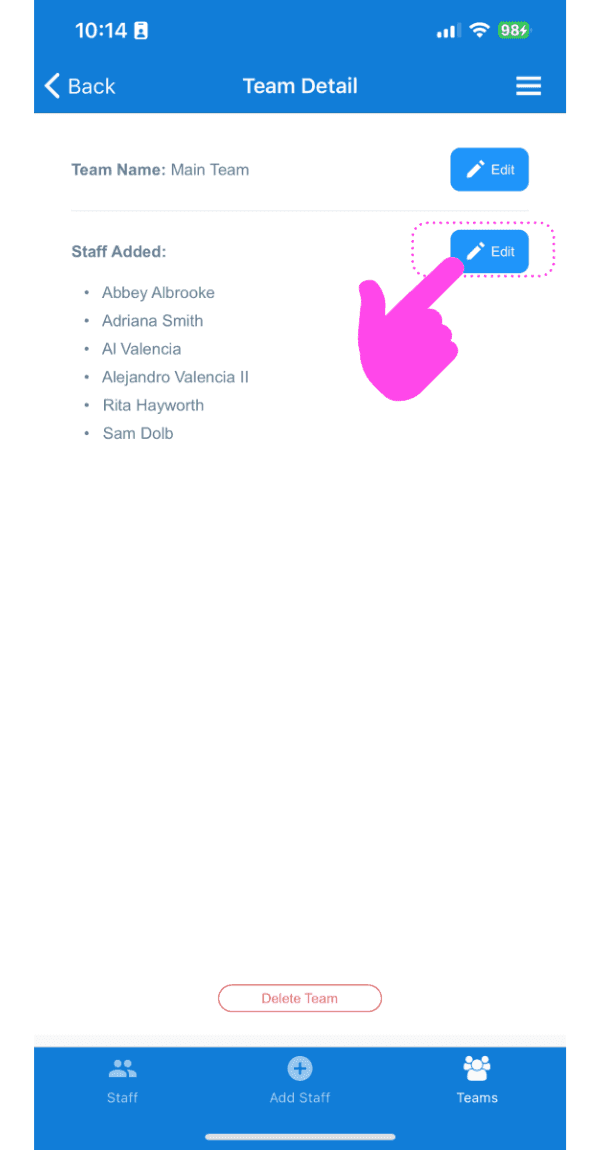
To edit the members of the team, tap on Edit next to Staff Added.
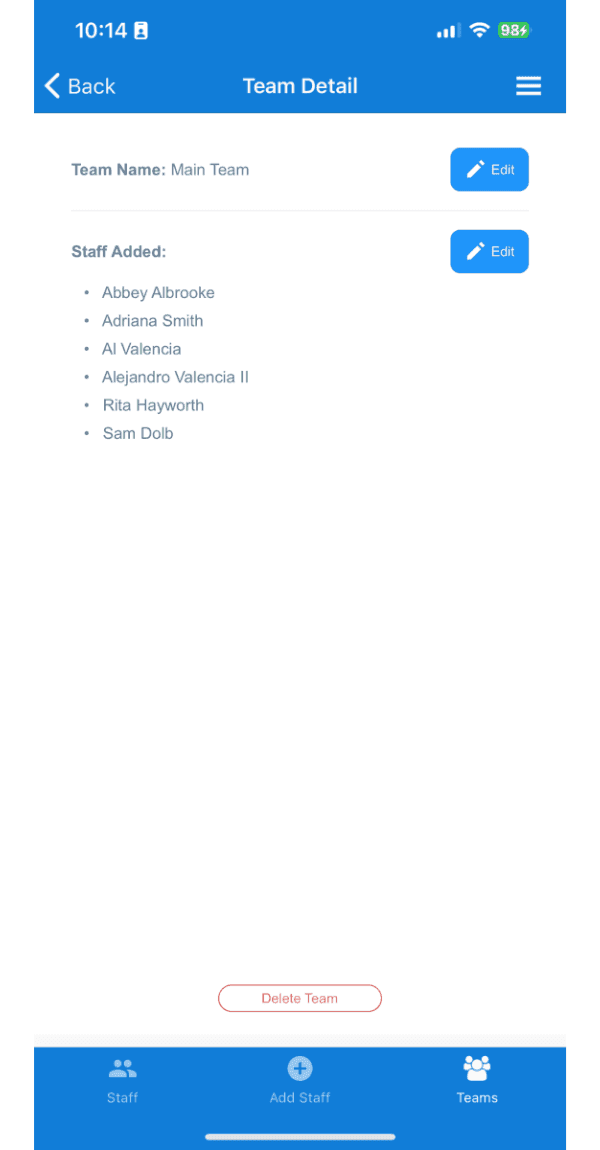
SINC mobile app Team Detail screen with the Edit button next to Staff Added outlined in pink

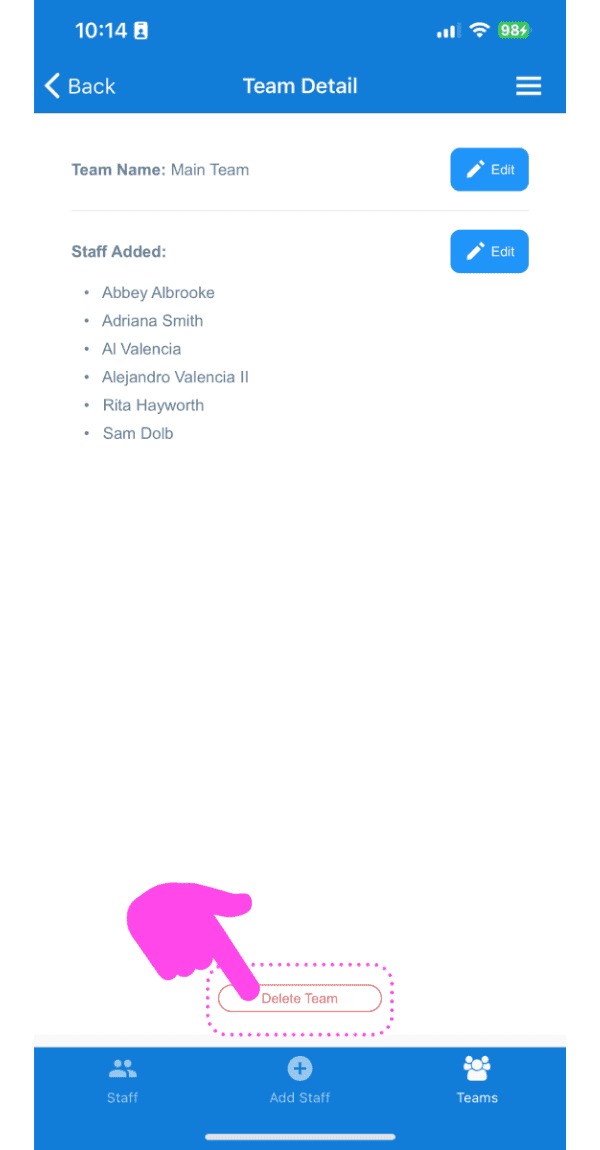
To delete a team, tap on the bin icon at the bottom left.
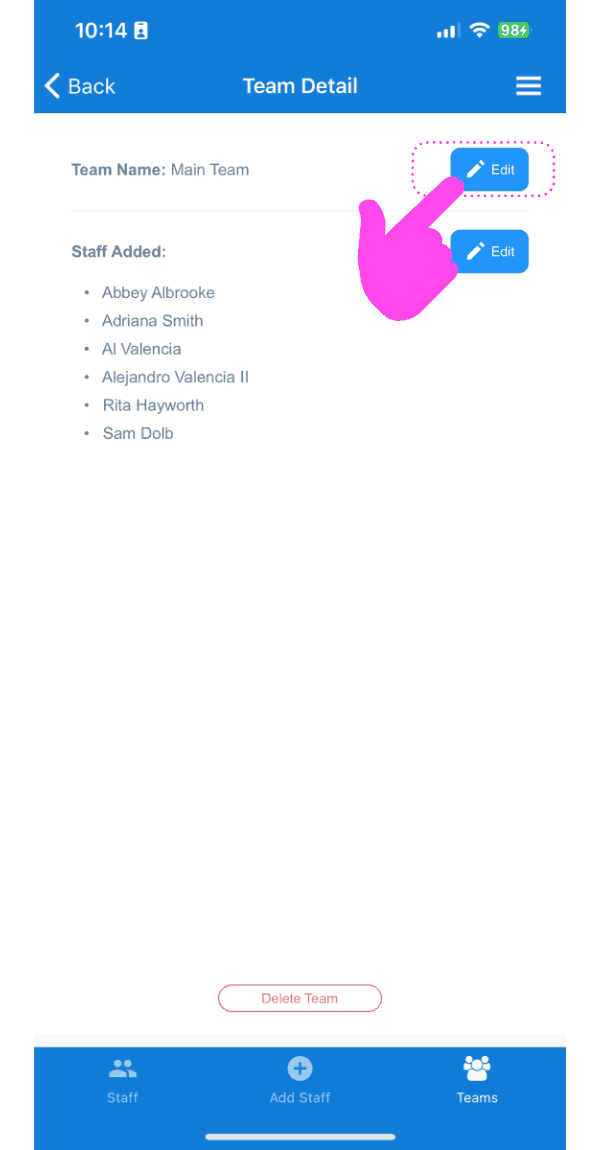
Team Detail screen showing the staff list with the Edit button highlighted by a pink arrow
Team Detail screen listing staff members added to the team, with a pink arrow pointing to the Edit button
SINC mobile Team Detail screen with a pink hand pointing to the Delete Team button

Did this answer your question?