How to Edit Staff Profile

This guide covers how you can edit staff profile as an Admin

SINC Support Team
SINC Support Team
Feb 27th, 2023

Note that the edits made by an admin on a staff profile takes priority over the profile edit made by the staff themself. On Mobile: Tap on Menu Staff
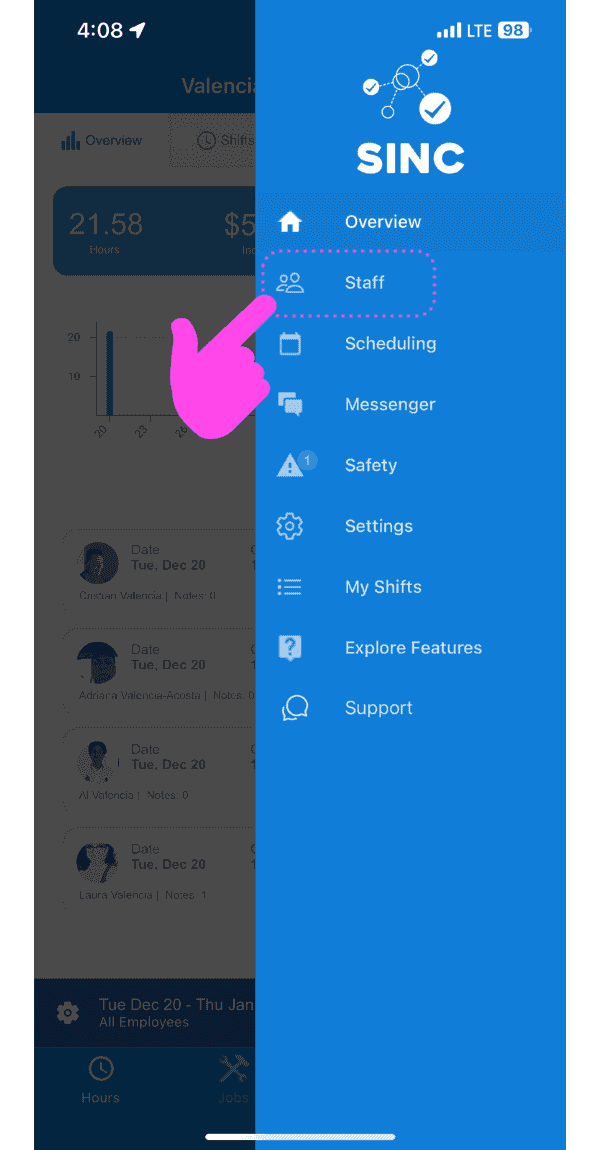
SINC mobile app side menu open with a pink arrow pointing to the Staff menu option

Tap on the arrow next to the staff member whose profile is to be edited
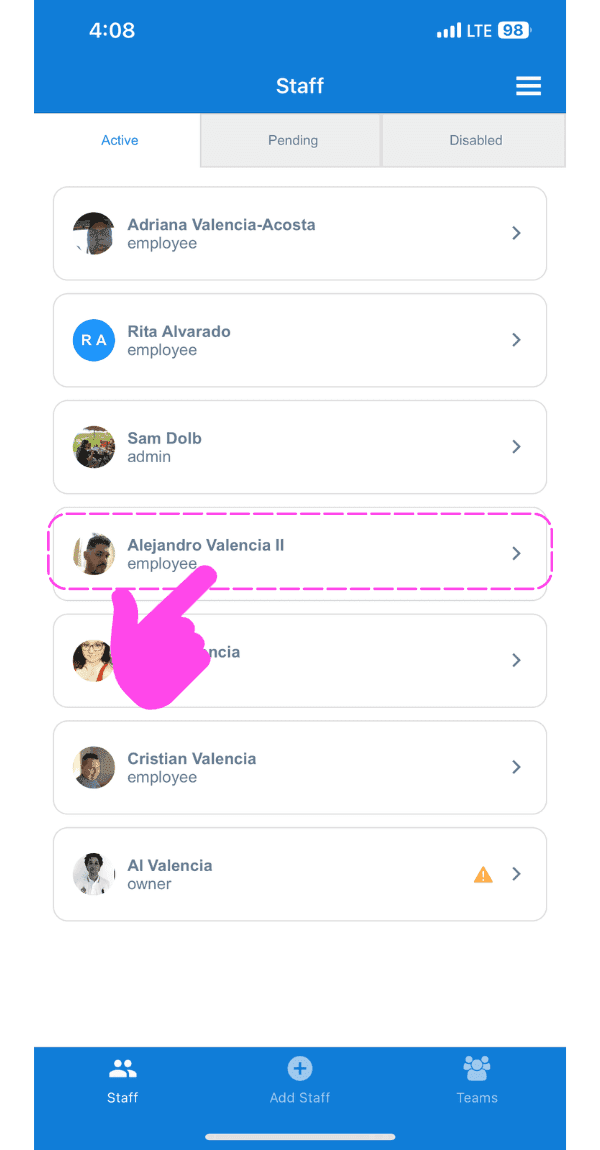
SINC mobile Staff list with a pink arrow pointing to an employee's profile arrow icon

To edit the name: Tap on Edit (next to Name)
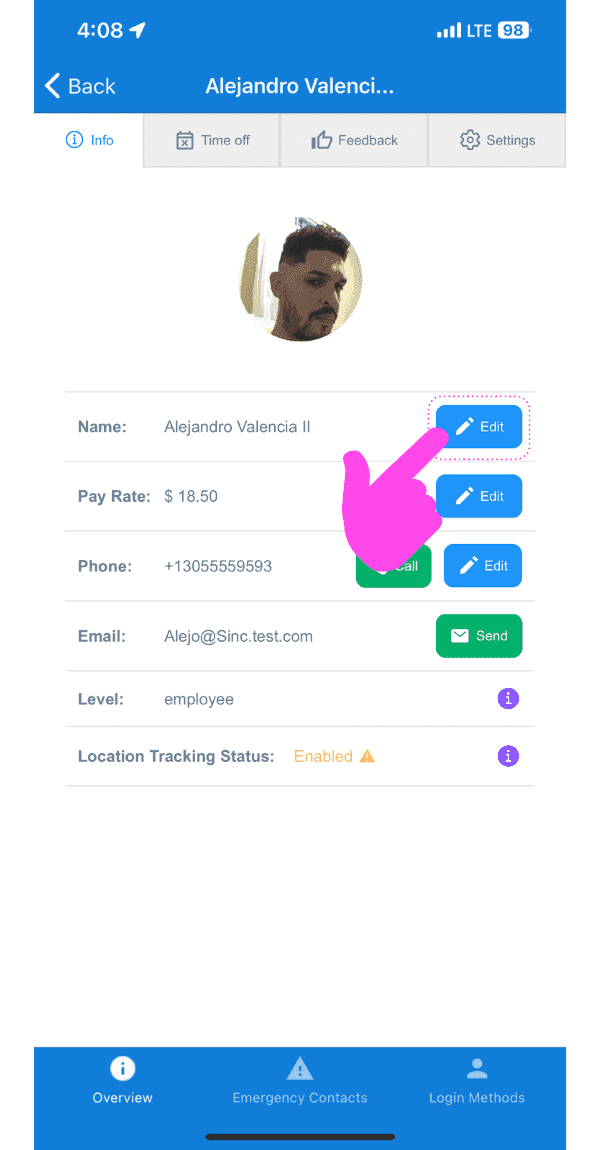
Mobile staff profile Info tab with the Name field's Edit button circled and a pink arrow pointing to it

To edit the pay rate: Tap on Edit (next to Pay Rate)
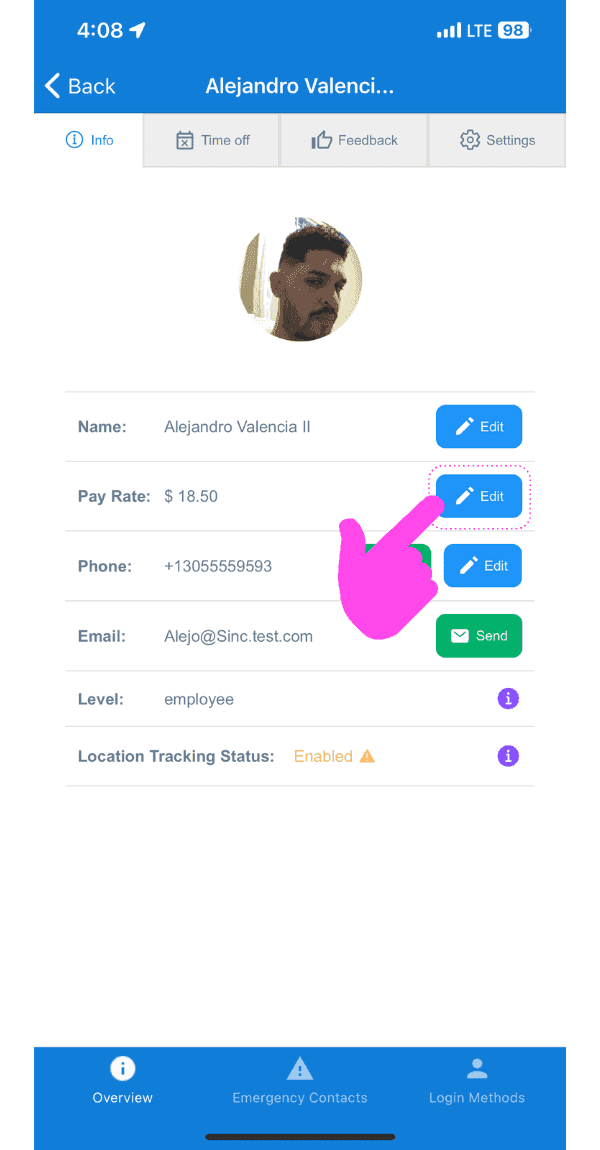
SINC mobile staff profile Info tab with a pink hand pointing to the Edit button next to Pay Rate

To edit the phone number: Tap on Edit (next to the Phone icon)
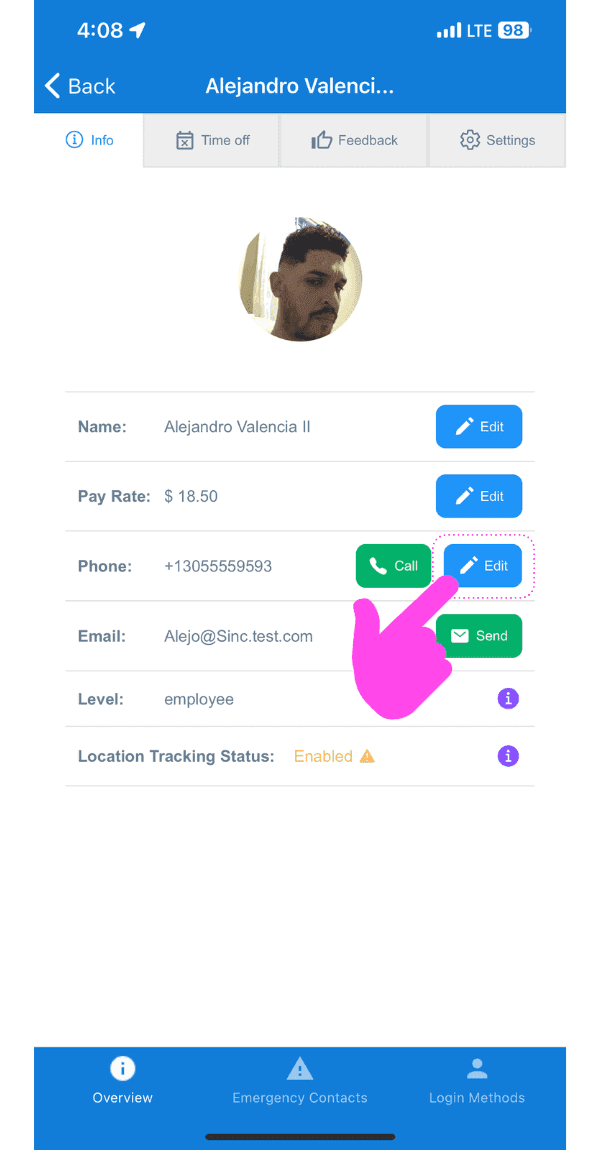
Staff profile screen with a pink arrow pointing to the Edit button next to the Phone field

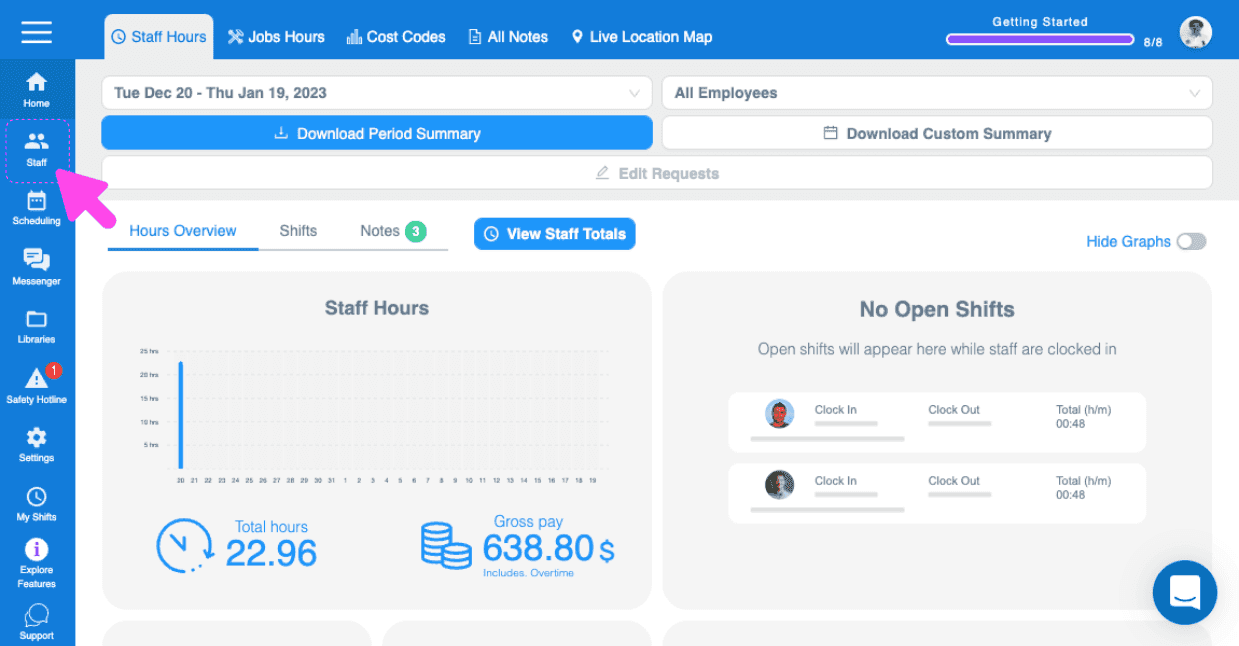
On Web: Navigate to Menu Staff

Web Staff Hours dashboard with a pink arrow pointing to the Staff icon in the left sidebar

Click on the staff member whose profile is to be edited
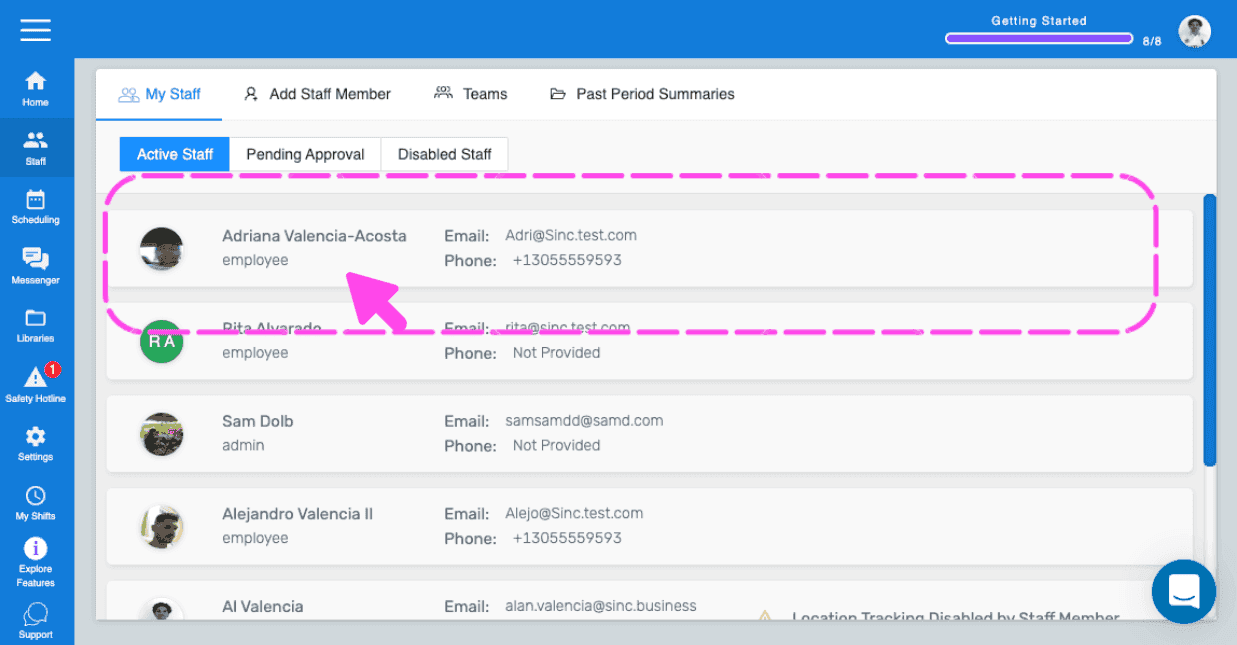
SINC web My Staff list with a pink arrow pointing to an employee row to open their profile

To edit the name: Click on Edit (next to Name)
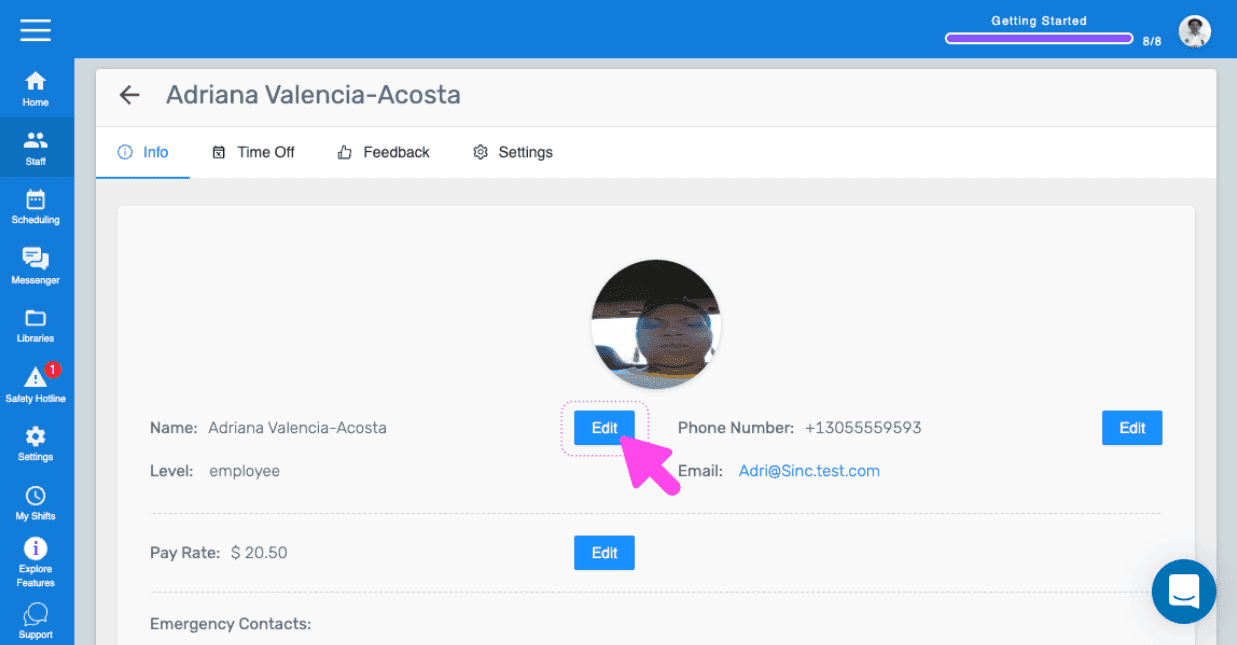
SINC web staff profile Info tab with a pink arrow pointing to the Edit button next to the employee's Name

To edit the phone number: Tap on Edit (next to Phone Number)
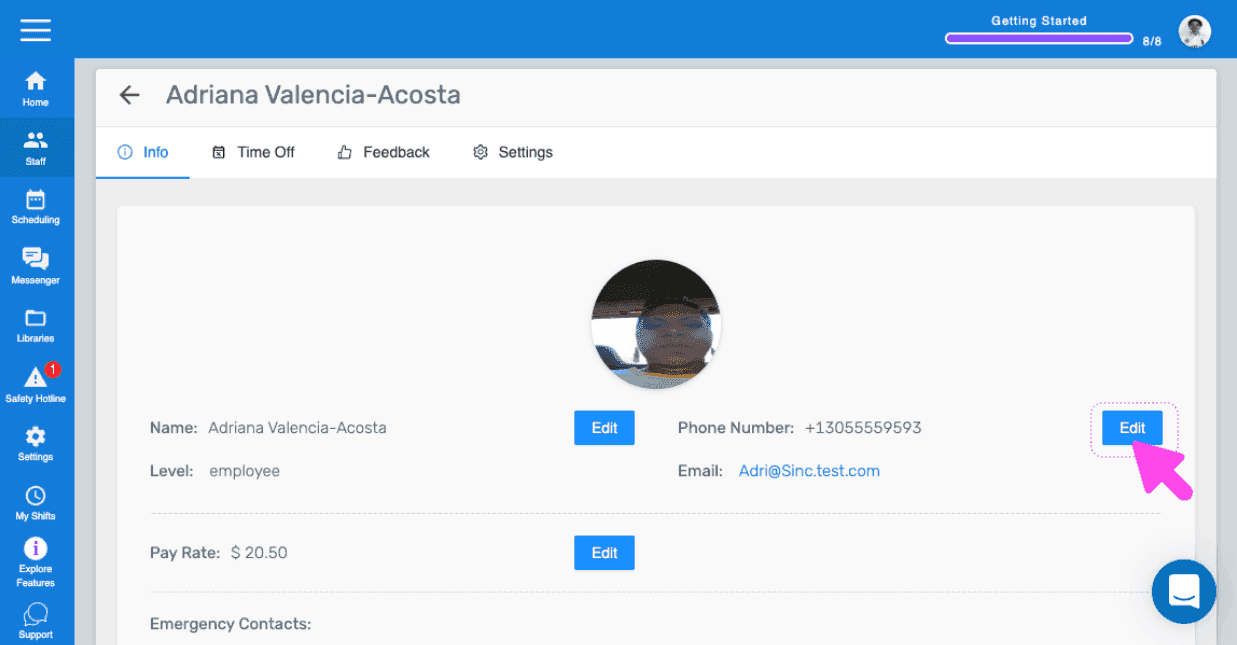
Employee profile Info tab with a pink arrow pointing to the Edit button next to Phone Number

To edit the pay rate: Tap on Edit (next to Pay Rate)
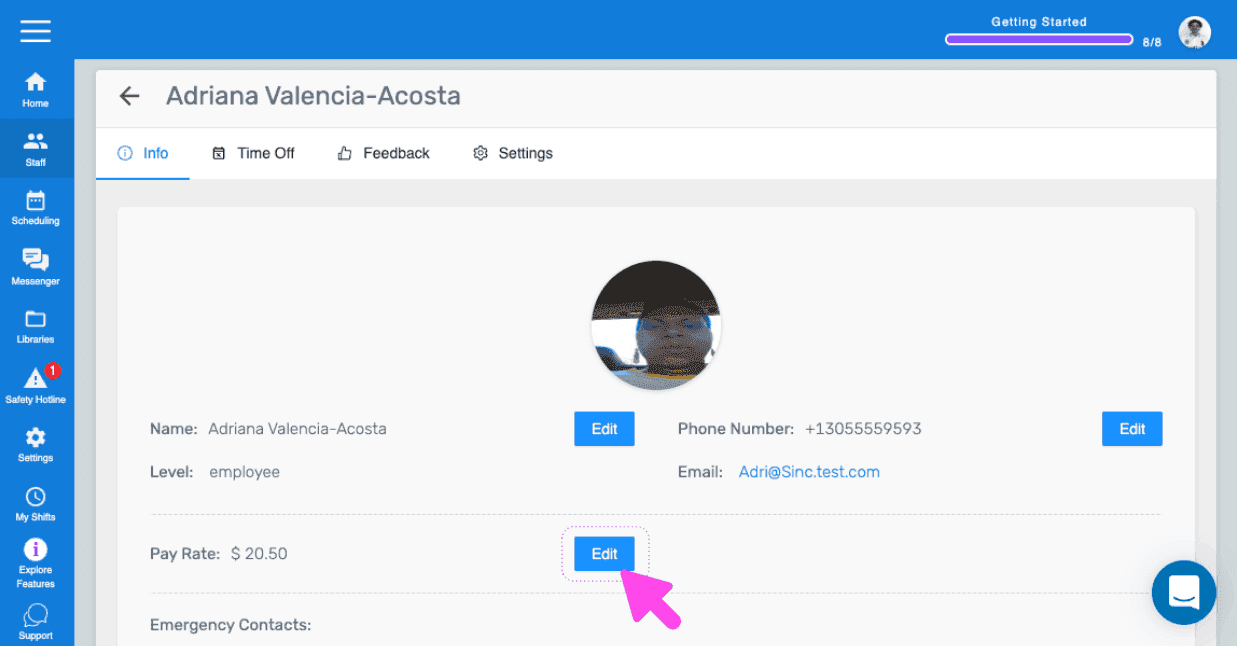
SINC web staff profile Info tab with a pink arrow pointing to the Edit button next to Pay Rate

Did this answer your question?