How To Make An Admin Inactive

Sam Dolbel
Sam Dolbel
Feb 28th, 2023

When a staff member with admin permission leaves your organization, you do not delete them, you simply need to make them inactive. In this guide, we show you the steps required. Tap on Staff
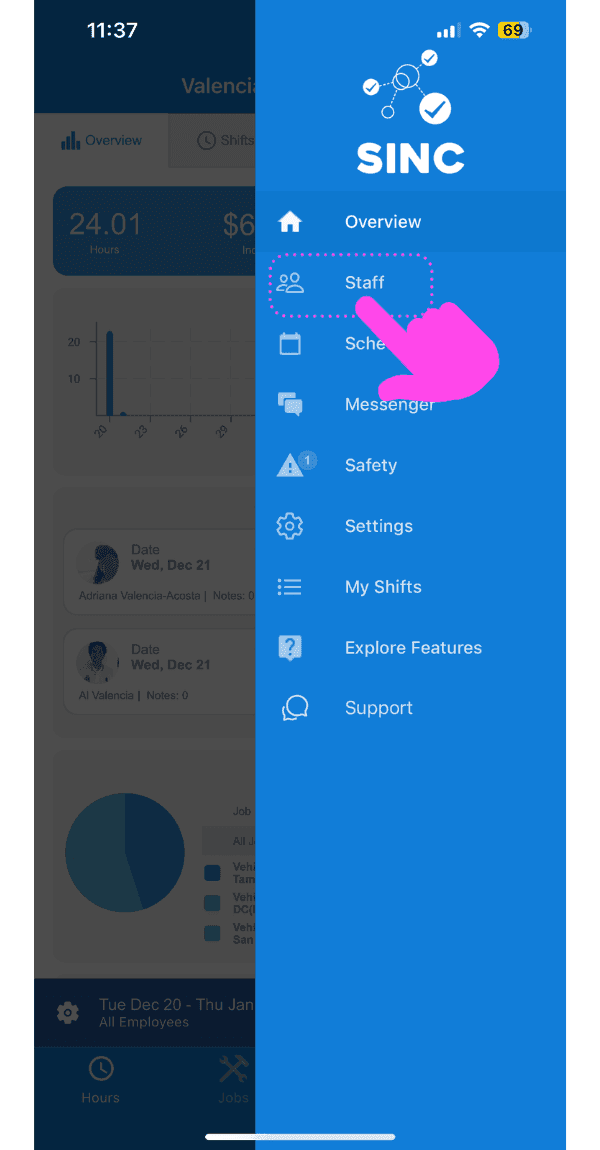
SINC mobile app side menu with a pink arrow pointing to the Staff menu item

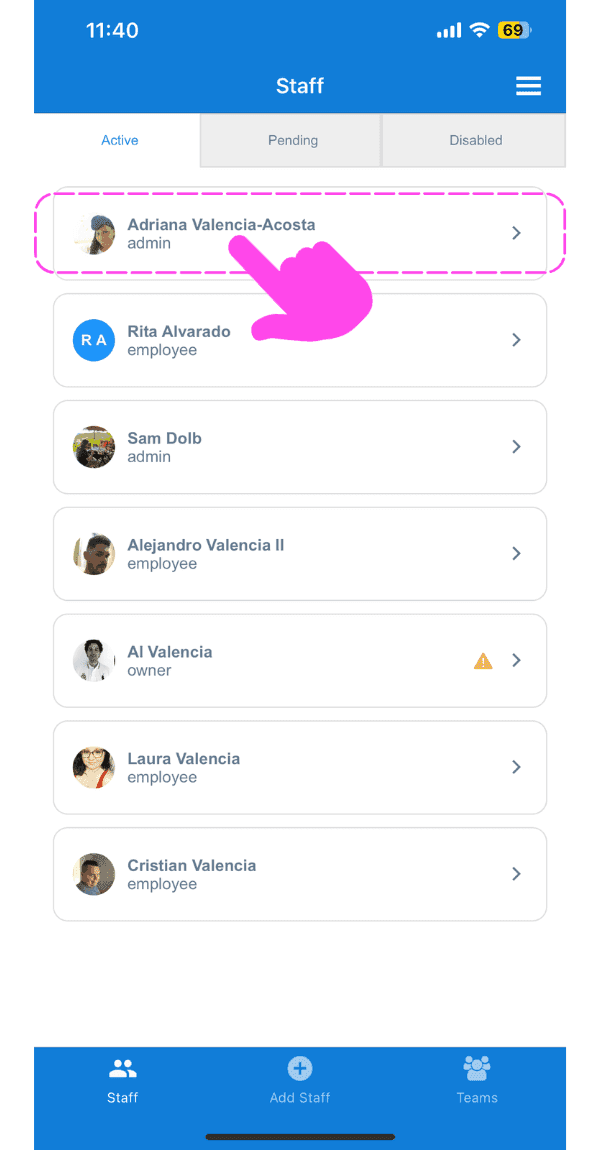
Tap on The Admin Staff Member's Name

SINC mobile Staff screen with a pink hand pointing to an admin staff member's name

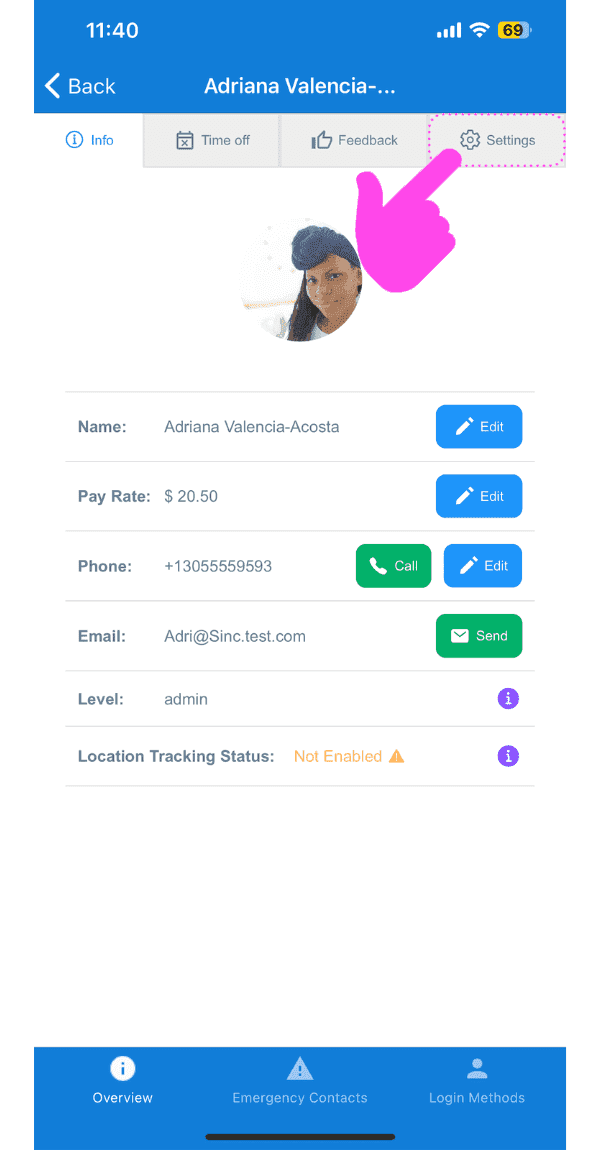
Tap on Settings

SINC mobile staff profile screen with a pink arrow pointing to the Settings tab

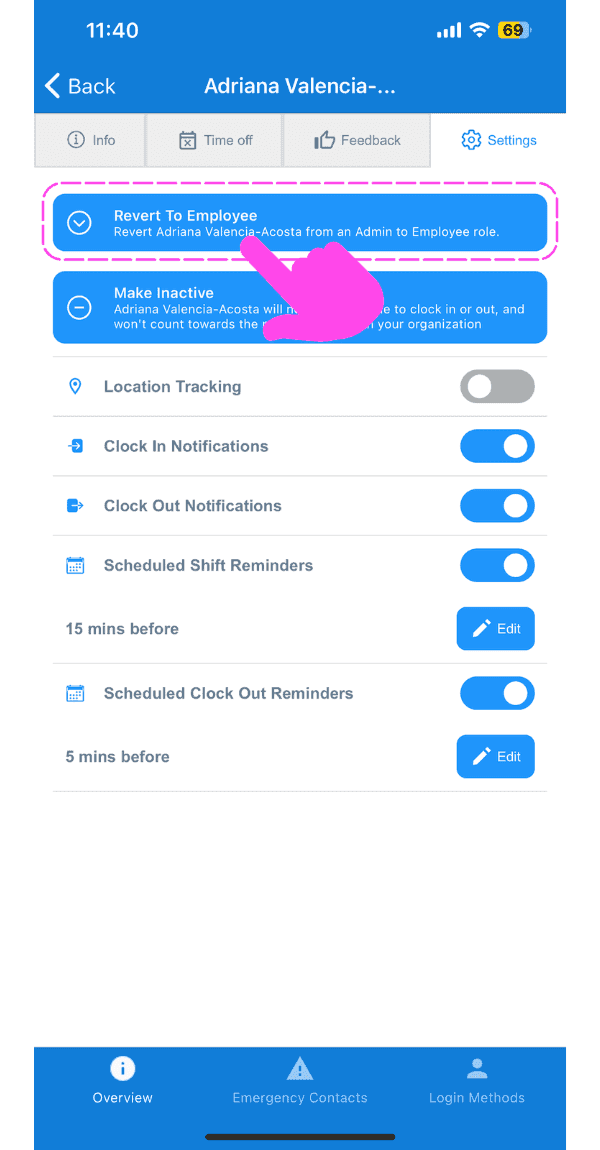
Tap on Revert To Employee

Staff member Settings tab with a pink arrow pointing to the Revert To Employee button

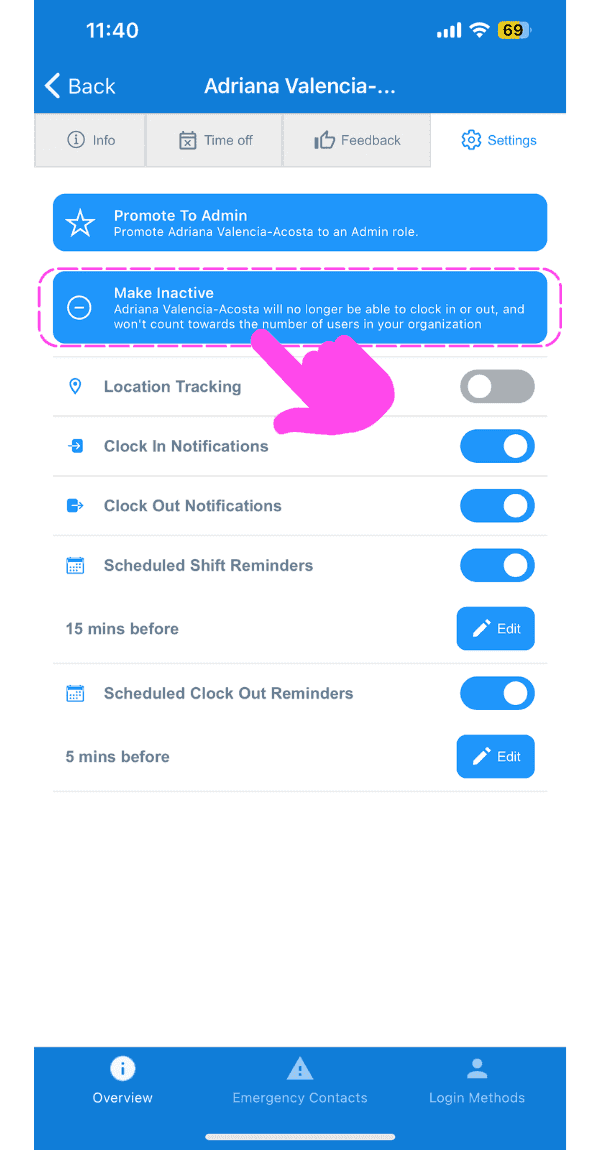
Tap on Make Inactive

SINC mobile app staff settings screen with the Make Inactive banner highlighted and a pink arrow pointing to notification toggles below it

Tap on Confirm (Web Version) Click on Yes
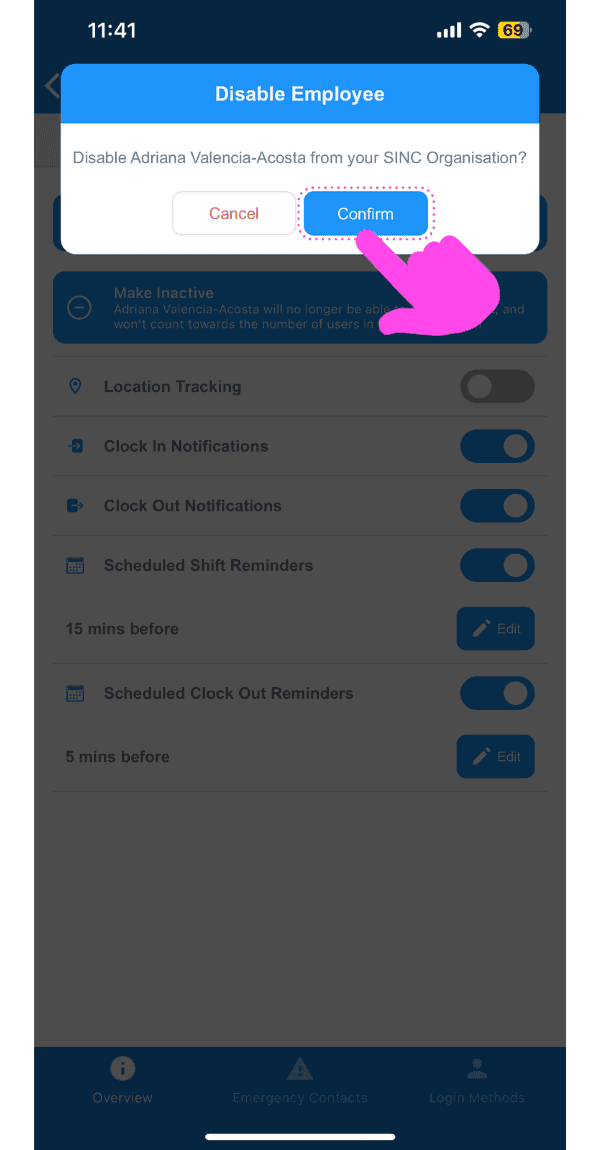
Disable Employee confirmation popup with the Confirm button highlighted by a pink arrow

Did this answer your question?