How To Promote an Employee To Admin

In this guide we will cover the process of promoting an Employee to an Admin role

Sam Dolbel
Sam Dolbel
Mar 27th, 2023

To add a new admin, you first need to invite them as a regular employee. Providing this is done: Tap on Menu Staff
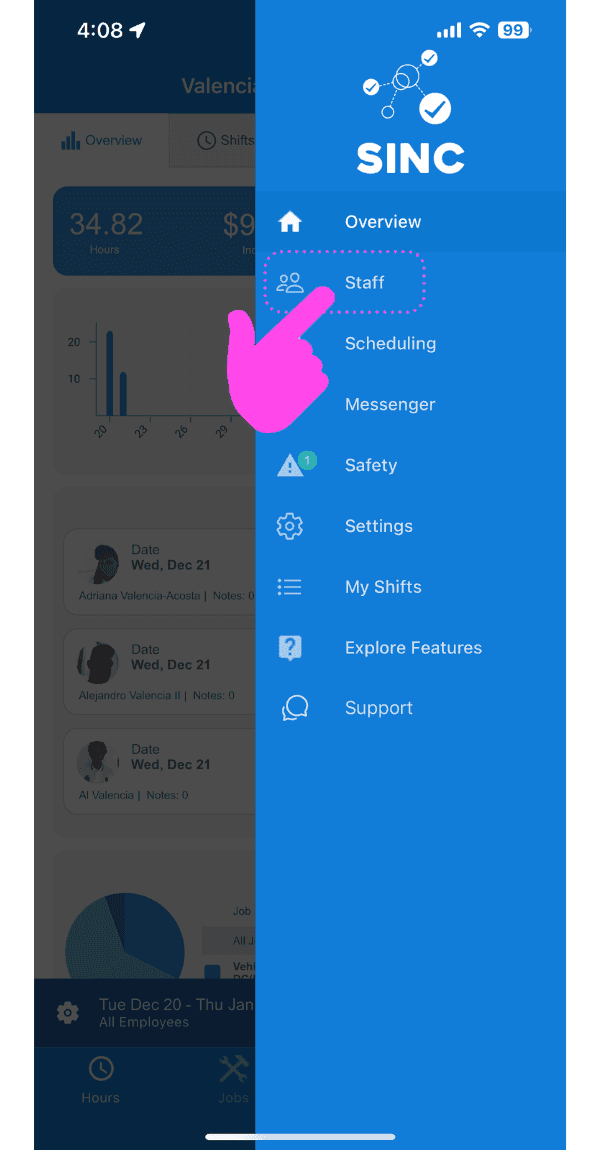
SINC mobile side menu with a pink arrow pointing to the Staff option

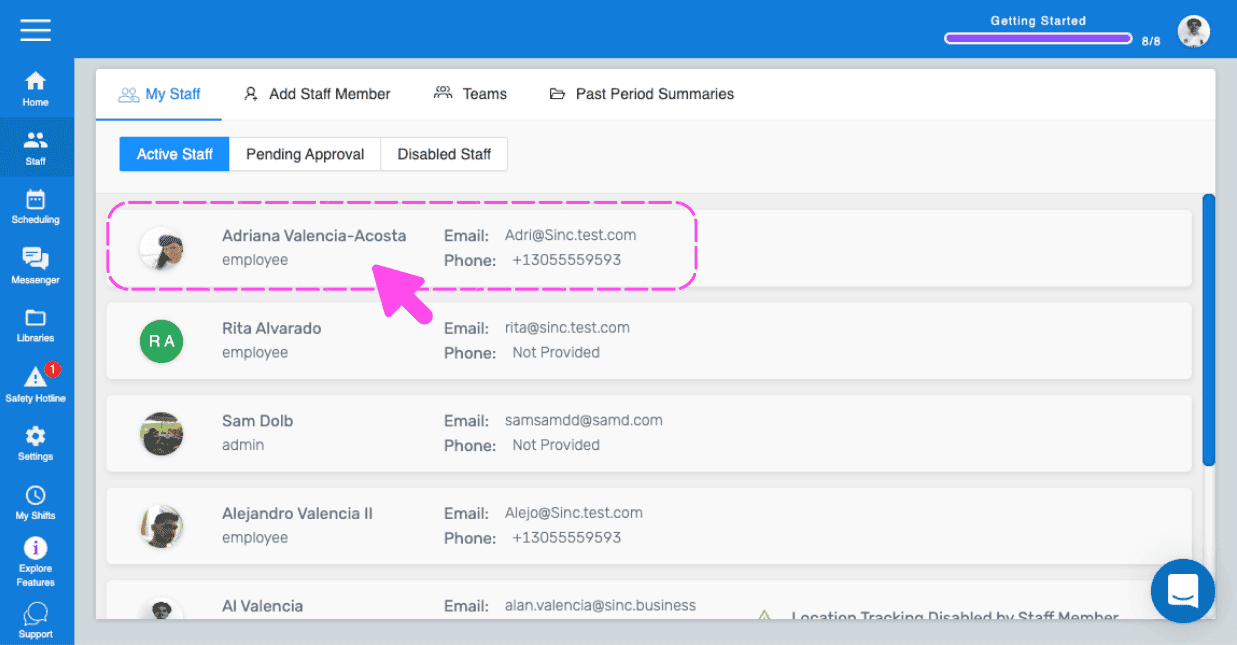
Tap on Staff Member's Name You Want To Promote To Admin
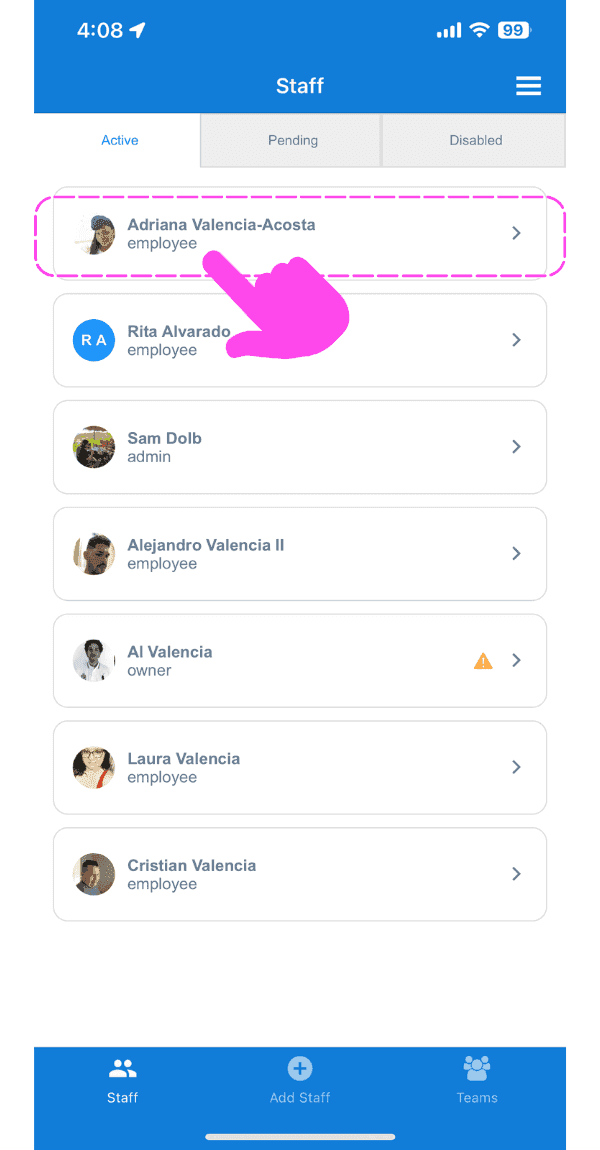
Staff list screen with a pink hand pointing to an employee's name highlighted in a dashed box at the top

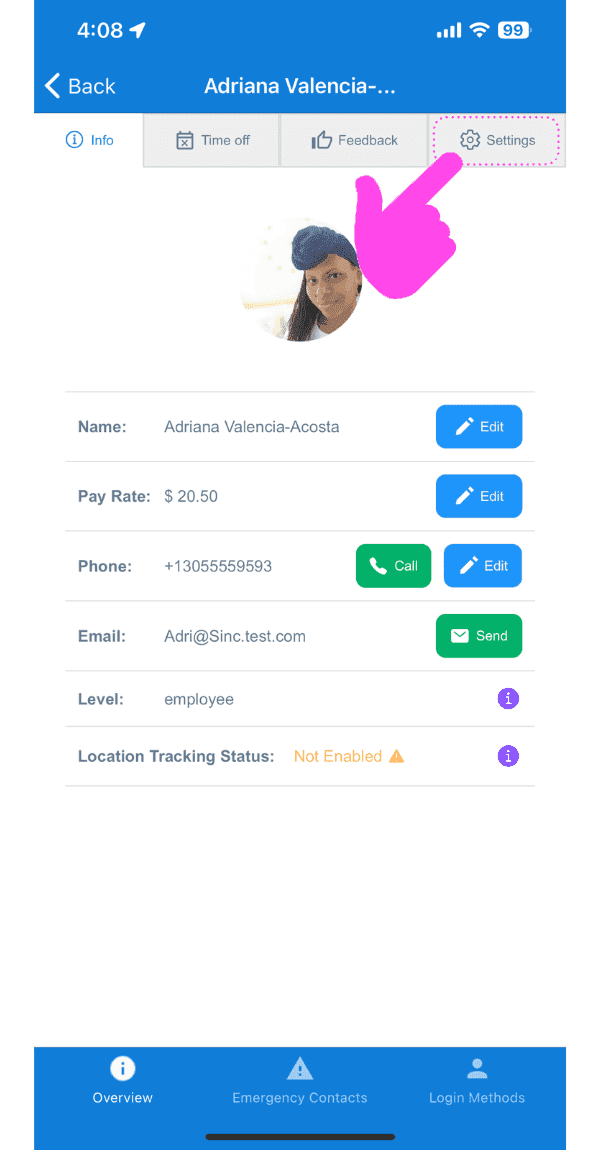
Tap on Settings

SINC mobile staff profile screen with a pink arrow pointing to the Settings tab

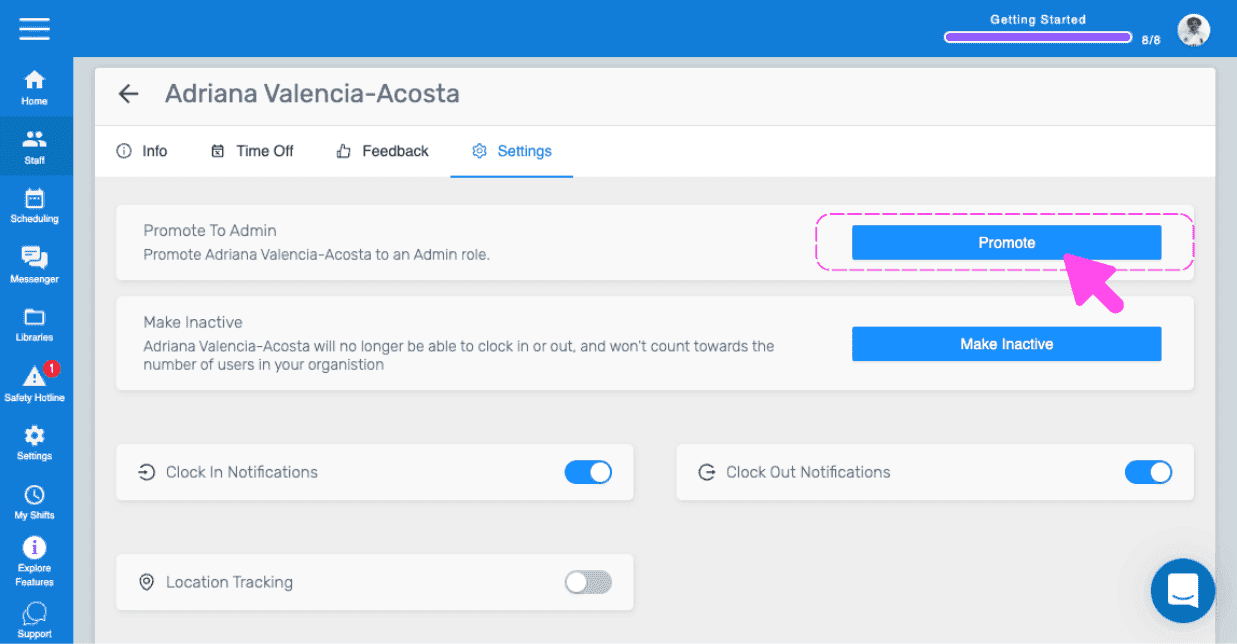
Tap on Promote To Admin (Web Version) Click on Promote
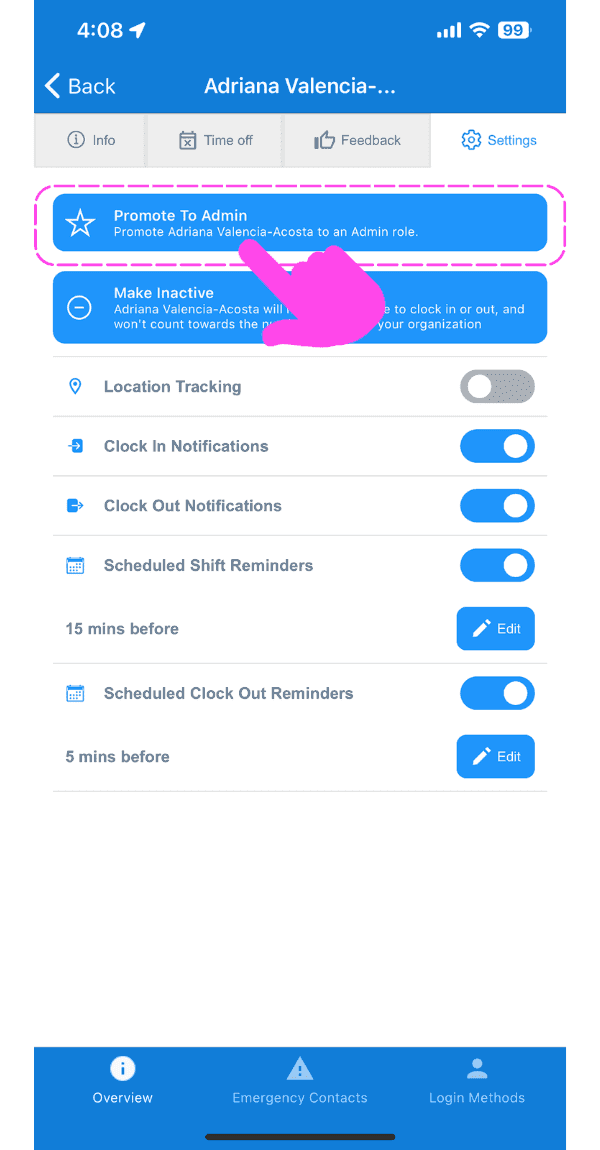
Mobile staff Settings tab with the Promote To Admin button outlined in pink and an arrow pointing to it

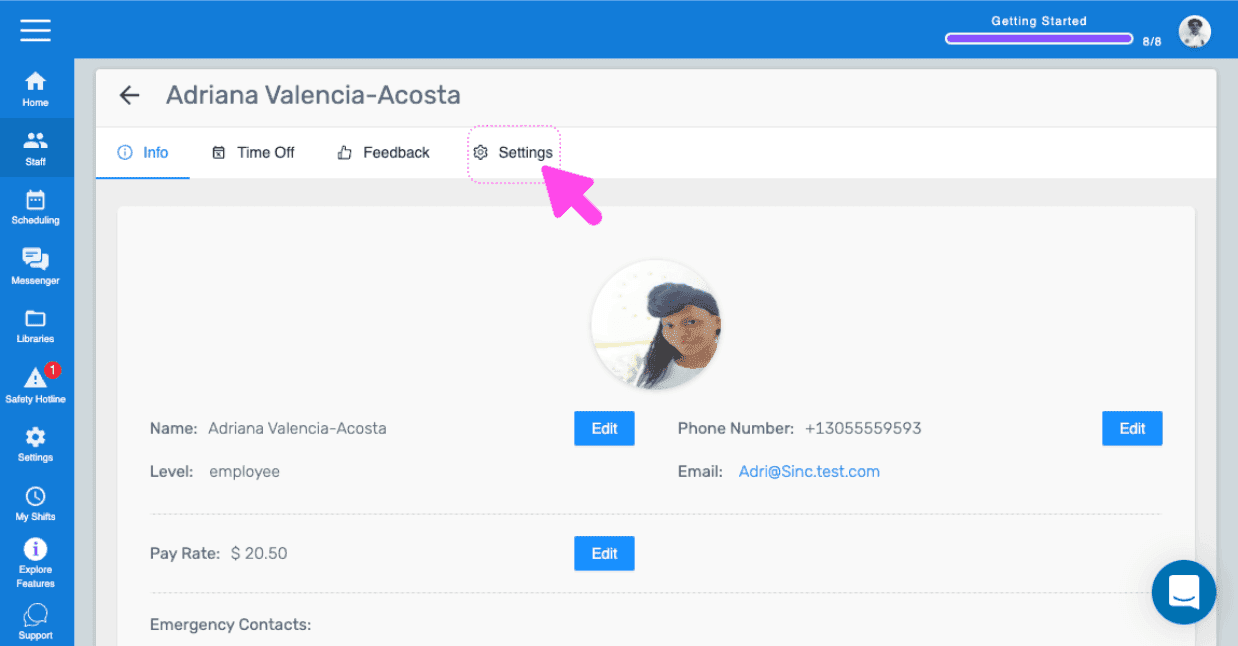
If you are using the web version, it will look like this:
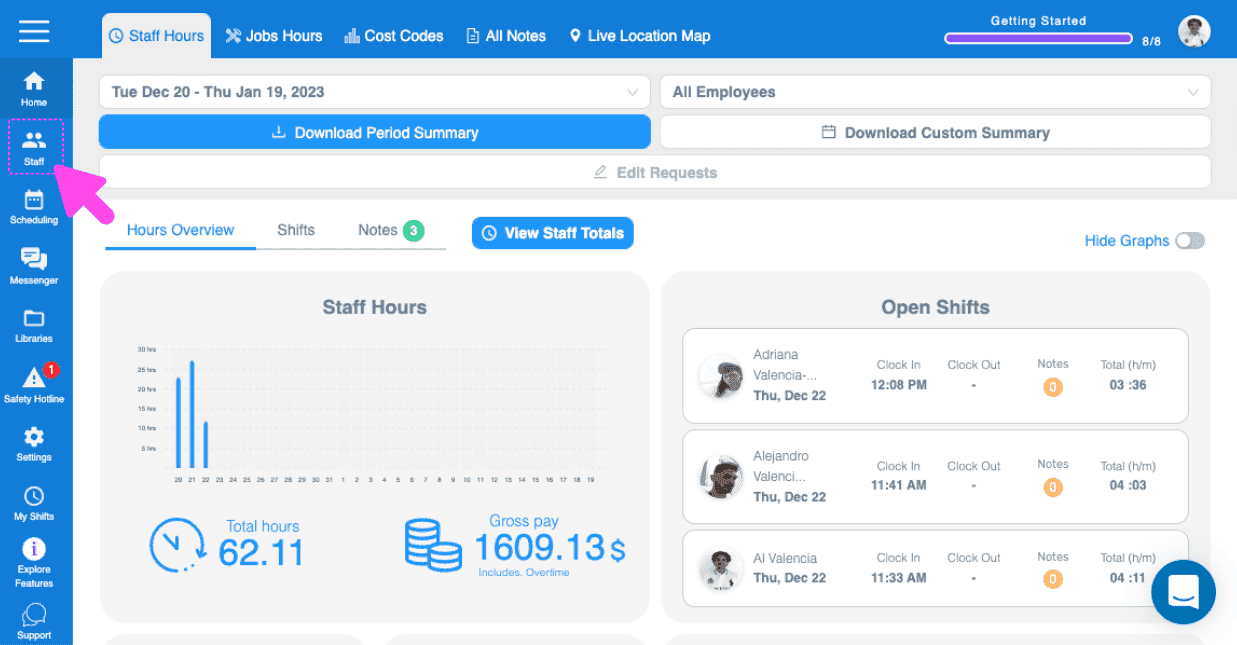
SINC web Staff Hours dashboard with a pink arrow pointing to the Staff icon in the left sidebar
Active Staff list with an employee's row highlighted showing their email and phone number
Web staff profile screen with a pink arrow pointing to the Settings tab
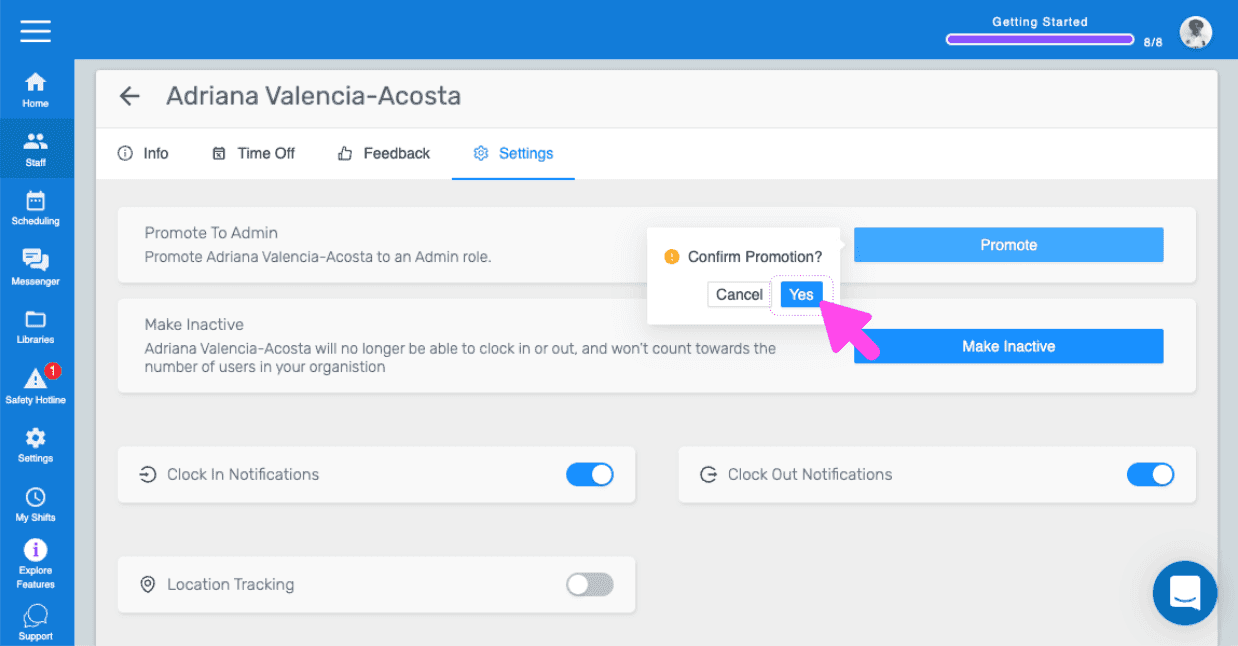
SINC web staff Settings tab with a pink arrow pointing to the Promote button under Promote To Admin
SINC web staff Settings tab showing a Confirm Promotion popup with a pink arrow pointing to the Yes button

Did this answer your question?