Edit Time Off

Let's take a look at how to edit a time off period for a staff member

SINC Support Team
SINC Support Team
Jun 13th, 2022

This section shows how you can edit your staff member's time off period. On Web: Click on Menu Staff My Staff Active Staff
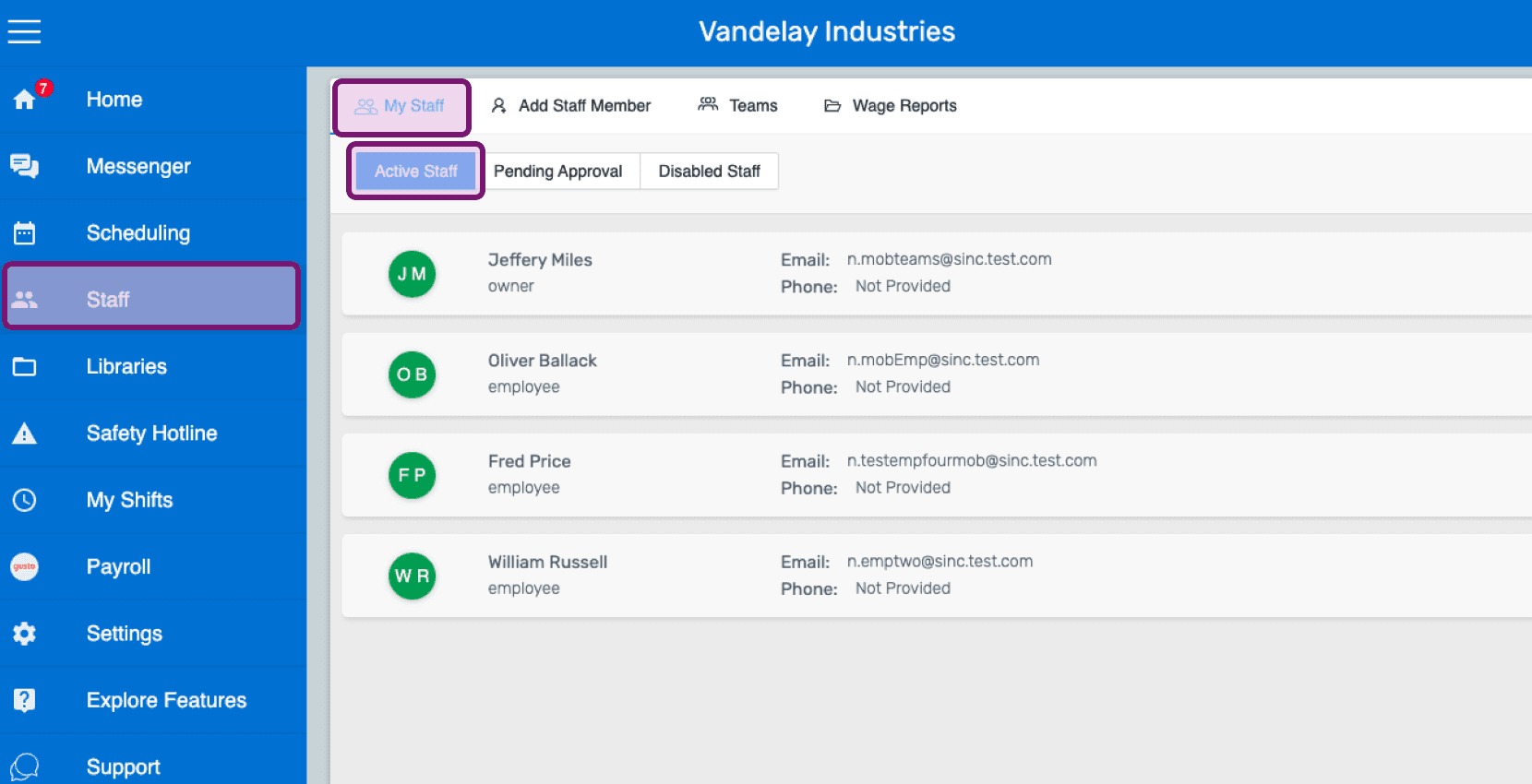
SINC web Staff screen with the My Staff menu item and Active Staff tab highlighted in purple

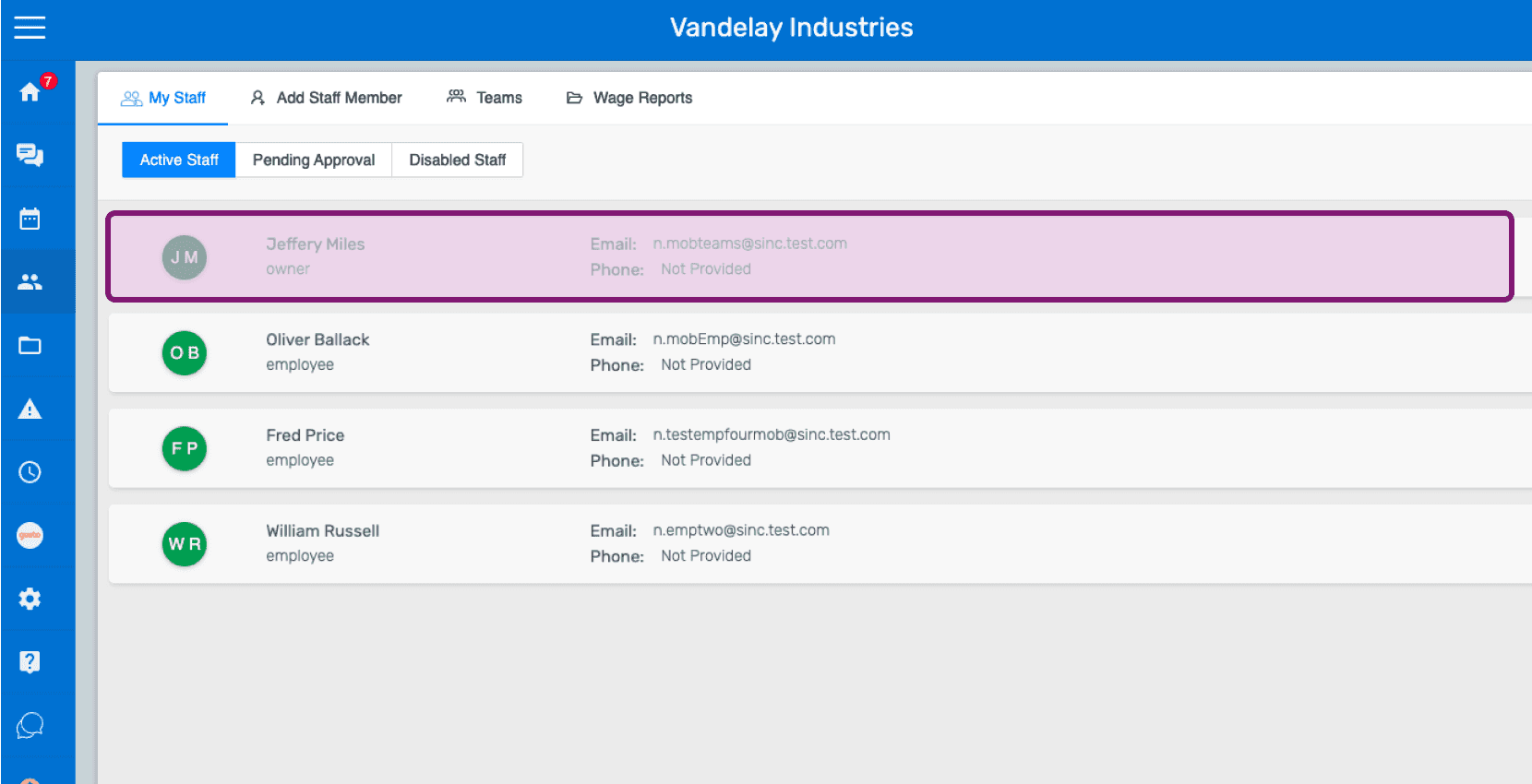
Click on Staff member's name

Staff list screen with an employee's name row outlined in pink

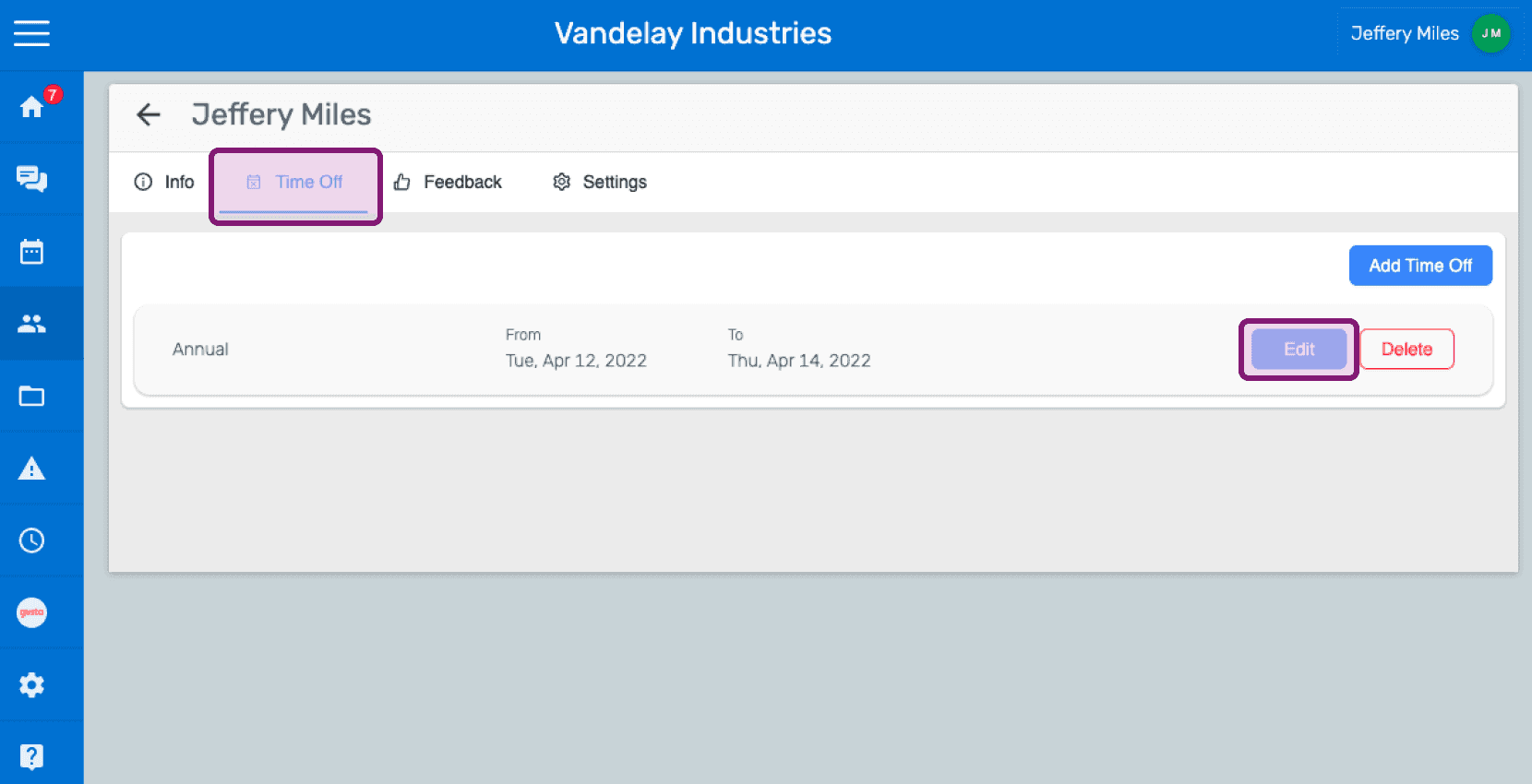
Click on Time Off Edit

SINC web employee Time Off tab with the Edit button outlined in pink for a leave entry

To edit the time off category, click on Edit next to Time Off Category
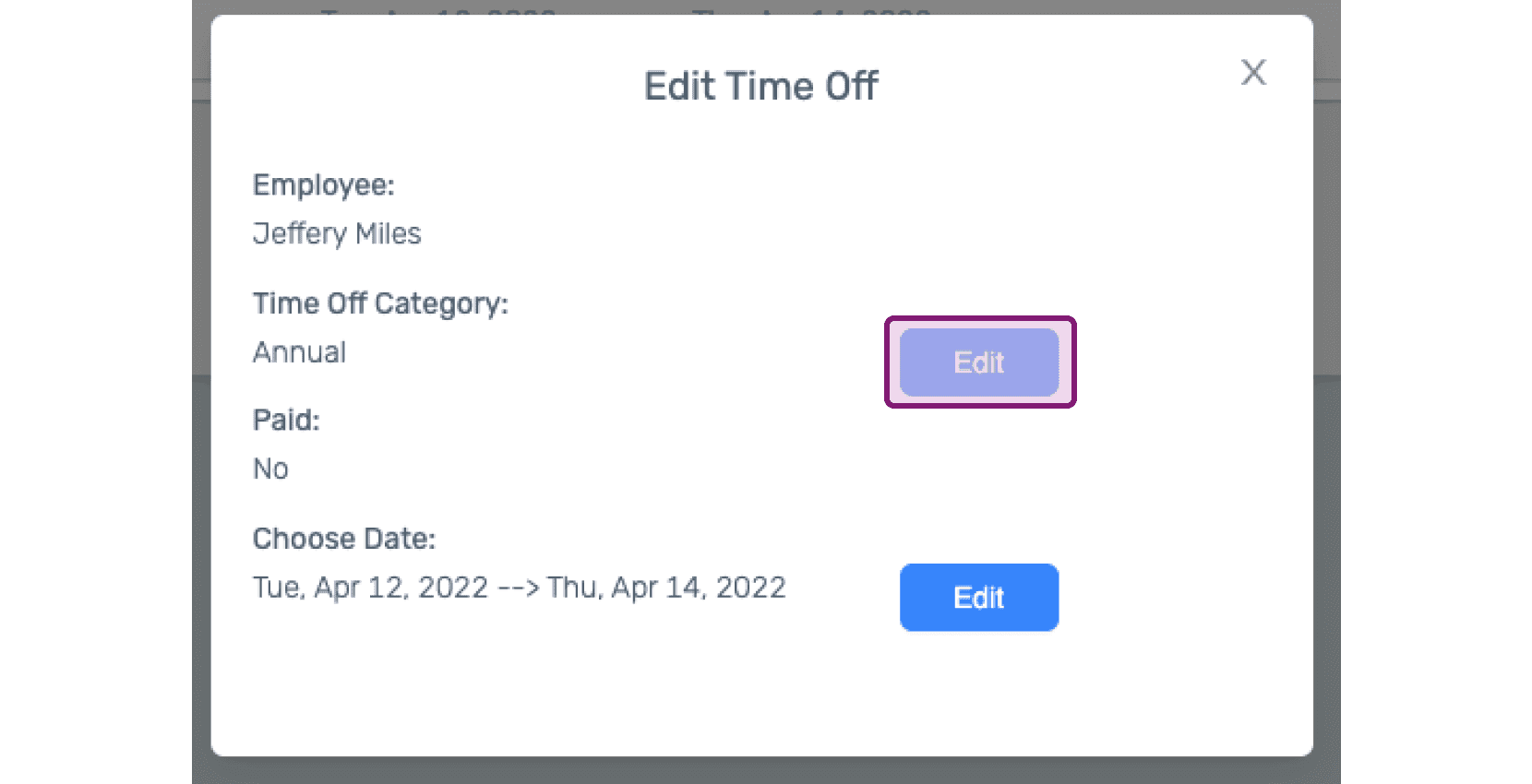
Edit Time Off popup with the Edit button next to Time Off Category circled in pink

To edit the time off date, click on Edit next to Choose Date
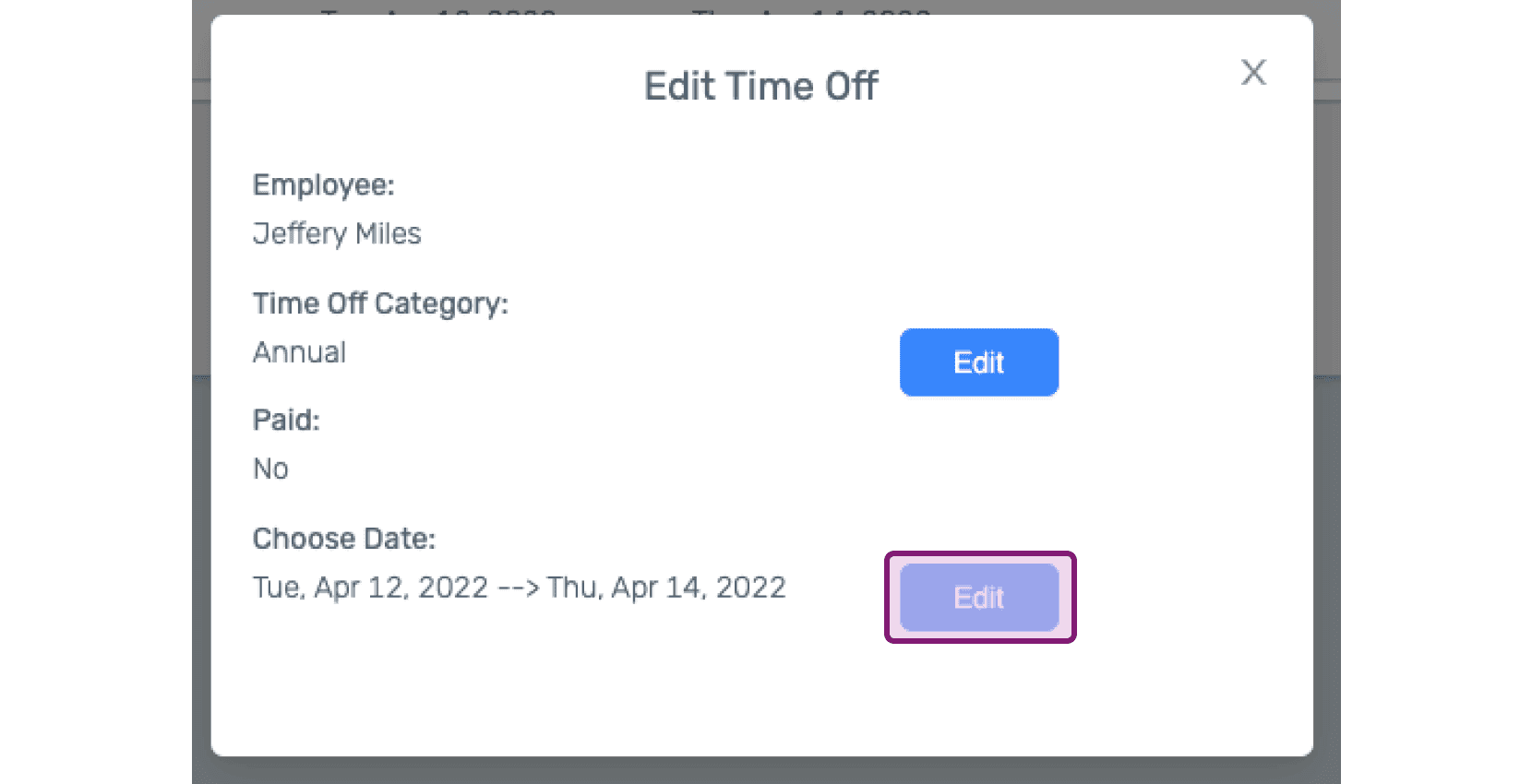
SINC web Edit Time Off modal with a pink arrow pointing to the Choose Date Edit button

To delete a time off period, click on Delete
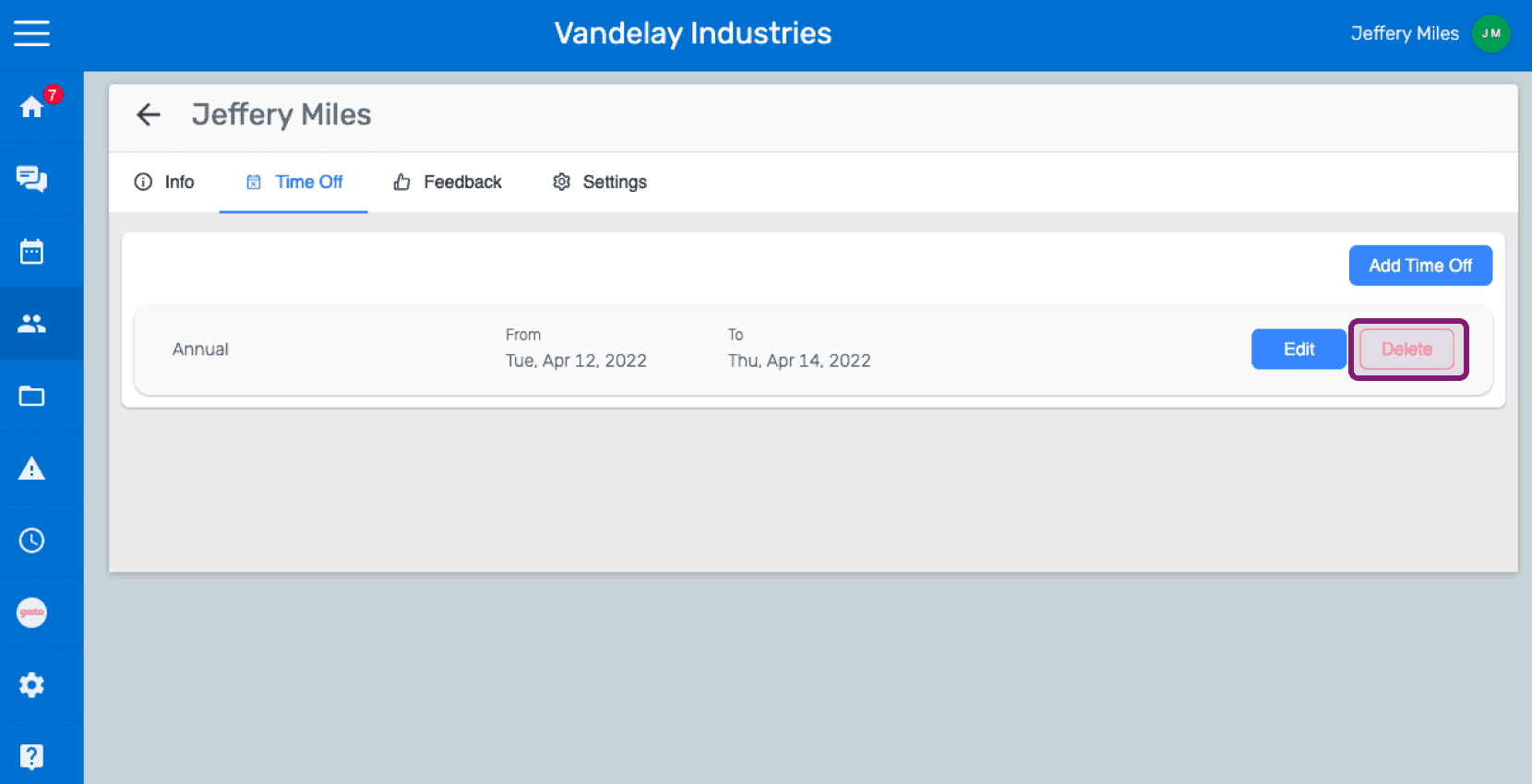
Web employee Time Off tab with an Annual leave entry and its Delete button outlined in pink

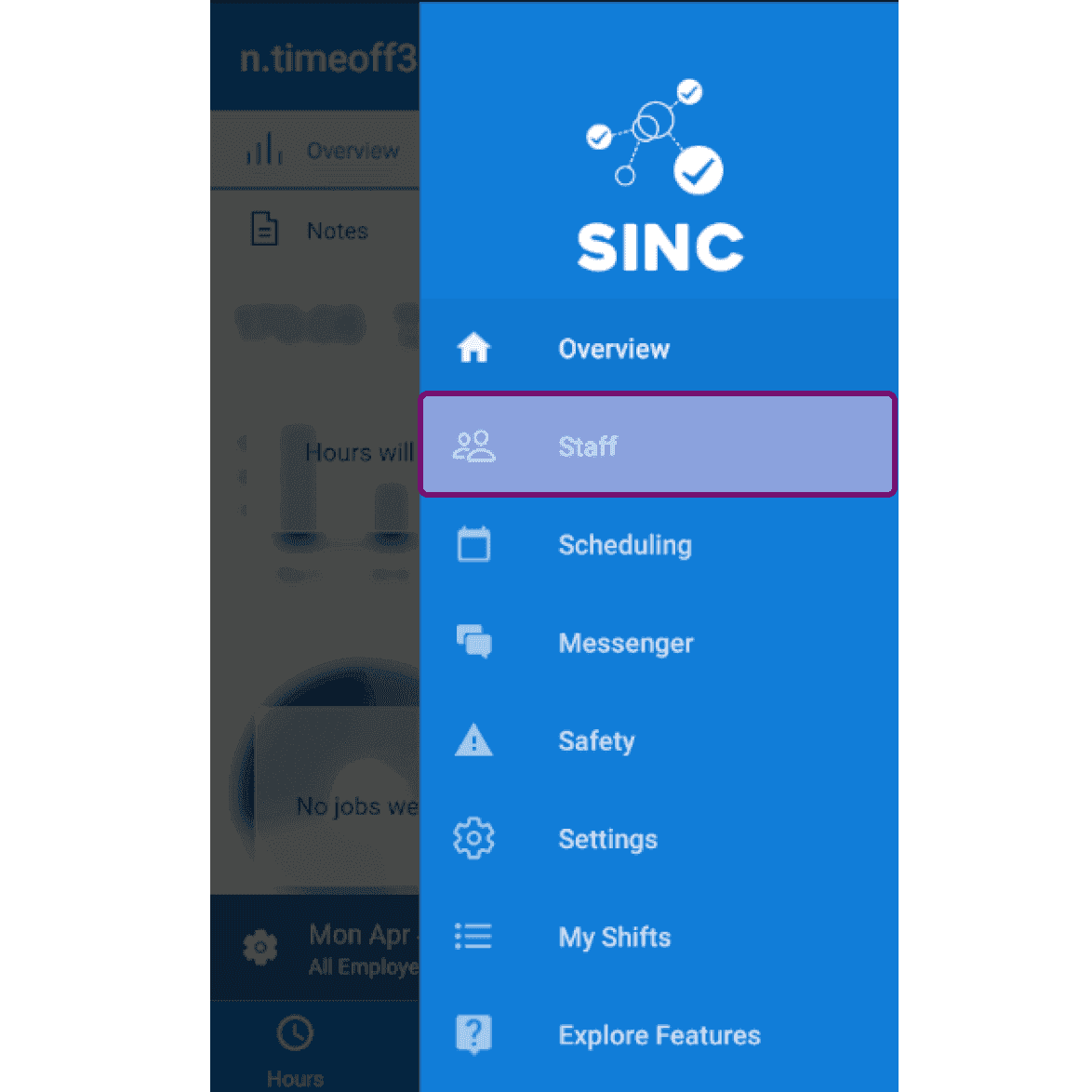
On Mobile: Tap on Menu Staff

SINC mobile navigation menu with the Staff option circled in pink

Tap on Staff Active Staff member's name
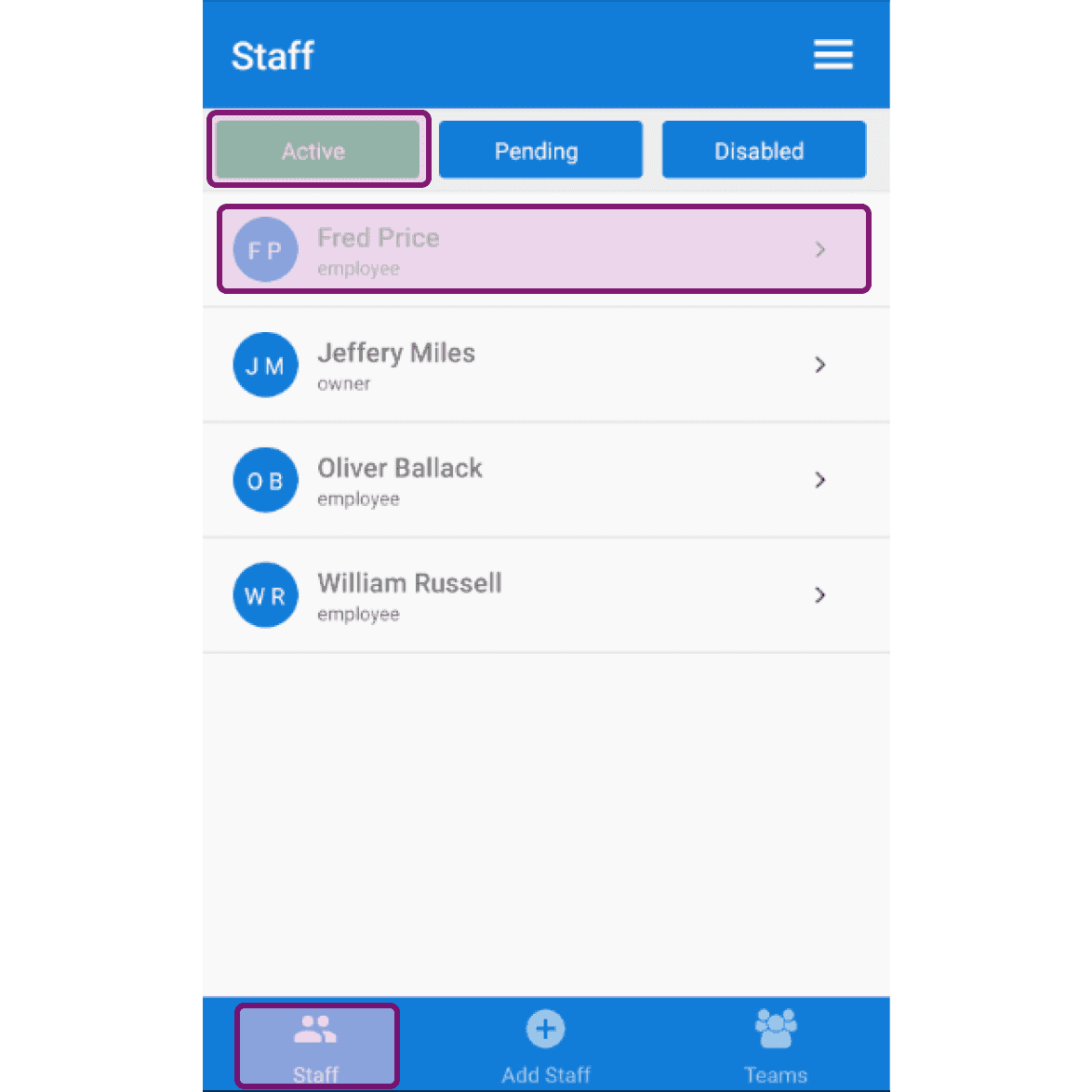
Staff list Active tab with an employee's row, Fred Price, highlighted

Tap on Staff member's time off period
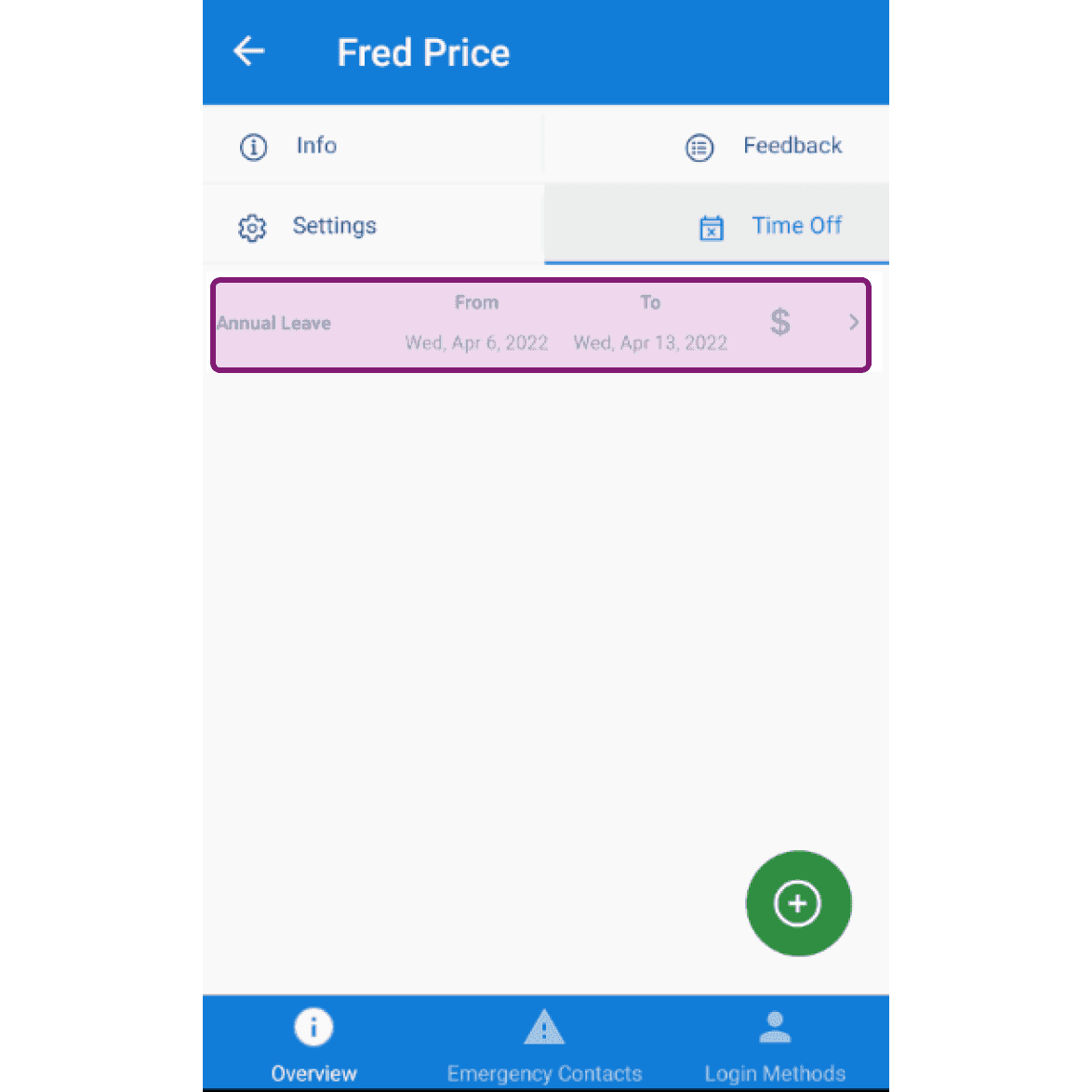
Mobile staff profile Time Off tab with an Annual Leave entry outlined in purple

To edit the time off category, tap on selected time off category under Time Off Category
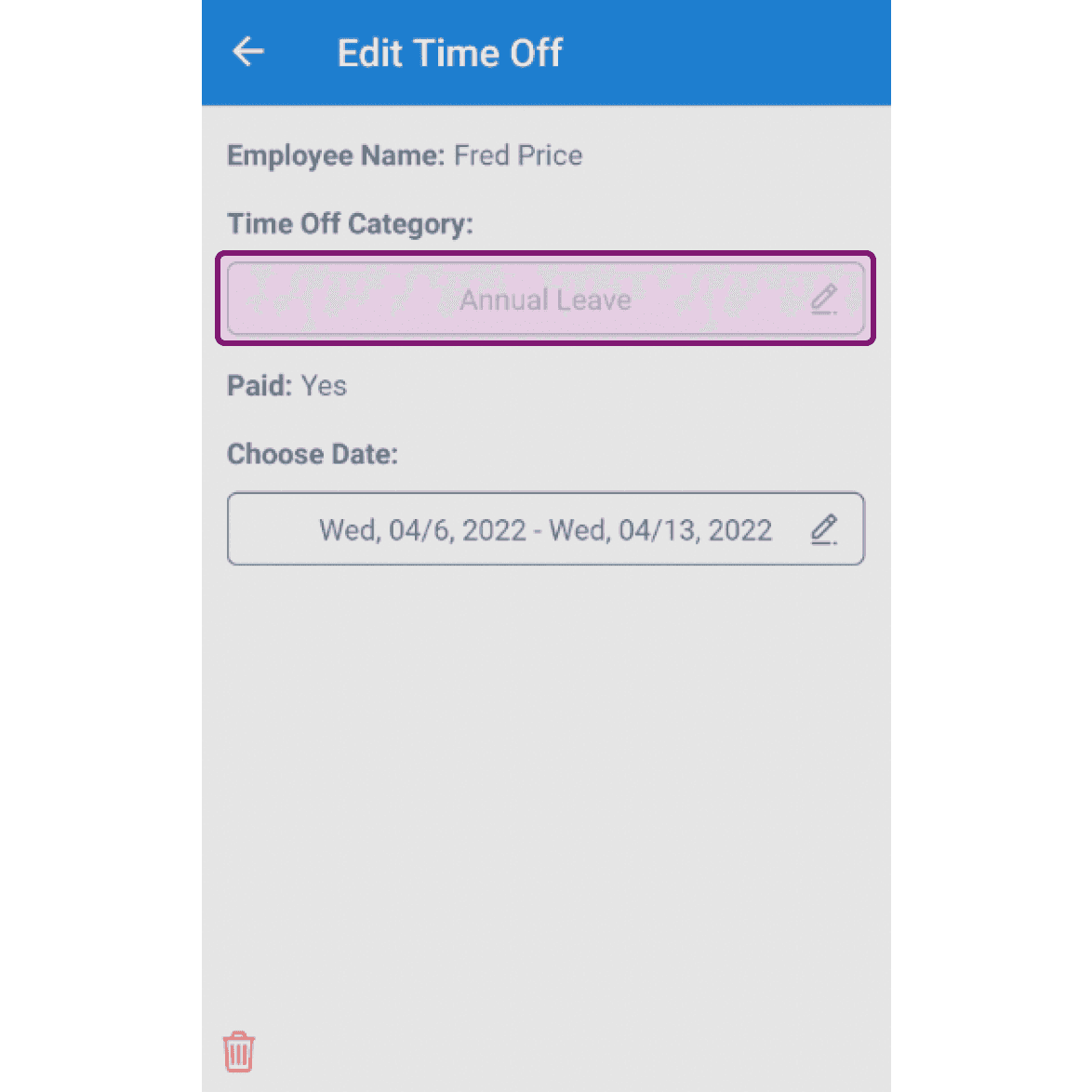
SINC mobile Edit Time Off screen with the Time Off Category field outlined showing Annual Leave

To edit the time off date, tap on selected date under Choose Date
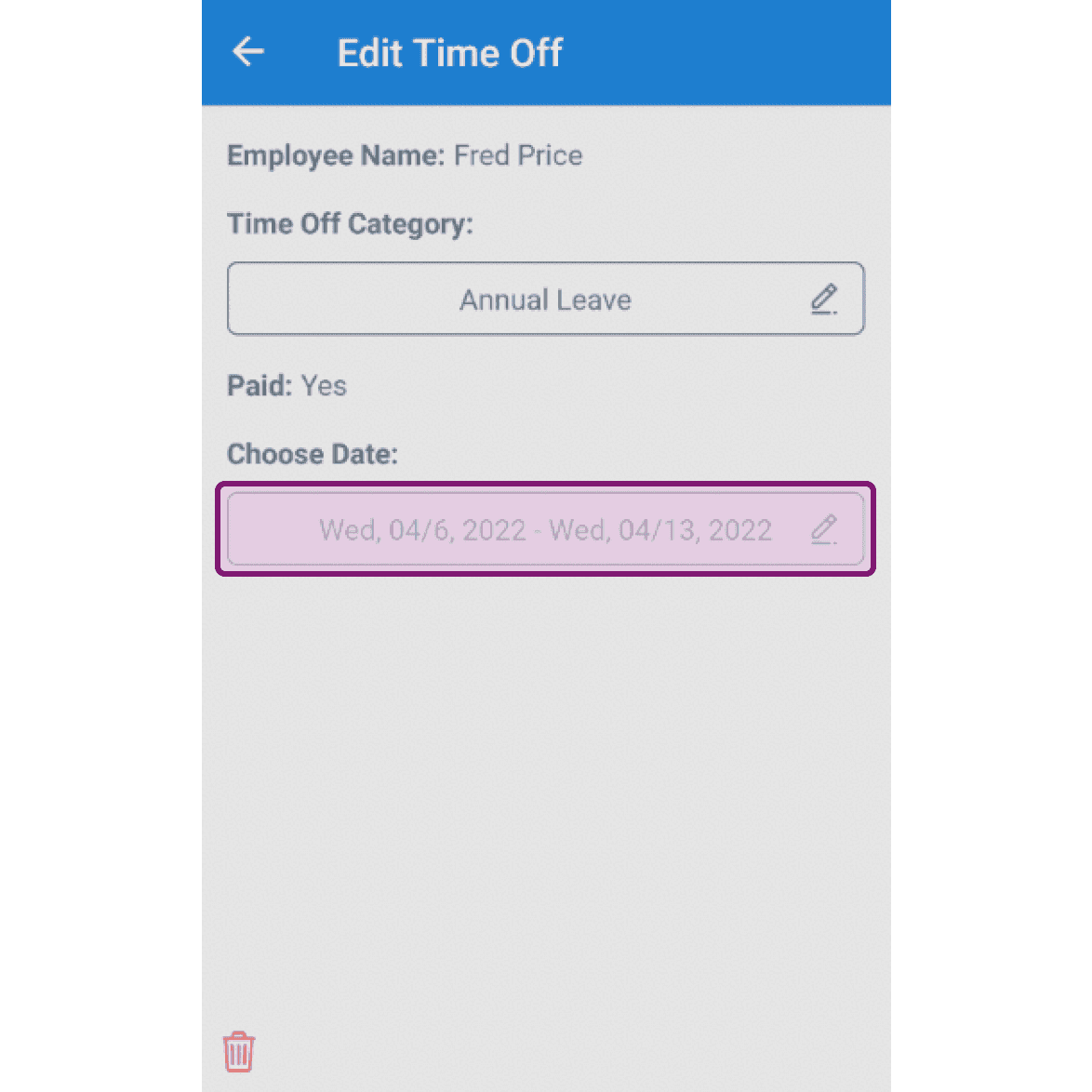
SINC mobile Edit Time Off screen with the Choose Date field outlined in purple

To delete a time off period, tap on bin icon at the bottom left.
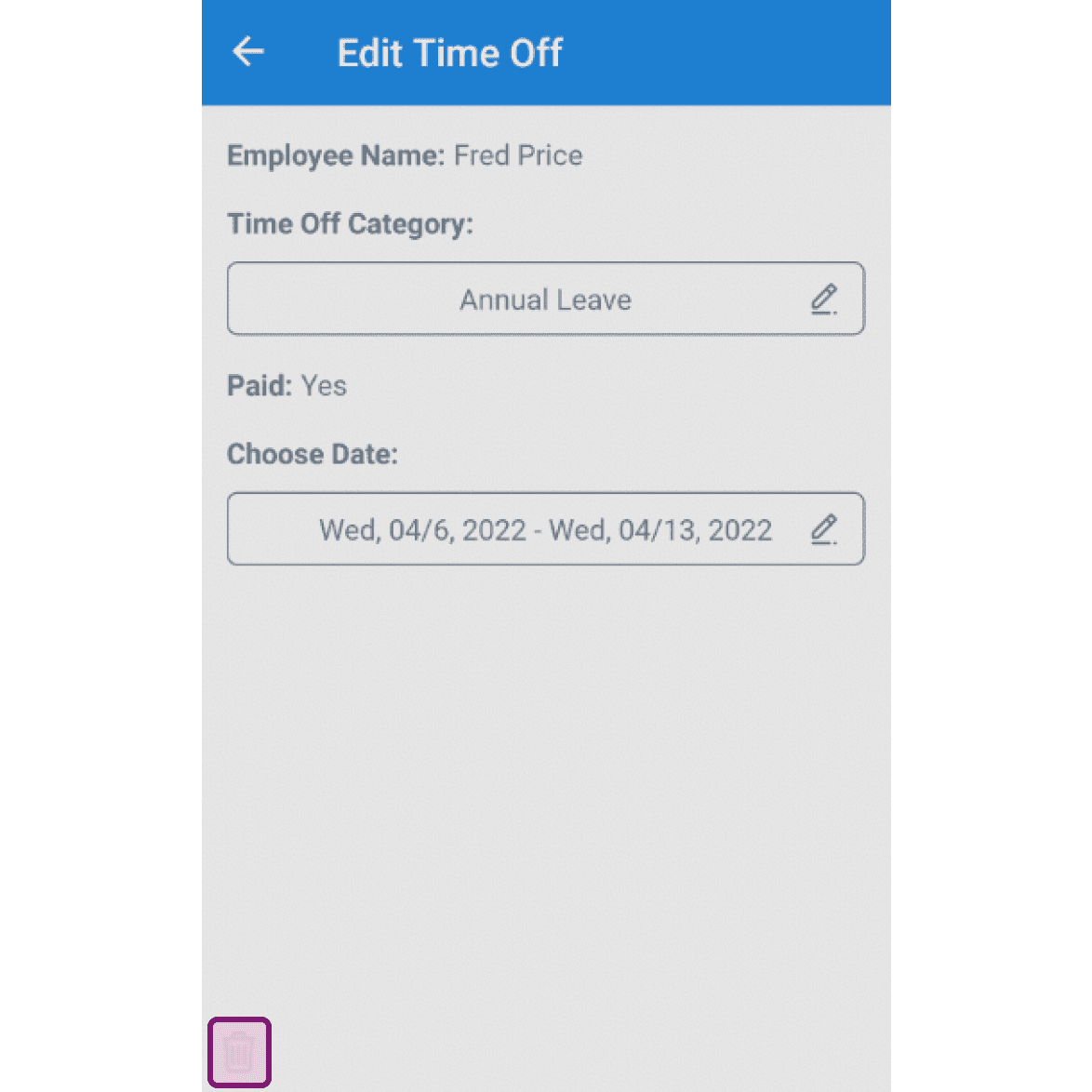
Edit Time Off screen showing category and date fields with the delete bin icon outlined at bottom left

Did this answer your question?