Request to Delete a Time Off

In this guide, we will show you how to request to delete a time off as an employee.

SINC Support Team
SINC Support Team
Jul 14th, 2022

On Mobile: Tap on Menu My Time Off
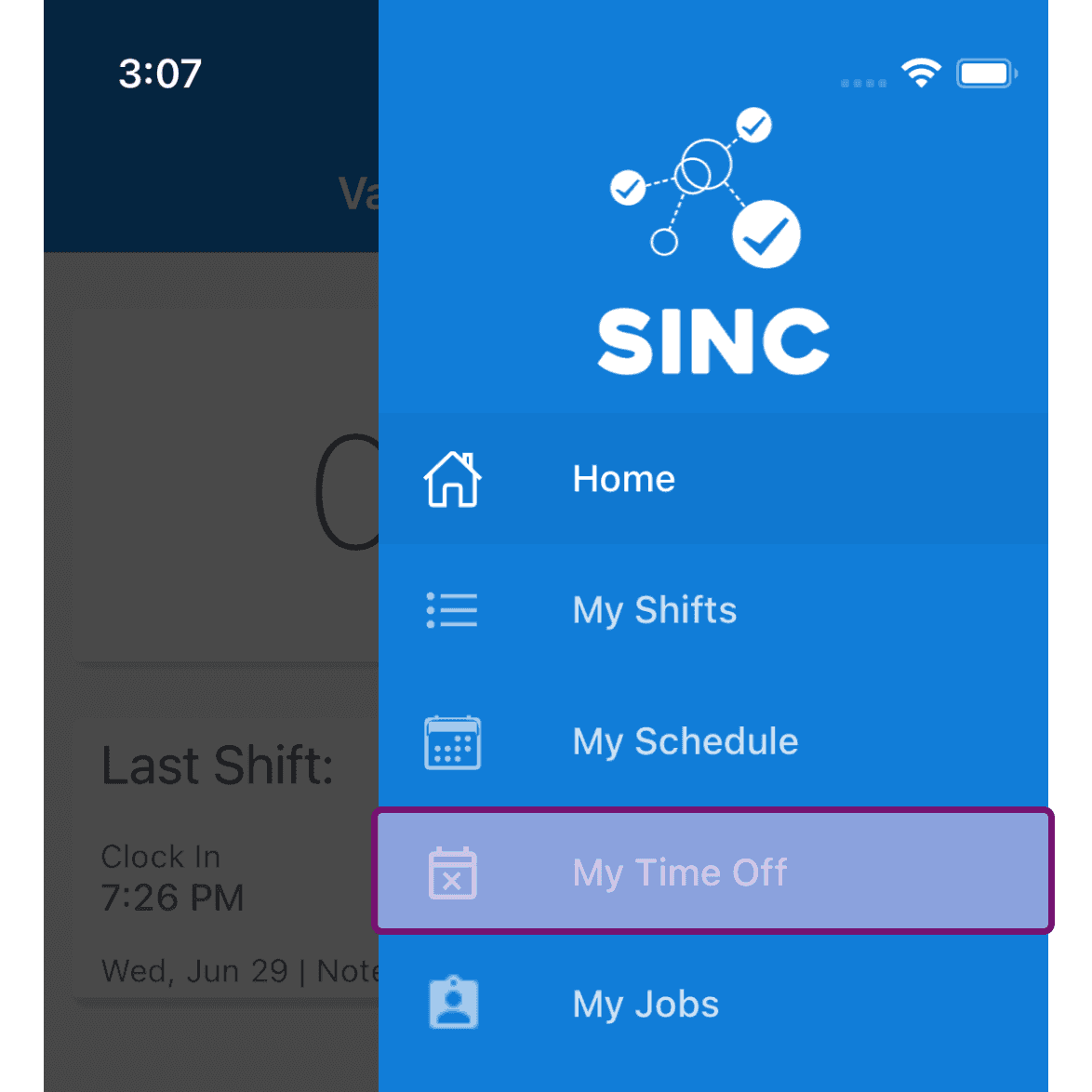
SINC mobile navigation menu with the My Time Off option circled in pink

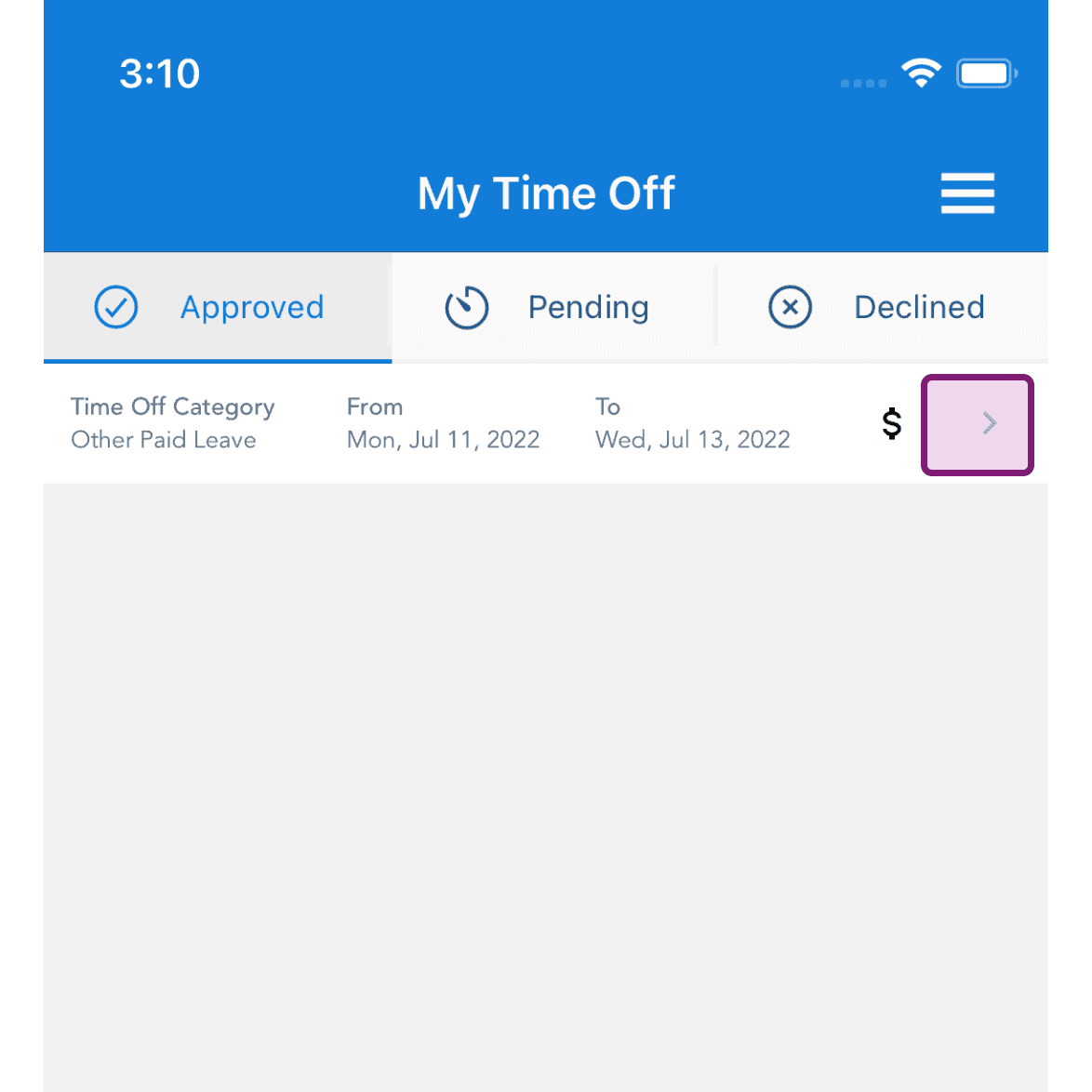
Tap on Time Off in question

My Time Off screen Approved tab with an Other Paid Leave entry's arrow highlighted

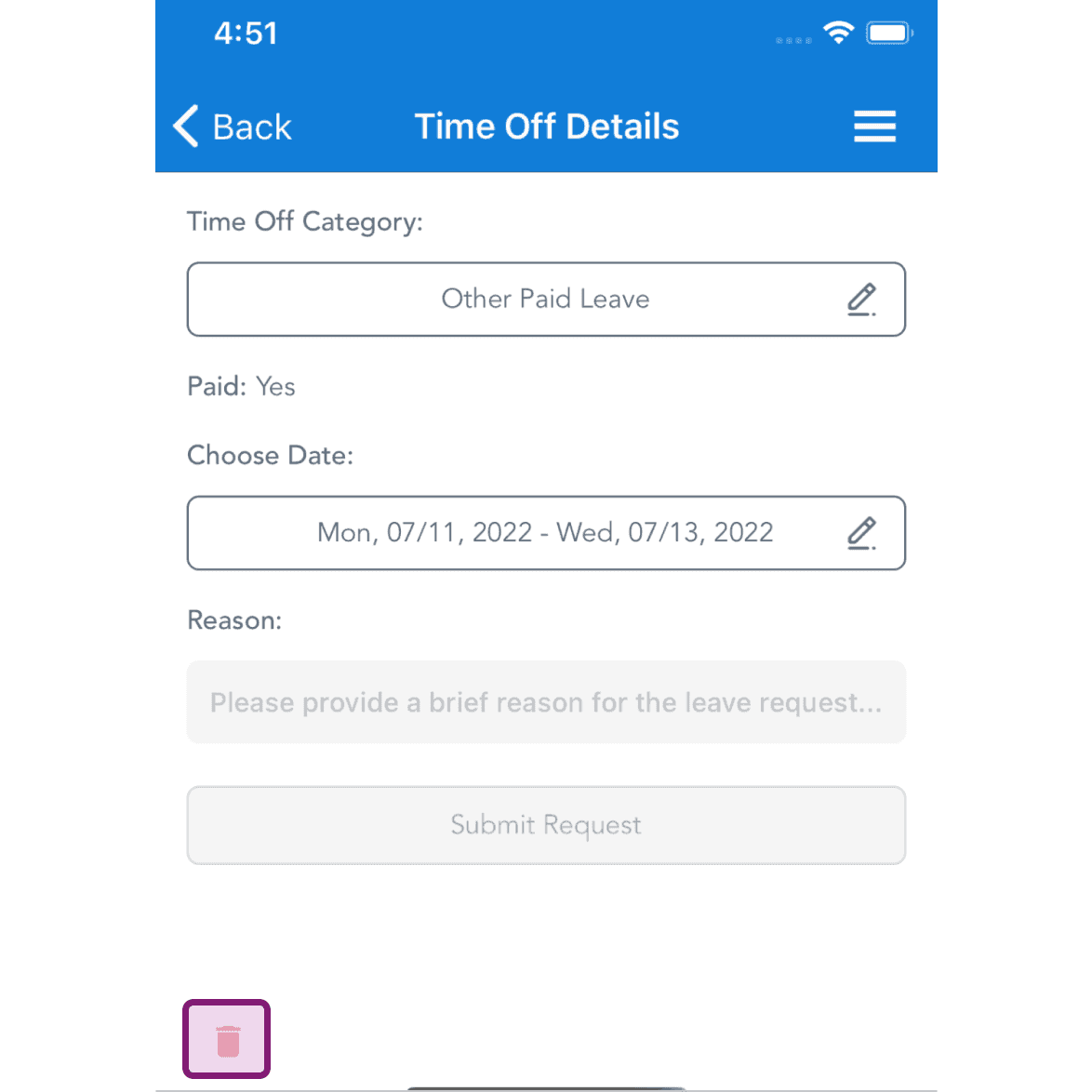
Tap on 'Delete' Icon Button

Mobile Time Off Details screen with the delete trash icon outlined in purple at the bottom

Enter the reason and tap on Confirm button
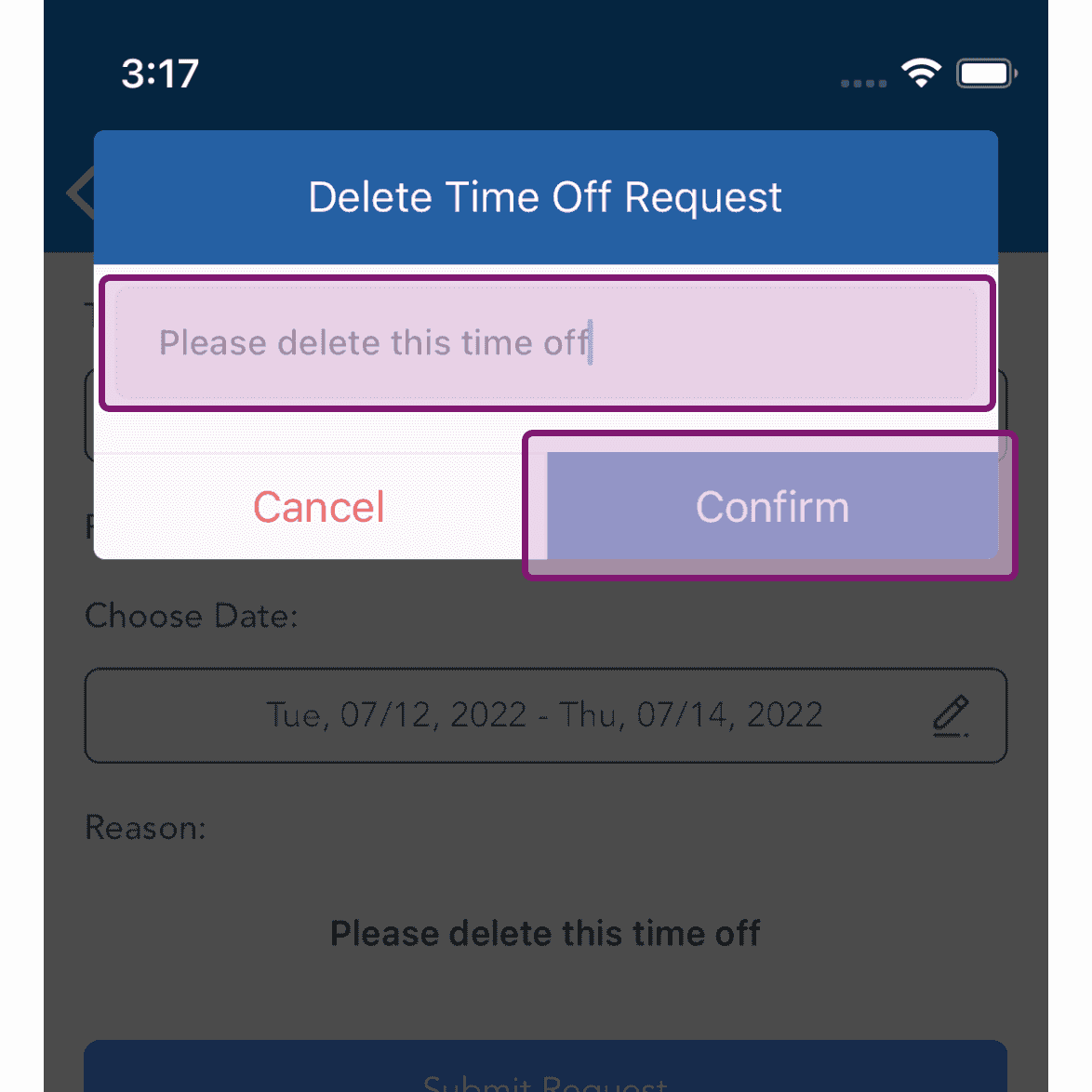
SINC mobile Delete Time Off Request popup with the reason field and Confirm button outlined

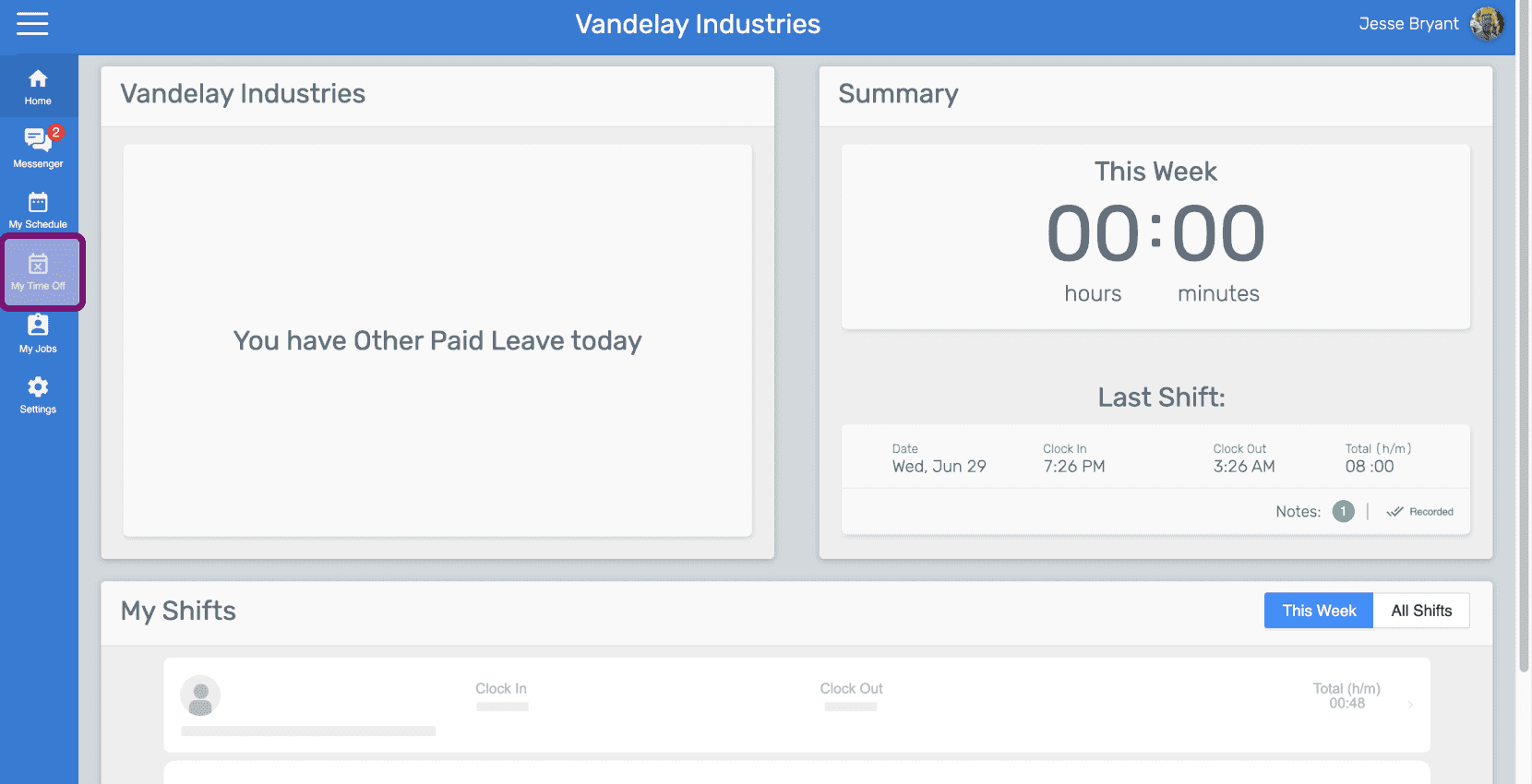
On Web: Click on Menu My Time Off

SINC web employee dashboard with the My Time Off icon outlined in purple in the side menu

Click on Delete button for Time Off in question
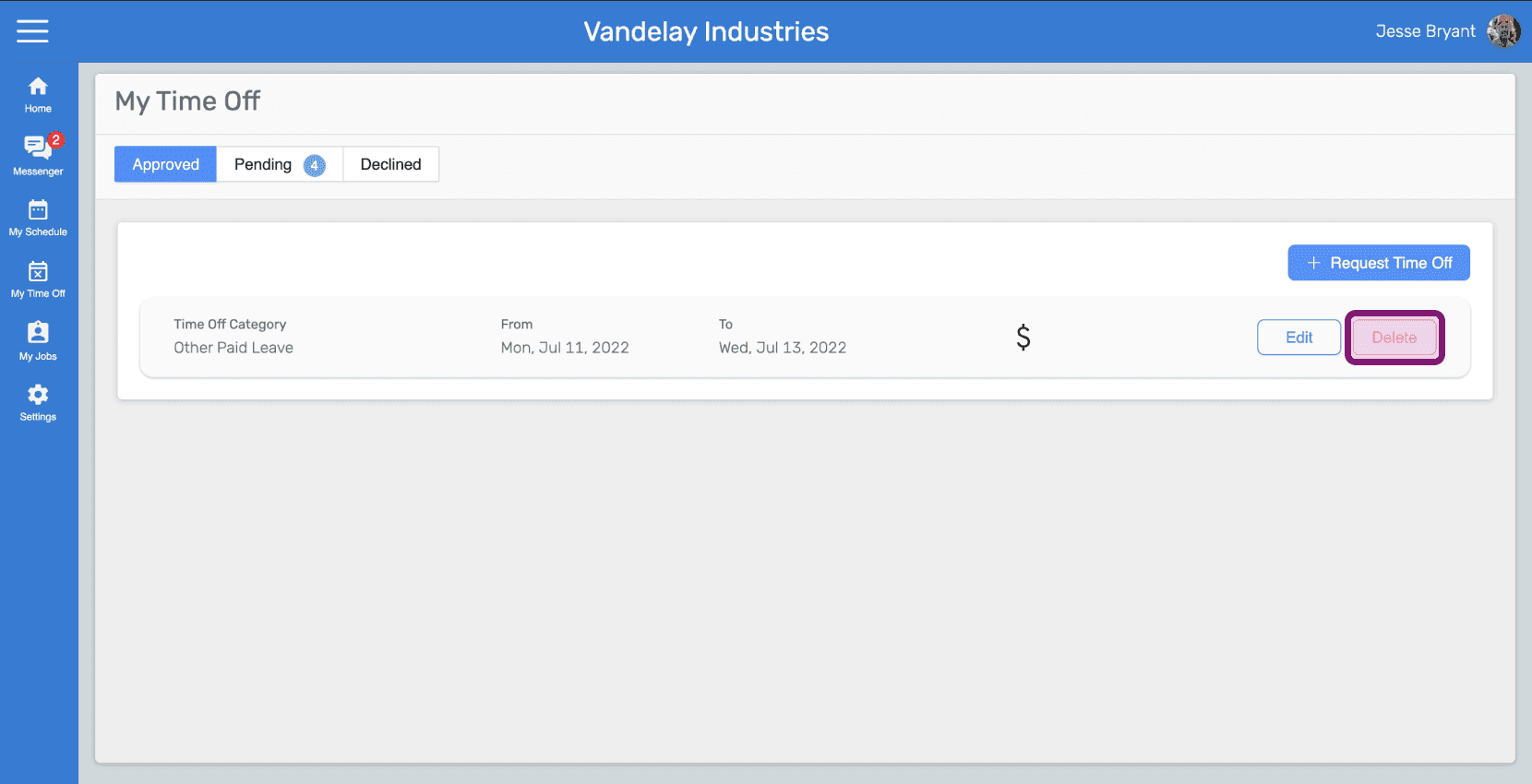
My Time Off Approved tab listing a time off entry with the Delete button outlined

Enter the reason and click on Request Delete button
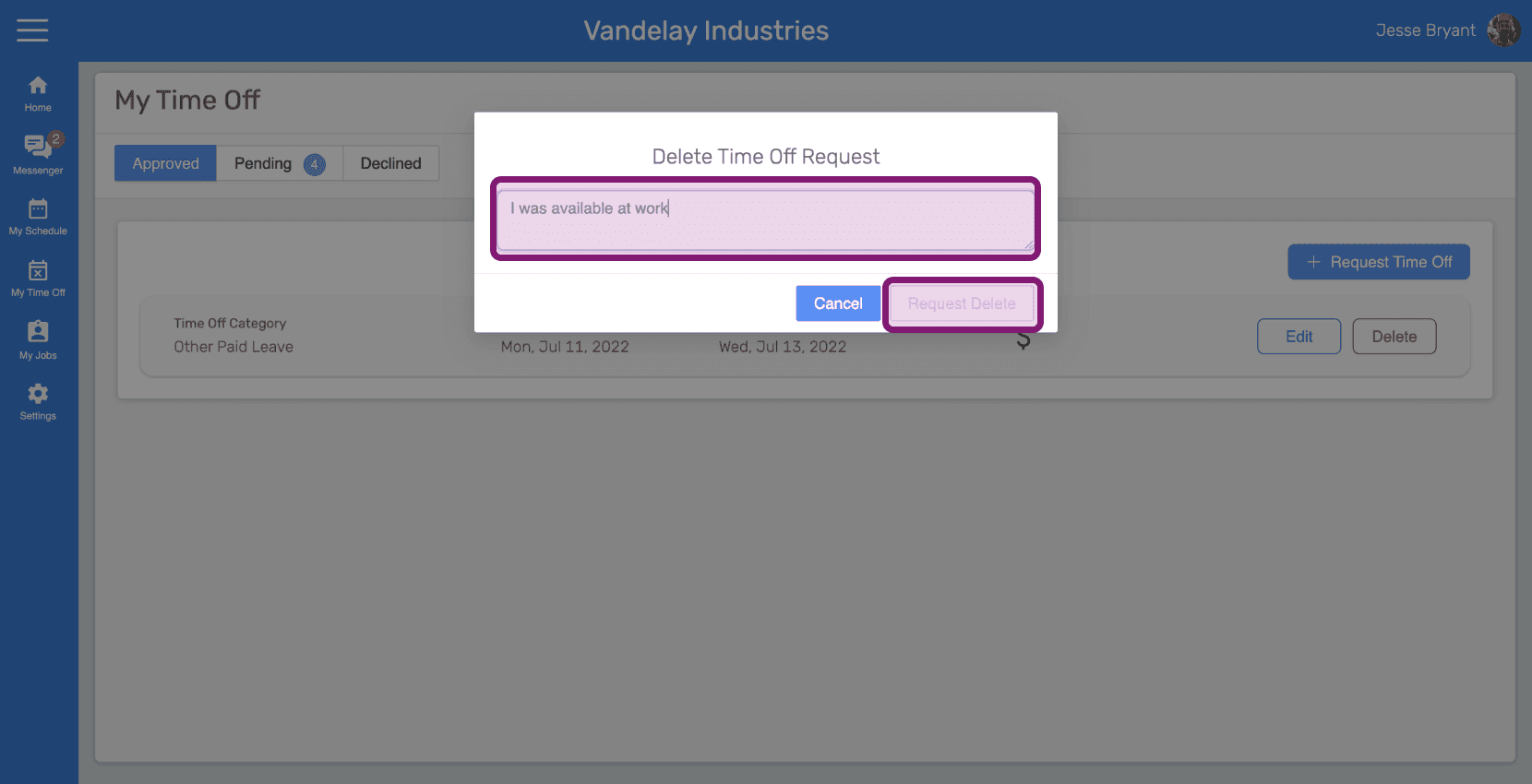
SINC web Delete Time Off Request popup with the reason text field outlined in pink next to the Request Delete button

Did this answer your question?