Time Off Settings

In this tutorial, we show you how you can set the default time off settings

SINC Support Team
SINC Support Team
Jun 13th, 2022

On Web: Click on Menu Settings Time Off
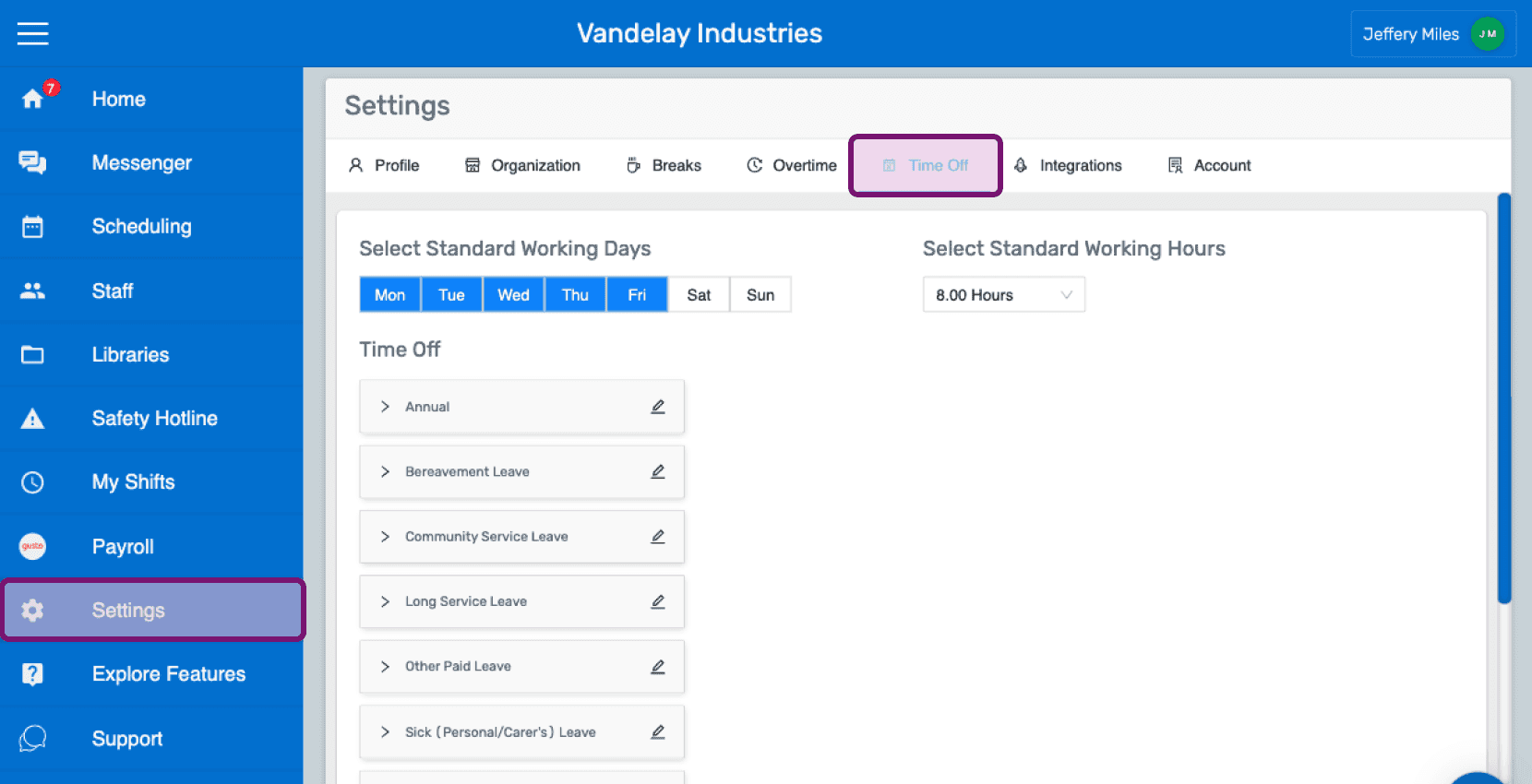
SINC web Settings screen with the Time Off tab highlighted in the top navigation

By default, Monday to Friday are the standard working days. Click on the day to remove from or add to the standard working days.
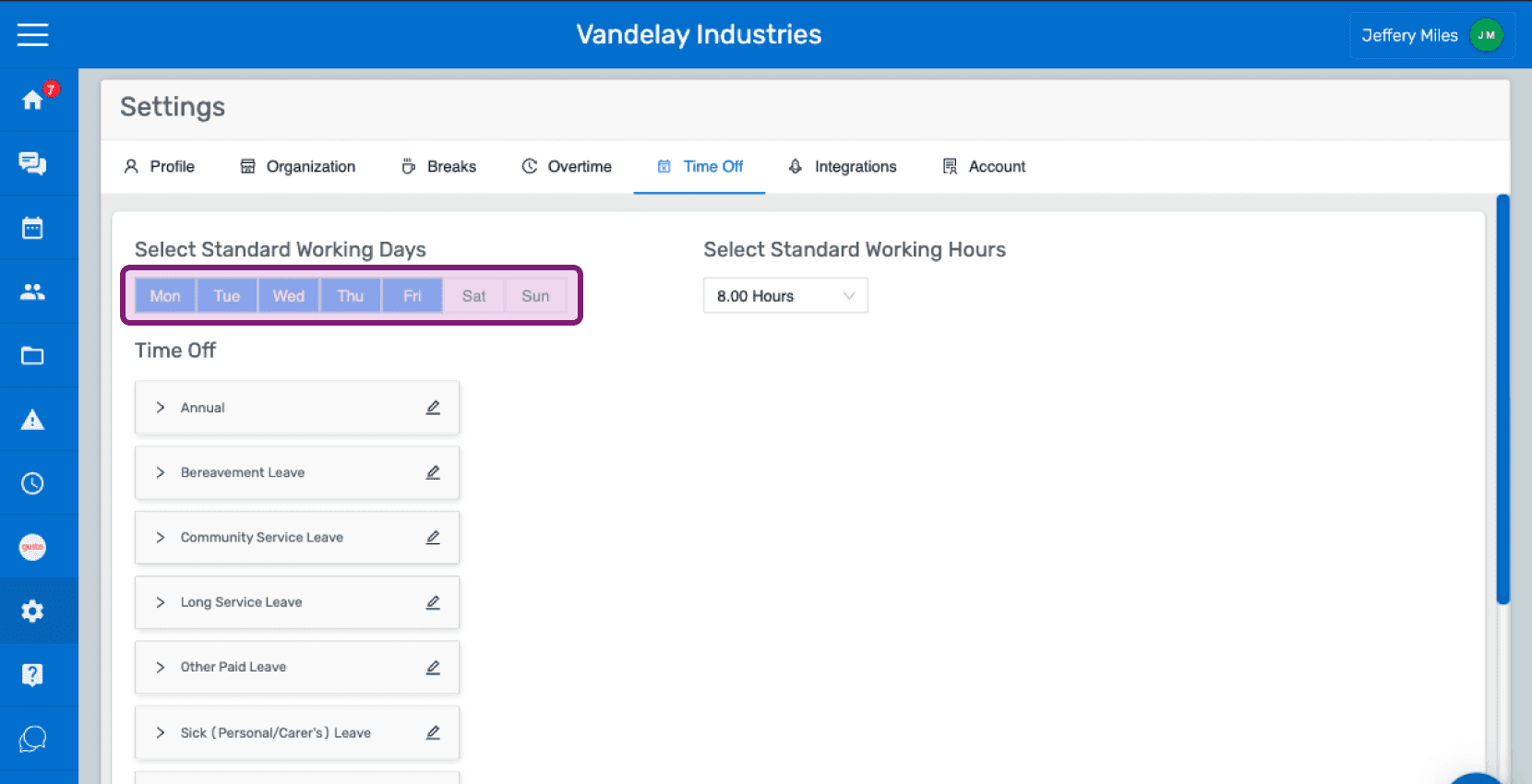
SINC web Time Off settings tab with the Select Standard Working Days row highlighted in purple

By default the standard working hours is 8 hours. Choose the desired Standard Working Hours from the dropdown.
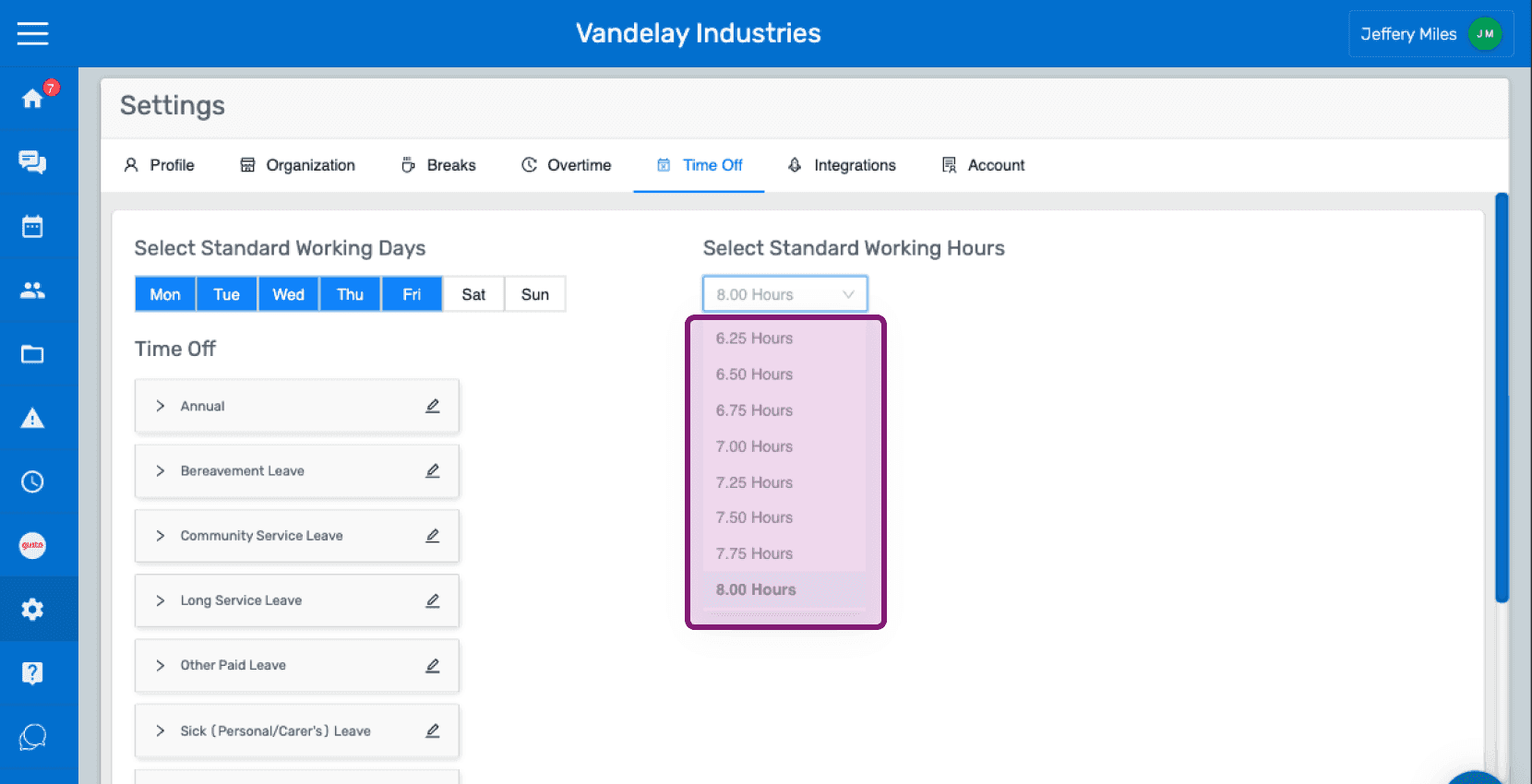
Web Settings Time Off tab with the Standard Working Hours dropdown outlined in pink showing hour options

Under Time Off, you will find a list of predefined time off categories.
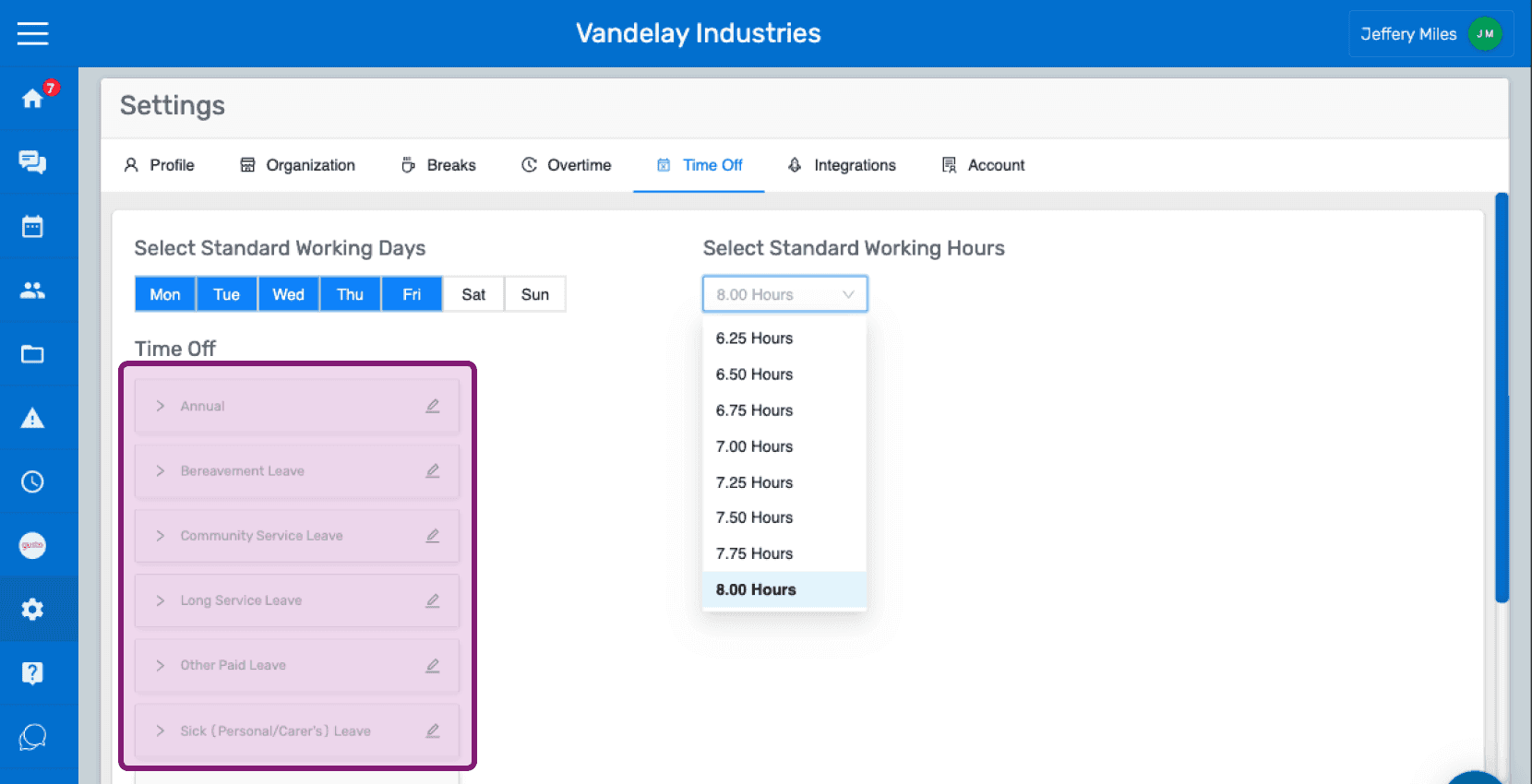
SINC web Settings Time Off tab listing predefined time off categories outlined in pink

Click on the pencil icon to edit the name of a time off category.
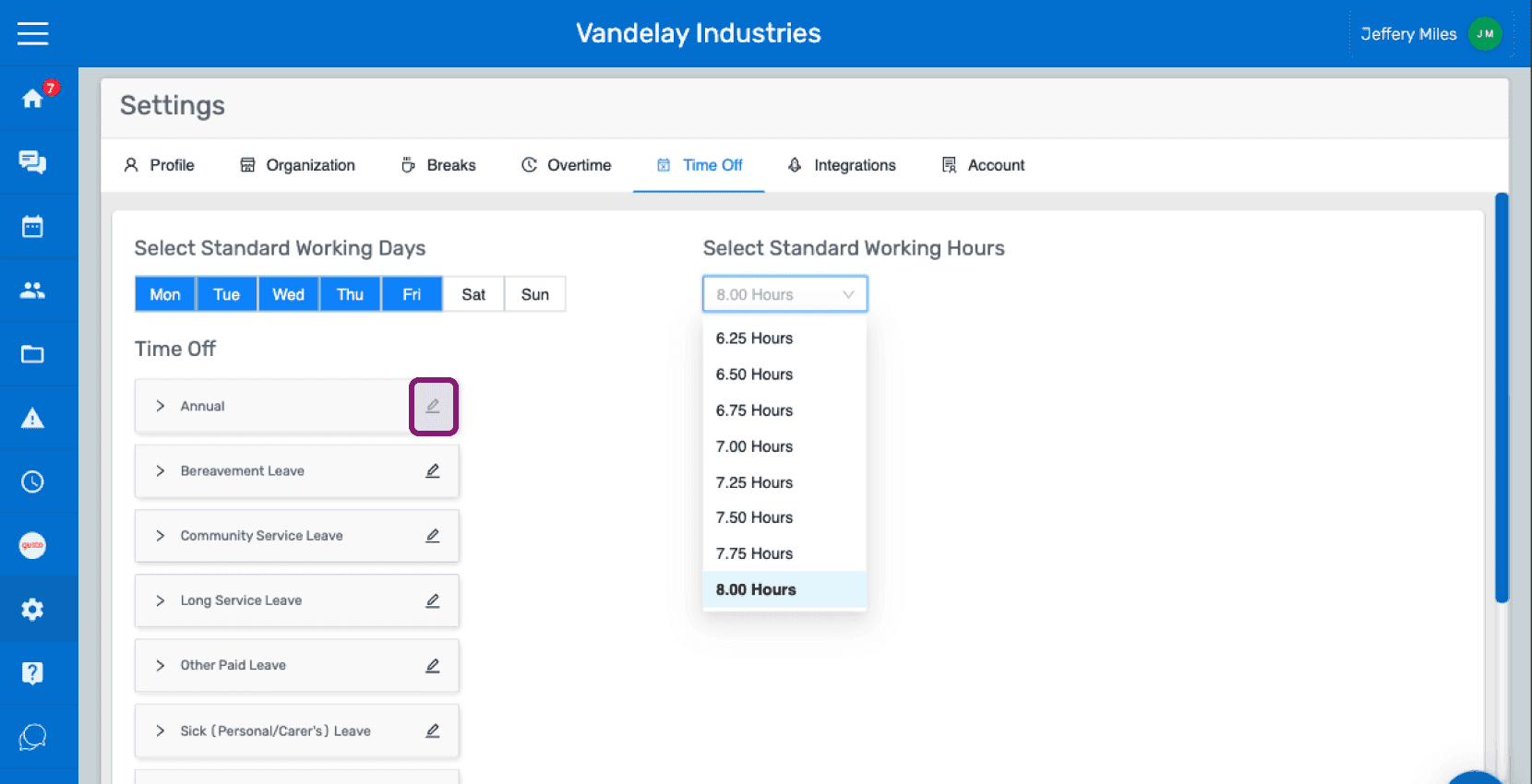
Time Off settings screen with the pencil edit icon next to the "Annual" category circled in pink

Enter the name you want for the time off category Click on Confirm
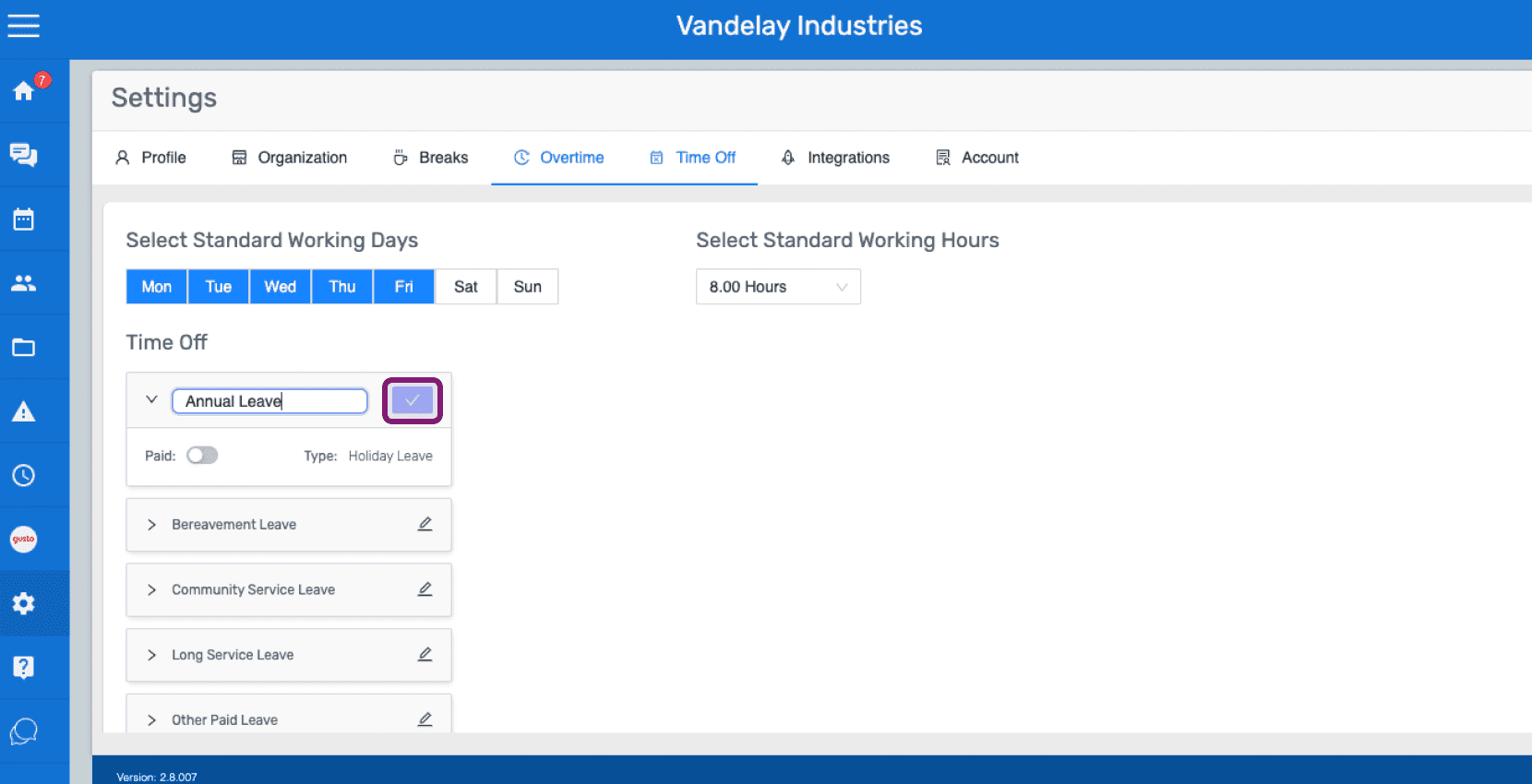
SINC web Time Off settings tab with the edit icon highlighted next to the Annual Leave category

To set the category as paid/unpaid toggle the switch next to Paid.
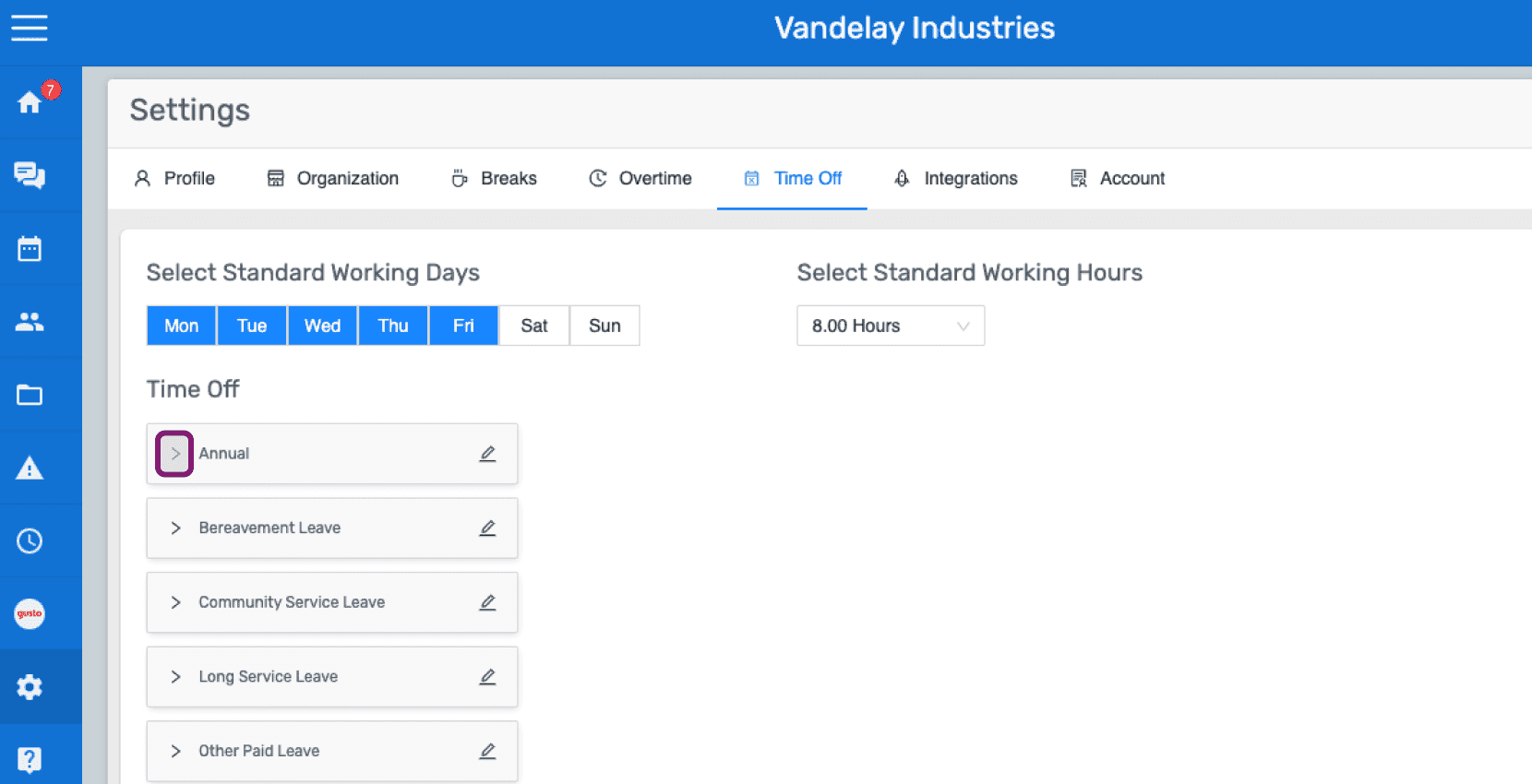
Web Settings Time Off tab with the Annual leave category outlined in pink among the list of leave types

Toggle the paid switch on or off as desired.
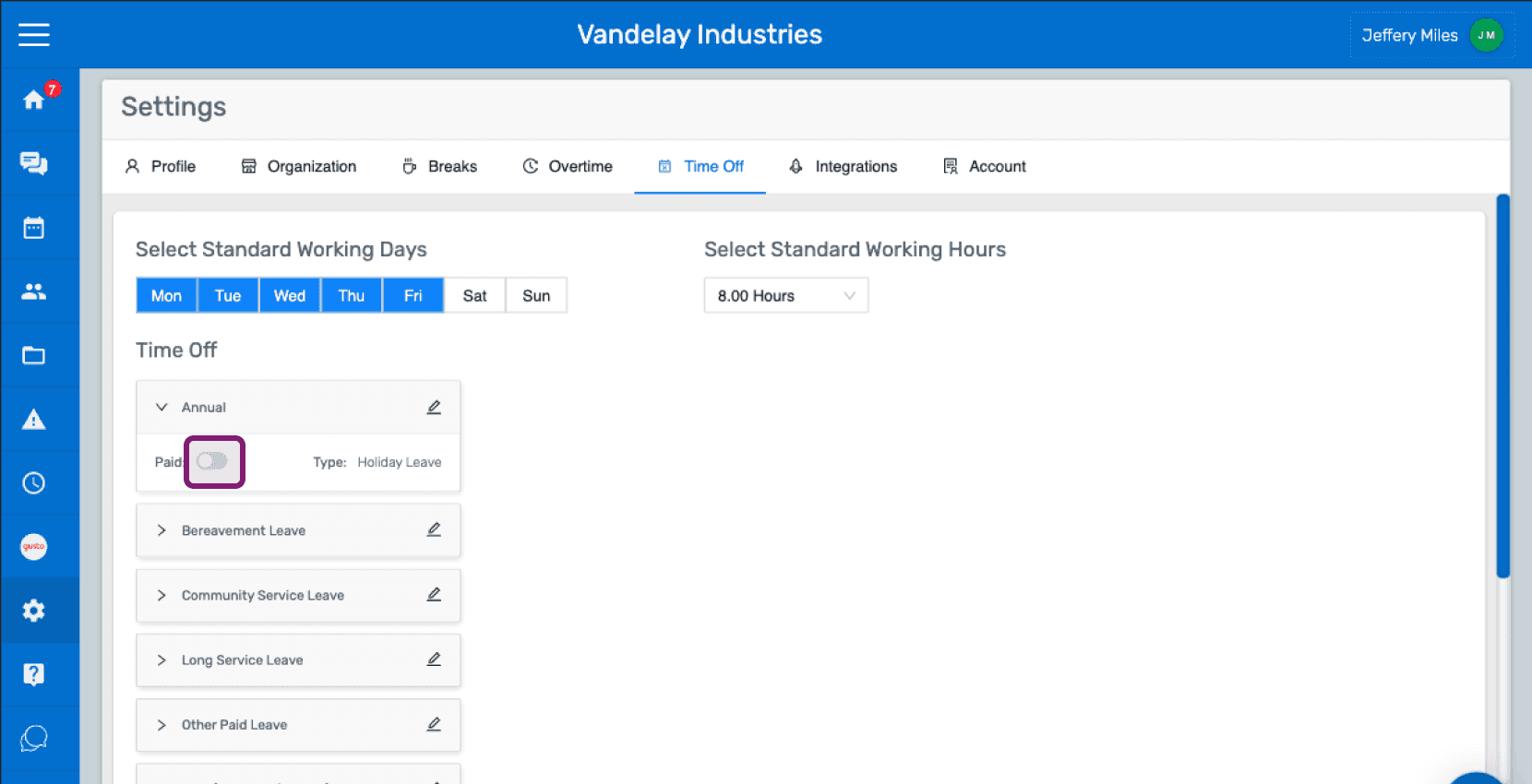
SINC web Settings Time Off tab showing leave categories with the Paid toggle circled next to Annual leave

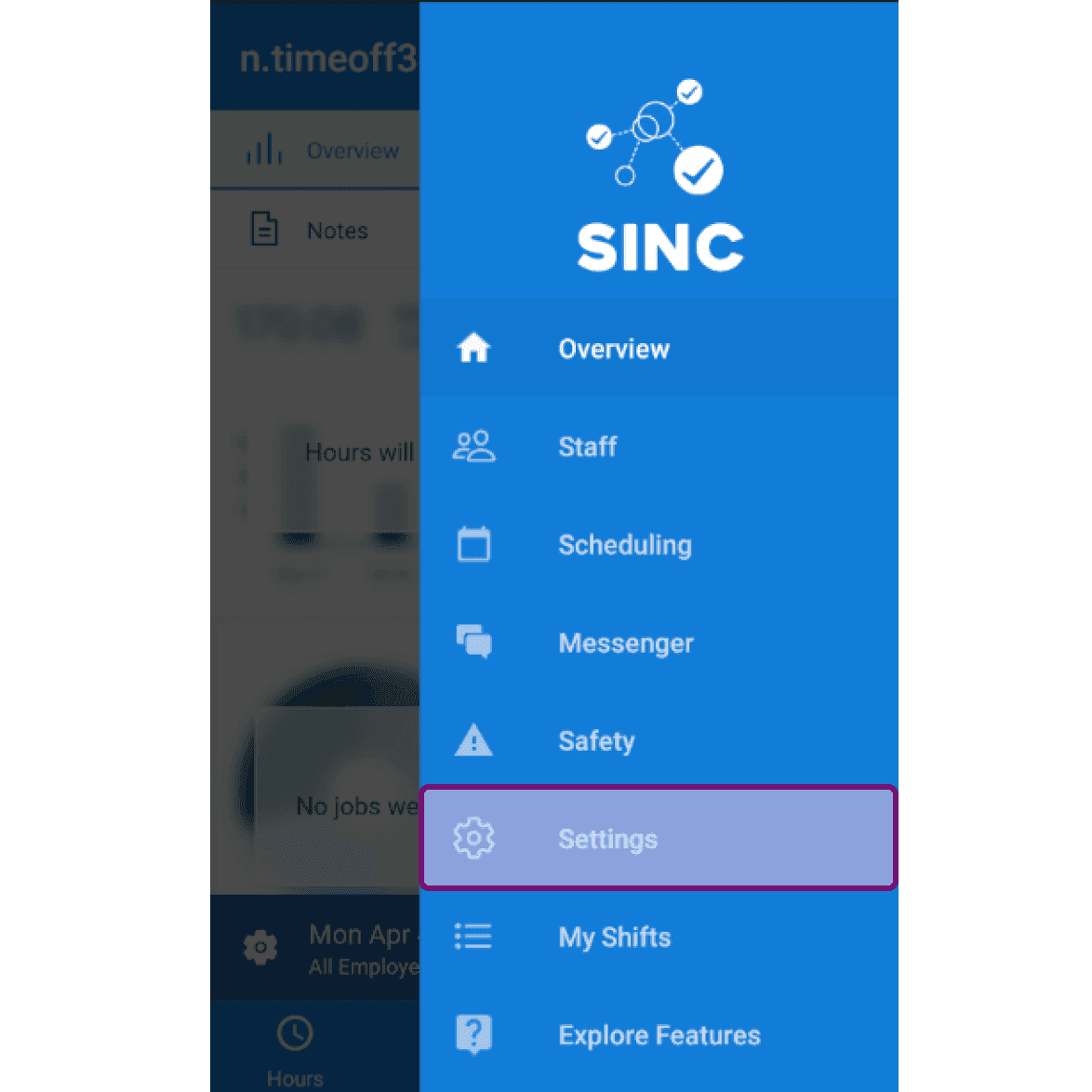
On Mobile: Tap on Menu Settings

Mobile side menu open with the Settings menu item highlighted

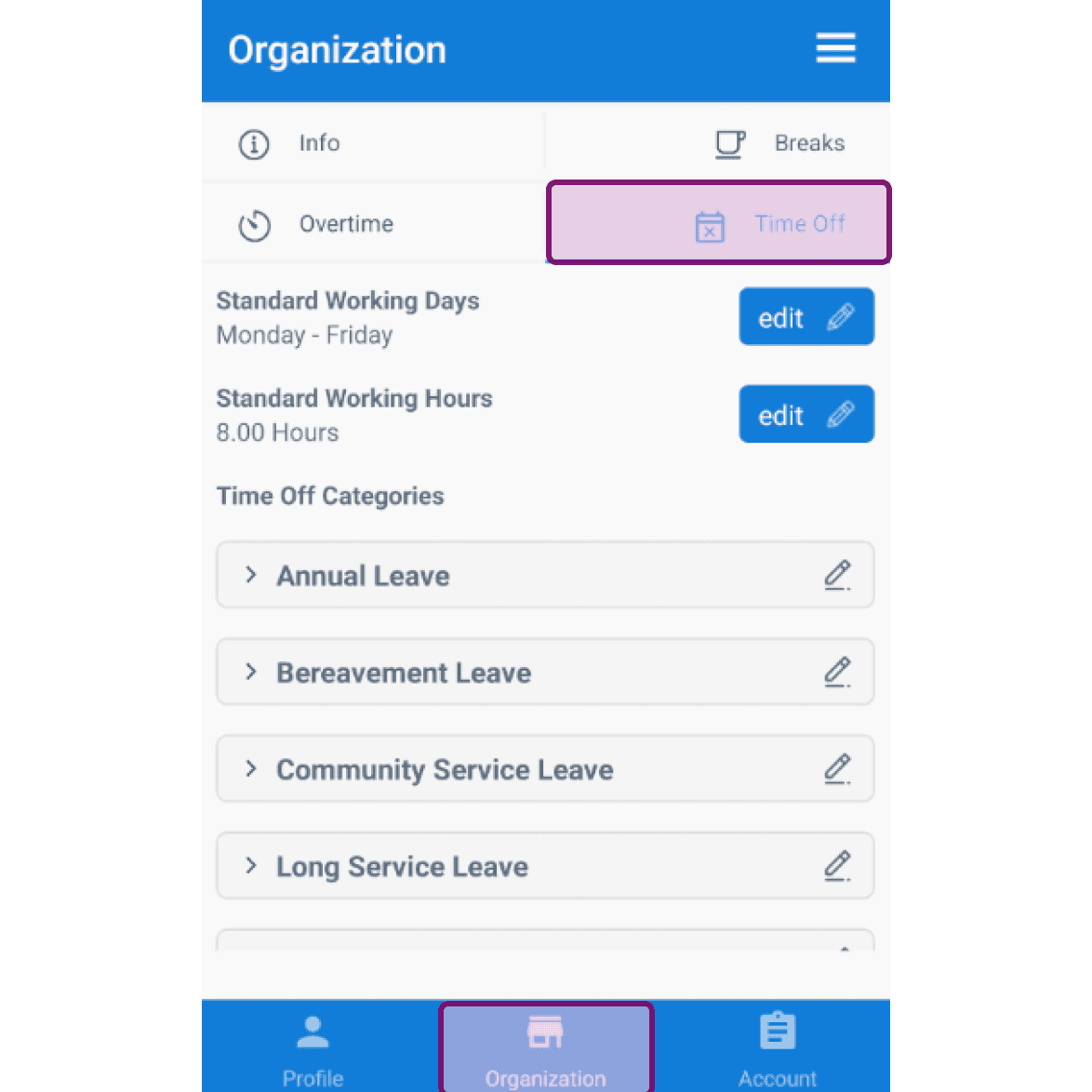
Tap on Organization Time Off

Mobile Organization screen with the Time Off tab outlined in purple

By default Monday to Friday are the standard working days. To edit, tap on edit next to Standard Working Days.
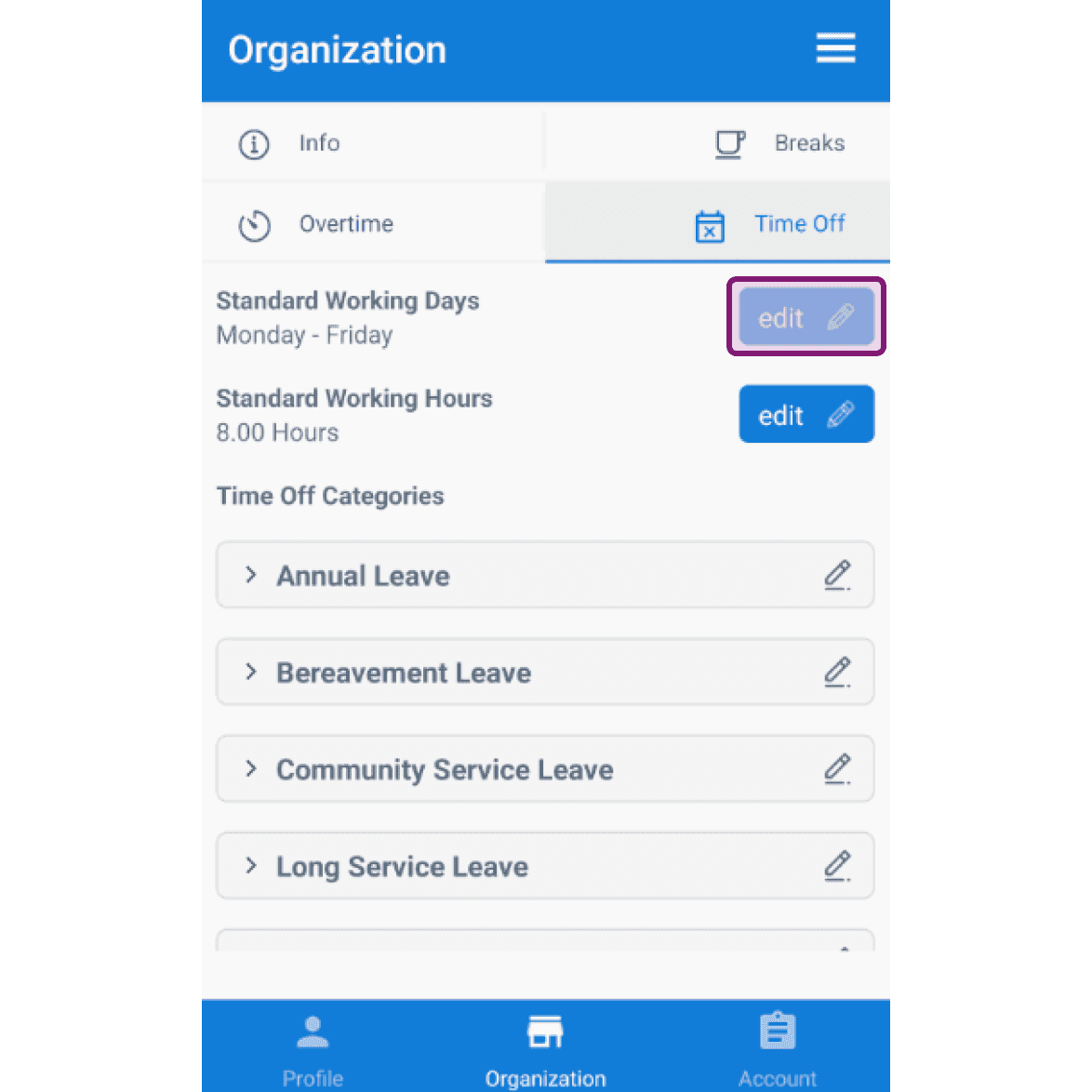
SINC mobile Organization Time Off tab with the edit button next to Standard Working Days outlined

Tap on a day to select or deselect a day.
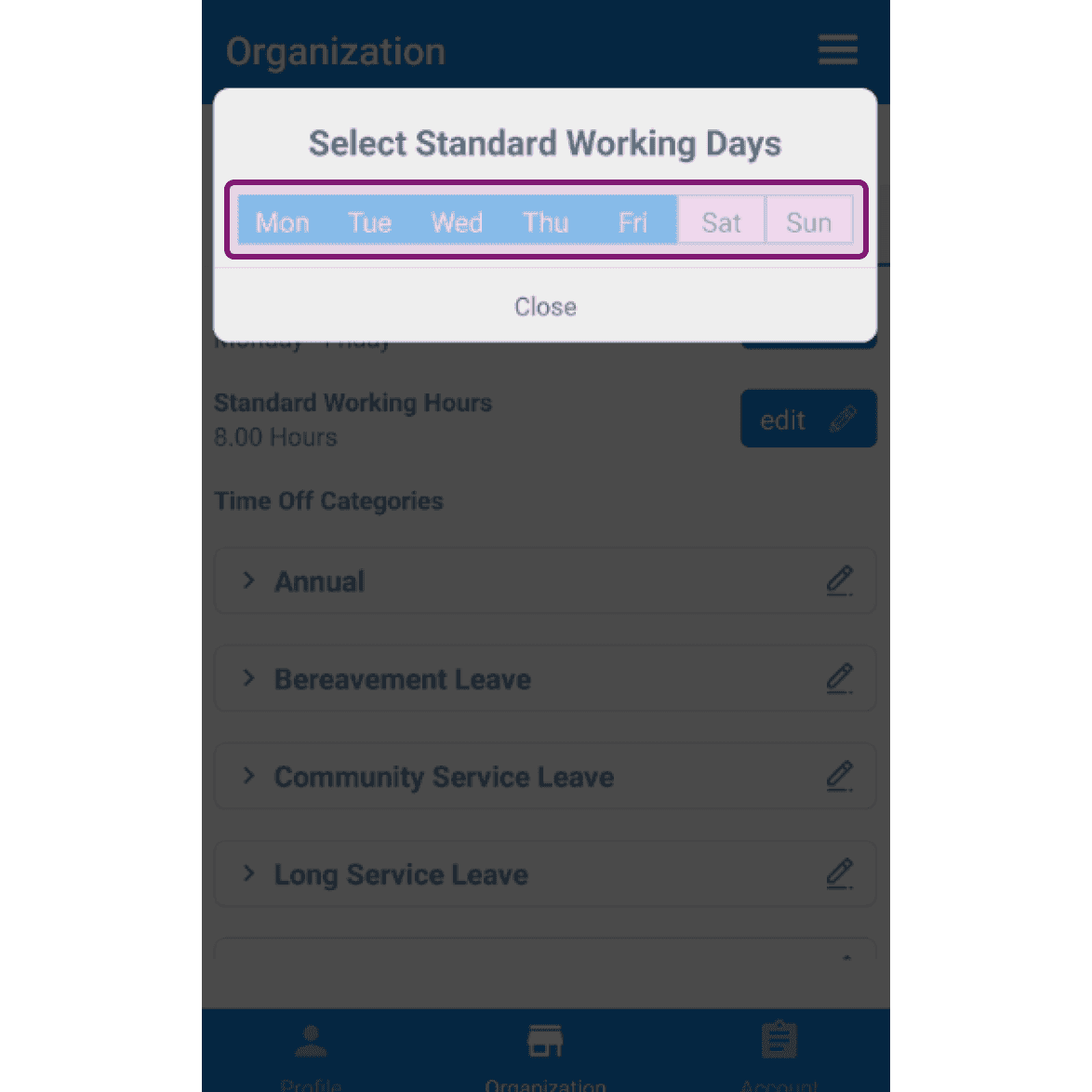
SINC mobile Select Standard Working Days dialog with Monday through Friday highlighted and outlined in pink

By default the standard working hours is 8 hours. To edit, tap on the edit next to Standard Working Hours.
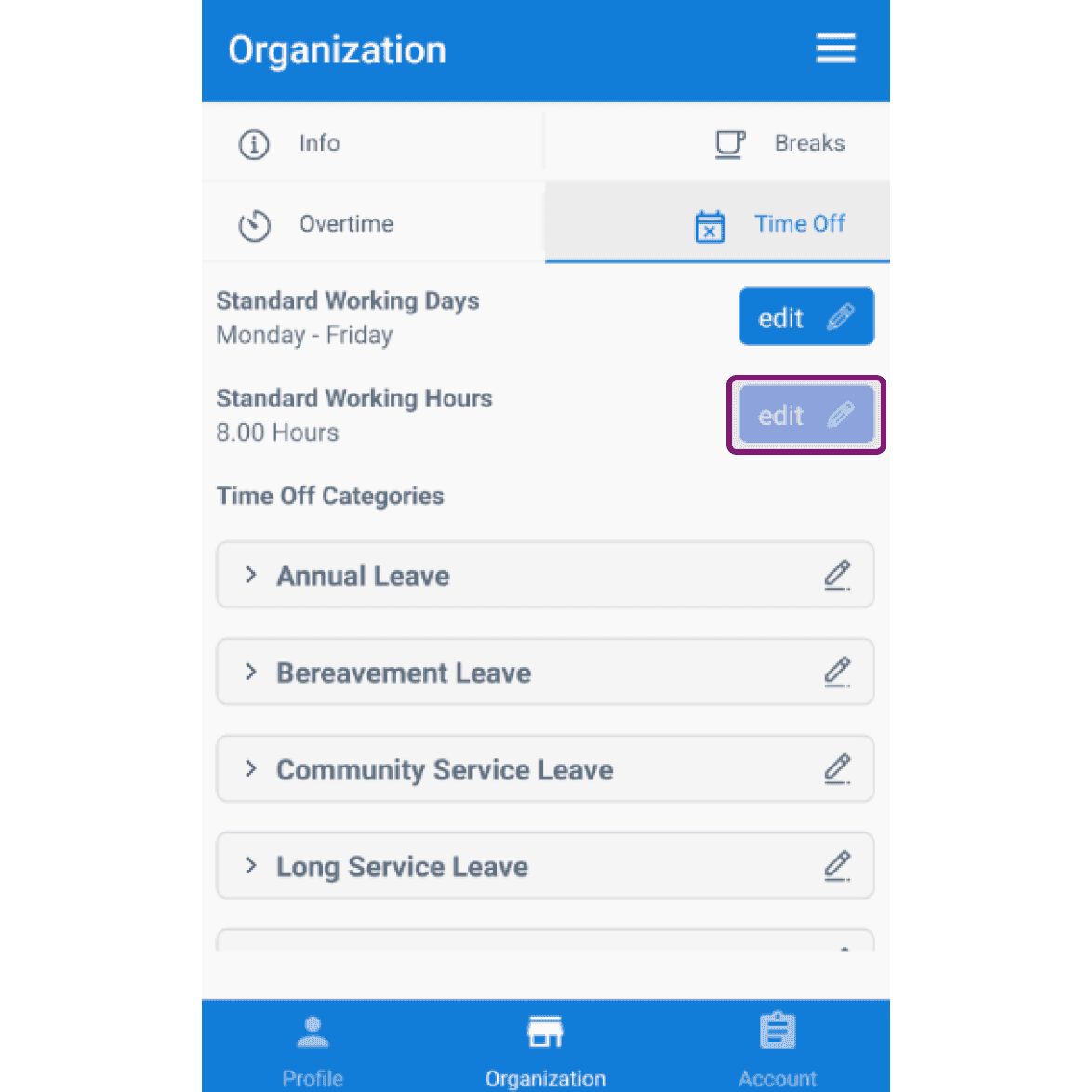
Organization Time Off tab with the Edit button next to Standard Working Hours outlined

Tap on the desired Standard Working Hours from the dropdown.
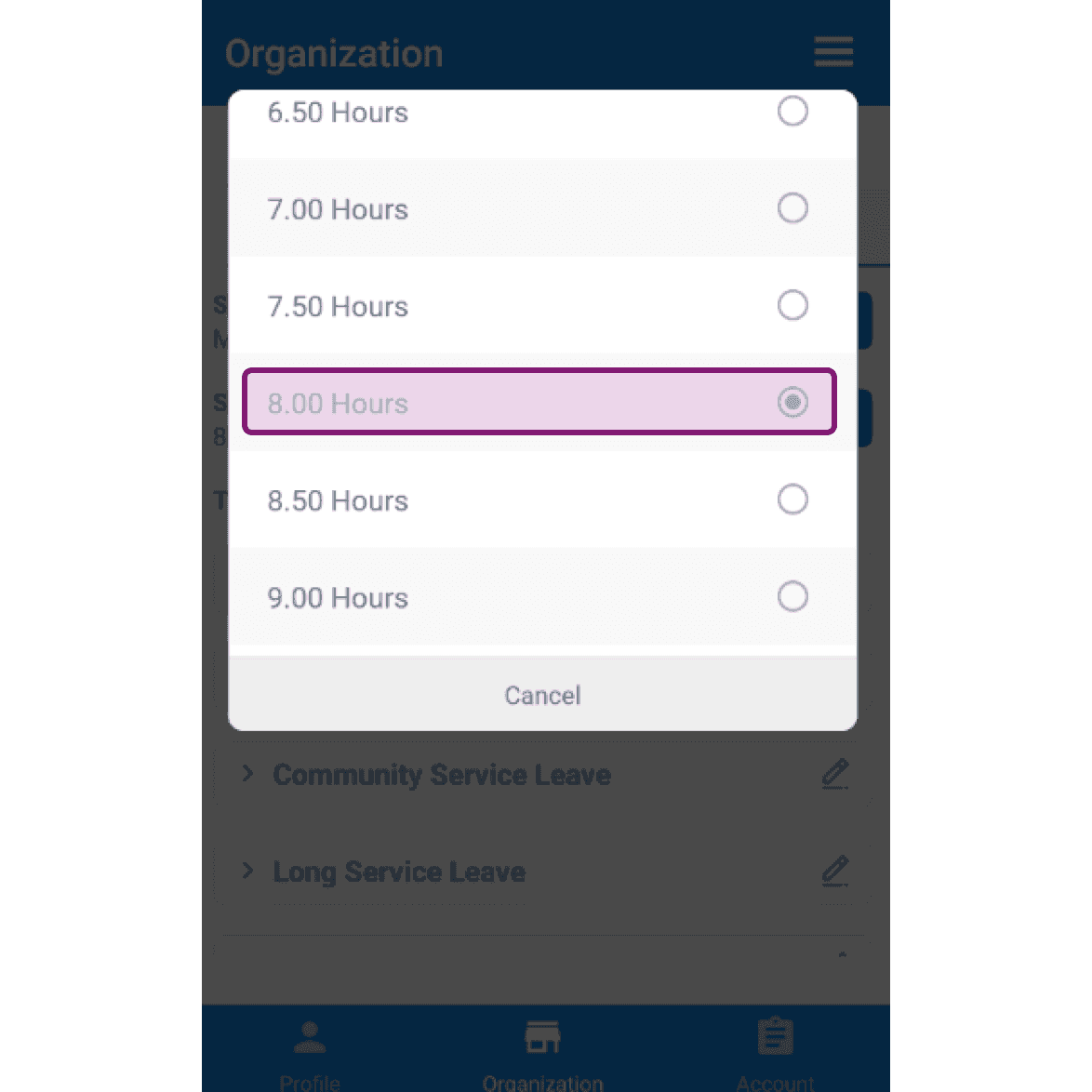
SINC mobile app Standard Working Hours dropdown with the 8.00 Hours option highlighted in pink

Under Time Off Categories, you will find a list of predefined time off categories.
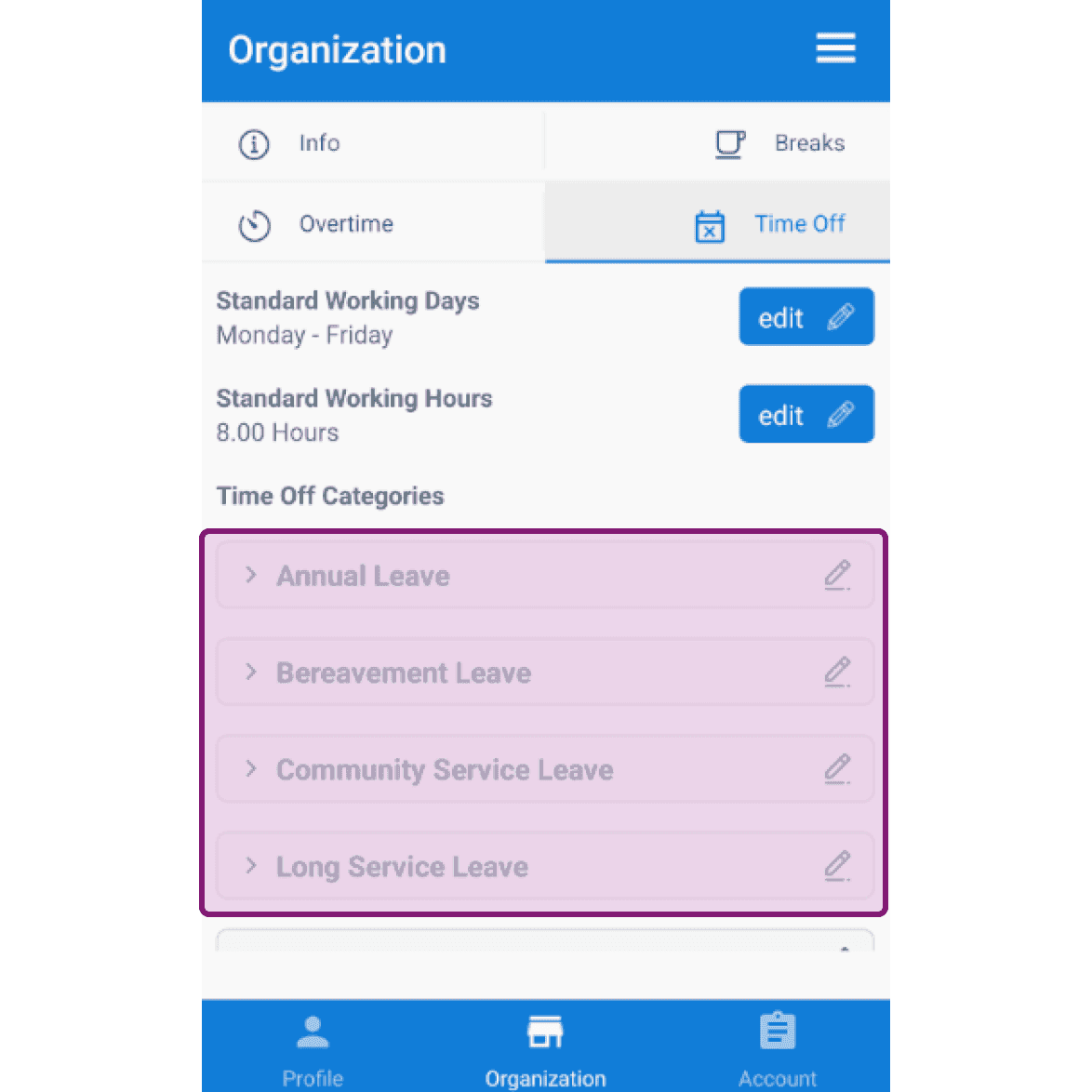
Organization Time Off settings screen with the Time Off Categories list outlined in purple

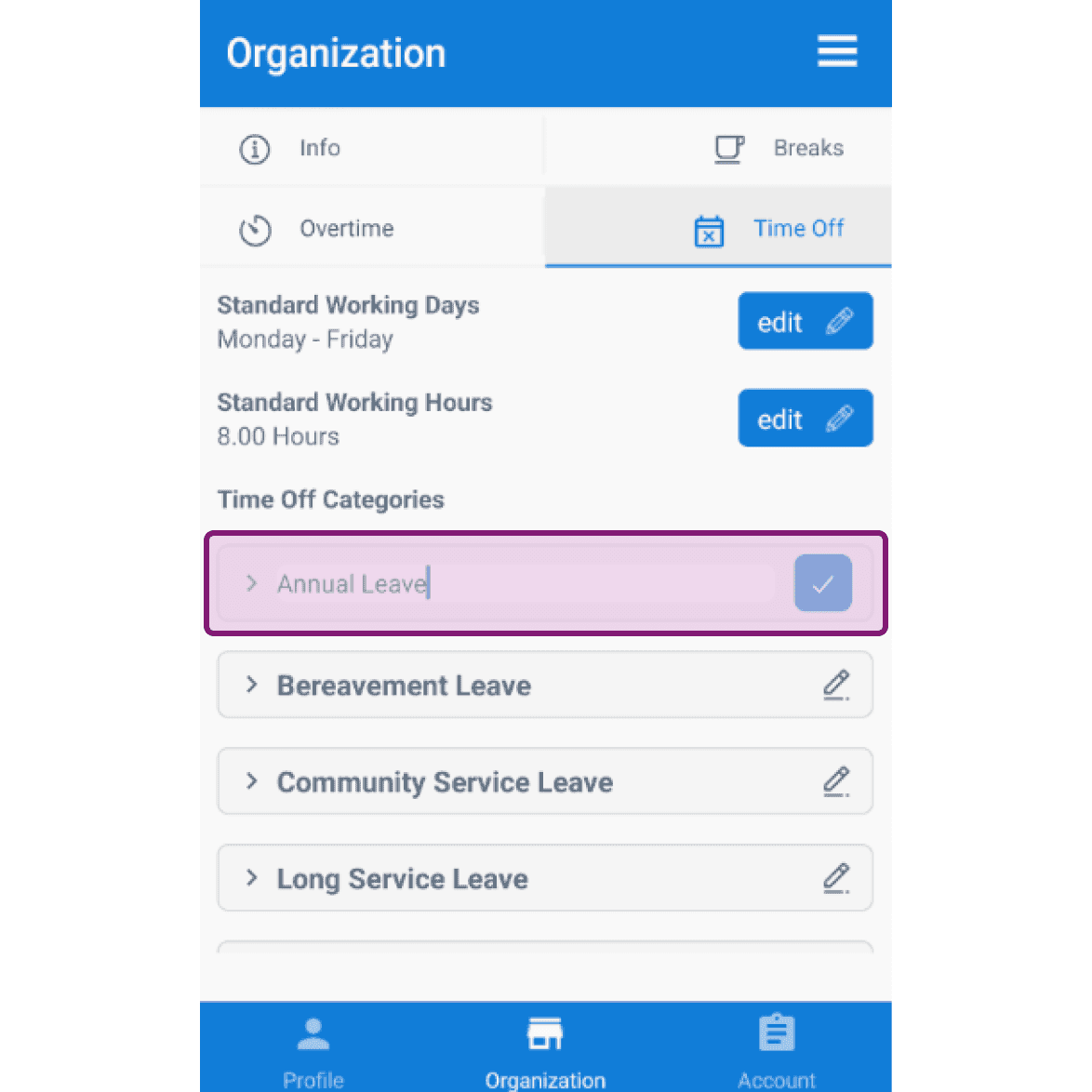
Click on the pencil icon to edit the name of a time off category.
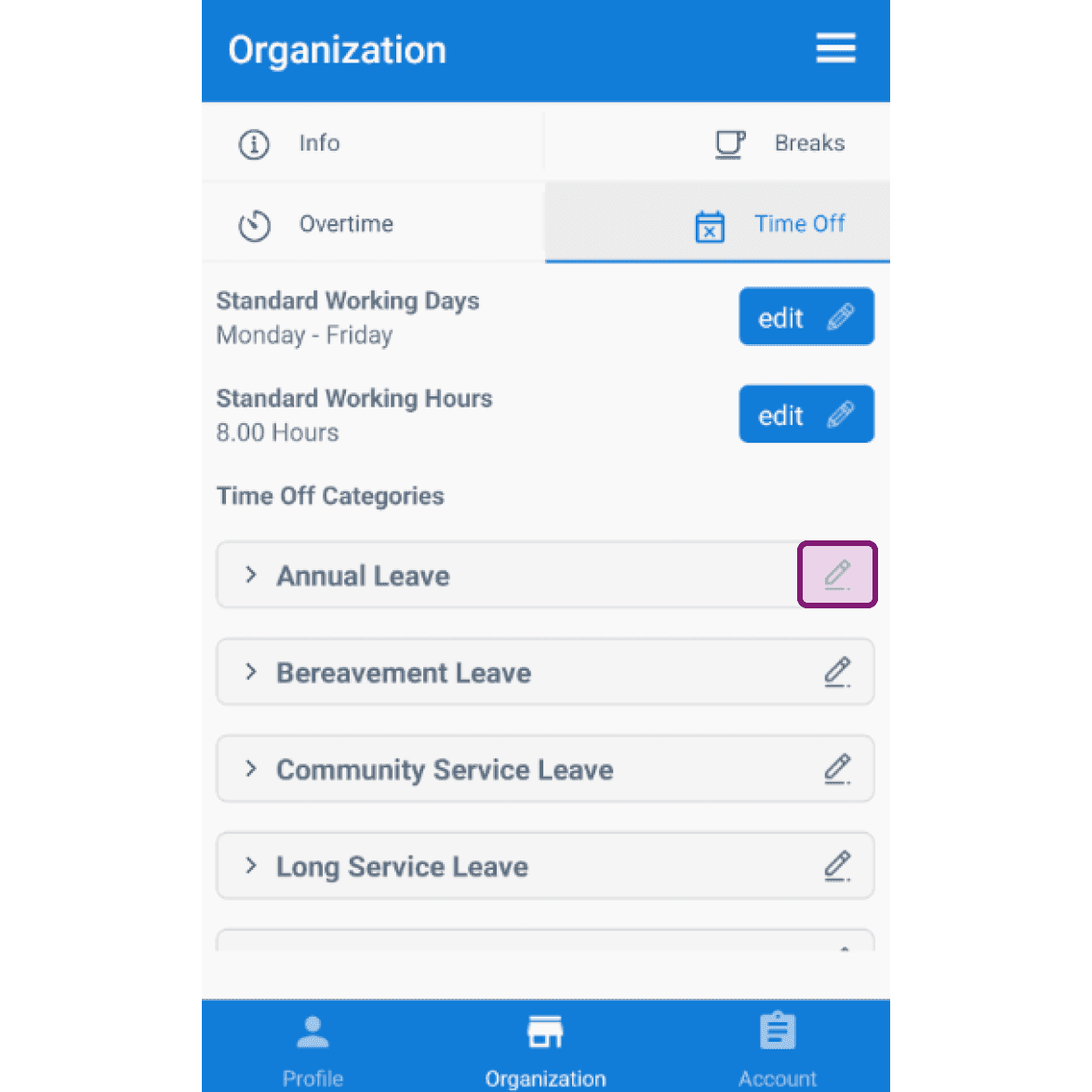
Organization Time Off screen listing leave categories with the Annual Leave edit pencil icon highlighted
SINC mobile Organization Time Off screen with the Annual Leave category highlighted for editing

Click on the arrow to open the time off category to be edited.
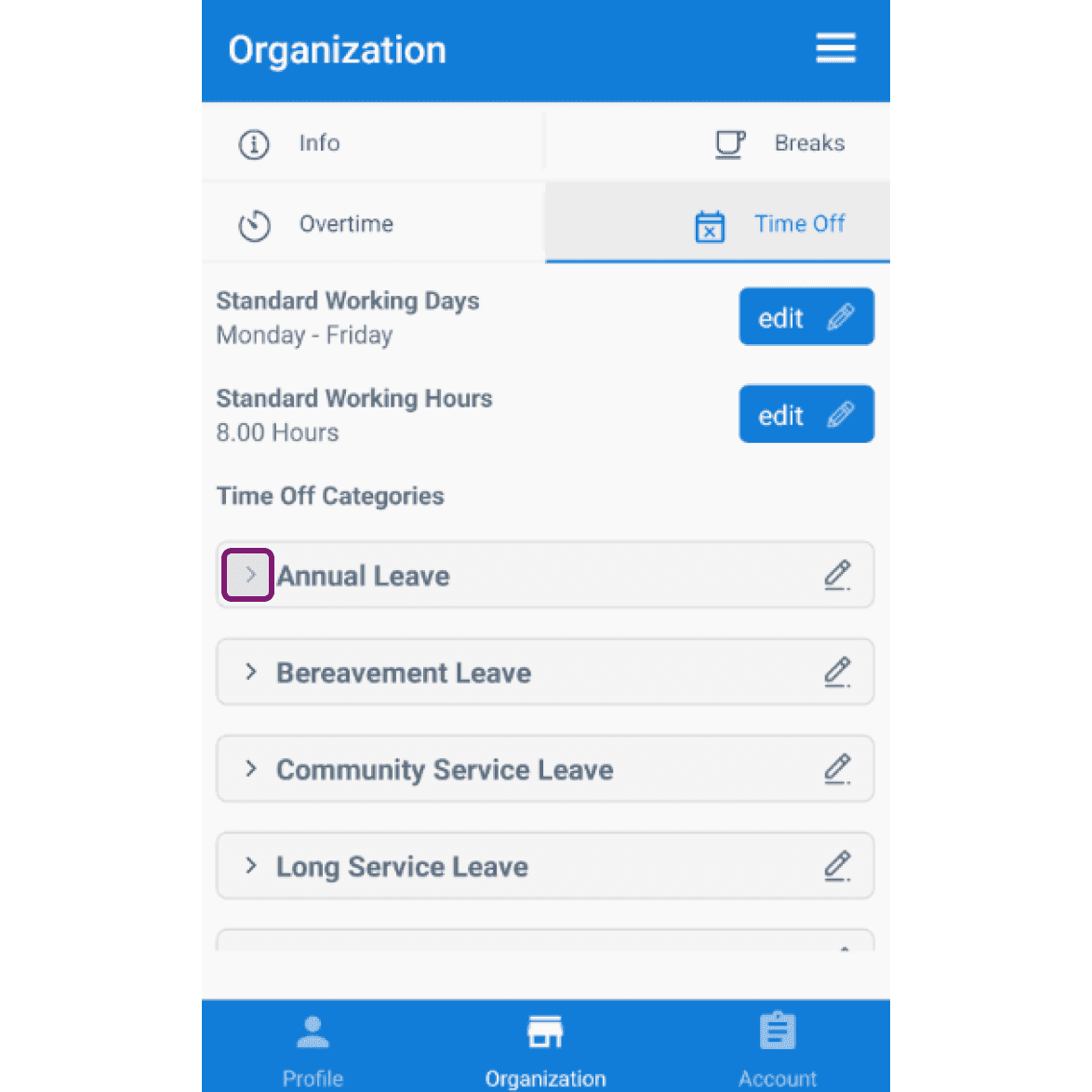
Mobile app Organization Time Off tab with the Annual Leave category row outlined in pink

Toggle the paid switch on or off as desired.
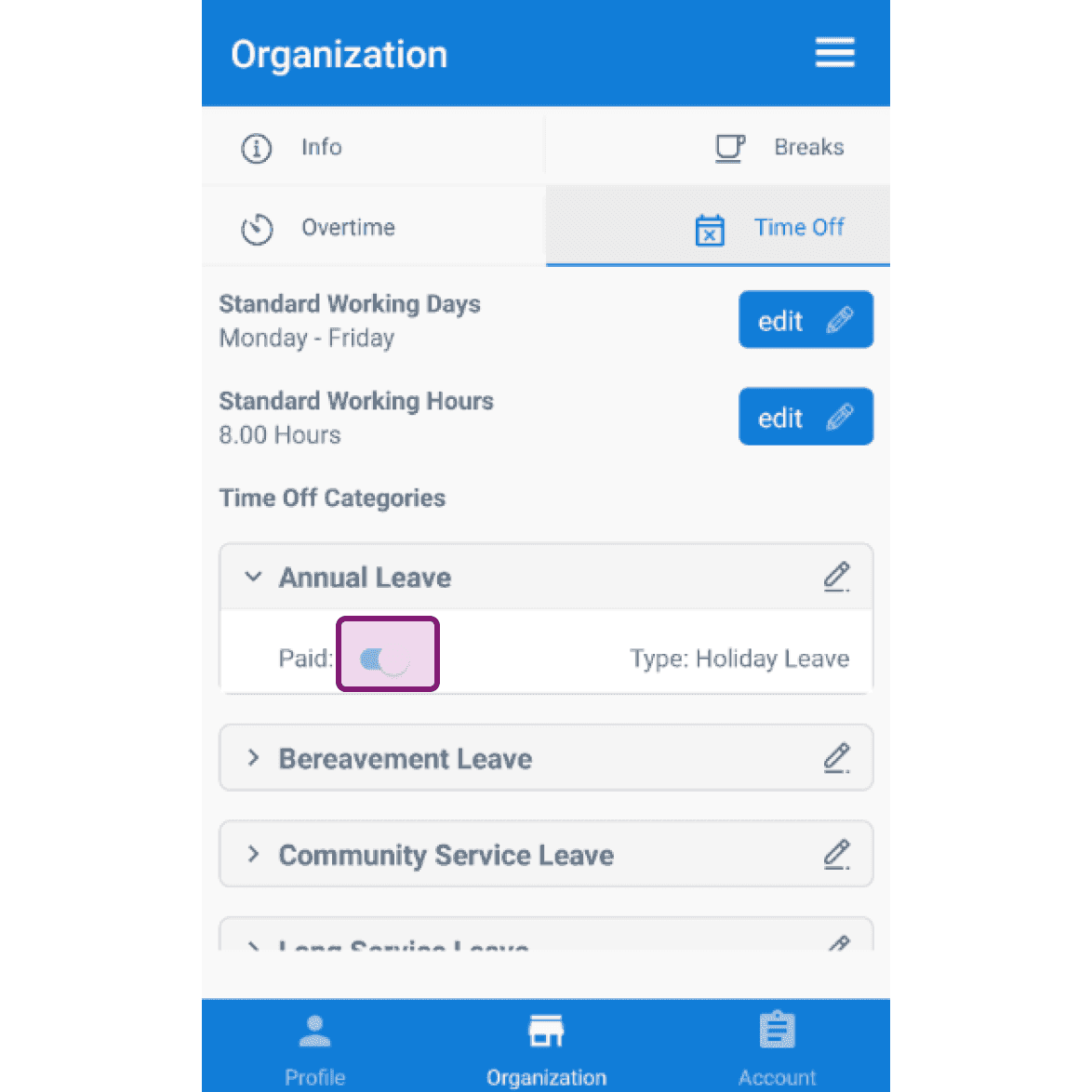
SINC mobile Organization Time Off tab with the Annual Leave paid toggle outlined in pink

Did this answer your question?