Clocking In and Out for Admins

In this guide we will cover how to clock yourself in and out of shifts as an Admin

Sam Dolbel
Sam Dolbel
Mar 3rd, 2023

Tap on My Shifts
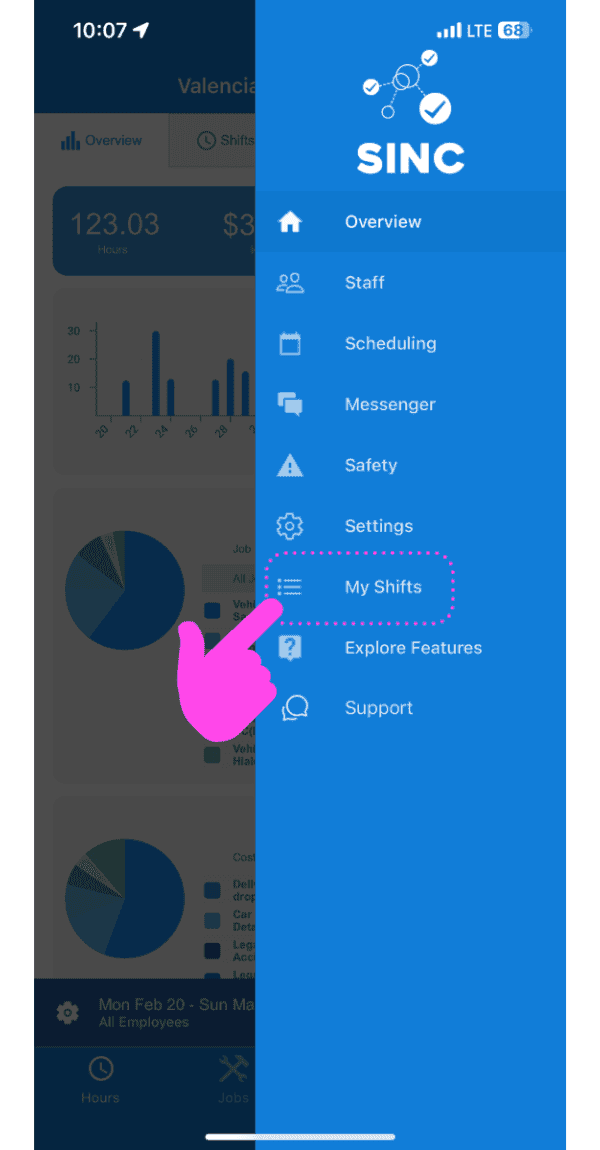
SINC mobile app side menu with a pink arrow pointing to the My Shifts menu item

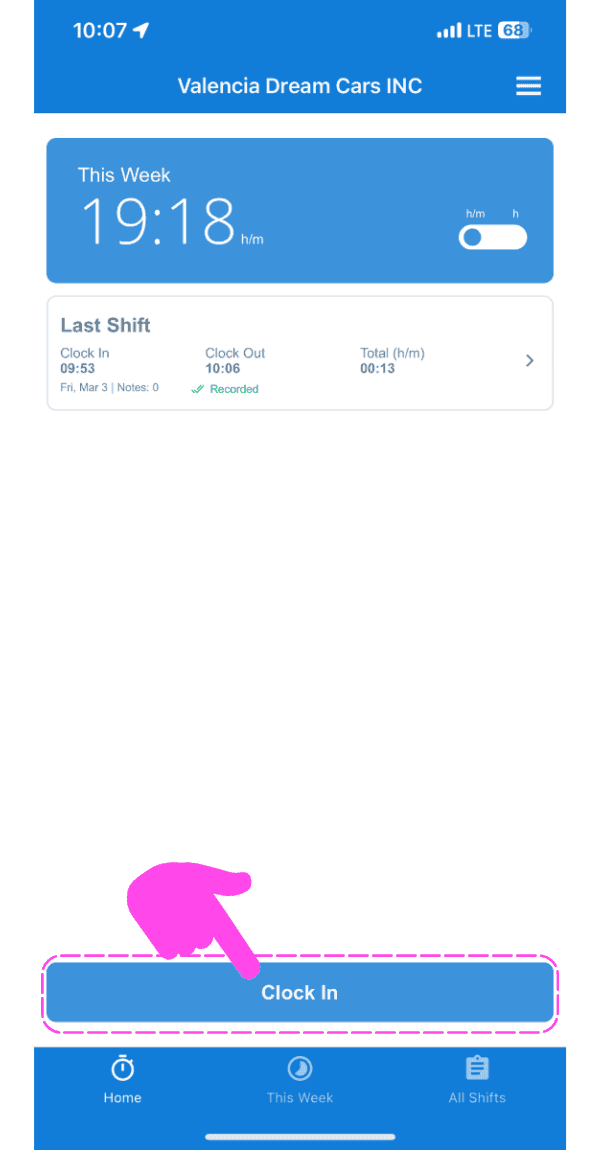
Tap on Clock In

SINC mobile app home screen with a pink hand pointing to the Clock In button

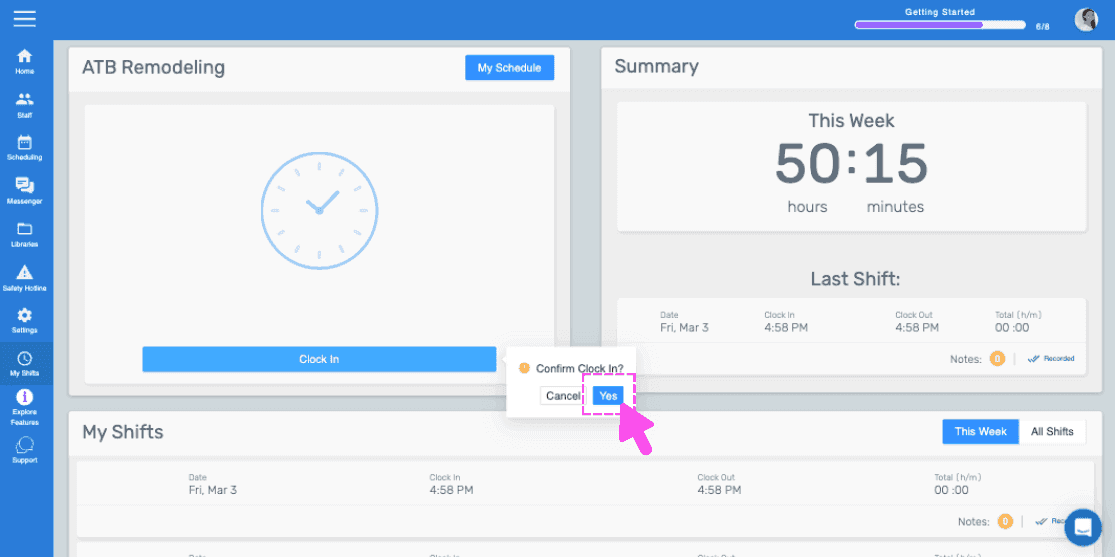
Swipe right to clock in (Web Version) Click on Yes
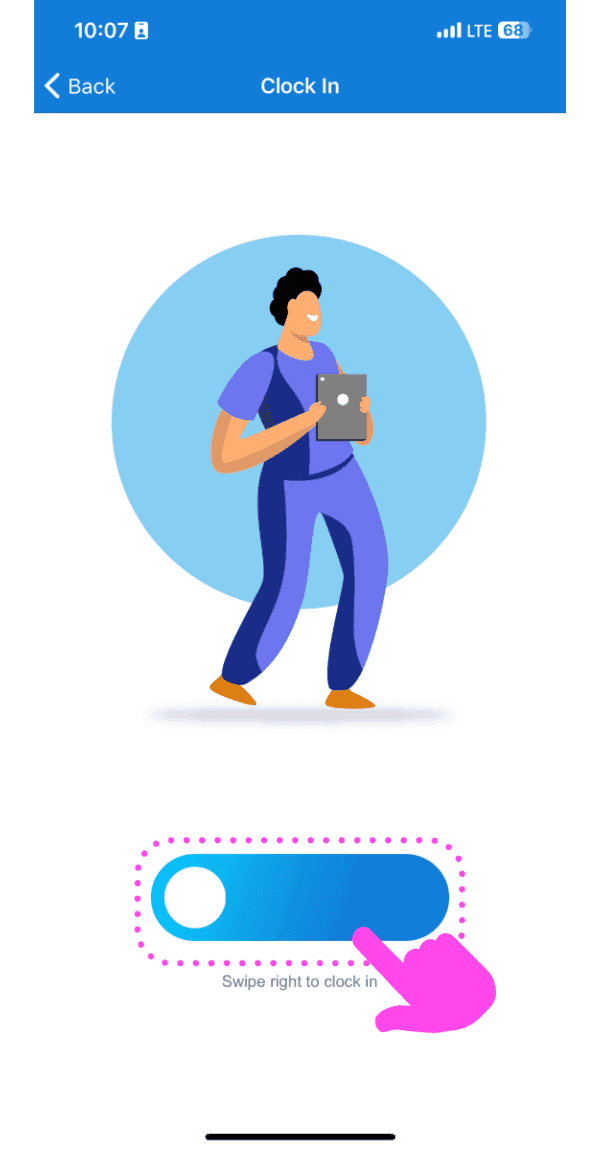
Illustrated Clock In screen with a pink arrow showing how to swipe the slider right

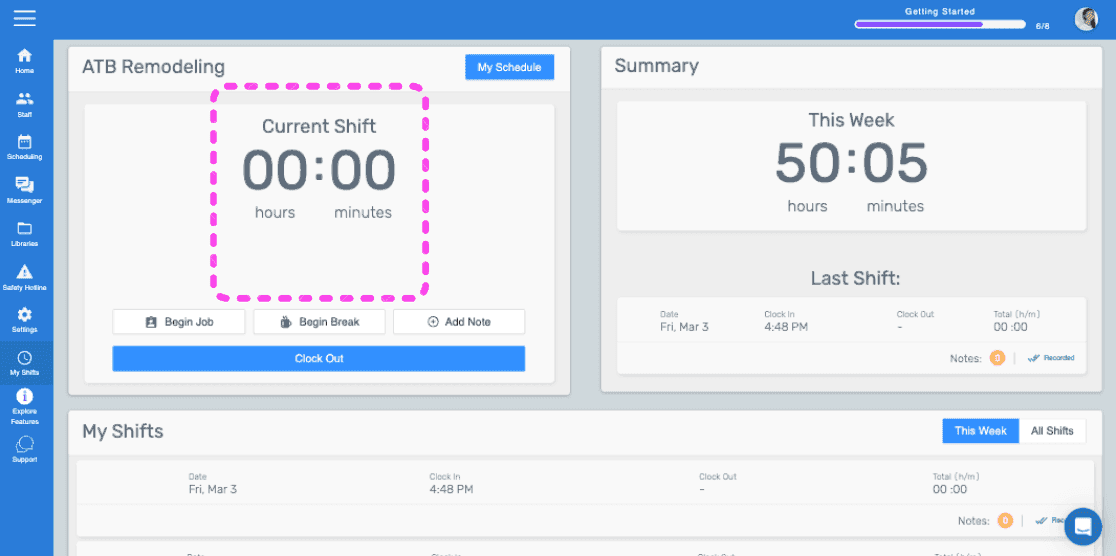
This screen shows that you are now clocked into a shift
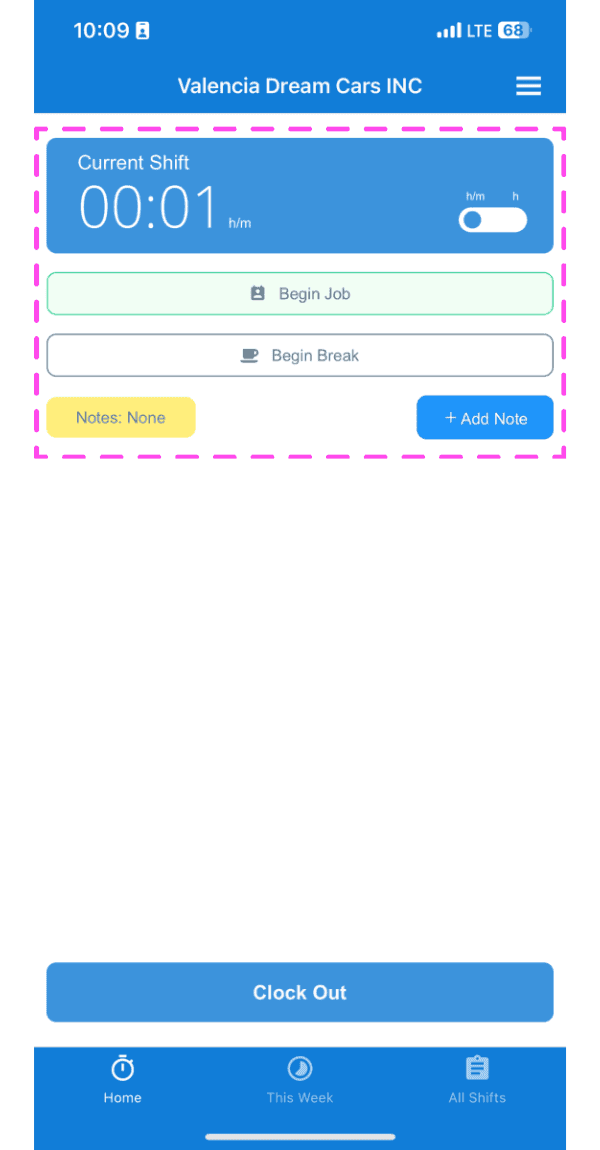
SINC mobile Current Shift screen highlighted showing clocked-in timer with Begin Job and Begin Break buttons

If you are using the web version it will look like this:
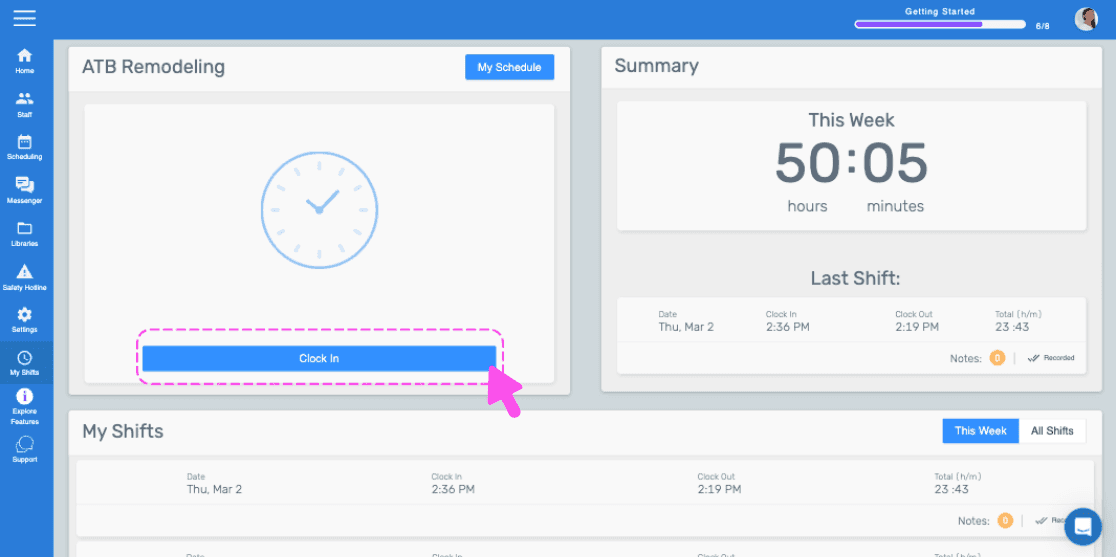
SINC web dashboard with a pink arrow pointing to the Clock In button
Web dashboard clock-in confirmation popup with the Yes button highlighted by a pink arrow
SINC web admin dashboard with the Current Shift timer box outlined in pink

Did this answer your question?