Deleting Employee Time Sheets

In this guide we will cover how an Admin can delete a shift.

Sam Dolbel
Sam Dolbel
Mar 3rd, 2023

On Mobile: Tap on Overview Shifts
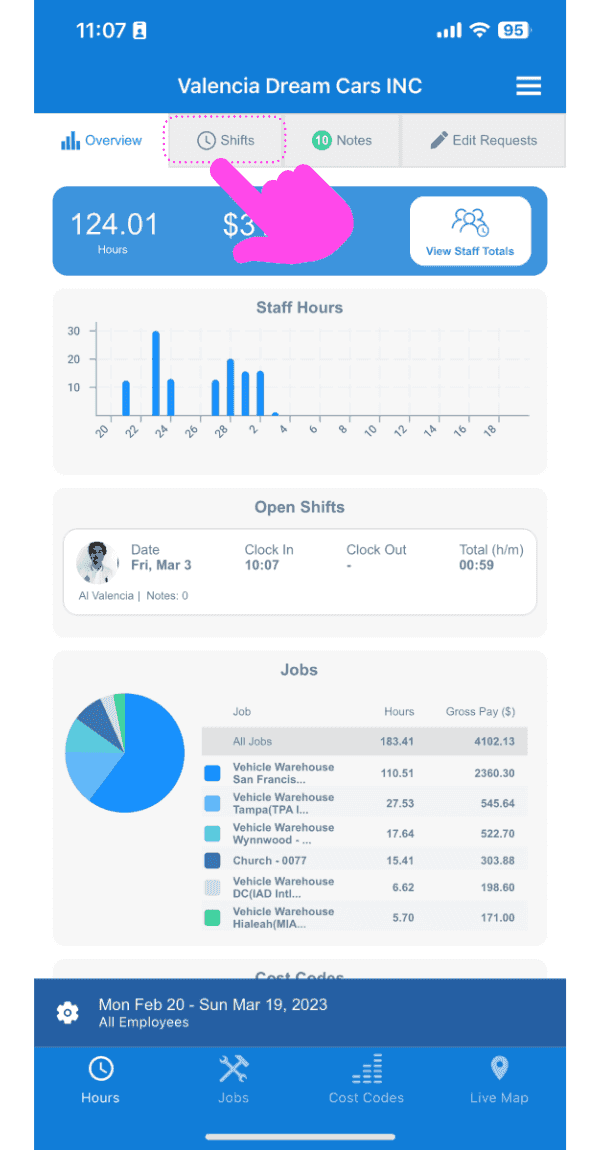
SINC mobile app Overview screen with a pink arrow pointing to the Shifts tab at the top

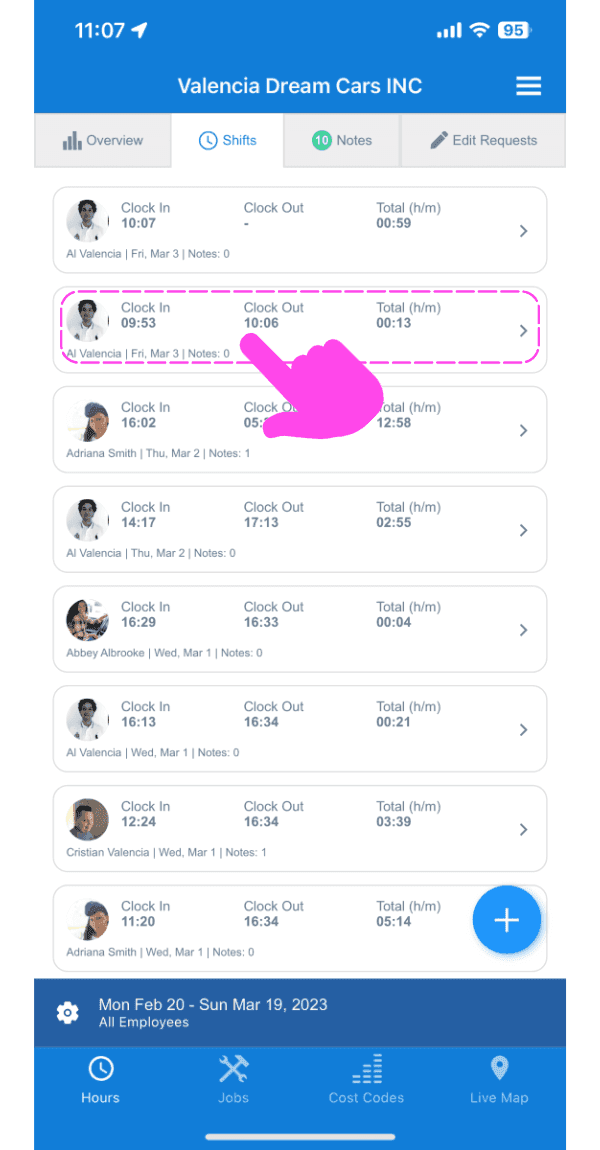
Tap on The shift you want to delete

SINC mobile Shifts list with a pink arrow pointing to the shift row to be deleted

Tap on The trash can down the bottom left of the screen
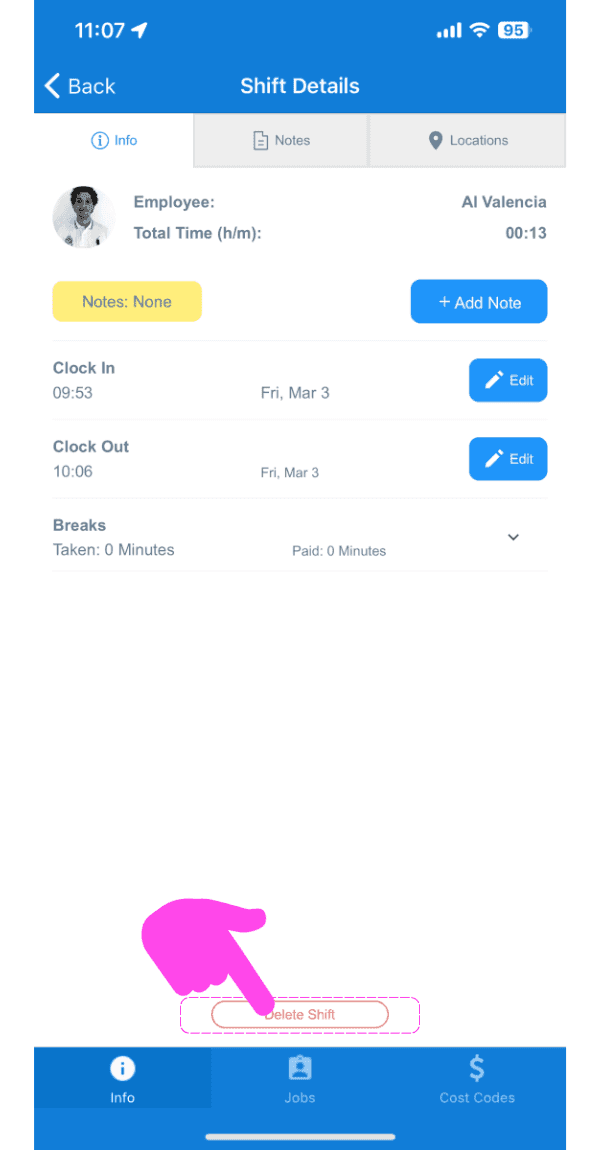
Mobile Shift Details screen with a pink arrow pointing to the trash can icon at the bottom left

Add a reason for deleting the shift and confirm
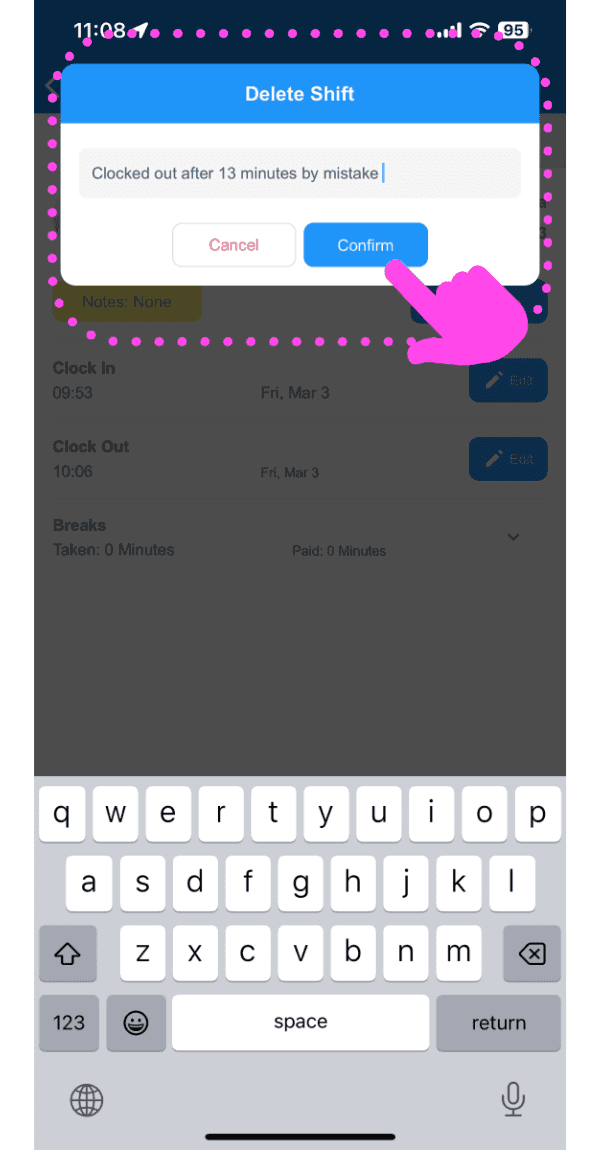
SINC mobile Delete Shift dialog with a typed reason and a pink hand pointing to the Confirm button

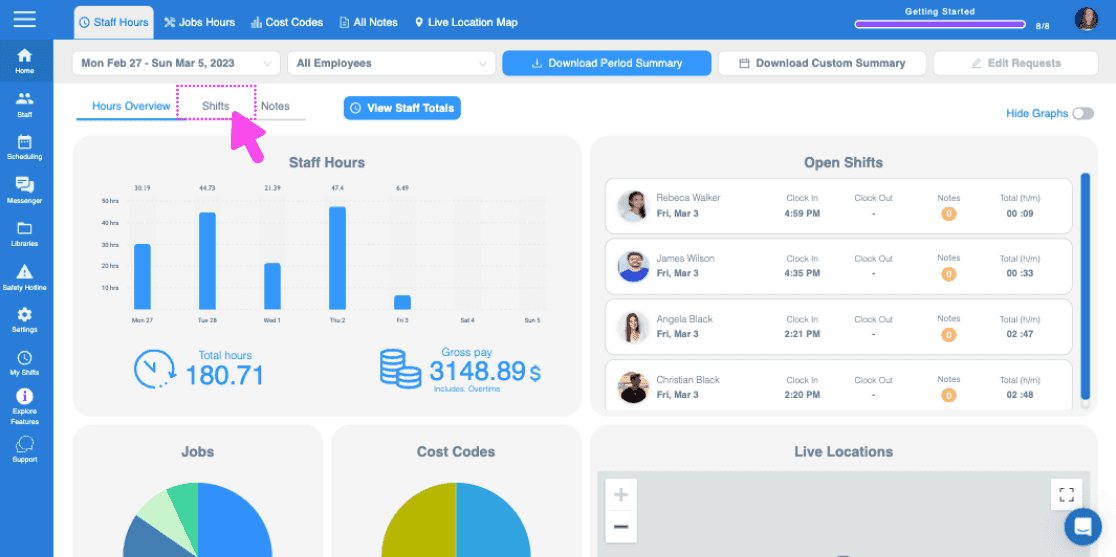
On Web: Click on Shifts

Staff Hours dashboard with a pink arrow pointing to the Shifts tab above staff hours charts

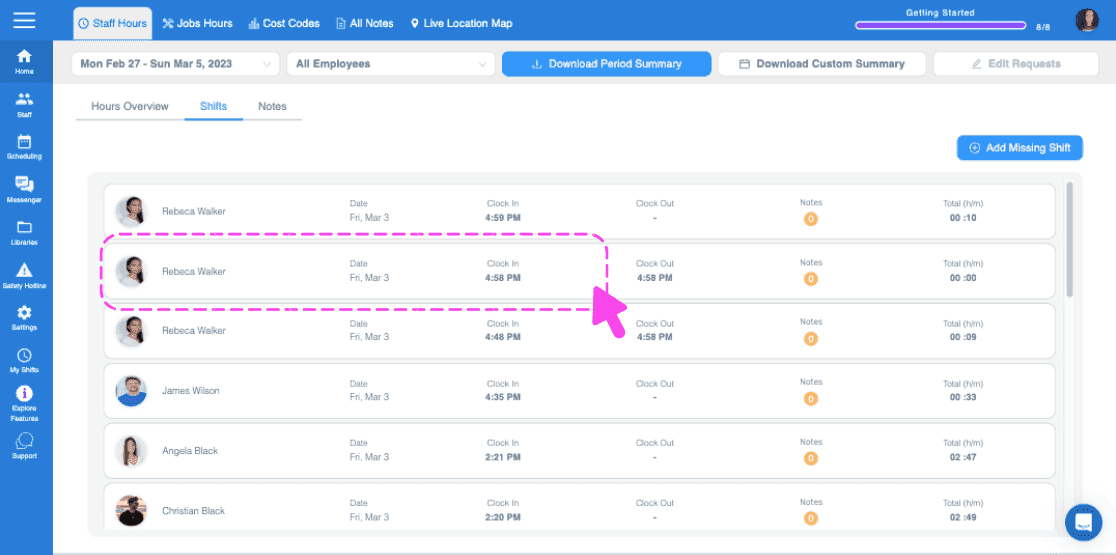
Click on Staff Member's Name

Web Shifts tab with a pink arrow pointing to a staff member's row showing clock in and out times

Under the Shift tab, Click on Delete Shift
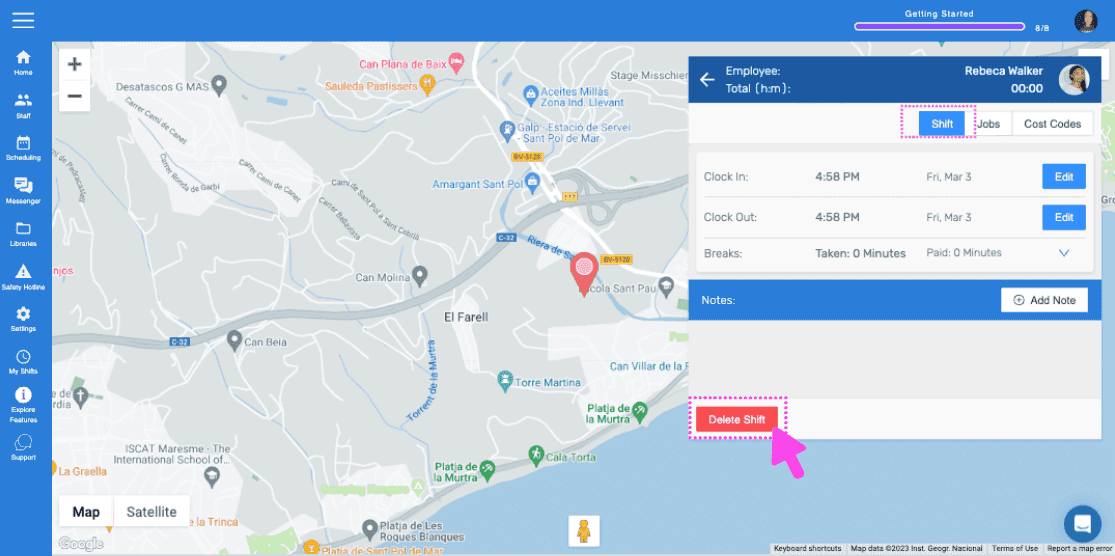
SINC web employee shift detail screen with a pink arrow pointing to the Delete Shift button

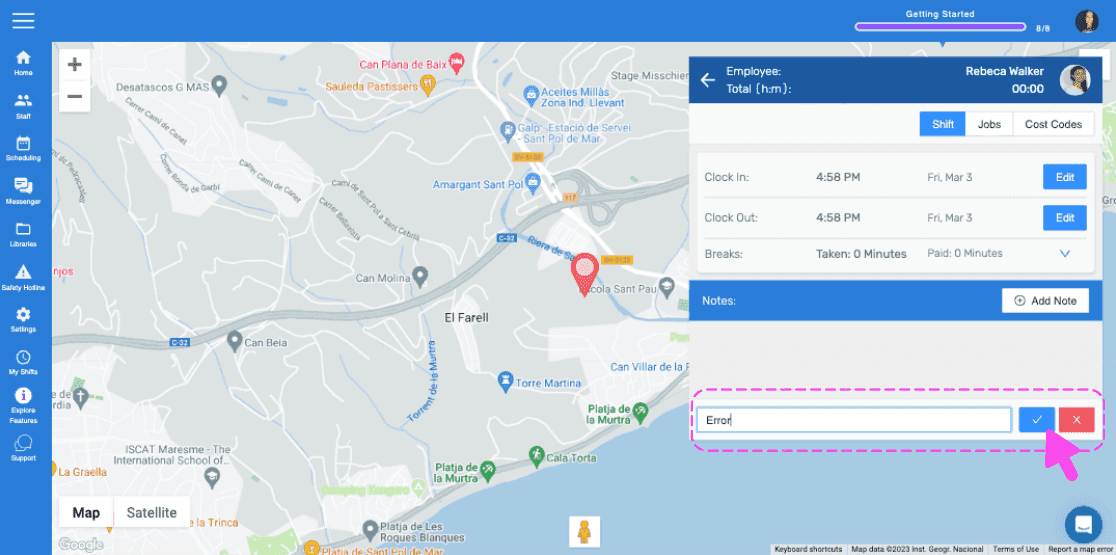
Type the reason for deleting the shift (This will be sent to the employee as a notification)
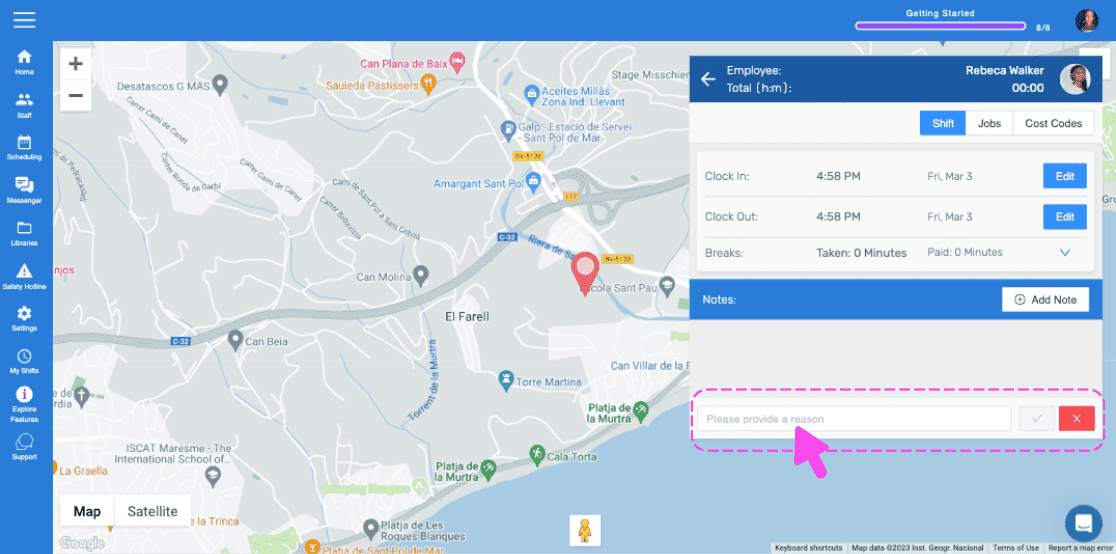
SINC web employee shift detail screen with a map and a pink arrow pointing to the reason text field for deleting a shift

Tap on Confirm

Live location map with an employee shift details panel and an editable timesheet notes field outlined in pink

Did this answer your question?