Edit Time Sheets in SINC

In this guide we will cover editing a shift as an Admin.

Sam Dolbel
Sam Dolbel
Mar 3rd, 2023

On Mobile: Tap on Menu Overview Shifts
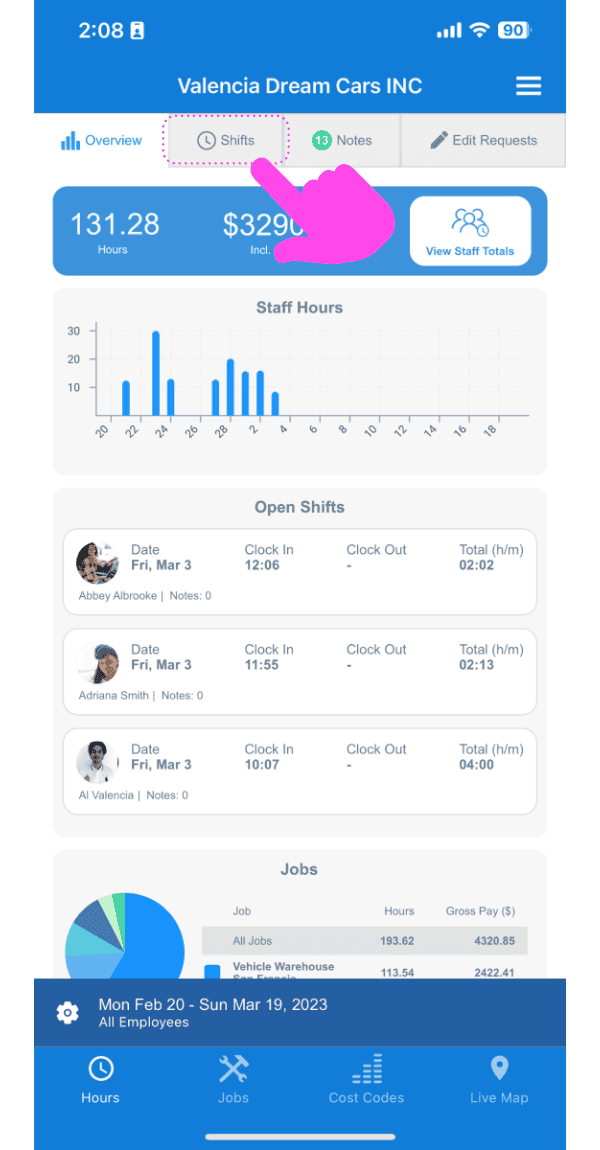
SINC web dashboard with a pink arrow pointing to the Shifts tab above the open shifts list

Tap on The shift you would like to edit
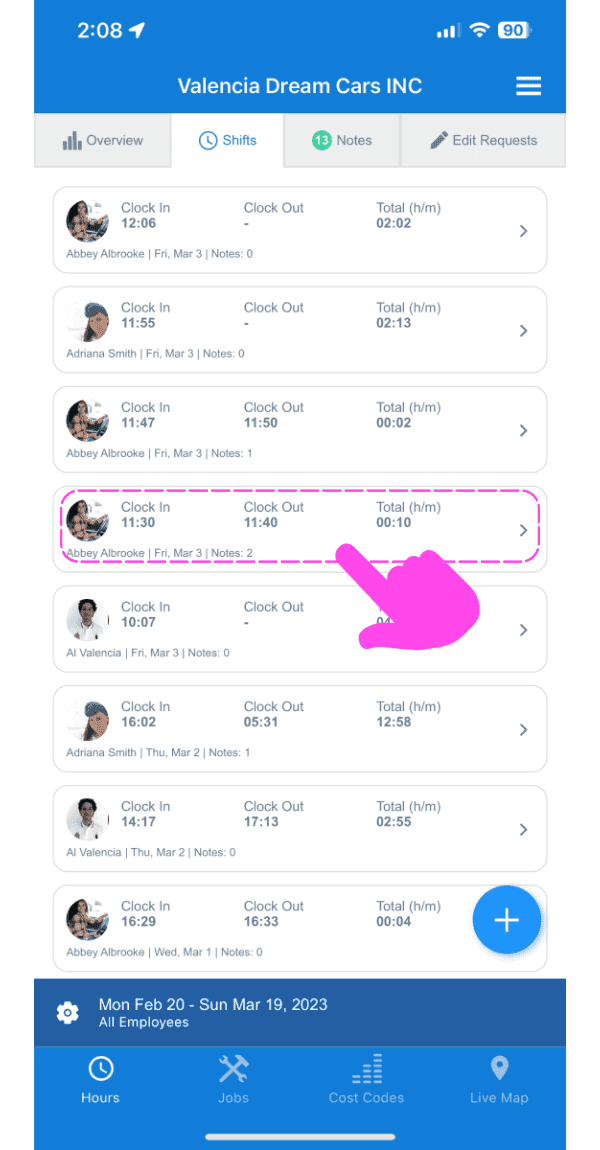
SINC mobile Shifts list with a pink arrow pointing to a specific shift entry outlined in pink

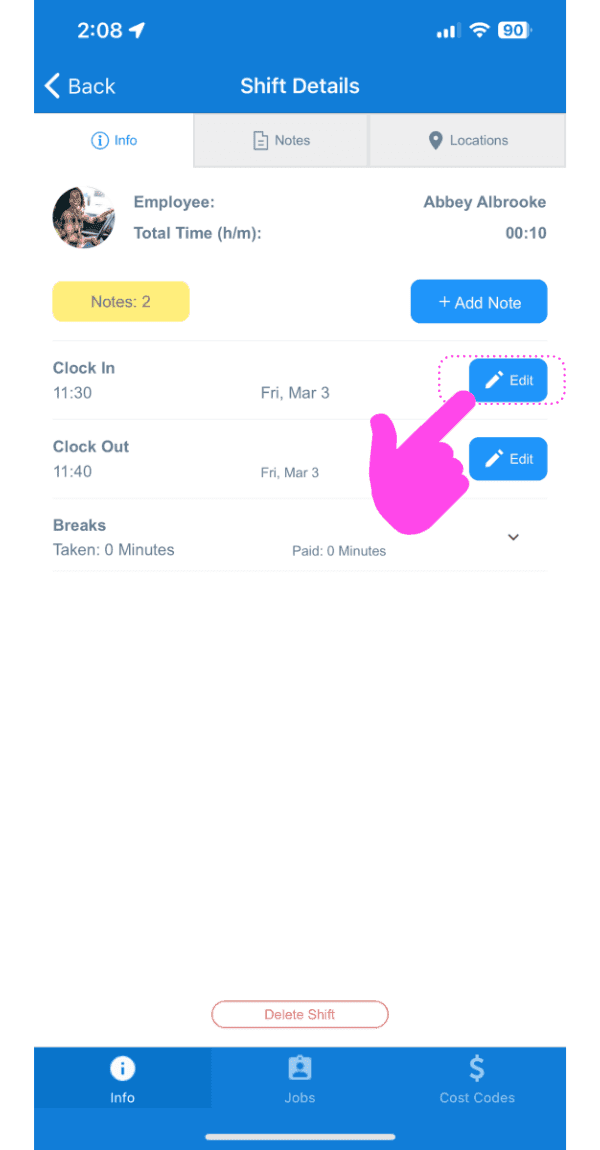
Tap on Edit

Shift Details screen with a pink arrow pointing to the Edit button next to Clock In

Enter a reason for the edit. This is a transparency measure that gets communicated to the staff member via a push notification.
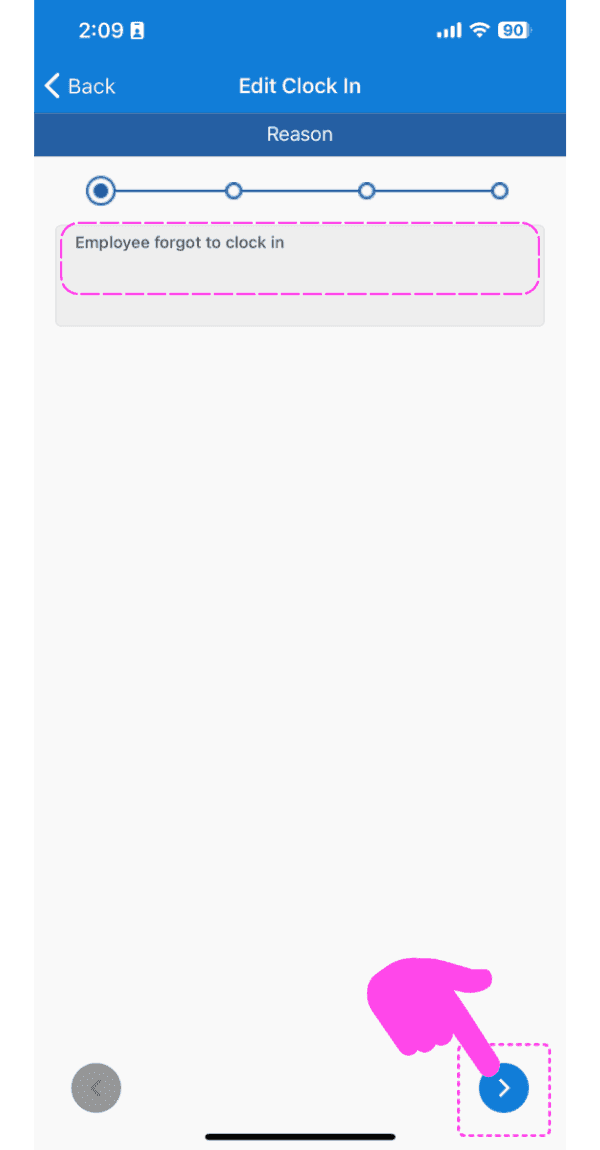
SINC mobile app Edit Clock In screen with the reason text field outlined in pink and an arrow pointing to the next button

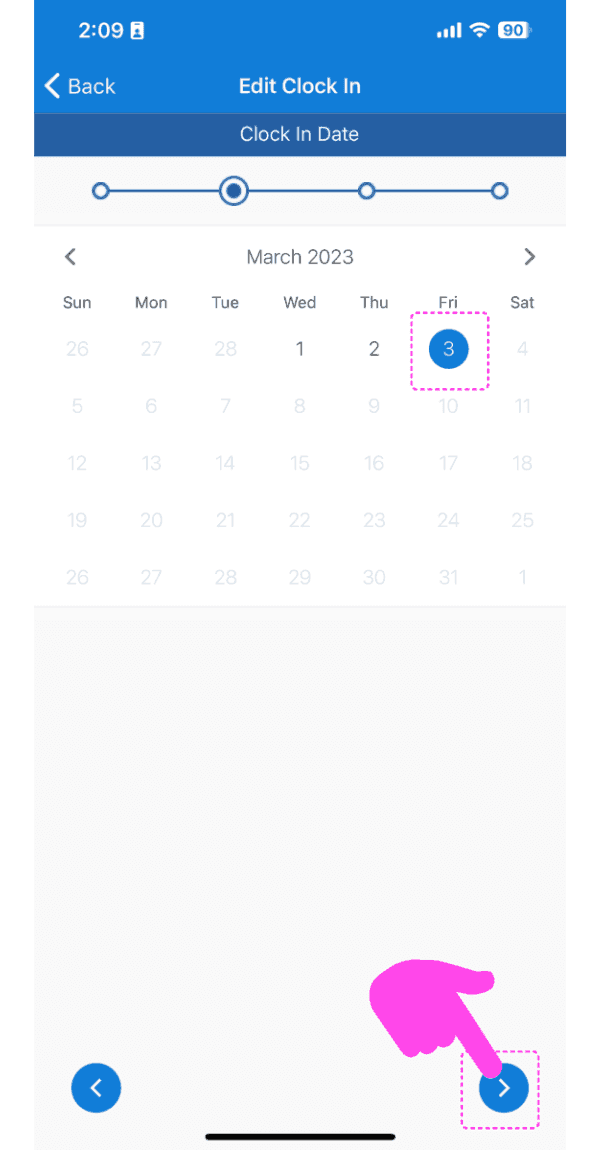
Select the date

Edit Clock In calendar screen with a selected date and the next-arrow button highlighted in pink

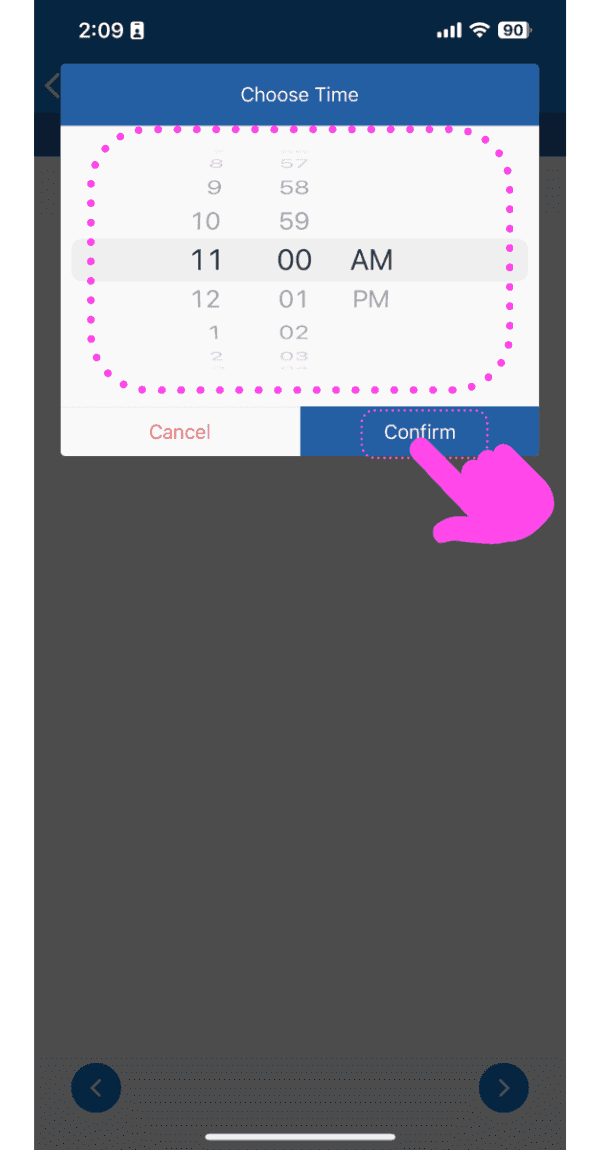
Select the new time

Choose Time picker set to 11:00 AM with the Confirm button highlighted by a pink arrow

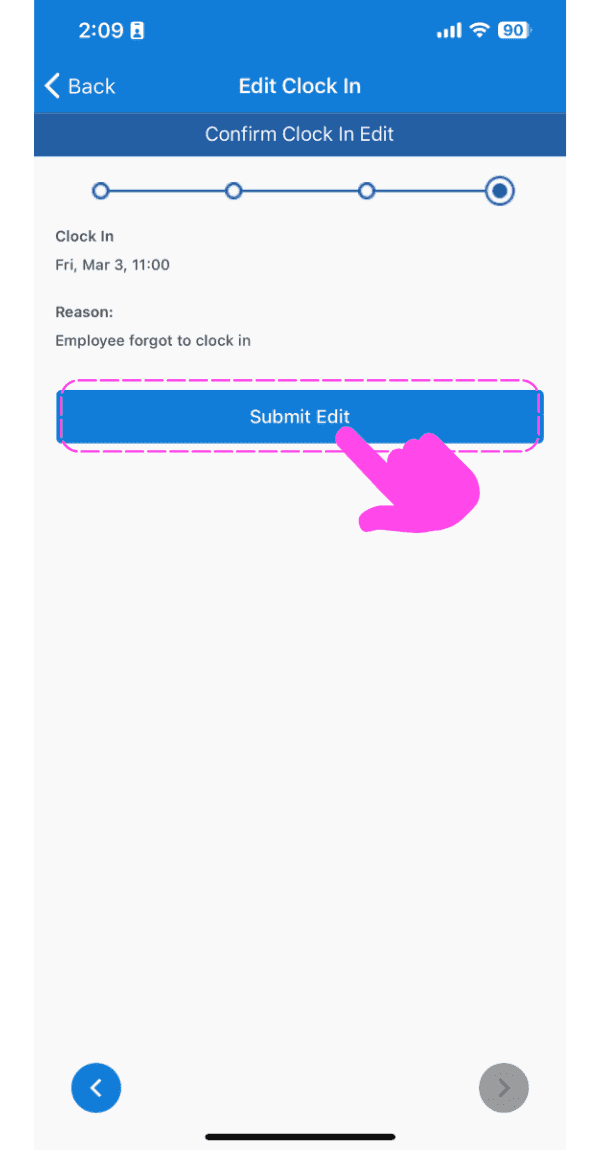
Submit the edit

SINC mobile Edit Clock In confirmation screen with the Submit Edit button highlighted in pink

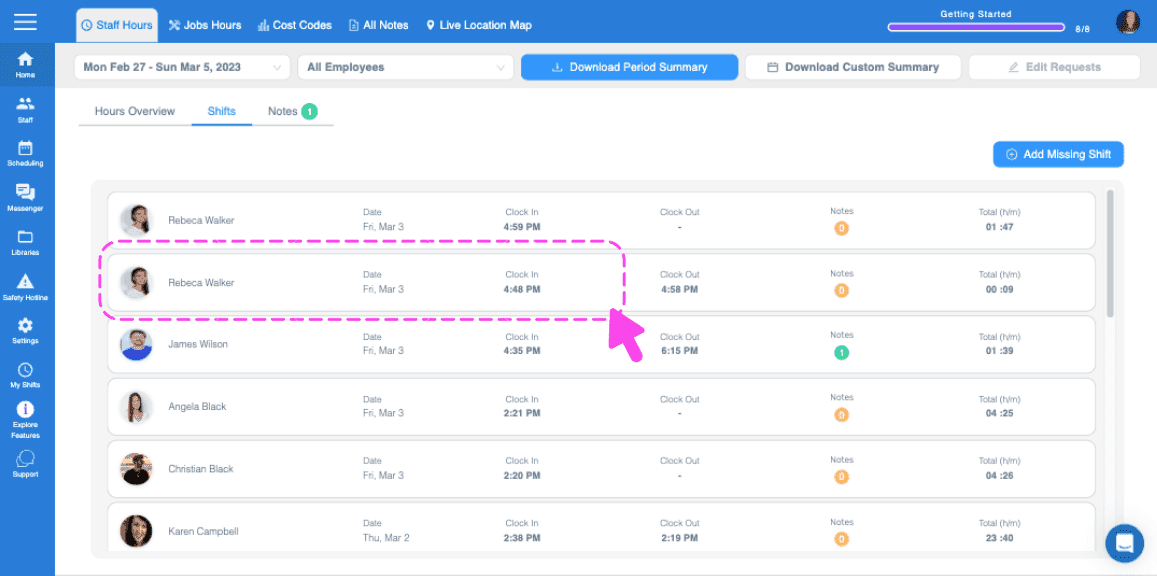
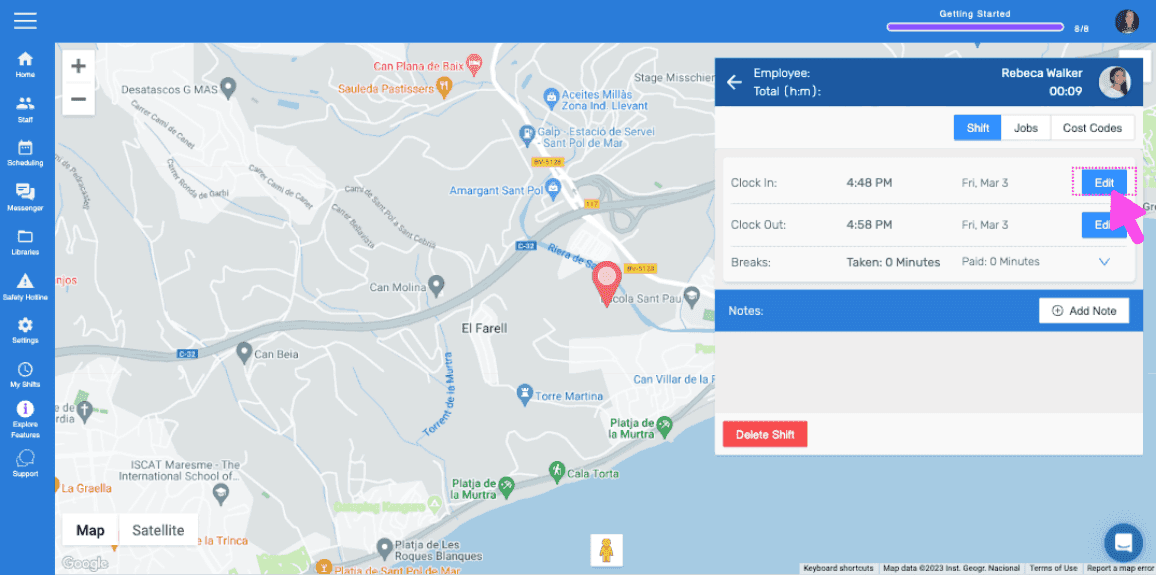
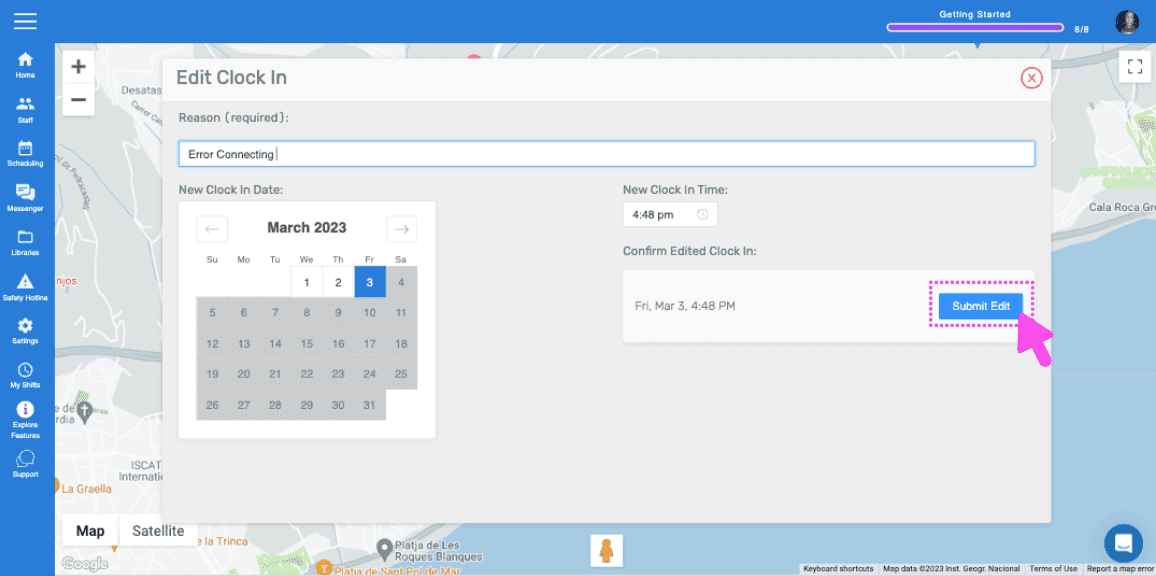
On the web version it looks like this:
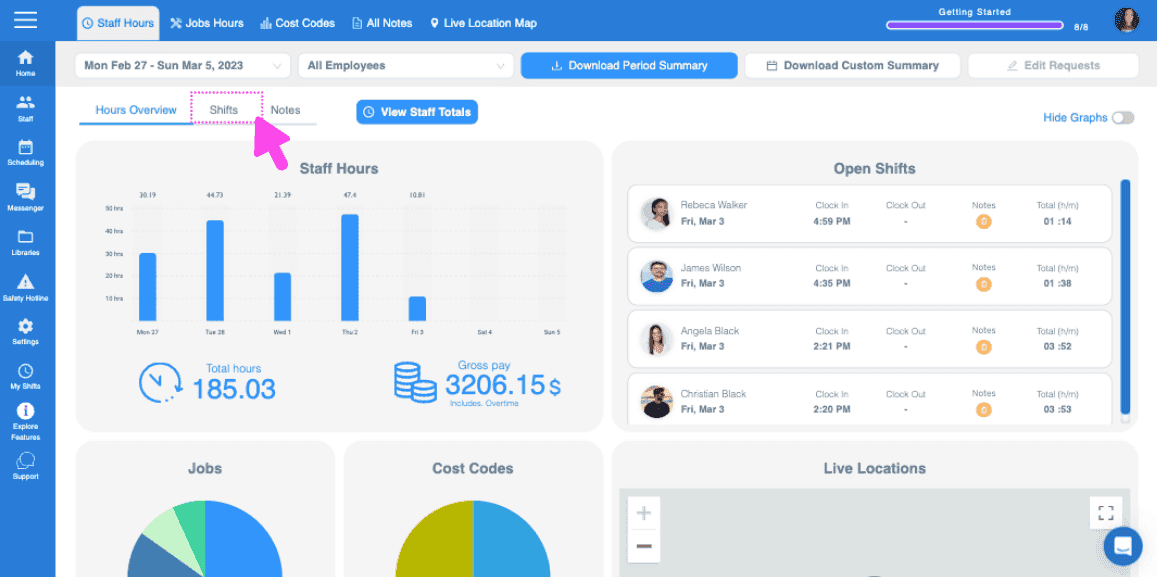
Web dashboard Hours Overview screen with the Shifts tab highlighted by a pink arrow
SINC web Shifts list with two employee shift rows outlined in pink
Web dashboard map view of an employee's shift location with a pink arrow pointing to the Edit button next to Clock In
SINC web Edit Clock In screen with a date picker and the Submit Edit button

Did this answer your question?