Exporting Custom Date Summaries

In this guide we will describe how to export summaries for periods different from the pay periods.

SINC Support Team
SINC Support Team
Mar 7th, 2023

When you generate a custom summary report, you will be emailed an excel spreadsheet containing a full summary of the custom period. The excel file contains multiple tabs. A summary of the total hours worked
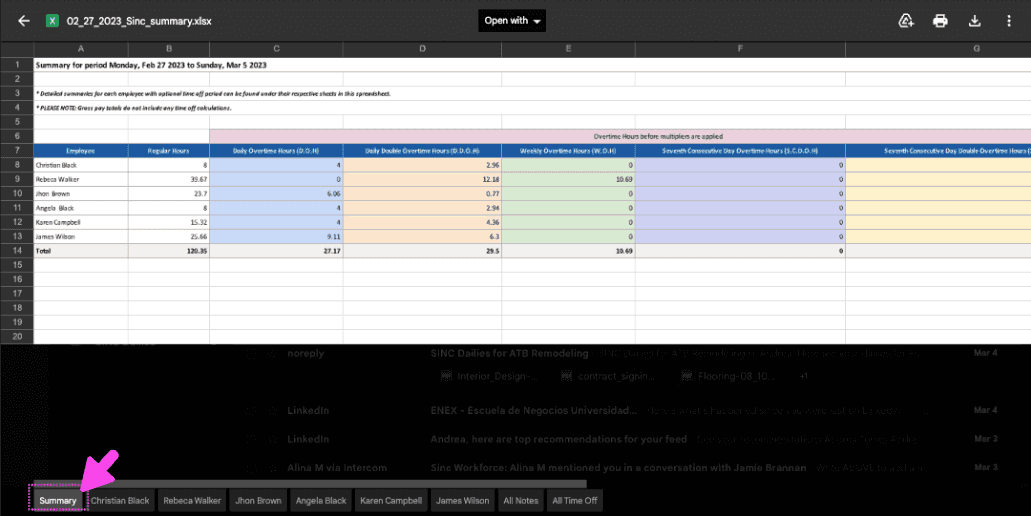
Exported SINC custom summary spreadsheet with a pink arrow pointing to the Summary tab at the bottom

A separate tab for each employee containing the data associated with their shifts
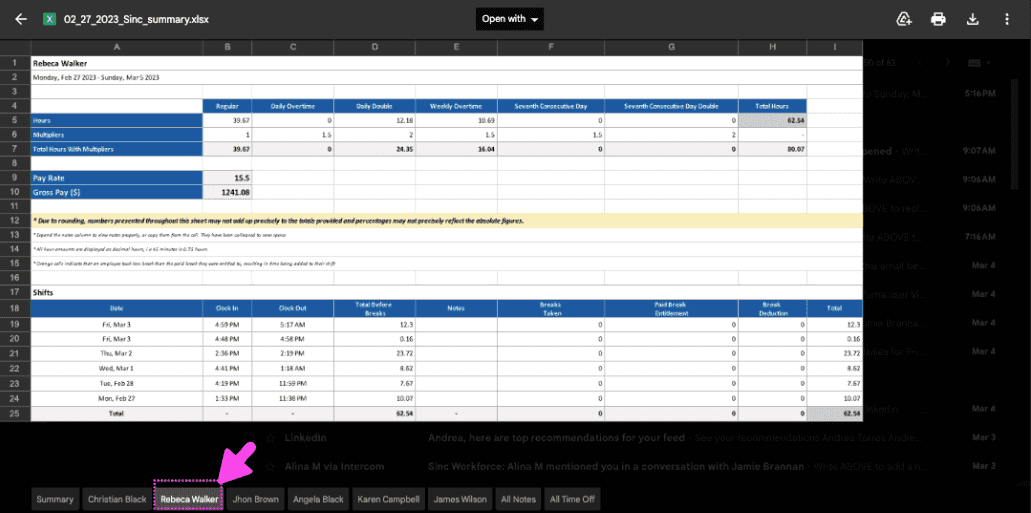
Exported SINC pay period summary spreadsheet with a pink arrow pointing to an employee's individual tab at the bottom

And a notes tab containing all the notes from the custom period
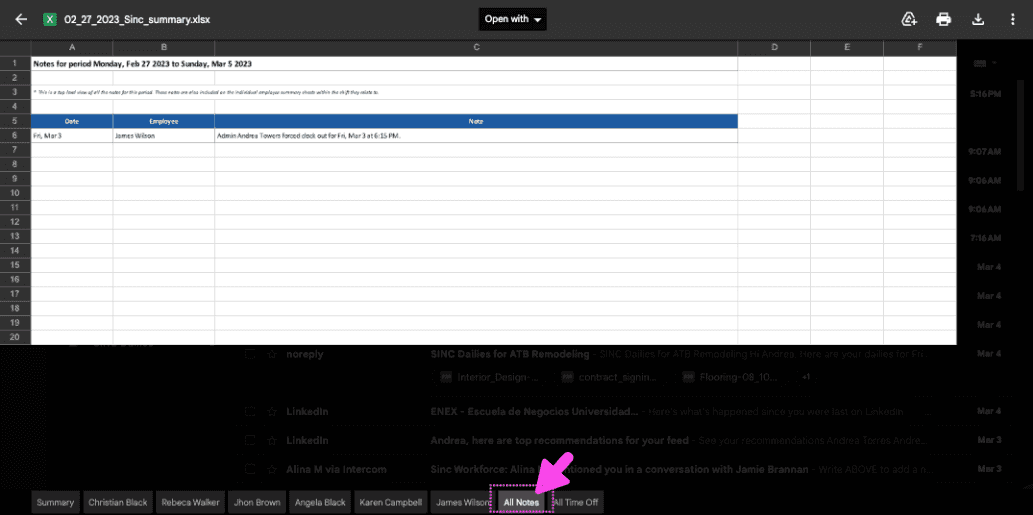
Exported Excel summary spreadsheet with a pink arrow pointing to the All Notes tab at the bottom

On Web: Navigate to Menu Home and click on Download Custom Summary.
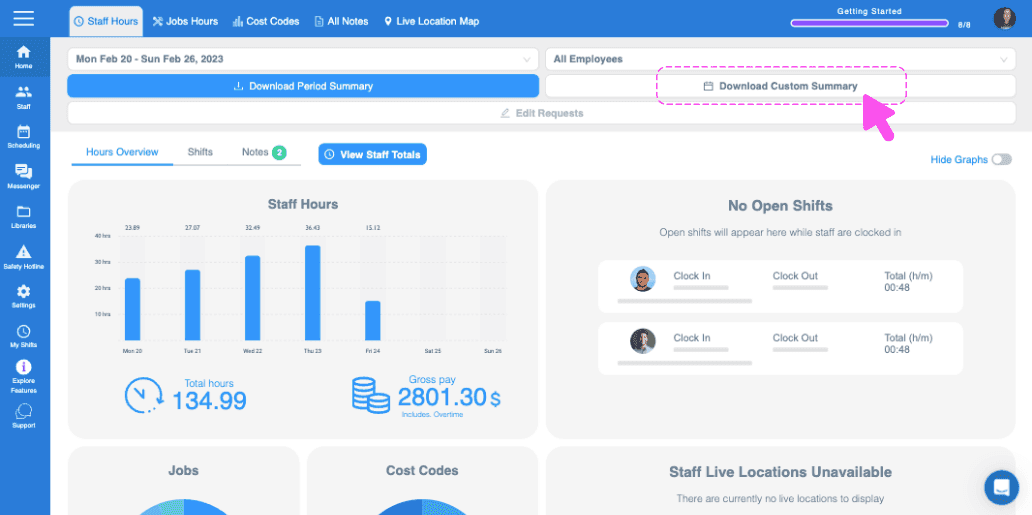
SINC web dashboard with a pink arrow pointing to the Download Custom Summary button

Navigate to the desired month by clicking on the left/right arrow button.
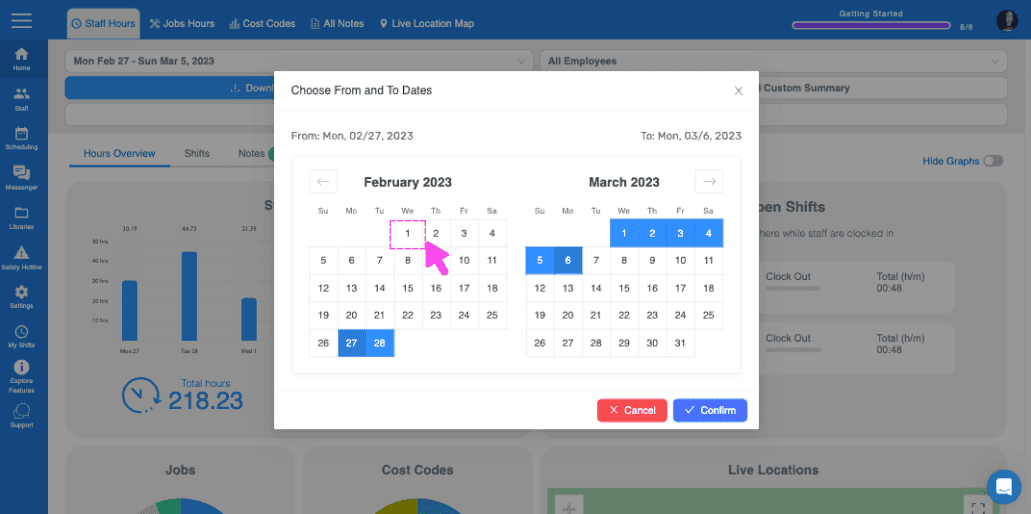
Choose From and To Dates popup with a pink arrow pointing to a calendar date

Select the dates by clicking on the respective start and end days.
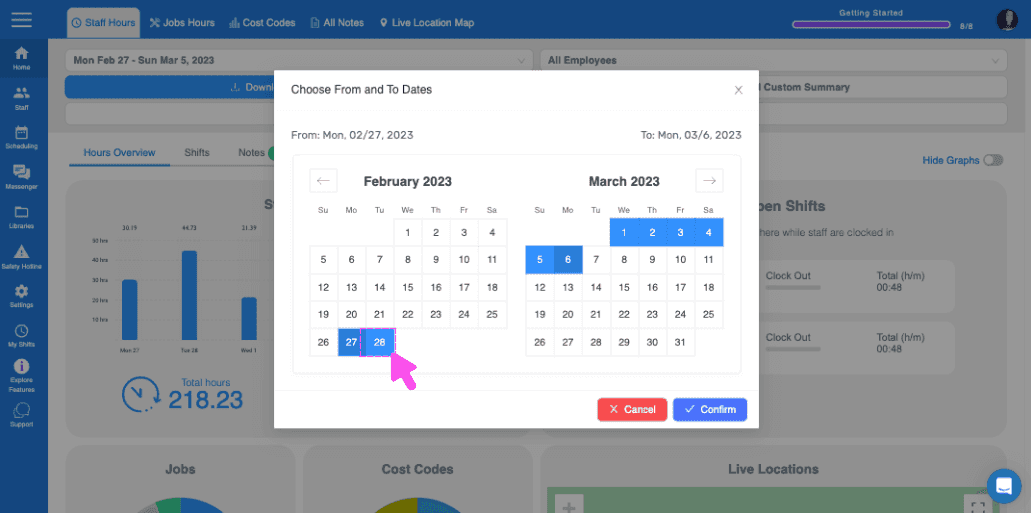
Choose From and To Dates calendar popup with a selected date range and Confirm button

After selecting the dates, click on Confirm.
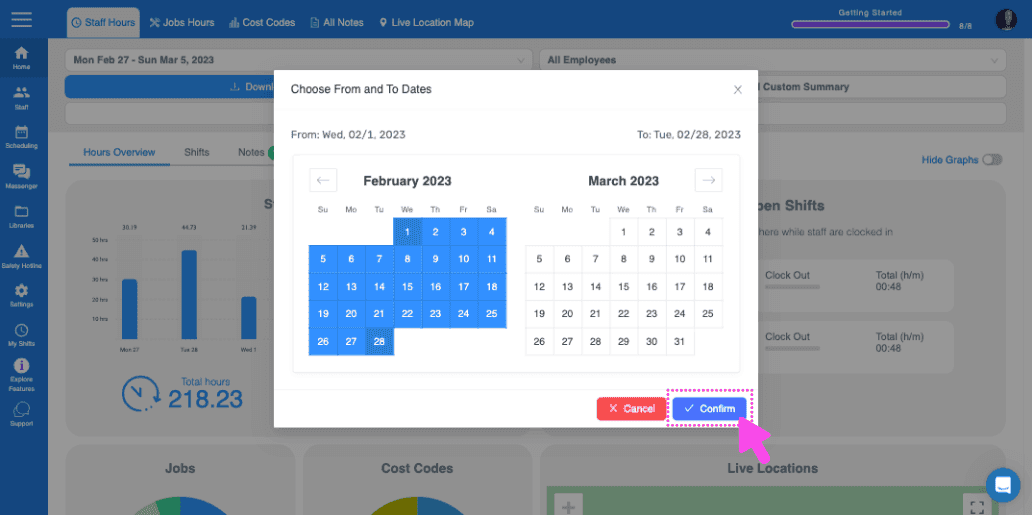
SINC web date range picker with a pink arrow pointing to the Confirm button

On Mobile: Navigate to Menu Overview Hours (bottom tab) and tap on The Gear Icon.
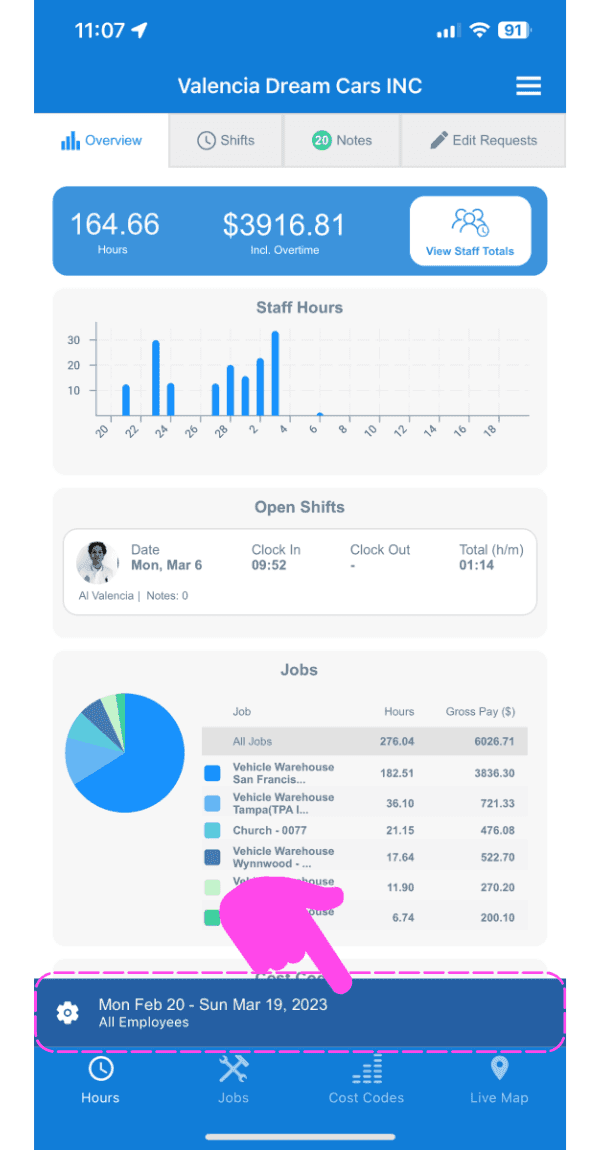
Web dashboard Overview screen with a pink arrow pointing to the date range and gear icon at the bottom left

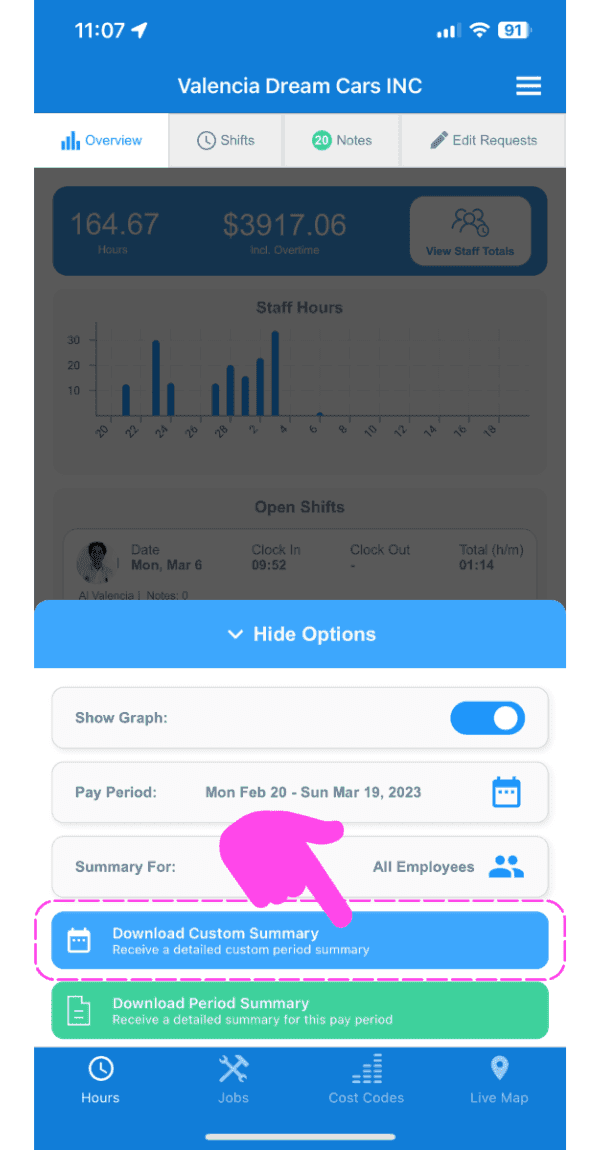
Tap on Download Custom Summary.

SINC mobile Overview screen with a pink arrow pointing to the Download Custom Summary button

Navigate to the desired month by tapping on the left/right arrow button.
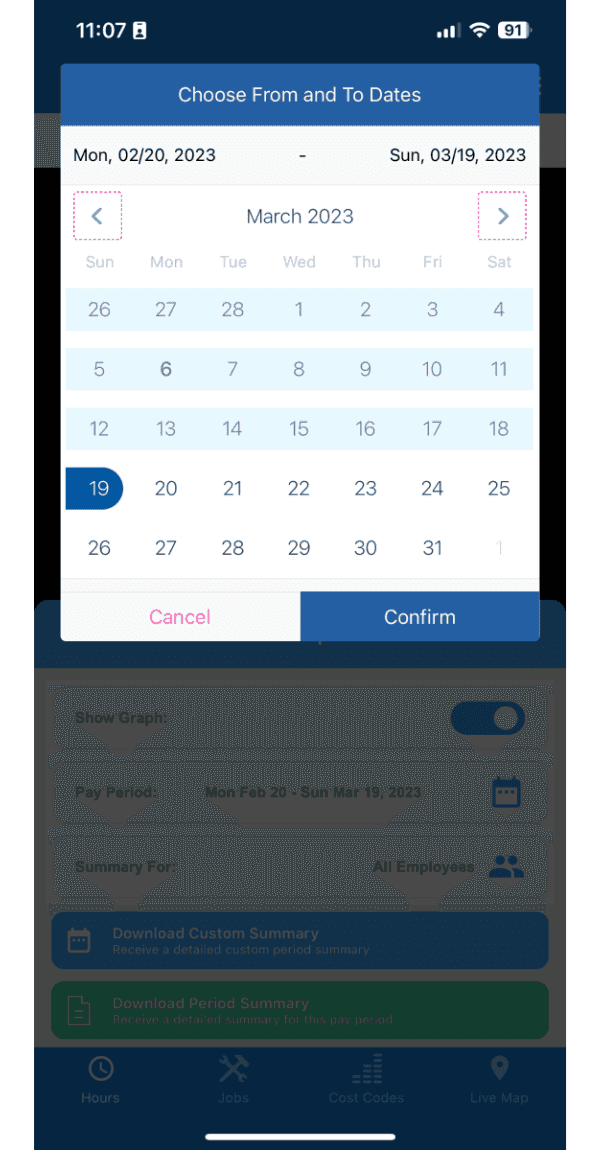
Choose From and To Dates calendar picker showing March 2023 with navigation arrows and a Confirm button

Select the dates by tapping on the respective start and end days.
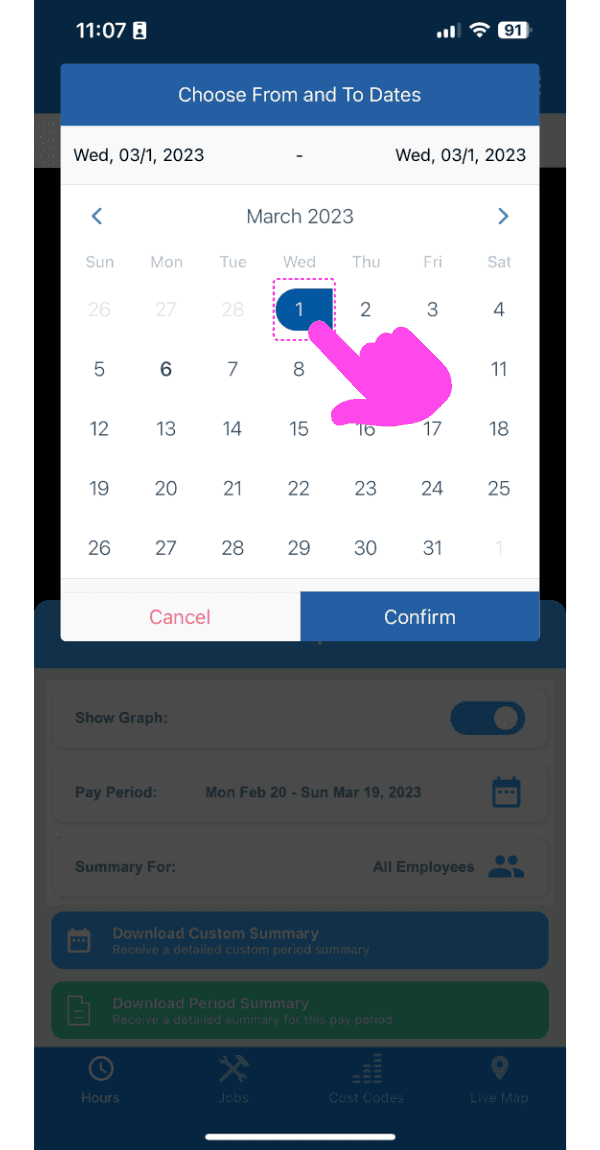
SINC mobile Choose From and To Dates calendar with a pink arrow pointing to the selected date

After selecting the dates, tap on Confirm.
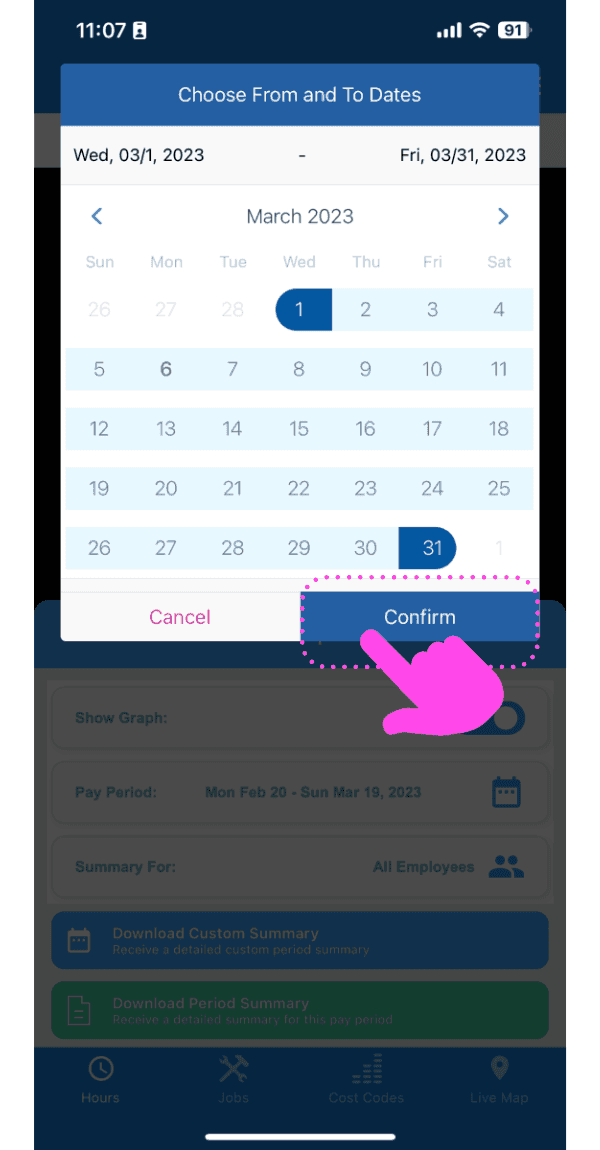
Mobile custom date range picker with selected dates and the Confirm button outlined in pink

Did this answer your question?