
Exporting Pay Period Summaries
In this guide we will describe how to export current and previous pay period summaries

When you generate a pay period summary report, you will be emailed an excel spreadsheet with a full summary of the pay period plus individual employee summaries you can print and give to staff. Hours are displayed as hours and minutes (e.g. 6:45) rather than decimal hours (e.g. 6.75). At the end of your pay period, once time sheets are collected, you can generate a report with two attachments: an Excel sheet with all the data, and PDF summaries to distribute to your team.
Note: With overtime enabled, we only email the Excel file (not the PDF), since overtime details can't fit in a standardized PDF. To also receive PDFs, toggle off overtime under Menu Settings Overtime (though it will then not include overtime details).
The Excel file contains multiple tabs. A summary of the total hours worked
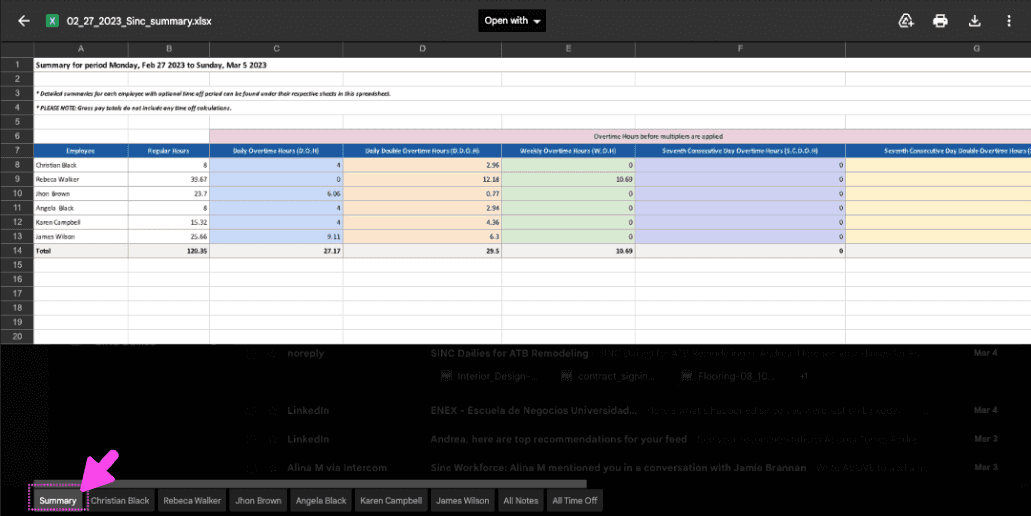
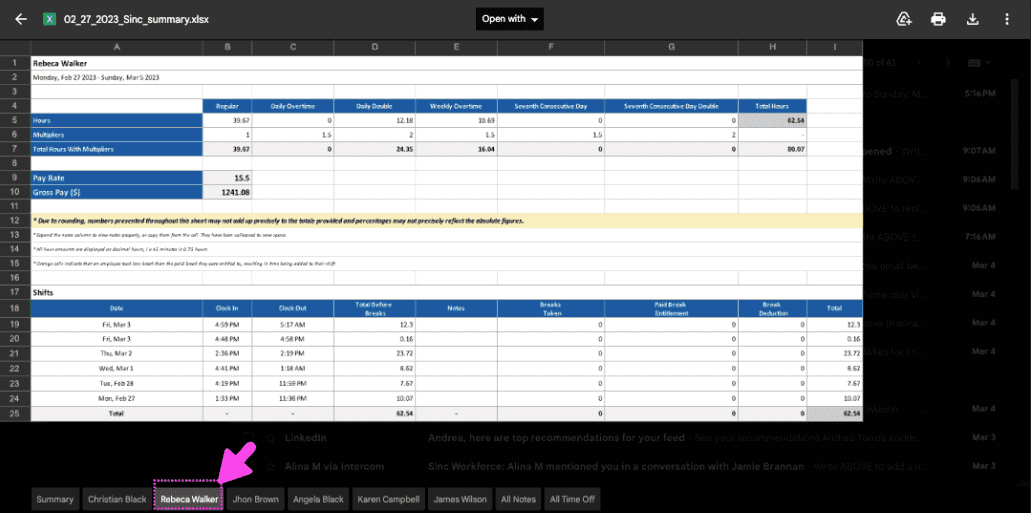
A separate tab for each employee containing the data associated with their shifts
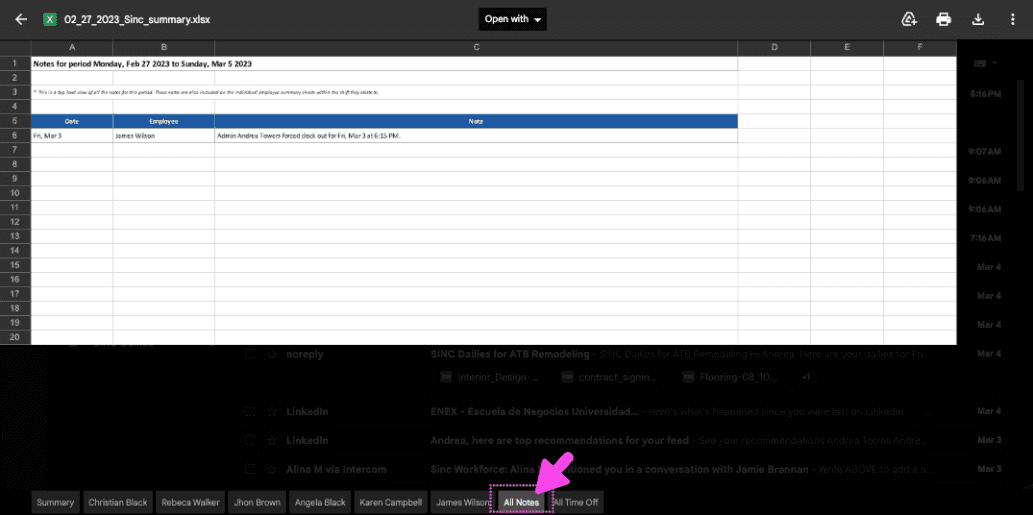
And a note tab containing all the notes from that period
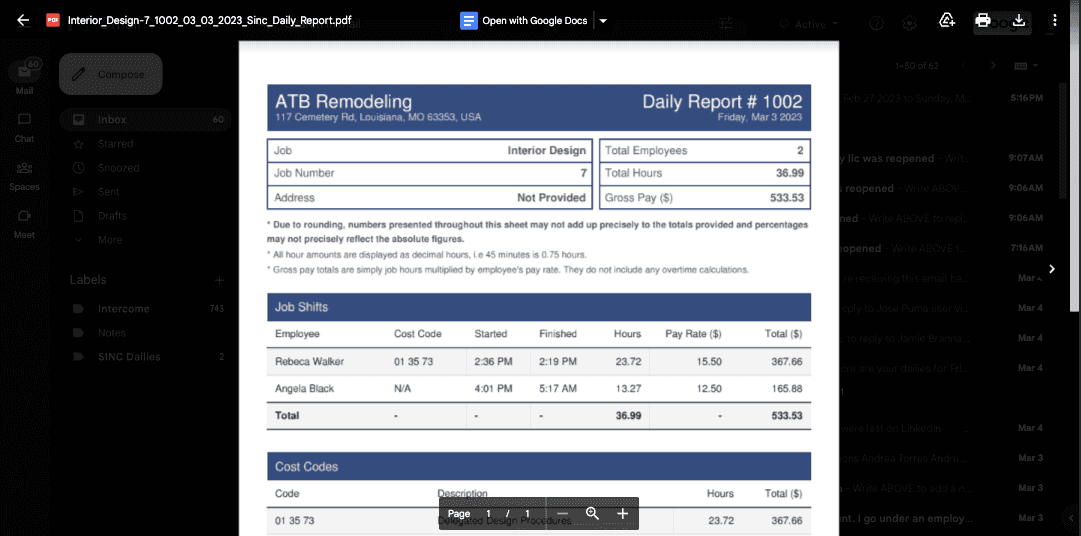
And the PDF reports are simply a summary of the hours worked by each employee for their records
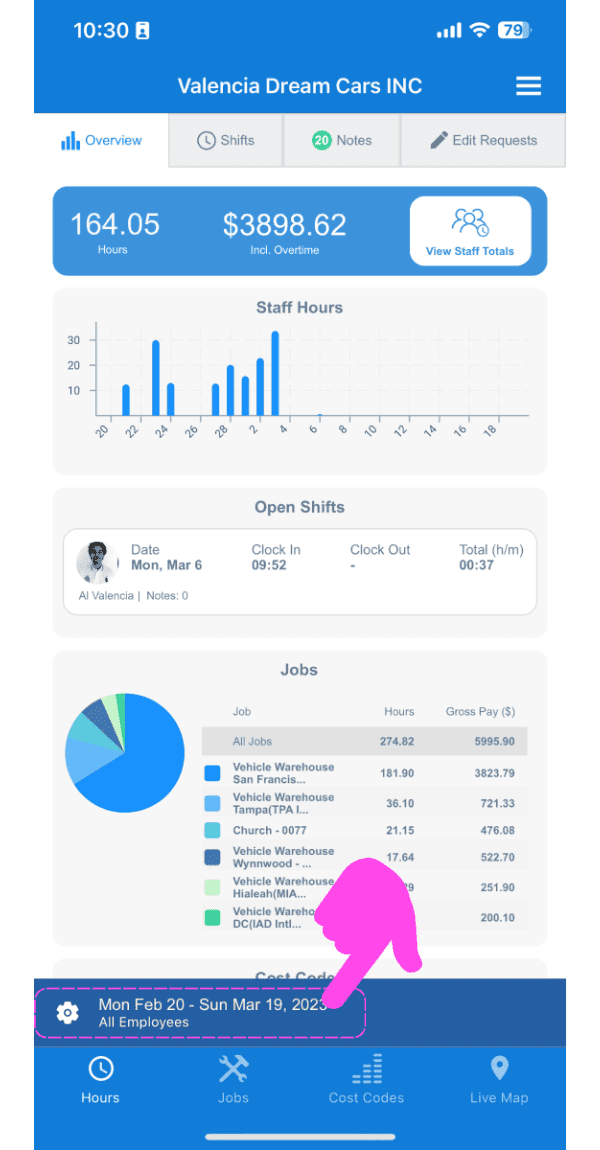
To generate a pay period summary: Tap on The Gear Icon
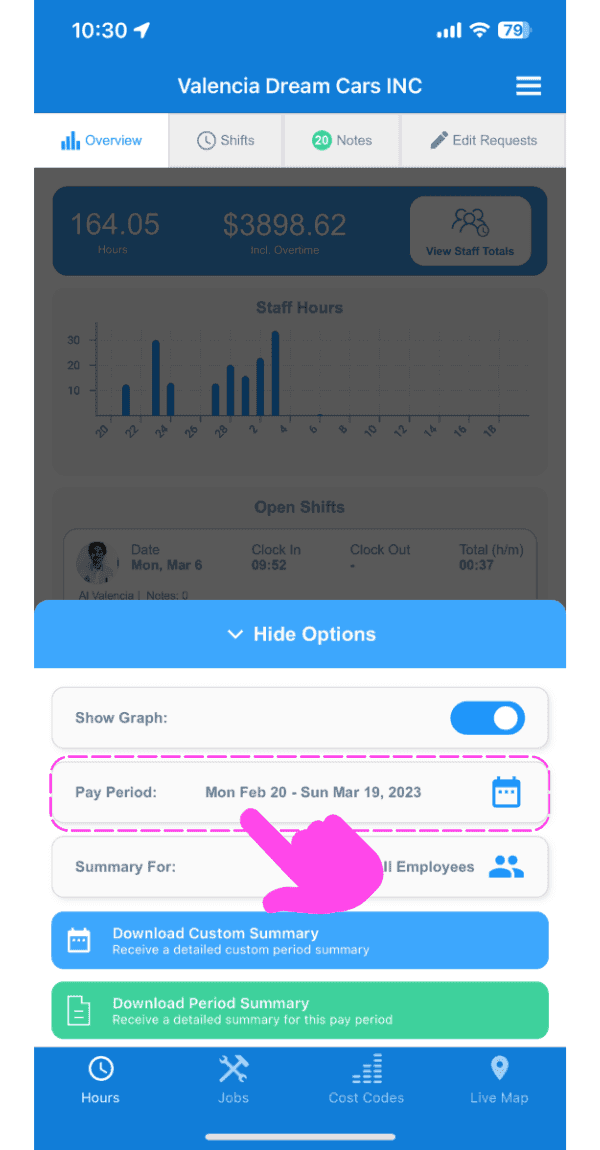
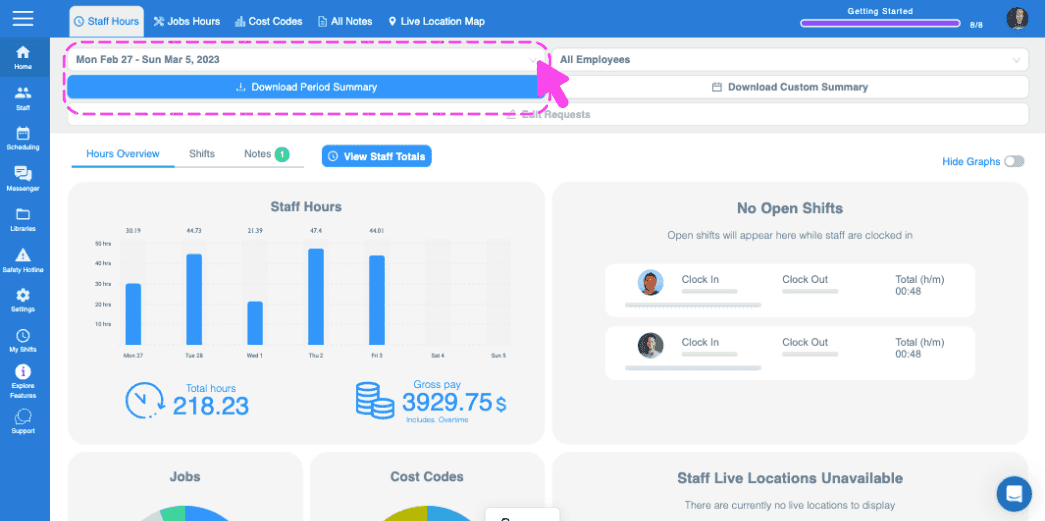
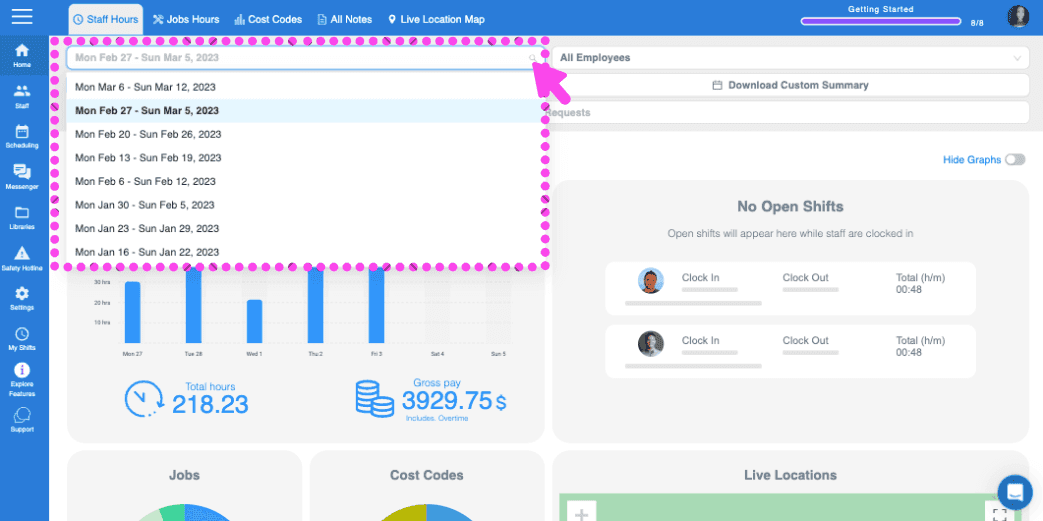
Tap on Date Selector
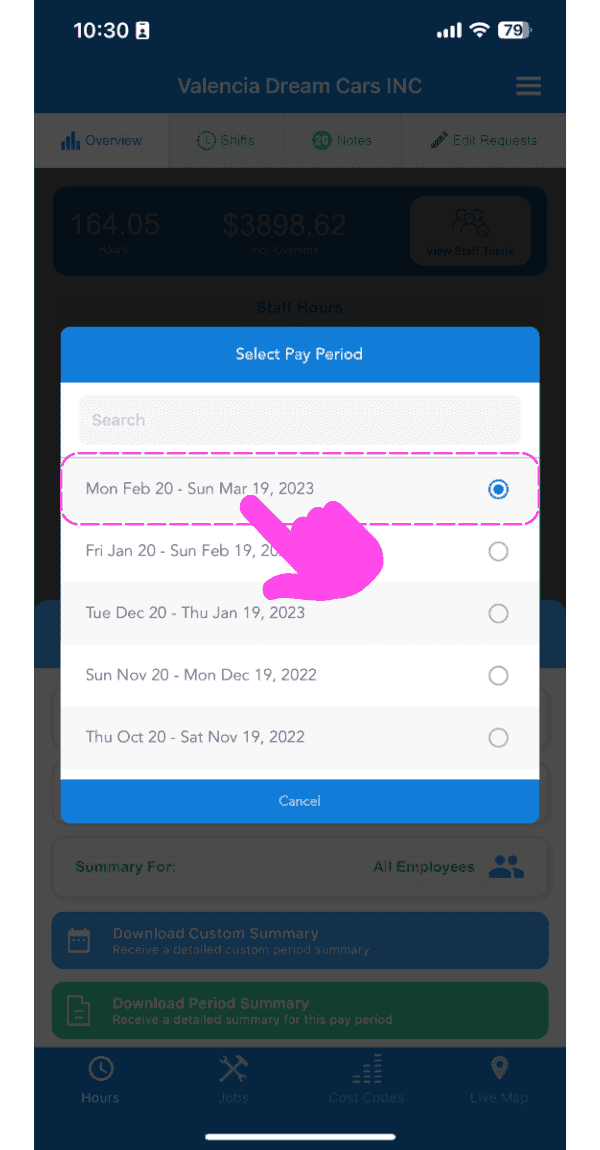
Tap on The Date Range You Want The Report To Include
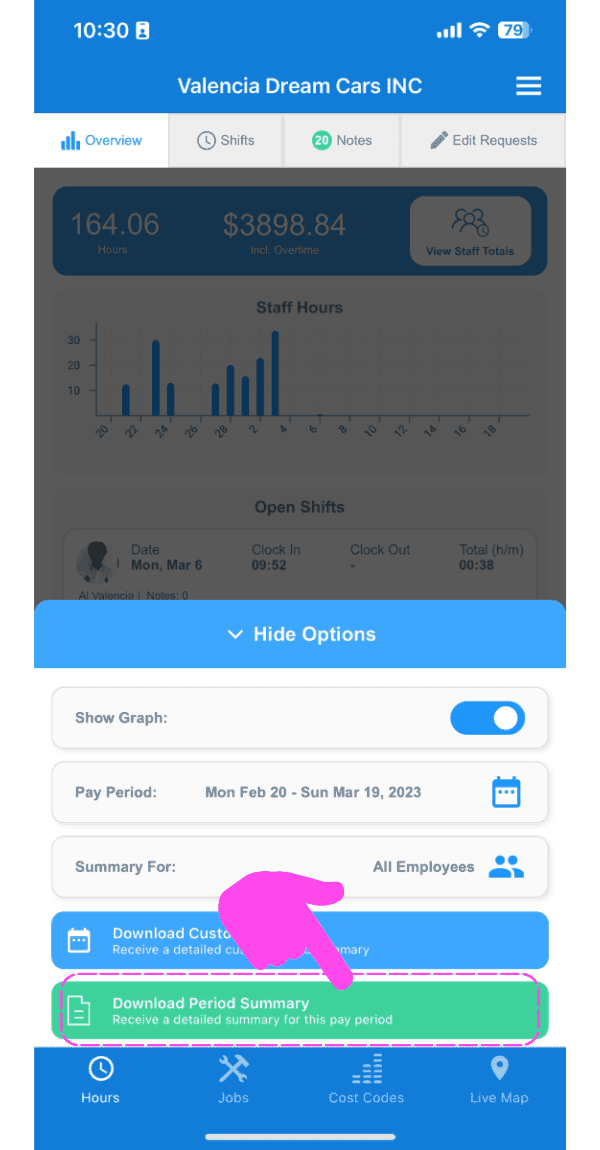
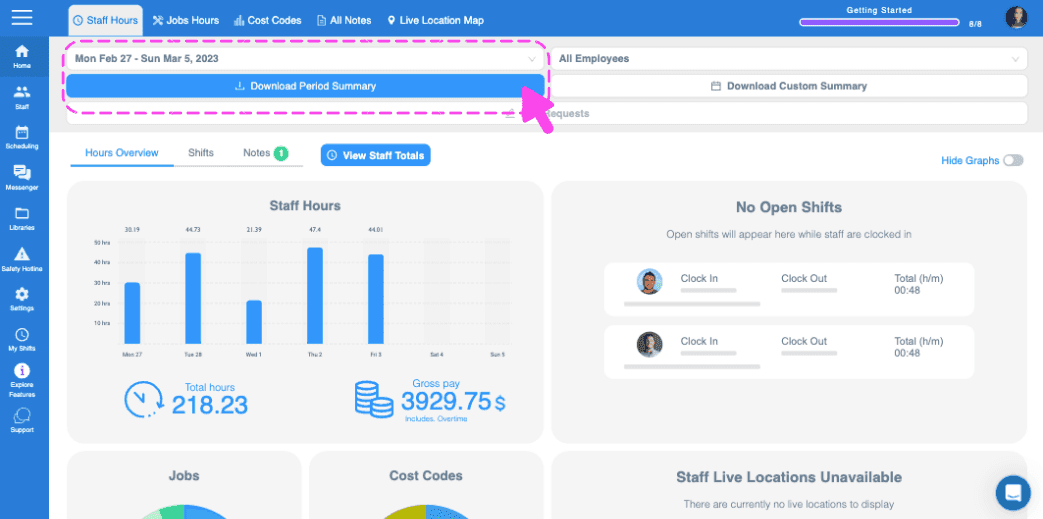
Tap on Download Period Summary. We will now email you the summary to the email associated with your account.
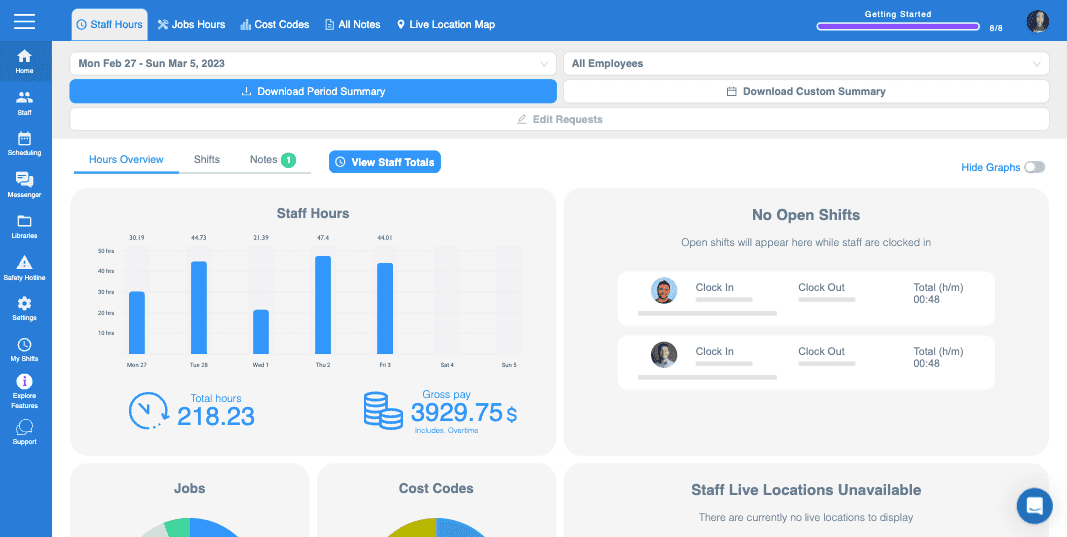
If you are using the web version it will look like this:
Did this answer your question?