How to Add a Missing Job Shift

This guide will cover how an Admin can add a job shift for a staff member or themselves in SINC.

SINC Support Team
SINC Support Team
Oct 19th, 2021

Sometimes you will need to manually add a job shift. Navigate to Menu Overview and tap on Shifts
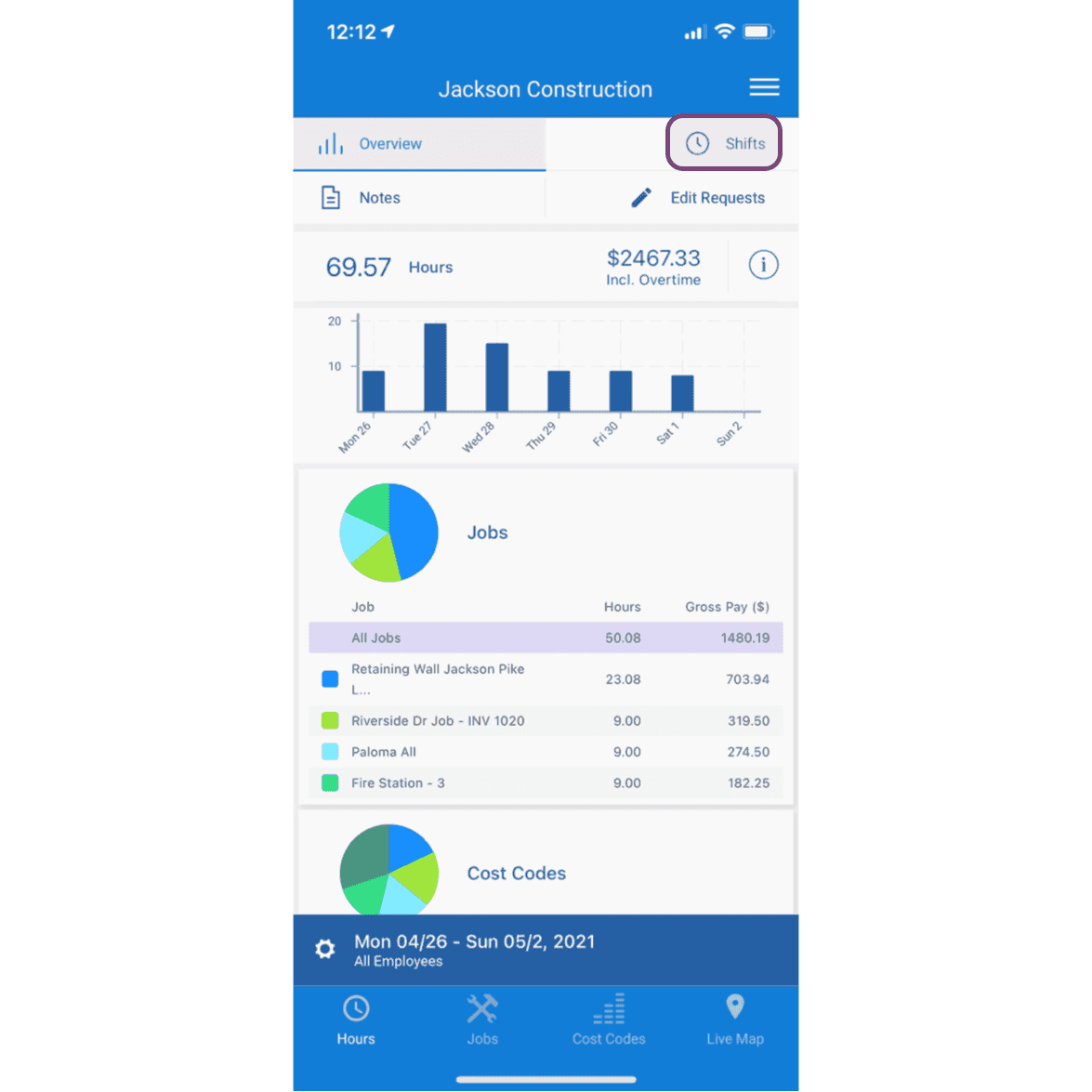
SINC mobile app Overview screen with the Shifts tab circled at the top of the page

Tap on The shift you would like to add a job shift to
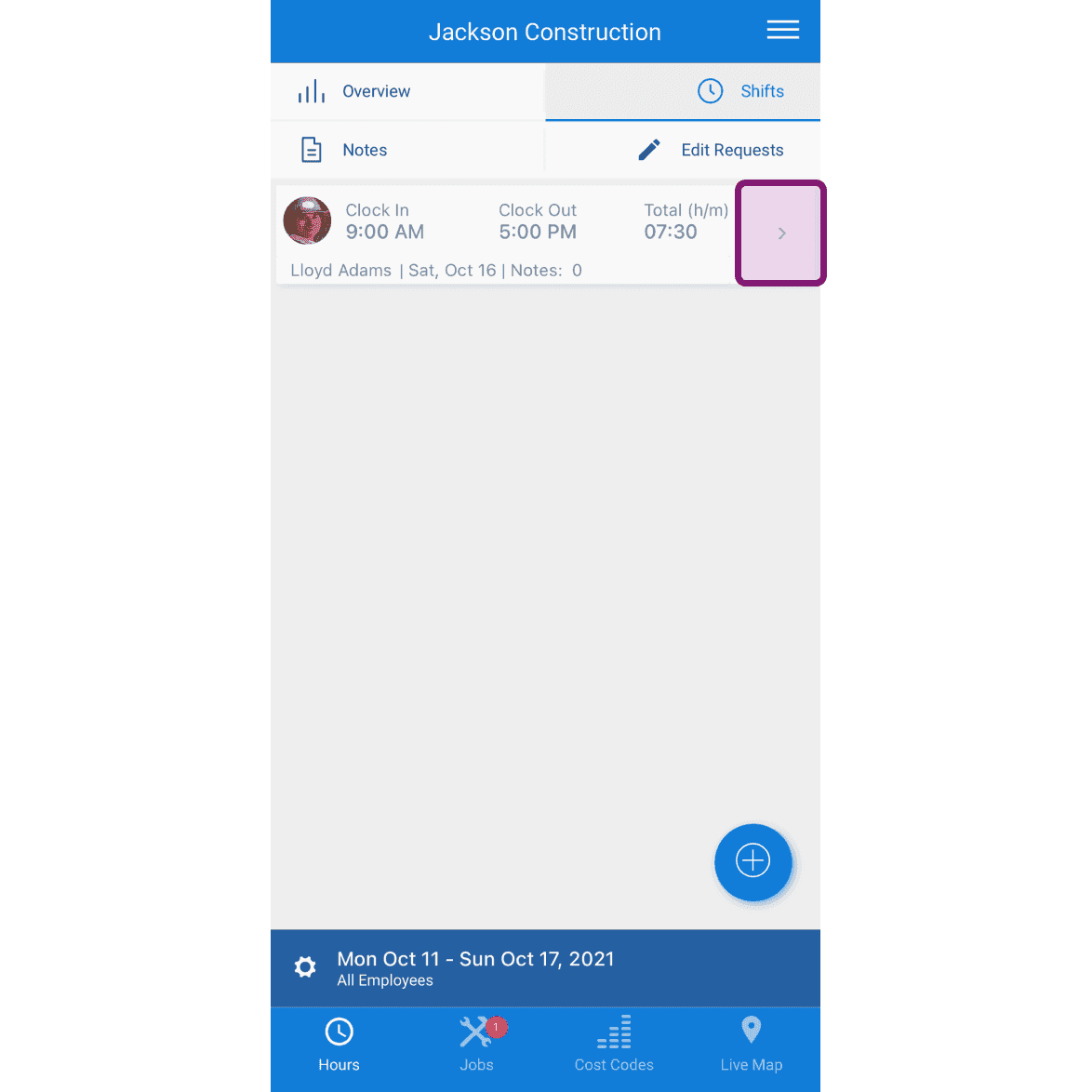
SINC mobile Shifts list with a pink-highlighted row showing the shift to add a job shift to

Tap on The "Jobs" tab
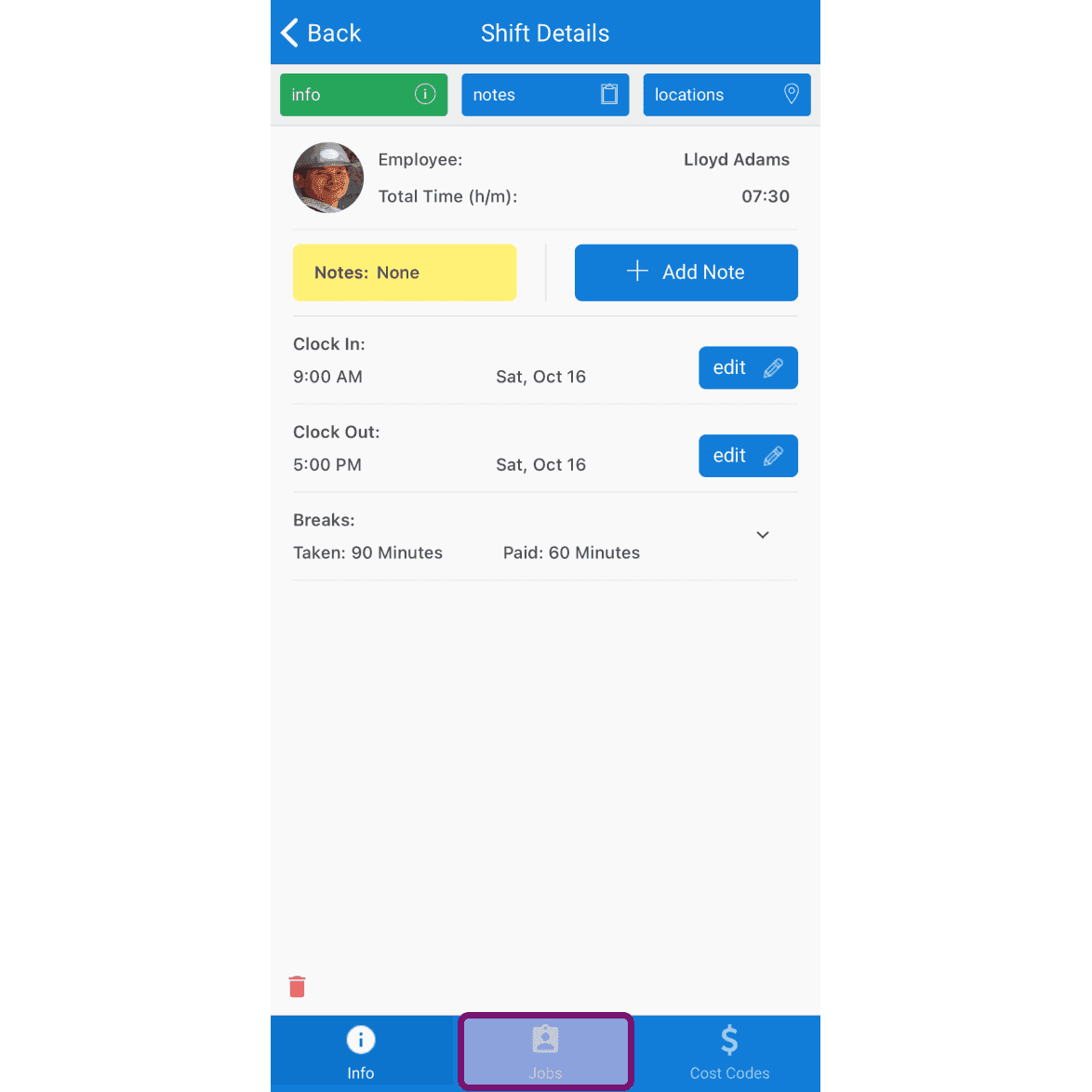
Mobile Shift Details screen with the Jobs tab at the bottom outlined in pink

Tap on The + button down the bottom right of the screen
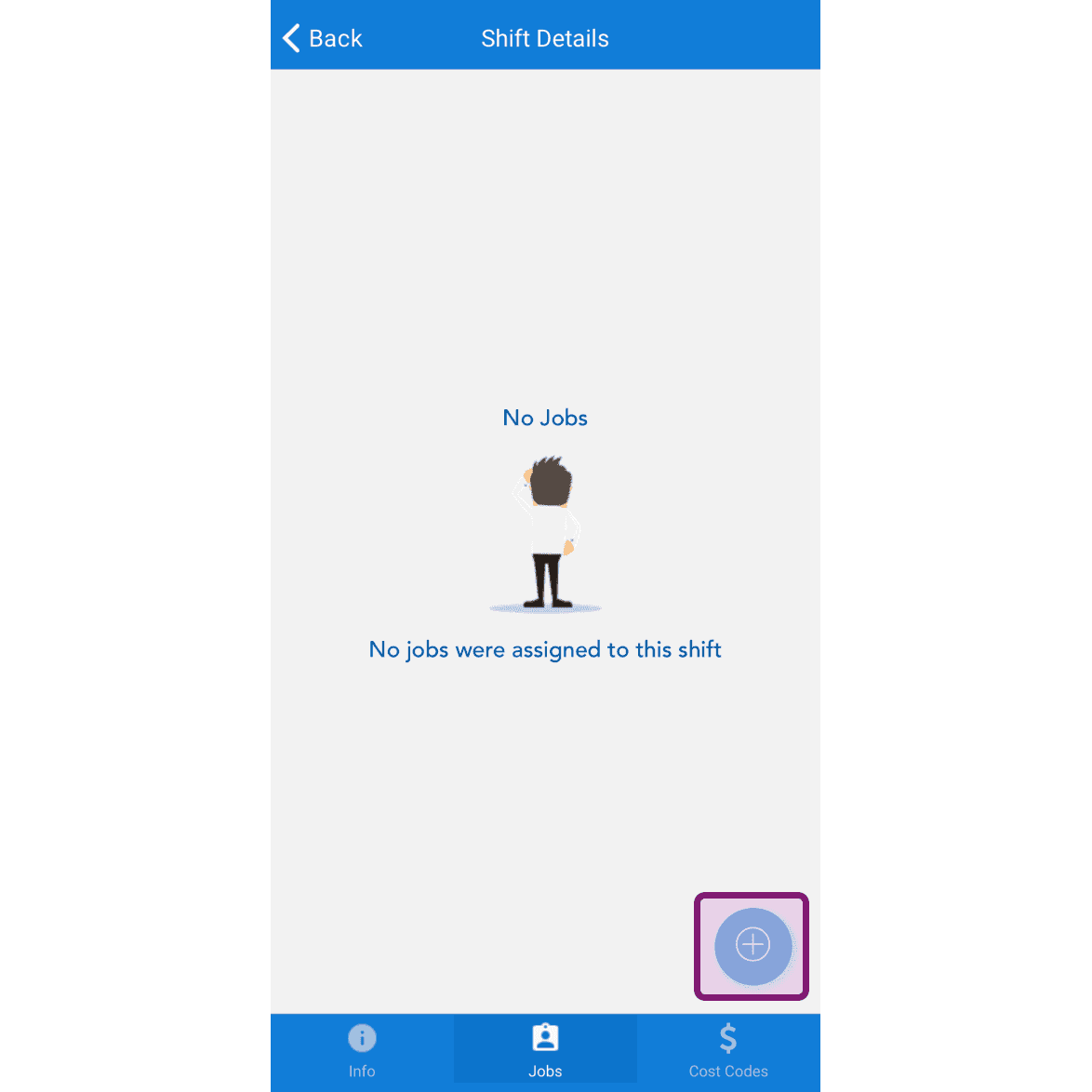
SINC mobile Shift Details Jobs tab showing a No Jobs message with the plus button circled in the bottom right

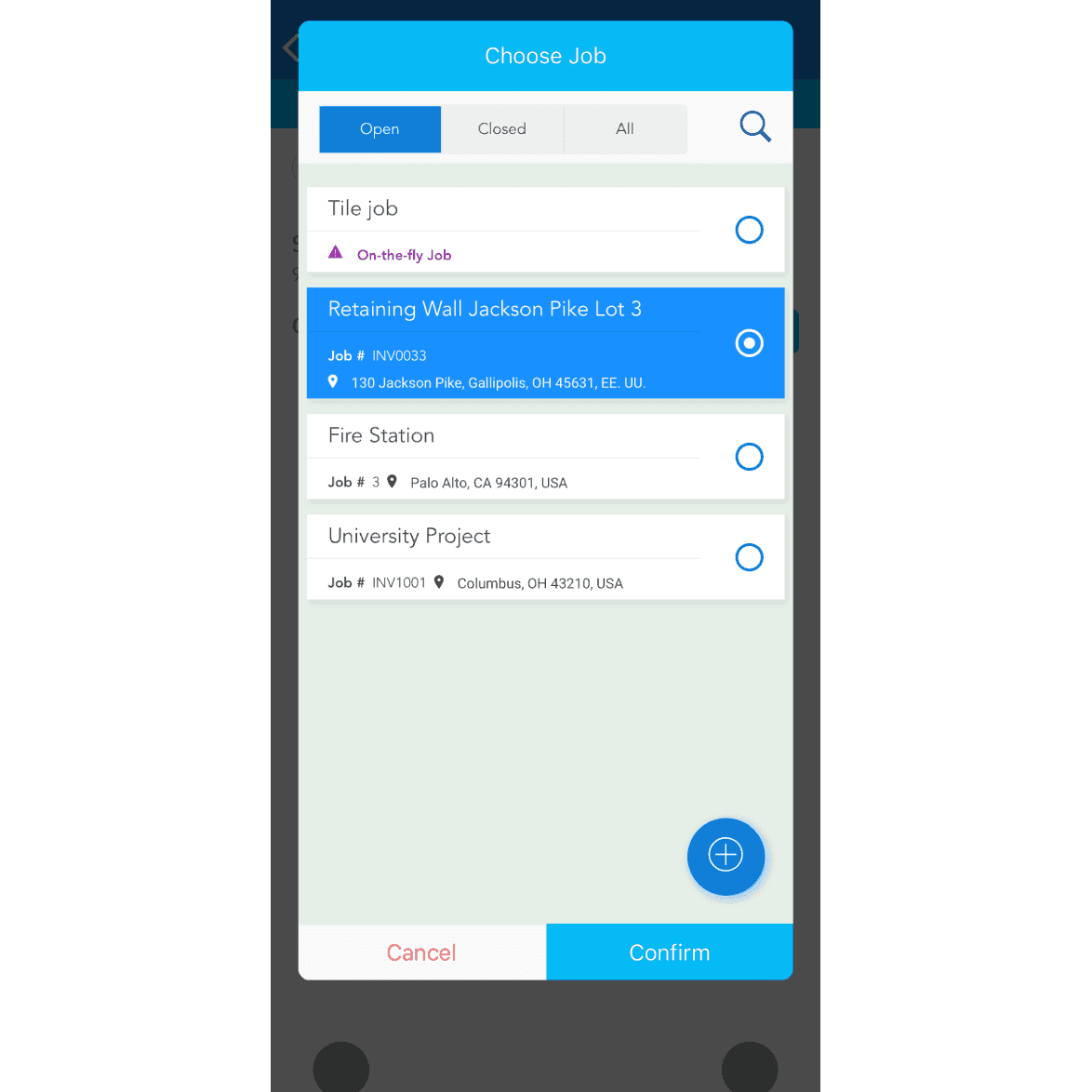
Select Job and tap on Confirm

Choose Job screen listing open jobs with the Retaining Wall job selected and a Confirm button

If the Job doesn't exist. To add a new job, tap on The + button down the bottom right of the screen
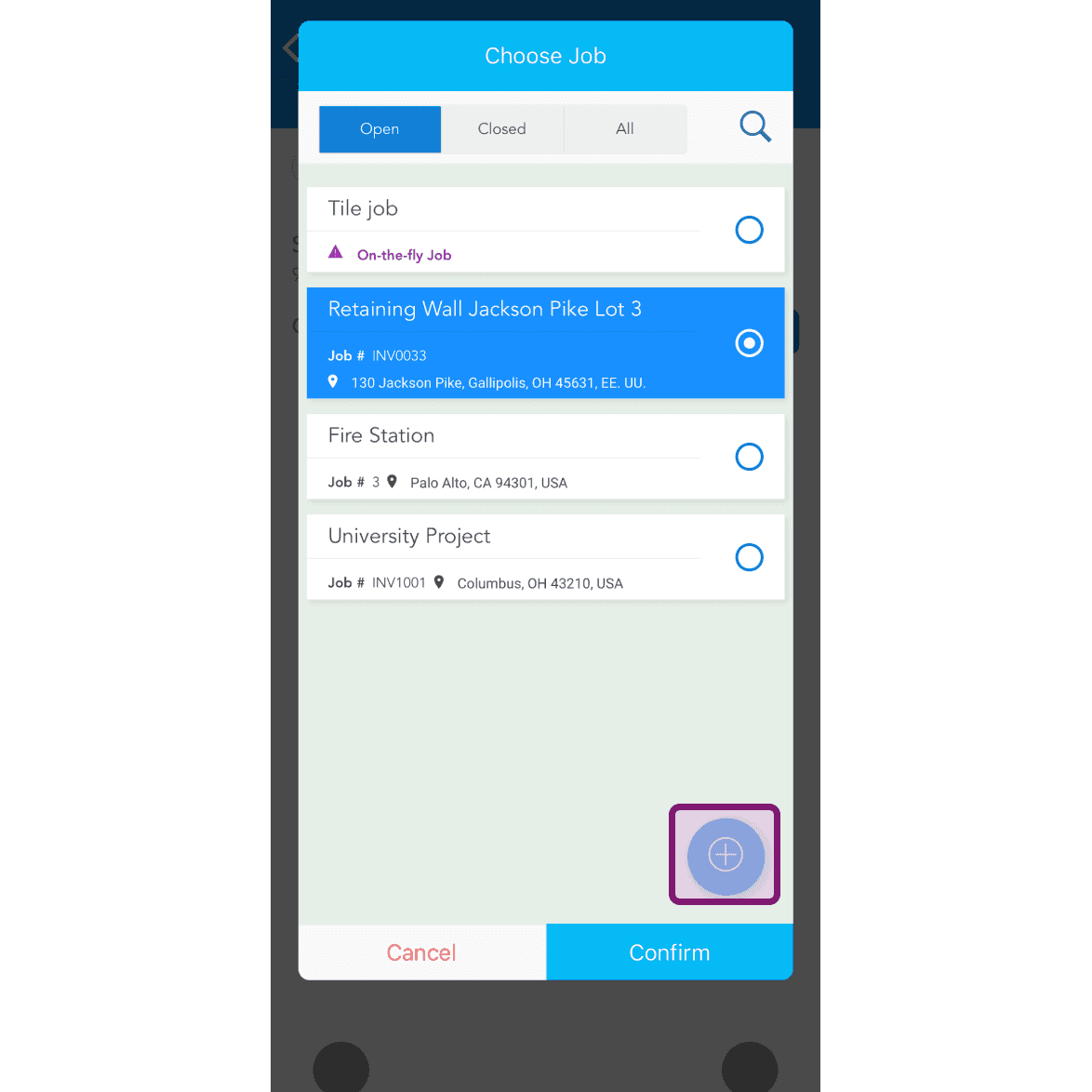
Mobile Choose Job popup listing open jobs with the add button circled in purple in the bottom right

Default job time will be selected based on shift timing, to edit tap on Time picker
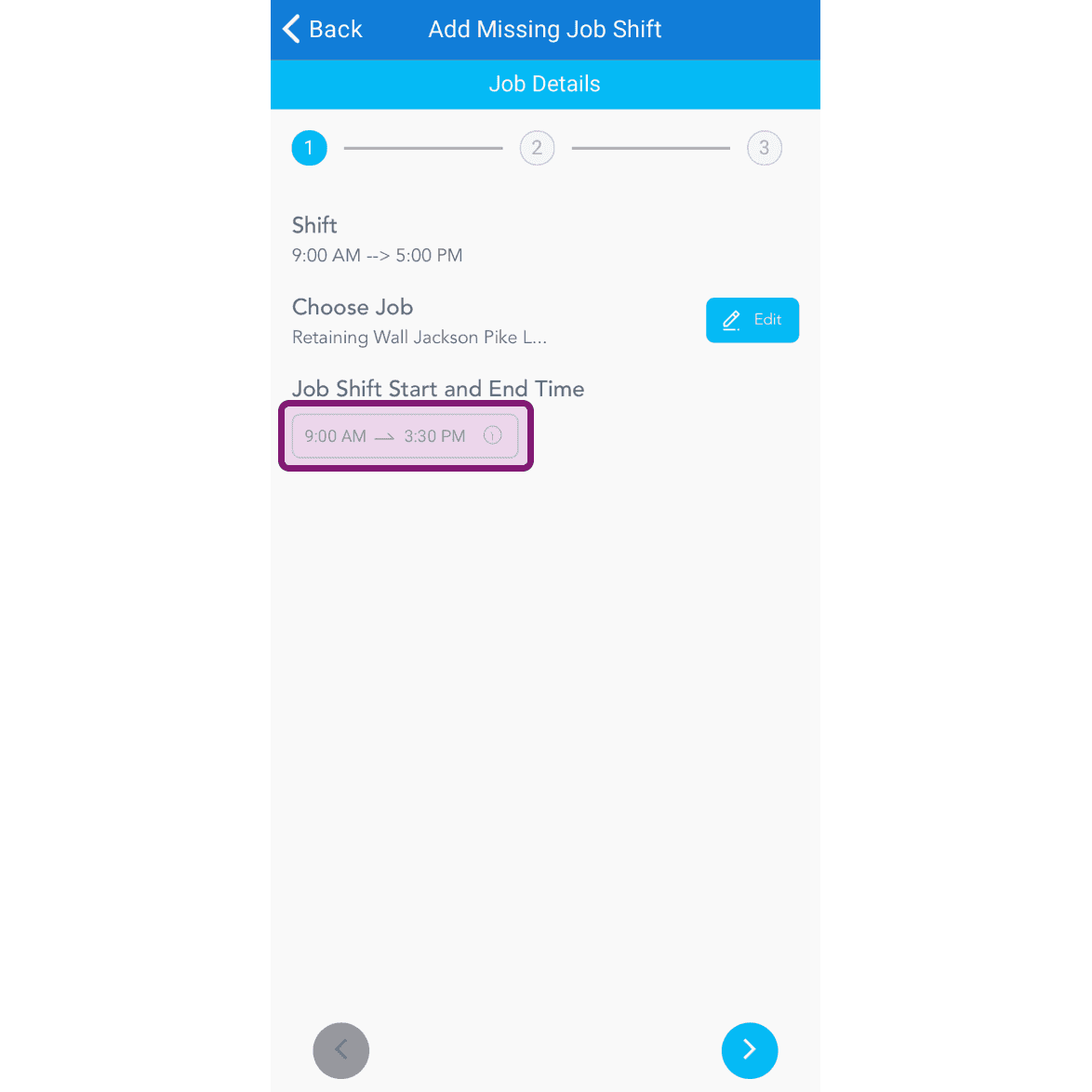
SINC mobile Add Missing Job Shift screen with the Job Shift Start and End Time field outlined in purple

The job shift didn't have a cost code
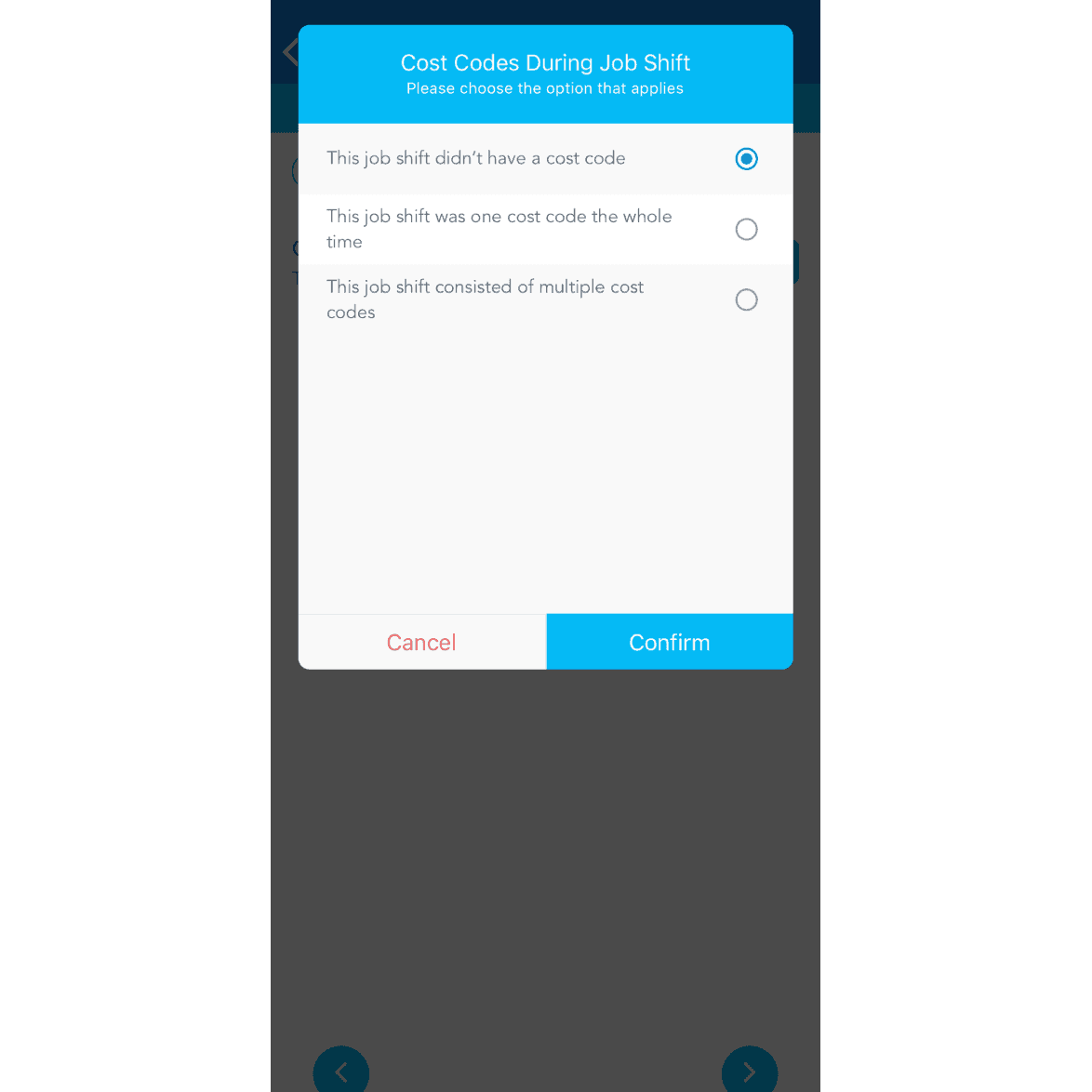
SINC mobile dialog asking about cost codes during a job shift, with 'This job shift didn't have a cost code' selected

The job shift was one cost code the whole time
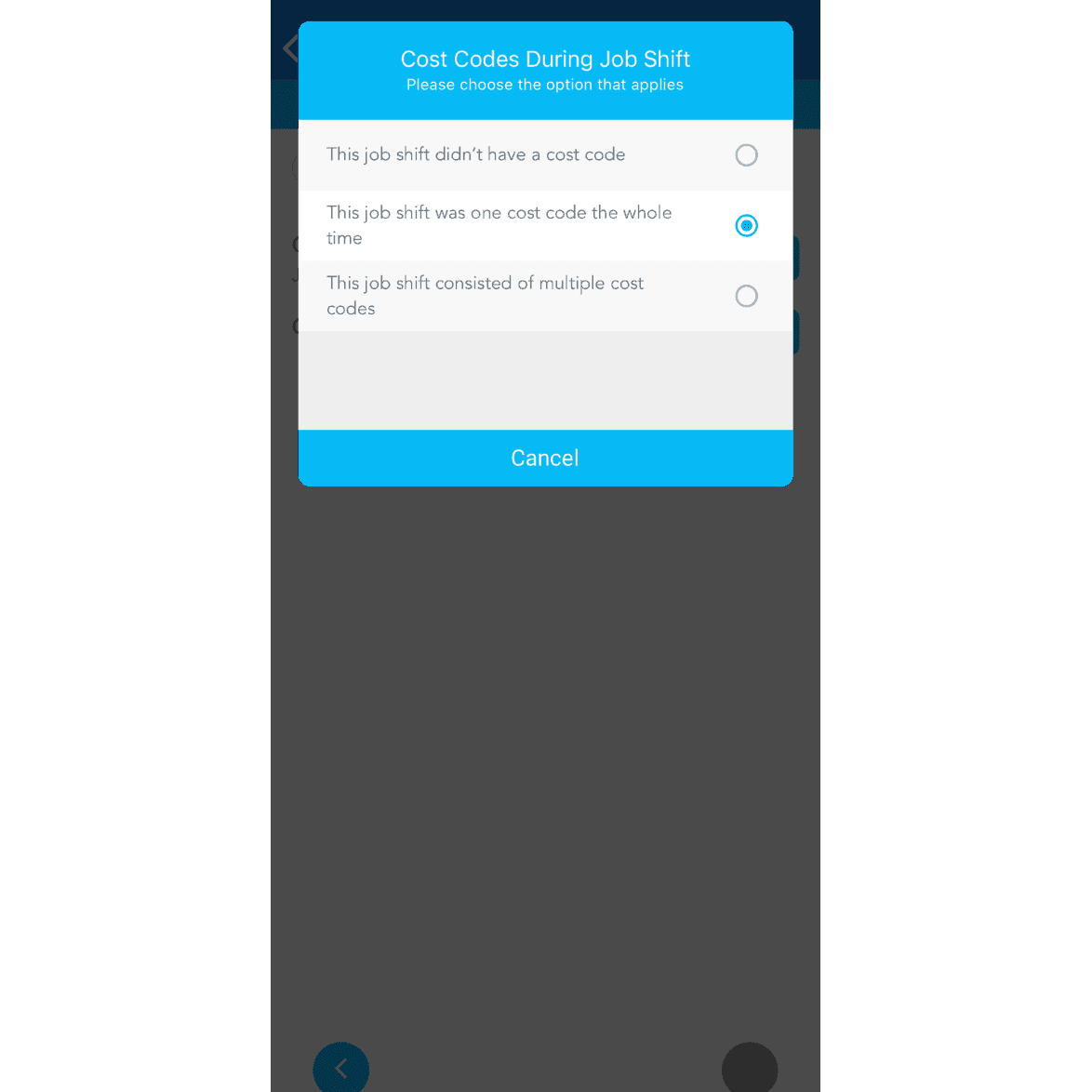
Cost Codes During Job Shift dialog with the option "This job shift was one cost code the whole time" selected

If multiple cost codes were assigned to the job, tap on The job consisted of multiple cost codes
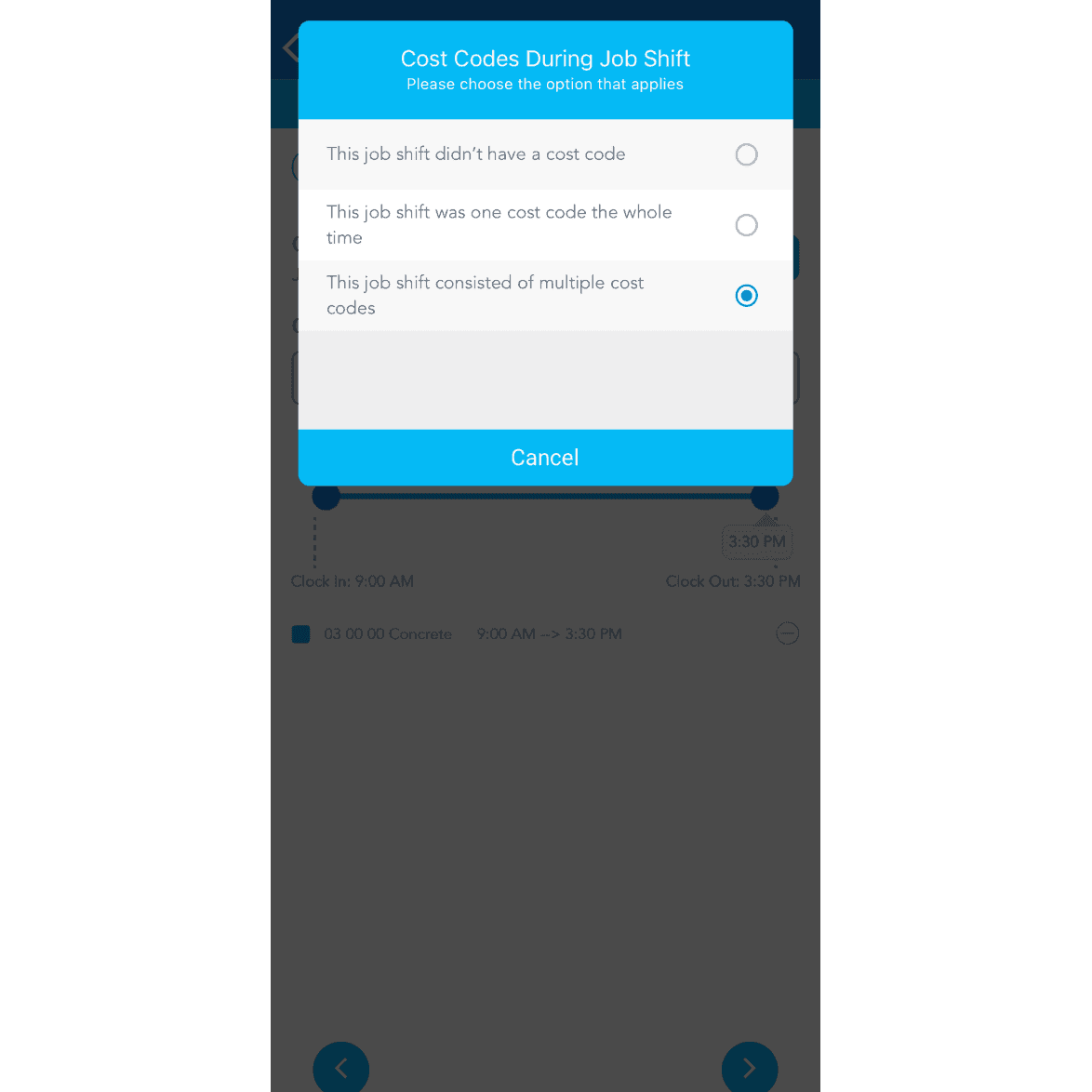
SINC mobile app popup asking which cost code option applies to a job shift, with 'consisted of multiple cost codes' selected

To add more cost codes, tap on Add Another Code
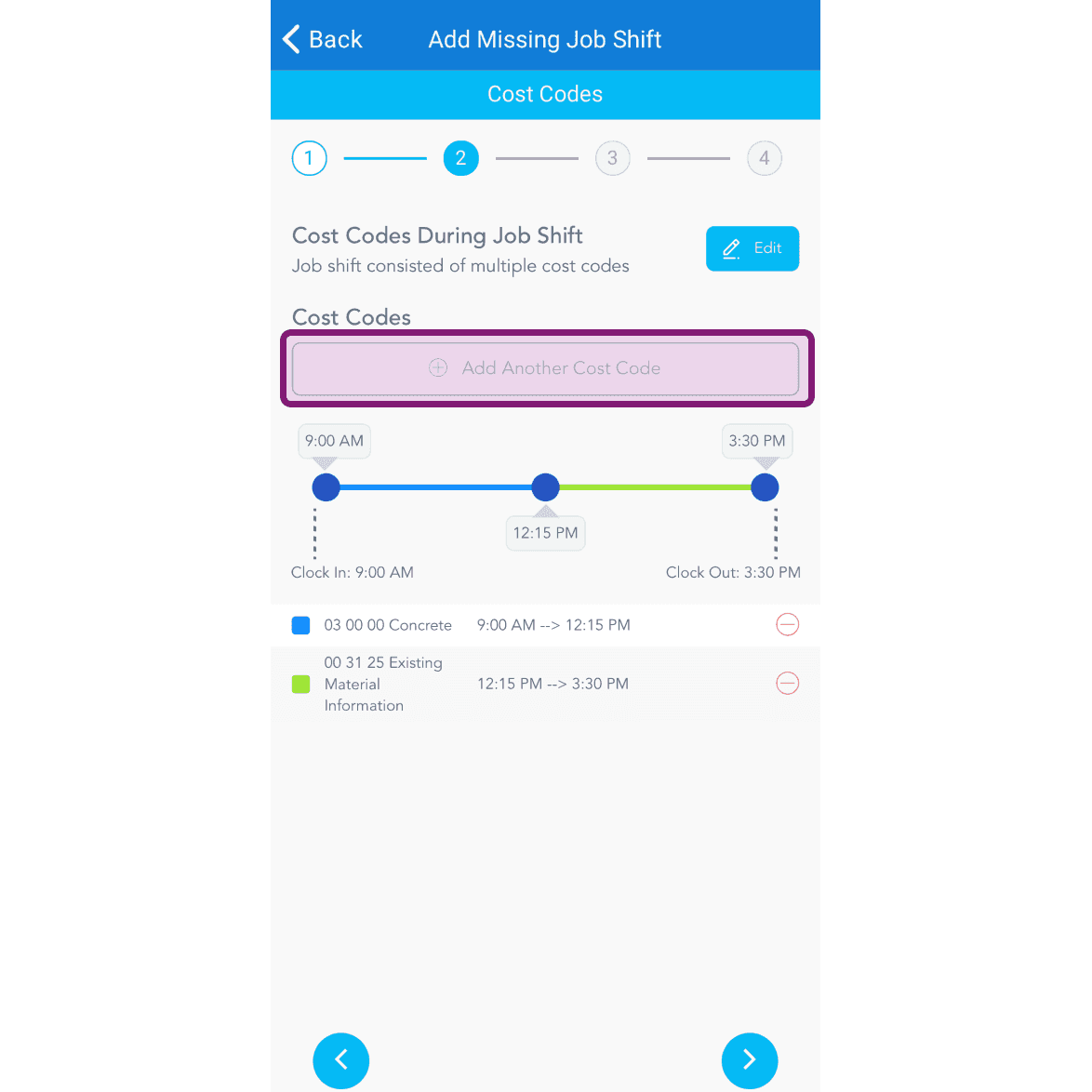
Add Missing Job Shift screen, Cost Codes step, with the Add Another Cost Code button outlined in pink

To adjust the time, slide pointer on slider
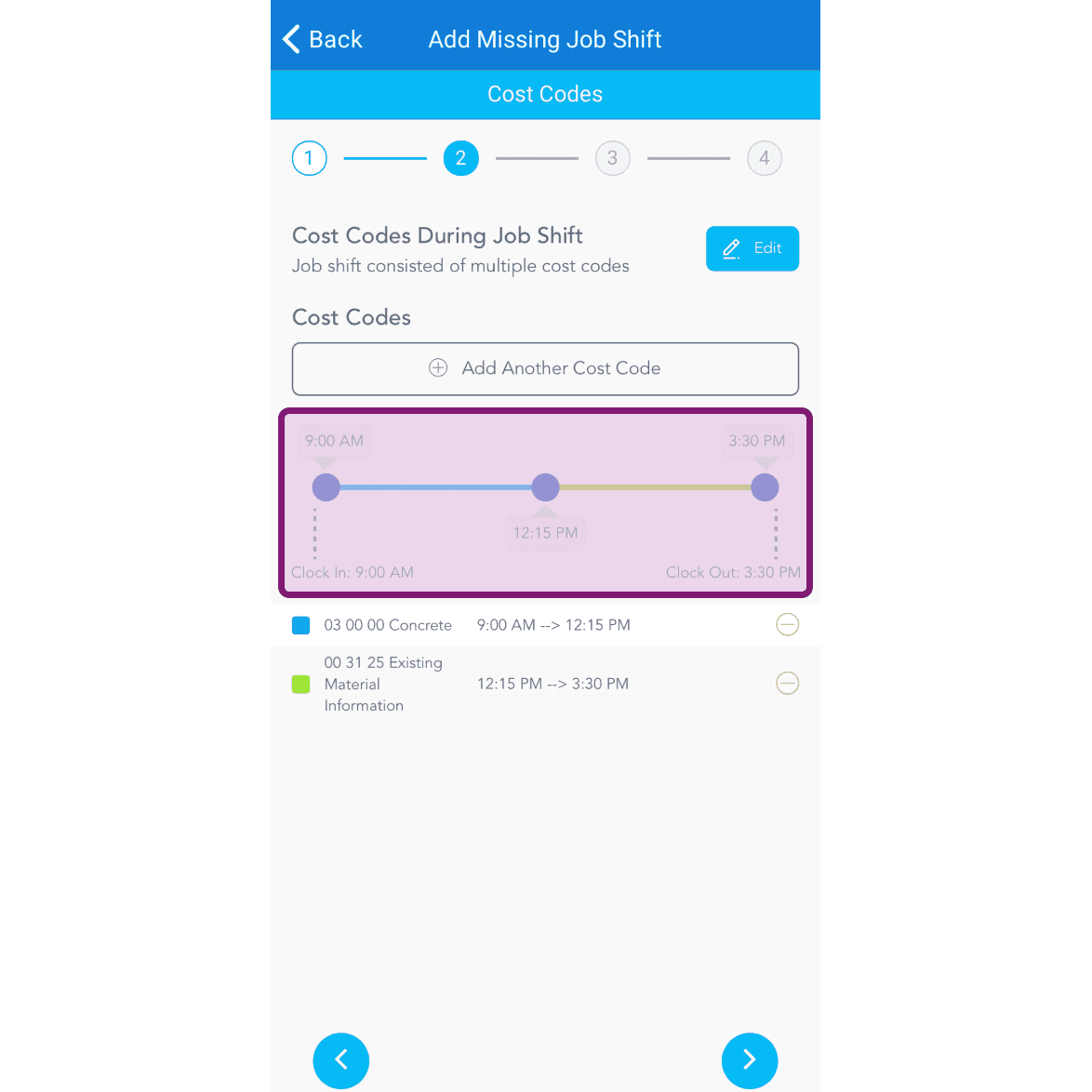
Add Missing Job Shift Cost Codes screen with a purple-highlighted time slider showing two cost code segments

If job didn't have notes, tap on next arrow, otherwise enter the note. To add an image (optional), tap on Take Photo or Choose From Photos
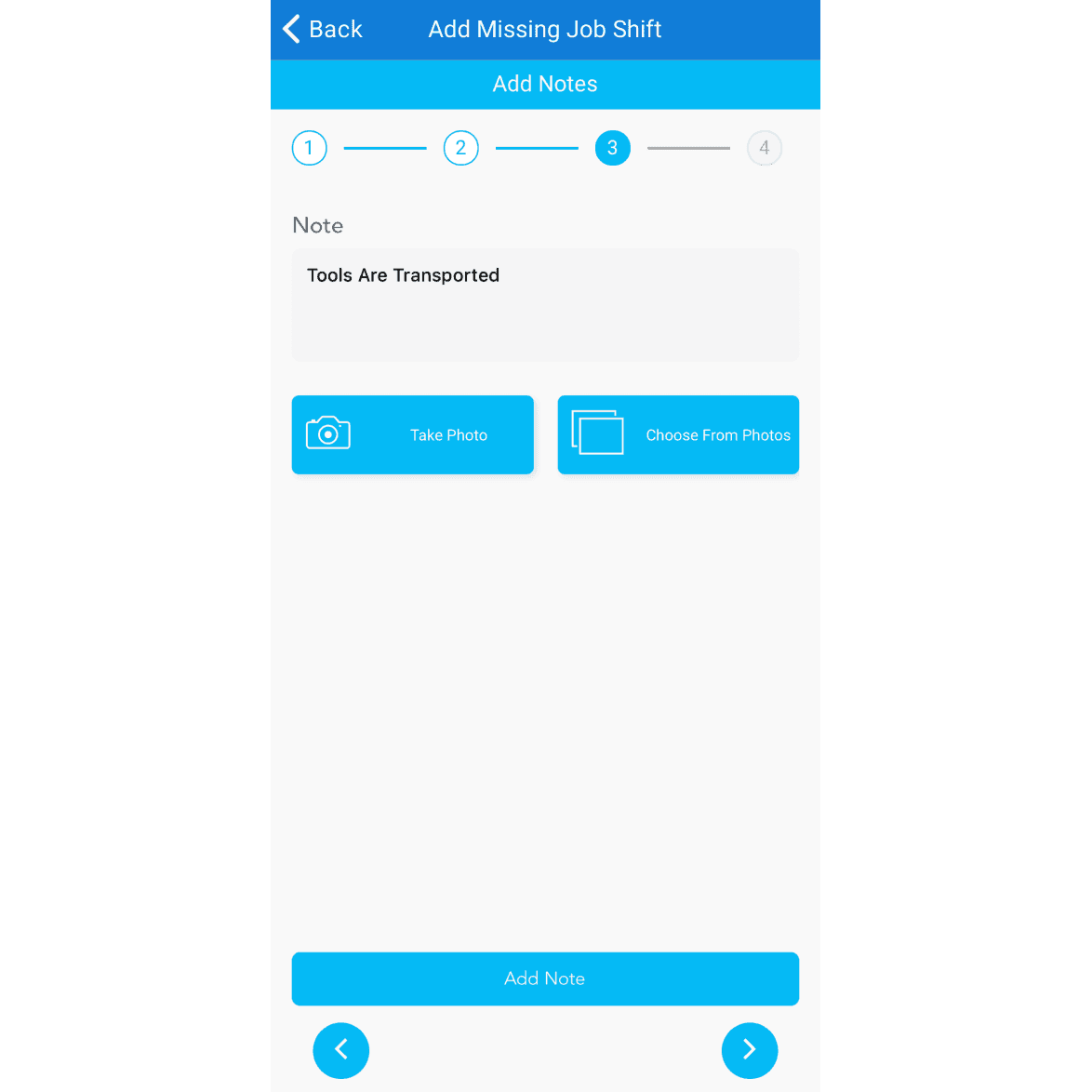
SINC mobile Add Missing Job Shift notes step showing a note field with Take Photo and Choose From Photos buttons

To add another note, tap on Add Another Note
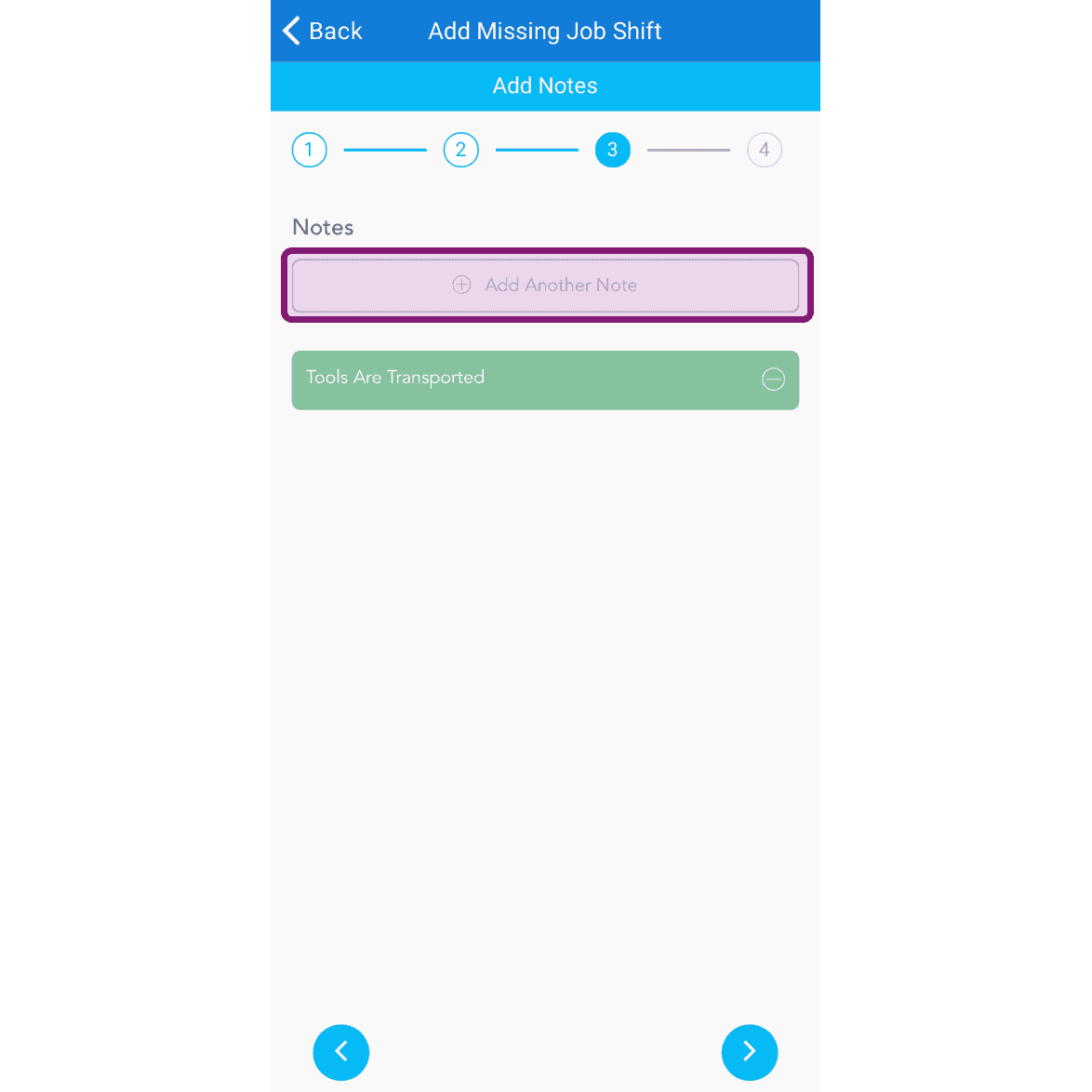
Add Missing Job Shift Notes step with the Add Another Note field outlined in purple

Review the missing job's details and tap on Confirm
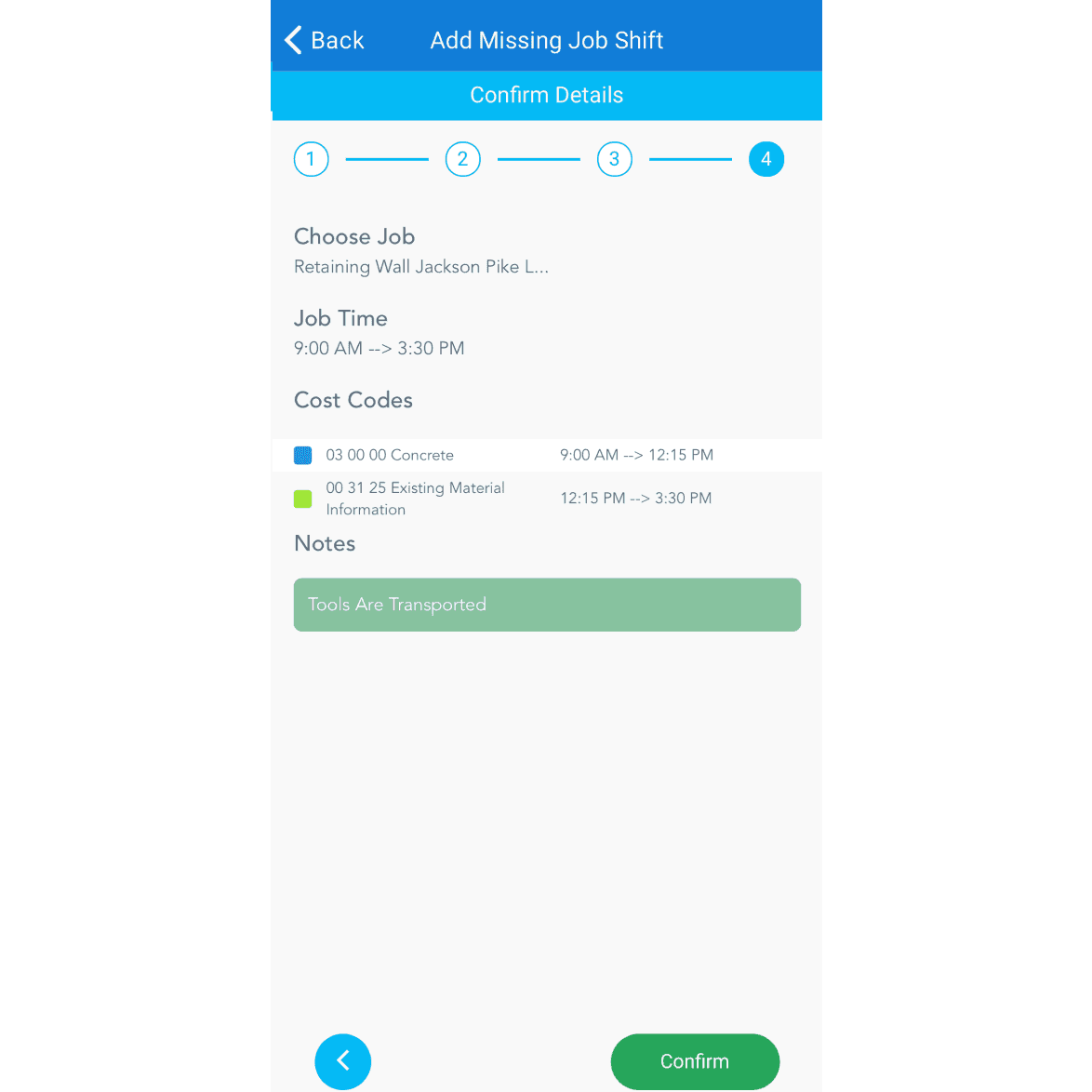
SINC mobile Add Missing Job Shift confirmation screen showing job, time, cost codes, and notes

If you are using the web version it will look like this:
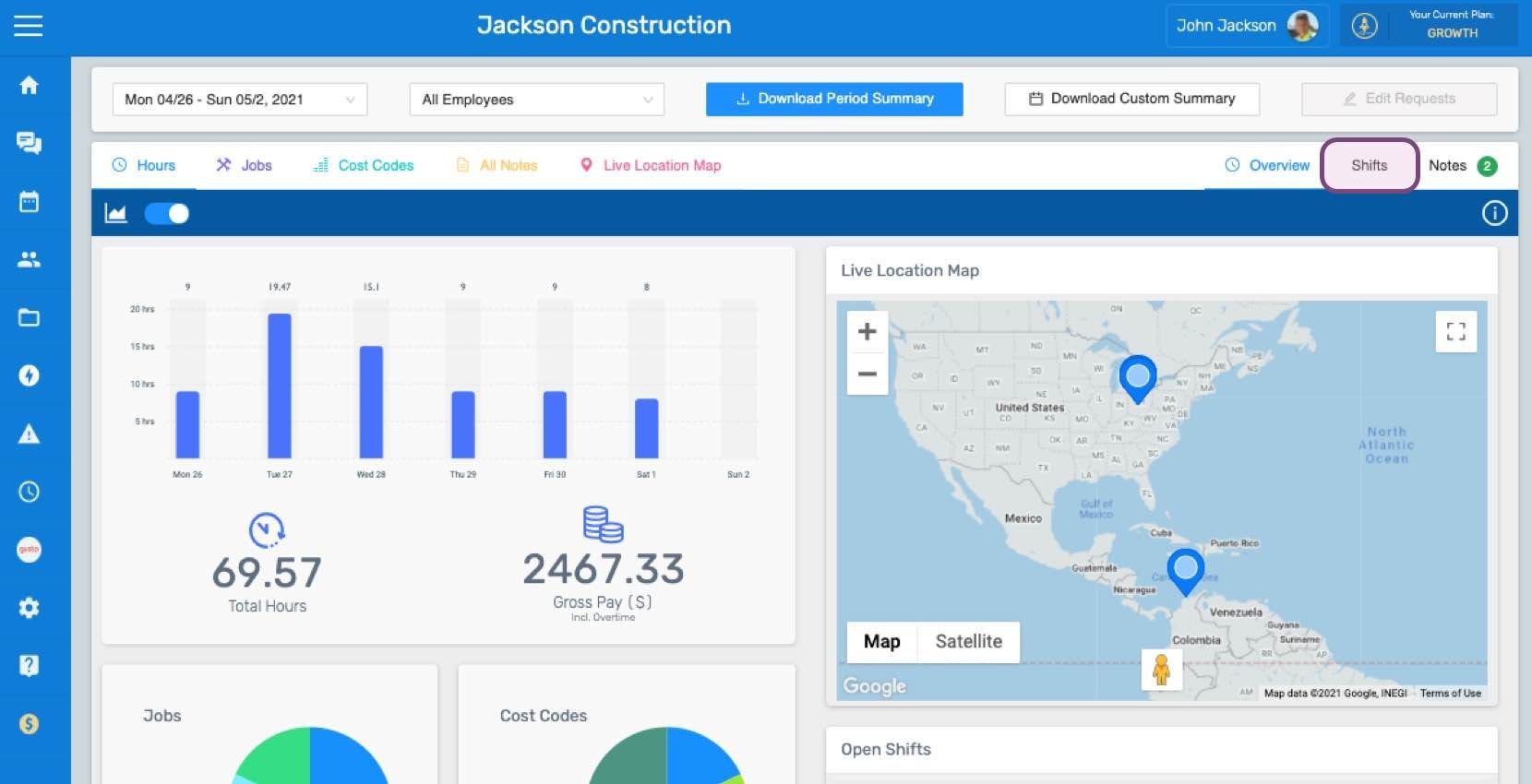
SINC web dashboard Overview page showing a staff hours bar chart and a Live Location Map with staff location pins
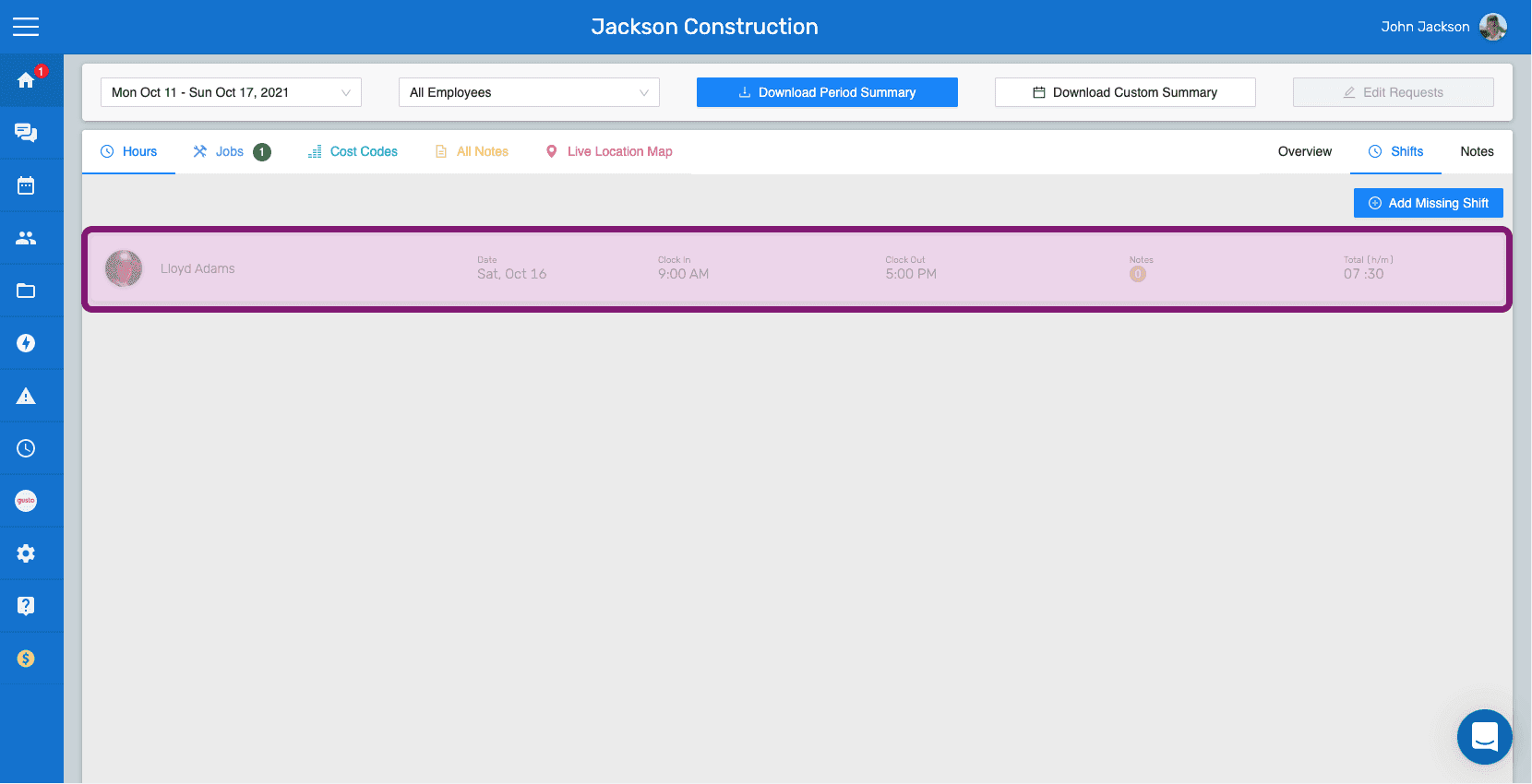
SINC web Shifts tab with the Add Missing Shift button and a highlighted shift row
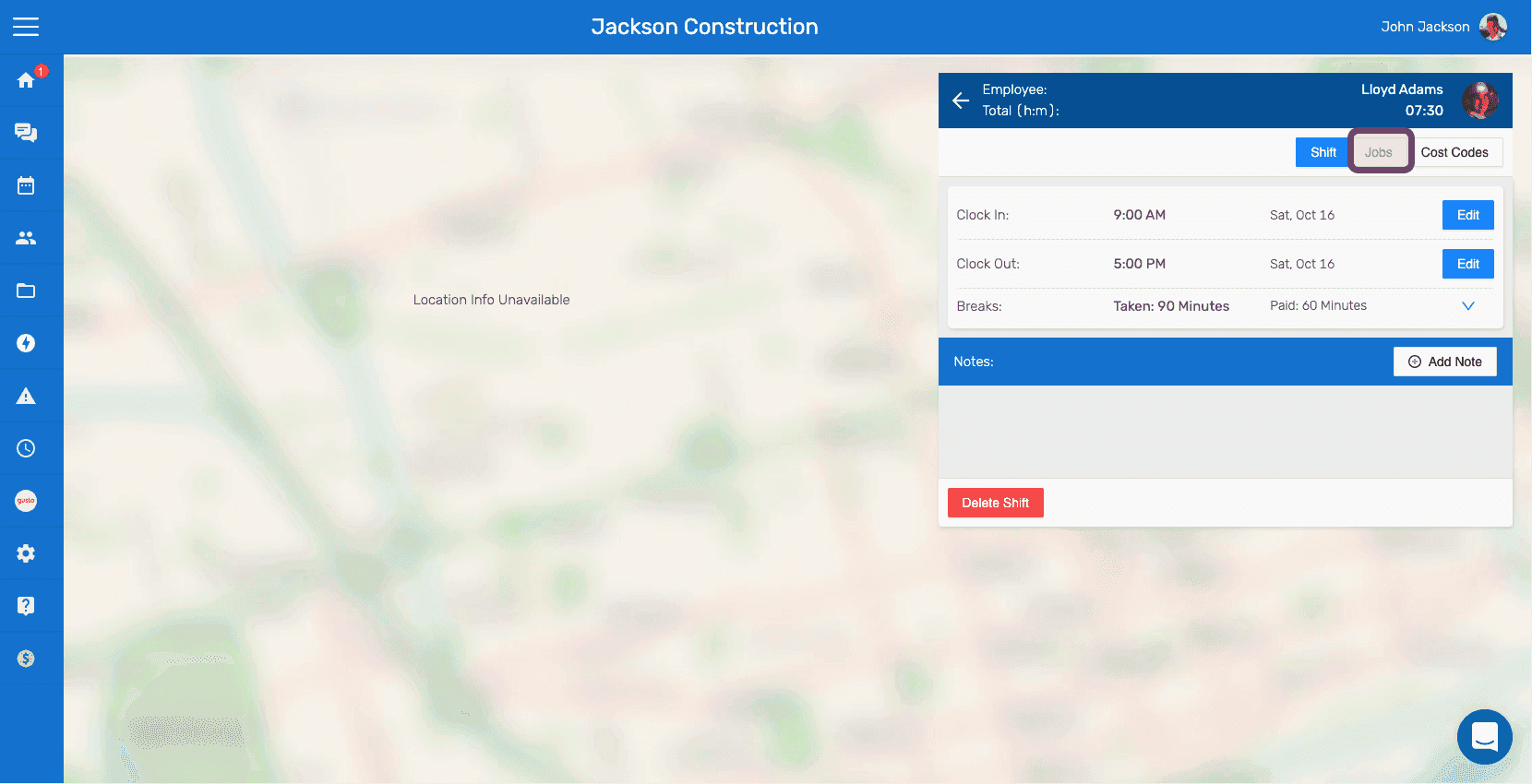
Web shift details panel next to a map with the Jobs tab outlined in pink
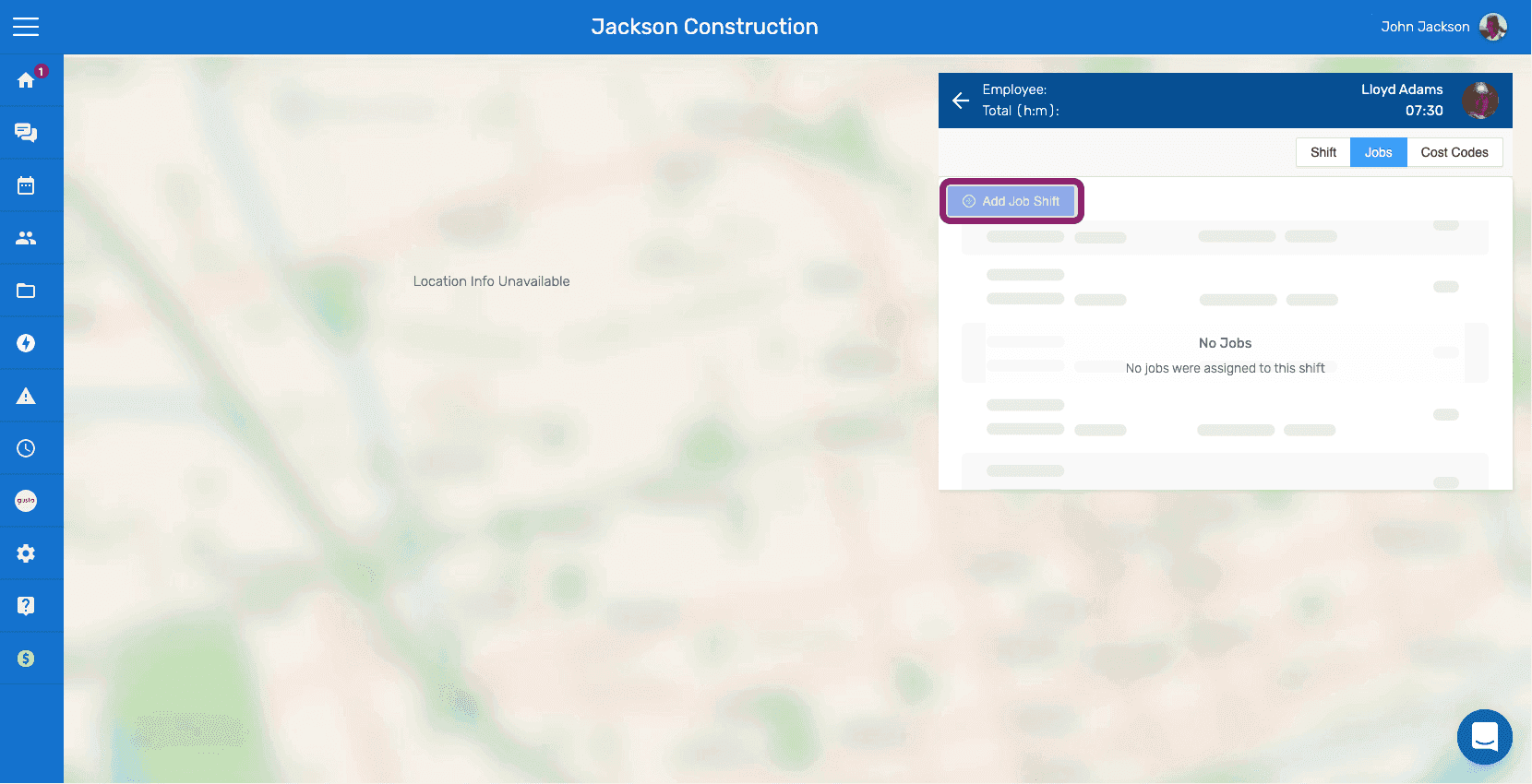
SINC web employee shift detail panel with the Add Job Shift button circled under the Jobs tab
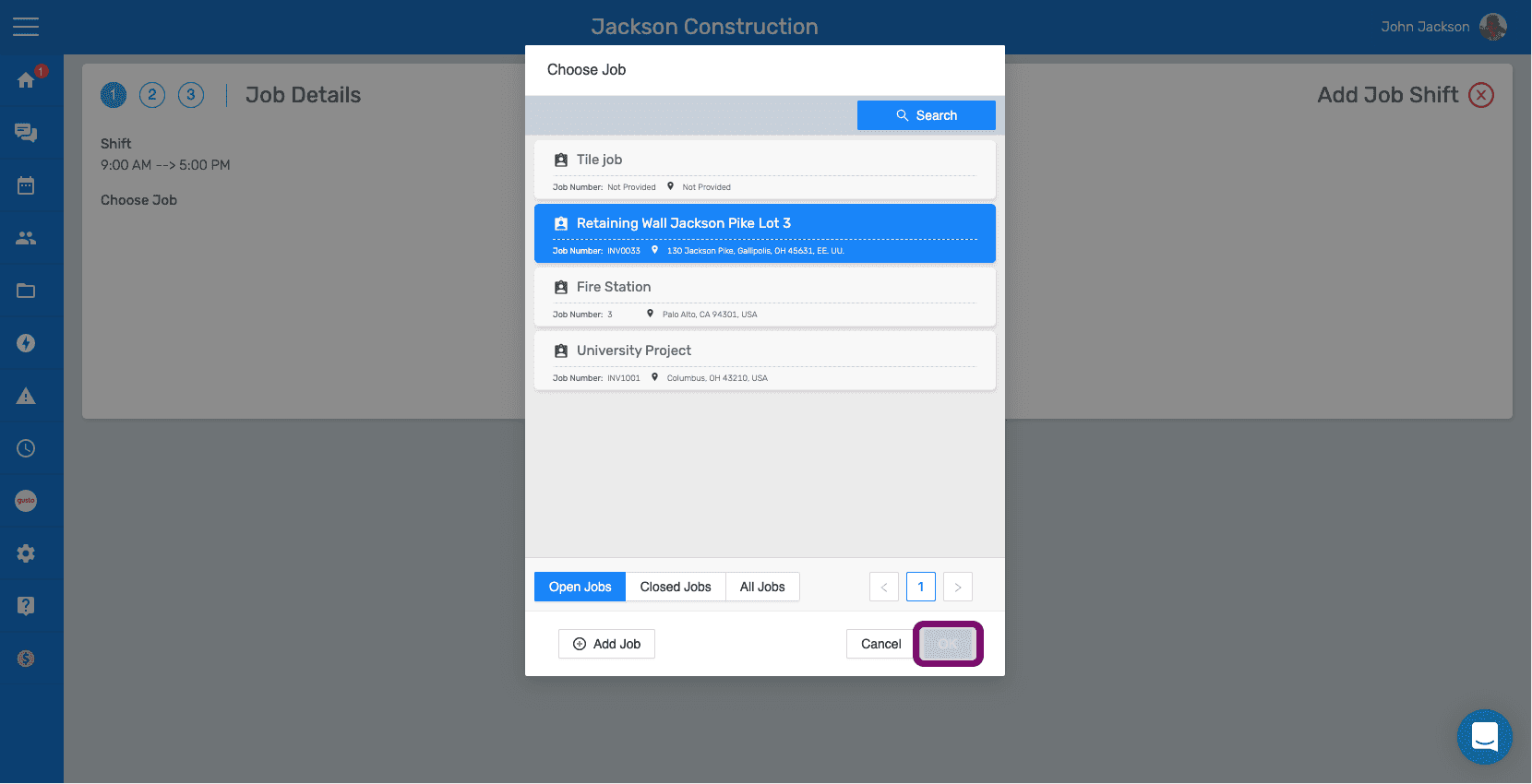
Job Details Choose Job popup with the Retaining Wall job selected and the Confirm button highlighted
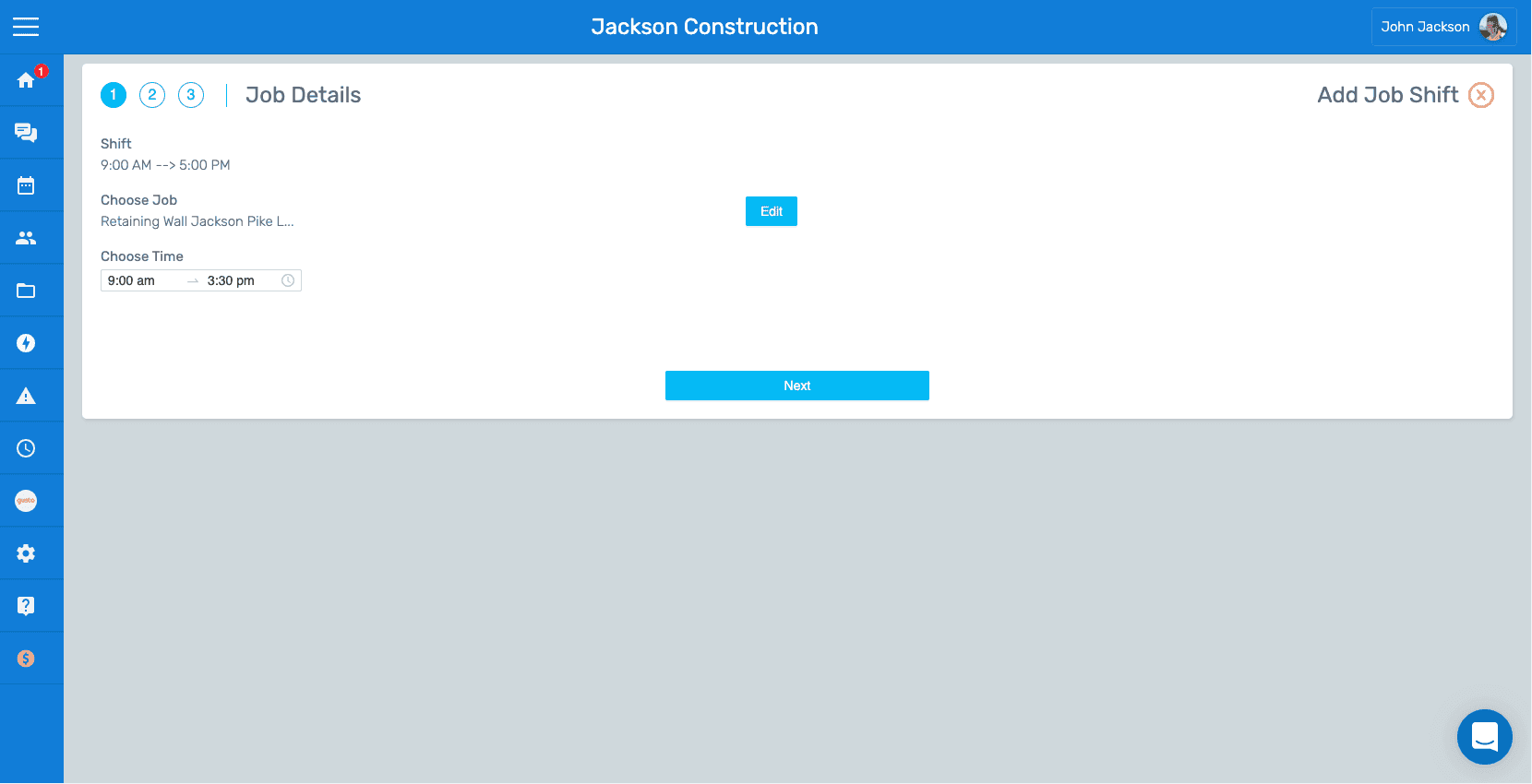
SINC app Job Details step showing the selected job and time range with an Edit button
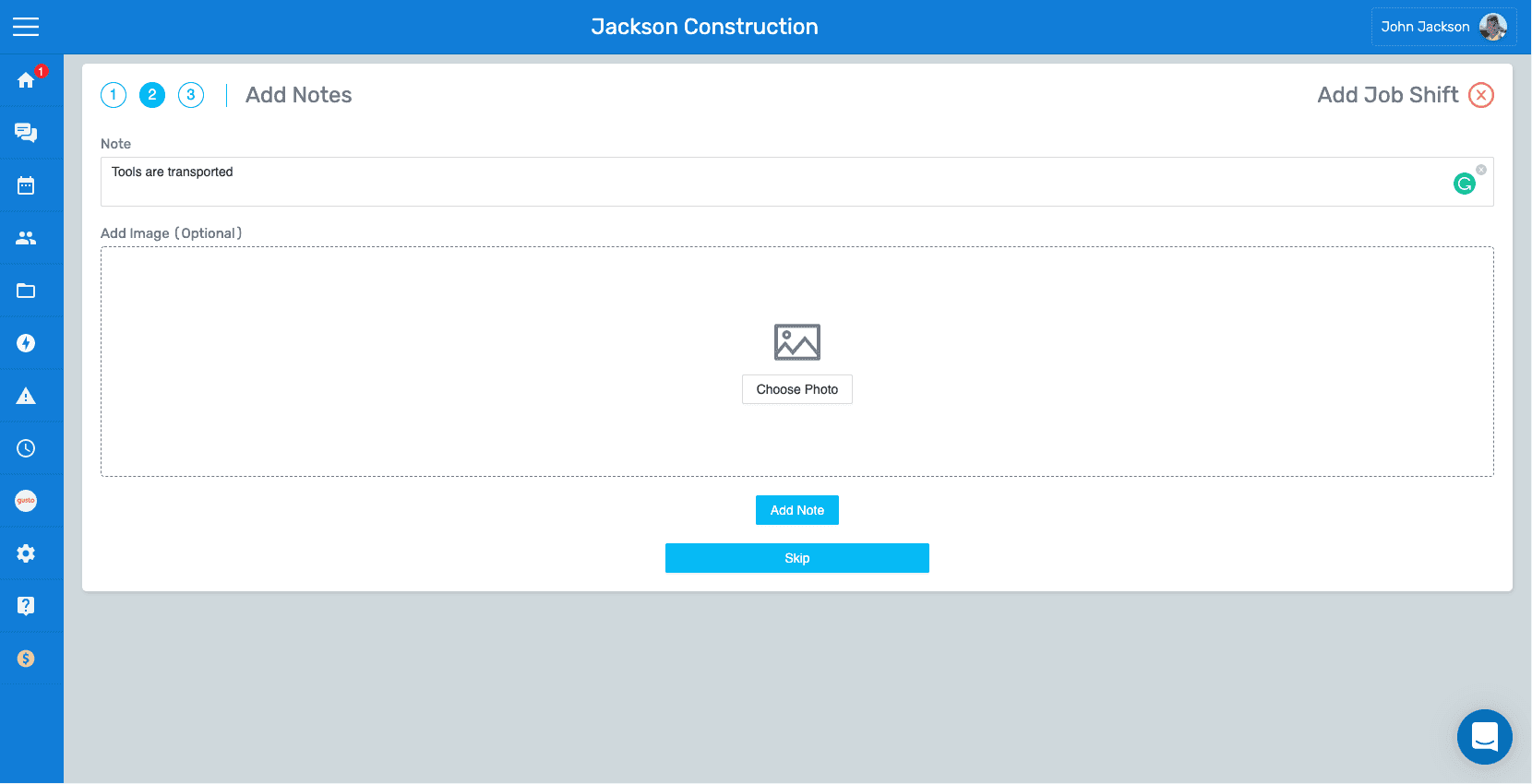
SINC web Add Notes screen showing a note text field and Choose Photo image upload area
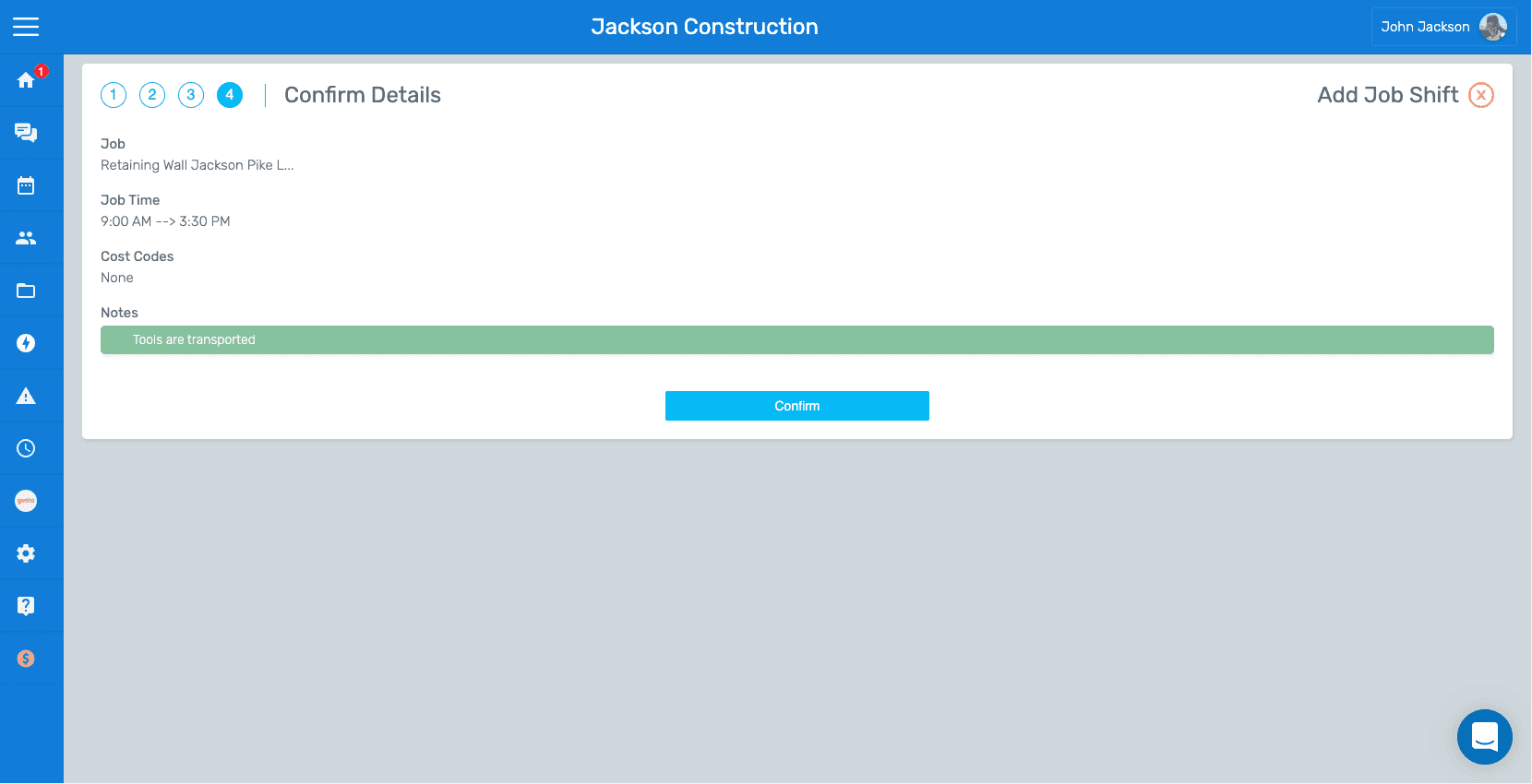
SINC web Add Job Shift wizard on the Confirm Details step showing job time and notes with the Confirm button

Did this answer your question?