How to Add a Missing Shift

This guide will cover how an Admin can add a shift for a staff member or themselves in SINC.

Sam Dolbel
Sam Dolbel
Mar 6th, 2023

Sometimes you will need to manually add a staff timesheet. Navigate to Menu Overview and tap on Shifts
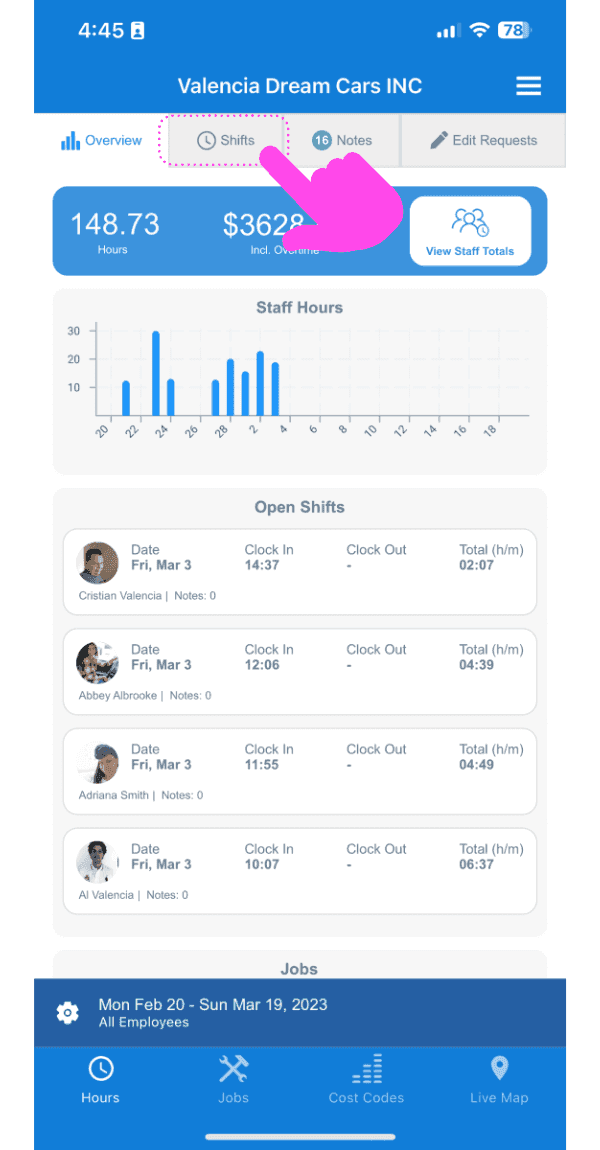
SINC web dashboard with a pink arrow pointing to the Shifts tab showing staff hours and open shifts

Tap on the + button down the bottom right of the screen
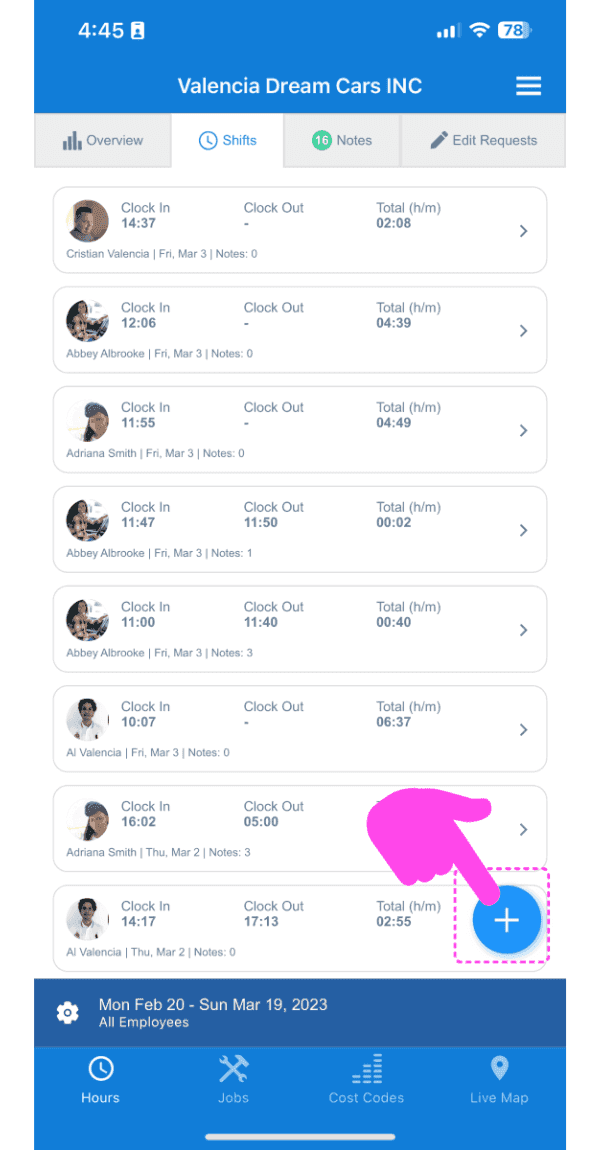
SINC mobile Shifts list with a pink arrow pointing to the plus button in the bottom right corner

Select the employee you want to add a timesheet for and tap on Confirm
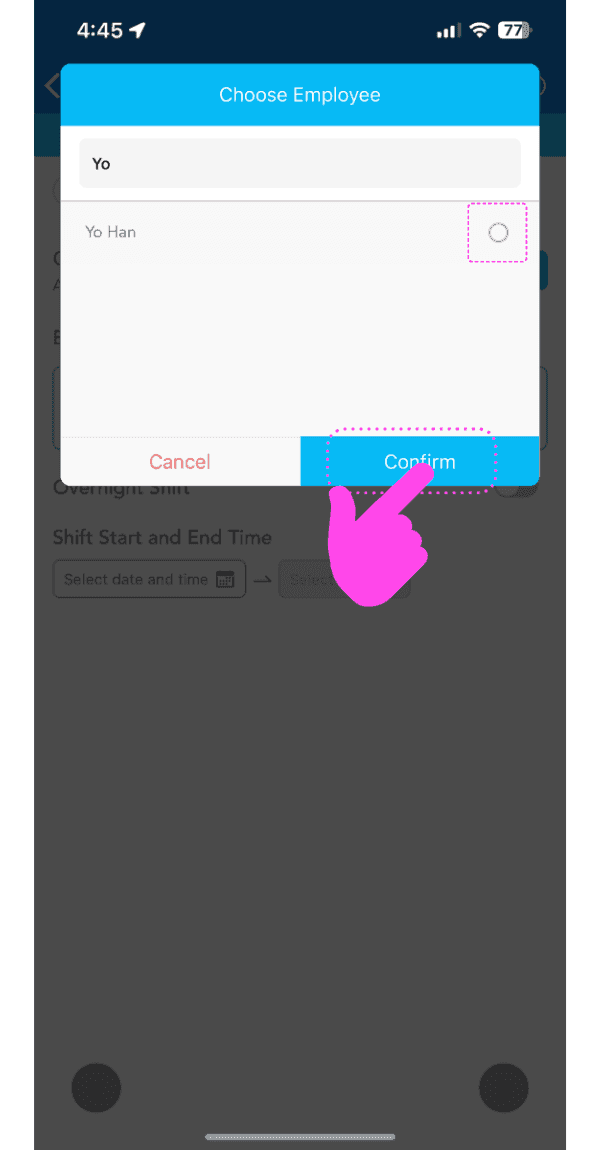
Choose Employee popup with an employee selected and a pink arrow pointing to the Confirm button

Follow the wizard to add the dates and times of the missing shift. Note: Default date and time will be already selected based on the latest shift of the employee.
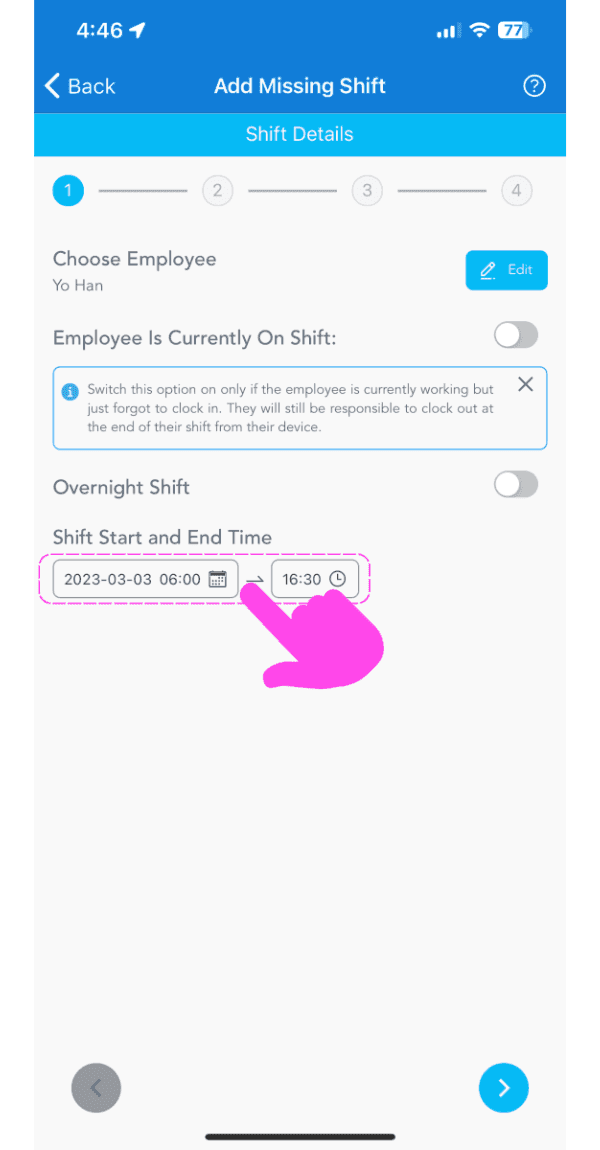
SINC mobile app Add Missing Shift wizard with the shift start and end time fields highlighted in pink

If an employee is already on shift and didn't clock out yet then toggle on Employee Is Currently On Shift. With this toggled on you will need to only select the Shift's Start Time.
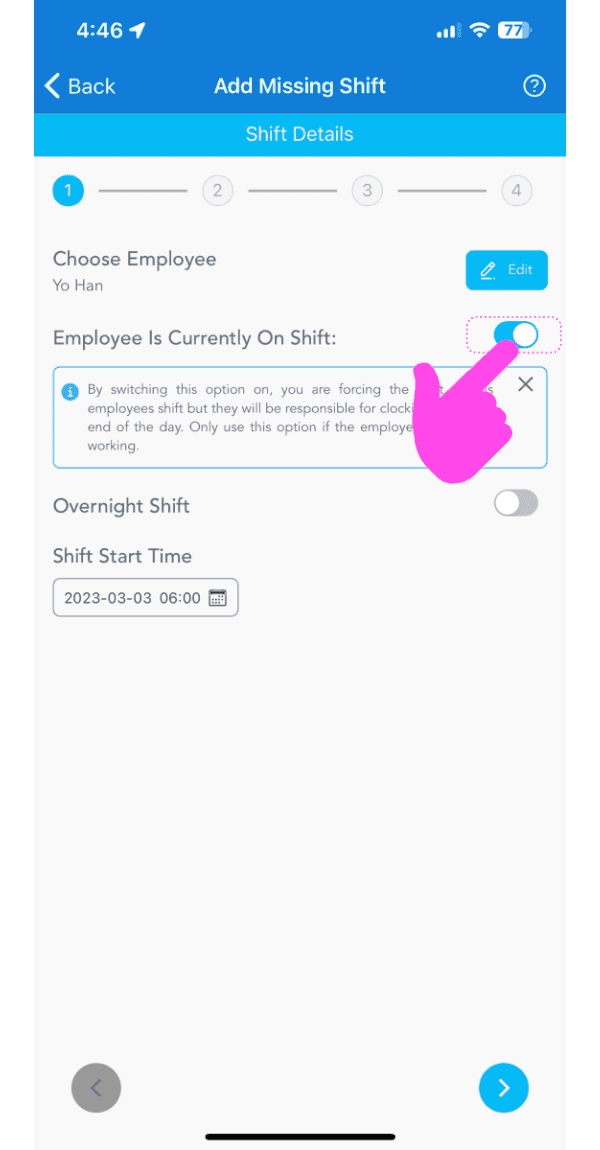
Add Missing Shift screen with the Employee Is Currently On Shift toggle highlighted by a pink arrow

Add any breaks they were eligible for: based on the organization's break settings a default time will be preselected. If the employee didn't take the respective break, tap No Break. To change the break start time tap the time picker, and to change break duration tap the duration button.
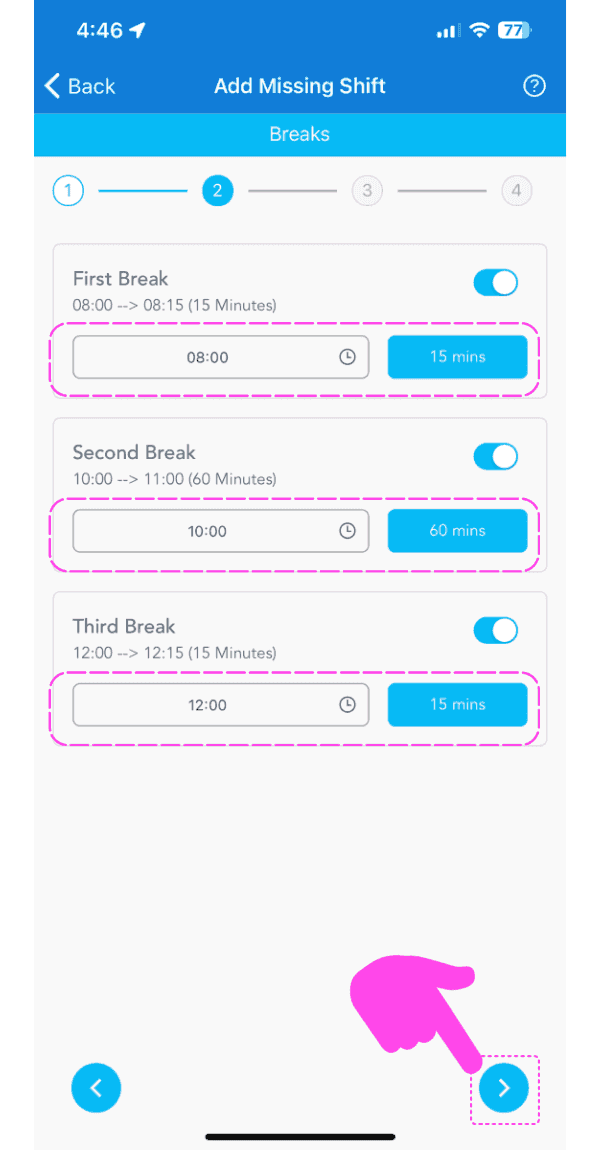
Add Missing Shift Breaks screen showing three break toggles and times highlighted in pink dashed boxes

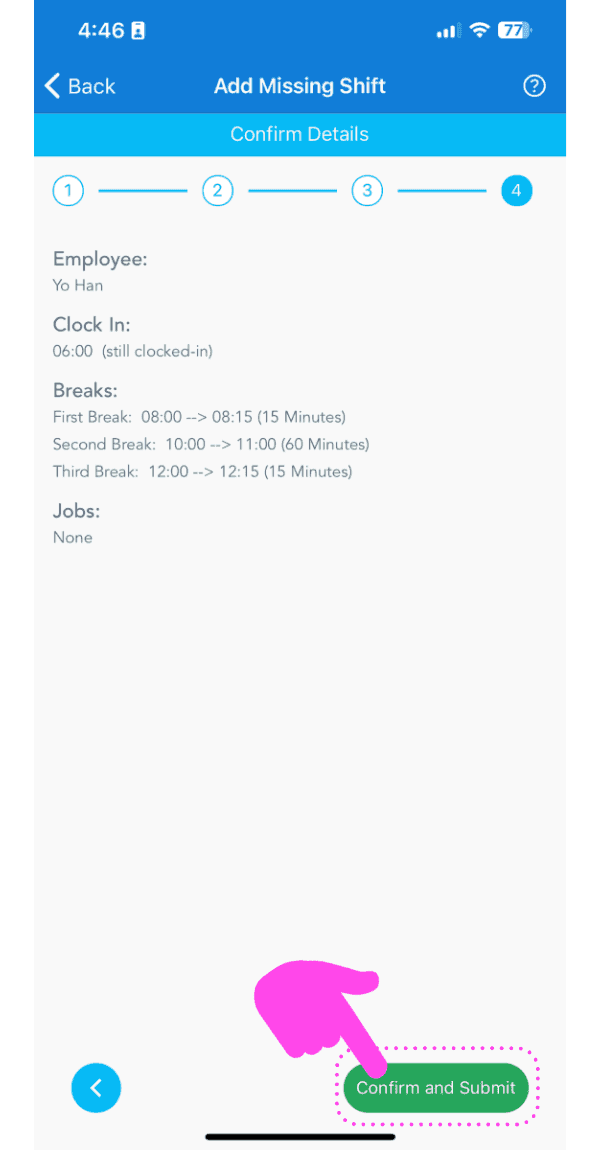
Review the missing shift's details and tap on Confirm
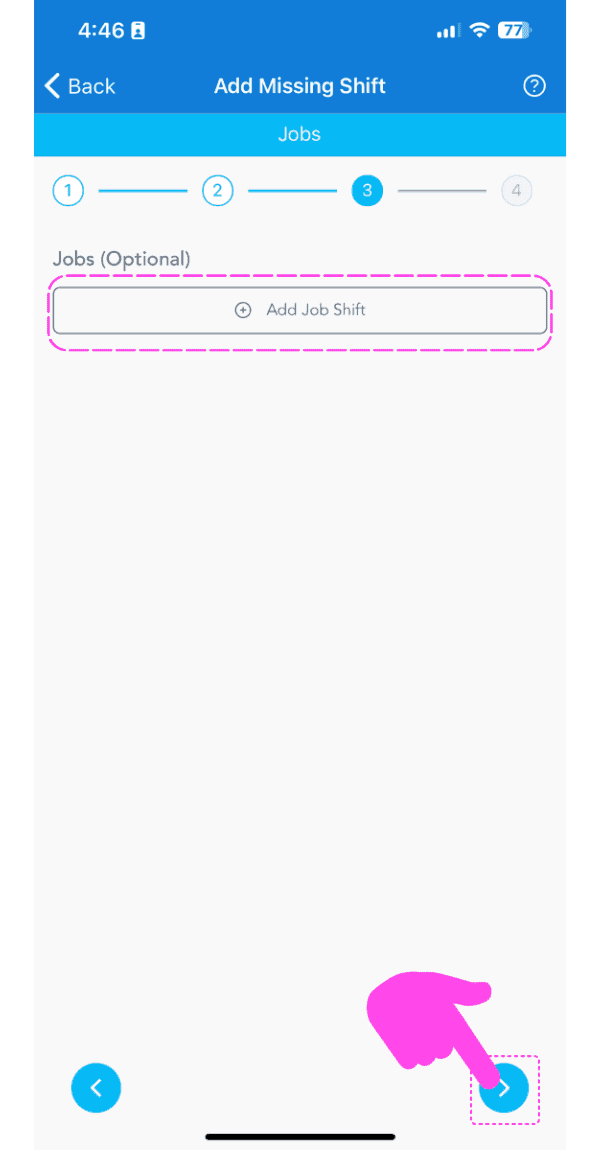
SINC mobile Add Missing Shift wizard on the optional Jobs step, with a pink hand pointing to the next arrow button
Add Missing Shift Confirm Details screen with the Confirm and Submit button highlighted by a pink arrow

If you are using the web version it will look like this:
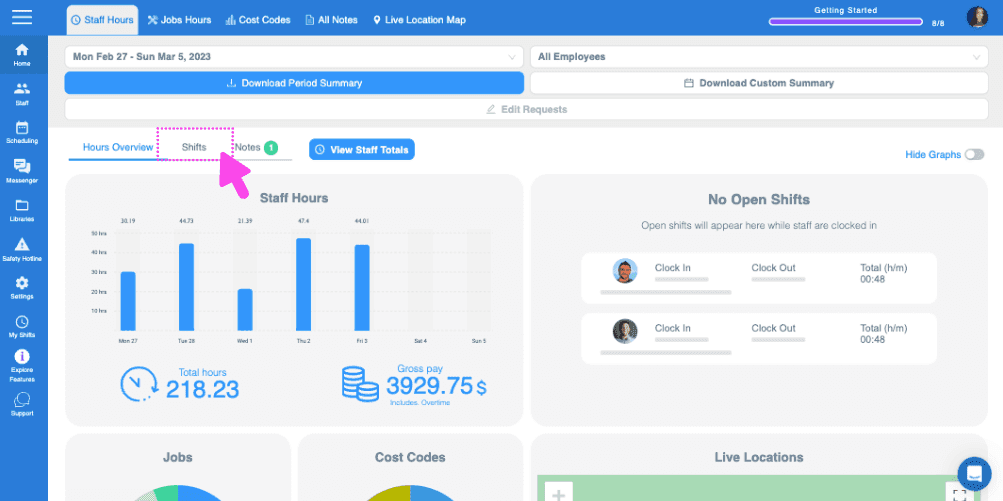
SINC web timekeeping dashboard with the Hours Overview tab highlighted above the staff hours graph
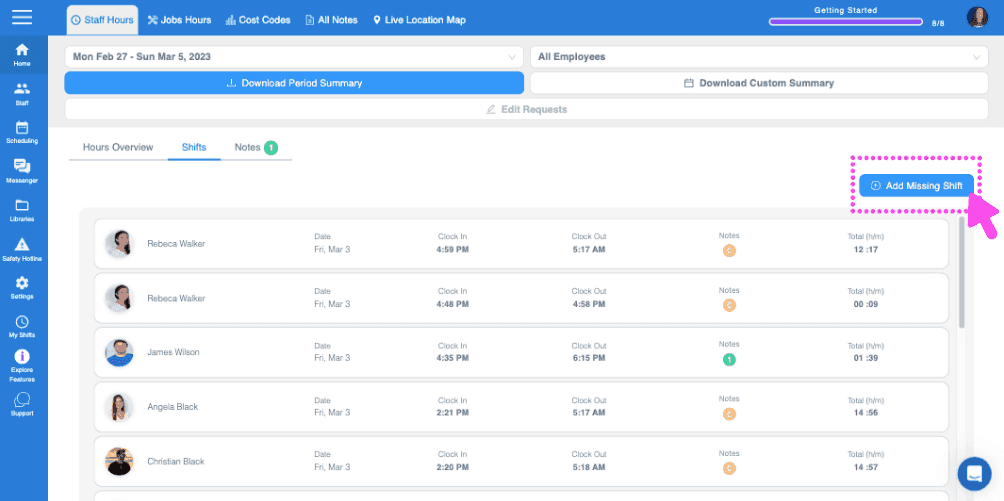
Web dashboard Shifts tab with a pink arrow pointing to the Add Missing Shift button in the top right
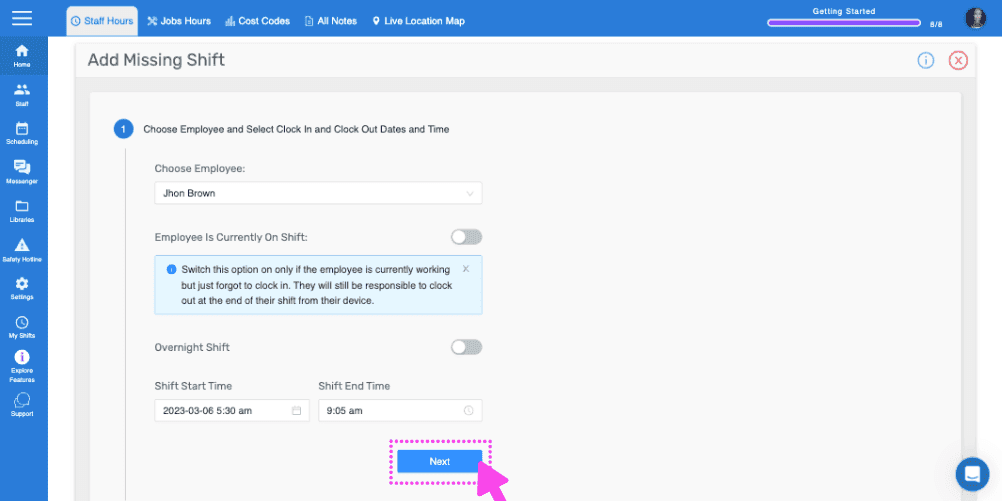
SINC web Add Missing Shift wizard with the Choose Employee field and the Next button highlighted
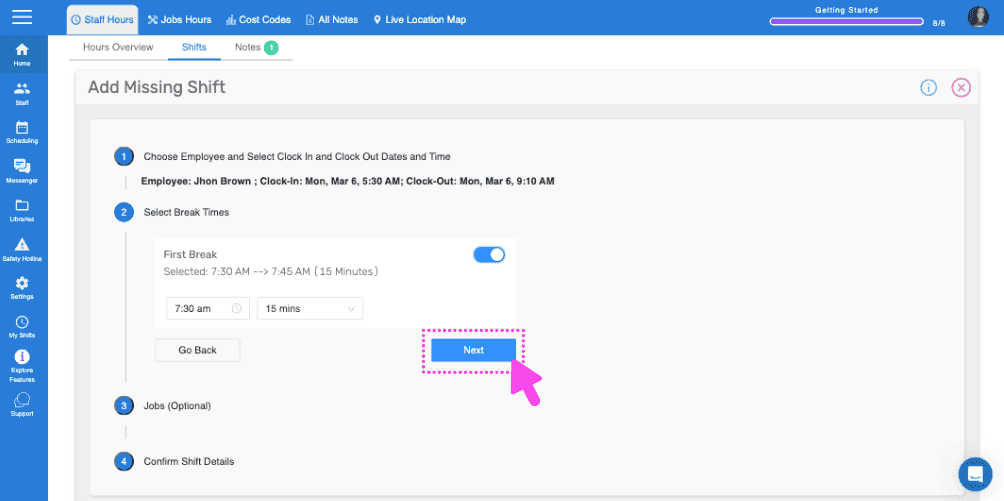
Web Add Missing Shift wizard showing break time selection with the Next button outlined in pink
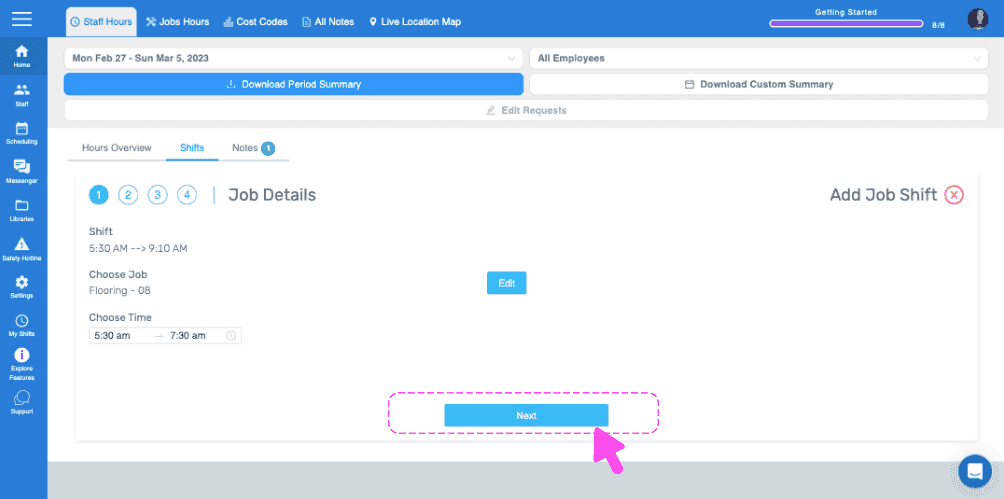
SINC web Job Details wizard showing the chosen job and time with a pink arrow pointing to the Next button
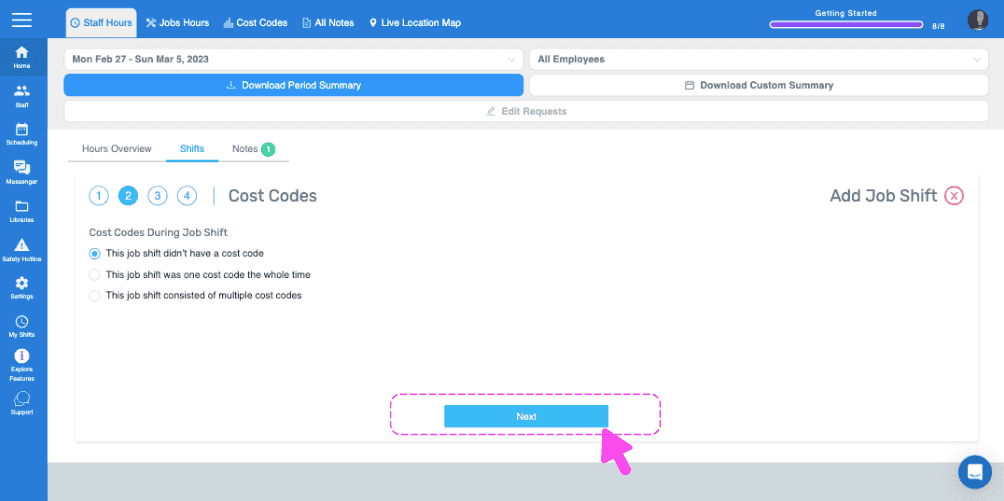
Add Job Shift wizard Cost Codes step with a pink arrow pointing to the Next button
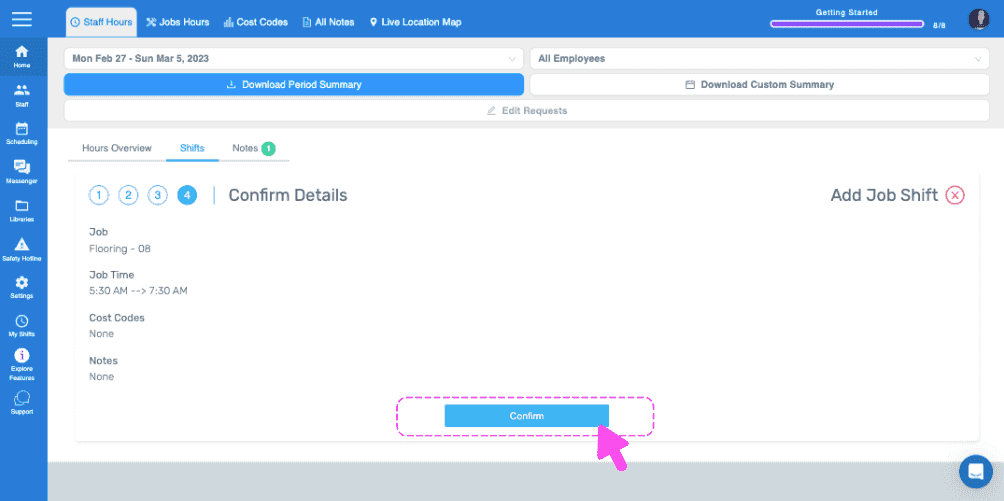
Web Confirm Details step for a job shift with the Confirm button circled in pink
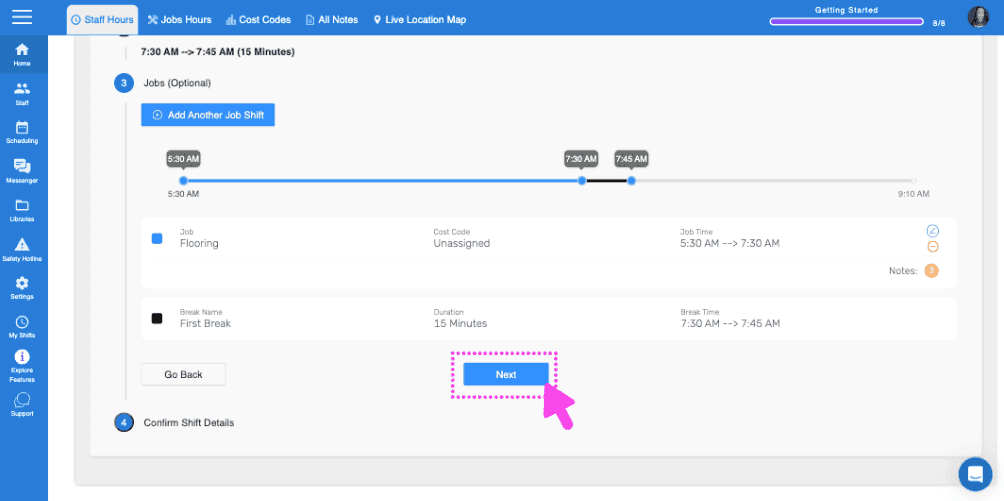
SINC web Add Job Shift wizard with a pink arrow pointing to the Next button on the shift timeline step
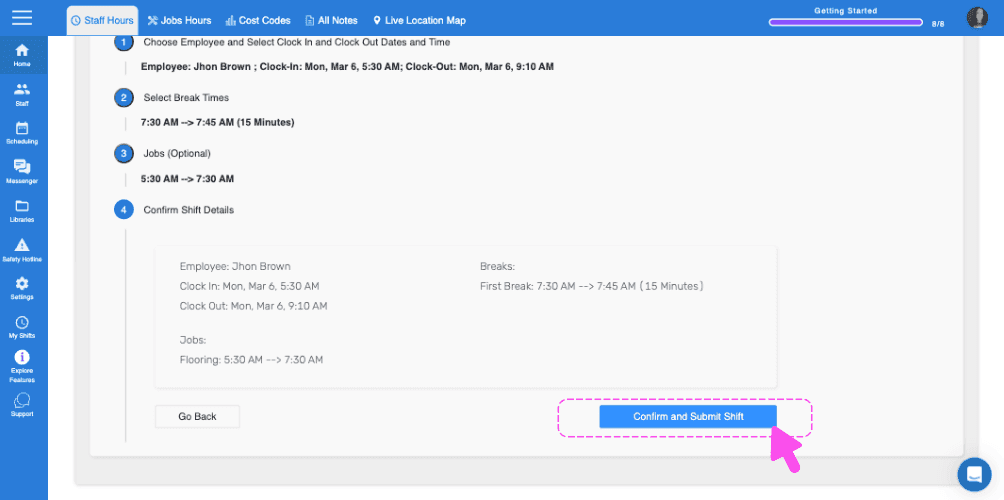
SINC web Add Missing Shift wizard Confirm Shift Details step with a pink arrow pointing to the Confirm and Submit Shift button
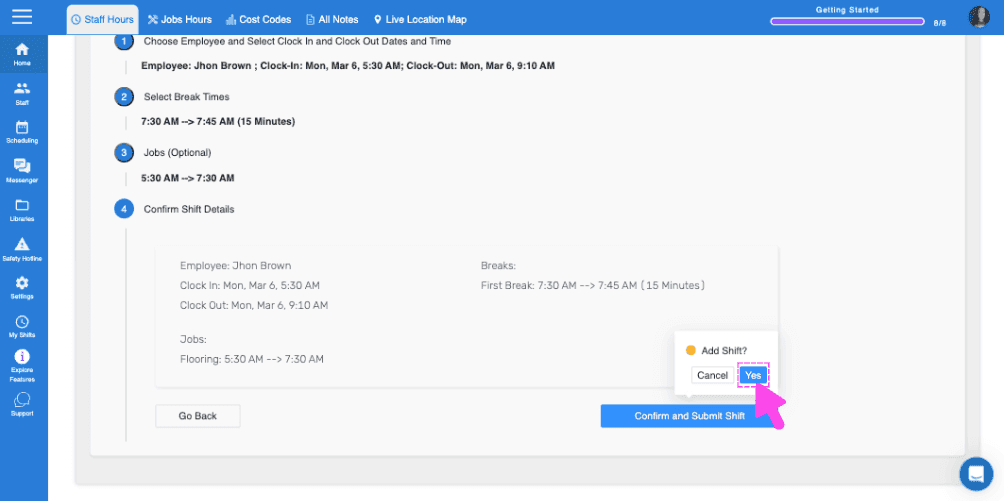
Web add-shift confirmation screen showing shift and break details with a pink arrow pointing to the Yes button

Did this answer your question?