
New Employee's Shifts Not Showing Up? They Might Have Made Their Own Organization By Mistake..
Sometimes an employee will end up making their own organization instead of joining the one they were invited to. Here is what to do

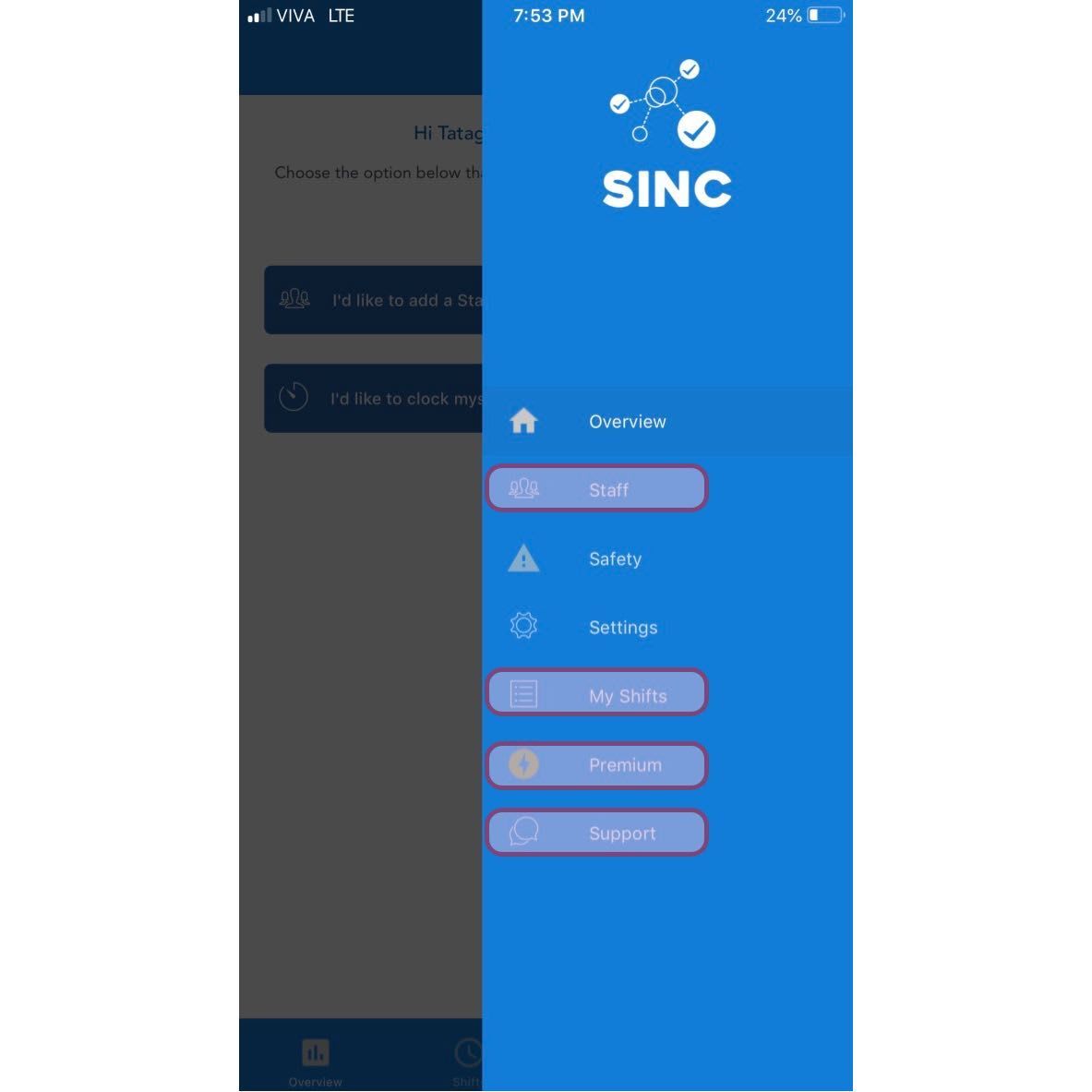
To check if this has happened, have the employee show you their app. If their menu shows any of the highlighted options then they have made their own organization and we need to add them manually from our end.
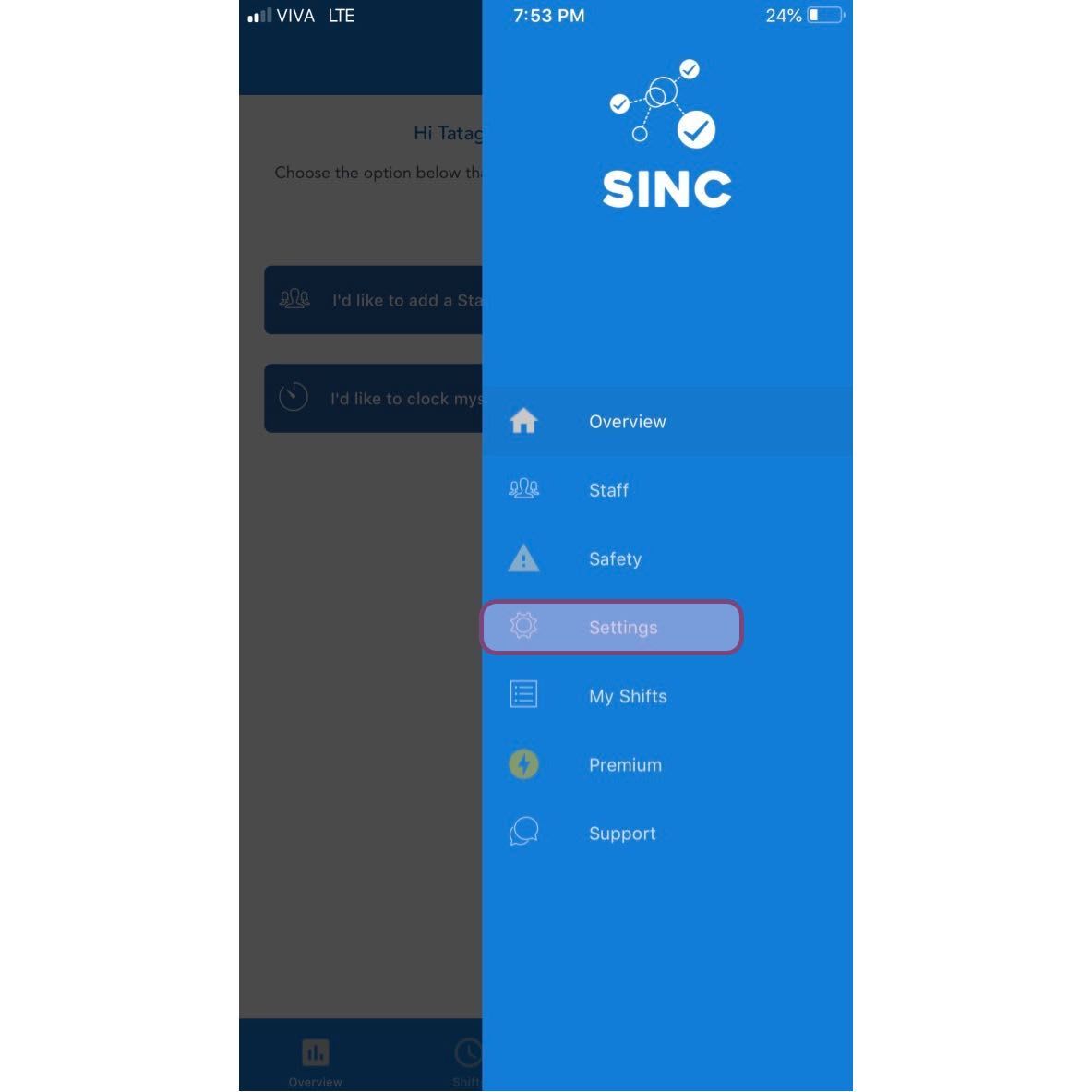
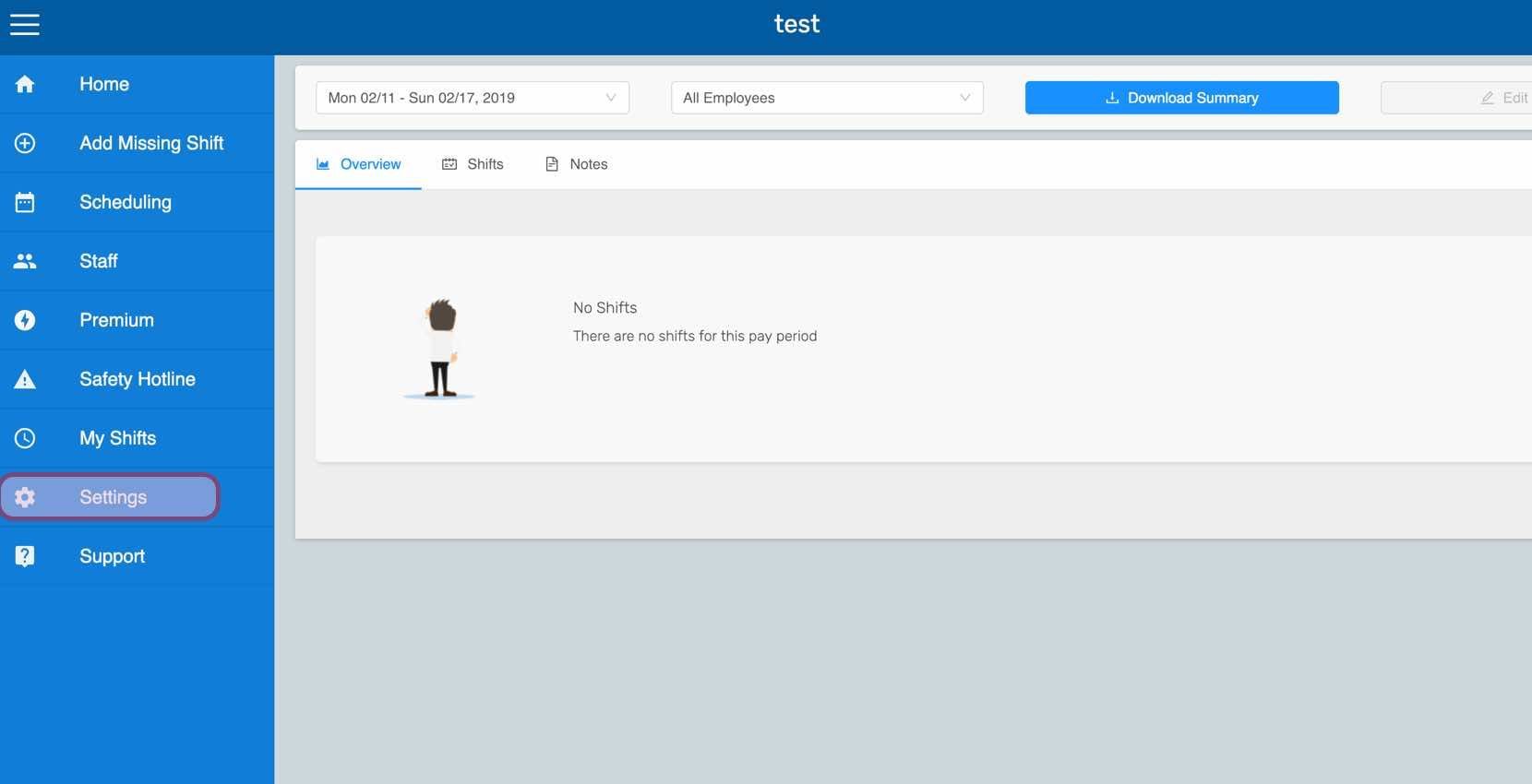
Have them Tap on Settings
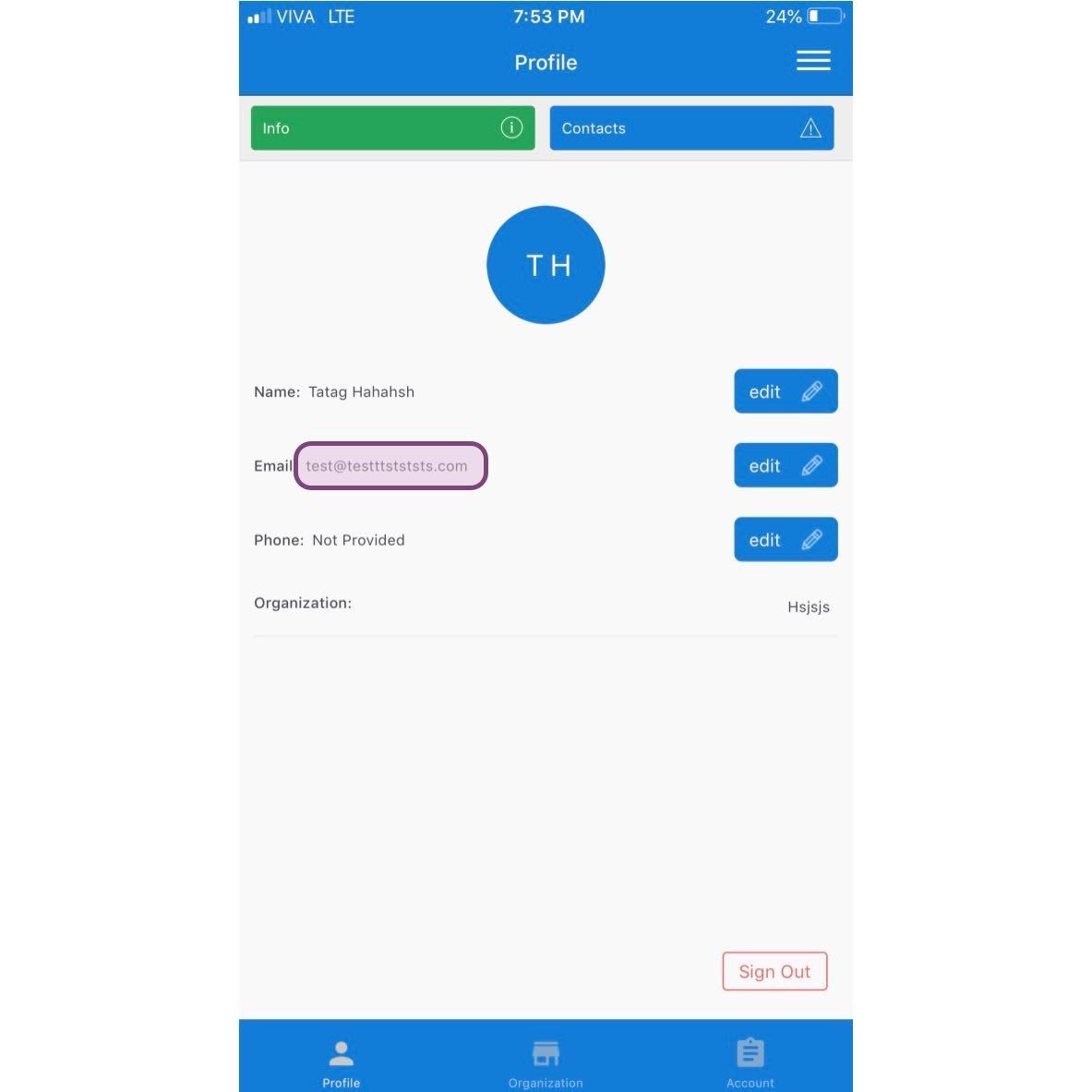
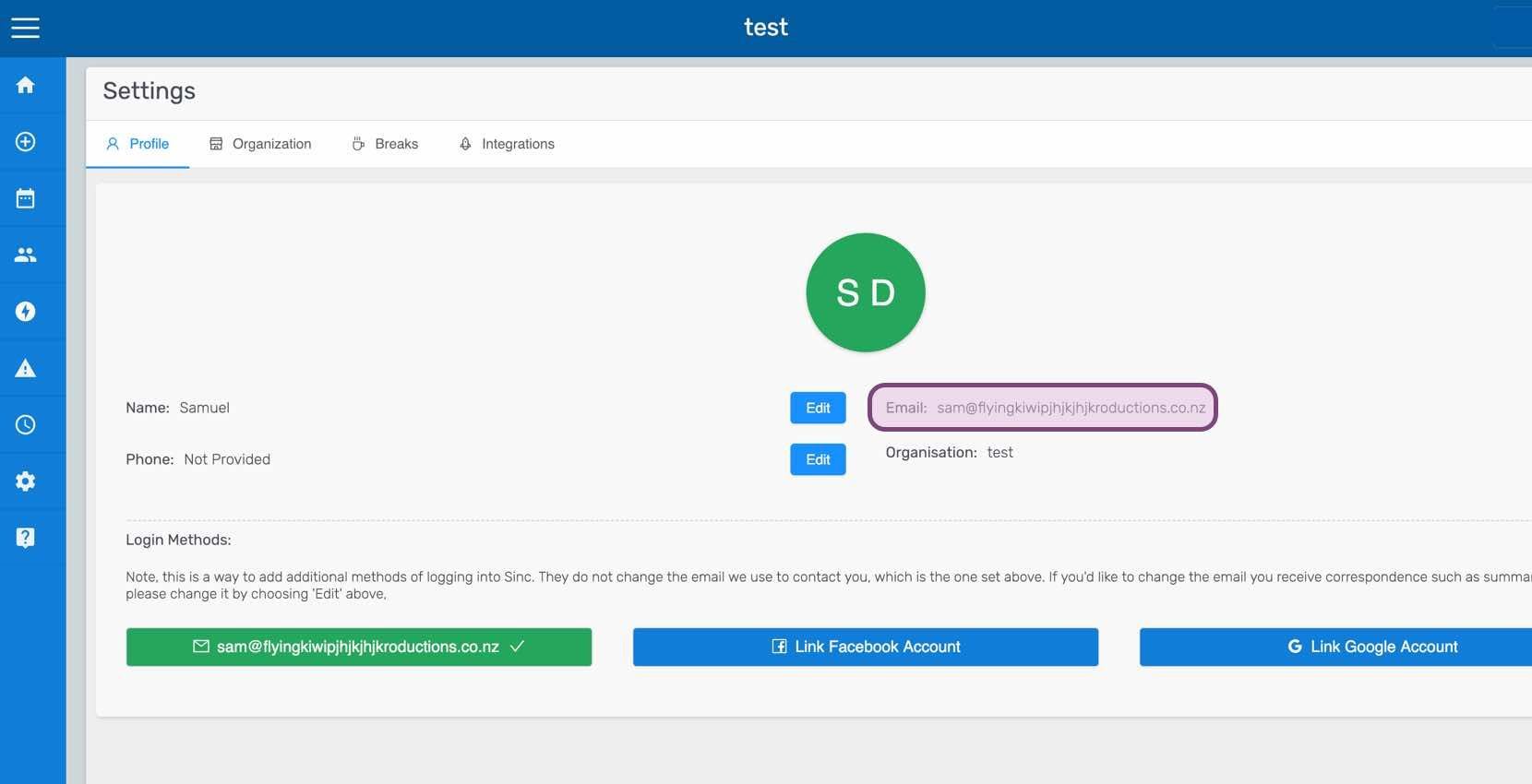
Take note of the email in the email field and send us a message through the live chat icon down the bottom right of the screen or by going to Menu Support Chat With Us, explaining that this has happened. Let us know the email that is showing on the employee's settings page and the name of the correct organization they should be added to and our support staff will add them manually.
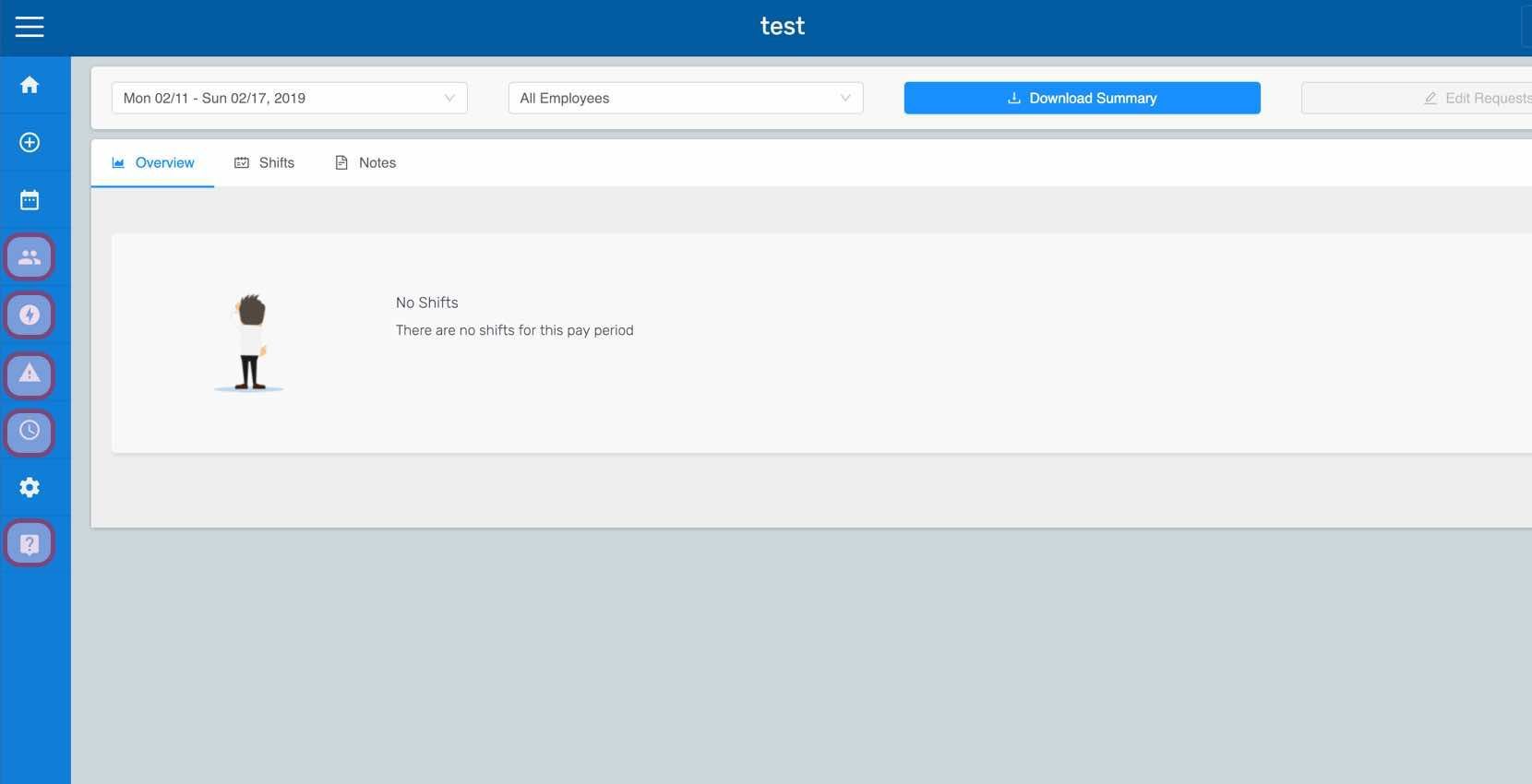
If you are using the web version it will look like this:
Did this answer your question?