Añade notas a tu hoja de horas

En esta guía veremos cómo añadir notas a tus turnos en Sinc.

Sam Dolbel
Sam Dolbel
May 26th, 2023

Hay dos formas de añadir notas a un turno: mientras estás trabajando en él o cuando ya ha finalizado. En la aplicación móvil, para añadir una nota a un turno abierto: pulsa Añadir nota
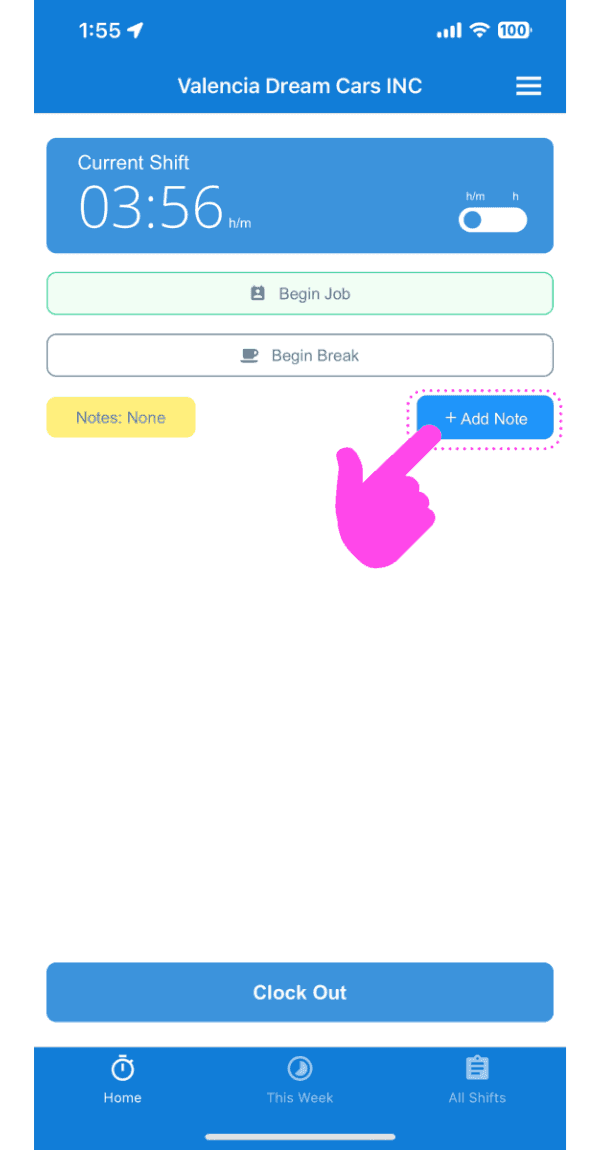
SINC mobile app current shift screen with a pink hand pointing to the Add Note button

Introduce una descripción de la nota.
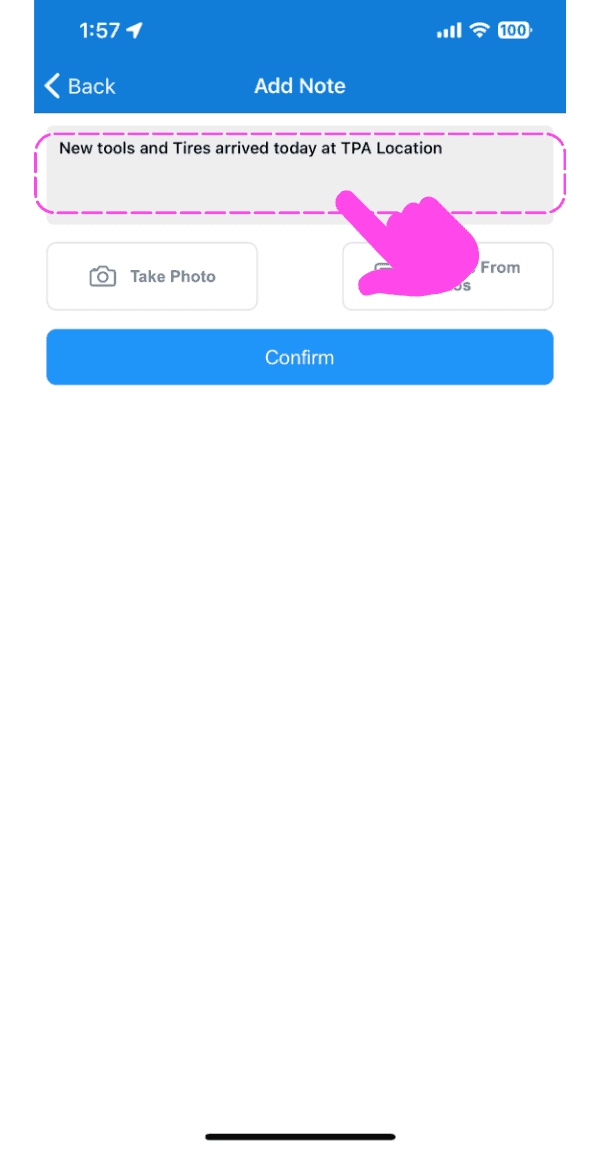
Add Note screen with a text field containing a note, pointed out by a pink arrow

Sube una imagen relacionada con la nota si lo deseas.
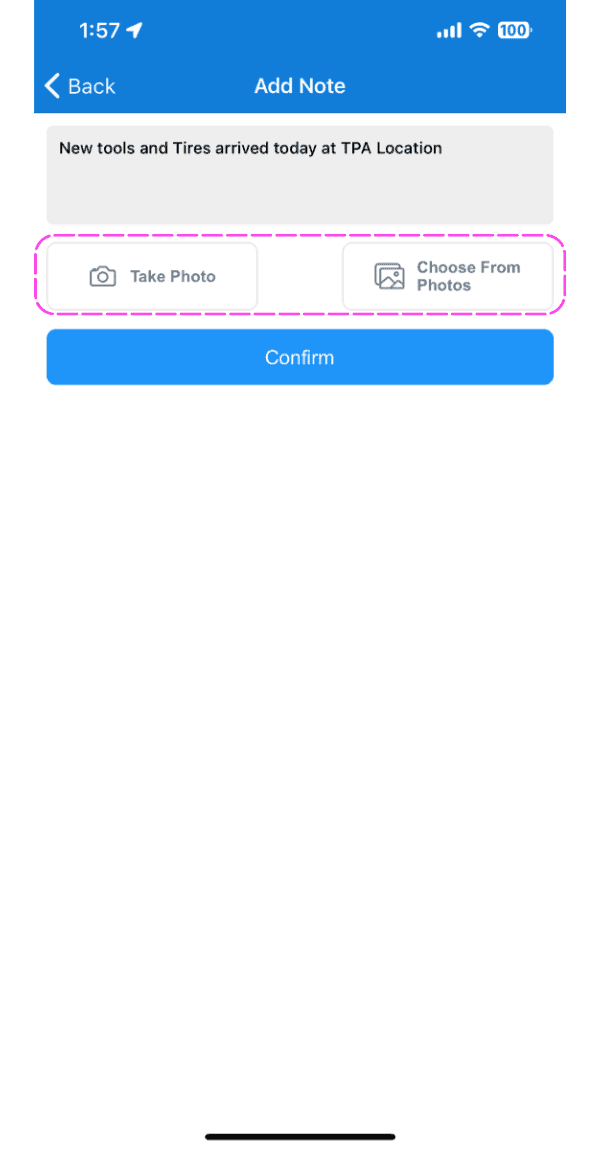
Add Note screen with Take Photo and Choose From Photos buttons highlighted by a pink dashed box

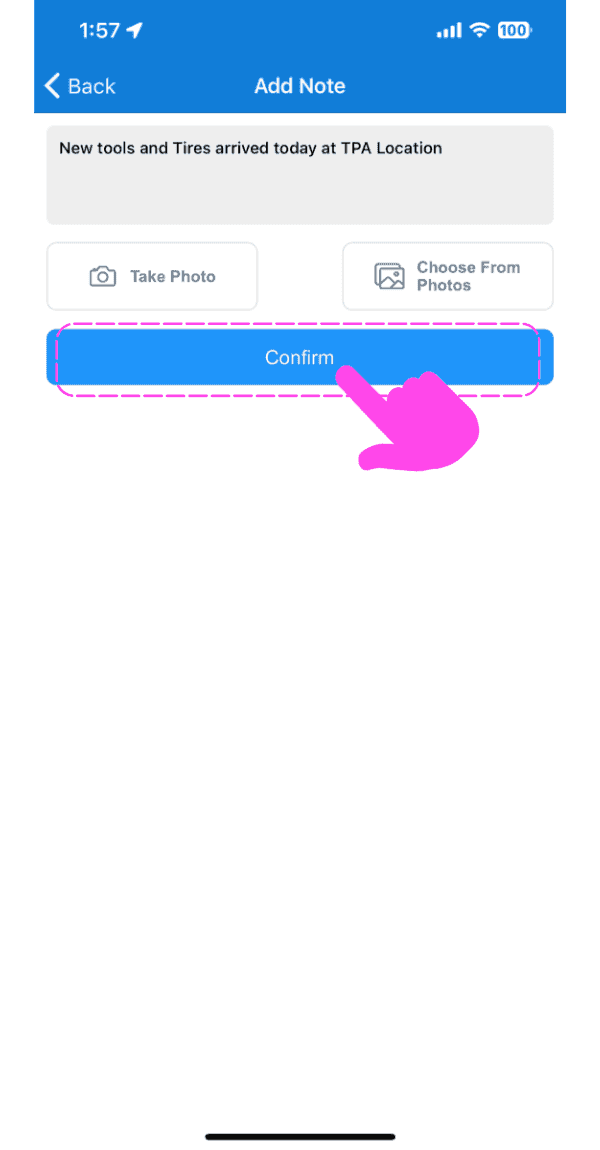
Toca Confirmar

SINC mobile Add Note screen with a pink hand pointing to the Confirm button

Para añadir una nota a un turno anterior: toca Menú Mis turnos
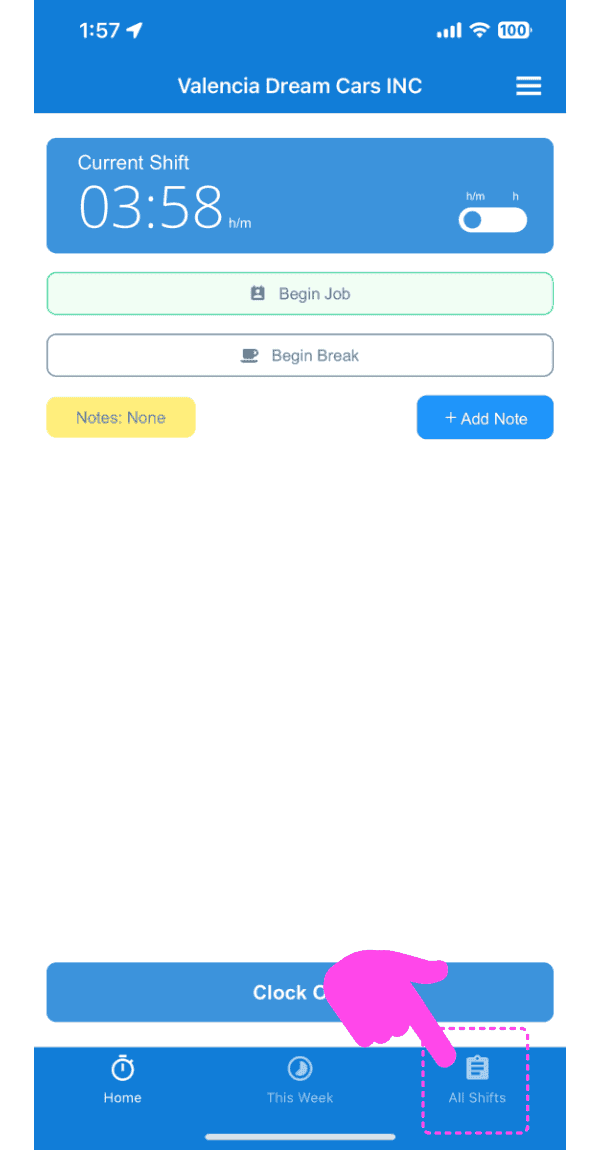
Mobile app Current Shift screen with the All Shifts tab highlighted by a pink arrow

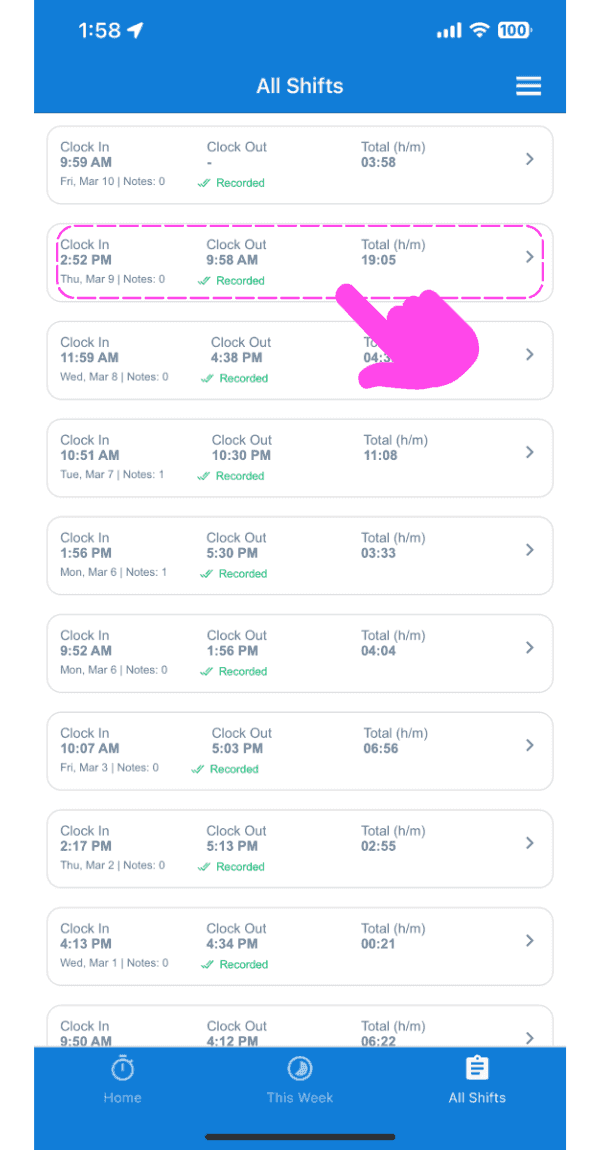
Toca El cambio en cuestión

SINC mobile All Shifts list with a pink arrow pointing to a highlighted shift entry

En la pestaña Información, toca Añadir nota
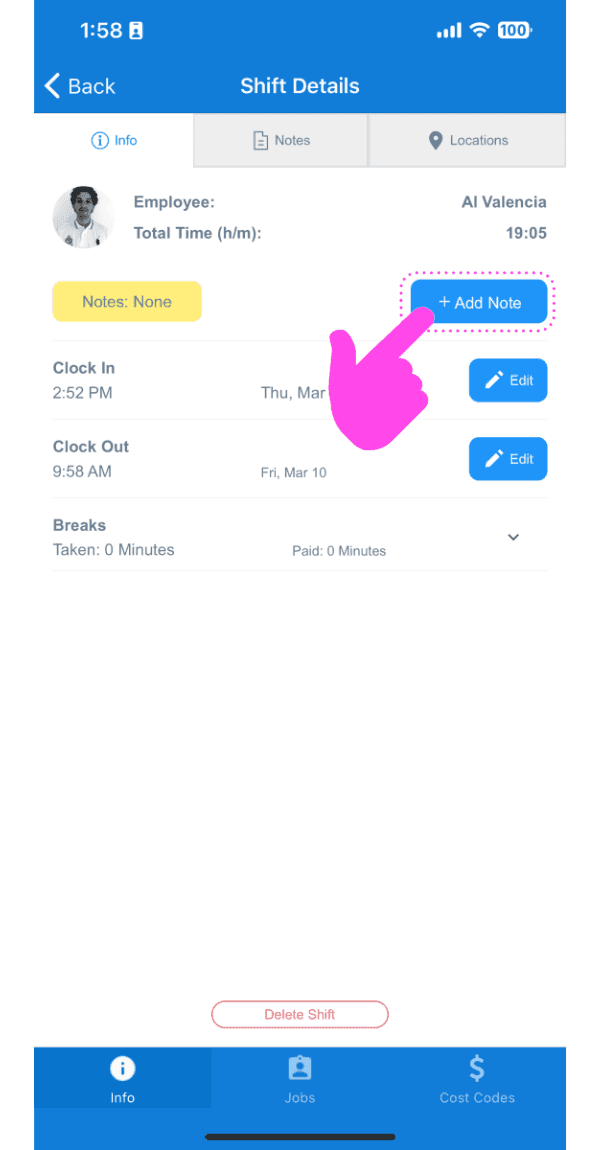
Shift Details Info tab with a pink arrow pointing to the Add Note button

Introduce una descripción de la nota.
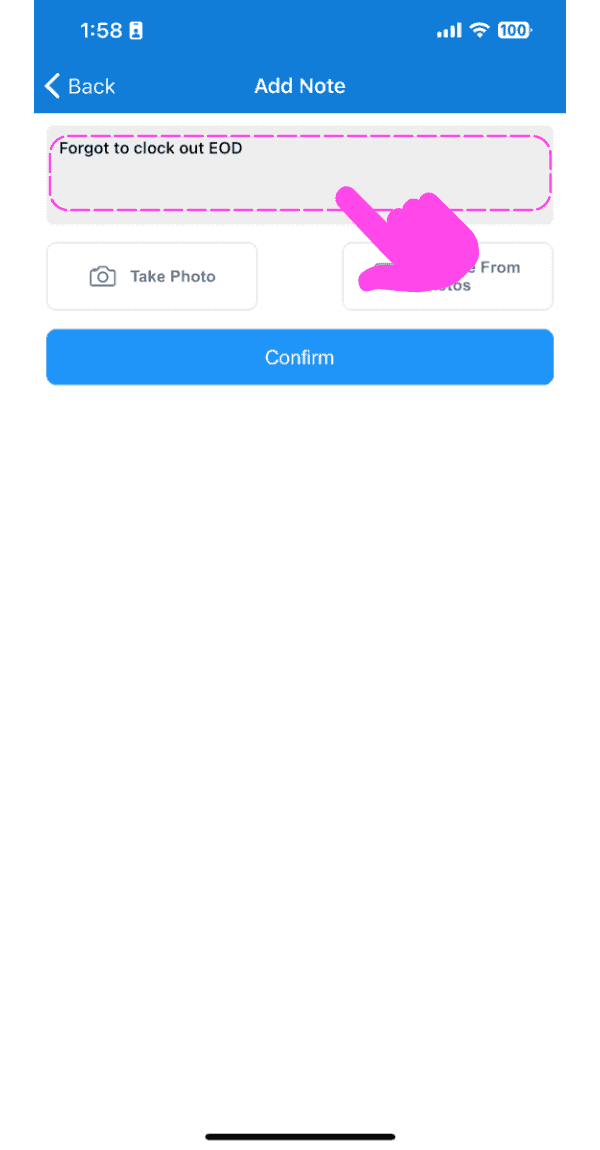
SINC mobile Add Note screen for a time sheet with a description entered and the Confirm button below

Sube una imagen relacionada con la nota si lo deseas.
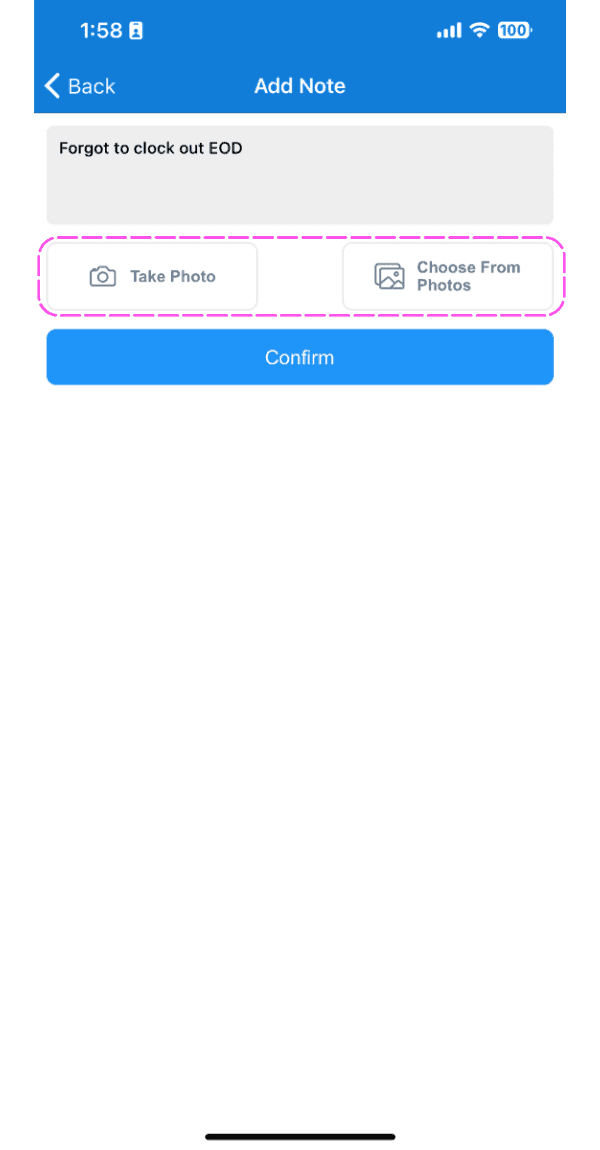
Mobile Add Note screen for a timesheet note with photo upload options outlined in pink

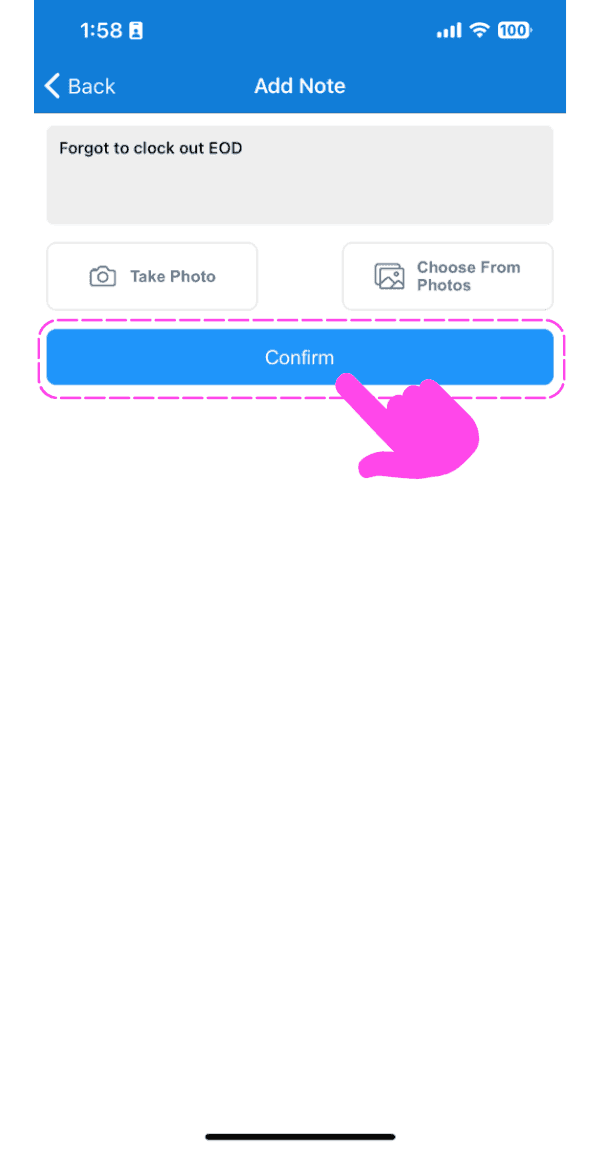
Toca Confirmar

SINC mobile Add Note screen with typed note text and a pink hand pointing to the Confirm button

En la web, para añadir una nota a un turno abierto: haz clic en Añadir nota
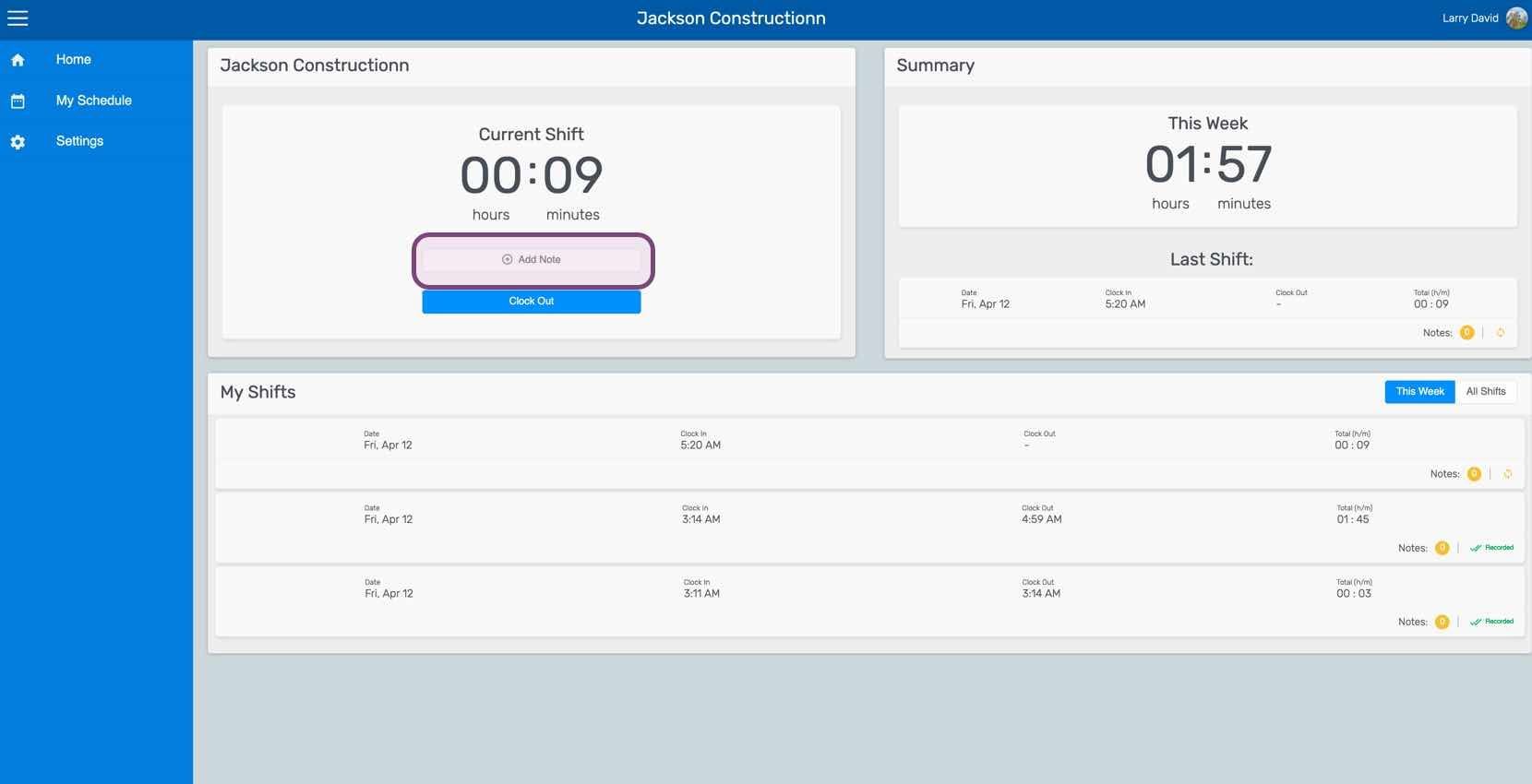
Web dashboard Current Shift panel with the Add Note button highlighted

Introduce una descripción de la nota.
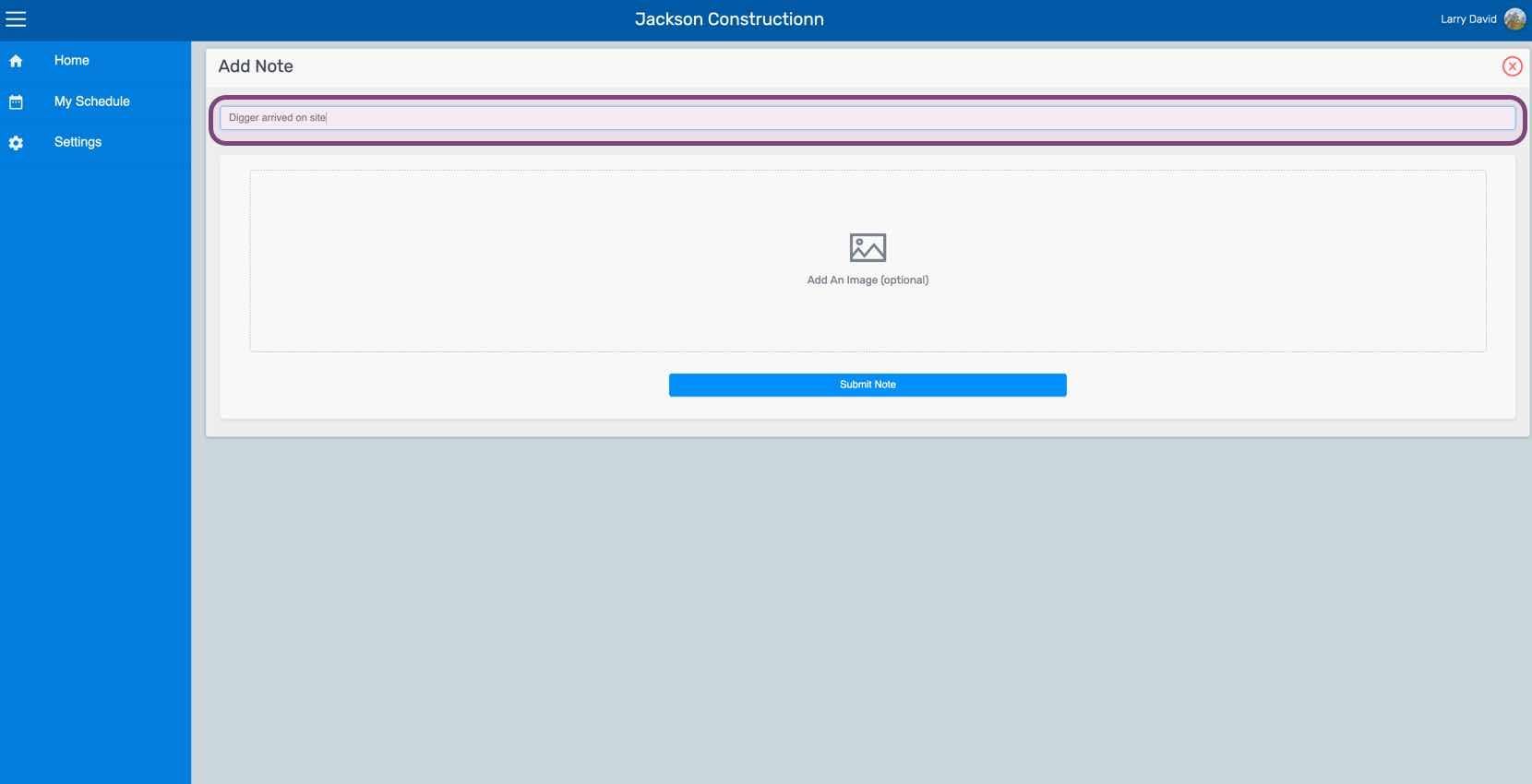
Web Add Note screen with the note text field outlined in purple and an optional image upload area

Si quieres, sube una imagen relacionada con la nota.
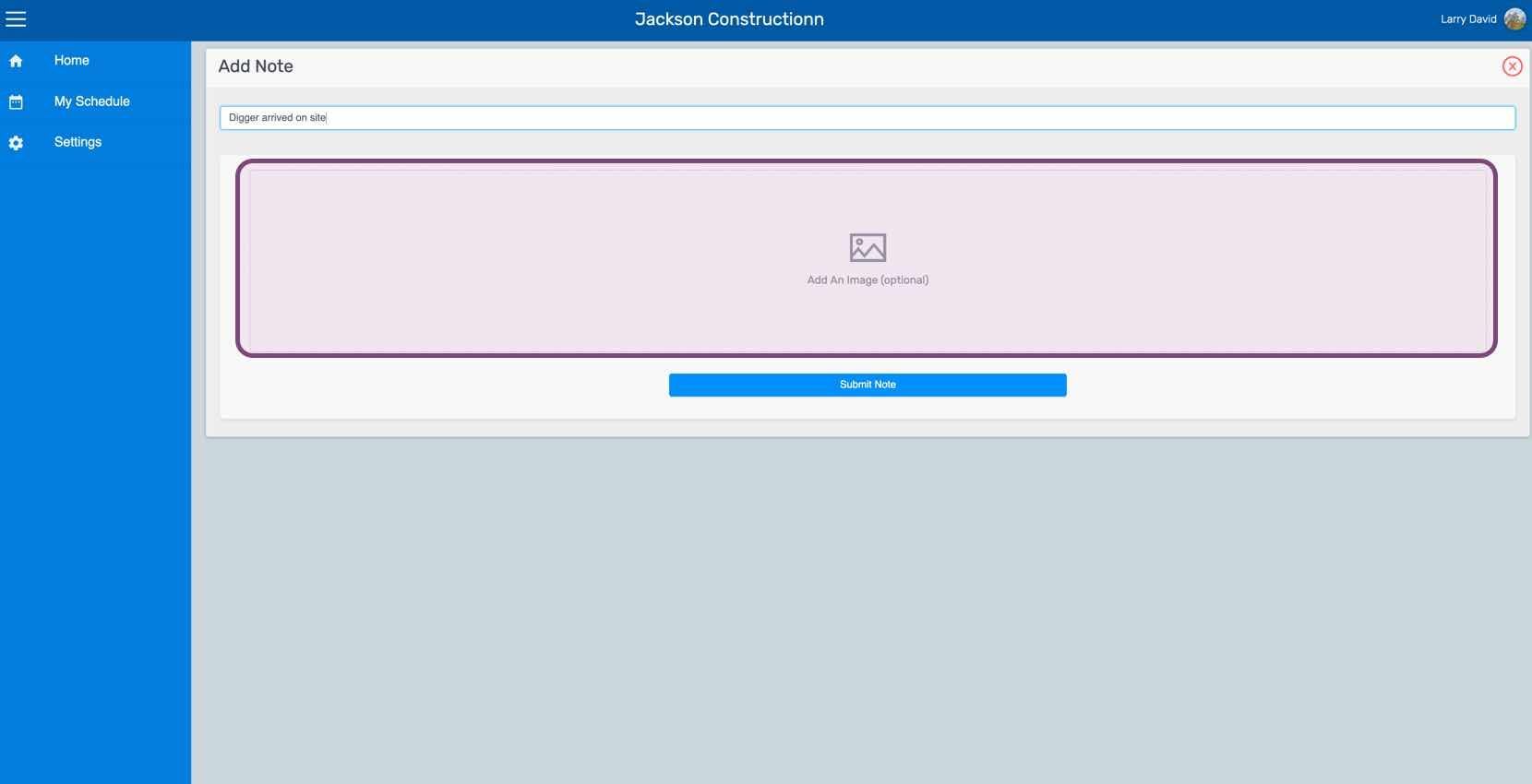
SINC web Add Note screen with the note text field and image upload area outlined

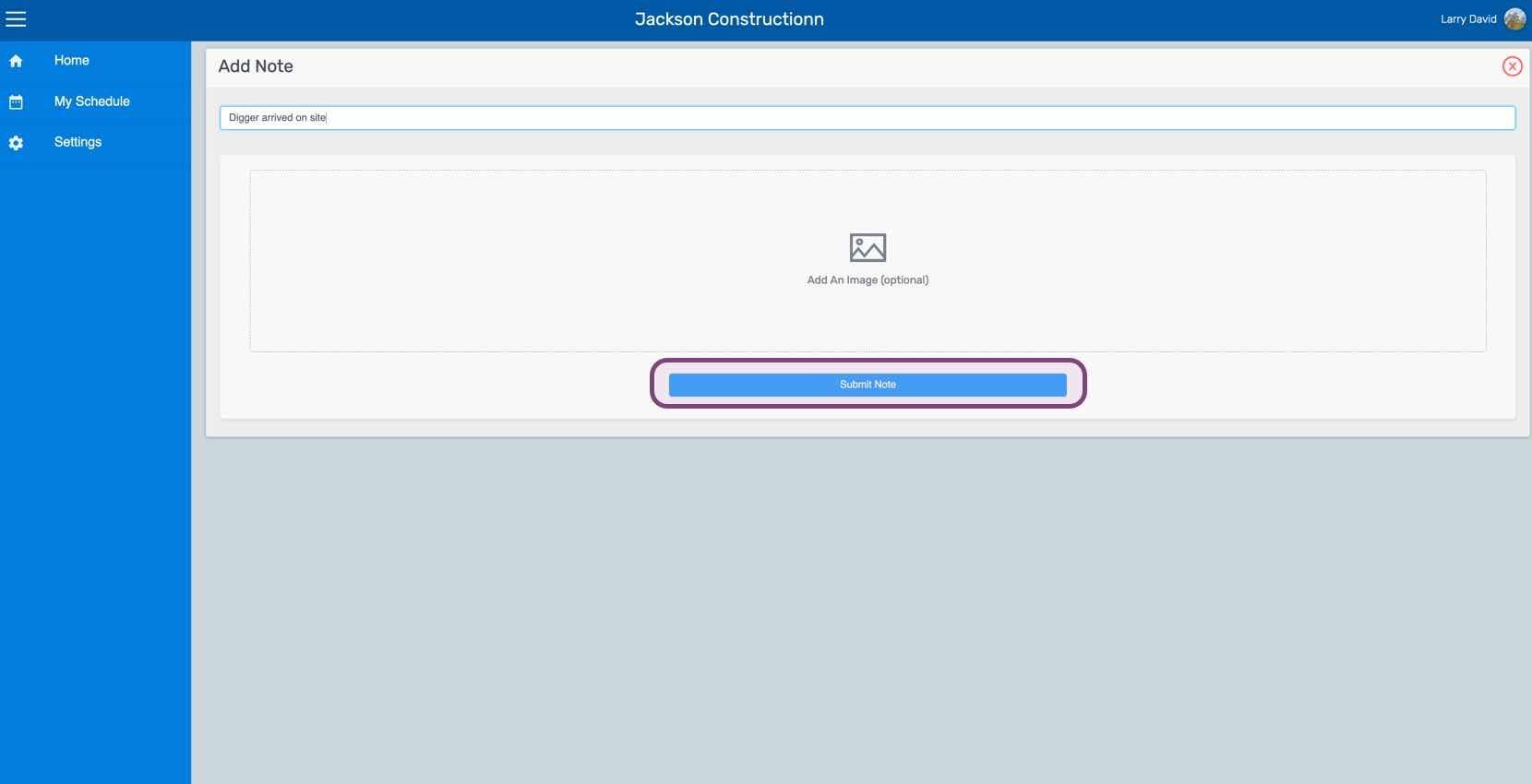
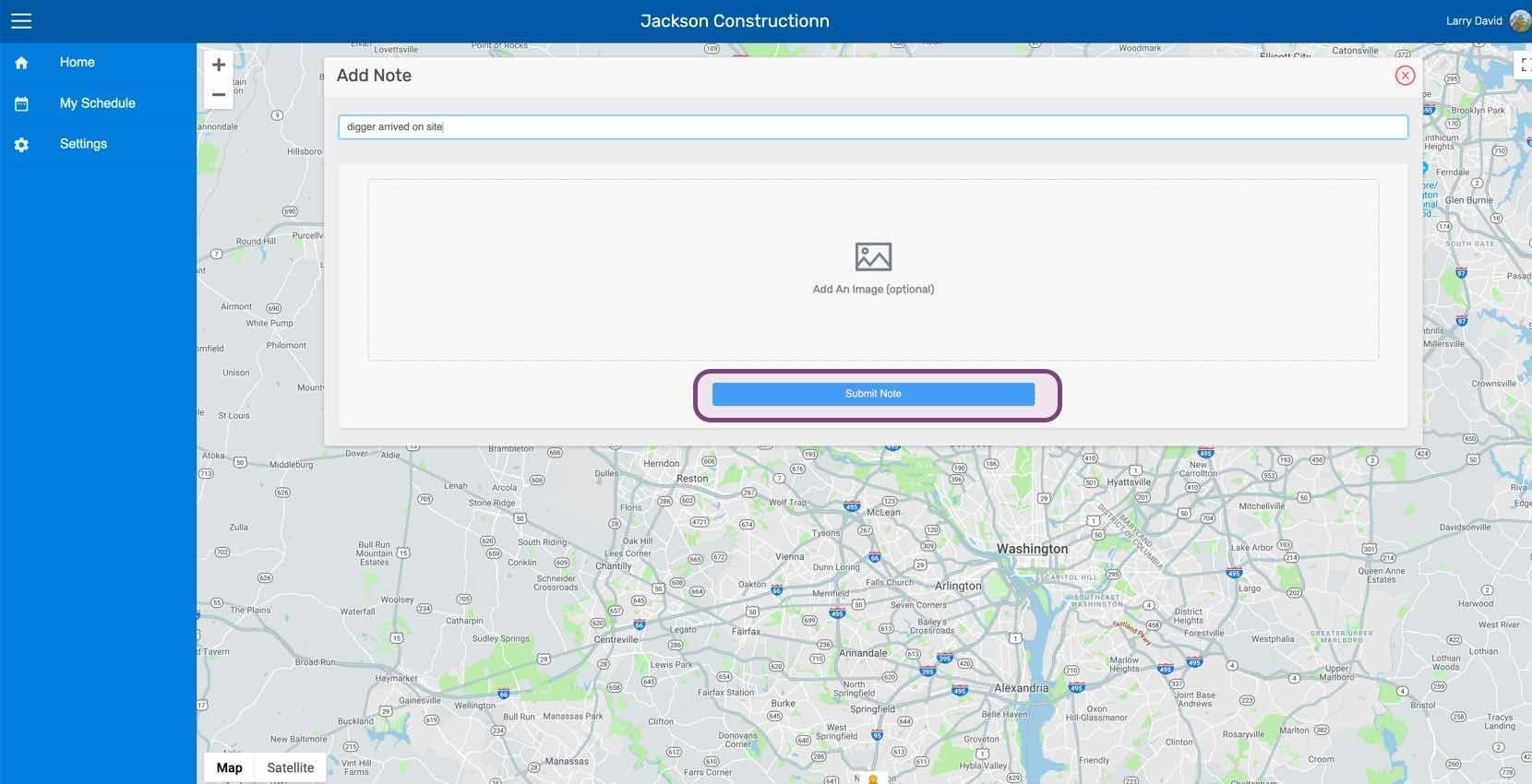
Haz clic en Enviar nota

SINC web Add Note screen with the Submit Note button circled in pink

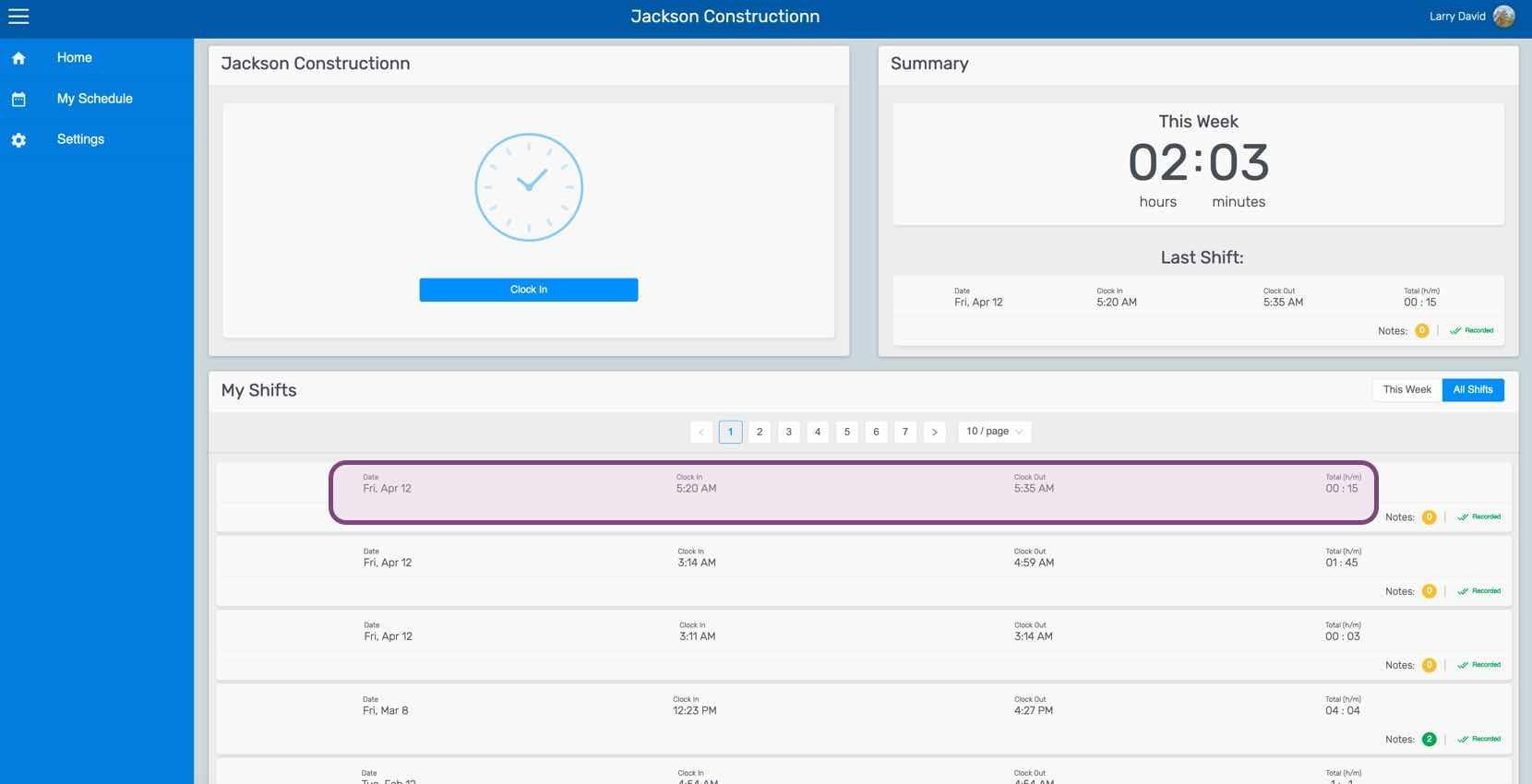
Para añadir una nota a un turno anterior: Haz clic en Mis turnos
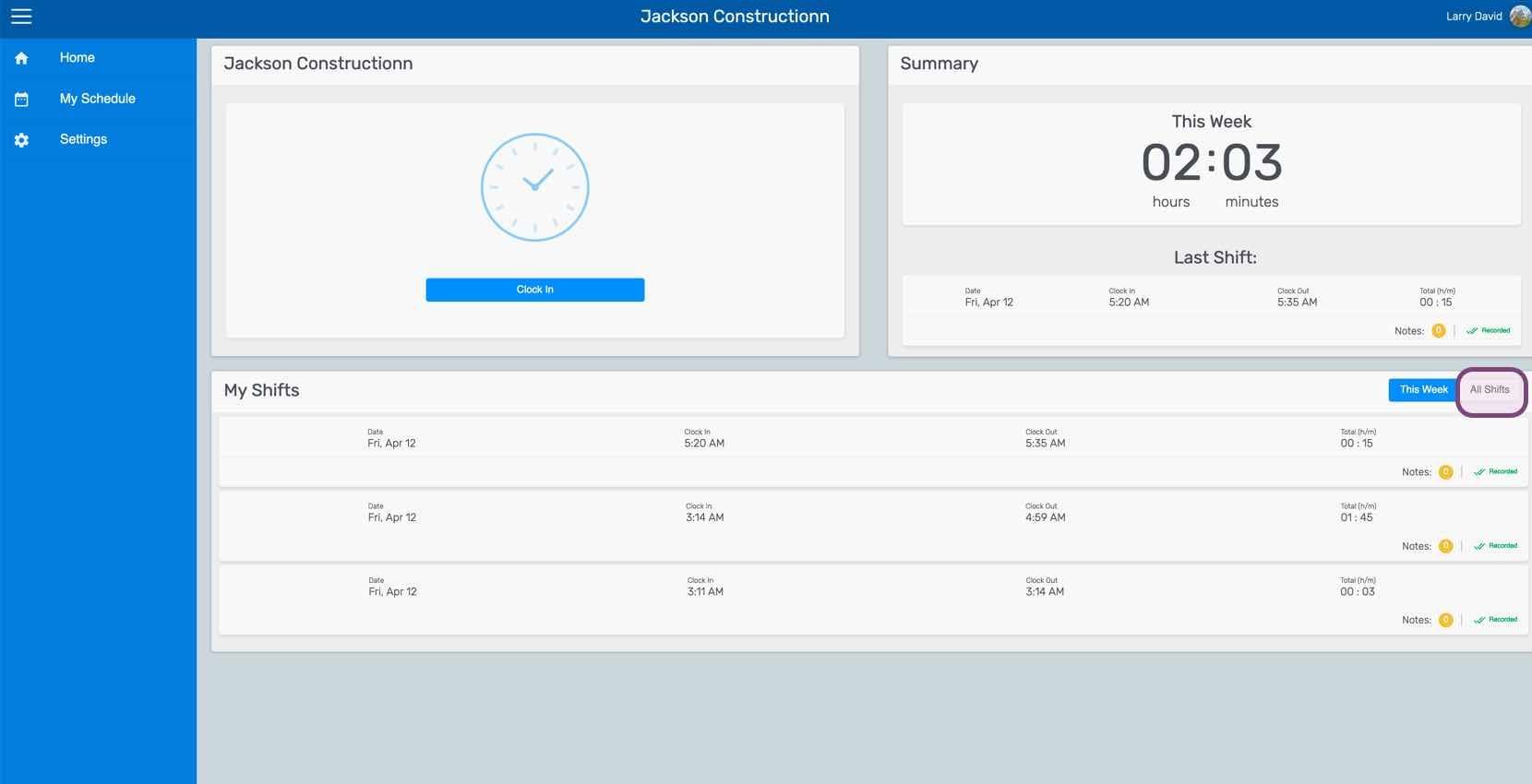
Employee home dashboard showing the Clock In button, weekly summary, and My Shifts list with This Week tab circled

Haz clic en El cambio en cuestión

SINC web My Shifts list with a specific shift row circled in pink

En la pestaña Turno, haz clic en Añadir nota
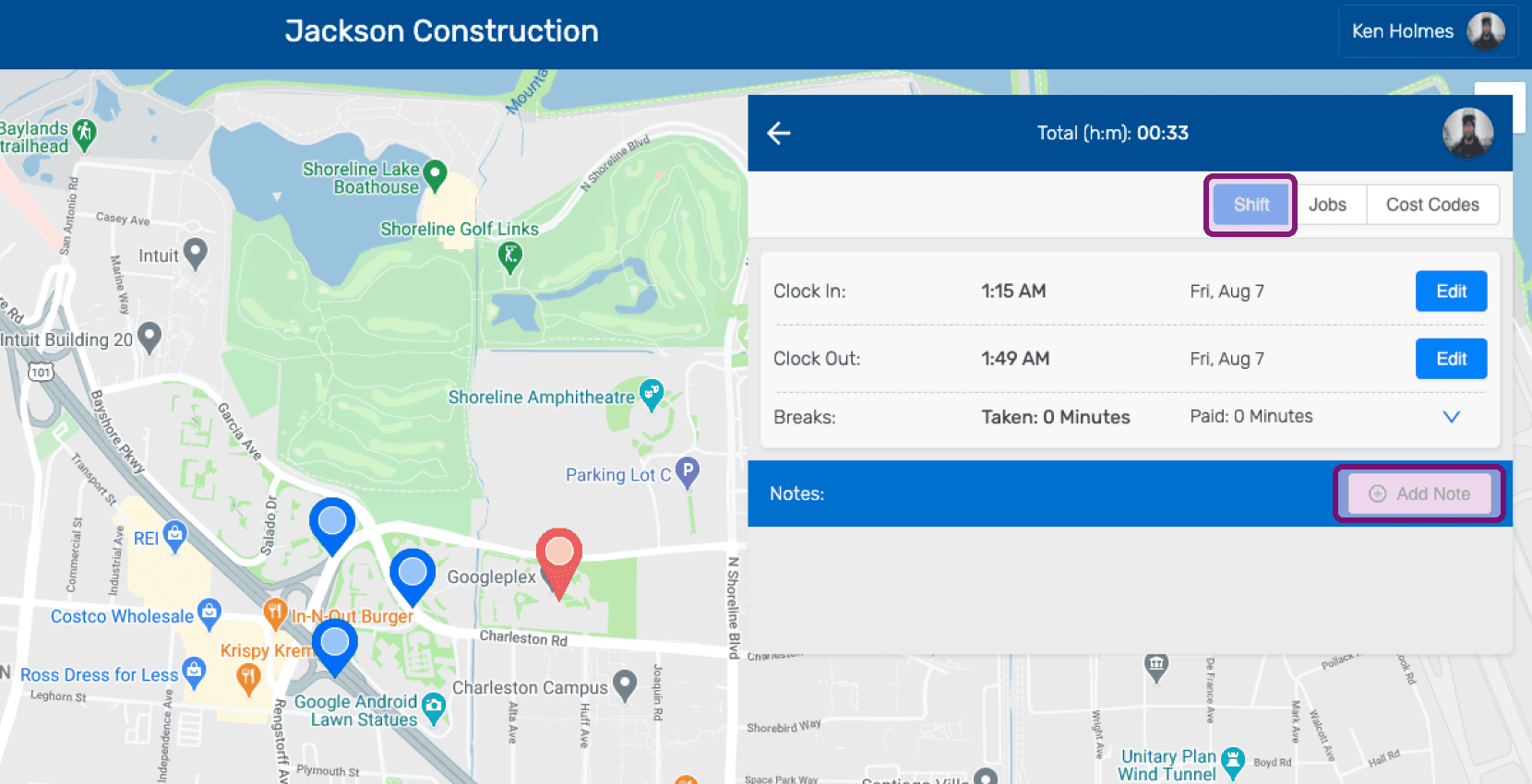
Shift details screen with the Add Note button outlined in pink

Introduce una descripción de la nota.
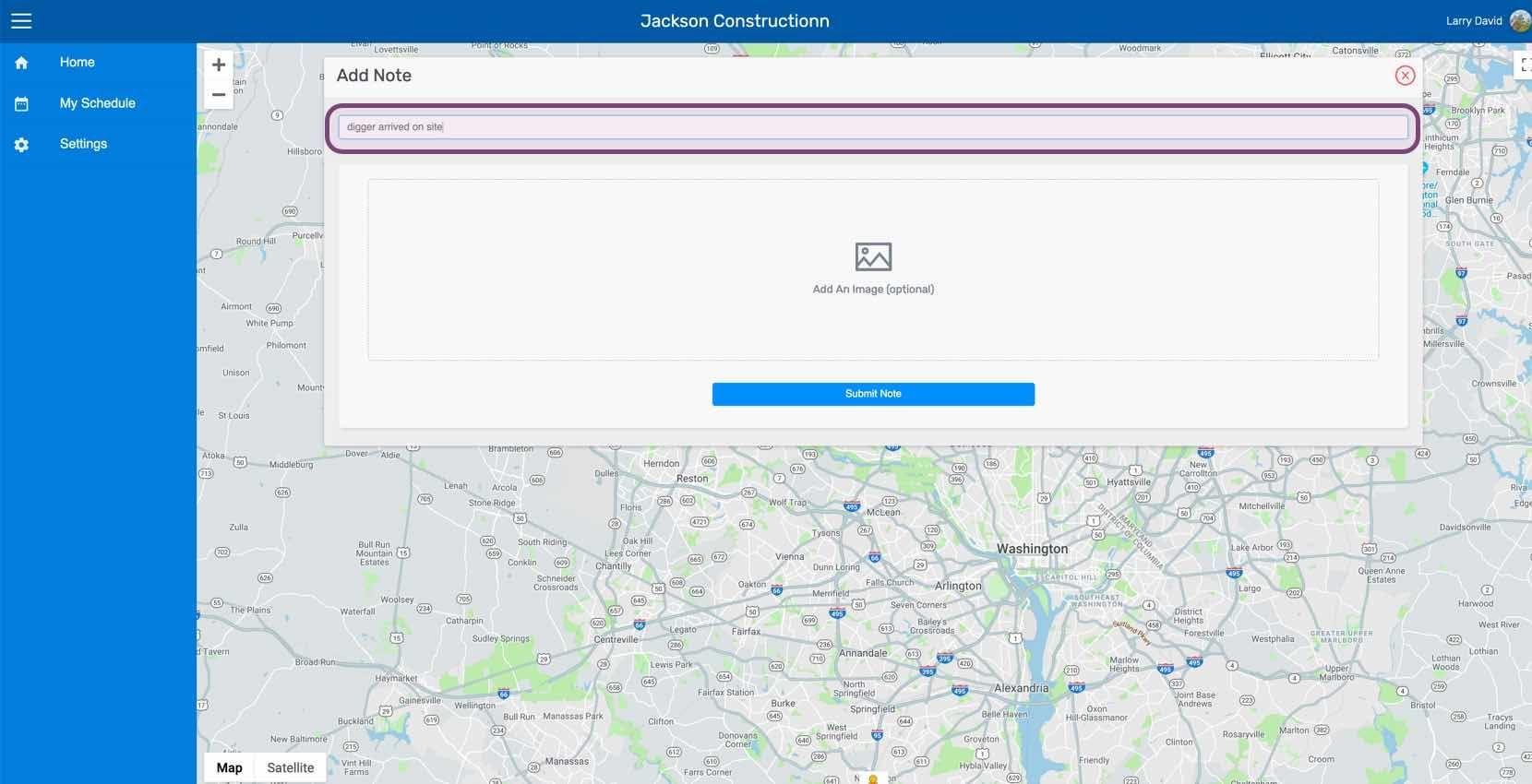
Web Add Note form with the description text field circled and an optional Add An Image area below

Sube una imagen relacionada con la nota si lo deseas.
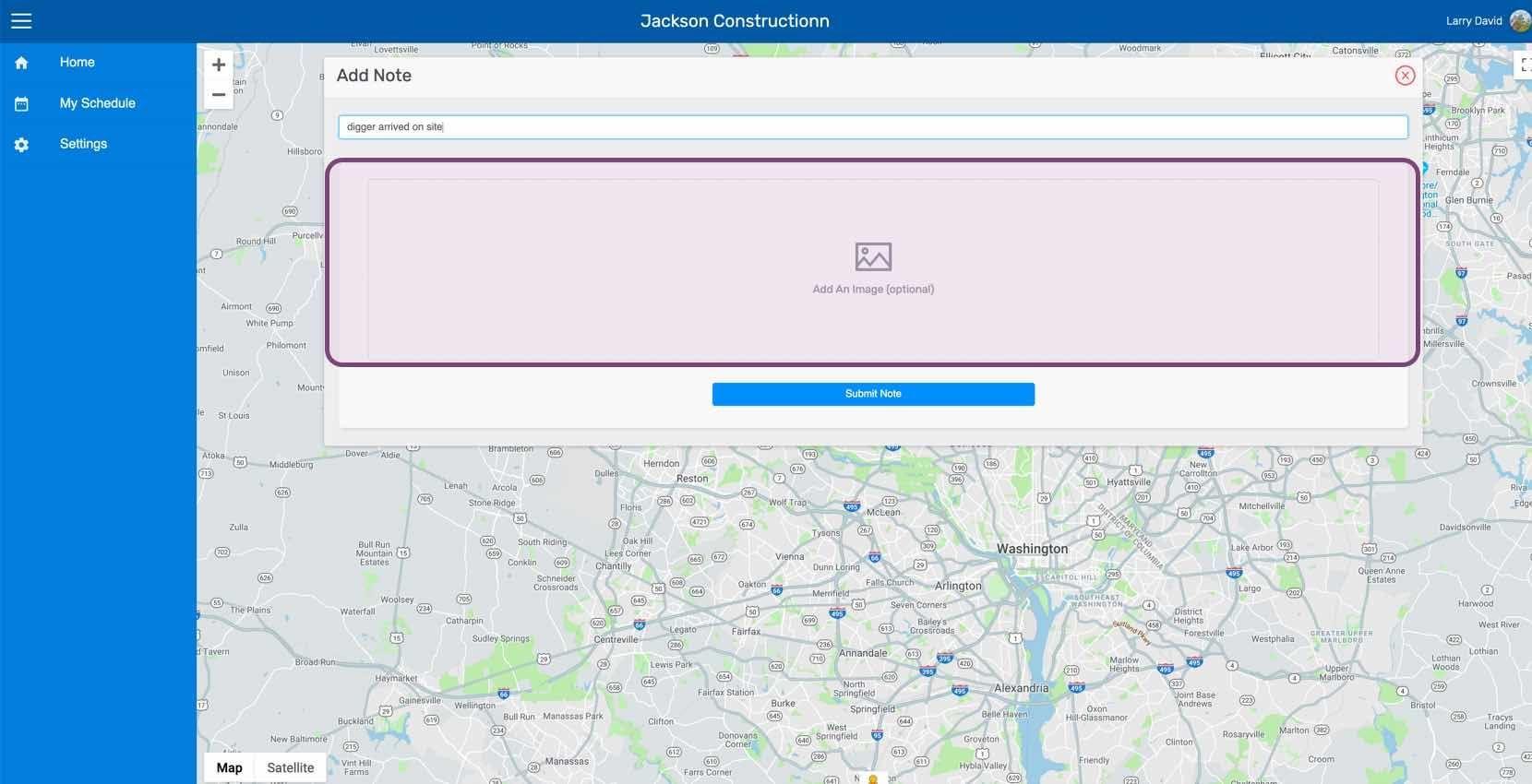
SINC web Add Note screen with the image upload area highlighted above a location map

Haz clic en Enviar nota

Web Add Note screen with a map background and the Submit Note button outlined in pink

¿Esto respondió tu pregunta?