Cómo editar mi foto de perfil

Esta guía explica cómo editar o subir tu foto de perfil como empleado.

SINC Support Team
SINC Support Team
Mar 14th, 2023

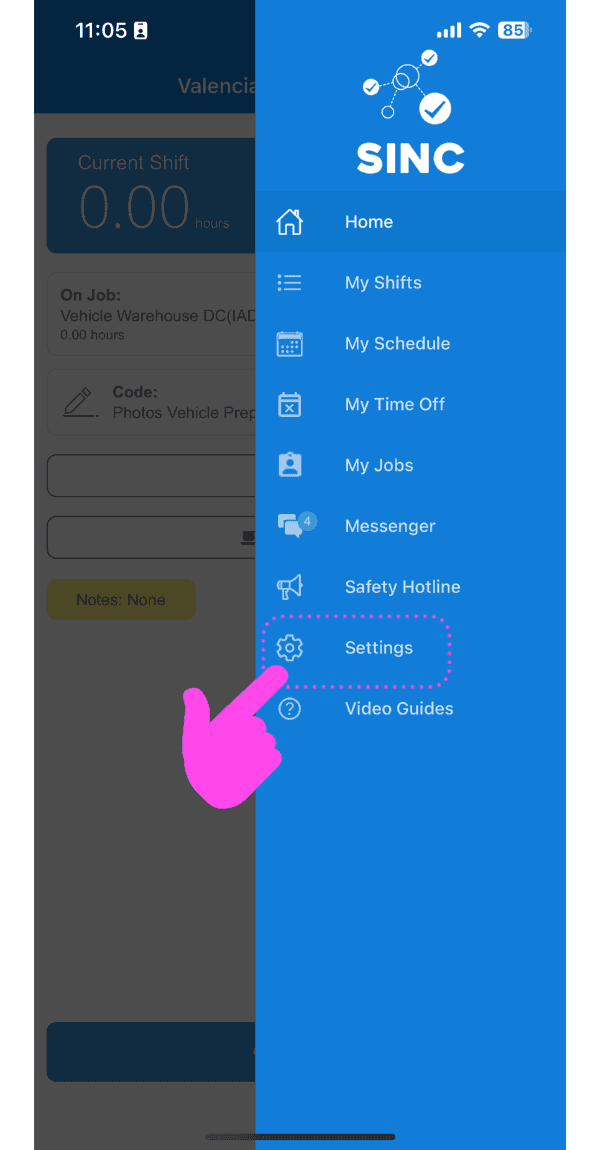
En el móvil: toca Menú Configuración

SINC mobile app side menu with a pink hand pointing to the Settings menu item

En la pestaña Perfil Información, toca el icono de la cámara en la esquina superior derecha.
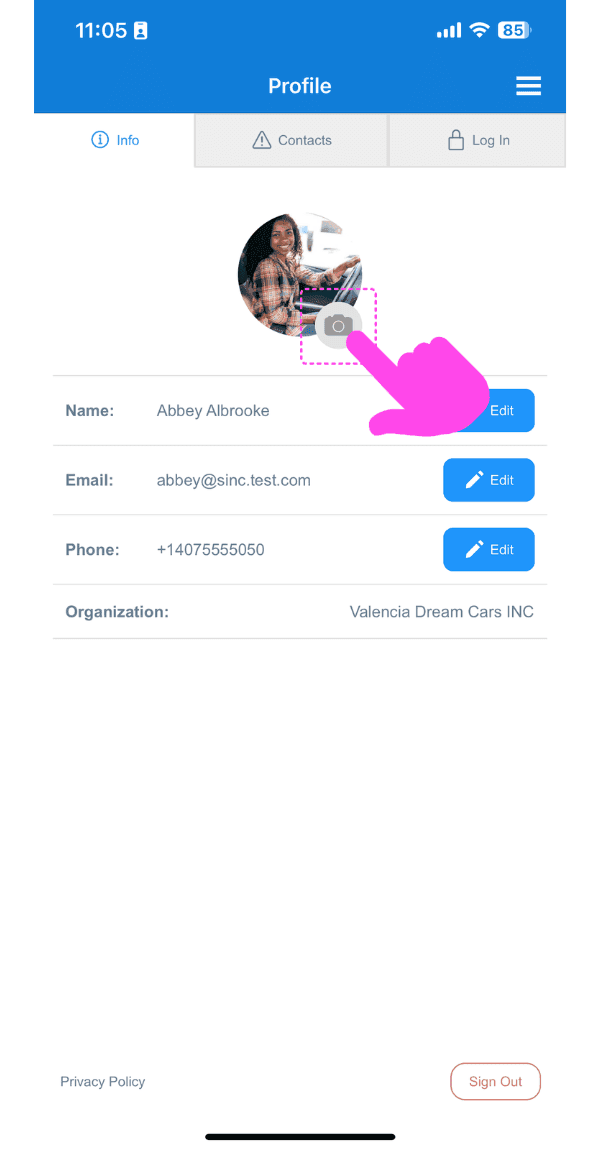
Profile Info screen with the camera icon on the profile photo highlighted by a pink arrow

Toca Subir foto.

Profile Picture screen showing an uploaded photo with edit and delete icons highlighted by a pink arrow

Toca Conceder permiso y permite que SINC acceda a tus fotos si te lo solicita. Después, selecciona la imagen que quieras subir.
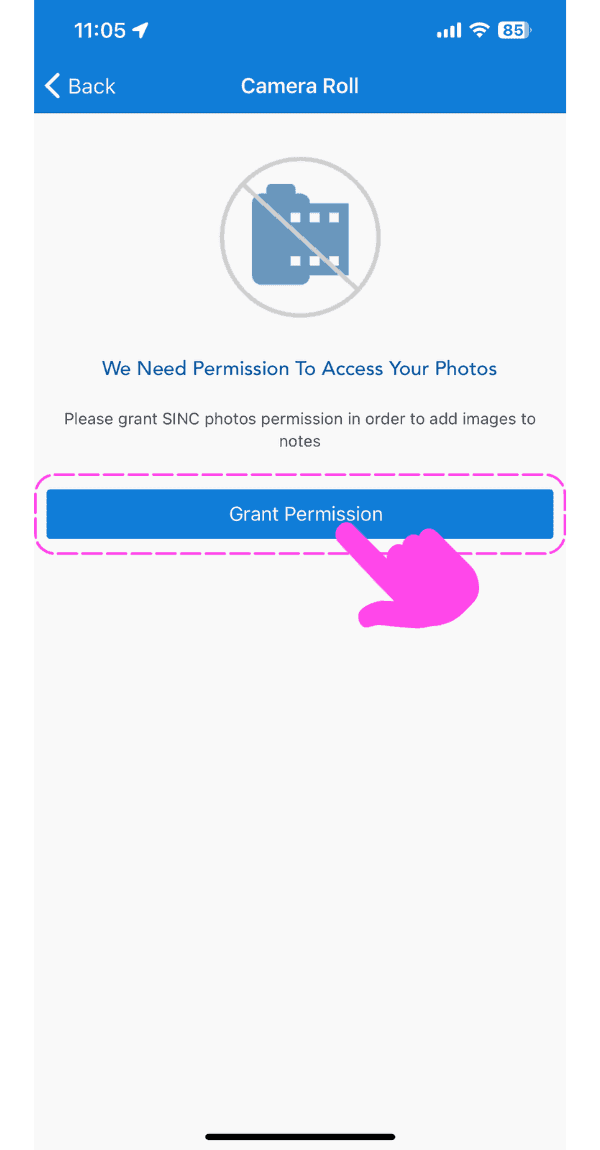
SINC mobile photo access permission screen with a pink hand pointing to the Grant Permission button

Para volver a la pestaña de tus perfiles, toca la flecha hacia la izquierda en la esquina superior izquierda.

Profile Picture screen showing an uploaded photo with the Back button highlighted by a pink arrow

Para editar la imagen subida: haz clic en el icono de la cámara.
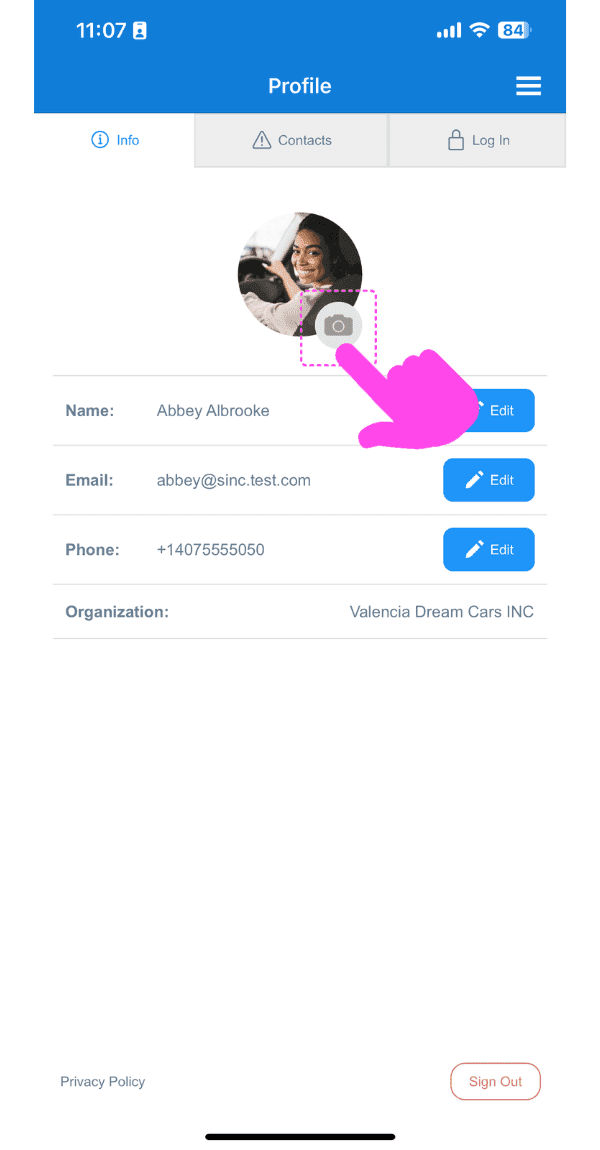
SINC mobile Profile screen with a pink arrow pointing to the camera icon on the profile photo

Para cambiar la foto que has subido: toca Cambiar foto.

Profile Picture screen with a pink arrow pointing to the edit icon on the profile photo, next to the delete icon

Para eliminar la foto que has subido: toca Eliminar foto

SINC mobile Profile Picture screen with a pink arrow pointing to the delete photo icon on the avatar

En la versión web: ve a Menú Configuración
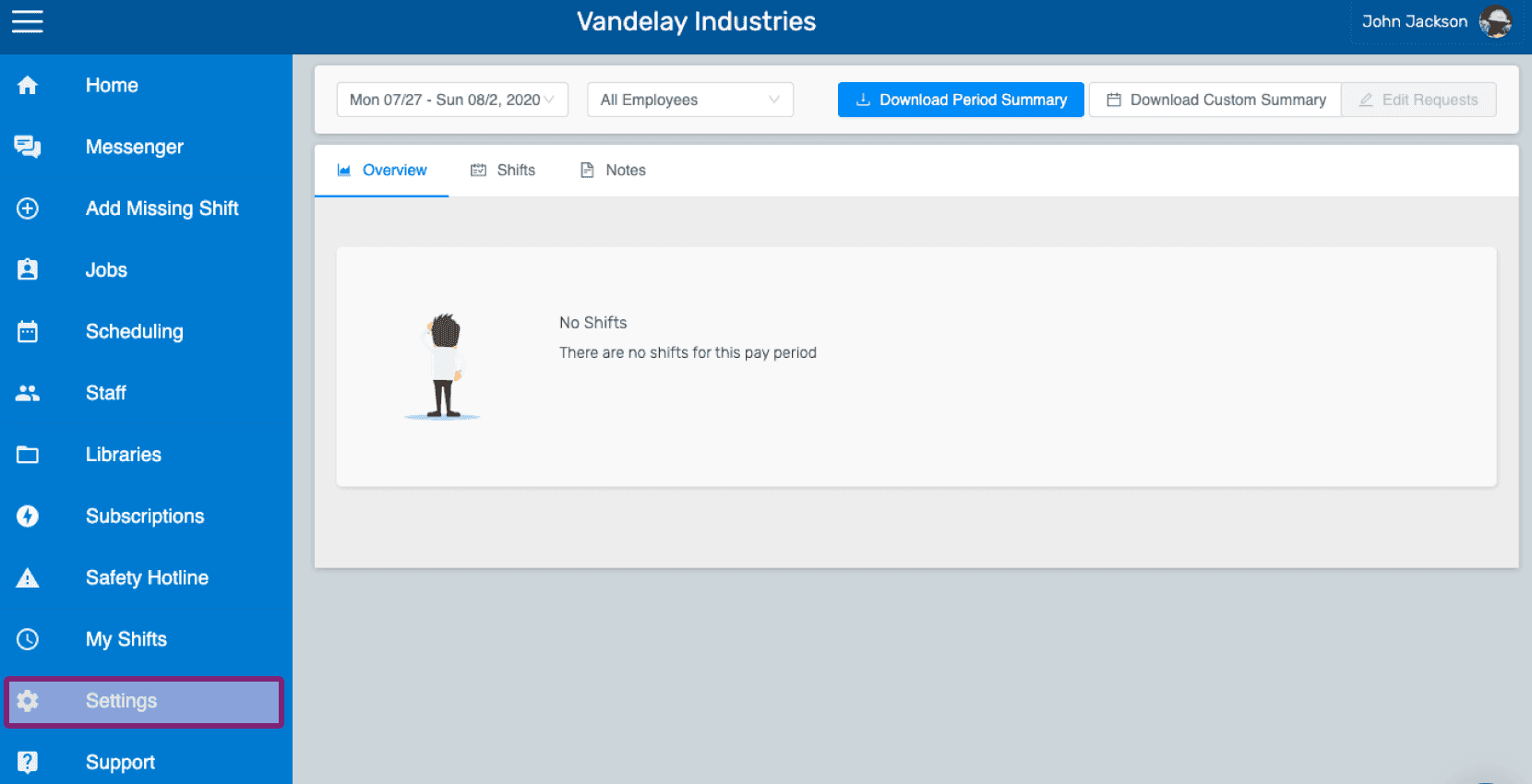
Web employee dashboard with the Settings icon highlighted in the left side menu

En la pestaña Perfil, haz clic en el icono de la cámara.
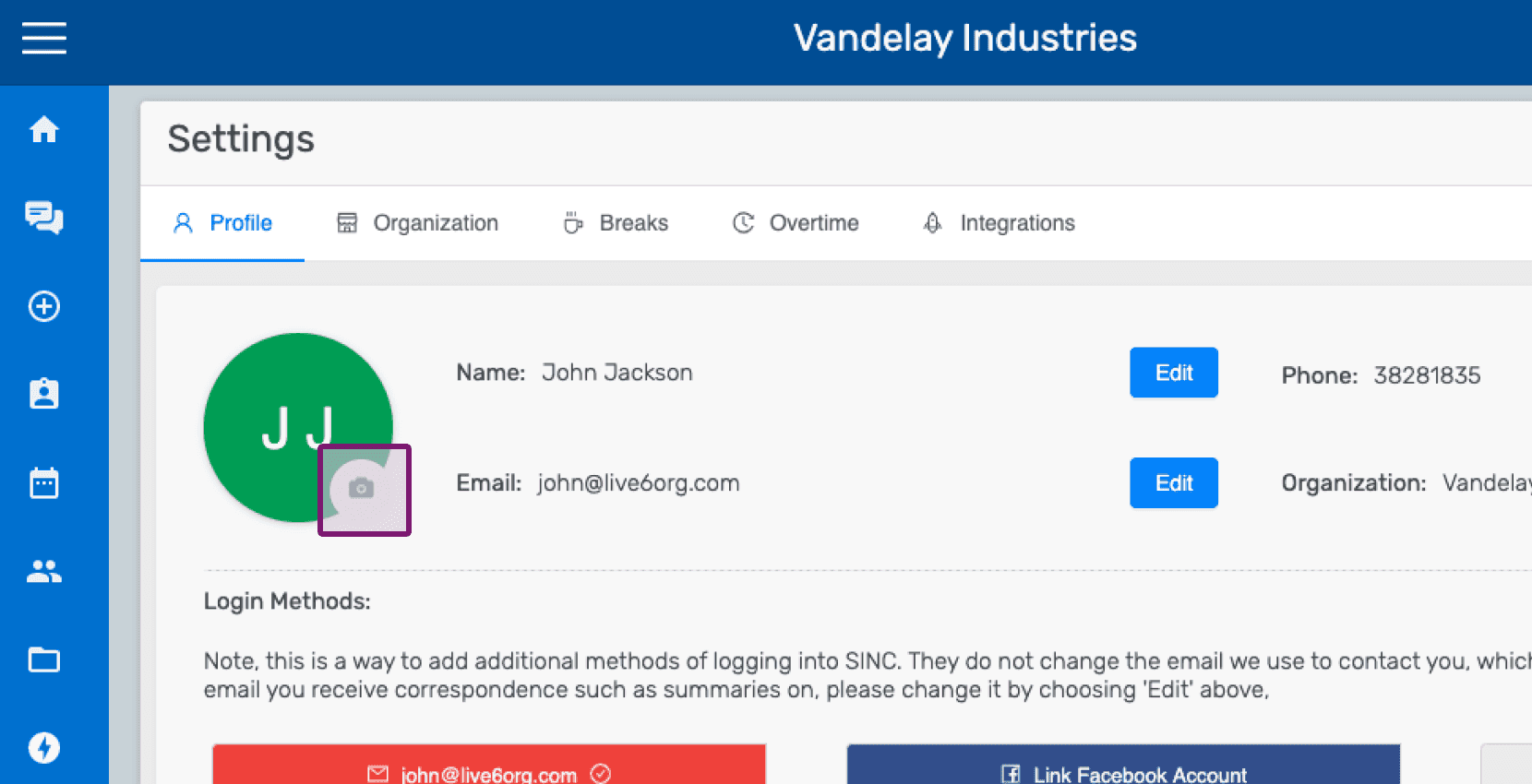
SINC web Settings Profile tab with the camera icon circled on the profile picture

Haz clic en Elegir foto y selecciona la foto que quieras subir.
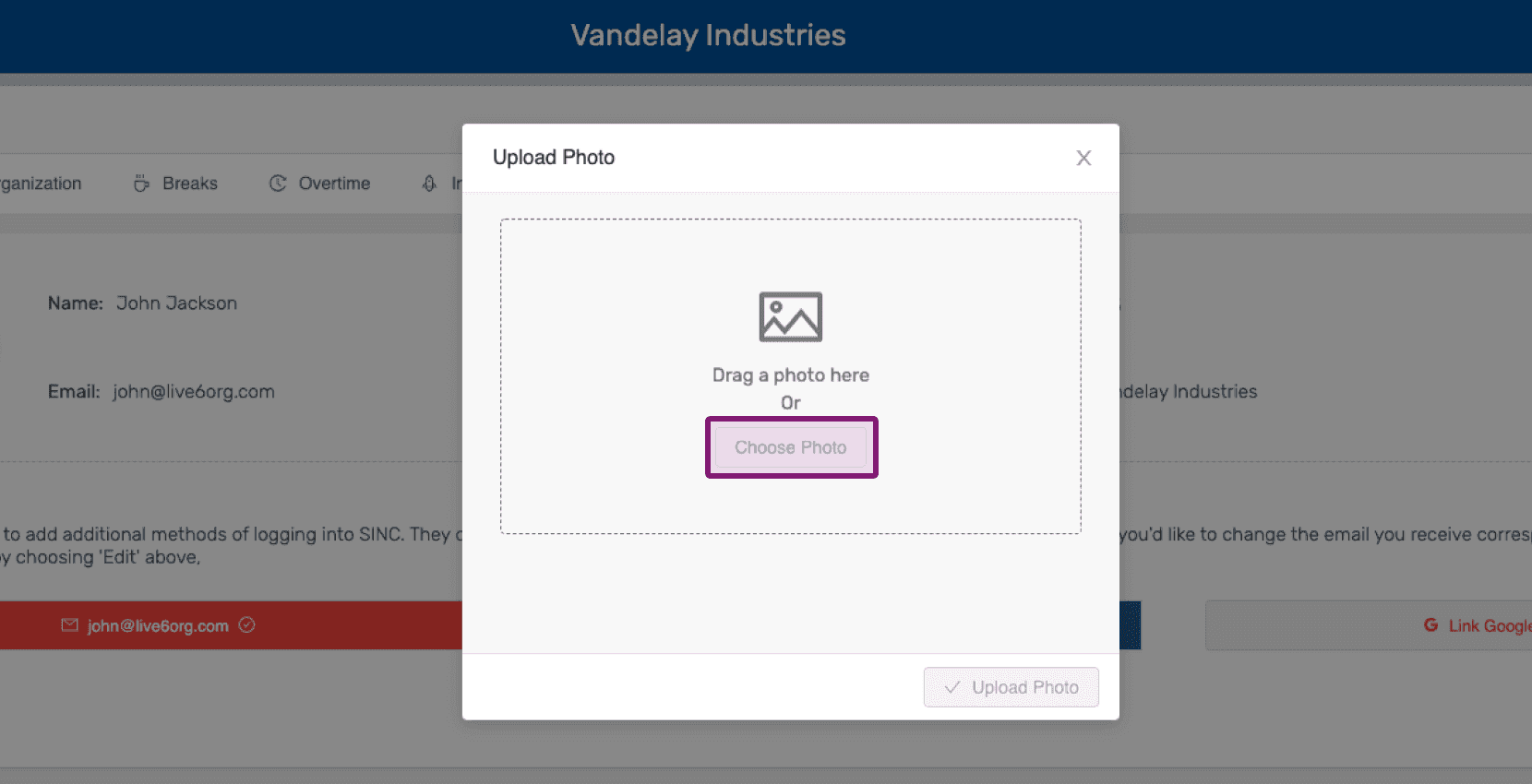
Upload Photo popup with the Choose Photo button highlighted

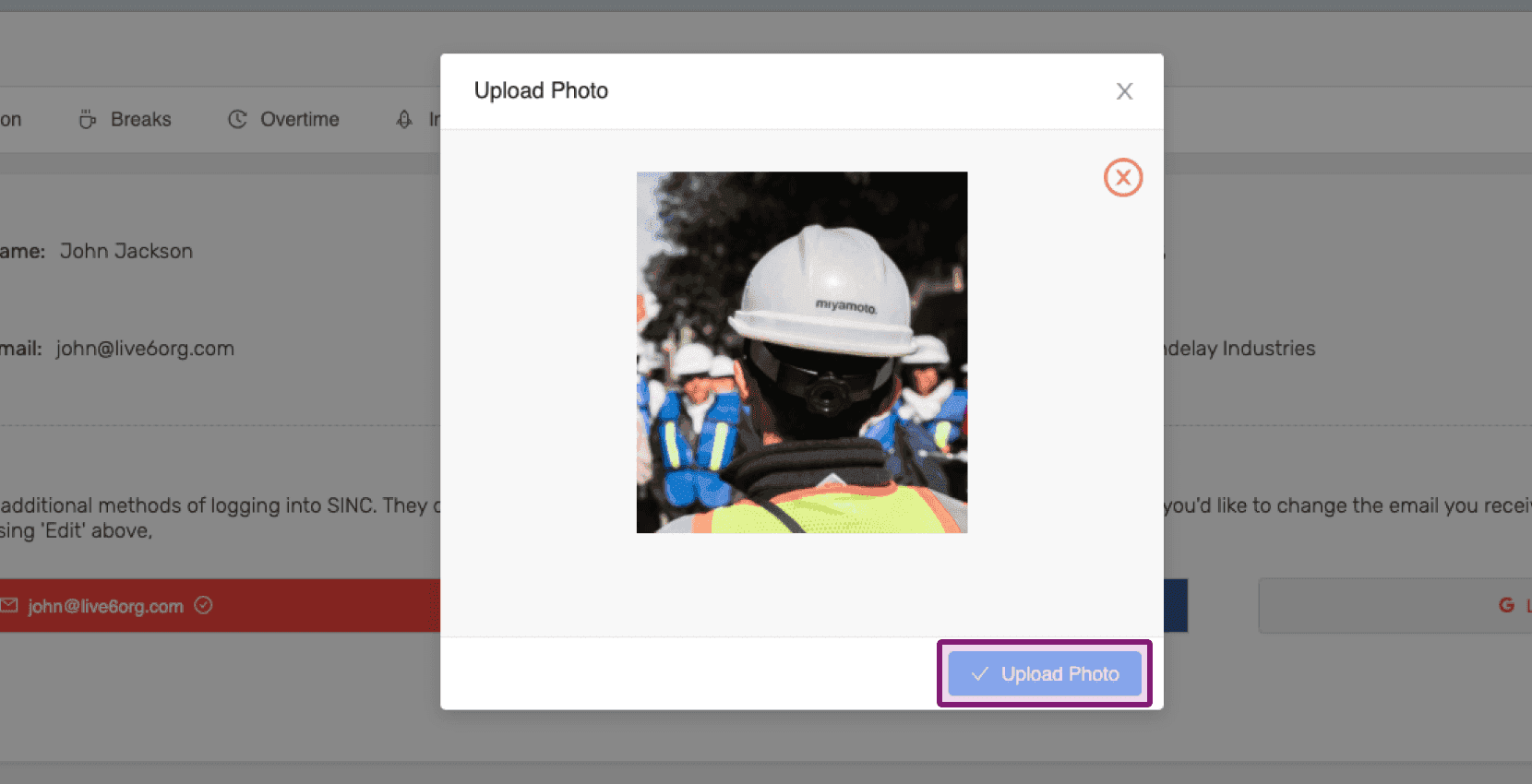
Haz clic en Subir foto

Web Upload Photo popup showing a preview image with the Upload Photo button outlined in purple

Para editar la imagen subida: haz clic en el icono de la cámara.
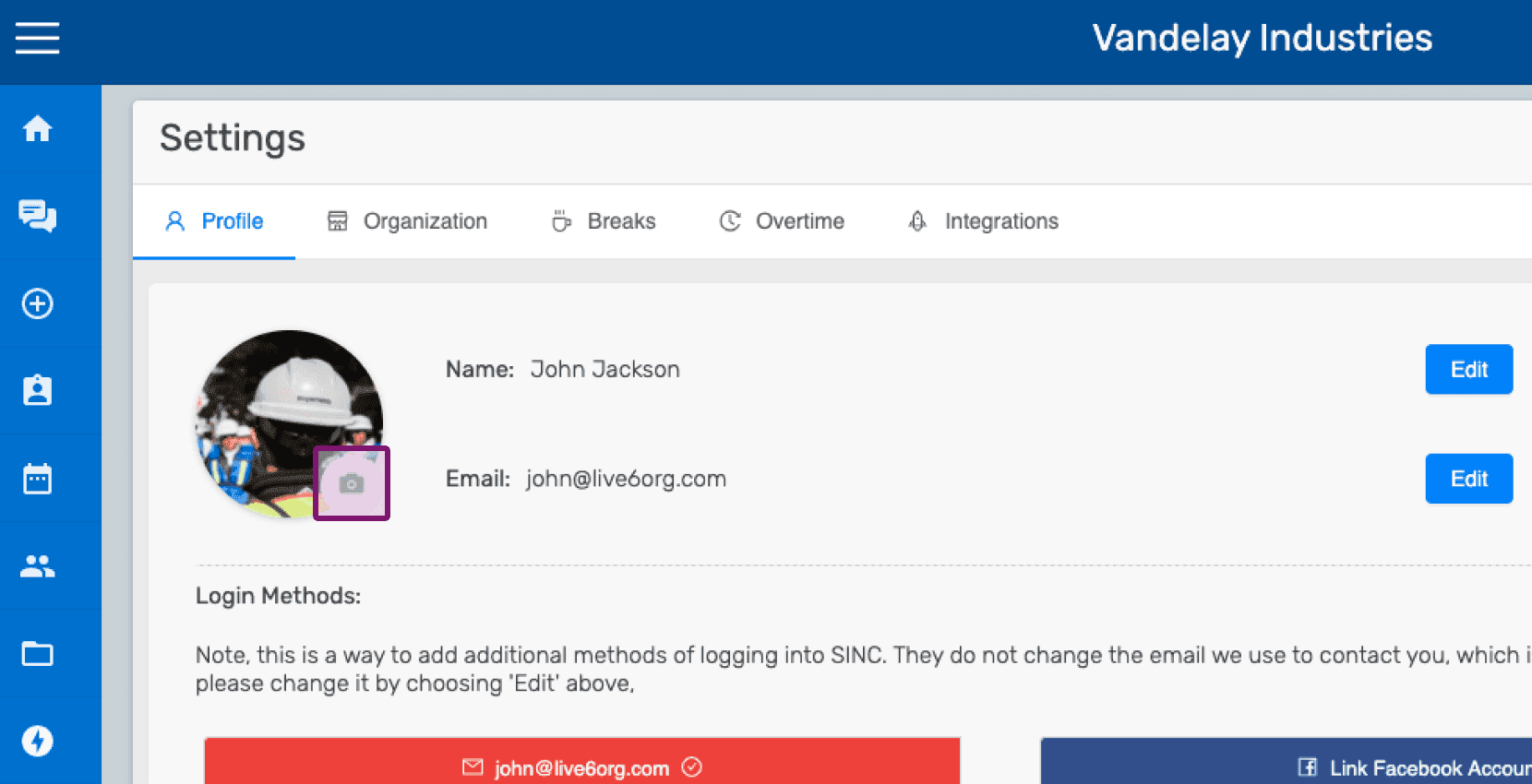
SINC web Settings Profile screen with the camera icon outlined for uploading a profile picture

Para cambiar la imagen que has subido, haz clic en el icono de cambiar situado en la esquina inferior derecha de la foto de perfil.
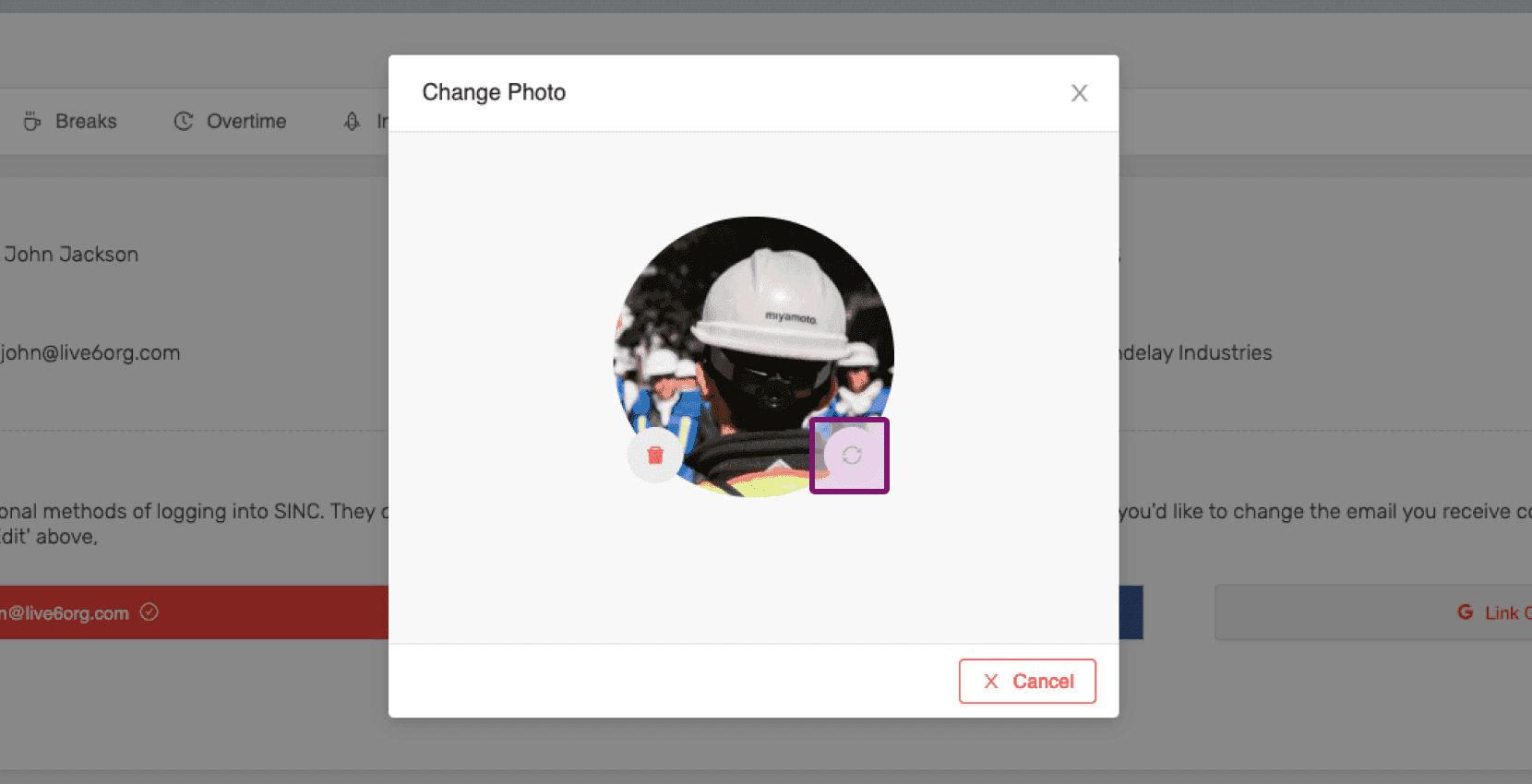
SINC web Change Photo dialog with the picture change icon on the profile photo circled in purple

Para eliminar la imagen que has subido, haz clic en el icono de eliminar situado en la esquina inferior izquierda de la foto de perfil.
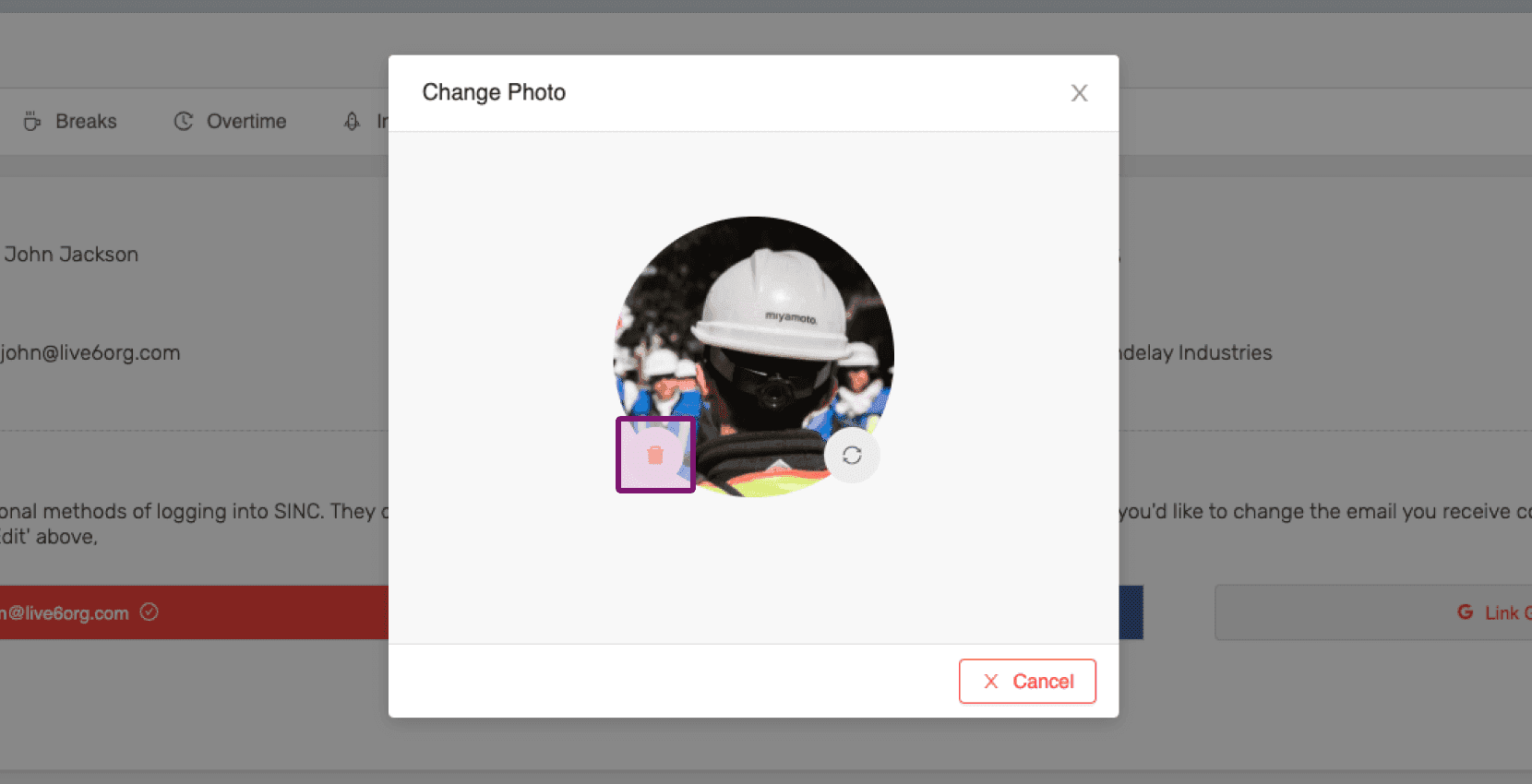
Change Photo dialog with the delete icon on the profile picture outlined in pink

¿Esto respondió tu pregunta?