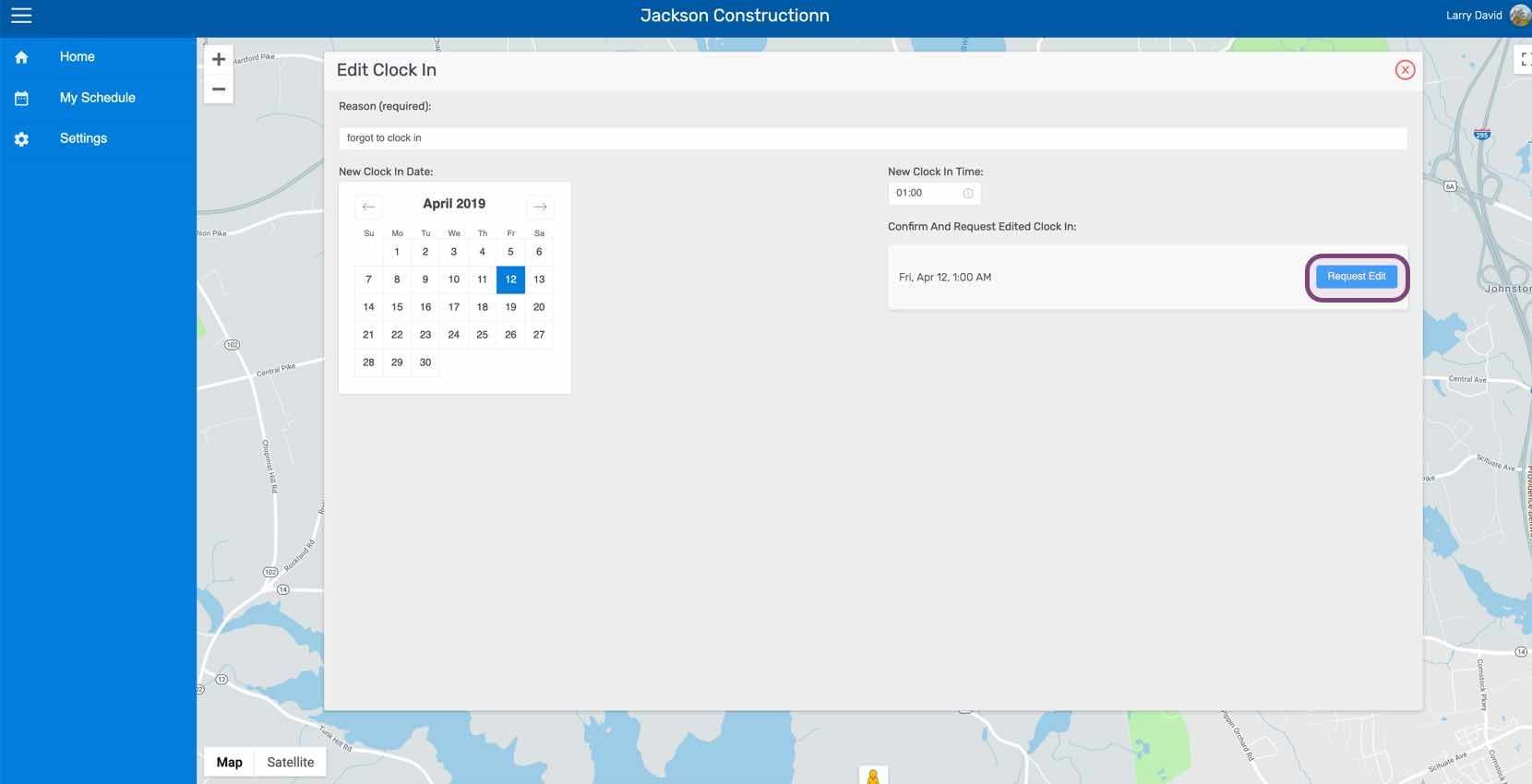
Solicitar una modificación del registro horario

En esta guía explicaremos cómo puedes solicitar cambios en tus turnos como empleado.

Sam Dolbel
Sam Dolbel
May 26th, 2023

En el móvil: toca Menú Mis turnos
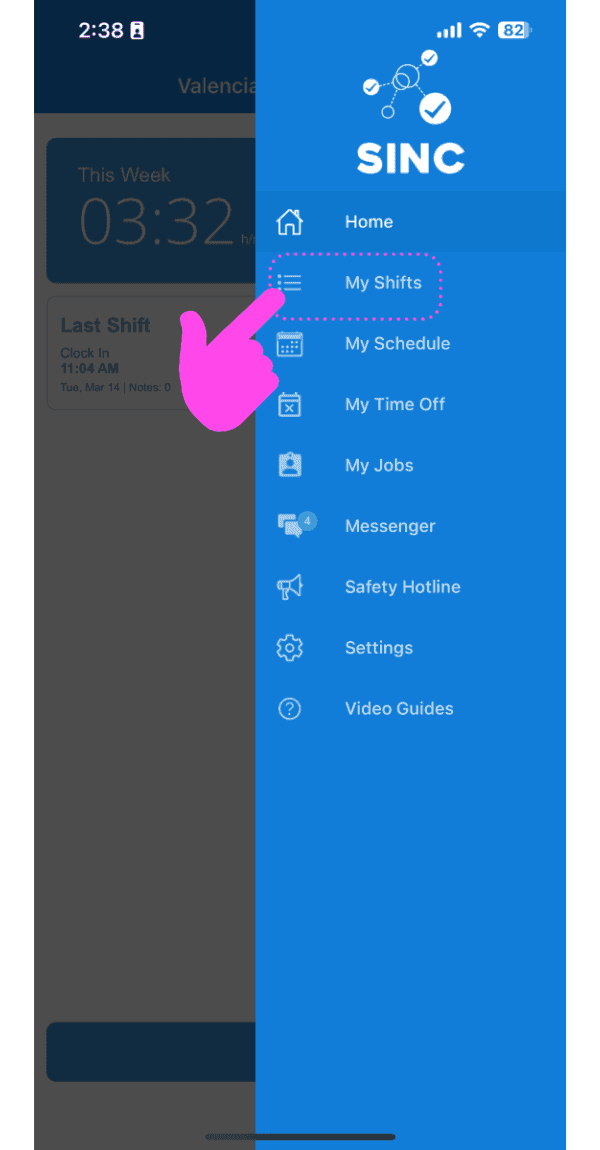
SINC mobile app side menu with a pink hand pointing to the My Shifts menu item

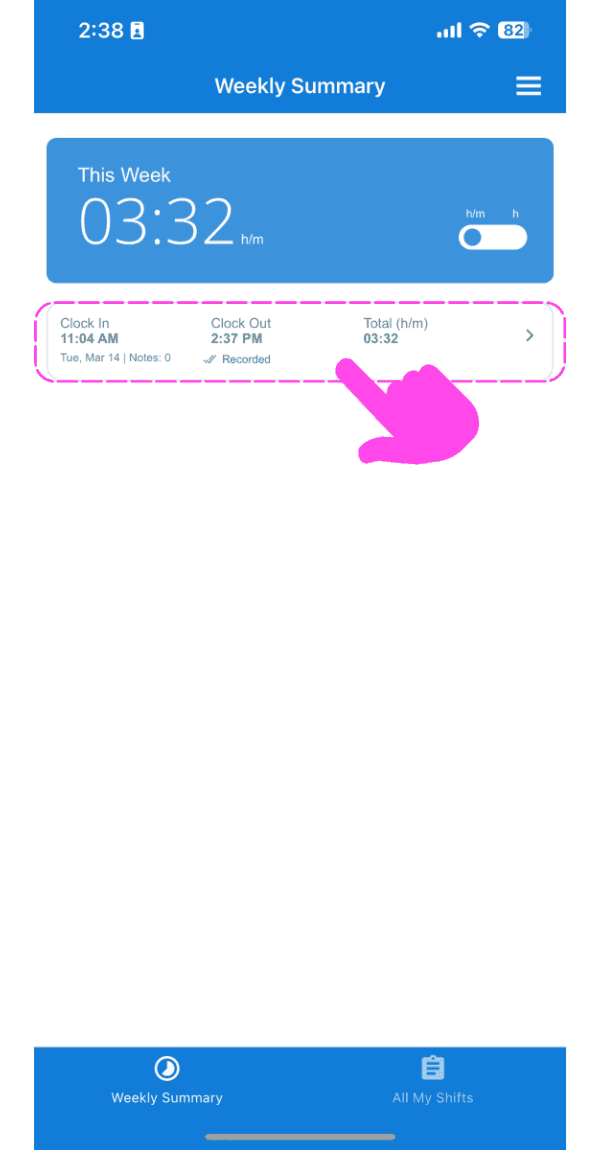
Pulsa El cambio en cuestión

Weekly Summary screen with a clock-in/clock-out shift entry outlined in pink

En la pestaña Información, pulsa Editar (junto a la hora de entrada o salida que quieras editar).
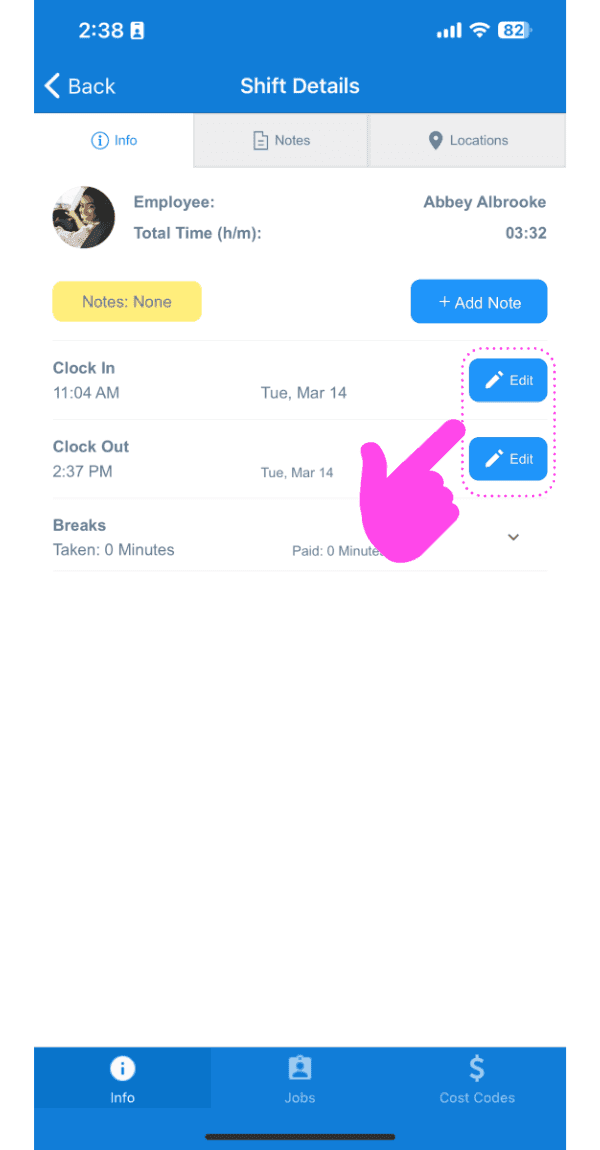
Shift Details screen showing Clock In and Clock Out times with their Edit buttons highlighted in pink

Indica el motivo de la solicitud de edición.
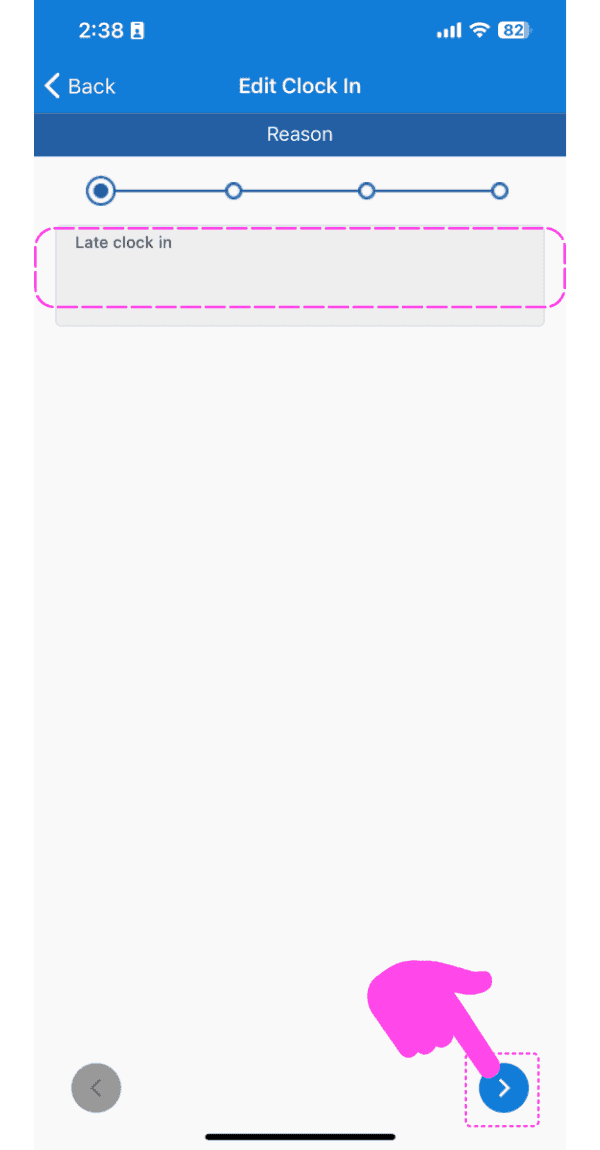
SINC mobile Edit Clock In reason screen with a pink hand pointing to the next arrow button

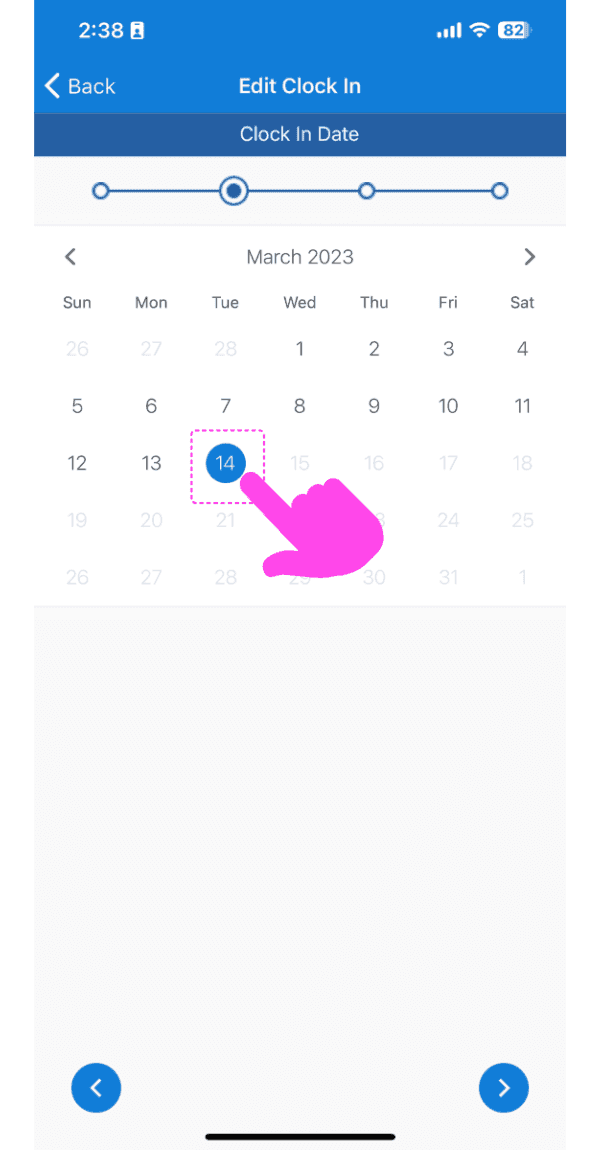
Selecciona la nueva fecha.

Edit Clock In date picker calendar with March 14 selected and highlighted by a pink arrow

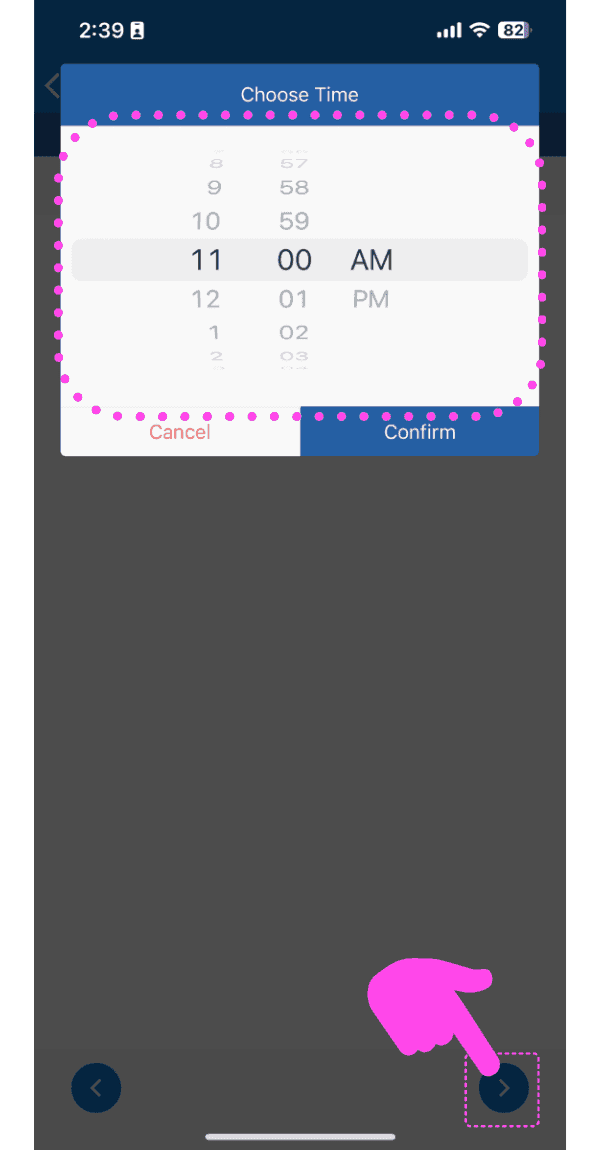
Selecciona el nuevo horario.

SINC mobile time picker wheel set to 11:00 AM with the next-step arrow highlighted in pink

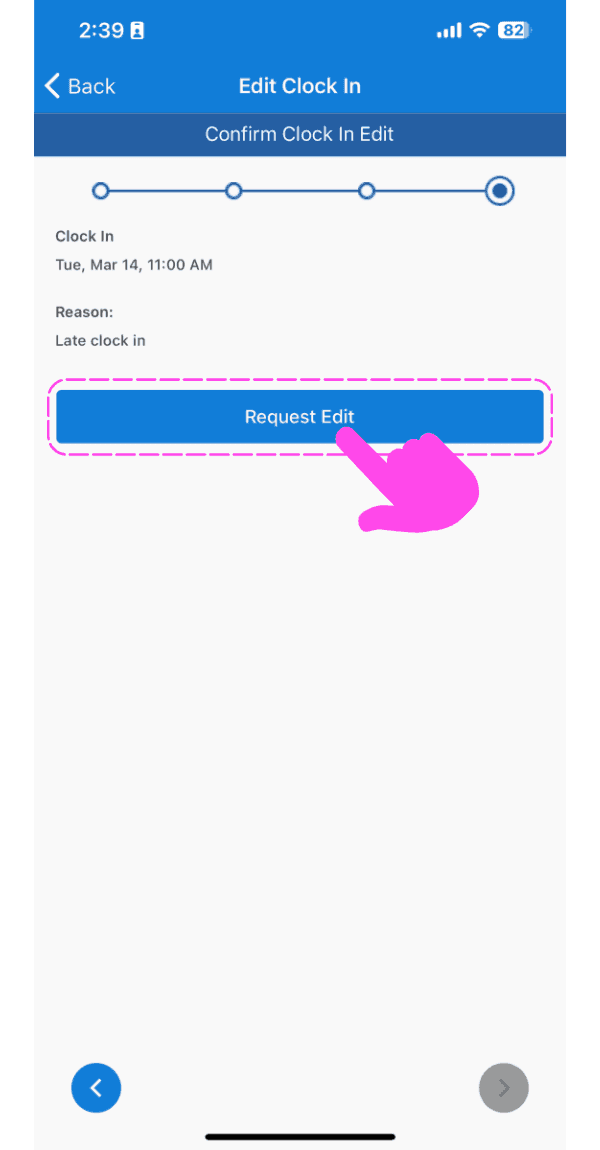
Toca Solicitar edición

Confirm Clock In Edit screen with a pink arrow pointing to the Request Edit button

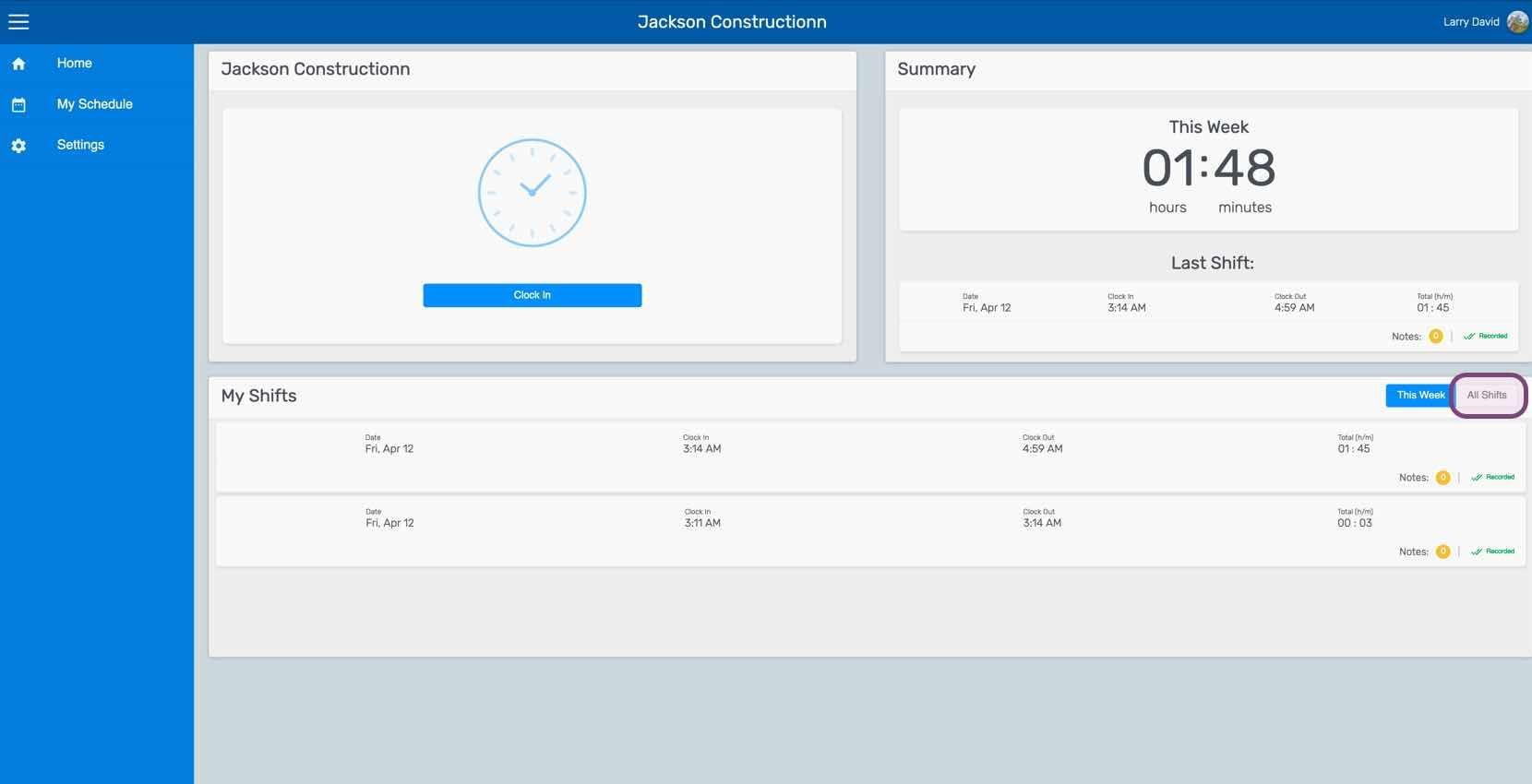
En la web: Haz clic en Mis turnos

SINC web dashboard with the All Shifts tab circled next to the My Shifts list

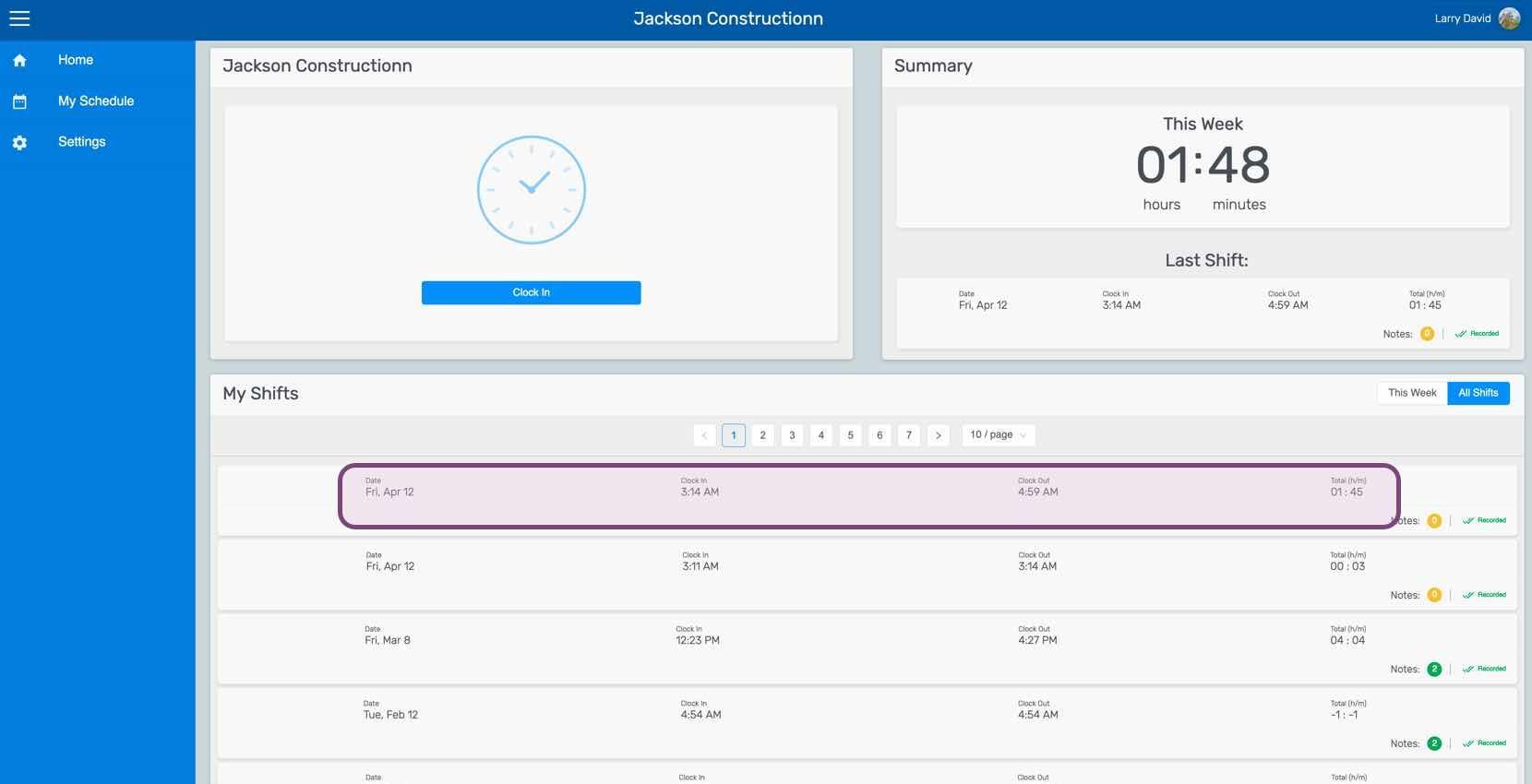
Haz clic en El cambio en cuestión

Web employee dashboard with a specific shift row in the My Shifts table outlined in pink

En la pestaña **Turno**, haz clic en ** Editar** (junto a la hora de entrada o salida que quieras editar).
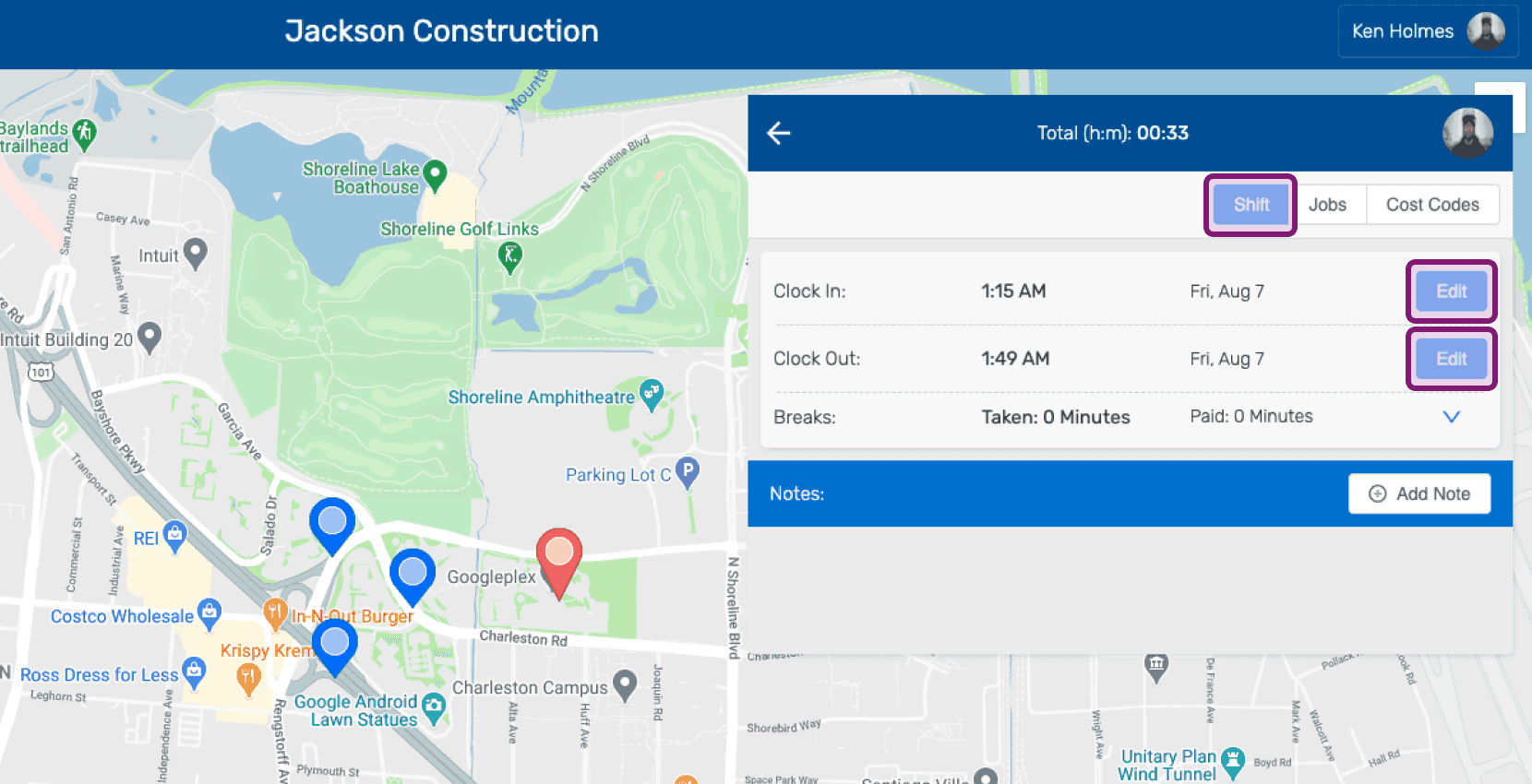
SINC web shift detail panel showing Clock In and Clock Out times with the Edit buttons circled

Añade un motivo para solicitar la edición.
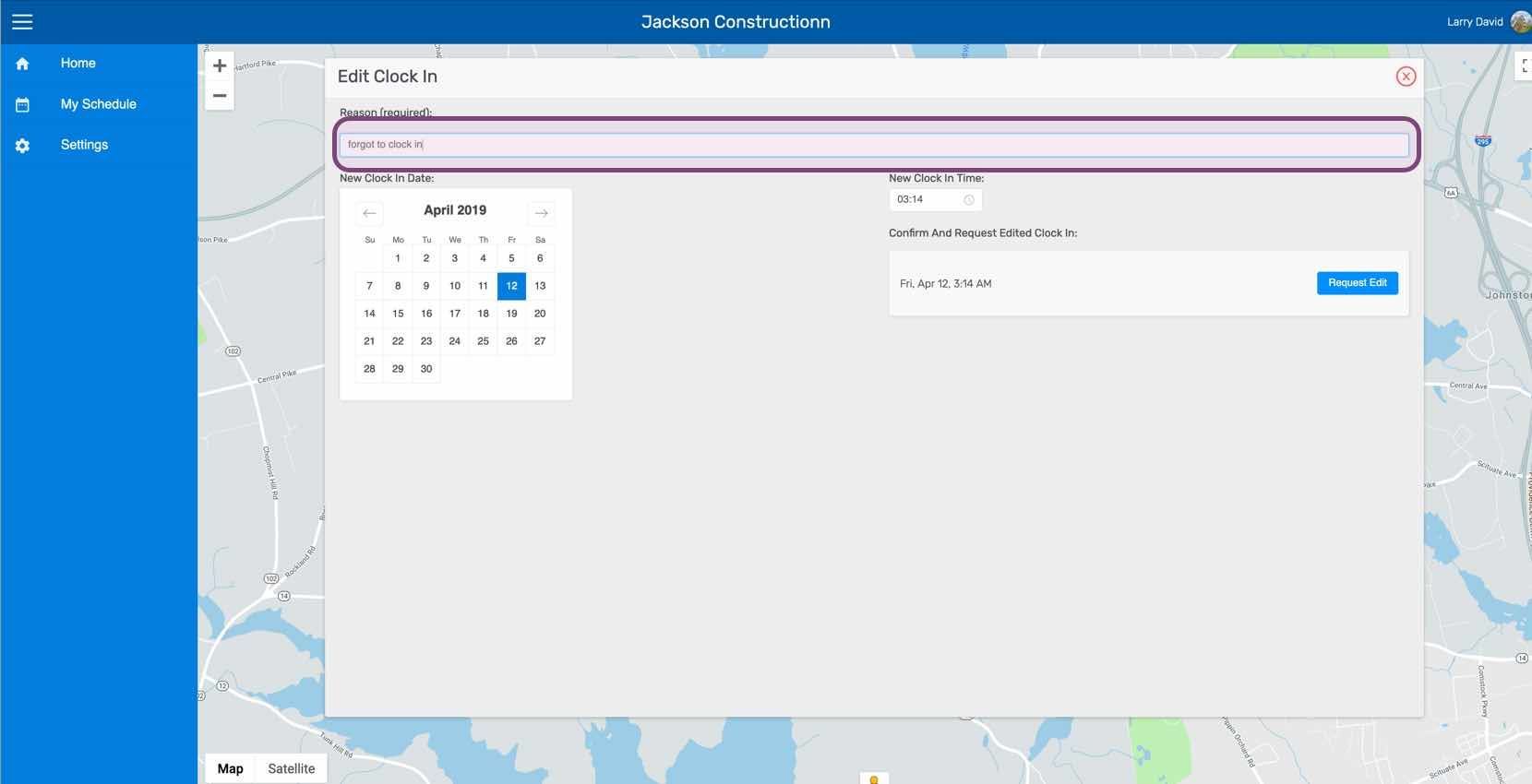
Edit Clock In screen with the reason text field highlighted above a map

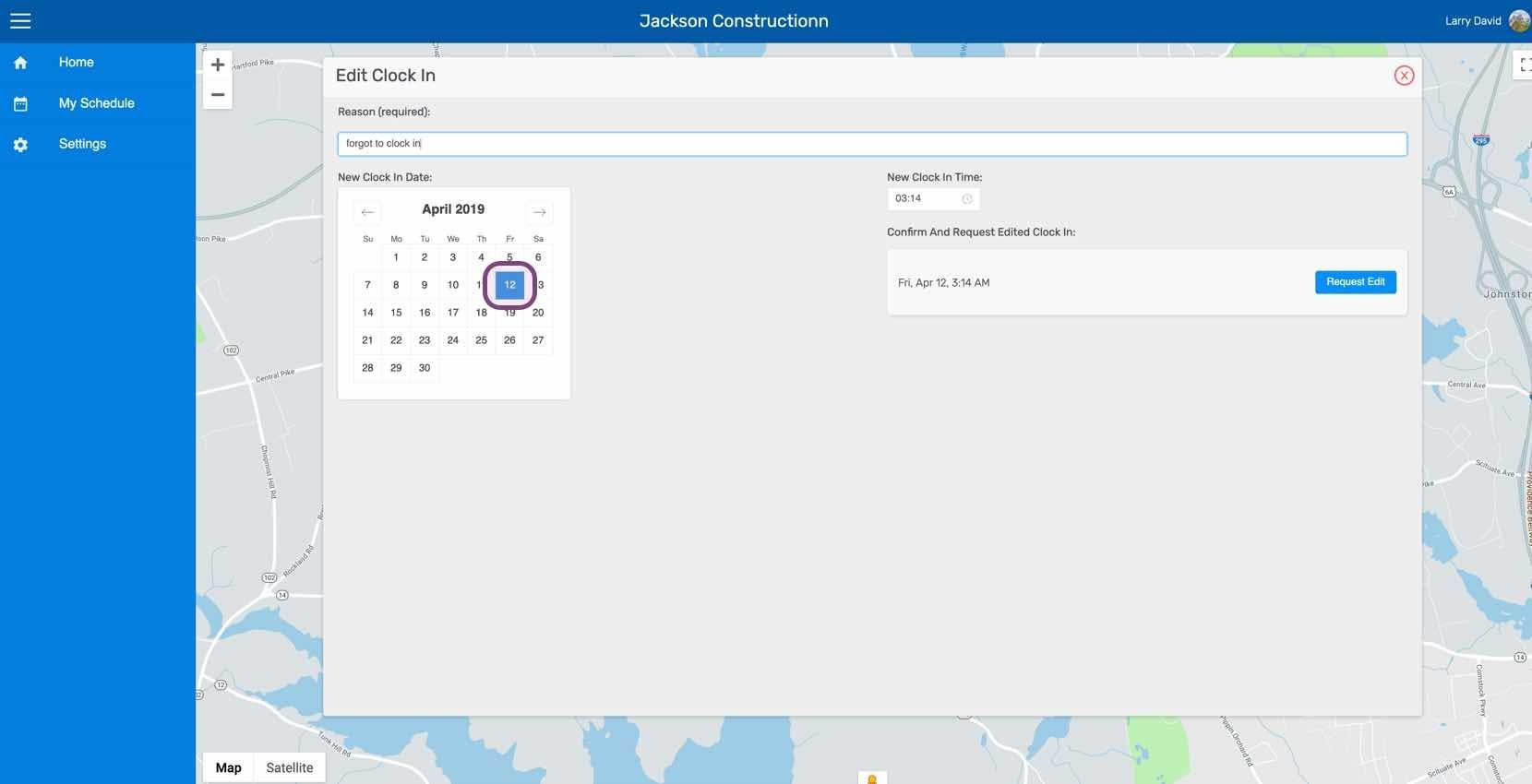
Selecciona la nueva fecha.

Web Edit Clock In screen with a date selected on the calendar and Request Edit button

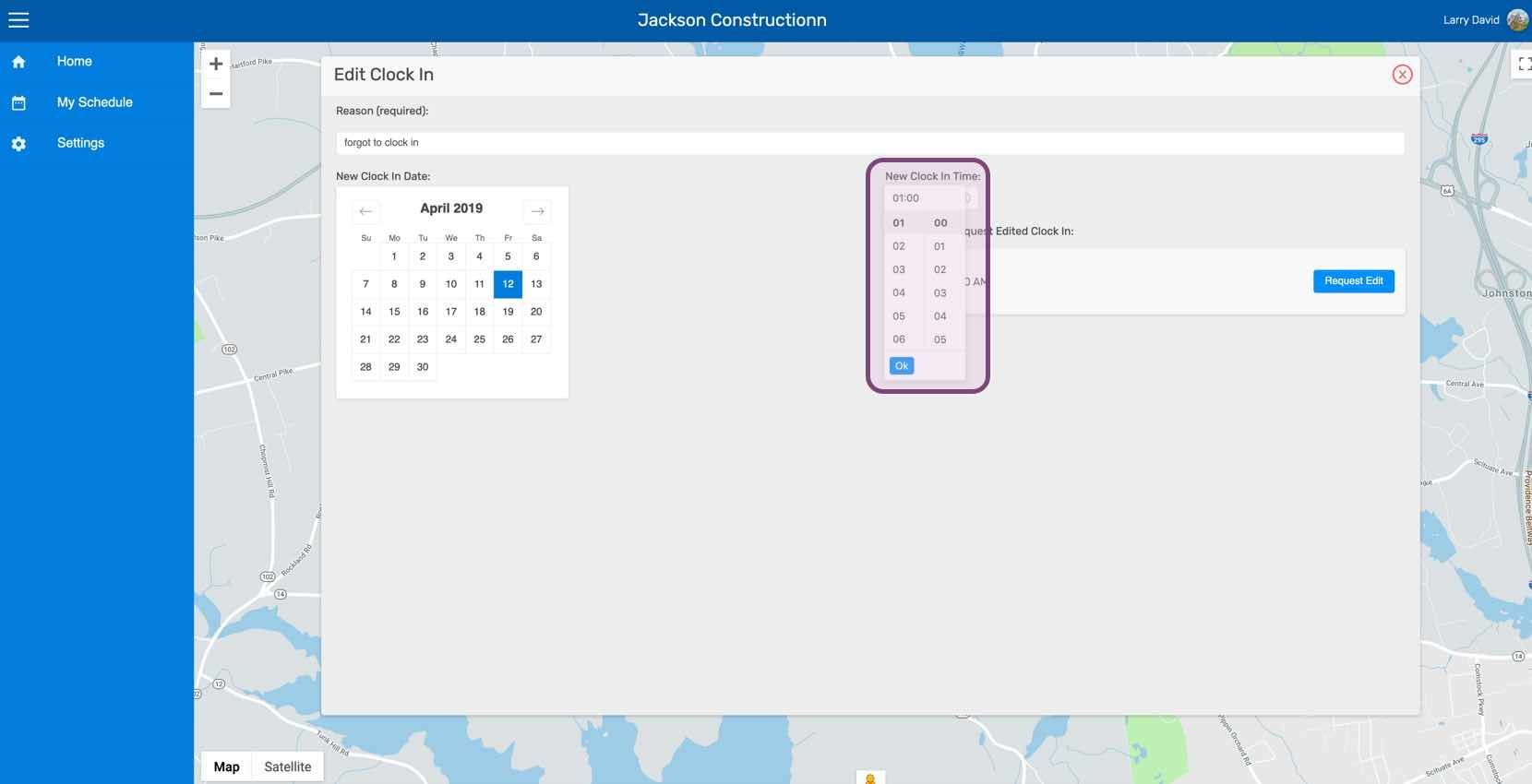
Selecciona la nueva hora.

SINC web Edit Clock In screen with the New Clock In Time picker outlined in purple

Haz clic en Solicitar edición

SINC web Edit Clock In screen with the Request Edit button outlined in purple

¿Esto respondió tu pregunta?