Validación de la lesión

Esta guía muestra cómo el personal puede finalizar sus turnos registrando información sobre lesiones.

Sam Dolbel
Sam Dolbel
Feb 27th, 2023

Nota: Actualmente, esta función solo está disponible para usuarios de los planes Growth y Enterprise. La pantalla de confirmación de lesiones solo se muestra al fichar la salida de turnos que incluyen turnos de trabajo. Para registrar turnos de trabajo en un turno, activa Seguimiento de trabajos. Registra un turno con un turno de trabajo y, a continuación, desliza el botón hacia la derecha para confirmar la salida.
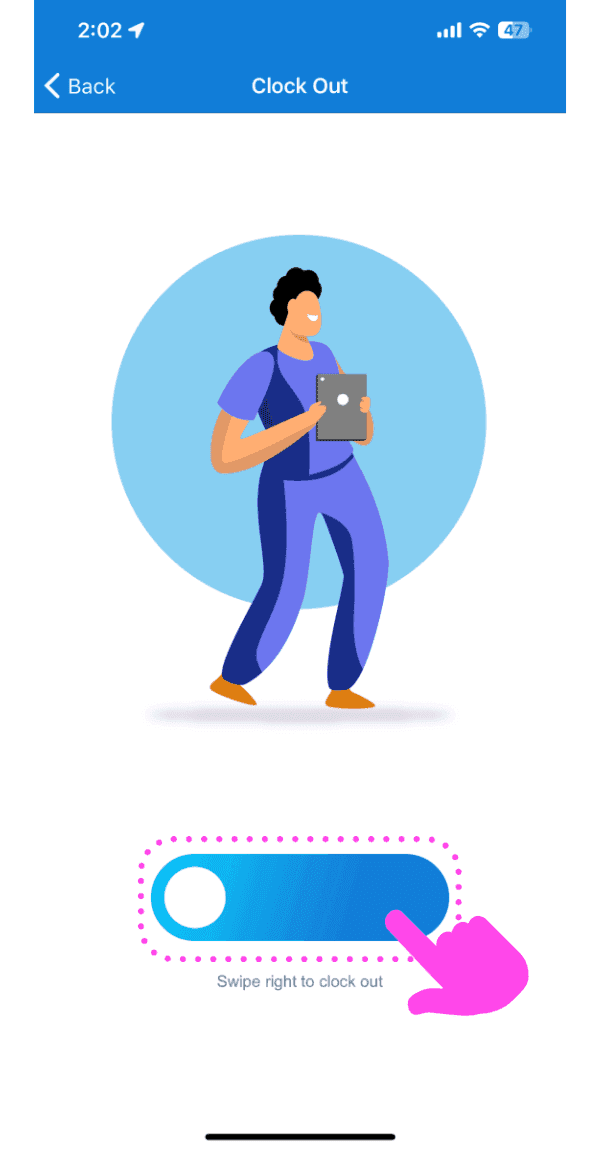
Mobile Clock Out screen with a worker illustration and the slide-to-confirm button outlined in pink

Responde: «¿Has sufrido alguna lesión durante el trabajo de hoy?». Si no has sufrido ninguna lesión, pulsa No y después Enviar turno.
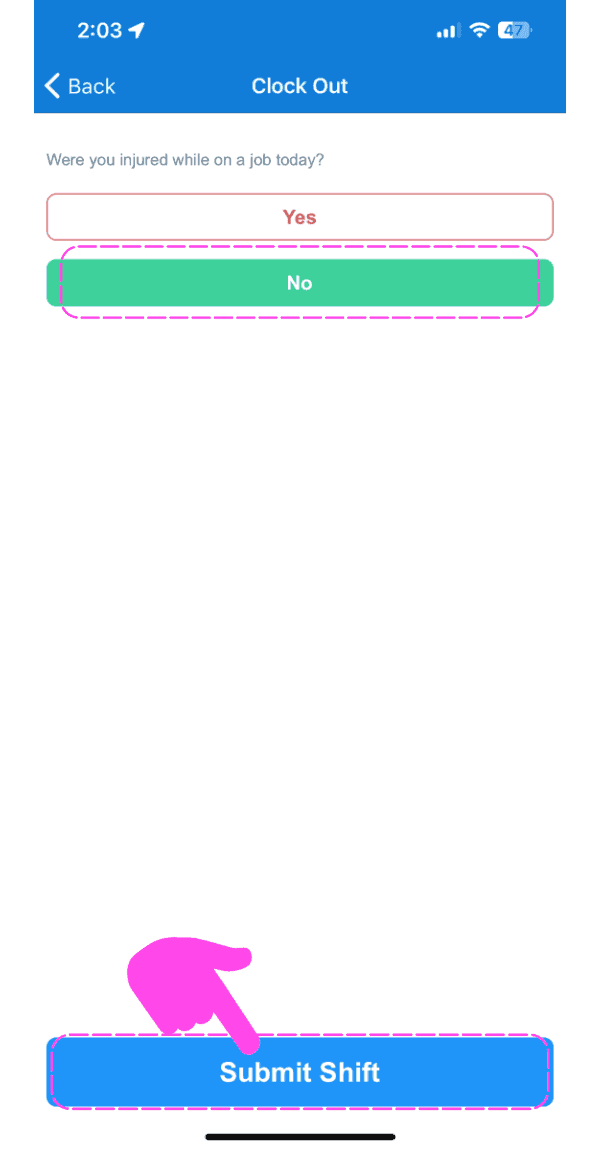
SINC mobile Clock Out screen asking about injury, with a pink hand pointing to the Submit Shift button

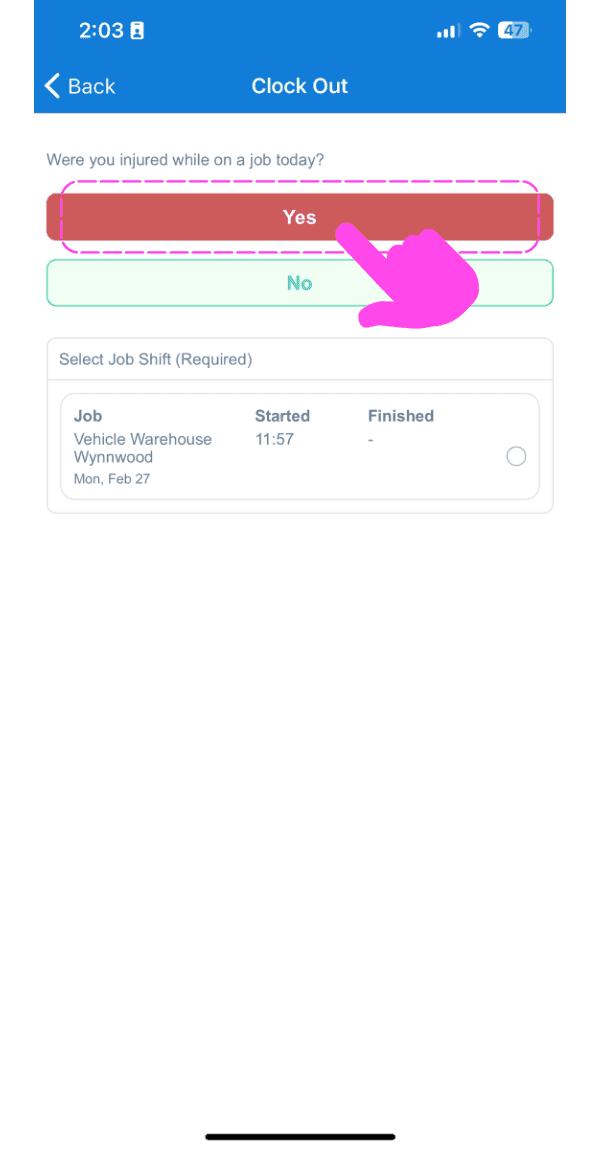
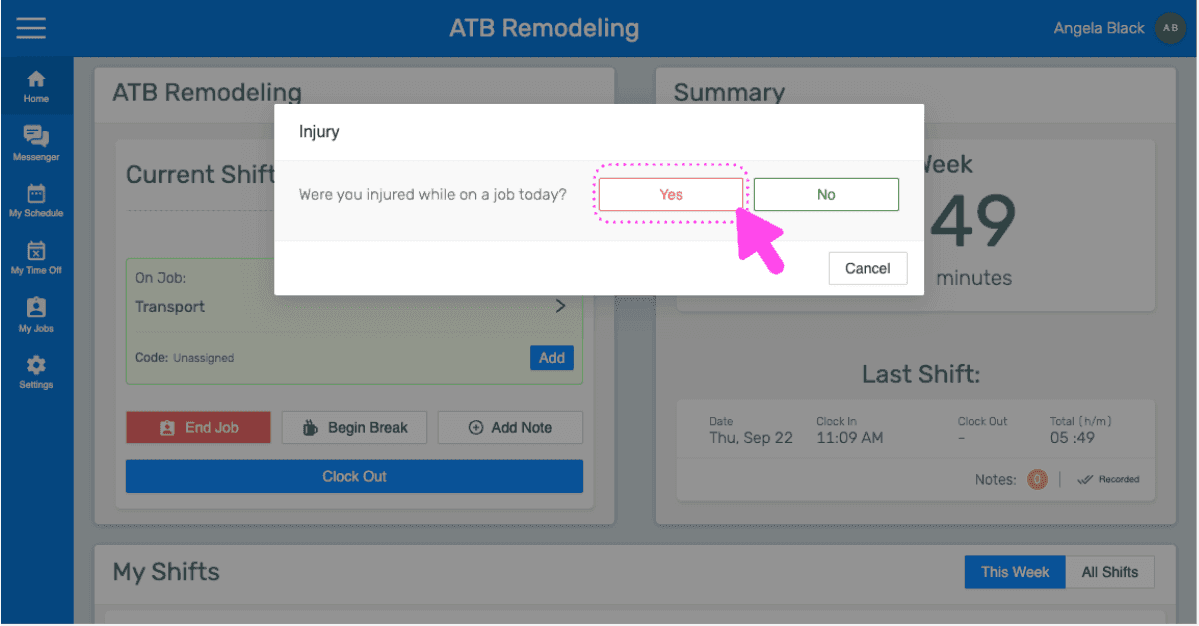
Si estás lesionado, pulsa Sí

Clock Out screen asking if the employee was injured, with a pink arrow on the Yes button

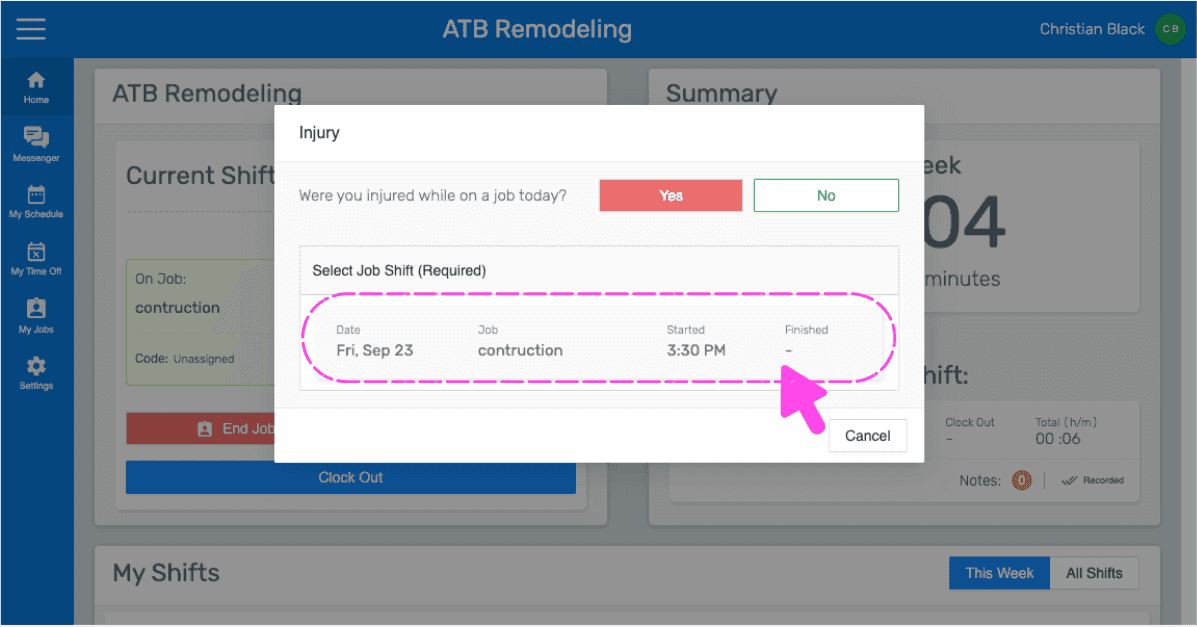
Toca Turno de trabajo en el que te lesionaste
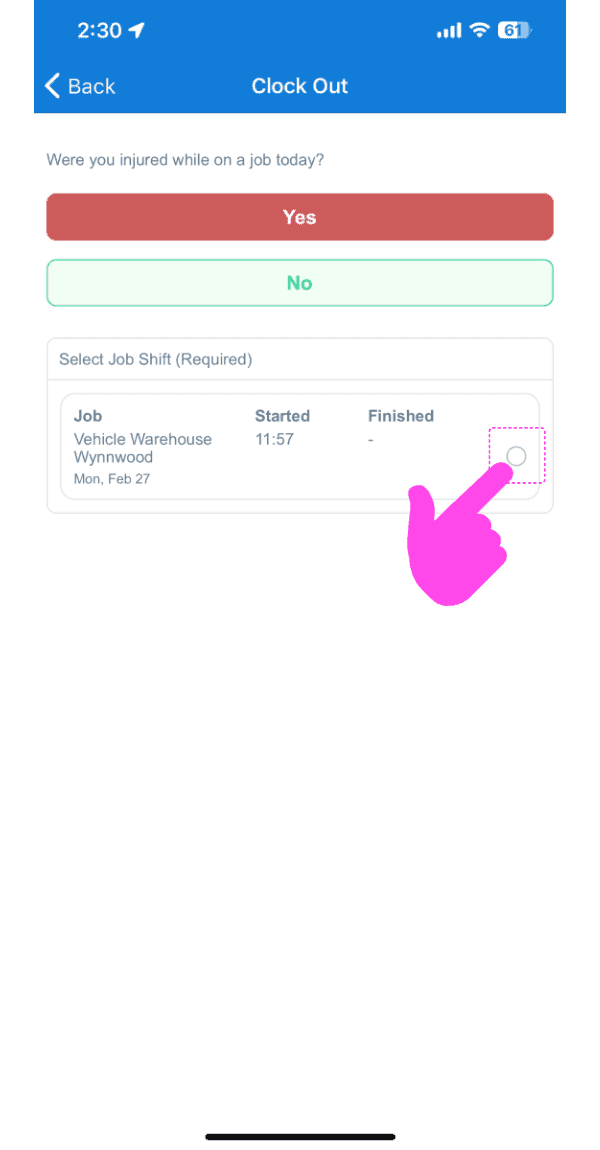
Mobile Clock Out screen asking if injured, with a pink arrow pointing to the job shift selection circle

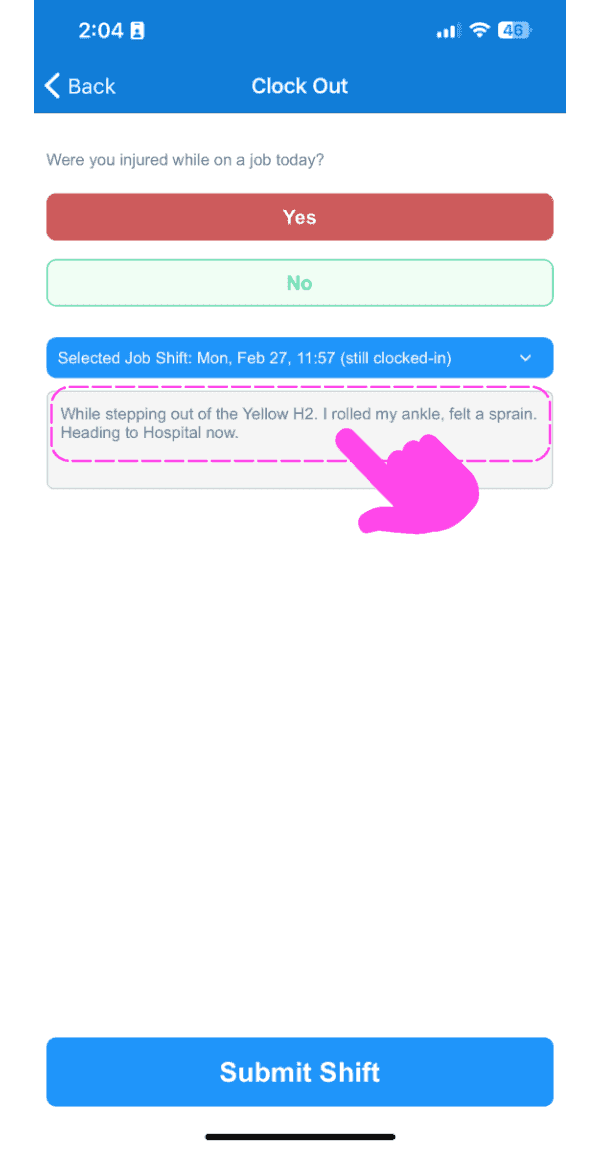
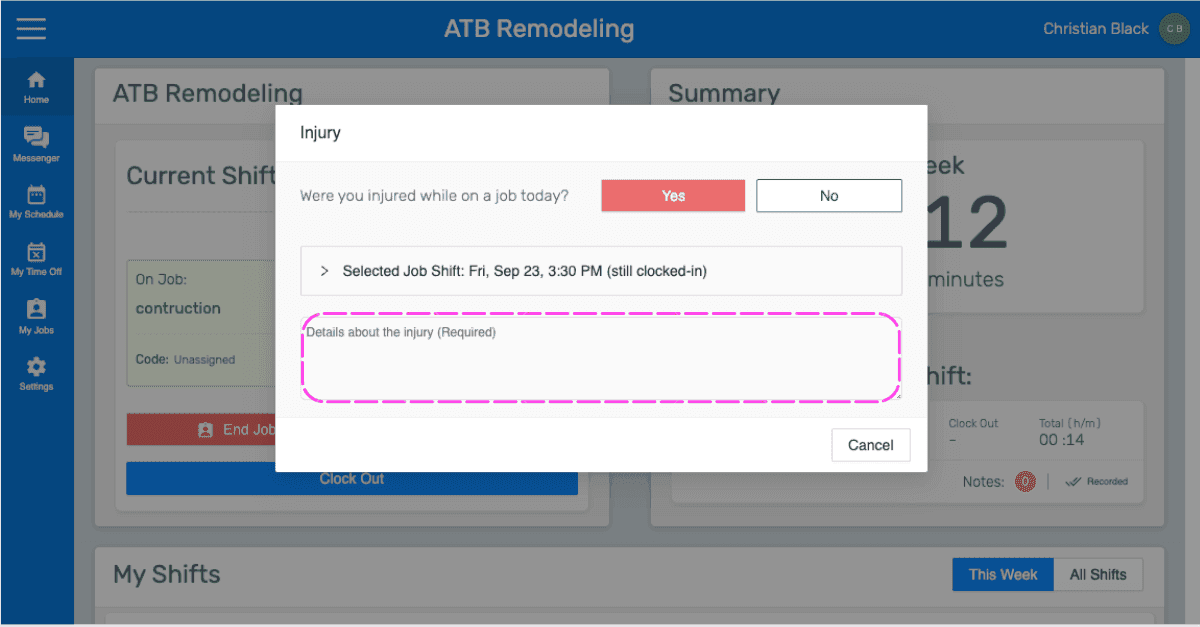
Introduce Detalles de la lesión

SINC mobile Clock Out screen with a pink arrow pointing to the injury details text box above the Submit Shift button

Toca Enviar turno. Si un turno se cierra indicando una lesión, los detalles de esta se incluirán en los informes diarios del trabajo correspondiente al final del día.
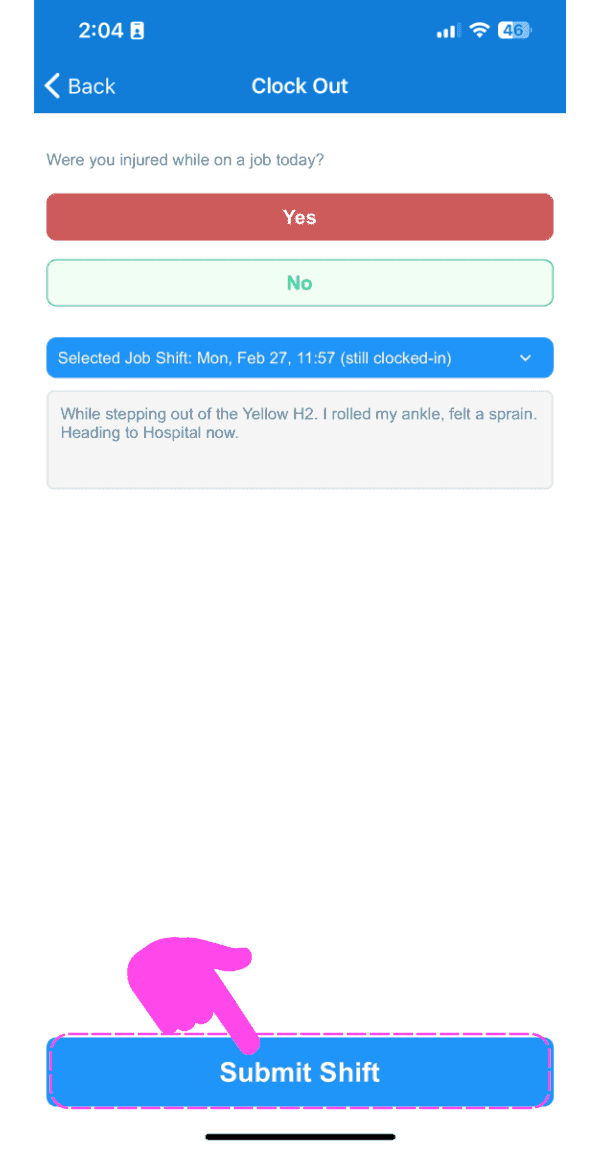
SINC mobile Clock Out screen with 'Yes' selected for the injury question and a pink arrow pointing to the Submit Shift button

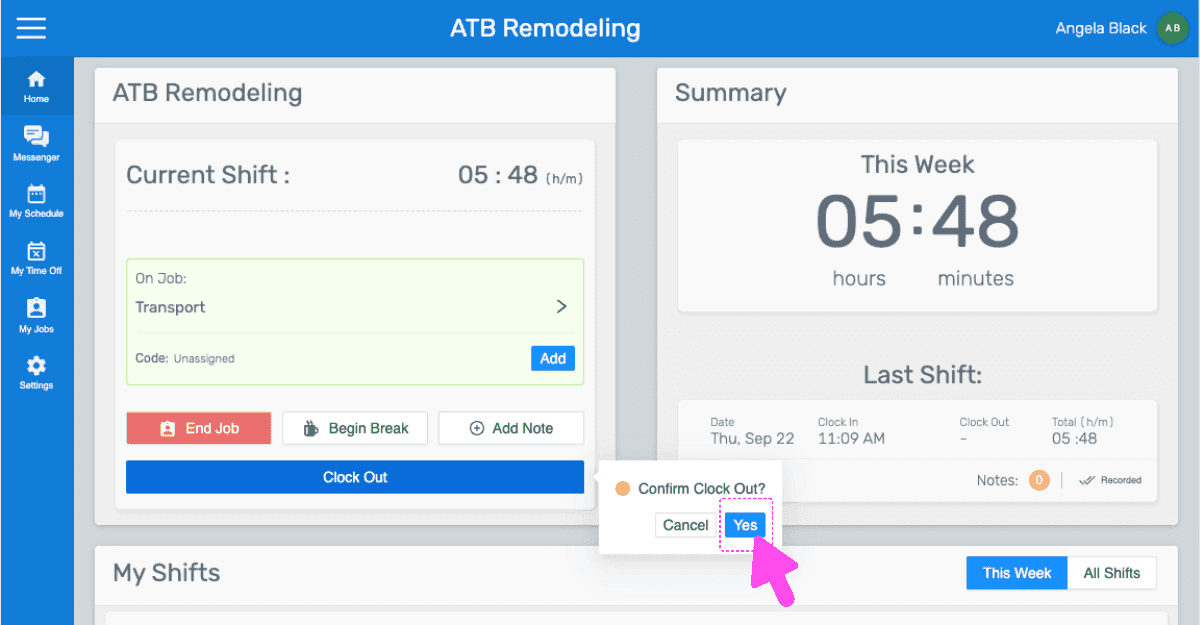
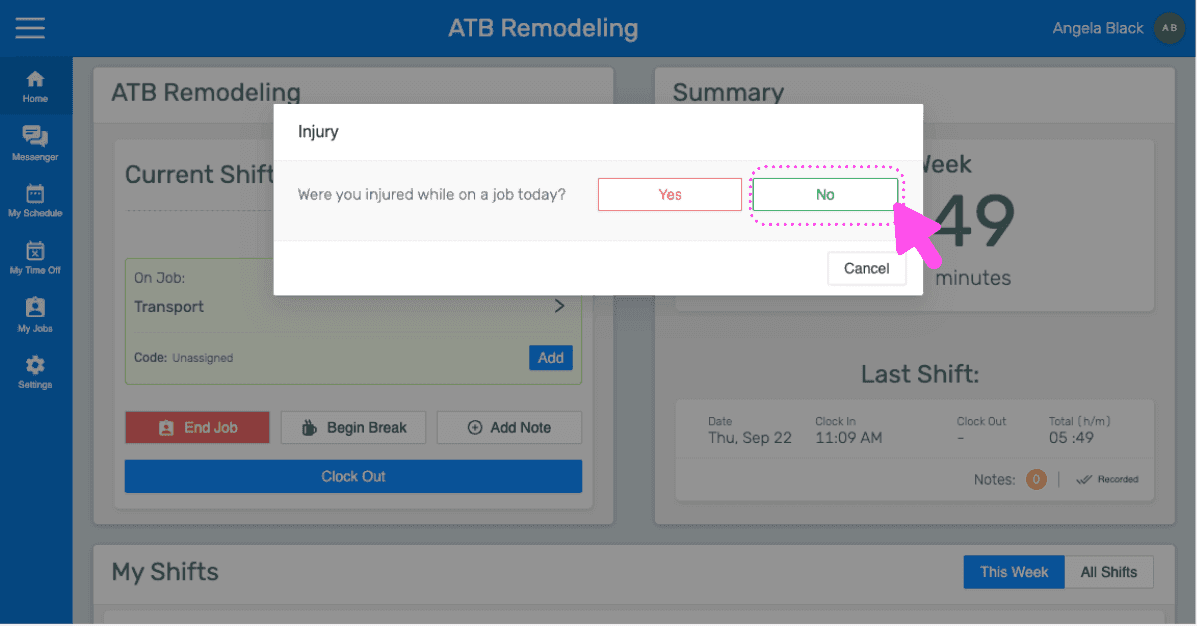
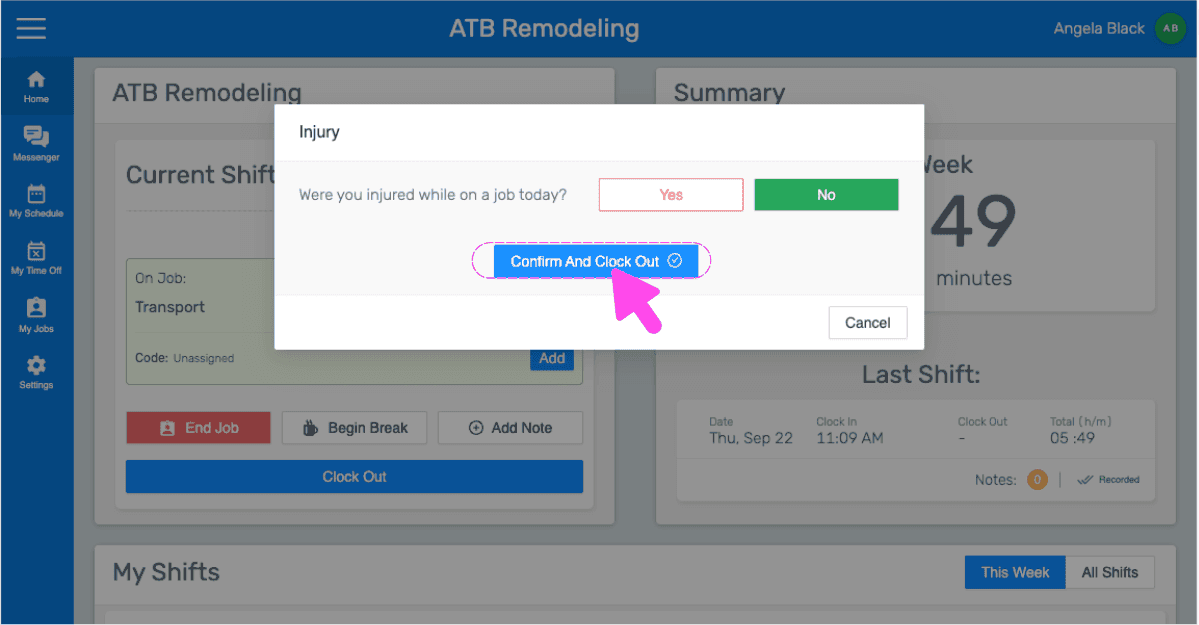
Si estás utilizando la versión web, se verá así:
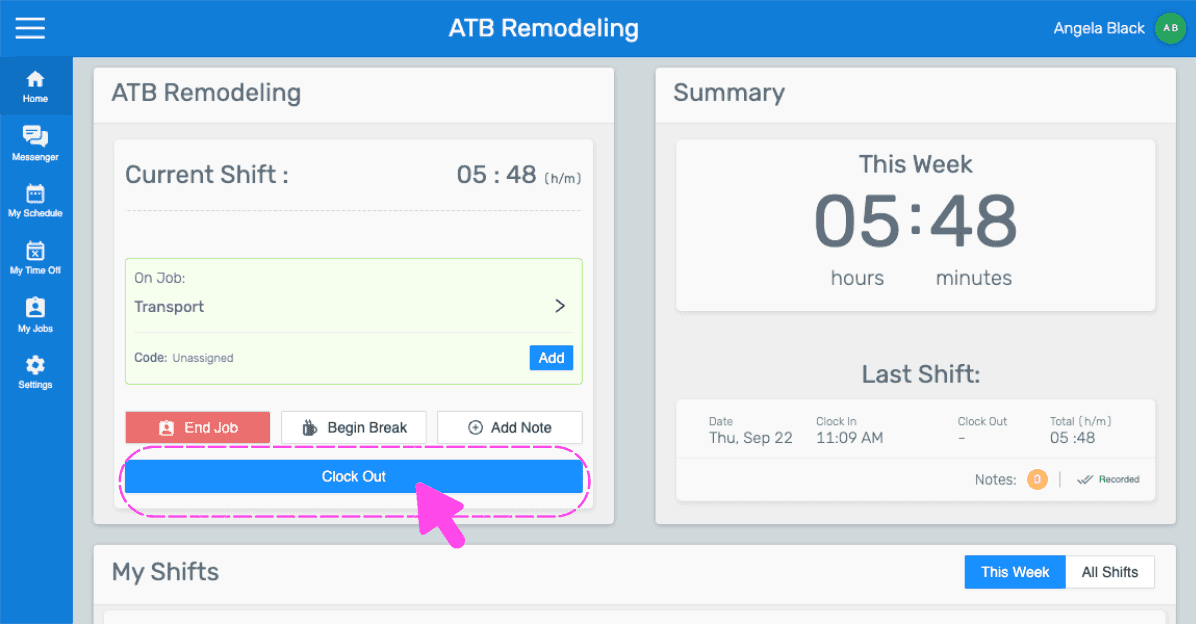
Mobile job shift screen showing hours worked with the Clock Out button outlined in pink
SINC web shift screen showing a Confirm Clock Out popup with the Yes button highlighted by a pink arrow
Mobile app injury sign-off popup asking if you were injured on the job, with the No button highlighted
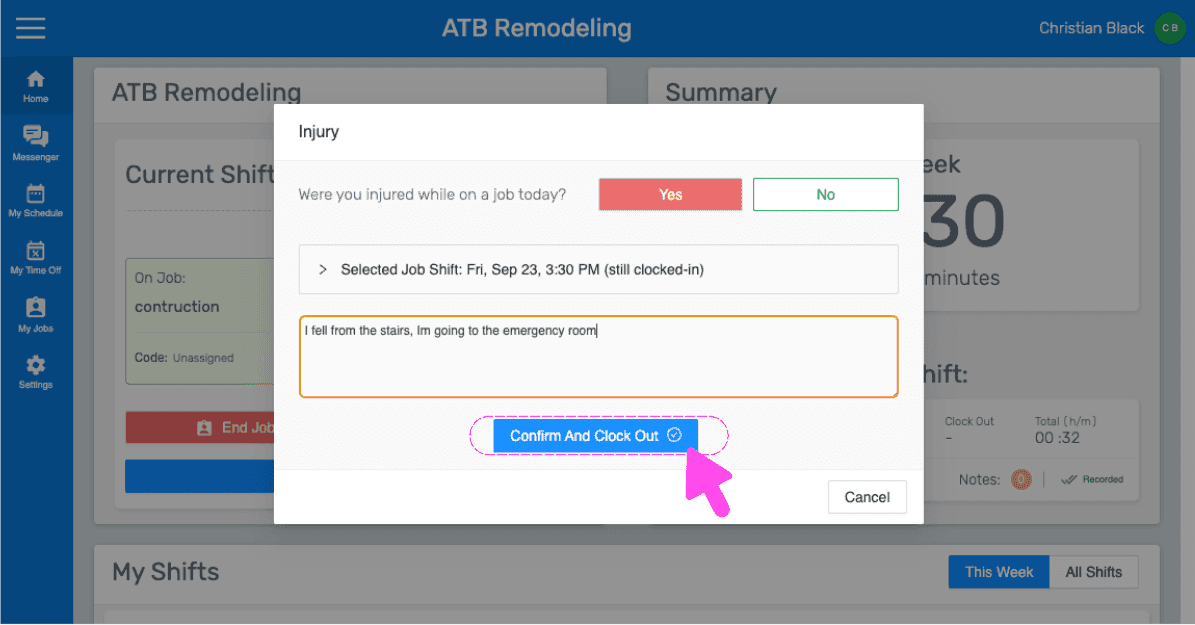
SINC web dashboard injury popup asking if the employee was injured, with Confirm And Clock Out button highlighted
SINC mobile Injury popup asking whether you were injured on a job today, with the Yes button highlighted
Injury sign-off popup asking if injured on a job today, with the job shift selection row circled in pink
SINC web Injury modal asking if the employee was injured, with the details text field highlighted
Injury popup on the web dashboard asking if the employee was injured, with a pink arrow pointing to the Confirm And Clock Out button
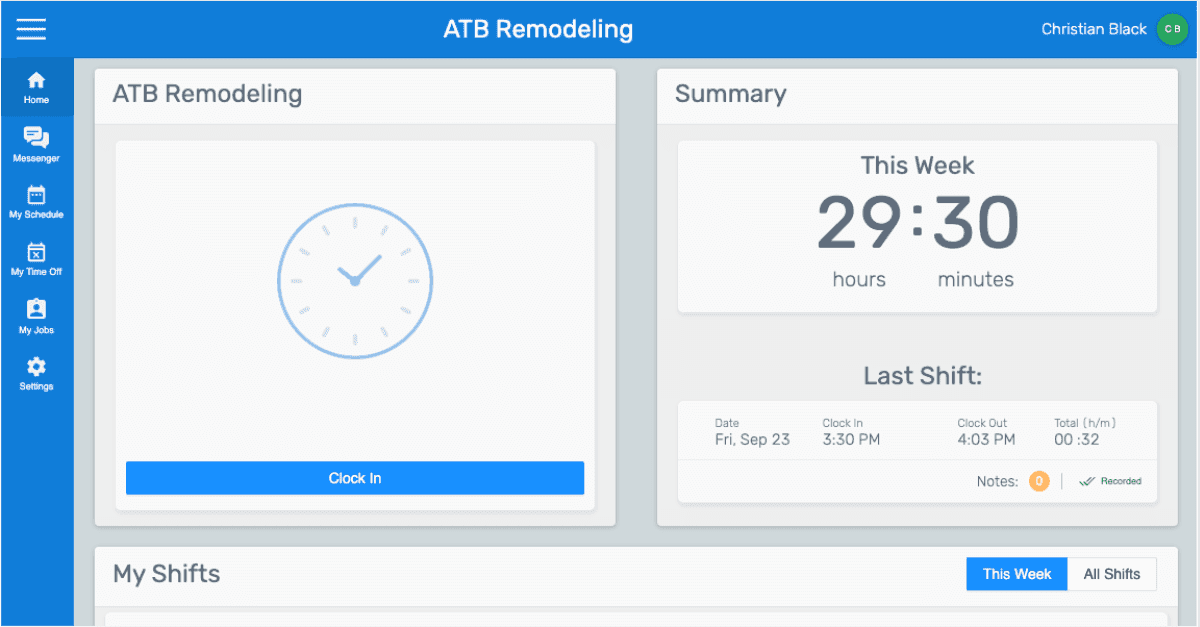
SINC web employee dashboard for ATB Remodeling showing the Clock In button and this week's hours summary

¿Esto respondió tu pregunta?