Trabajos: crear un trabajo

Veamos cómo crear un trabajo en SINC para que tu equipo pueda registrar el tiempo que le dedica.

SINC Support Team
SINC Support Team
Feb 23rd, 2023

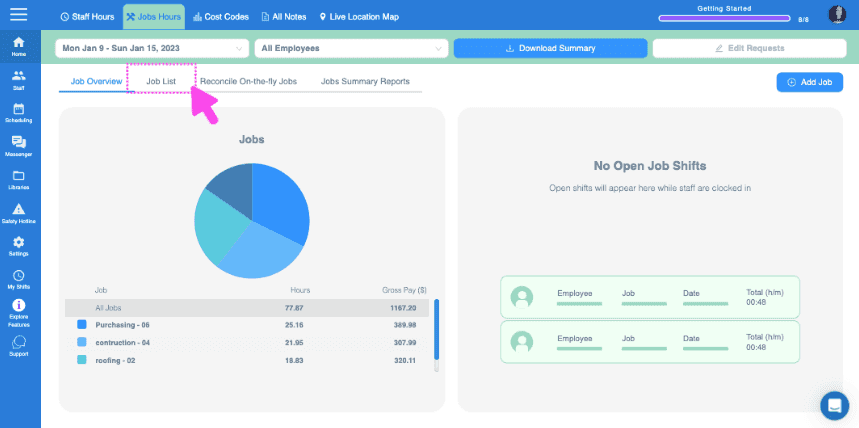
En la web: Para añadir un trabajo, solo tienes que hacer clic en Inicio Horas de trabajo
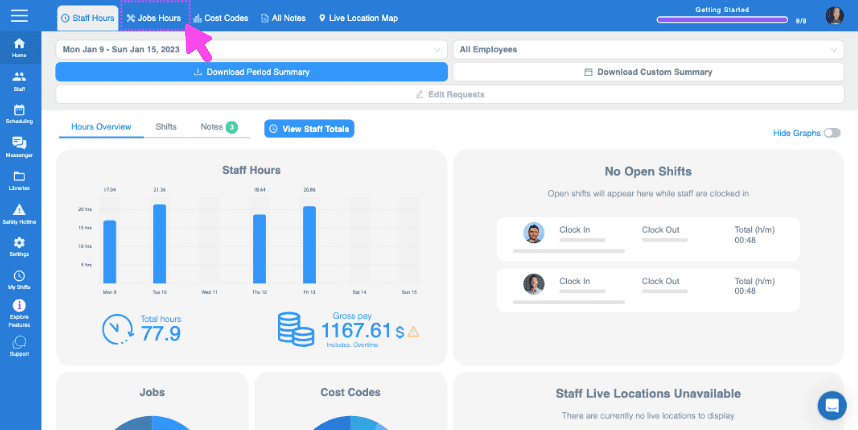
SINC web dashboard top toolbar with a pink arrow pointing to the Jobs Hours tab

Haz clic en Ofertas de empleo

Web Jobs Hours dashboard with the Job List tab highlighted in a pink box near the top

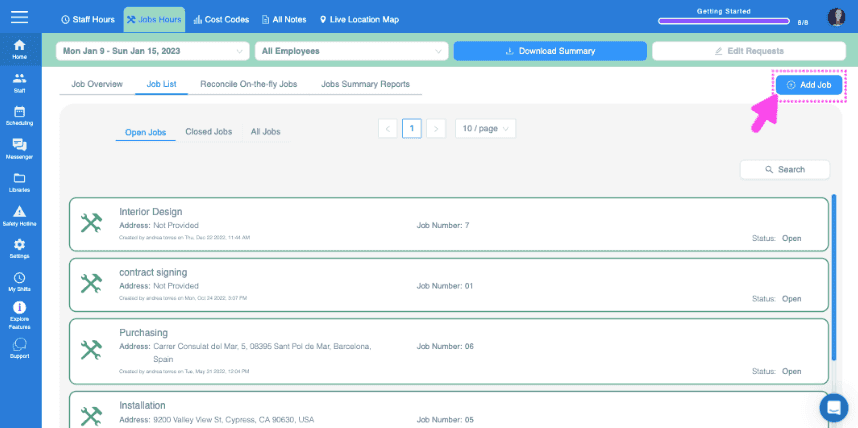
Haz clic en Añadir trabajo

SINC web Job List screen with a pink arrow pointing to the Add Job button in the top right corner

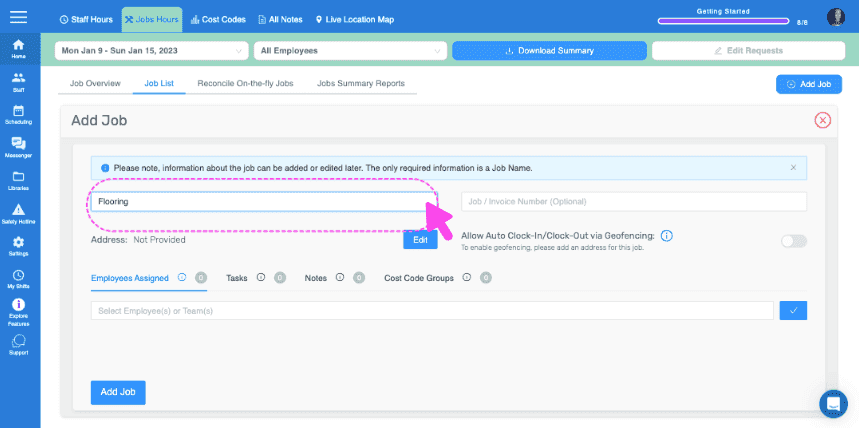
Asigna un nombre al trabajo

Add Job form with a pink arrow pointing to the Job Name field showing Flooring

Añade un número de trabajo o factura (opcional)
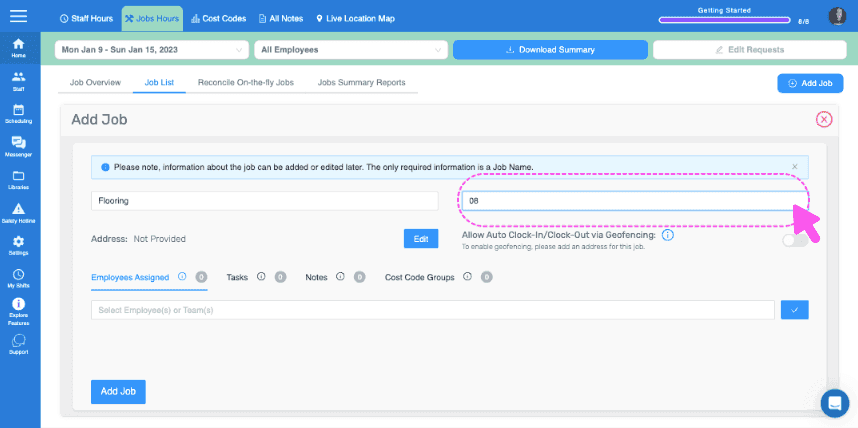
Web Add Job form with the Job Name field circled and a pink cursor pointing to it

Añade una dirección para el trabajo. Es importante si quieres utilizar la geolocalización para registrar automáticamente la entrada y salida del trabajo.
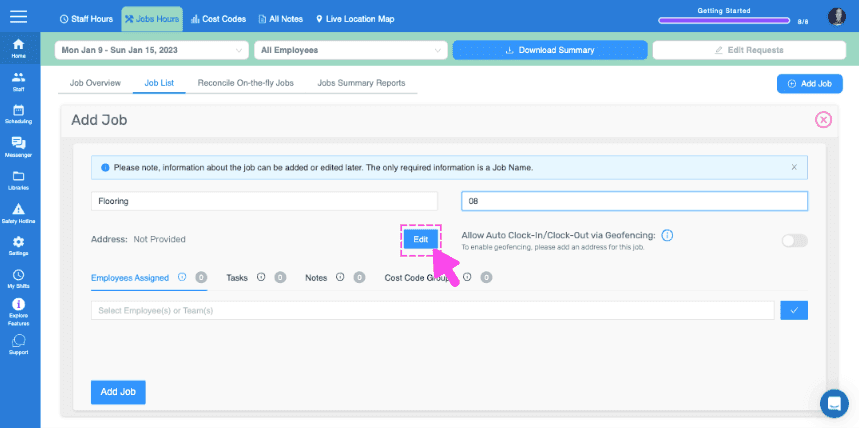
SINC web Add Job panel with a pink arrow pointing to the Edit button next to the Address field

Asignar empleados o equipos a este trabajo (requiere activar la función de asignación de empleados a trabajos)
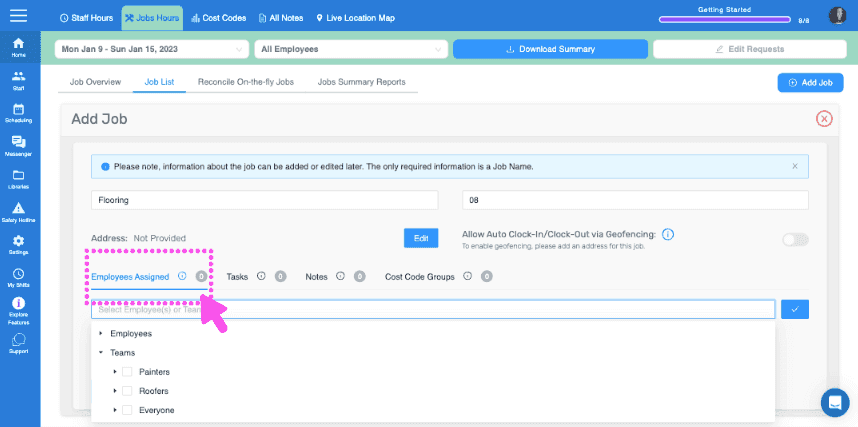
SINC web Add Job screen with the Employees Assigned section circled in pink

Añade las tareas o grupos de tareas que quieras asociar a este trabajo
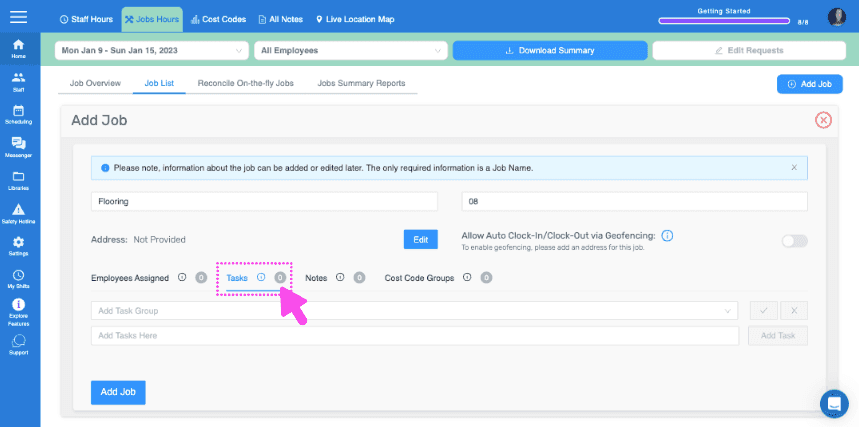
Add Job form showing Tasks and Notes fields with a pink arrow pointing to the Tasks section

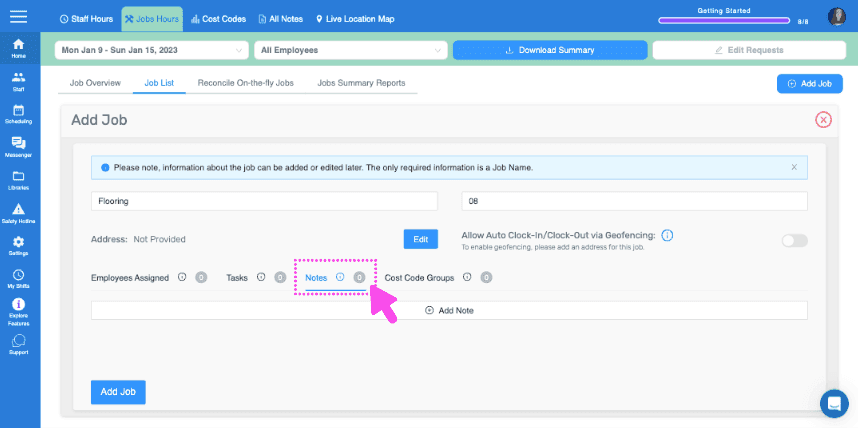
Deja cualquier nota importante

SINC web Add Job form showing the Notes field highlighted with a pink dashed box and arrow

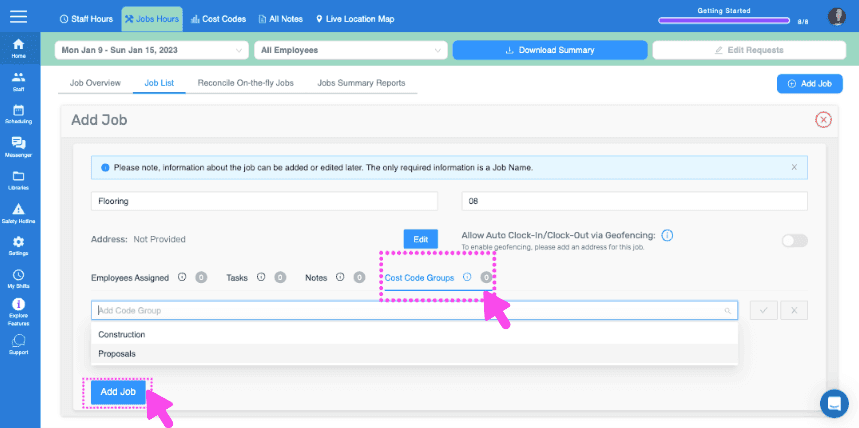
Aquí

Web dashboard Add Job form with Cost Code Groups field and Add Job button pointed out by pink arrows
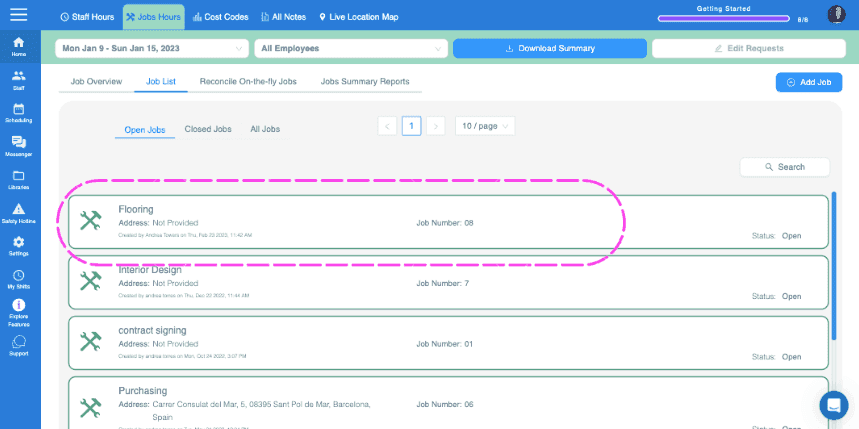
SINC web Jobs List tab showing open jobs with the Flooring job entry circled in pink

En el móvil: toca Menú Resumen Trabajos
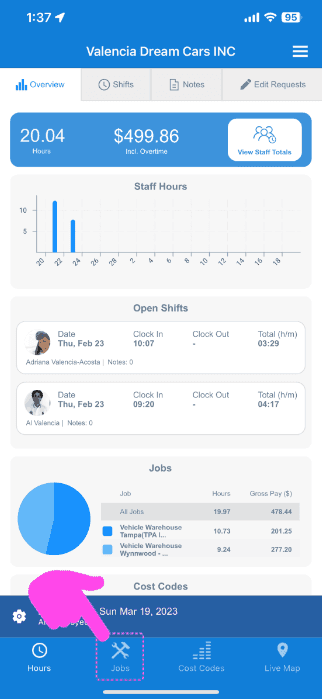
SINC mobile Overview screen with a pink arrow pointing to the Jobs icon in the bottom navigation bar

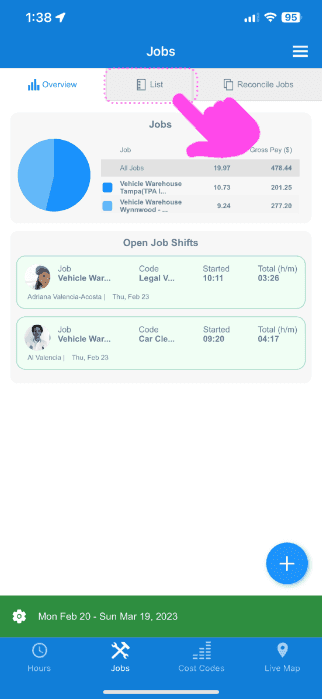
Toca Lista

Mobile Jobs screen with the List tab highlighted by a pink arrow above a job pie chart and open job shifts

Pulsa el icono + situado en la esquina inferior derecha
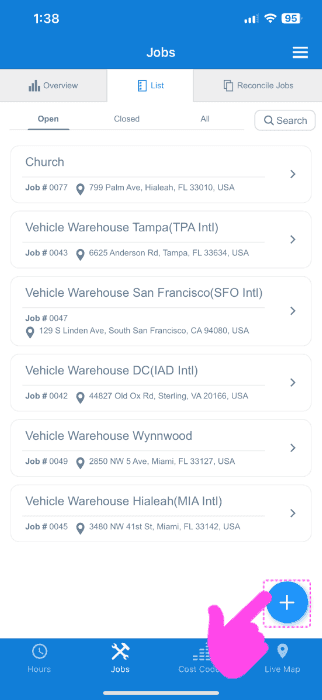
SINC web Jobs List screen with a pink arrow pointing to the blue plus icon for adding a job

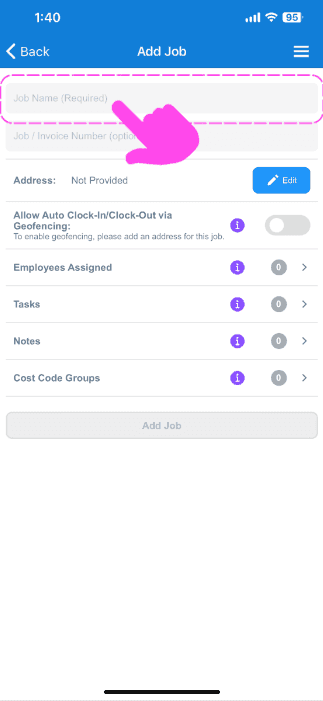
Asigna un nombre al trabajo

Add Job screen with a pink arrow pointing to the empty Job Name field at the top

Añade un número de trabajo o factura (opcional)
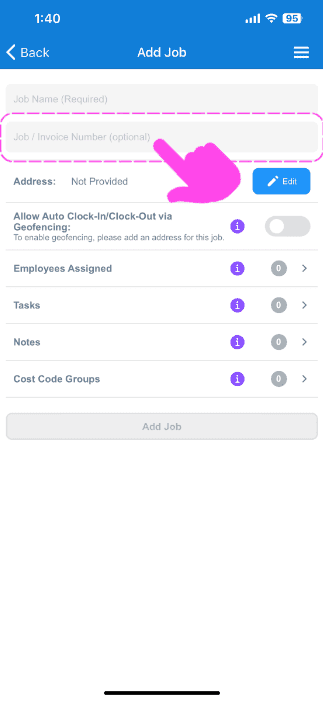
SINC mobile Add Job screen with a pink arrow highlighting the optional Job / Invoice Number field

Añade una dirección para el trabajo. Es importante si quieres utilizar la geolocalización para registrar automáticamente la entrada y salida del trabajo.
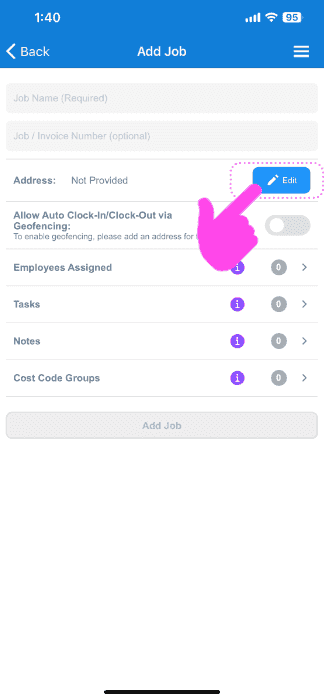
Mobile Add Job screen with the Address field's Edit button circled and a pink arrow pointing to it

Asigna empleados o equipos a este trabajo (es necesario activar la función de asignación de empleados a trabajos)
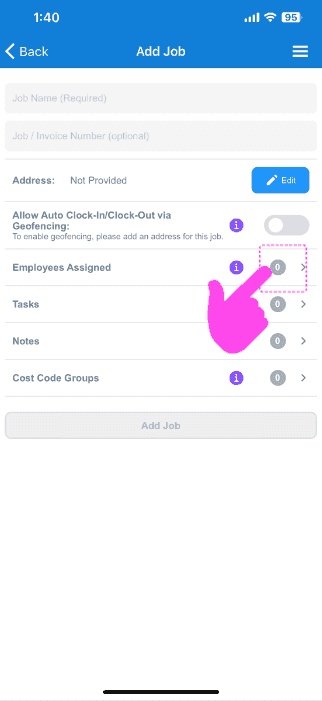
SINC mobile Add Job screen with a pink hand pointing to the Employees Assigned row

Añade las tareas o grupos de tareas que quieras asociar a este trabajo
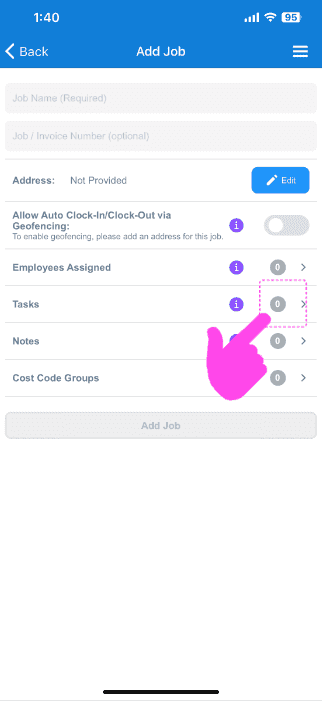
Add Job screen with a pink arrow pointing to the Tasks row in the job menu

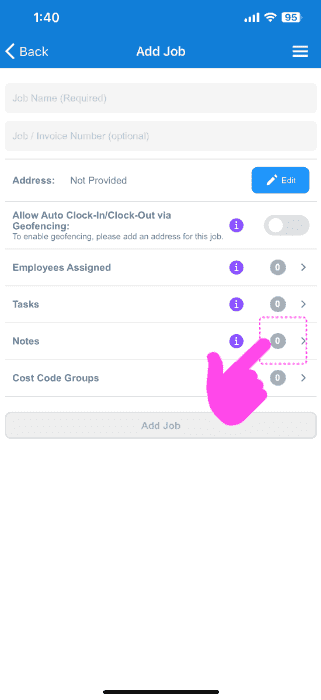
Añade cualquier nota importante.

Mobile Add Job screen with a pink arrow pointing to the Notes row

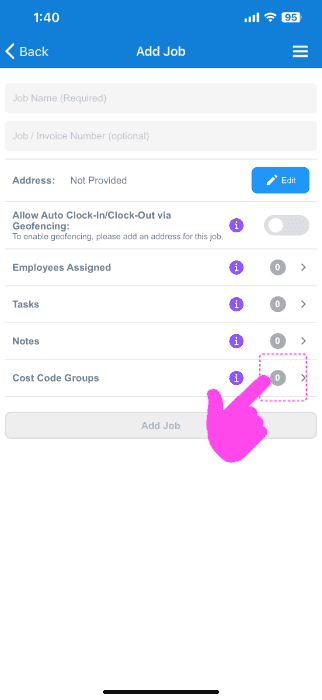
Aquí

SINC mobile Add Job screen with a pink hand pointing to the Cost Code Groups option

¿Esto respondió tu pregunta?