Trabajos: guía para empleados

Este es un recorrido por el flujo de trabajo de las tareas de un empleado.

Sam Dolbel
Sam Dolbel
Dec 15th, 2022

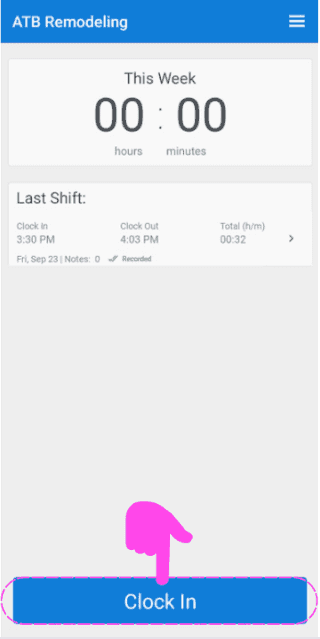
Pulsa Fichar en la entrada

SINC mobile app home screen with a pink hand icon pointing to the Clock In button

Desliza el botón hacia la derecha para confirmar el fichaje
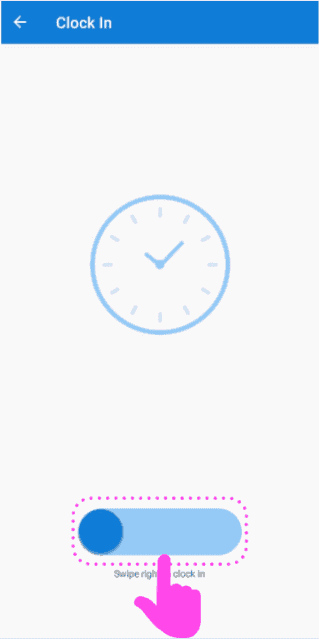
Clock In screen with a pink arrow showing how to swipe the slider right to clock in

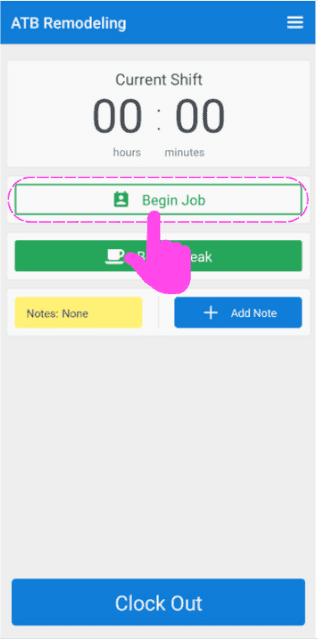
Toca Iniciar trabajo

SINC mobile Current Shift screen with the Begin Job button circled in pink

Aquí verás una lista de los puestos disponibles que puedes consultar. Selecciona el nombre correcto del puesto.
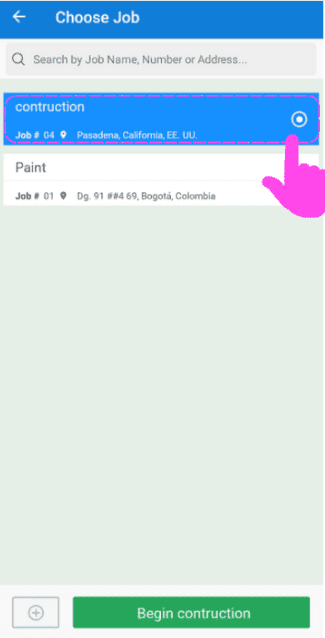
SINC mobile Choose Job screen with a pink hand pointing to a highlighted job in the searchable list

Ahora, para empezar a trabajar en un código de costos, toca Añadir (junto a Código: Sin asignar).
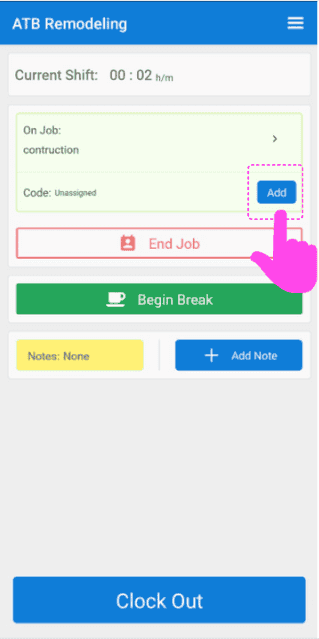
Mobile app Current Shift screen with the Add button next to the unassigned cost code highlighted by a pink arrow

Aquí verás una lista de todos los códigos de costos que el administrador ha habilitado para este trabajo. Selecciona el que corresponda.
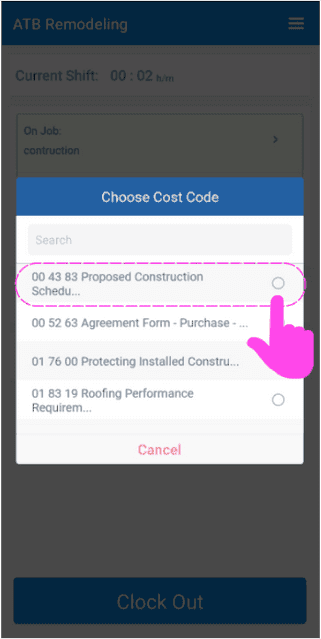
SINC mobile Choose Cost Code screen with the first cost code option highlighted in pink

Después, cuando termines de trabajar en ese código y quieras cambiar a otro, solo tienes que tocar Editar (junto a Código:)
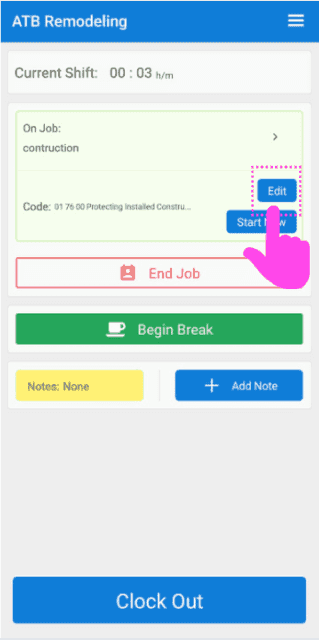
Job shift screen for ATB Remodeling with a pink hand pointing to the Edit button next to the job Code

Y selecciona el código correspondiente de la lista
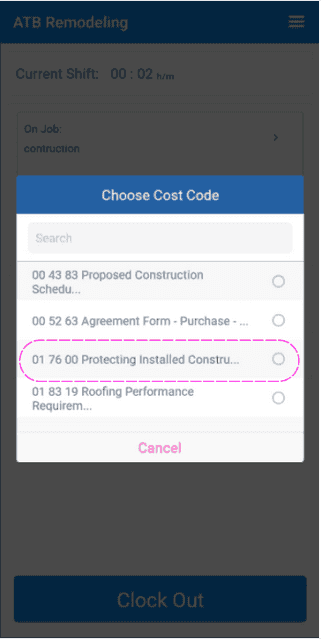
SINC mobile app Choose Cost Code list with one cost code option circled in pink

Para iniciar un descanso, toca Iniciar descanso
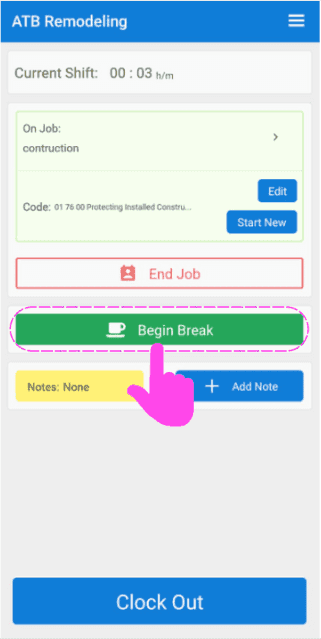
Mobile job clock-in screen with the green Begin Break button circled in pink and an arrow pointing to it

Selecciona el descanso que te corresponde según el tiempo trabajado en este turno.
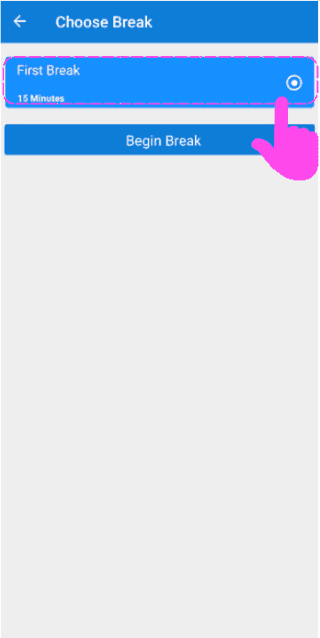
SINC mobile Choose Break screen with a pink hand pointing to the First Break option above the Begin Break button

Para finalizar el descanso, toca Finalizar descanso
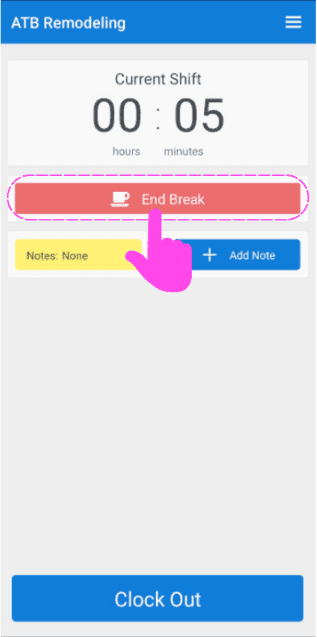
Mobile Current Shift screen during a break with a pink arrow pointing to the End Break button

Se te preguntará si quieres retomar el trabajo en el que estabas antes de tomarte el descanso o empezar otro trabajo.
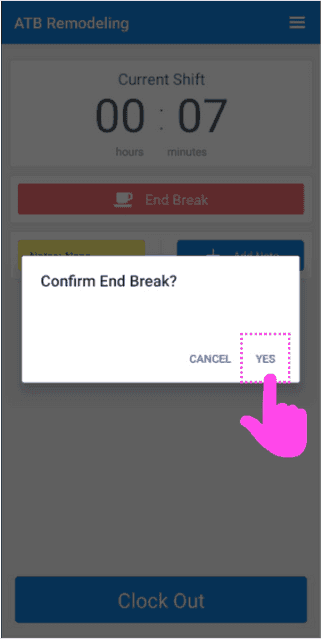
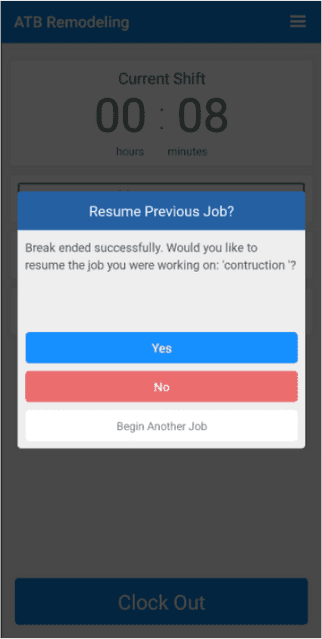
Mobile Confirm End Break popup with the Yes button circled in pink
SINC mobile app Resume Previous Job dialog with Yes, No, and Begin Another Job buttons

Para ver los detalles del trabajo, toca la flecha junto a «En trabajo».
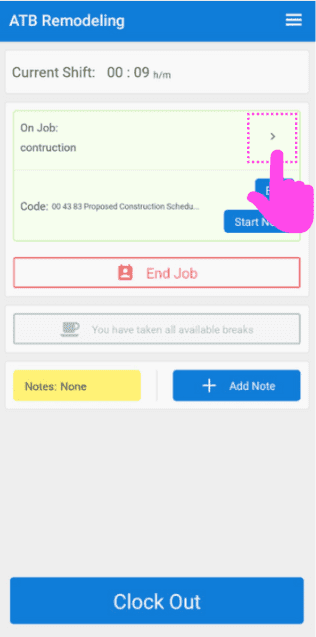
SINC mobile Current Shift screen with a pink arrow highlighting the expand arrow icon next to 'On Job'

Para obtener indicaciones rápidas para llegar a tu trabajo, toca Mapa
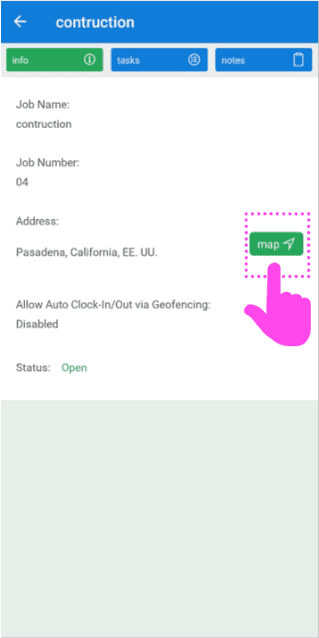
Mobile job info screen for a construction job with a pink arrow pointing to the green Map button

Para ver una lista de las tareas relacionadas con el trabajo, pulsa en Tareas
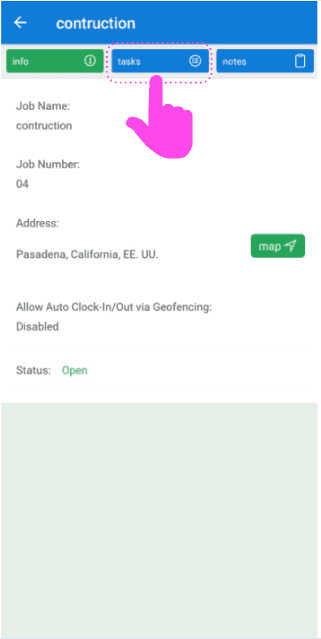
SINC mobile app job detail screen with a pink hand pointing to the Tasks tab

Aquí verás una lista de las tareas de este trabajo. Para consultar la descripción de una tarea, toca Nombre de la tarea
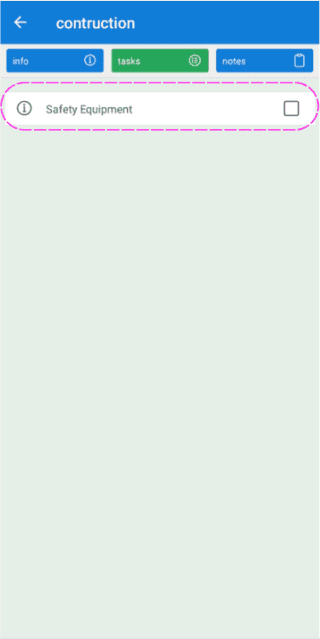
Job task list screen with the Safety Equipment task outlined in pink

Puedes marcar una tarea como completada tocando la casilla situada junto a ella.
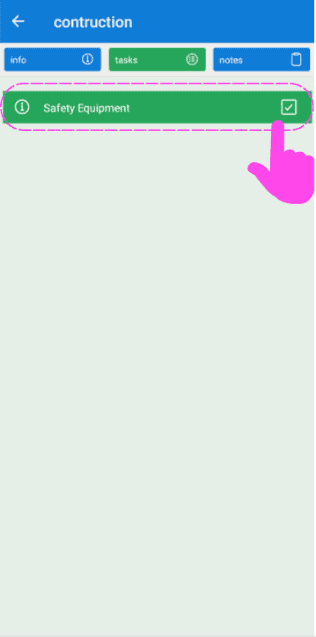
SINC mobile Job Tasks screen with the Safety Equipment task and its completion checkbox circled in pink

Para añadir una nota al trabajo, toca Notas
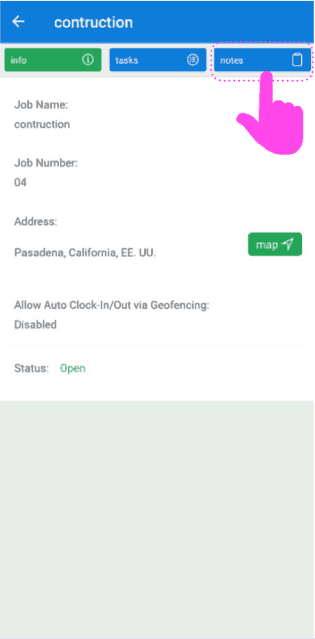
SINC mobile job detail screen with a pink arrow pointing to the Notes tab

Aquí verás una lista de todas las notas relacionadas con el trabajo. Para añadir una nueva, toca +Añadir nota
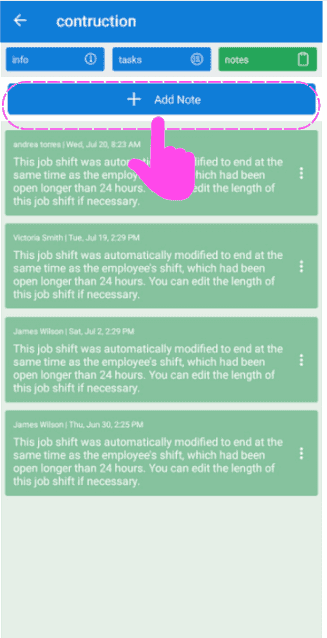
Job notes list screen with the +Add Note button outlined in pink at the top

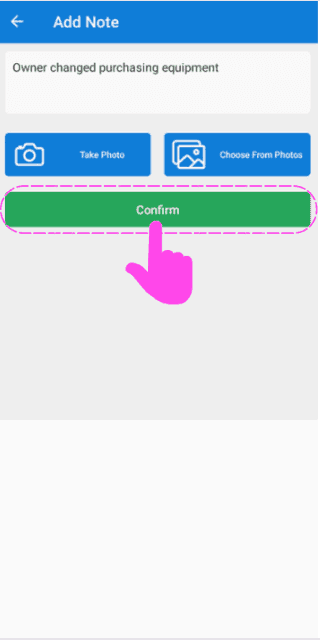
Aquí puedes introducir una descripción, hacer una foto para adjuntarla a la nota o seleccionar una imagen de la galería de fotos de tu dispositivo.
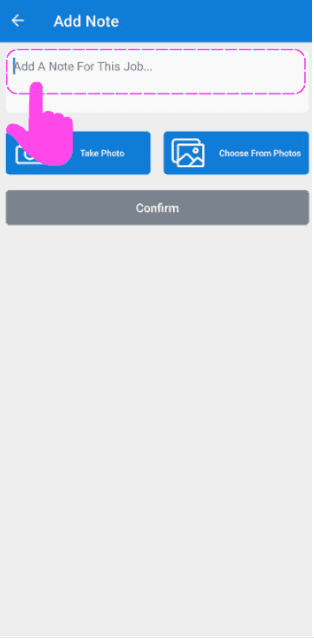
SINC mobile Add Note screen with the note text field highlighted and Take Photo and Choose From Photos buttons
Add Note screen with a typed description and a pink arrow pointing to the green Confirm button below the photo options

Cuando termines tu turno y quieras fichar la salida, pulsa Fichar salida
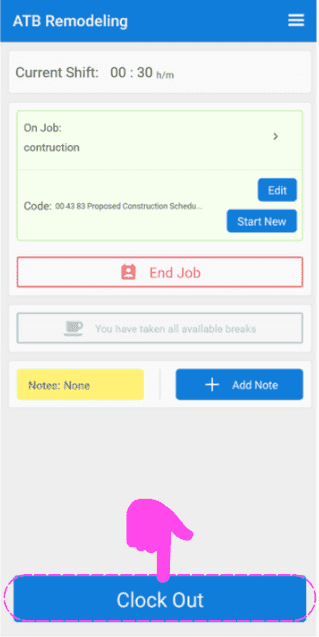
SINC mobile Current Shift screen for a job, with a pink arrow pointing to the Clock Out button

Desliza el botón hacia la derecha para confirmar tu salida.
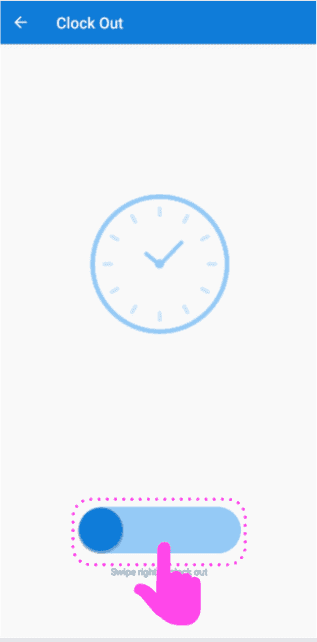
Mobile Clock Out screen with a clock icon and the slide-to-confirm button outlined in pink

¿Esto respondió tu pregunta?