
¿Cómo conectarse a MYOB?
Este artículo explica cómo autorizar a SINC a acceder a MYOB.

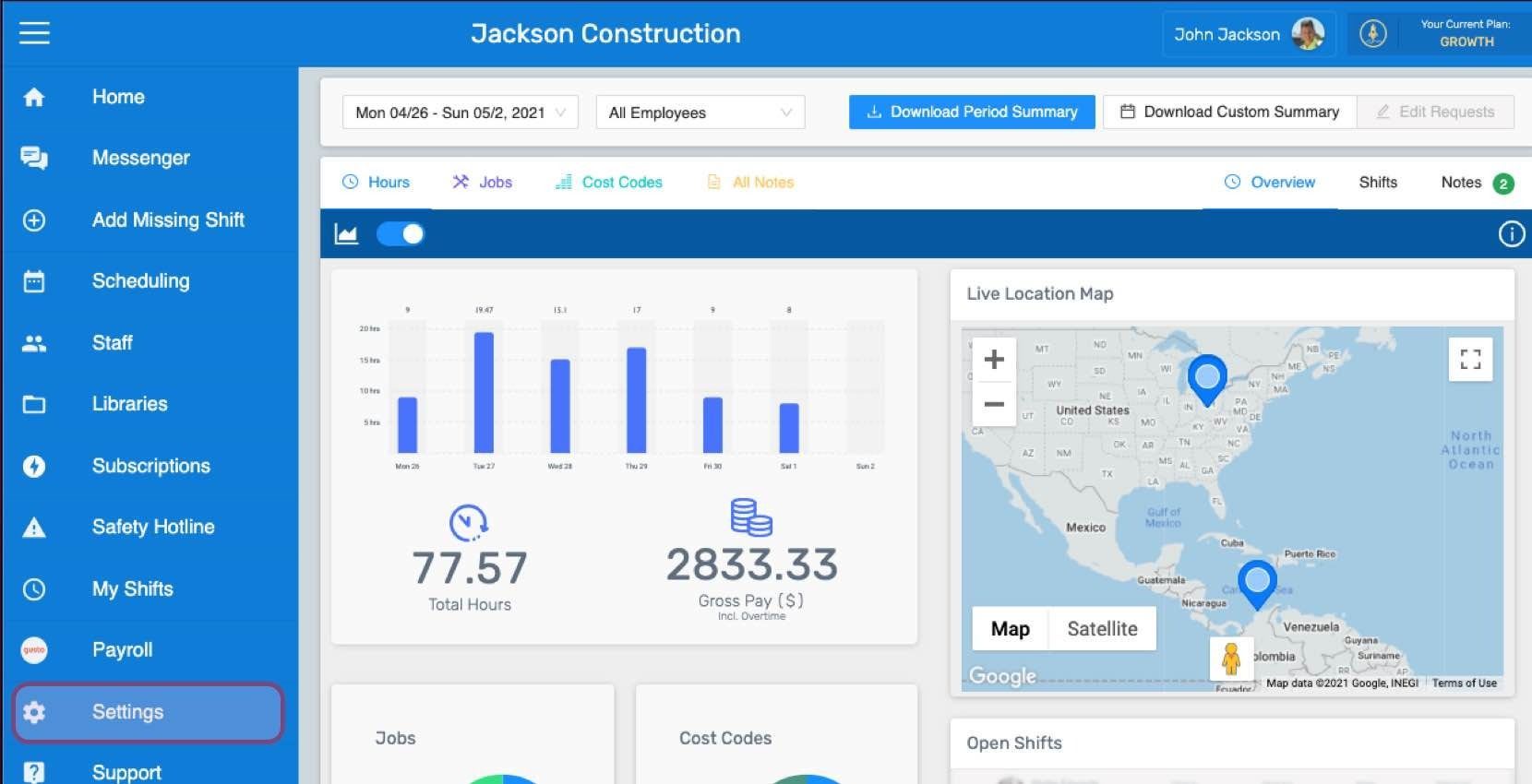
Así puedes autenticar la integración con MYOB en SINC. Inicia sesión en SINC y haz clic en el icono de engranaje del panel izquierdo para acceder a Configuración.
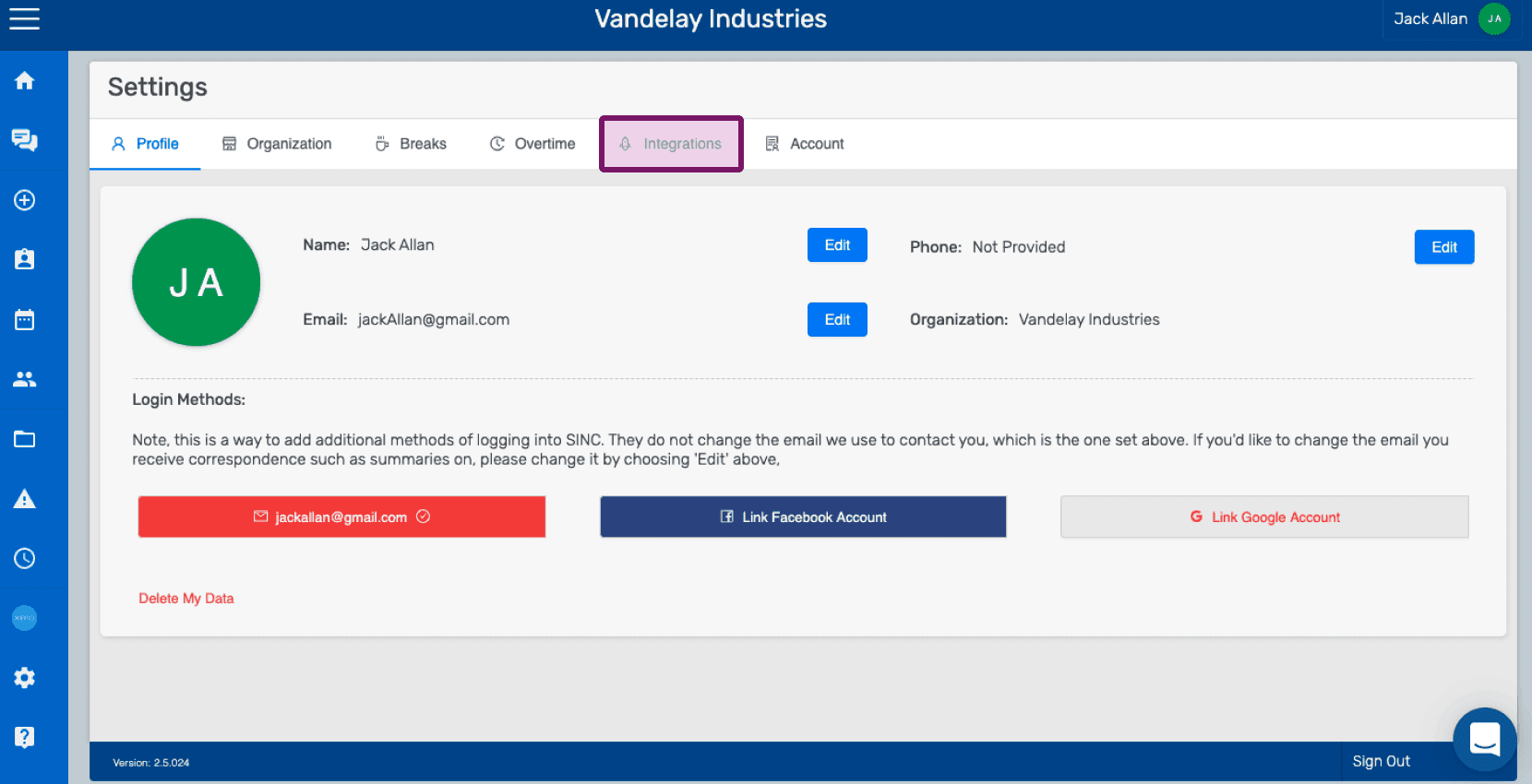
Haz clic en la pestaña Integraciones para ver la lista de aplicaciones integradas con SINC.
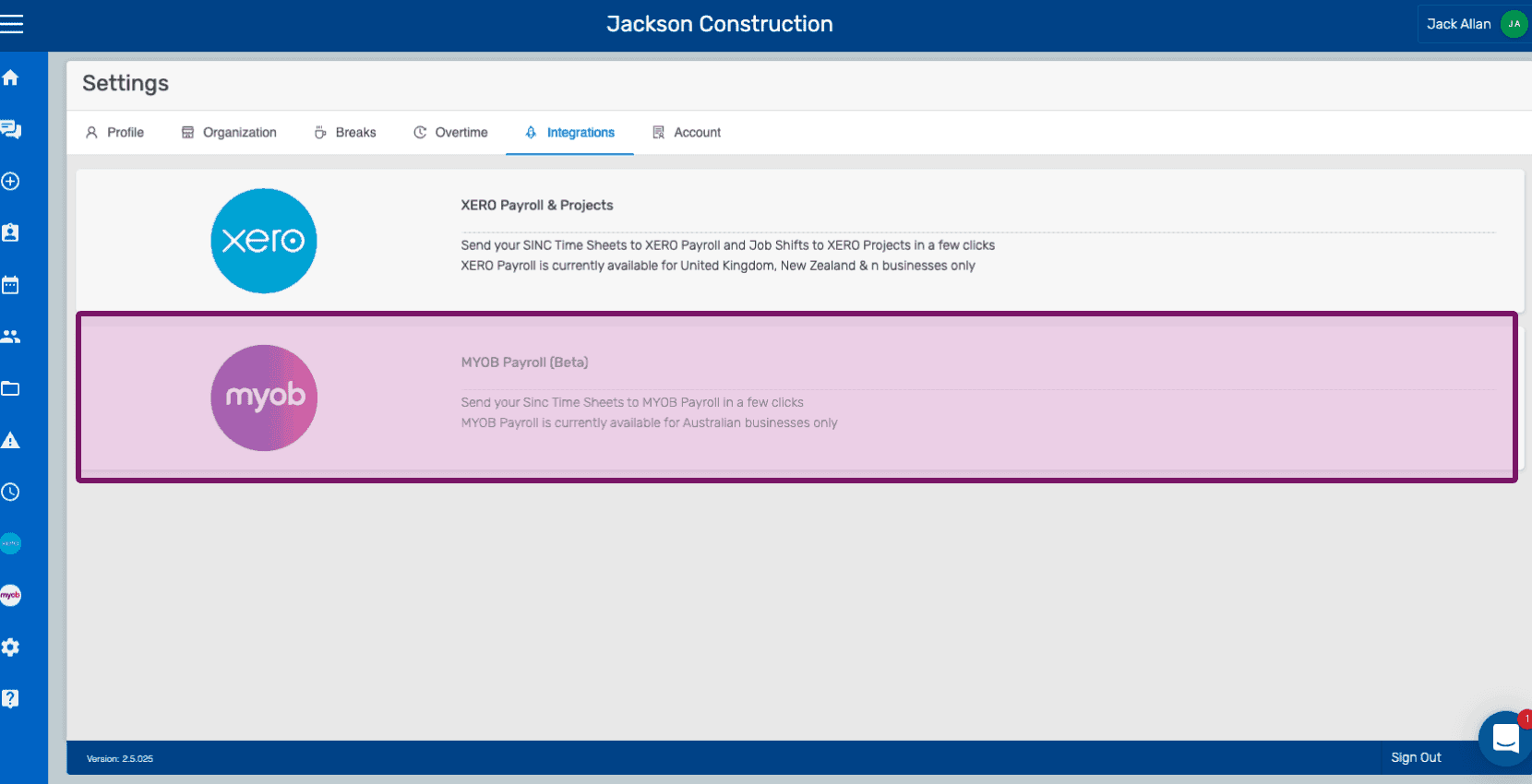
Haz clic en MYOB Payroll (Beta)
Ahora te encuentras en la pestaña de MYOB Payroll. En este punto, es fundamental cumplir los requisitos de configuración indicados en la guía MYOB Payroll: primeros pasos.
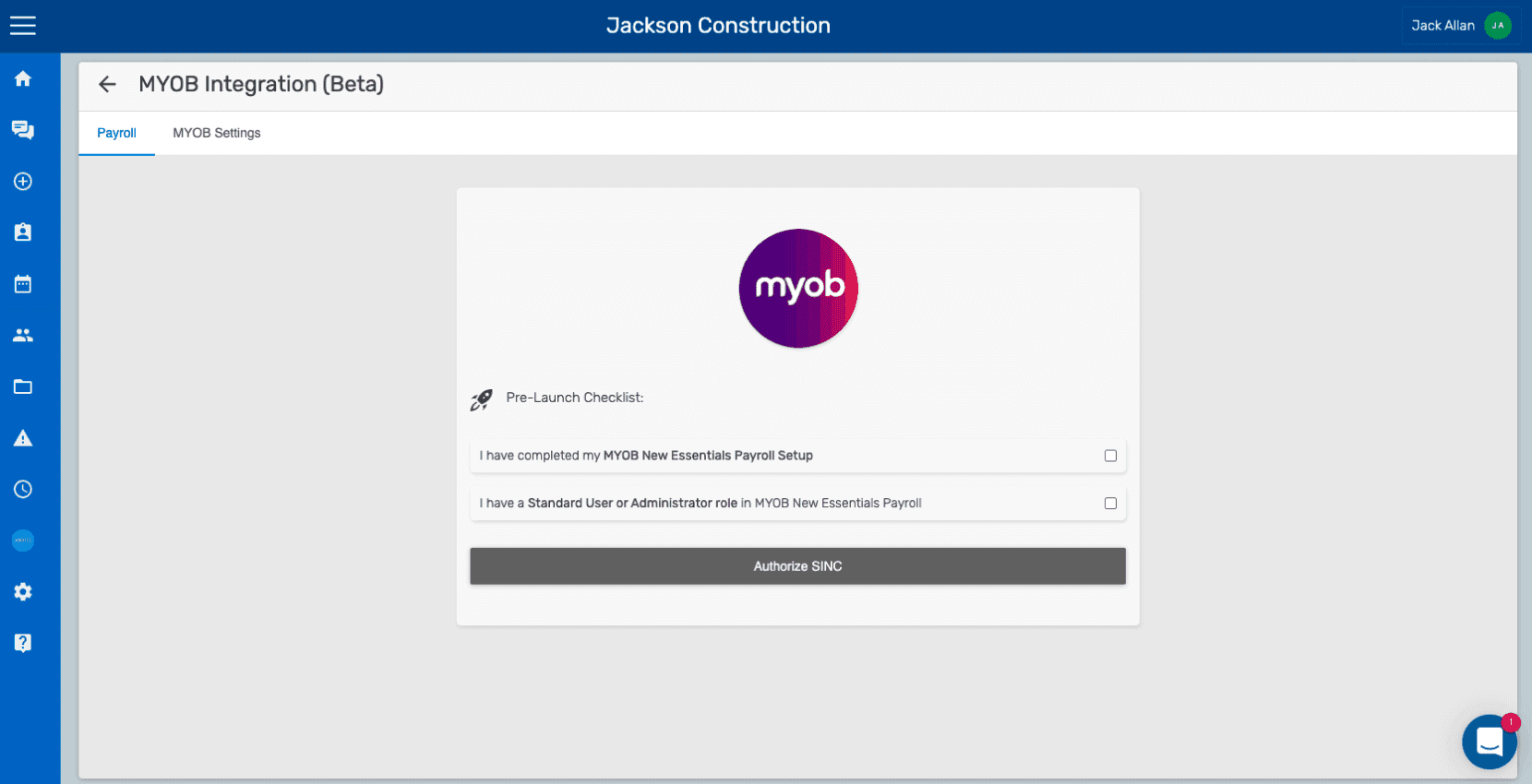
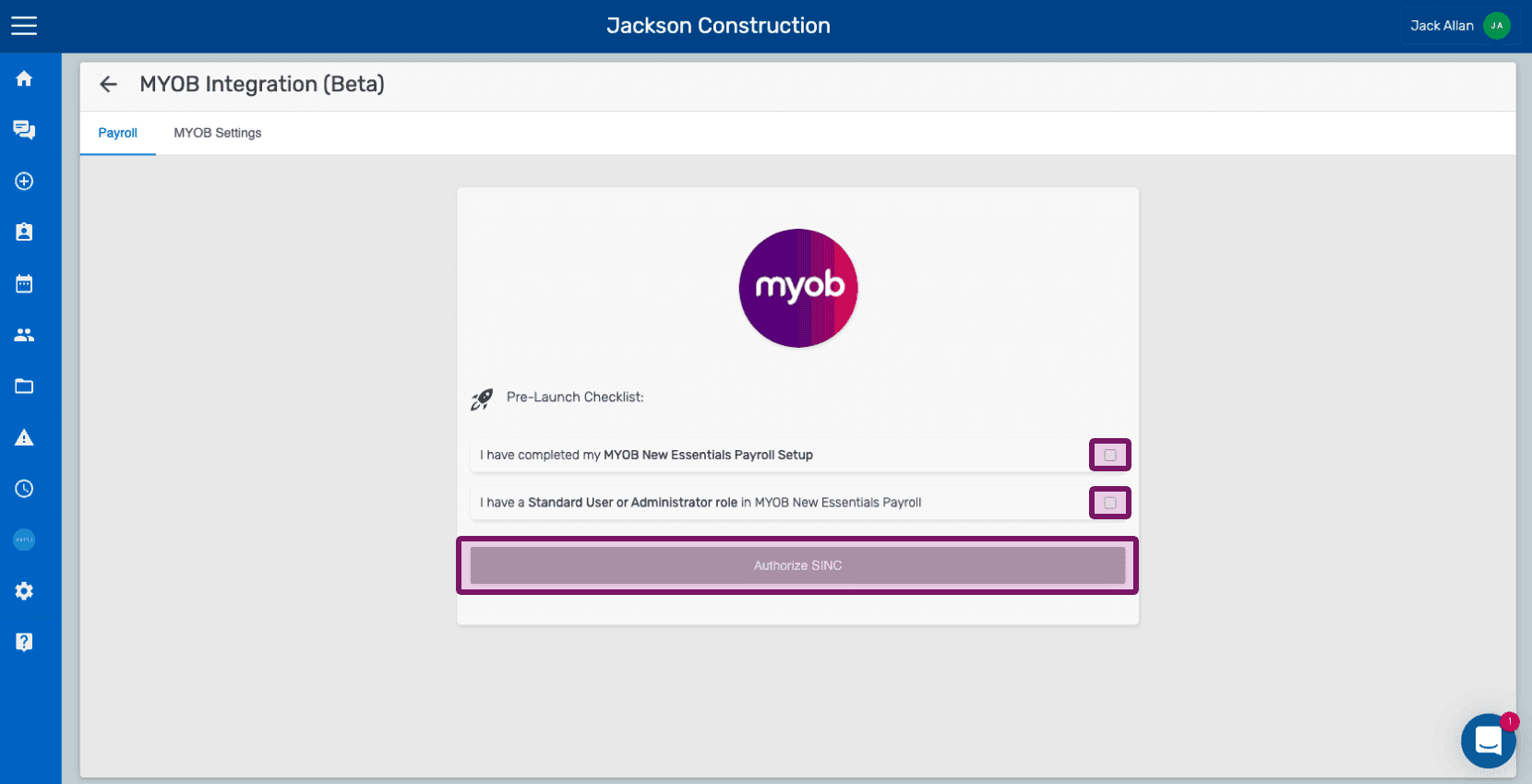
Asegúrate de cumplir los requisitos de configuración de tu organización de MYOB, marca las casillas y procede con la autorización haciendo clic en el botón Autorizar SINC.
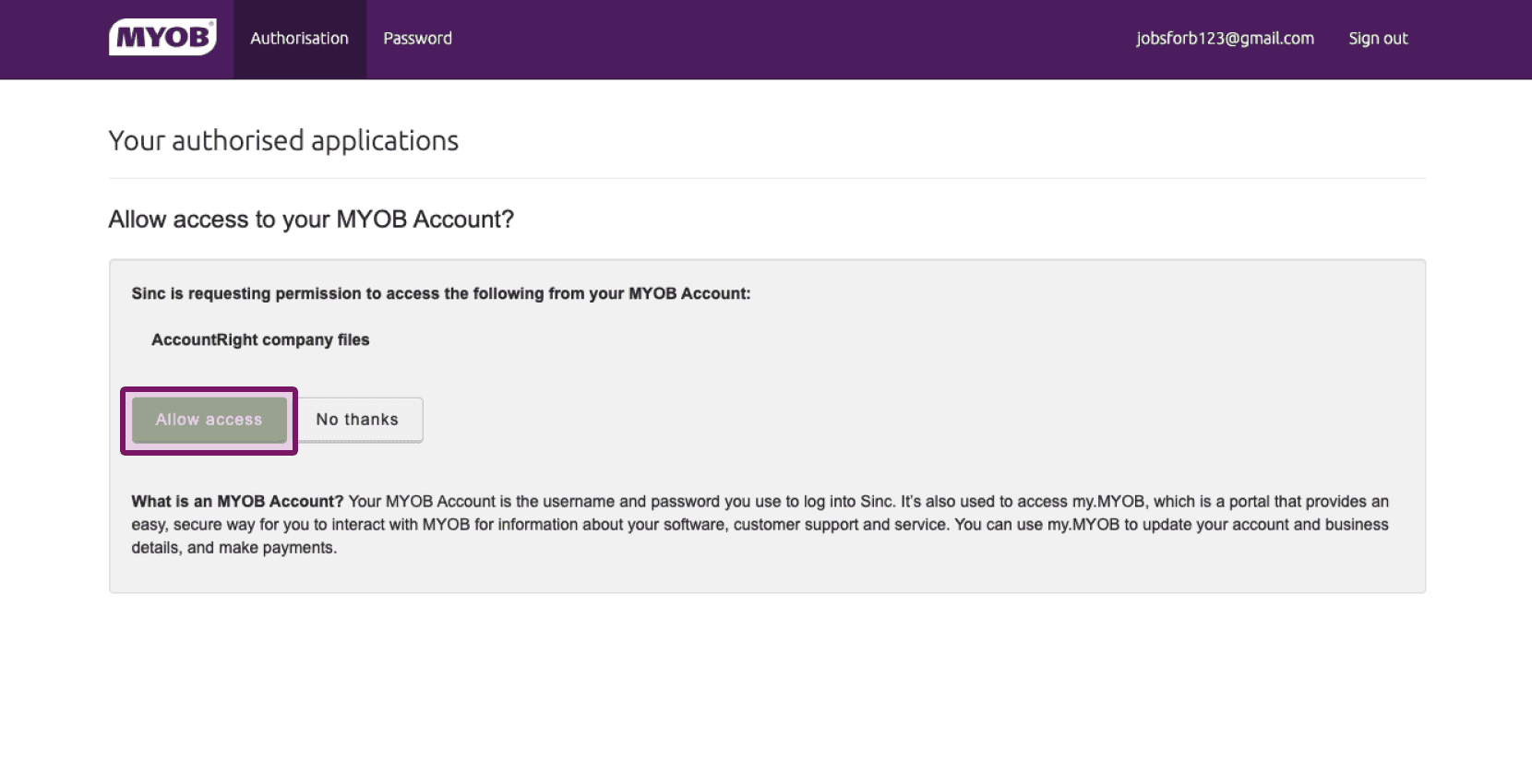
Haz clic en el botón Permitir acceso. (Si aún no has iniciado sesión en MYOB, se abrirá la pantalla de inicio de sesión de MYOB).
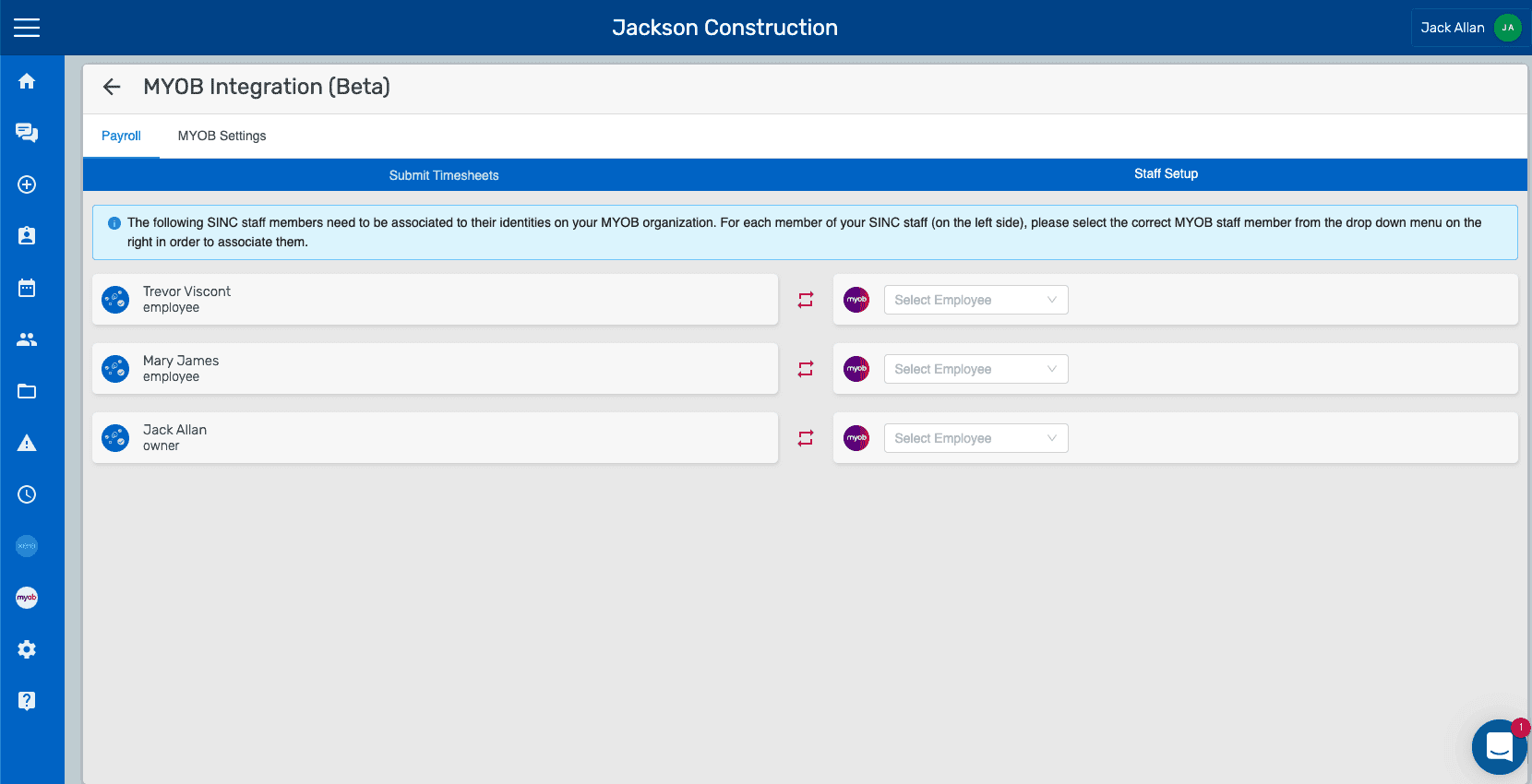
Una vez completada correctamente la autorización, se mostrará la siguiente pantalla. Ten en cuenta que tendrás que permitir que SINC acceda a los datos de la organización en MYOB para poder procesar las hojas de horas de los empleados. Si el proceso de autenticación genera algún error o falla, los mensajes de error se mostrarán en una pantalla previa a la autenticación.
¿Esto respondió tu pregunta?